SQL-Ex blog

Как эффективно управлять журналами SQL Server
В статье дается обзор журналов SQL Server для управления и устранения неполадок на сервере.
Введение
Администратор базы данных может также сконфигурировать SQL Server для выполнения дополнительных записей в журналы ошибок. Например, мы можем включить флаг трассировки для захвата информации о тупиковых ситуациях. DBA должен регулярно просматривать эти журналы в поисках потенциальных проблем. Вы можете обнаружить в журналах такую информацию, как сбой резервного копирования, ошибки входа, ошибки ввода-вывода. Эти журналы ошибок являются отличным средством для обнаружения существующих и потенциальных проблем в экземплярах SQL Server.
Журналы SQL Server известны как SQL Server Error logs. Журналы ошибок содержат информационные сообщения, предупреждения и сообщения о критичных ошибках. Вы можете просматривать некоторые из этих журналов также в просмотрщике событий Windows. Однако рекомендуется использовать журналы SQL Server для получения подробной информации.
Журналы SQL Server и их местонахождение
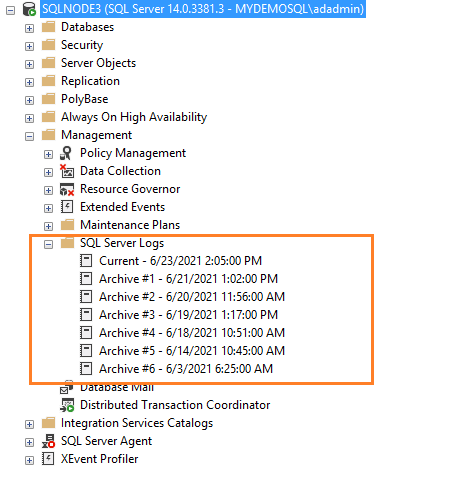
Если вы подключены к экземпляру SQL Server в SSMS, перейдите к Management -> SQL Server Logs. Как показано ниже, имеется текущий журнал и шесть архивных журналов (Archive#1 — Archive #6).
Метод 1: Использование расширенной процедуры xp_readerrorlog
Текущие журналы являются самыми последними файлами журнала ошибок, и вы можете использовать их для просмотра недавней деятельности с момента запуска SQL Server или ручного перезапуска файла журнала. Журнал ошибок SQL Server является текстовым файлом, хранящимся в каталоге журналов экземпляра SQL Server. Вы можете использовать расширенную процедуру xp_readerrorlog для нахождения текущего местоположения журнала ошибок.
- Файл журнала ошибок: значение 0 для текущего, 1 для Archive#1, 2 для Archive #2.
- Тип файла журнала: значение 0 для журнала ошибок SQL Server, 1 для агента SQL Server.
- Строка поиска 1
- Строка поиска 2
- Время от
- Время до
- Сортировка результатов — по возрастанию (N’ASC) или по убыванию (N’Desc)

Метод 2: Использование функции SERVERPROPERTY()
Мы можем использовать в запросе функцию SERVERPROPERTY, и также определить местонахождение SQL Server ERRORLOG.

Метод 3: использование менеджера конфигурации SQL Server
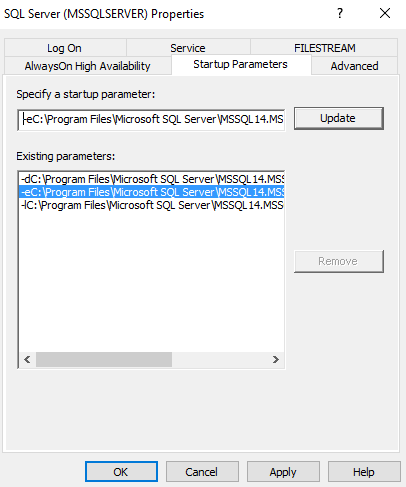
Откройте SQL Server Configuration Manager и посмотрите параметры запуска. Местоположение файлов журнала указывается с помощью переключателя -e.
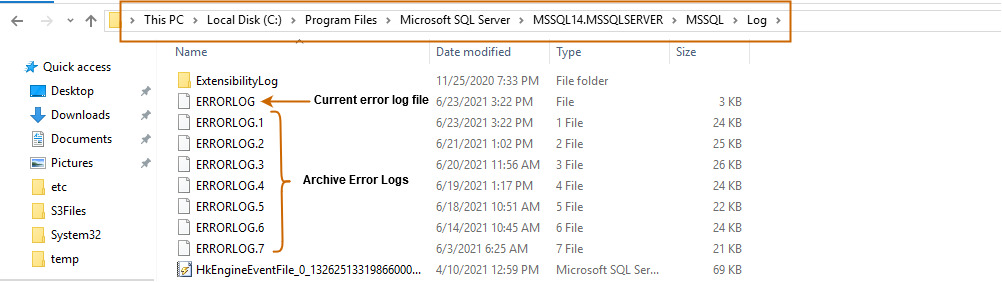
Вы можете развернуть каталог журналов и просмотреть текущий или архивные файлы журнала. Эти журналы ошибок можно открыть в текстовом редакторе, таком как Notepad или Visual Studio Code.
Конфигурирование числа файлов журнала SQL Server и их размеров
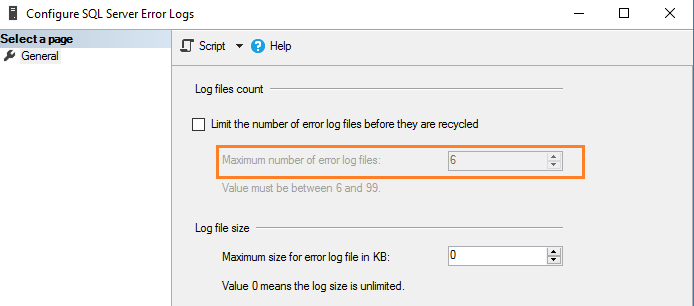
По умолчанию SQL Server поддерживает текущий и 6 архивных файлов журнала. Чтобы уточнить значение, выполните щелчок правой кнопкой на папке SQL Server Logs в SSMS и выберите Configure.
- При перезапуске службы SQL.
- При перезагрузке журнала ошибок вручную.
SQL Server позволяет сконфигурировать от 6 до 99 файлов журнала ошибок. Вы не можете указать значение меньше шести, поскольку в любом случае будет поддерживаться шесть архивных журналов ошибок.
Для изменения значения по умолчанию числа файлов журнала ошибок поставьте галочку в поле с названием “Limit the number of error log files before they are recycled”. Например, следующий скриншот показывает максимальное число файлов журнала ошибок, равное 30.
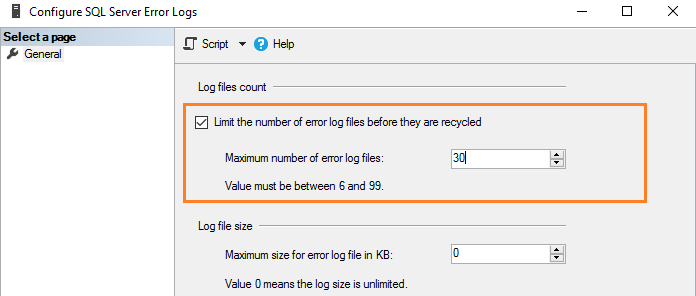
Это эквивалентно выполнению скрипта T-SQL, который использует расширенную хранимую процедуру и обновляет значение регистра.
Замечание. Следует перезапустить службу SQL, чтобы изменения вступили в силу.
Как утверждалось ранее, по умолчанию размер журнала ошибок не ограничен. Например, если вы не запускаете SQL Server в течение длительного периода и вручную не перегружаете файлы журнала, этот файл вырастет до громадных размеров. Поэтому в конфигурации журнала ошибок показано значение 0, соответствующее неограниченному размеру журнала.
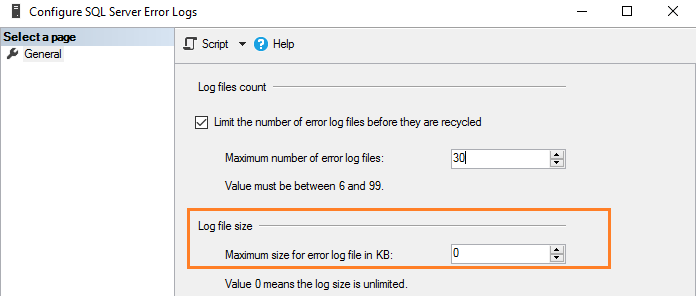
Вы можете задать размер в Кб для ограничения размера журнала ошибок в соответствии с вашими требованиями. Например, здесь мы ограничиваем размер файла журнала в 1Гб.
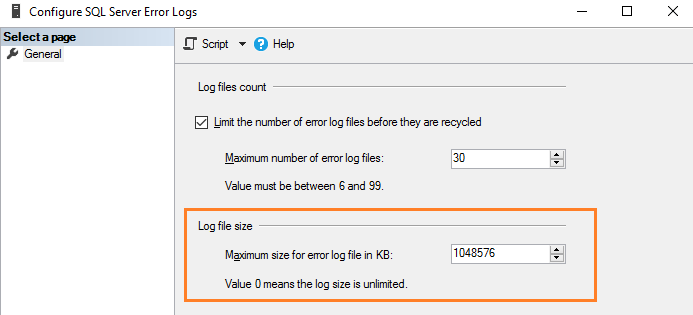
Эквивалентный скрипт T-SQL обновляет ErrorLogSizeInKb в регистре SQL Server.
Перезагрузка журналов ошибок вручную
SQL Server позволяет вручную перегружать журналы ошибок для эффективного управления ими. Например, предположим, что вы увеличили число файлов журнала ошибок до 30. Тогда мы можем создать задание для агента SQL Server, который перегружает журналы ошибок в полночь. Тем самым мы имеем файл журнала ошибок на каждый день, если SQL Server не будет перезапущен в этом промежутке. Для перезагрузки вручную выполните системную хранимую процедуру sp_cycle_errorlog. Эту процедуру может выполнить пользователь с фиксированной серверной ролью sysadmin.
Файл журнала SQL Server Agent
Агент SQL Server также имеет отдельный журнал ошибок, подобный журналам SQL Server. Вы можете обнаружить его в папке SQL Server Agent – > Error logs.
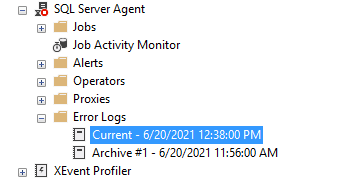
Щелкните правой кнопкой на папке Error log и выберите команду Configure. Это даст местоположение журнала ошибок агента и уровень журнала агента.
Файл журнала агента имеет расширение *.OUT и хранится в папке log при конфигурации по умолчанию. Например, в моей системе файл журнала находится здесь: C:\Program Files\Microsoft SQL Server\MSSQL14.MSSQLSERVER\MSSQL\Log\SQLAGENT.OUT.
- Предупреждения: Эти сообщения предоставляют информацию о потенциальных проблемах. Например, “Job X was deleted while it was running” (задание Х было удалено во время выполнения).
- Сообщение об ошибках: оно дает информацию, которая требует немедленного вмешательства администратора баз данных, например, невозможность почтового сеанса.
Чтобы добавить информационное сообщение, поставьте галочку в поле Information.
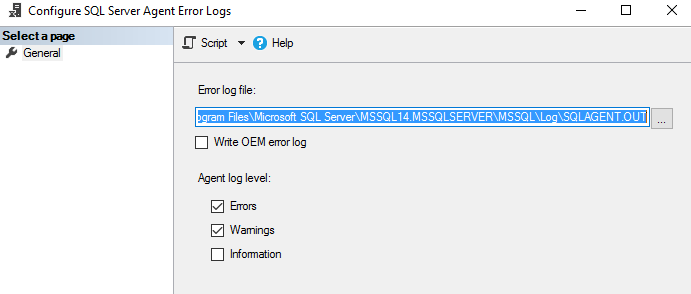
SQL Server использует до 9 файлов журнала агента SQL Server. Имя текущего файла SQLAGENT.OUT. Файл с расширением .1 указывает на первый архивный журнал ошибок агента. Аналогично расширение .9 указывает на 9-й (самый старый) архив журнала ошибок.
Файлы журнала агента SQL Server перегружаются всякий раз, когда перезапускается SQL Server Agent. Для того, чтобы сделать это вручную, выполните щелчок правой кнопкой на папке Error Logs folder и выберите Recycle.
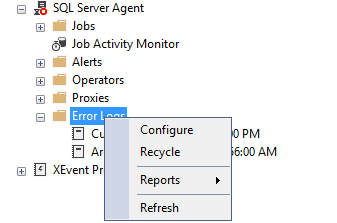
Или используйте хранимую процедуру sp_cycle_agent_errorlog для перезагрузки файлов журнала агента SQL Server вручную.
Where to see SQL Server start/stop logs?
I want to know where to see SQL Server start/stop logs for each instances and SQL Server agent/job start/stop logs? I am developing some tools to monitor SQL Server status. I am using SQL Server 2008 Enterprise.
thanks in advance, George
3 Answers 3
By default, the SQL Server error log is stored in the Program Files\Microsoft SQL Server\MSSQL\Log directory. The most current error log file is called ERRORLOG. If you stop and re-start SQL Server, the old log will be archived and a new one will be created. In addition, you can re-cycle the error log by executing the DBCC ERRORLOG command or the sp_cycle_errorlog system procedure.
There are some undocumented but well know system procedures to read the errorlog from SQL itself:
- exec xp_enumerrorlogs 1 will list SQL Engine errorlog file numbers
- exec xp_readerrorlog <errorlognumber>, 1 will return the content of the requested Engine errorlog file.
- exec xp_enumerrorlogs 2 will list the Agent error log file numbers
- exec xp_readerrorlog <errorlognumber>, 2 will return the content of the requested Agent error log file.
These are the procedures invoked by Management Studio to show the Engine and Agent logs.
Как посмотреть логи sql сервера
MS SQL Server Log Files
This is basic but important information. This might ask you in interview questions.
There are 5 log types:
· SQL Server Error Log
· Windows Event Log
· SQL Server Agent Log
· SQL Server Profiler Log
· SQL Server Setup Log
SQL Server Setup Log: “Summary.txt” will show you the component failure details. so that you can investigate the root causes.
SQL Server Profiler: capture SQL server current database activity and writing in the file for later analysis. “.trc” file extension. path: %ProgramFiles%\Microsoft SQL Server\MSSQL.1\MSSQL\LOG\ directory
SQL Server Agent: maintains a group of log files with warning and error messages concerning the jobs it’s run, written to the %ProgramFiles%\Microsoft SQL Server\MSSQL.1\MSSQL\LOG directory. SQL Server can maintain up to 9 SQL Server Agent error log files. the present log file is called SQLAGENT.OUT, whereas archived files are numbered consecutively. you’ll view SQL Server Agent logs by victimization SQL Server Management Studio (SSMS). Expand a server node, expand Management, click SQL Server Logs, and choose the checkbox for SQL Server Agent.
Windows Event Log: An important source of data for troubleshooting SQL Server errors, the Windows Event log contains 3 helpful logs. the application log records events in SQL Server and SQL Server Agent and may be used by SQL Server integration services (SSIS) packages. the security log records authentication information, and also the system log records service startup and conclusion data. to look Windows Event log, go to body Tools, Event Viewer.
SQL Server Error Log: SQL Server retains backups of the previous six logs, naming every archived log file consecutive. the present error log file is named ERRORLOG. to look at the error log, that is found within the %Program-Files%\Microsoft SQL Server\MSSQL.2MSSQL\LOG\ERRORLOG\ directory, open SSMS, expand a server node, expand Management, and click on SQL Server Logs.
Microsoft is releasing consistently the latest versions in the markets. Version wise installation path will change.
Whenever we are going to install/uninstall any installed SQL instances from SQL servers, then SQL service is making Log File on the server.
Making Log file format: (YYYYMMMDD_hhmmsss)20200503_081819
I tested on SQL server 2014 version.
Default Log file path: C:\Program Files\Microsoft SQL Server\120\Setup Bootstrap\Log\
Ingenious Guide to View Log File of SQL Server

Microsoft SQL Server application is one of the biggest waves in the relational database management system and handles huge databases in a well-structured manner. However, when it comes to viewing SQL Server log files, some users face trouble. We are sure that you must be aware of how good the MS SQL Server database is for both beginners as well as expert users.
Nowadays, Ex-employees or hackers intentionally modifies the values of databases in order to damage the organization assets. And it becomes difficult to analyze or examine who is the culprit manually. As a result, the Organizations run into big trouble.
In SQL Server, there is a transaction Log file that keep records of all transactions & modifications in database executed on a database in a Microsoft SQL Server. By reading the Log file, one can easily check who deleted data from table in SQL Server database. Plus, it is used by forensic investigator to examine SQL Server Transaction Log and view & check every log detail in a detailed manner. In short, with SQL Log file, it becomes easy to find out which query performed on which table at what time.
Here, we are going to answer how to view log file of SQL Server by using various workarounds. Just go through this article once and understand how to open or read transaction log file in Microsoft SQL Server 2017 / 2016 / 2014 / 2012 / 2008 / 2008 R2 / 2005.
Moreover, if user want to restore the deleted query from a log file, then they can go through this blog – How to Recover Data from Log file in SQL Server – A Complete Guide .
Now, first of all, users need to find out the location of the log files. Then only they can proceed with a desired solution. So, to understand where your log files are, simply follow the below steps:
- OpenSSMS & Connect to SQL Instance .
- Go to Management >> SQL Server Logs .
- Now, View the Log & Archive Logs simply.

Methods Use For How to View Transaction Log File of SQL Server
In the following section, you will understand how to open, check and read transaction file to retrieve information about the data which had been altered. Before we move on towards the solution, let’s look at the ways to find the location of SQL logs easily. So, let’s get started!!
As users saw the location of the log files, let’s move ahead. From the start of SQL Server or manual log file recycling, users can use these logs to view recent activities.
1st Method – xp_readerrorlog() function
Users can use the extended xp_readerrorlog process to find the current location of the log file.
Now, we have some predefined guidelines for this procedure as mentioned below:
- End-time
- from time
- Search string1
- Search string 2
- Sort results – Ascending (N’ASC) or descending (N’Desc)
- Error log file: value 0 for the current, 1 for Archive#1, 2 for Archive #2
- Logfile type: Value 0 for SQL Server error log, 1 for SQL Server Agent log
Just as an example: The log file location is C:\Program Files\Microsoft SQL Server\MSSQL14.MSSQLSERVER\MSSQL\Log\ERRORLOG. Now users can see these files easily.

2nd Method – SERVERPROPERTY() function
Search the SERVERPROPERTY query to find the location of your SQL Server Log files.

Workarounds to Read SQL Log File
- Check SQL Server Logs Using SSMS
- View SQL Transaction Log File Via. Fn_dblog()
- Use SQL Log Analyzer to examine SQL Server Log file
#Approach 1: Use Log File Viewer in SQL Server Management Studio
Basically, this method exclusively used to open and view the information about following logs in SSMS:
- Audit Collection
- Database Mail
- Job History
- Data Collection
- SQL Server
- SQL Server Agent
- Windows Events
Its prime function of Log File Viewer is to provide the report of activities taken place in SQL Server Management Studio. In fact, one can open the Log File Viewer wizard in different ways on the basis of information that you want to check. Now, go through the instructions to view log details in SQL Server.
How to View Log File of SQL Server Via. Log File Viewer
Step-1. Open Microsoft SQL Server Management Studio application. Here, we are using SQL Server 2014 environment for reading SQL Server Error Log.
Step-2. Connect to Server windows pops-up. Here, you need to select the Server Name and Type of Authentication. Afterward, click on Connect.
Step-3. In Object Explorer, go to Management as shown in the screenshot to examine or read log file of SQL Server 2014.
Step-4. Now, move to SQL Server Logs option.
Step-5. Now, Right-click on SQL Server Logs and select View >> SQL Server Log sequentially.
Step-6. All the Log summary displayed on Log File Viewer window. Here, you can select other logs such as SQL Server Agent , Database Mail from the left panel to check its information too.
#Approach 2: View Log File of SQL Server Via. Undocumented fn_dblog()
Originally, the function fn_dblog() is used to extract data from Transaction file of SQL Server for forensic purposes to analyze every log event performed on the table. So, let’s check out how to read transaction log file in Microsoft SQL Server 2017 / 2016 / 2014 / 2012 / 2008 / 2008 R2 / 2005 editions.
Steps to View Log File in SQL Server Using Fn_dblog()
Step 1: We have a table named as ‘Employee’. So, first view the values of the table using the following T-SQL.
Select * from employee.
Step 2: Afterward, alter the table data using update command. For this, execute the query;
Update employee set department =’IT’ where emp_name = ‘jeevan’
Step 3: Again, view the table values using the Select Query. Now, you can see a modified table.
Step 4: Run the fn_dblog function according to the need. Here, we execute the query to check out the time when update operation was executed.
Select [Begin Time], [Transaction Name] from fn_dblog(null , null) where [Transaction Name] = ‘Update’
Step 5: In a situation, when you want to analyze all the logs such as Delete etc. , then run the following T-SQL query.
Select [Begin Time], [Transaction Name] from fn_dblog(null, null)
However, there are some consequences attached with fn_dblog(). Actually, this function only provide the time of the query when it was committed instead of which data entry gets affected. Due to which, it becomes cumbersome to find out which table data get altered.
This problem is overcome with the third technique where user can view the log file of SQL Server without any hassle. Apart from this, both the described technique can run in SQL Server Management Studio only. You cannot read a Transaction Log File in offline environment with Log File Viewer and Fn_dblog().
#Approach 3: Use Smart Solution to Analyze Transaction File Easily
To get exact information from SQL Log File, take the help of SysTools SQL Log Reader Software. With the help of this software, user can scan and analyze T-log file in human readable format. However, the tool works in Online as well as Offline environment. User can get the information like Transaction , Login Name , Time , Table Name , Query . It is a best software solution that answers the question – how to read SQL Server Transaction Log file.
Related : How to Fix Log File Corruption – Step-By-Step Guide
In fact, after viewing the log file of SQL Server, user can export the query in Live SQL Server database environment , SQL Compatible Scripts , and in CSV format. Moreover , the software can read Transaction log file of every SQL Server edition.
Conclusion
That’s all about how to View Log file of SQL Server. Now, go through the above-mentioned methods and opt for the best that is suitable for you and examine the SQL Server Transaction Log file without any hassles at all. Make sure that you are confident while executing the manual method or simply go for the automated solution.
Frequently Asked Questions
Try SQL Log Analyzer tool to easily scan and read the Transaction .ldf file records.
Use Fn_dblog() function to read the details of transaction in SQL Server.
With the help of SQL Log Viewer, one can read .ldf file and view Transaction, Transaction time, Table name and Query of Microsoft SQL Server 2017, 2016, 2014, 2012, 2008 and SQL Server 2005
Yes, with the help of mentioned workaround, one can easily examine SQL LDF file.
Exclusive Offers & Deals, Grab it Now!
By Chirag Arora
Having around 9+ years of experience in technical writing. Knows about the core technical areas. Also, provides easy and reliable solutions to resolve difficulties faced by users while working with different platforms.

Subscribe to our newsletter to get the latest offers

SysTools Software Pvt. Ltd.
528, City Centre, Sector-12, Dwarka, New Delhi — 110075, India
Call Us
USA: +1 888 900 4529
UK: +44 800 088 5522
See All Offices
Delhi Office
SysTools Software Pvt. Ltd.
528, City Centre, Sector-12, Dwarka, New Delhi — 110075, India
Pune Office
SysTools Software Pvt. Ltd.
502 — P4, Pentagon, Magarpatta Cyber City, Pune — 411028, India
Mumbai Office
SysTools Software Pvt. Ltd.
Techno IT park (Near Eskay Resorts & Times Square Restaurant, Link Road, Borivali West Mumbai — 400091, India
Banglore Office
SysTools Software Pvt. Ltd.
Queens Road, Bangalore, India
© Copyright 2007-2023 by SysTools.
SysTools ® is a Registered Trademark of SysTools Software Pvt. Ltd.
Your Choices Regarding Cookies on this Site
Cookies are important to the proper functioning of a site. To improve your experience, we use cookies to remember log-in details and provide secure log-in, collect statistics to optimize site functionality, and deliver content tailored to your interests. Click Agree and Proceed to accept cookies and go directly to the site or click on More Information to see detailed descriptions of the types of cookies and choose whether to accept certain cookies while on the site.