Entering setup что делать

При запуске компьютера всегда производится проверка на различные программные и аппаратные неполадки, в частности, с BIOS. И если таковые будут обнаружены, то пользователь получит сообщение на экране компьютера или услышит звуковой сигнал.
Значение ошибки «Please enter setup to recover BIOS setting»
Когда вместо загрузки ОС на экране отображается логотип производителя BIOS или материнской платы с текстом «Please enter setup to recover BIOS setting», то это может значить, что произошли какие-то программные неполадке при запуске БИОС. Такое сообщение говорит о том, что компьютер не может загрузиться с текущей конфигурацией BIOS.
Причин этому может быть много, но самыми основными являются следующие:
- Проблемы с совместимостью некоторых устройств. В основном, если такое случается, то пользователь получает несколько другое сообщение, но если установка и запуск несовместимого элемента вызвали программный сбой в BIOS, то пользователь вполне может увидеть предупреждение «Please enter setup to recover BIOS setting».
- Разрядка батарейки CMOS. На старых материнских платах часто можно встретить такую батарейку. В ней хранятся все настройки конфигураций BIOS, что позволяет избежать их потерю при отключении компьютера от сети. Однако если батарейка разрядилась, то они сбрасываются, что может повлечь за собой невозможность нормальной загрузки ПК.
- Неверные настройки BIOS, выставленные пользователем. Самый распространённый вариант развития событий.
- Неправильное замыкание контактов. На некоторых материнских платах есть специальные CMOS-контакты, которые нужно замкнуть для сброса настроек, но если вы их замкнули неправильно или забыли вернуть в исходное положение, то скорее всего вместо запуска ОС вы увидите такое сообщение.
Исправление проблемы
Процесс возвращения компьютера в рабочее состояние может выглядеть немного по-разному в зависимости от ситуации, но так как чаще всего причиной подобной ошибки является некорректная настройка BIOS, всё можно решить простым сбросом настроек до заводского состояния.
Если же проблема связана с аппаратной частью, то рекомендуется воспользоваться следующими советами:
- Когда есть подозрения на то, что ПК не запускается из-за несовместимости определённых компонентов, то демонтируйте проблемный элемент. Как правило, проблемы с запуском начинаются сразу после его установки в систему, поэтому выявить дефектный компонент не составит труда;
- При условии, что вашему компьютеру/ноутбуку уже более 2 лет, и на его материнской плате есть специальная CMOS-батарейка (выглядит как серебристый блин), то это значит, что её нужно заменить. Найти и произвести замену несложно;
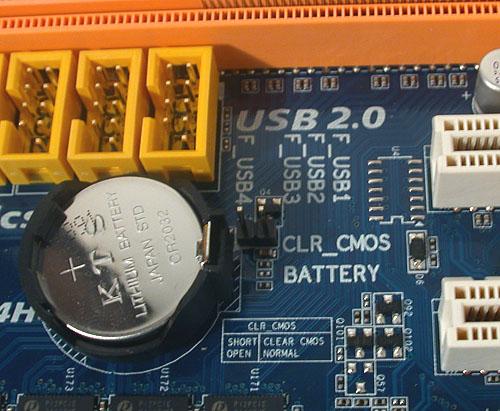
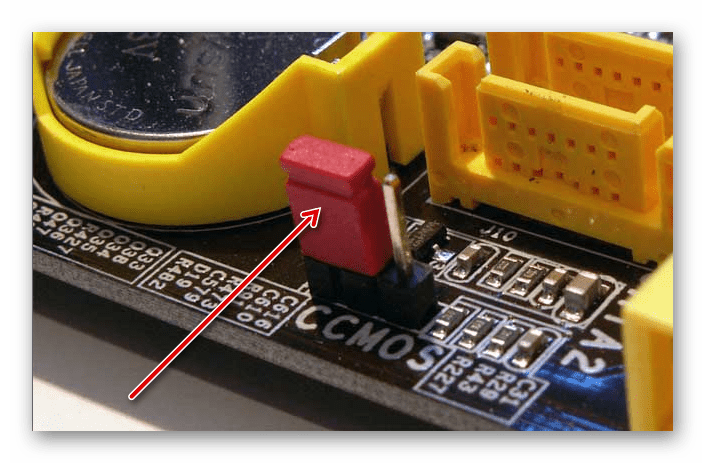
Если на материнской плате есть специальные контакты для сброса настроек BIOS, то проверьте правильно ли установлены на них джамперы. Верную расстановку можно посмотреть в документации к материнской плате или найти в сети под вашу модель. Если вы не можете найти схему, где было бы нарисовано правильное расположение джампера, то попробуйте его переставлять до тех пор, пока компьютер не заработает нормально.
Исправить данную проблему не так трудно, как это может показаться на первый взгляд. Однако, если ничего из этой статьи вам не помогло, то рекомендуется отдать компьютер в сервисный центр или обратиться к специалисту, так как проблема может лежать глубже, чем в рассмотренных вариантах.
Отблагодарите автора, поделитесь статьей в социальных сетях.
Компьютер – сложная система, в которой каждая ошибка может быть обусловлена одной из десятков или даже сотен причин. Но если с программными неполадками справиться относительно легко (в крайнем случае, всегда можно переустановить систему), то с аппаратными многие не знают, что делать.
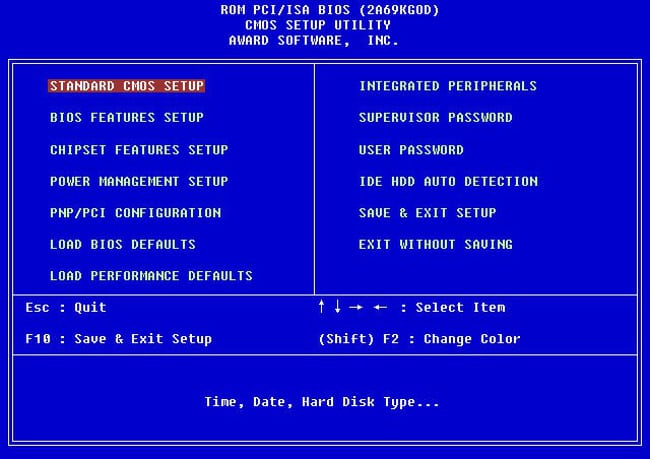
Одной из ошибок, при возникновении которой становится невозможно пользоваться ПК, является Please enter Setup to recover BIOS setting, что делать с этой проблемой знают далеко не все. Однако когда она возникает не нужно впадать в панику – проблема решается достаточно легко.
Что это за ошибка Please enter Setup to recover BIOS setting

«Please enter Setup to recover BIOS setting» является скорее системным сообщением, чем ошибкой. Подобным образом компьютер говорит пользователю, что с существующей конфигурацией BIOS компьютер не может продолжать загрузку.
В связи с этим он просит пользователя загрузить настройки BIOS по умолчанию (предустановленные производителем материнской платы).
Что может вызвать ошибку Please enter Setup to recover BIOS setting

Батарейка на материнской плате
Причин для возникновения этого сообщения множество. Если материнская плата старая, то, вероятно, его появление обусловлено севшей батарейкой. Да, на материнке присутствует отдельный элемент питания, который обеспечивает работу часов и поддерживает сохранение конфигурации BIOS.
Другой вариант – это неправильная настройка BIOS. Если пользователь допустил ошибки при конфигурации этой системы, то ПК может перестать загружаться, и начать выводит сообщение «Please enter Setup to recover BIOS setting».
И третий вариант – снятые или неправильно расставленные джамперы на материнской плате. В современных платах они почти не используются, однако, на более старых их достаточно много. Отвечают они, также как и BIOS, за конфигурацию оборудования.
Что делать, если при загрузке компьютера возникает сообщение Please enter Setup to recover BIOS setting

Please enter Setup to recover BIOS setting
Если возникает соответствующая ошибка, в первую очередь необходимо выполнить действия, которые предлагает компьютер. Чаще всего он говорит: нажмите на F1, чтобы открыть настройки («to Run Setup»), нажмите «F2», чтобы загрузить конфигурацию по умолчанию («to load default…»). Чтобы вернуть работоспособность компьютера попробуйте нажать на F2. В результате компьютер перезагрузится, и начнет нормально загружаться.
Если компьютер не отреагировал на нажатие «F2», то, вероятно, BIOS выставил в настройках для клавиатуры значение Legacy, тогда как пользователь использует USB. В этом случае нужно найти клавиатуру, которая подключается по PS/2, и попробовать выполнить соответствующие действия с нее.
Однако если компьютер выполнил соответствующие действия, но после того, как он был выдернут из розетки, ошибка Please enter Setup to recover BIOS setting опять появилась, то, скорее всего, села батарейка. Этот элемент питания можно купить почти в любом магазине электроники. Понадобится приобрести батарейку, открыть корпус системного блока и на место старой поставить новую.

Джамперы на материнской плате
Если неправильно расставлены джамперы, что, впрочем, маловероятно, то нужно найти схему соответствующих переключателей для своей модели платы и расставить перемычки в правильном порядке.
Данное сообщение при включении компьютера является довольно частым, особенно на компьютерах 4-ех летней давности и более. Сразу после фразы «Please enter setup to recover bios setting» обычно идут слова «press f1 to run setup» и «Press f2 to load default values and continue».
Сообщение please enter setup to recover bios setting
В данной статье мы расскажем вам о значении данного сообщения при включении компьютера , а также что сделать, чтобы оно больше не появлялось.
Что значит «Please enter setup to recover bios setting»?
Традиционно начнем с перевода на русский язык. Он звучит так: «Пожалуйста, войдите в настройки для восстановление параметров BIOS».
Получается, что по каким — то причинам сбились настройки BIOS, и компьютер просит их восстановить.
Что делать, чтобы убрать ошибку?
А наиболее вероятной причиной, как правило, является севшая батарейка на материнской плате. В этом случае также отображается ошибка Cmos CheckSum bad. Если вы давно или ни разу не меняли батарейку, то самое время это сделать.
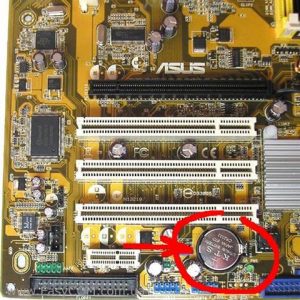
Как найти батарейку в компьютере. Ее вид.
Чтобы убрать ошибку и попробовать запустить операционную систему, нужно нажать кнопку F2 на клавиатуре. Этим вы установите настройки BIOS по умолчанию.
Если при загрузке Windows появляется экран и компьютер уходит на перезагрузку, то очень вероятно, что из сбоя настроек BIOS параметру «sata controller mode» (Режим работы жесткого диска) было присвоено неправильное значение и его нужно изменить вручную. Подробнее о значениях данного параметра читайте здесь.
Чтобы более точно определить причину появления сообщения «Please enter setup to recover bios setting» нужно обратить внимание на другие строчки, присутствующие выше или ниже этой фразы. Среди них могут быть:
[7 Fixes] Please Enter Setup to Recover BIOS Setting
If you’re seeing the error message “Please Enter Setup to Recover BIOS Setting” on your computer, it means that your system’s BIOS (Basic Input/Output System) settings have been corrupted or lost. This can happen due to several reasons, such as a power outage, a system crash, or a failed BIOS update. Usually, it can be solved by restarting your PC or updating your BIOS setting. But, if these actions fail to solve this error, don’t worry, we’ll guide you through several other solutions in this article.
Please enable JavaScript
What Usually Causes the “Please enter setup to recover BIOS setting” Error?
- The CMOS battery is failing.
- The computer’s BIOS is out of date.
- There may be some corrupted system files on the computer.
- Not choosing the right BIOS setting that matches the computer hardware.
How to Solve Please Enter Setup to Recover BIOS Issue?
The good news is that this issue is usually fixable with some simple troubleshooting steps. Here are some methods you can try to recover your BIOS settings:
Method 1: Restart Your Computer
Restarting the computer can erase the software’s present state. Any code that is trapped in a bad condition will also be removed. Thus, the very first thing you should do is try restarting your PC. If that doesn’t work, try the alternative solutions listed below.
Method 2: Enter BIOS Setup and Load Default Settings
The first thing you should try is to enter the BIOS setup and load the default settings. This will reset all the BIOS parameters to their original values and may fix any issues that were causing the error. Here’s how to do it:
1. Restart your computer and press the key (usually Del, F1, F2, or F10) to enter the BIOS setup.
2. Look for an option to “Load Default Settings” or “Load Optimal Defaults.”
3. Select the option and save the changes. This will restart your computer with the default BIOS settings.
4. Check if the error message still appears. If it does, move on to the following method.
The video in the following link can show you how to enter BIOS settings:
Method 3: Substitute the CMOS Battery and Adjust the F1 Settings
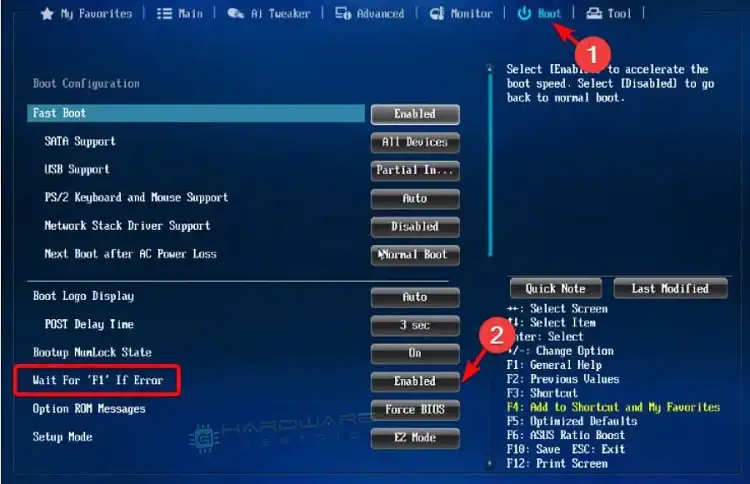
- To change the F1 settings and replace the CMOS battery, first enter the BIOS and select Advanced Mode by pressing F7.
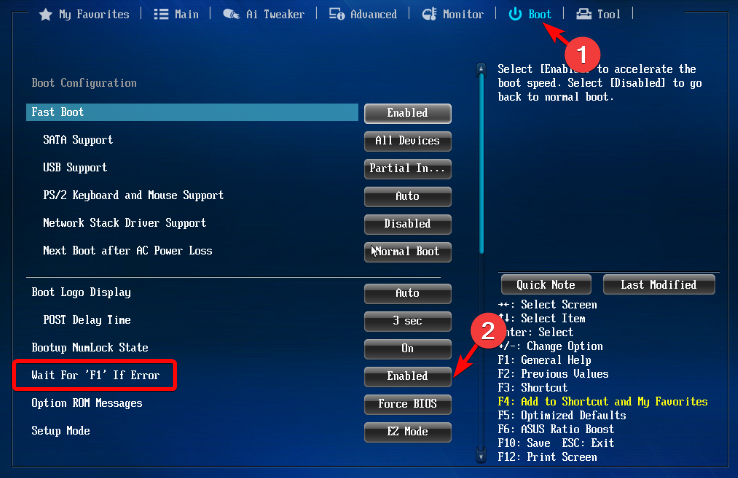
- In the Boot tab of the Advanced Mode, locate the Wait for ‘F1’ If Error option and disable it.
- Turn off your computer and disconnect all power sources, including the battery.
- Prior to dismantling your PC (especially if it’s a laptop), make sure to discharge any static electricity to avoid damage.
- The CMOS battery, which resembles a coin, can be accessed by removing the bottom panel or dismantling the laptop. It is typically located near the PCI slots, but its location may vary depending on the motherboard manufacturer.
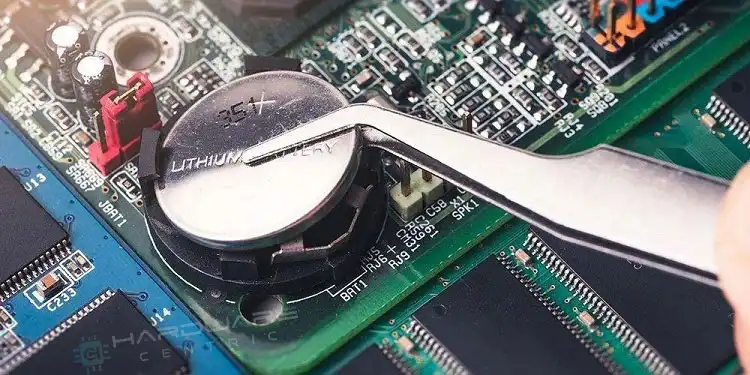
- Once you have located the CMOS battery, remove it.
- Hold the power button on your laptop for 10-15 seconds to discharge any remaining power, which will reset the CMOS memory and BIOS.
- Place the CMOS battery back in its location, reassemble your laptop, and reconnect the power source. Then, boot up your laptop.
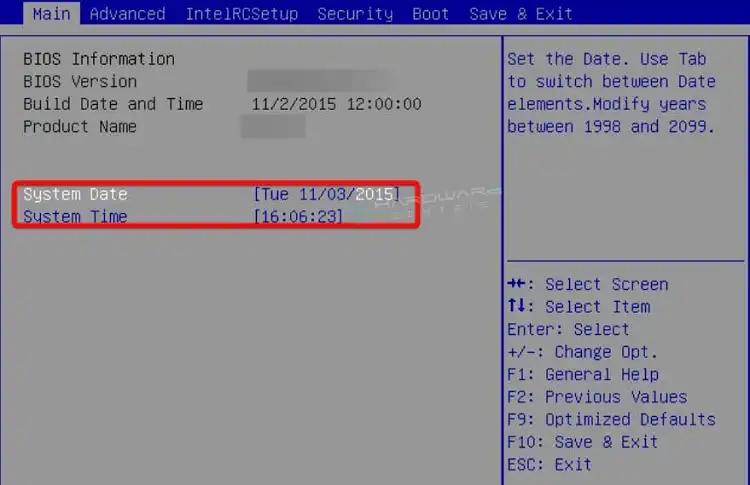
- Enter the BIOS again to reset the time and date, and press F10 to save the settings and exit.
Method 4: Change the Boot Order
Changing the boot order in BIOS settings can be a useful way to troubleshoot issues with your computer’s startup process. In some cases, you may need to change the boot order to prioritize a specific device or drive, such as a USB drive or DVD, to boot from. Here are the steps to change the boot order in BIOS settings:
- Restart your computer and press the key to enter the BIOS setup. This key can vary depending on your computer’s manufacturer, but commonly used keys include F2, F12, and Del.
- Once you are in the BIOS setup, look for the “Boot” or “Boot Order” options. The location and name of this option can vary depending on your BIOS version.
- Use the arrow keys to navigate to the boot order list. This list should show all available devices that can be used to boot your computer.
- To change the boot order, use the arrow keys to highlight the device you want to prioritize and move it up or down the list using the “+” or “-“ keys.
- Once you have arranged the boot order to your desired configuration, save the changes and exit the BIOS setup. This can usually be done by pressing the “F10” key, but the exact key can vary depending on your BIOS version.
Method 5: Clear CMOS
You may want to consider clearing the complementary metal-oxide-semiconductor (CMOS) by using the jumper method. The CMOS is a small amount of memory on the motherboard that stores the Basic Input/Output System (BIOS) settings. Follow these steps to clear the CMOS:
- Turn off your computer and unplug it from the wall outlet.
- Press the Power button several times to discharge any residual power.
- Open the computer case to access the motherboard.
- Find the CMOS jumper, usually located near the battery, by consulting the motherboard manual.
- The CMOS jumper usually has positions 1-2 and 2-3. Move the jumper from the default position (1-2) to clear the CMOS (2-3). Wait for 1-6 minutes, then move the jumper back to the default position (1-2).
- Close the computer case and turn on the computer.
Method 6: Flash the BIOS
If the above methods don’t work, you may need to flash the BIOS with a new version. This will replace the current BIOS firmware with a fresh copy and fix any issues that were causing the error. Here’s how to do it:
1. Go to your motherboard manufacturer’s website and download the latest BIOS version for your system.
2. Create a bootable USB drive with the BIOS file.
3. Restart your computer and enter the BIOS setup.
4. Look for an option to “Flash BIOS” or “Update BIOS.”
5. Select the option and follow the on-screen instructions to flash the BIOS with the new version.
6. Once the update is complete, restart your computer and check if the error message still appears.
Method 7: Enable CSM
- Enter the BIOS menu on your computer.
- Navigate to Security Options and set Secure Boot to Disabled.
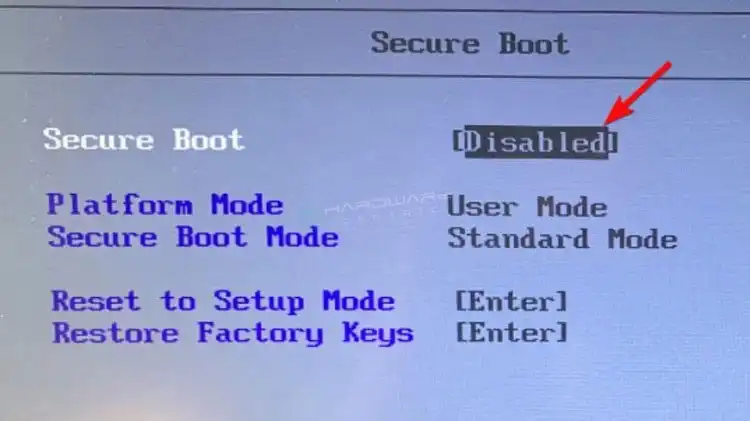
- Save your changes and restart your computer.
- Enter the BIOS again and go to the Boot tab.
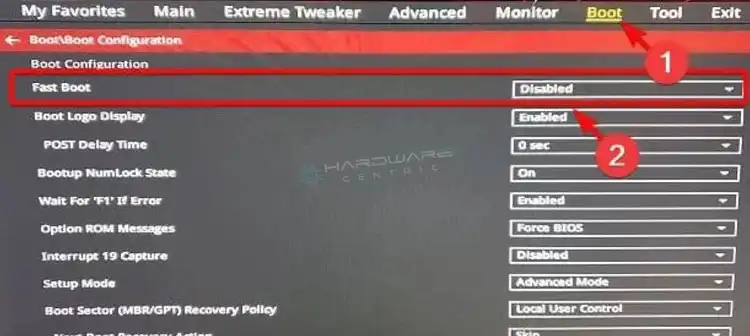
- Set Fast Boot to Disabled.
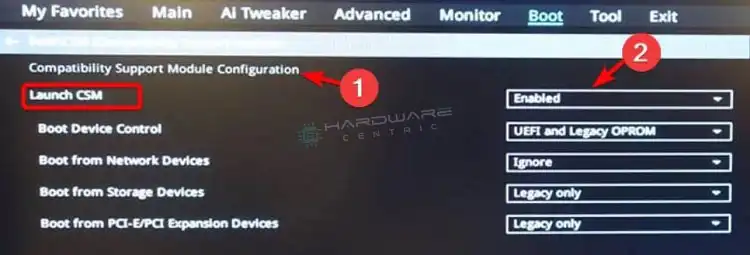
- Scroll down to the Launch CSM option and set it to Enabled.
- Save all changes and restart your computer.
- Perform a cold boot of your computer and check if the error has been resolved. If the error persists, enter setup to recover BIOS settings and press F1 to run setup.
Frequently Asked Questions and Answers
Cannot enter BIOS setup?
If you are unable to enter the BIOS setup utility, there may be several reasons for this issue, such as a malfunctioning keyboard, incorrect BIOS settings, or a hardware problem. You can try troubleshooting by checking the keyboard connection, resetting the BIOS to default settings, or updating the BIOS firmware.
How do I complete the BIOS setup?
To complete the BIOS setup, you need to navigate through the different options in the BIOS setup utility and configure the settings according to your preferences. This includes options such as boot order, date and time, system security, and hardware settings. Once you have made your changes, save and exit the BIOS setup utility.
Conclusion
If you’re seeing the error message on your computer, don’t panic. Try the above methods one by one, and you should be able to recover your BIOS settings. If none of the methods work, you may need to seek professional help to diagnose and fix the issue. Remember to always back up your important data before making any changes to the BIOS settings.
Please Enter Setup to Recover BIOS Setting: How to Fix it
A dead motherboard battery most likely triggers BIOS settings errors
- Sometimes, when trying to restart your PC using the cold boot, you may come across an unexpected BIOS error that says, Please enter setup to recover BIOS settings.
- Many users who face this issue have been found to have an old motherboard with an outdated or dead CMOS battery.
- However, the BIOS error message may also show up due to incorrect BIOS settings, corrupted system files, or, outdated BIOS version.
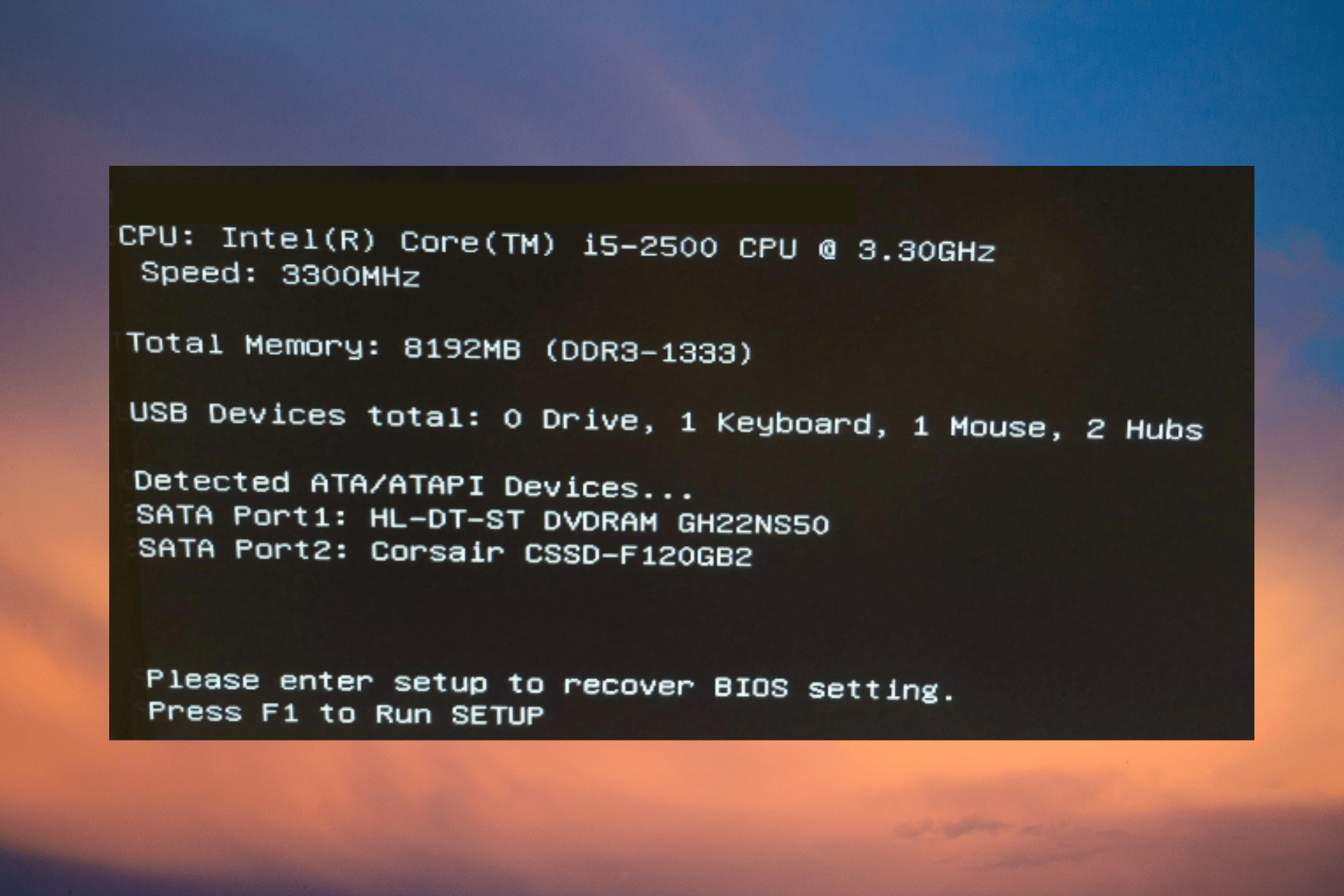
When trying to do a cold boot, you may bump into the error message, Please enter setup to recover BIOS settings as your PC is starting up.
You may not encounter this issue when doing a normal restart, but only during a cold boot. Besides, it also wipes off all the saved BIOS changes. To know more about what is BIOS and how to use it, you can follow our detailed guide.
What causes the please enter setup recovery BIOS settings error?
Some of the primary reasons why you may see the BNIOS settings error are as below:
- The CMOS battery is dead – When the motherboard model and the coin-cell battery are old.
- BIOS version is outdated – Sometimes, the BIOS needs to be updated to the latest version for proper functioning.
- System files – Chances are, that you see the error due to corrupted Windows files.
However, it’s not as frightening as it looks. Below are a few solutions that can help you fix the Please enter setup to recover BIOS settings error.
How do I fix the please enter setup recovery BIOS settings error?
Before you proceed with the main troubleshooting methods, you may want to apply the steps below:
- Restart your PC. .
- Enter the BIOS, hit Save all changes, and restart. .
- Ignore this error message completely if you don’t need any non-default settings.
But, if you still keep receiving the same error, Please enter setup to recover BIOS settings and press F1 to run the setup, you can follow the below workarounds.
1. Replace the CMOS battery and change the F1 settings
- Enter BIOS, and press F7 to enter the Advanced Mode.
- Here, go to the Boot tab and disable the Wait For ‘F1’ If Error option.
- Now, press and hold the power button until the computer shuts down completely. Remove any power sources from the laptop, and the battery to proceed.
- Before you dismantle your laptop, make sure to discharge any static electricity to avoid any damage.
- You can now remove the bottom panel of the laptop, or dismantle it to access the CMOS battery, which looks like a coin.
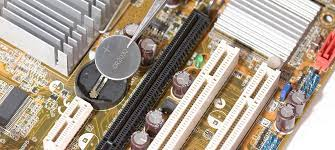
- It is typically located near your PCI slots but could also be found in other locations based on the motherboard manufacturer. Now, remove the battery.
- Next, hold the power button on your laptop for about 10-15 seconds to discharge any remaining power. This will reset the CMOS memory and your BIOS.
- Now, place the CMOS battery back in its location, reassemble your laptop, plug the power source back, and boot up your laptop.
- Enter BIOS again, reset the time and date, and press F10 to save the settings and exit.
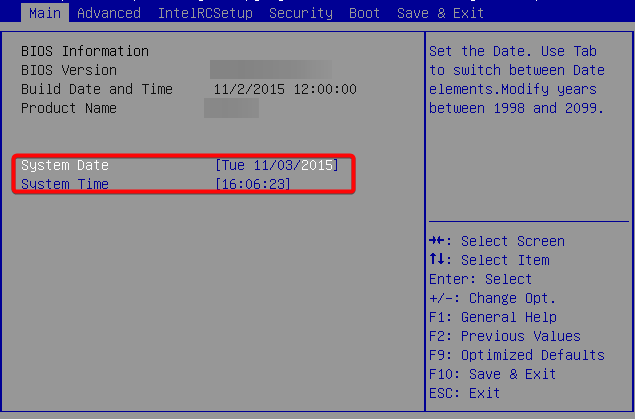
Now, shut down your PC, wait for a while and as you turn on your PC, you should not see the error anymore. You can also refer to our detailed guide on how to fix corrupt CMOS for more solutions.
2. Change BIOS settings
2.1 Enable CSM
-
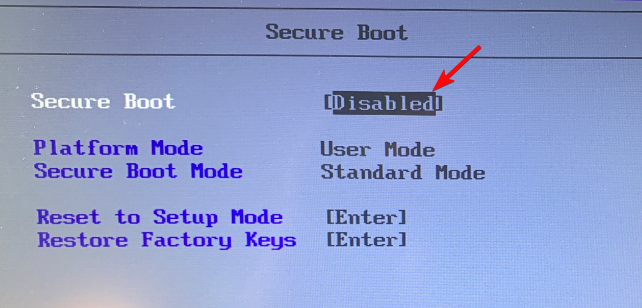
on your PC based on the model, navigate to Security Options and turn off Secure Boot. Save the changes and restart your PC.
- Next, enter BIOS again, go to the Boot section, and disable Fastboot.
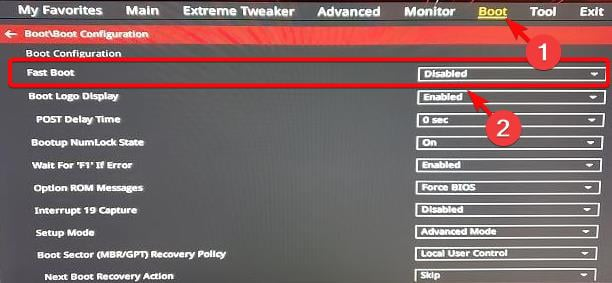
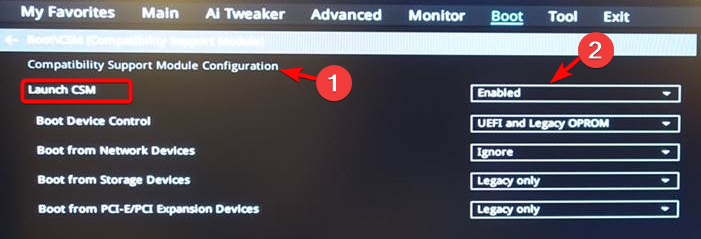
- Now, enable CSM (Compatibility Support Module), save the changes, and restart your PC.
Expert tip:
SPONSORED
Some PC issues are hard to tackle, especially when it comes to missing or corrupted system files and repositories of your Windows.
Be sure to use a dedicated tool, such as Fortect, which will scan and replace your broken files with their fresh versions from its repository.
You can now cold boot your PC and check if the issue is fixed or, if you still see the error, please enter setup to recover BIOS settings and press F1 to run setup.
This method can also help you with an issue such as when the PC won’t exit BIOS and we have some more solutions for the same.
Read more about this topic
2.2 Change SATA Mode to AHCI
- On your PC, enter BIOS by using the designated shortcut key ( F10 / F2 / F12 / F1 / DEL ) based on the PC model.
- Navigate to the Boot section, and enable the CSM option.
- Next, go to SATA mode and change it to AHCI.
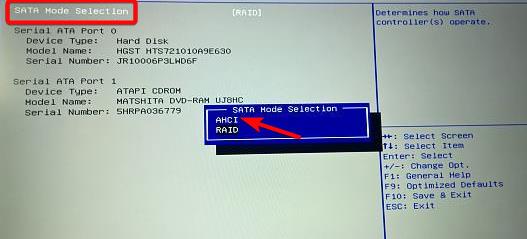
Now, reboot your PC, and check if setting the SATA mode to AHCI helped fix the BIOS settings issue.
3. Ignore CPU Core Voltage
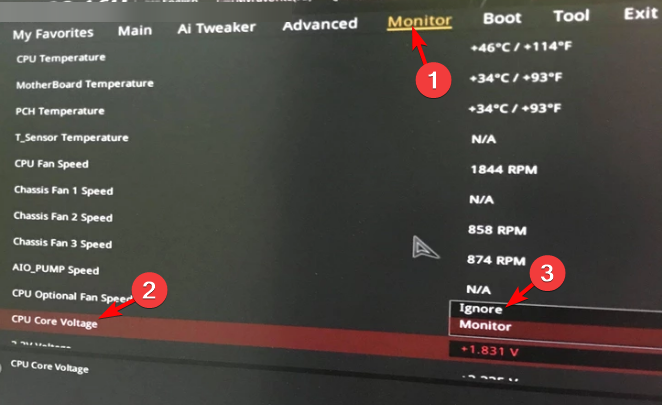
- Press the designated key based on your laptop manufacturer to enter BIOS and press F7 to switch to Advanced Mode.
- Here, go to the Monitor tab. Now, go to the CPU Core Voltage field and set it to Monitor.
- Save the changes and exit.
Now, restart your PC and you should not encounter the BIOS error message anymore, Please enter setup recovery BIOS settings.
How do I restore my BIOS?
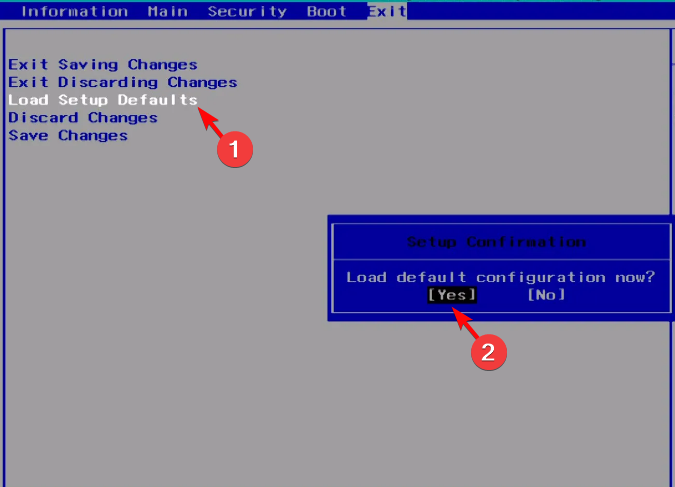
- Restart your PC, wait for the computer’s first startup screen to appear, and repeatedly hit Del / F2 / F8 / F10 / Esc / Tab key to enter setup.
- Once the BIOS loads and you reach the settings menu, select Reset to Default, Factory Default, or Setup Defaults.
- In the confirmation prompt, press Yes to save the changes, and your PC will automatically reboot.
Once the BIOS reset is complete, reboot your PC and you can now enter BIOS again to change any settings.
Alternatively, you can press the CTRL + ESC shortcut keys together to initiate BIOS recovery on your PC with an external keyboard as a primary input.
But if none of the above methods help, you can follow either of the two easy methods to flash the BIOS.
For any other queries on BIOS errors or if the computer won’t boot, do let us know in the comments box below.
Still experiencing issues?
SPONSORED
If the above suggestions have not solved your problem, your computer may experience more severe Windows troubles. We suggest choosing an all-in-one solution like Fortect to fix problems efficiently. After installation, just click the View&Fix button and then press Start Repair.
Please enter Setup to recover BIOS setting что делать?
Компьютер – сложная система, в которой каждая ошибка может быть обусловлена одной из десятков или даже сотен причин. Но если с программными неполадками справиться относительно легко (в крайнем случае, всегда можно переустановить систему), то с аппаратными многие не знают, что делать.
Одной из ошибок, при возникновении которой становится невозможно пользоваться ПК, является Please enter Setup to recover BIOS setting, и как исправить данную проблему знают далеко не все. Однако когда она возникает не нужно впадать в панику – проблема решается достаточно легко.
Что это за ошибка Please enter Setup to recover BIOS setting
Проблема является скорее системным сообщением, чем ошибкой. Подобным образом компьютер говорит пользователю, что с существующей конфигурацией BIOS компьютер не может продолжать загрузку.
В связи с этим он просит пользователя загрузить настройки BIOS по умолчанию (предустановленные производителем материнской платы).
Что может вызвать ошибку Please enter Setup
Причин для возникновения этого сообщения множество. Если материнская плата старая, то, вероятно, его появление обусловлено севшей батарейкой. Да, на материнке присутствует отдельный элемент питания, который обеспечивает работу часов и поддерживает сохранение конфигурации BIOS.
Другой вариант – это неправильная настройка BIOS. Если пользователь допустил ошибки при конфигурации этой системы, то ПК может перестать загружаться, и начать выводит сообщение «Please enter Setup to recover BIOS setting».
И третий вариант – снятые или неправильно расставленные джамперы на материнской плате. В современных платах они почти не используются, однако, на более старых их достаточно много. Отвечают они, также как и BIOS, за конфигурацию оборудования.
Что делать, если при загрузке компьютера возникает сообщение
Если возникает соответствующая ошибка, в первую очередь необходимо выполнить действия, которые предлагает компьютер.
- Чаще всего он говорит: нажмите на F1, чтобы открыть настройки («to Run Setup»), нажмите «F2», чтобы загрузить конфигурацию по умолчанию («to load default…»).
- Чтобы вернуть работоспособность компьютера попробуйте нажать на F2. В результате компьютер перезагрузится, и начнет нормально загружаться.
- Если компьютер не отреагировал на нажатие «F2», то, вероятно, BIOS выставил в настройках для клавиатуры значение Legacy, тогда как пользователь использует USB. В этом случае нужно найти клавиатуру, которая подключается по PS/2, и попробовать выполнить соответствующие действия с нее.
Однако если компьютер выполнил соответствующие действия, но после того, как он был выдернут из розетки, ошибка Please enter Setup to recover BIOS setting опять появилась, то, скорее всего, села батарейка. Этот элемент питания можно купить почти в любом магазине электроники. Понадобится приобрести батарейку, открыть корпус системного блока и на место старой поставить новую.
Если неправильно расставлены джамперы, что, впрочем, маловероятно, то нужно найти схему соответствующих переключателей для своей модели платы и расставить перемычки в правильном порядке.