How to Use Android Phone as a Webcam in OBS [via WiFi, USB]

if you are on a budget and you want to start streaming on twitch, youtube, or other video platforms. you should consider using your smartphone as your webcam when streaming. The good thing about using your phone as your webcam is that
You don’t need to spend money on a webcam and even mid-range phones will have a better camera than most webcams.
So, if you want to use your android phone’s built-in camera for streaming with OBS studio or streamlabs obs. This short tutorial will guide you on how to do that.
Read More:
How to Use Android Phone as a Webcam in OBS [via WiFi, USB]
Here are two methods to use Android Phone as a WebCam in OBS. So, this method
Method1: Phone As A Webcam in OBS(Via Wifi)
STEP1: First of all install the ipwebcam android app from google play store.
Once installed open the application, you are good to go with the default settings in this app. but you can also configure it to suit your own preferences.
for example in the video preferences tabs. You can change the video resolution, and video quality.
STEP2: You want to use the android microphone instead of the microphone on your computer keep the audio mode enabled.
STEP3: Now tap on start server.
STEP4: Next on your computer open obs studio click on the plus icon to add a new source and select browser.
STEP5: Enter the same URL that is showing on your phone at the end of this url type /video then click ok.
You should now see the camera feed from your android device to the obs application. you can resize and position the window to fit nicely on your stream.
if you don’t have a good wi-fi connection you can also use a usb cable to configure your phone as a webcam in OBS for this method we’ll use the droidcam application.
Method2: Phone As a WebCam in OBS (Via USB)
so let’s see how to configure your android as a webcam via USB.
STEP1: First of all install the droidcam android app from google play store.
STEP2: Connect your phone to your computer via USB cable.
STEP3: Then turn off your wi-fi after that open your phone settings, and enable usb debugging.
STEP4: Next on your computer download and install the droidcam client start the droidcam client
STEP5: Choose the USB option, select your phone from this drop-down. if it is not listed click the refresh button.
STEP6: Click start and droid cam will load the video feed from your phone camera you are now ready to use it as a webcam in OBS.
STEP7: So open obs studio, add a new source select video capture device.
STEP8: Select droid cam source as your video capture device then click ok.
You should immediately see what your phone is capturing in this preview window.
LAST WORD: So, Guys you are now set to use your phone as a webcam in obs so good luck and happy streaming. Now here is the end of the article this is the overall information for you. Don’t forget to share this post. Share it on Facebook or any social site. Thank you so much.
Getting Started with the OBS Studio iOS Camera Plugin
Let's get you up and running so you can start your stream! All going well, this will take less than 5 minutes.
I would recommend following the steps of downloading and installing the iOS Camera plugin for OBS Studio before buying the iOS App.
1. Download the iOS Camera Plugin for OBS Studio
Make sure to download the correct version of the plugin based on the version of OBS Studio that you're using. If you're on 32-bit Windows, you can find the installers on the GitHub releases page here
This is the current production version of OBS Studio.
Download OBS Studio plugin for macOS
v2.9.6
Supports OBS Studio 29, MacOS 10.13+
Download (for Intel Mac) now ->
Download (for Apple Sillicon) now ->
Download OBS Studio plugin for Windows x64
v2.9.6
Supports Windows 8+
Download (for x64) now ->
This is an older version of OBS Studio and is here in case you've not updated to the latest version.
Download OBS Studio plugin for macOS
v2.9.3
Supports OBS Studio 28, MacOS 10.13+
Download (Universal) now ->
Download OBS Studio plugin for Windows x64
v2.9.3
Supports Windows 8+
This is an older version of OBS Studio and is here in case you've not updated to the latest version.
Download OBS Studio plugin for macOS
v2.9.0
Supports OBS Studio 27.2 and above, MacOS 10.13+
Download (Universal) now ->
Download OBS Studio plugin for Windows
v2.8.0
Supports Windows 8+
This is the previous version of OBS Studio and is here in case you've not updated to the latest version.
Download OBS Studio plugin for macOS
v2.8.0
Supports OBS Studio 27.1 and below, MacOS 10.13+
Download (Universal) now ->
Download OBS Studio plugin for Windows
v2.8.0
Supports Windows 8+
Don't see a compatable installer? Check out the latest release here
Please also make sure you've installed, and ran iTunes at least once. iTunes installs a driver that allows your Windows computer to communicate with iOS devices over USB.
It's a good idea to make sure that iTunes recognises the iOS device when it's plugged in. After verifying this, you're good to continue.
2. Verify that the iOS Camera Plugin is installed correctly
Open OBS Studio and add a new iOS Camera source:
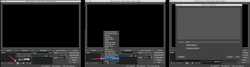
If you do not see the iOS Camera source, please see this FAQs about this.
If you cannot find the OBS Studio application, then make sure you have also installed it. You can download OBS Studio from https://obsproject.com/
3. Download and install the iOS App
Please make sure that you have a device that is known to work well before downloading. What iOS hardware do I need?.
4. Connect to your Device
For best results, before starting make sure that your iOS device is disconnected and the Camera app closed. There is a video of me running through these steps at the bottom if that's more your style — though I still recommend reading the steps below too.
Make sure your iOS Device is unplugged to begin.
Open OBS Studio on your computer.
Add a new "iOS Camera" source to your scene (only if there isn't one there from Step 2)
Open the Camera for OBS Studio App on your iPhone.
Confirm that the USB output is selected in the apps' output settings. (it is by default)
Connect your iOS device to your computer using the lightning cable it came with.
If at this point it doesn't automatically connect, tap the refresh devices button and then select your device in the list.
You will now see your video!
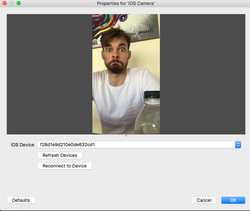
Use your iOS device as a webcam and stream your heart out! ��
Plugging in your iOS device with the app running automatically connects to OBS Studio when using a single device.
If you're having issues connecting. Please read the Frequently Asked Questions to diagnose the issue.
If you're more the visual type, I recorded a short video where I ummm and arrrr, and eventually connect my device! �� Before recording I did install the plugin for OBS Studio (links are above).
Smartphone Camera Guide
You can use your smartphone, such as an iPhone or Android phone, as a webcam in OBS Studio. Using one of the options below, your smartphone will appear in the Video Capture Source alongside your webcams and capture cards.
Camo (by Reincubate) is a freemium solution for Windows and macOS. It supports iOS and Android. You can connect Camo over USB or Wi-Fi.
��️ Download for your computer (Windows, macOS)
�� Download for iOS, Android
- Connect by USB or Wi-Fi
- Supported by OBS Studio, videoconferencing programs, etc.
- Also supports other cameras, such as webcams, DSLRs, and Continuity Camera
- Adjustments: lenses, exposure, zoom, crop, colour grading (including LUT)
- Image rotation
- Lighting and bokeh effects
- Virtual green screen
- Augmented Reality effects and filters
- Automatic keep the subject centered in frame
- Overlay text and images
Continuity Camera
Continuity Camera is a feature built-in to macOS and iOS. This feature is built-in to iOS 16 and macOS 13 Ventura.
- Automatically use your iPhone as a camera when it and your Mac are connected to the same Wi-Fi network
- Both your iPhone and Mac must be signed in to the same iCloud account
DroidCam
DroidCam (by Dev47Apps) is a freemium solution for Windows and Linux. It supports iOS and Android.
�� Download for iOS & Android; premium DroidCamX for Android
- Chat using “DroidCam Webcam” on your computer, including Sound and Picture
- Connect over WiFi or USB cable
- Unlimited free usage at standard definition
- Keep using your phone with DroidCam in background (Android)
- Switch to HD Mode for 720p/1080p high definition video*
- Camera controls: toggle light, enable continuous auto focus, zoom in/out*
- Rotate, Flip & Mirror the video to better match your setup*
- Adjust brightness, contrast, add video delay and adjust audio volume (Windows)*
- USB-Only mode for extra privacy and security*
- Option to auto-mute phone calls*
- No ads*
(* marks premium features, available as an in-app purchase on iOS or separate download on Android)
EpocCam
EpocCam (by Elgato) is a freemium solution for Windows and macOS. It supports iOS devices. You can connect EpocCam over USB, Wi-Fi, or NDI.
- Connect over USB, Wi-Fi, or NDI
- choice of connection type*
- iPhone microphone audio capture*
- manual focus adjustment*
- HDR support*
- video quality options*
- no watermark*
NDI HX Camera
HX Camera (by NDI) is a solution that exposes your smartphone or tablet as an NDI source. This can then be captured in OBS Studio using the NDI plugin
Как подключить камеру телефона к obs?
Пользуюсь программой для записи видео (игр) с экрана.
Это программулька записывает действия, происходящие на компьютере в реальном времени.
Ее еще используют для трансляции онлайн-игр (для стрима).
Так вот, хочу к OBS Studio подключить не веб-камеру, а камеру телефона. Можно ли так сделать, если да, то как?
2 комментария к “Как подключить камеру телефона к obs?”
сначала в плей маркете скачиваете и устанавливаете приложение DroidCam OBS, а затем для ПК – плагин (DroidCam OBS).
Его можно найти на сайте dev47apps.
В самой программе OBS-Studio в источнике через + выбираете DroidCam. В строке WiFi iP вносите ip из приложения для андроид.
Можно подключить камеру не только по Wi-Fi, но и через USB.
Через программу DroidCamApp. Лично мной проверено. Работает. О том как настроить программу я писал здесь Как камеру телефона подключить к компьютеру?
После того, как установлена и настроена программа, переходишь к OBS Studio.
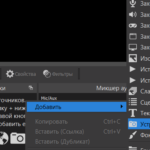
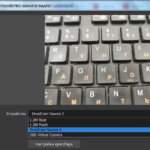
Нажимаешь правой кнопкой мыши под окном, так где “Источники”, выбираешь “Добавить”–>”Устройство захвата видео”–> OK.
Откроется окно, в котором нужно будет выбрать устройство (см скрин).
Добавить комментарий Отменить ответ
Свежие записи
- Отзыв о камере телефона Huawei Y5p
- Выдвижная камера? Это как?
- Как закрыть, отключить, заблокировать камеру телефона?
- Honor V40 (5G)
- Samsung Galaxy S21 (5G) – Недостатки, преимущества
Свежие комментарии
-
Alberthence к Монопод для смартфона Huawei cf 15 pro Now all is clear, I thank for the information. Pande к Мой отзыв о работе на фотостоках. Стоит ли тратить на это время Спасибо Руслан к Как продлить пробную версию фотошоп А можно так CC 2019 или 2020 сбрасывать? Катерина к Монопод для смартфона Huawei cf 15 pro Вот инструкция: Irina к Монопод для смартфона Huawei cf 15 pro Спасибо за развернутый ответ. Не подскажите, где…
На kameratelefona.ru вводится система оплаты за активность пользователей.
Каждый пользователь может публиковать свои статьи и оставлять комментарии, связанные с тематикой сайта.
Перед публикацией контента, пожалуйста, ознакомьтесь с правилами сайта.
Оплата за активность на сайте производится в рублях.
| Оплата за: | Стоимость (руб.) | Ограничения |
|---|---|---|
| за регистрацию | 1 | — |
| за новую запись /публикацию (от 1000 символов) | 75 | Без ограничений |
| за вход на сайт | 1 | Максимум один раз в день |
| за опубликованные комментарии | 5 | Без ограничений |
ДОПОЛНИТЕЛЬНО
+75 рублей (за каждые 1000 символов) за уникальную статью или развернутый комментарий.
Уникальность работы – не менее 90%
Использование при написании комментария нецензурной лексики, оскорблений, чужих рекламных ссылок запрещено.
Перевод средств осуществляется на  (WMR) кошелек.