Monitor Going to Sleep Randomly? 9 Ways to Fix it
It’s annoying when our screen goes to sleep in the middle of our work or while playing games. Nonetheless, such issues are temporary, and you do not have to worry about them.
Well, our monitors might go to sleep randomly when we haven’t updated the general settings. Also, this could be an issue due to some system failures or outdated drivers.
Whatever the reason, they can be solved using simple techniques. By the end of this article, you will learn why your monitor is going to sleep randomly and the basic methods to fix them.
Why My Monitor Is Randomly Going to Sleep?
- Your software or drivers are outdated.
- If you’re using a second monitor, you haven’t changed a few settings that might have set the screen to sleep.
- There are a few problems with your cables or other hardware.
- Some viruses or malware might have tweaked your sleep settings.
- Lastly, there could be underlying issues if you have installed a graphics card on your device.
How to Fix Monitor Going to Sleep Randomly
Before proceeding with these fixes, we advise you to first check for any system update. Also, you can try restarting your PC as this may fix some common faults that send your monitor to sleep.
Furthermore, you should check for viruses that could be playing with your system settings. Interestingly, you can install multiple antivirus programs on your device to fix these problems.
Now, let’s dive into the simple ways of how you can fix the monitor going to sleep randomly. If one doesn’t work for you, try others, as one of these methods is likely to resolve the issue.
Turn off or Reduce the Computer Sleep Settings
Knowingly or unknowingly, we might have tweaked the settings such that the system puts our monitor to sleep in a short time. Thus, we are facing this issue frequently and randomly.
Hence, the first method is to disable the sleep option. Or, we can increase the time the system sends the monitor to sleep.
The following steps will guide you on how to turn off the computer sleep option on Windows 11:
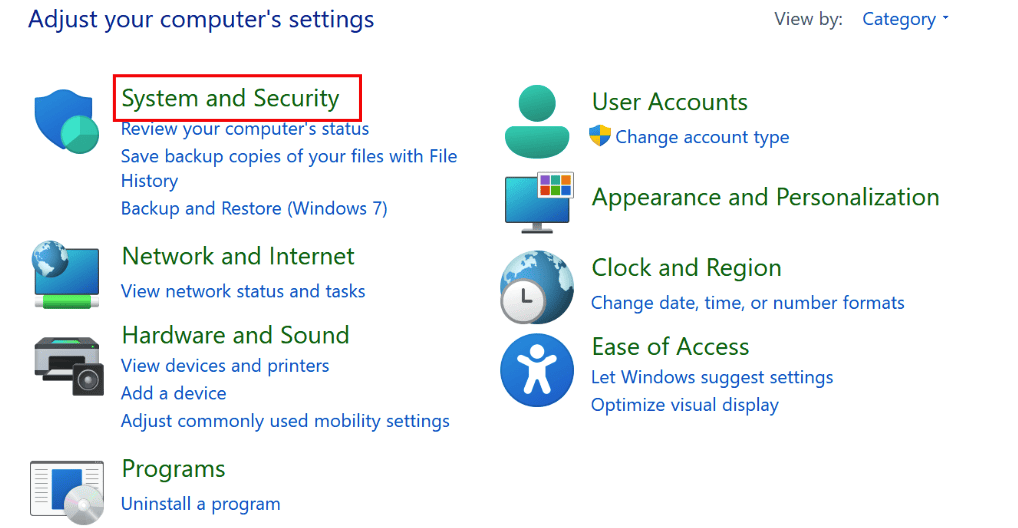
- Navigate to Control Panel and select System and Security.
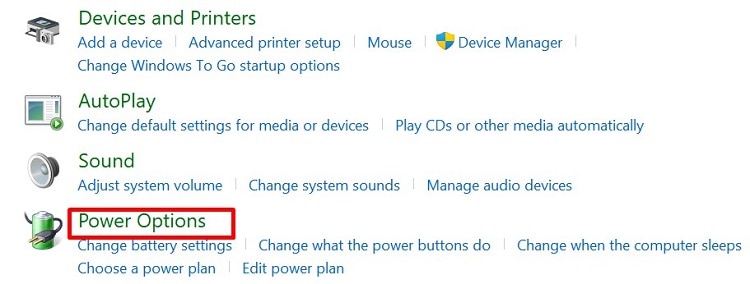
- Next, visit the Power Options tab.
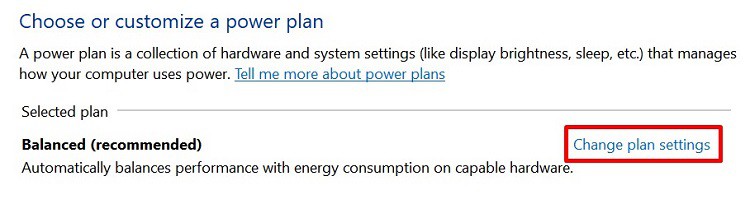
Well, there’s also an option to change the time for turning off your display. But, if you choose Never in the Put the computer to sleep option, this setting will be disabled automatically.
Disable the Allow Hybrid Sleep Option
If turning off the sleep settings didn’t work, a hidden function might be sending your computer to sleep. So, here’s how you can disable the Allow Hybrid Sleep option on your PC:
- Launch Control Panel, then go to System and Security > Power Options > Change Plan Settings.
- Now, choose Change advanced power settings.
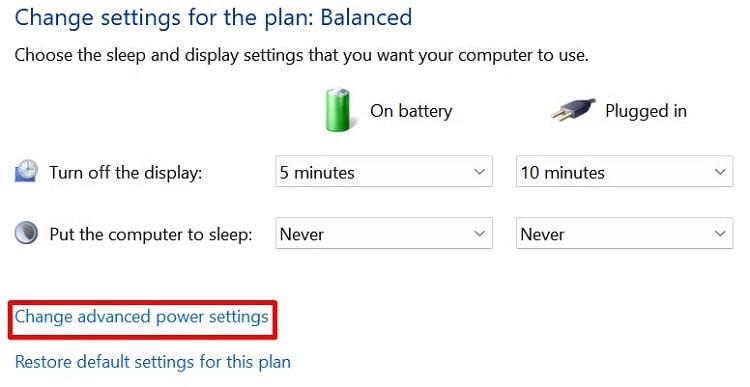
- Once a new setting window opens, press the ‘+’ icon beside Sleep to expand it.
- Then, select Allow Hybrid Sleep and ensure the option is turned off on both Plugged In and On Battery.
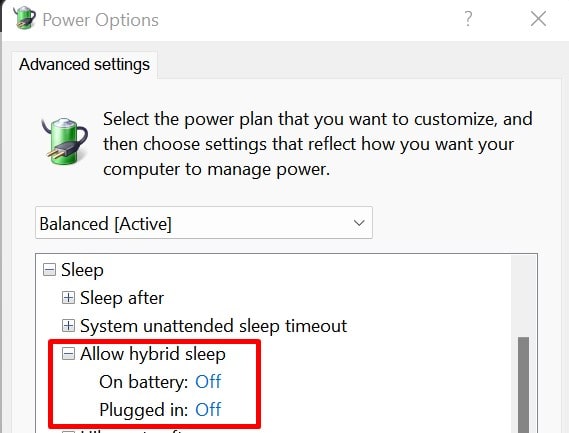
- Lastly, click on the Ok button to apply the changes.
Increase the System Unattended Sleep Timeout Duration
Sometimes, making changes in the Windows registry can solve the problem. To make the System Unattended Sleep Timeout visible, we must first tweak certain changes in the Registry Editor. Follow the general guideline to solve monitor sleeping issues using this technique:
- Navigate to the Registry Editor from Start Menu.
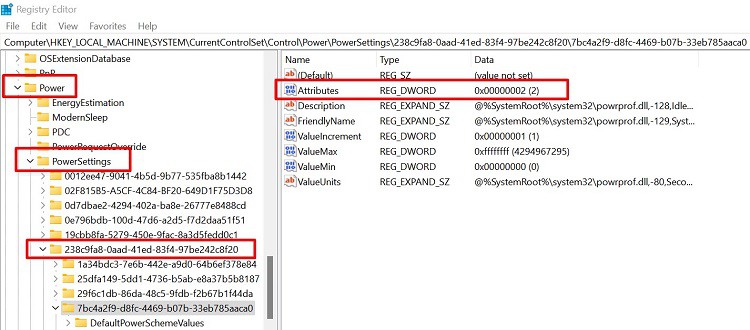
- Next, expand the Power drop-down from the left pane.
- Again, expand the Power Settings menu.
- Under 238c9fa8-0aad-41ed-83f4-97be242c8f20, select 7bc4a2f9-d8fc-4469-b07b-33eb785aaca0. Alternatively, you can directly copy and paste the path from below:
Computer\HKEY_LOCAL_MACHINE\SYSTEM\CurrentControlSet\Control\Power\PowerSettings\238c9fa8-0aad-41ed-83f4-97be242c8f20\7bc4a2f9-d8fc-4469-b07b-33eb785aaca0
- Now, double-click on Attributes from the right panel.
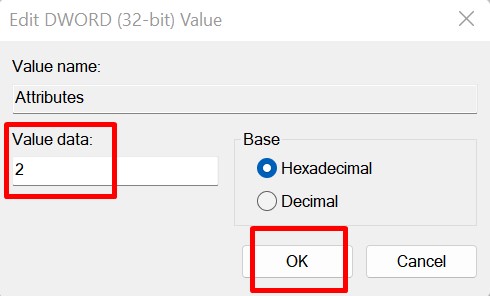
- Edit the Value data to 2 and hit Ok.
- Finally, you can navigate Control Panel > System and Security > Power Options > Change Plan Settings > Change advanced power settings.
- Expand the Sleep section and choose System unattended sleep timeout. However, this option won’t be visible if you do not make changes in the registry.
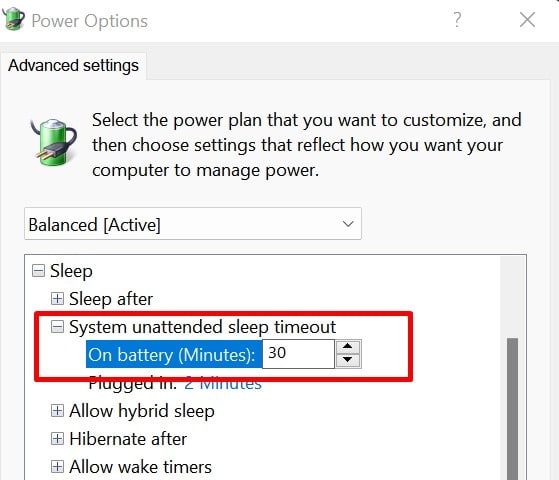
- By default, this value is set to 2 minutes. So, for both On Battery and Plugged In, increase the duration and press Ok.
Using registry editor without prior experience can result is new issues. So, it is better to backup your registry editor before playing with the settings. Read this article to find out how to do it.
Tweak Second Screen Options [For Dual Monitor Users]
If you use an external display, your screen may sometimes not show on the device. This is probably because your primary device is set to PC Screen Only. Go through the steps below to learn how to tweak this change:
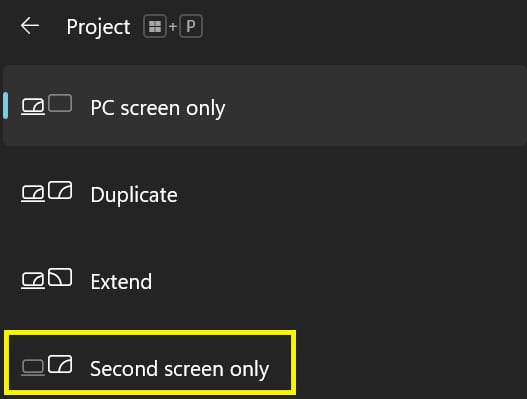
- Press Windows + P keys to launch the Project settings.
- With your external device connected, choose Second Screen Only. This will send your primary device to sleep and solve the issue on your secondary monitor.
Well, there are plenty of ways to switch your primary and secondary monitor. If you want to know more, read our other article.
Try Running the Power Troubleshooter
Running the Power Troubleshooter automatically fixes any underlying problems with the sleep settings. Read the guidelines below to resolve these issues using this in-built Windows tool:
-
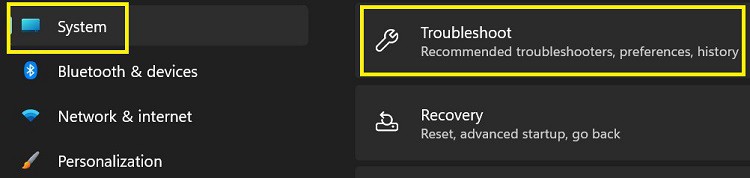
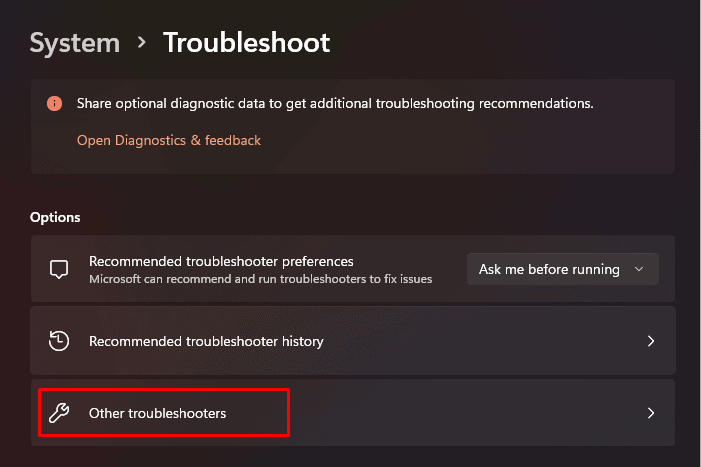
Navigate to Settings > System > Troubleshoot.
Scan and Repair Corrupted Windows Files
Often, corrupted operating system files may take your monitor to sleep randomly for no reason. So, to solve these issues, we use two popular commands on Command Prompt: sfc and dism.
To run the dism command, simply visit the Command Prompt on your computer and type the following and wait for several minutes:
dism /online /cleanup-image /restorehealth
You can use the following command line to run the sfc command on your terminal:
sfc /scannow
However, the scannow command may not work sometimes. If you face this issue, here’s our article on how to fix it.
Update Your Display Driver
Well, it’s obvious that most display settings are controlled by the display adapters. Thus, it’s possible that the issues relying on the driver may put your monitor to sleep randomly.
Go through the following steps to learn how you can update your display driver on Windows 11:
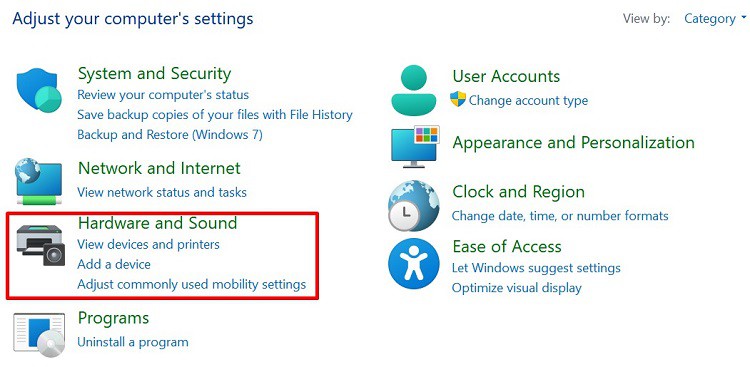
- Go to Control Panel and choose Hardware and Sound.
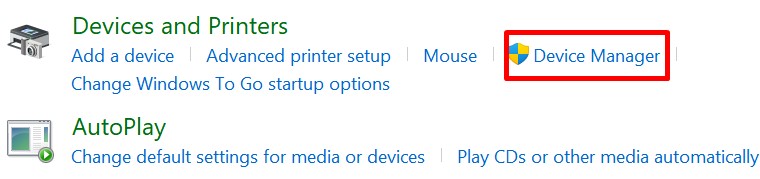
- Under Devices and Printers, select Device Manager.
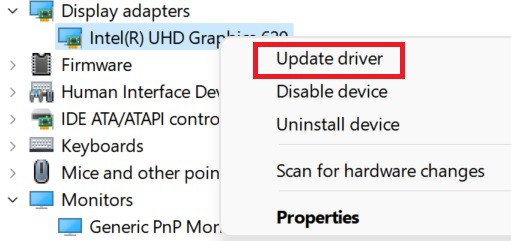
- Navigate to Monitors and right-click on your graphics driver.
- Then, select Update driver.
- Now, tap the Search automatically for drivers option and wait until it is upgraded.
Reset Power Plan to Default Settings
If none of the fixes work, our final option is to reset the power plan. Here’s how to do just that:
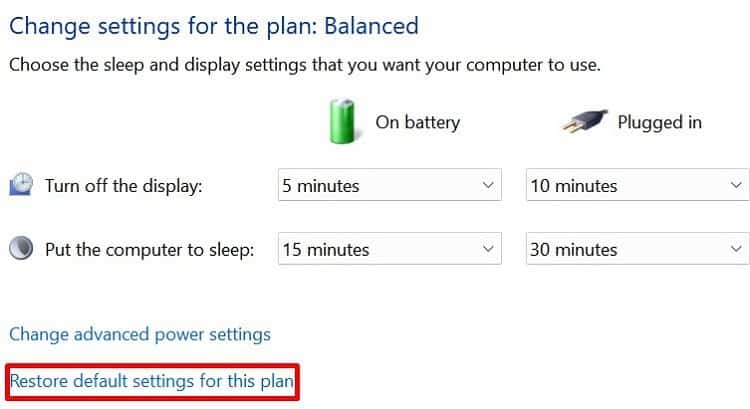
- Open Power Options from Control Panel.
- Navigate to Choose plan settings and select Restore default settings for this plan.
Even if resetting to default didn’t do the magic, check if your cables are working fine. If the problem persists, you might need to reset your entire system.
Monitor Going To Sleep Randomly 9 Ways To Fix It
Well, our monitors might go to sleep randomly when we haven’t updated the general settings. Also, this could be an issue due to some system failures or outdated drivers. Whatever the reason, they can be solved using simple techniques. By the end of this article, you will learn why your monitor is going to sleep randomly and the basic methods to fix them.
Why My Monitor Is Randomly Going to Sleep?#
How to Fix Monitor Going to Sleep Randomly#
Before proceeding with these fixes, we advise you to first check for any system update. Also, you can try restarting your PC as this may fix some common faults that send your monitor to sleep. Furthermore, you should check for viruses that could be playing with your system settings. Interestingly, you can install multiple antivirus programs on your device to fix these problems. Now, let’s dive into the simple ways of how you can fix the monitor going to sleep randomly. If one doesn’t work for you, try others, as one of these methods is likely to resolve the issue.
Turn off or Reduce the Computer Sleep Settings#
Knowingly or unknowingly, we might have tweaked the settings such that the system puts our monitor to sleep in a short time. Thus, we are facing this issue frequently and randomly. Hence, the first method is to disable the sleep option. Or, we can increase the time the system sends the monitor to sleep. The following steps will guide you on how to turn off the computer sleep option on Windows 11: Well, there’s also an option to change the time for turning off your display. But, if you choose Never in the Put the computer to sleep option, this setting will be disabled automatically.
Disable the Allow Hybrid Sleep Option#
If turning off the sleep settings didn’t work, a hidden function might be sending your computer to sleep. So, here’s how you can disable the Allow Hybrid Sleep option on your PC:
Increase the System Unattended Sleep Timeout Duration #
Sometimes, making changes in the Windows registry can solve the problem. To make the System Unattended Sleep Timeout visible, we must first tweak certain changes in the Registry Editor. Follow the general guideline to solve monitor sleeping issues using this technique: Using registry editor without prior experience can result is new issues. So, it is better to backup your registry editor before playing with the settings. Read this article to find out how to do it.
Tweak Second Screen Options [For Dual Monitor Users]#
If you use an external display, your screen may sometimes not show on the device. This is probably because your primary device is set to PC Screen Only. Go through the steps below to learn how to tweak this change: Well, there are plenty of ways to switch your primary and secondary monitor. If you want to know more, read our other article.
Try Running the Power Troubleshooter#
Running the Power Troubleshooter automatically fixes any underlying problems with the sleep settings. Read the guidelines below to resolve these issues using this in-built Windows tool:
Scan and Repair Corrupted Windows Files#
Often, corrupted operating system files may take your monitor to sleep randomly for no reason. So, to solve these issues, we use two popular commands on Command Prompt: sfc and dism. To run the dism command, simply visit the Command Prompt on your computer and type the following and wait for several minutes:dism /online /cleanup-image /restorehealth You can use the following command line to run the sfc command on your terminal:sfc /scannow However, the scannow command may not work sometimes. If you face this issue, here’s our article on how to fix it.
Update Your Display Driver#
Well, it’s obvious that most display settings are controlled by the display adapters. Thus, it’s possible that the issues relying on the driver may put your monitor to sleep randomly. Go through the following steps to learn how you can update your display driver on Windows 11:
Reset Power Plan to Default Settings#
If none of the fixes work, our final option is to reset the power plan. Here’s how to do just that: Even if resetting to default didn’t do the magic, check if your cables are working fine. If the problem persists, you might need to reset your entire system.
Monitor Going to Sleep? See How to Get Screen out of Sleep Mode!
How do you stop your monitor from going to sleep on Windows 10? Monitor going to sleep is a frustrating problem but fortunately, it can be easily fixed. Try these troubleshooting tips listed below by MiniTool and easily get out of the sleep mode.
Monitor Keeps Going to Sleep
When you use a computer, software or hardware issues may occur and cause the machine to behave strangely like the monitor problem. To be specific, your computer is turned on but Windows isn’t loading and there is no input signal on the monitor screen or a message shows the monitor is going to sleep mode. Or you use a computer normally but the screen becomes black accidentally.
This could be caused by a connectivity fault, system file glitch, power plan setting, outdated driver, and so on. How to stop monitor from going to sleep in Windows 10? You can fix this issue with the following troubleshooting tips.

If you find that Windows 10 keeps going to sleep automatically, then you can read this post to find multiple efficient solutions to resolve the problem.
Fixes for Monitor Going to Sleep
Check the Monitor Connection
Firstly go to check if there is a connection issue between your monitor and computer. If the connecting cable is loose or damaged, your monitor goes to sleep when plugged in. Just go to power off the system, and then check the video cable & ports. Besides, unplug any external devices to your computer since they may conflict with the machine.
Run Hardware and Devices Troubleshooter
Perhaps the monitor keeps going to sleep due to any minor hardware glitch. Running Windows built-in troubleshooting software may be helpful to fix some issues.
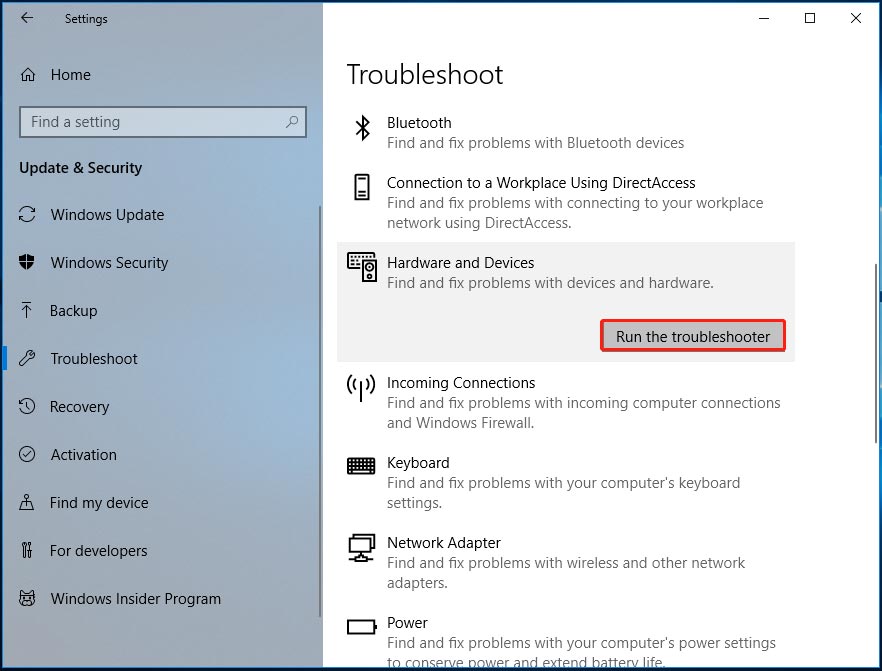
- In Windows 10, press Win+ I to open Settings and go to Update & Security.
- Under the Troubleshoot tab, click Hardware and Devices and choose Run the troubleshooter. Windows is scanning for hardware changes. Finish the operation by following the on-screen instructions.
Disable Screen Saver
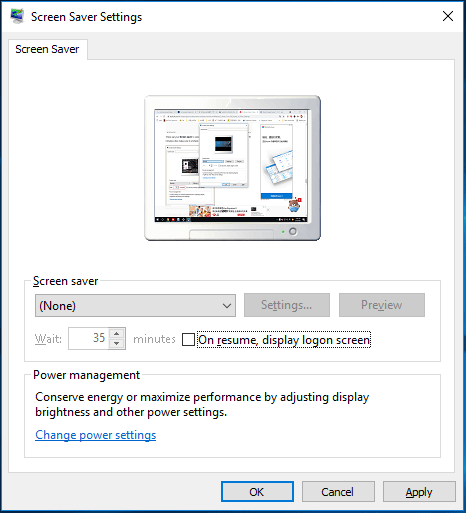
In Windows, there is a built-in feature called screen saver that can be automatically activated if there isn’t Windows activity after a period of time. The monitor screen seems to go to sleep mode. So, you can choose to disable this feature.
- Go to type lock screen settings and click the result in Windows 10.
- Click Screen saver settings and set it to None. Make sure to uncheck the option – On resume, display logon screen.
- Save the change by clicking OK.
Update Monitor Driver
If your monitor keeps going to sleep, you can also try to update the driver. To do this, you can go to Device Manager, right-click the display driver and choose Update driver.
Then, finish the operations by following the on-screen guide. Or, you can use a professional driver update tool to do this work.
How to update drivers in Windows 11 to fix some errors or improve PC performance? This post gives you some efficient methods for driver update.
Change Power Plan Settings
Power settings can be the chief culprit of the issue – monitor going to sleep. Often, your monitor goes to sleep when plugged in. To get rid of this situation, go to change the settings in Windows 10.
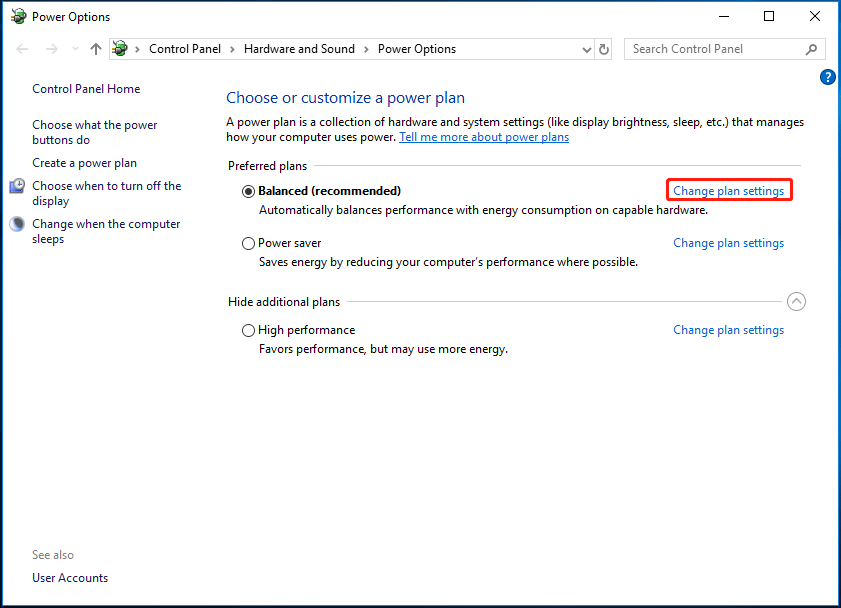
- Press the Win + X keys and choose Power Options from the menu.
- Click the link of Additional power settings to open a new window.
- Click Change plan settings and set the On battery and Plugged in options to Never for both Turn off the display and Put the computer to sleep.
Increase System Unattended Sleep Timeout
If you have tried these ways above but your monitor keeps going to sleep mode, you can try to set System unattended sleep timeout to a longer time. By default, it is invisible and you need to let it visible via changing Windows Registry.
- Press Win + R, type regedit, and click OK.
- Go to Computer\HKEY_LOCAL_MACHINE\SYSTEM\CurrentControlSet\Control\Power\PowerSettings and find the directory, shown in the figure.
- Then, double-click Attributes and set Value data to 2.
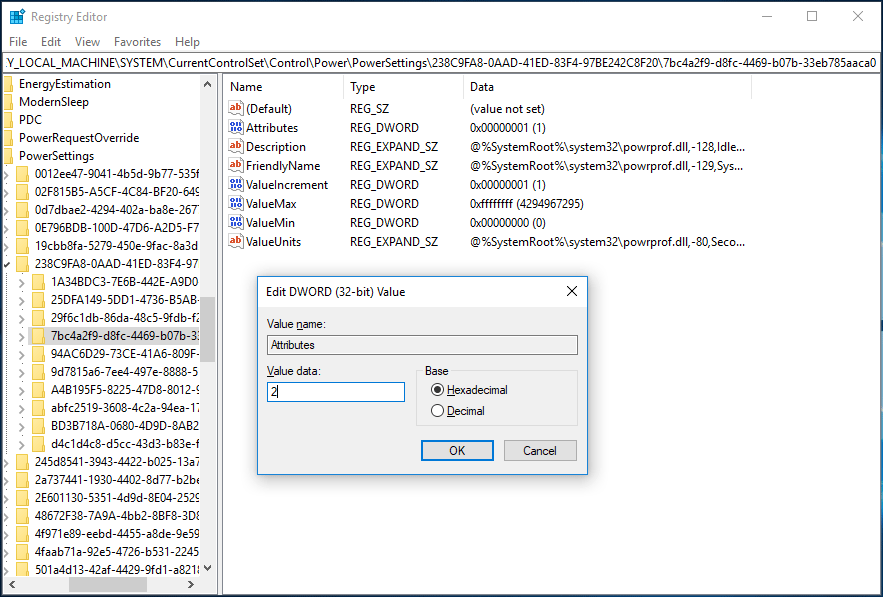
Then, go to increase System unattended sleep timeout.
- Right-click the Windows icon and choose Power Options, then click Additional power settings.
- After clicking Change plan settings, choose Change advanced power settings.
- Expand Sleep, click System unattended sleep timeout, and change it to a long time like 30 minutes.
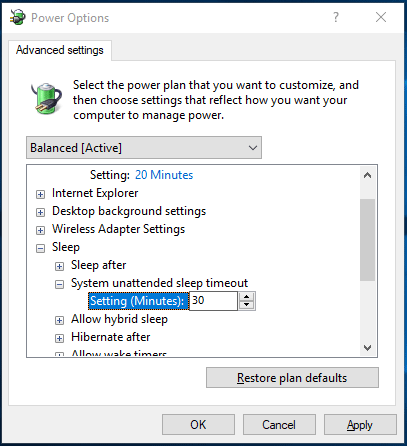
Bottom Line
Monitor going to sleep is annoying but fortunately, you can fix it via some troubleshooting tips. If you are encountering it, take it easy and try these methods in this post now.
About The Author
Vera is an editor of the MiniTool Team since 2016 who has more than 7 years’ writing experiences in the field of technical articles. Her articles mainly focus on disk & partition management, PC data recovery, video conversion, as well as PC backup & restore, helping users to solve some errors and issues when using their computers. In her spare times, she likes shopping, playing games and reading some articles.
Как включить монитор после спящего режима?
Как вывести компьютер или монитор из спящего режима или гибернации? Чтобы вывести компьютер или монитор из спящего режима или гибернации, переместите мышь или нажмите любую клавишу на клавиатуре. Если это не работает, нажмите кнопку питания, чтобы вывести компьютер из спящего режима.
Почему компьютер не включается после спящего режима?
Параметры энергосбережения Иногда компьютер не включается после спящего режима из-за изменения параметров энергосбережения. Как проверить настройки спящего режима компьютера: зажмите на клавиатуре одновременно клавиши Win+ R, в открывшемся окне «Выполнить» введите powercfg. cpl далее «Enter».
Как вывести компьютер из спящего режима?
На большинстве компьютеров и ноутбуков выйти из спящего режима можно нажав кнопку питания. Но вполне возможно, что для пробуждения компьютера достаточно будет нажать любую клавишу на клавиатуре или пошевелить мышкой, а ноутбук и вовсе может пробуждаться при открытии крышки.
Что делать если монитор не включается после спящего режима?
- Для начала проверьте, чтобы монитор был включен. .
- Если монитор не включается индикатор мигает, зато слышно как работает системный блок, то зажмите кнопку Power секунд на 10-15 пока компьютер не выключится.
- После этого снова включите компьютер кнопкой Power.
Как вывести монитор из режима энергосбережения?
- Нажмите на меню «Пуск».
- Выберите кнопку «Выключение».
- В открывшемся дополнительном меню нажмите на пункт «Выйти из спящего режима».
Как вывести компьютер из спящего режима Windows 10?
Разбудить компьютер с помощью клавиатуры или мыши (Windows 10). Вывести компьютер из спящего режима довольно просто. Вам нужно нажать любую клавишу на клавиатуре или переместить мышь, коснутся пальцами точпад.
Как вывести ноутбук из режима глубокого сна?
- Убедитесь во включенном состоянии компьютерного устройства – для этого проверьте работу индикатора.
- Если ваш ноут не реагирует на мышь, тачпад или клавиатуру, надавите на клавишу Power на 10-15 сек и дождитесь отключения экрана.
- Снова нажмите на Power.
Почему компьютер сам включается во время сна?
Обычно, причинами того, что компьютер сам включается неожиданно для пользователя, являются такие факторы, как способность периферийных устройств выводить его из режима сна, а также автоматическое обслуживание Windows 10 и работа с обновлениями системы.
Как выйти из спящего режима на Windows?
Нажмите на устройство правой кнопкой мыши и выберите «Свойства». Далее выбираете вкладку «Управление электропитанием», снимаете галочку с пункта «Разрешить устройству вывод компьютера из ждущего режима», а затем нажимаете ОК.
Что делать если ноутбук не выходит из спящего режима?
Если вы чувствуете, что ноутбук не выходит из спящего режима или режима гибернации, пожалуйста, подключите адаптер переменного тока и убедитесь, что индикатор заряда батареи включен (как показано на рисунке ниже), возможно, ноутбук не мог возобновить работу из-за отсутствия питания, затем попробуйте нажать кнопку .
Как выйти из режима сна в Windows 7?
Что бы выйти из спящего режима Windows 7 при помощи клавиатуры или мыши, нужно зайти в диспетчер устройств и щёлкнуть два раза правой кнопкой мыши на нужном устройстве и в свойствах зайти во вкладку Управление электропитанием и поставить галочку в пункте Разрешить этому устройству выводить компьютер из ждущего режима.
Как выйти из спящего режима на телефоне?
Для этого необходимо перейти в настройки смартфона или планшета, хотя правильнее это должно звучать как «перейти в настройки Android» и выбрать раздел «Экран», где в подразделе «Спящий режим» выставить необходимое время или вообще выключить данную опцию, если возможность ее выключения предусмотрена производителем .
Почему на мониторе пишет Going to Sleep?
¦ Monitor Going to Sleep (Монитор перебегает в энергосберегающий режим). . значит, что кабель видеовхода некорректно подключён к компу либо монитору.