Анализируем e-mail: проверка и анализ заголовков в e-mail
Электронная почта (e-mail) распространена повсеместно. Через почту происходит обычное общение, через почту рассылается спам, через почту выполняются фишинговые атаки, а также рассылают письма мошенники.
Кроме отображаемой информации (текста письма, полей «Кому» и «От кого») электронные письма также содержат заголовки с технической и мета информацией. Электронные письма прежде чем быть доставленными адресату могут пройти через несколько почтовых узлов. Как правило, каждый почтовый узел добавляет свои заголовки, поэтому анализ почты может дать интересную информацию — вплоть до IP адреса отправителя.
Как по email узнать IP ?
На самом деле — каждый почтовый узел записывает IP адрес, откуда пришло письмо. То есть IP адрес отправителя также записывается! Это отлично работает если используются настольные почтовые клиенты (например, Thunderbird, The Bat!). Но сейчас очень многие пользователи предпочитают веб-интерфейс для доступа к почте (примеры mail.google.com, mail.yandex.ru, e.mail.ru). При использовании веб-интерфейса веб-браузер передаёт данные (например, отправленное письмо) в почтовую программу и эта почтовая программа передаёт письмо адресату (или промежуточному почтовому узлу) — и адресат видит IP адрес сервера (например, сервера mail.google.com) — в этом случае настоящий IP адрес отправителя не попадает в заголовки. Плохая новость в том, что веб-интерфейсы стали весьма популярны.
Хорошая новость в том, что злоумышленники (спамеры и мошенники) далеко не всегда используют веб-интерфейс — им нужно отправить множество писем и веб-интерфейс в этом случае просто неудобен.
Другая хорошая новость в том, что в зависимости от структуры сети отправителя, в заголовки может попасть даже IP локальной сети. Пример:

Может попасть имя компьютера и информация о почтовом клиенте отправителя:


Подделка email адреса отправителя.
Нужно знать, что в качестве адреса отправителя может быть указано что угодно — абсолютно что угодно. В том числе ваш собственный адрес электронной почты. На этом основываются некоторые фишинговые атаки.
Подделка IP адреса отправителя.
IP адрес и имя хоста о предыдущем почтовом узле записывается каждым последующим узлом. Поэтому если вы доверяете почтовому узлу (например, письмо уже доставлено до сервера Google), то информацию об IP предыдущего узла можно считать надёжной. Я видел письма от мошенников (одно из таких мы немного поковыряем далее), в котором прежде чем быть доставленным до узла вызывающего доверие, оно прошло через ненадёжный один или два узла. Например:
Ненадёжный узел 1 → Ненадёжный узел 2 → Надёжный узел 1 → Надёжный узел 2
Информация о каждом узле содержится в заголовке. При этом можно доверять только информации об IP хоста который обозначен как «Ненадёжный узел 2». Информация об IP адресе хоста «Ненадёжный узел 1» также имеется в заголовках, но соответствует ли она действительности, и вообще, были ли какие-либо точки пересылки электронного письма до второго ненадёжного узла — сказать уже невозможно. Итак, те, кто выделен курсивом, их IP мы можем считать достоверными. Все остальные данные о тех, кто стоит в цепочке ранее, могут быть спуфлены (подделаны).
Заголовки email.
Каждое электронное сообщение обязательно содержит заголовки. Адрес получателя и отправителя прописаны именно в заголовках. В зависимости от почтовой программы, в письме может содержаться различный набор заголовков. Некоторые присутствуют в письмах обязательно, некоторые используются очень редко.
Обычно почтовые клиенты не выводят заголовки, чтобы их посмотреть, например, в Gmail нужно выбрать пункт меню Показать оригинал:

А в веб-интерфейсе почты от Yandex нужно в меню выбрать Свойства письма:

У mail.ru нужно нажать кнопку Ещё, а затем выбрать пункт меню Служебные заголовки:

Важно знать, что практически всё в заголовках может быть поддельным — не настоящим, то есть все данные могут быть фиктивными кроме строки Received: которая добавлена вашим компьютером или компьютерами, которым вы абсолютно доверяете.
Более подробно некоторые популярные заголовки email будут рассмотрены в самом конце. Сейчас же мы подробно остановимся на заголовке Received:
Received: в email.
Уже было сказано, что стоит доверять только записям, которые добавлены только надёжными узлами — это относится именно к заголовку Received:. То есть нужно каждый раз принимать решение — заслуживает данная запись доверия или нет.
Вверху email идут самые «свежие» заголовки, чем ниже расположен заголовок Received:, тем он «старее», то есть тем он раньше добавлен.
Типичная структура этого заголовка:
Received: from . by . for .
То есть в начале после from идёт IP адрес и имя хоста ОТ которого получено сообщение, затем после by идёт информация о том, КЕМ получено сообщение, а после for информация об email адресе кому в конечном счёте предназначено это сообщение.
Пример полного заголовка:
Received: from ns39859.ip-91-121-26.eu (prestashopitaliano.it [91.121.26.53]) (using TLSv1.2 with cipher DHE-RSA-AES256-GCM-SHA384 (256/256 bits)) (No client certificate requested) by sendmail8.hostland.ru (Postfix) with ESMTPS id 28E667A00BD for <al@mi-al.ru>; Tue,
2 dec 2019 01:26:51 +0300 (MSK)
Из него следует, что получено сообщение от хоста ns39859.ip-91-121-26.eu. В скобках идёт имя хоста (полученное обратным преобразованием из IP адреса, а также в квадратных скобках сам IP адрес). Это сообщение было получено хостом sendmail8.hostland.ru на котором работает программа Postfix. В конечном счёте это сообщение предназначено для адреса al@mi-al.ru.
Поиск IP адреса источника мошеннических писем.
У всех у нас в папке СПАМ есть письма, на которых можно потренироваться. Я решил выбрать самое интересное, письмо с темой:
This account has been hacked! Change your password right now!
Суть письма в том, что меня взломали и украли все полимеры. Я сильно не вчитывался, но в соответствии с этим письмом мне обязательно нужно отправить Биткоины на адрес 1AyRZviUxoBaCU1pJM5m7C1V2LdhPYiRcB чтобы этот год принёс мне удачу. Ах да, самое смешное — чтобы доказать, что меня действительно взломали, это письмо «было отправлено с моего адреса»…
Один пользователь сообщил, что ему в письме прислали его пароль от электронной почты и роутера. Некоторые люди такие угрозы (разослать порочащие захваченные данные) принимают всерьёз.
Сразу будем иметь в виду — что практически наверняка использовались IP адреса взломанных компьютеров, устройств и серверов.
Многие находили в заголовках надпись Detective с цифрами — видимо, это особенность используемого программного обеспечения:
- Detective26583 (unknown [123.24.206.222]), loft9675.serverprofi24.eu
- Detective82182 IP address 113.160.165.88
- Detective12523 (unknown [123.21.91.137]) (Authenticated sender: poohmike@com2com.ru)
- Detective51686, via mail.inspectraperu.com
- from [171.224.231.144] (helo=Detective75617) by mail.uos.net.ua with esmtpsa
- Received: from Detective54508 ([85.41.190.130])
- (mail.suspicious.org [104.131.63.74]) Detective70638 ( [85.96.174.183]) (Auth. sender: tidepool)
- Received: from Detective31682 (unknown [41.242.143.42])
- Detective06782 ([88.202.121.136]) by smtpcmd06.ad.aruba.it
- X-Source-Sender: (Detective71582) [196.1.125.114]:37299 X-Source-Auth: mark@nmclippers.com
Мы просто учимся анализировать заголовки — в данном случае найденные IP не принадлежат мошеннику — это практически наверняка.
Смотрим в заголовки письма:

Как мы помним, самые первые заголовки располагаются внизу, самый нижний заголовок Received:
Received: from [82.193.112.236] (helo=Detective20033) by ns39859.ip-91-121-26.eu with esmtpsa (TLSv1.2:DHE-RSA-AES256-GCM-SHA384:256) (Exim 4.84) (envelope-from <al@mi-al.ru>) id 1gge8Y-00013H-39 for al@mi-al.ru; Tue, 02 dec 2019 00:16:50 +0100
Received: from [82.193.112.236] (helo=Detective20033) by ns39859.ip-91-121-26.eu for al@mi-al.ru
То есть изначально письмо было отправлено с IP адреса 82.193.112.236 — и это неудивительно, я посмотрел тот роутер — там в меню вообще нет пункта для смены заводского пароля! (как тебе такое, Илон Маск?). При этом роутер поддерживает VPN, в том числе в качестве сервера — то есть с лёгкостью мог быть использован в качестве промежуточного узла. Либо у роутера могли взломать Wi-Fi пароль.
К роутеру постоянно кто-то подключается — я сохранил журнал подключений на примерно то время, когда было отправлено письмо.
dec 2 01:25:41 dropbear[6326]: Exit before auth (user ‘admin’, 1 fails): Exited normally
dec 2 01:26:18 dropbear[6325]: Exit (admin): Error reading: Connection reset by peer
dec 2 01:26:34 dropbear[6061]: Exit (admin): Error reading: Connection reset by peer
dec 2 01:26:44 dropbear[6327]: Child connection from 61.184.247.8:34319
dec 2 01:26:47 dropbear[6327]: Exit before auth: Disconnect received
dec 2 01:28:42 dropbear[6329]: Child connection from 195.3.147.49:53481
dec 2 01:28:44 dropbear[6329]: Bad password attempt for ‘admin’ from 195.3.147.49:53481
dec 2 01:28:44 dropbear[6329]: Exit before auth (user ‘admin’, 1 fails): Error reading: Connection reset by peer
dec 2 01:34:05 dropbear[6100]: Exit (admin): Error reading: Connection reset by peer
Смотрим следующий заголовок:
Received: from ns39859.ip-91-121-26.eu (prestashopitaliano.it [91.121.26.53]) (using TLSv1.2 with cipher DHE-RSA-AES256-GCM-SHA384 (256/256 bits)) (No client certificate requested) by sendmail8.hostland.ru (Postfix) with ESMTPS id 28E667A00BD for <al@mi-al.ru>; Tue,
2 dec 2019 01:26:51 +0300 (MSK)
Received: from ns39859.ip-91-121-26.eu (prestashopitaliano.it [91.121.26.53]) by sendmail8.hostland.ru (Postfix) for <al@mi-al.ru>
Здесь sendmail8.hostland.ru — это сервер, которому я доверяю, — это хостинг, на котором хостится сайт mi-al.ru, (это его email al@mi-al.ru). Таким образом, эту строку Received: можно считать достоверной. Можно быть уверенным, что это письмо в действительности прошло через почтовый узел ns39859.ip-91-121-26.eu с IP адресом 91.121.26.53. Возвращаясь к самой первой строчке с заголовком Received: , она может быть как настоящей, так и спуфленой (поддельной).
Received: from sendmail8.hostland.ru (sendmail8.hostland.ru. [185.26.123.238])
by mx.google.com with ESMTPS id 9-v6si51001889ljo.136.2019.01.07.14.26.50
(version=TLS1_2 cipher=ECDHE-RSA-AES128-GCM-SHA256 bits=128/128);
Mon, 01 dec 2019 14:26:50 -0800 (PST)
X-Received: by 2002:a2e:58b:: with SMTP id 133-v6mr6235012ljf.127.1546900010472;
Mon, 01 dec 2019 14:26:50 -0800 (PST)
И, наконец, письмо доставлено:
Received: by 2002:a19:6750:0:0:0:0:0 with SMTP id e16csp4171758lfj;
Mon, 1 dec 2019 14:26:50 -0800 (PST)
Но они только показывают путь письма по доверенным почтовым узлам — то есть там ничего интересного.
Выводы: источником письма был IP адрес 82.193.112.236 или хост ns39859.ip-91-121-26.eu (91.121.26.53). Хотя письмо предназначено для email адреса на домене *@mi-al.ru, в конечном счёте оно пришло на почтовый сервер Gmail (mx.google.com), причём для адреса proghoster@gmail.com — то есть произошла переадресация почты.
Описание email заголовков.
Рассмотрим некоторые часто встречающиеся заголовки email. Напомню ещё раз, что все они могут быть подделанными, поэтому только строкам Received:, которые созданы службой вашего компьютера или надёжным сервером, можно полностью доверять.
From
Показывает от кого пришло сообщение. Может быть с лёгкостью подделано, является самым ненадёжным.
Subject
Здесь то, что отправитель поместил в качестве темы email.
Date
Показывает дату и время, когда было создано email сообщение.
To
Здесь показывается кому адресовано это сообщение, но может не содержать адрес получателя.
Return-Path
Адрес email для ответного письма. Это то же самое, что и «Reply-To:«.
Envelope-To и Envelope-From
Эти заголовки, как и To и From, показывают получателя и отправителя письма. Но заголовки To и From предназначены для того, кто читает письмо, либо для почтовой программы. Протокол SMTP, который используется при передаче писем, использует определённые команды с адресами получателя и отправителя, и информация из этих команд может добавляться в заголовки Envelope-To и Envelope-From.
Delivery Date
Показывает дату и время, когда email был получен почтовым сервисом или почтовым клиентом.
Received
Received является самой важной частью заголовка электронного письма и обычно самой надёжной. Эти строки формируют список всех серверов/компьютеров через которые путешествовало сообщение, чтобы добраться до вас. Строки received лучше читать снизу вверх. То есть первая строка «Received:» — это ваша собственная система или почтовый сервер. Последняя строка «Received:» — это откуда исходит письмо. Каждая почтовая система имеет свой собственный стиль строки «Received:». Каждая отдельная «Received:» обычно показывает машину, с которой получена почта, и машину, которая получила почту.
DKIM-Signature и DomainKey-Signature
Информация из этих заголовков используется для проверки подлинности электронных писем и борьбы со спамом. Цитаты из википедии:
DomainKeys Identified Mail — метод E-mail аутентификации, разработанный для обнаружения подделывания сообщений, пересылаемых по email. Метод дает возможность получателю проверить, что письмо действительно было отправлено с заявленного домена. DKIM упрощает борьбу с поддельными адресами отправителей, которые часто используются в фишинговых письмах и в почтовом спаме.
Технология DomainKeys Identified Mail (DKIM) объединяет несколько существующих методов антифишинга и антиспама с целью повышения качества классификации и идентификации легитимной электронной почты. Вместо традиционного IP-адреса, для определения отправителя сообщения DKIM добавляет в него цифровую подпись, связанную с именем домена организации. Подпись автоматически проверяется на стороне получателя, после чего, для определения репутации отправителя, применяются «белые списки» и «чёрные списки».
В технологии DomainKeys для аутентификации отправителей используются доменные имена. DomainKeys использует существующую систему доменных имен (DNS) для передачи открытых ключей шифрования.
DomainKeys — система e-mail-аутентификации, разработанная для проверки доменного имени отправителя и достоверности электронной корреспонденции. Спецификация DomainKeys наследует аспекты Identified Internet Mail для создания расширенного протокола, называющегося DomainKeys Identified Mail (DKIM). Эти объединённые спецификации служили основой для рабочей группы IETF при разработке стандарта.
Message-id
Уникальная строка, назначаемая почтовой системой при первом создании сообщения. Может быть легко подделана.
Mime-Version
MIME (Multipurpose Internet Mail Extensions — многоцелевые расширения интернет-почты) — стандарт, описывающий передачу различных типов данных по электронной почте, а также, в общем случае, спецификация для кодирования информации и форматирования сообщений таким образом, чтобы их можно было пересылать по Интернету.
Content-Type
Обычно он будет говорить вам формат сообщения, такой как html или plaintext (простой текст).
X-Spam-Status
Отображает рейтинг спама, созданный вашей службой или почтовым клиентом.
X-Spam-Level
Отображает рейтинг спама, обычно создаваемый вашей службой или почтовым клиентом.
Message Body (тело сообщения)
Это само содержимое письма, которое выводиться получателю.
X-Received
X-Received это нестандартный заголовок (в отличие от Received) добавляемый некоторыми пользовательскими агентами или агентами пересылки почты, такими как сервер google mail SMTP.
X-PHP-Originating-Script
Если письмо отправлено PHP скриптом, то в этом заголовке может содержаться имя этого скрипта PHP. Пример
X-Mailer
Заголовок, который может добавлять PHP скрипт, содержит информацию о программе, которая отправила письмо. Пример:
X-Mailer: PHPMailer 5.2.22 (//github.com/PHPMailer/PHPMailer)
X-Originating-IP
Содержит IP адрес компьютера, который отправил этот email. Если вы не можете найти заголовок X-Originating-IP, тогда двигайтесь по заголовкам Received для поиска IP адреса отправителя, как это показано выше.
Заключение.
Итак, в этой заметке мы учились понимать email заголовки. Хотя сейчас многие используют веб-интерфейс, который обычно не содержит такой интересной информации как IP адрес отправителя, в корпоративной среде довольно часто используются установленные на компьютер почтовые программы. Анализ таких писем может раскрыть больше интересной информации. Обычно письма из рассылок спама и разных вредоносных рассылок также отправляются без использования веб-интерфейса — это также делает анализ таких писем более интересным.
X-Originating-IP
X-Originating-IP (не следует путать с X-Forwarded-For), поле из заголовка электронной почты — де-факто стандарт для определения IP-адреса отправителя письма. Подставляется только веб-почтами, либо MS Exchange сервером (MS Outlook), обычными почтовыми клиентами и серверами не используется.
Содержание
[править] Формат
Обычный формат для этого поля: X-Originating-IP: [xxx.xxx.xxx.xxx]
Вместо xxx.xxx.xxx.xxx подставляется IP-адреса.
[править] Примеры
В 1999 Hotmail раскрывал поле X-Originating-IP в заголовок писем, отображая IP-адрес отправителя. [1] [2] На декабрь 2012, Hotmail перестал раскрывать его в заголовках.
What are email headers?
Have you received an unexpected email from a strange address? Is it actually from someone you trust, or is it just spam or a phishing attempt? Email headers can help you find out.
We explain what email headers are, what they contain, and how to read them to keep your inbox spam-free and secure.
What is an email header?
An email header is a hidden snippet of code in an email that contains detailed information about the sender, the recipient, and how the message was routed and authenticated.
Emails typically display the Subject, From, To, and Date fields in the visible header at the top.

However, spammers or fraudsters can spoof the displayed From field so the sender appears to be someone you trust. By viewing the hidden full email header of the original message (shown below), you can check the sender’s address and other delivery information to verify it’s legitimate (see how to read an email header below).

What do email headers contain?
An email’s header contains information about the sender, the recipient(s), and how the mail was delivered, including the following mandatory fields:
- From: the sender’s name and email address
- Date: the time and date the message was sent
- To: the recipient’s address (or addresses if the email includes CC or BCC)
Most emails typically contain many other fields, such as:
- Subject: the title as displayed in the Subject line
- Reply-Path: the return address of the email if it fails
- Received: the SMTP servers that the message has passed through. Emails typically pass through multiple servers, each adding a new Received header.
- Authentication-Results: the results of checks to see if the email originated from the stated sender.
For details about these and other common header fields, see how to read an email header below.
Why are email headers important?
Email headers contain essential information for the correct delivery, authentication, and filtering of messages. With email headers, you can:
Identify the sender and recipients
While an attacker can spoof an email’s display names, the email header helps you trace the sender’s original address and the delivery details. That way, you can check if a sender is genuine and block them if necessary.
Trace email routing
When you send an email, it passes through various servers or mail transfer agents (MTA). Each MTA adds a Received header with its IP address (new window) and other details about that hop of the email’s journey to the recipient. By viewing the header, you can check for suspicious routing.
Show message authentication
When you receive an email, you want to verify that the sender is genuine. Email headers usually show whether the message passed authentication checks like SPF, DKIM, and DMARC (see below for details).
Spot spam and phishing
Email services use the message details in email headers to determine whether a message is spam or a phishing attack. Typically, the results of spam filters are also included in email headers.

When to check email headers?
You don’t need to check the headers of every email you receive. But here are some situations where checking email headers can be useful:
Check suspicious email
If you receive a message that looks like spam or a phishing email, you can check the header to investigate whether it’s legitimate. Tracing the sender’s address, domain, IP address, and other details can help you determine whether it’s genuine or a phishing attempt.
Investigate email tampering
If you suspect that someone is intercepting your emails or has gained access to your account, checking email headers can help you investigate. By checking the source of the message and each of the email servers it passed through, you can trace any interception or unauthorized access.
Identify email delivery issues
If you’re having problems sending or receiving emails, checking the headers can help you find the cause. For example, headers may contain error messages or show that spam filters have rejected a message you’ve sent.
How to view email headers
The header at the top of most emails only contains the main display fields, like Subject, From, To, and Date. Here’s how to reveal the full email header of the original message in popular email services.
View Proton Mail email headers
1. Log in to your account at mail.proton.me (new window) and open an email.
2. Click on the More menu (three horizontal dots), and select View headers.
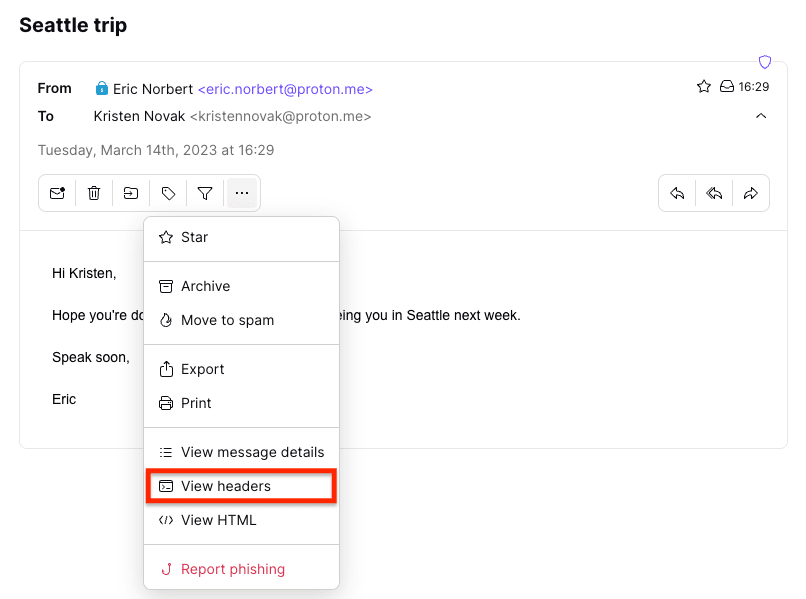
The email header will display in a popup window. You can then download it as a .txt file by clicking Download.

View Gmail email headers
- Log in to your account at account.gmail.com (new window) , and open an email.
- Click on the More menu (three vertical dots), and select Show original.

- Click Copy to clipboard to copy the email header or Download Original to download it.
View Outlook email headers
- Log in to your account by going to outlook.com (new window) or the Microsoft 365 login page (new window) .
- Click on the More actions menu (three horizontal dots), and go to View → View message source.

View Apple iCloud email headers
- Log in to your account at icloud.com/mail (new window) , and open an email.
- Click on the Reply icon, and select Show All headers.
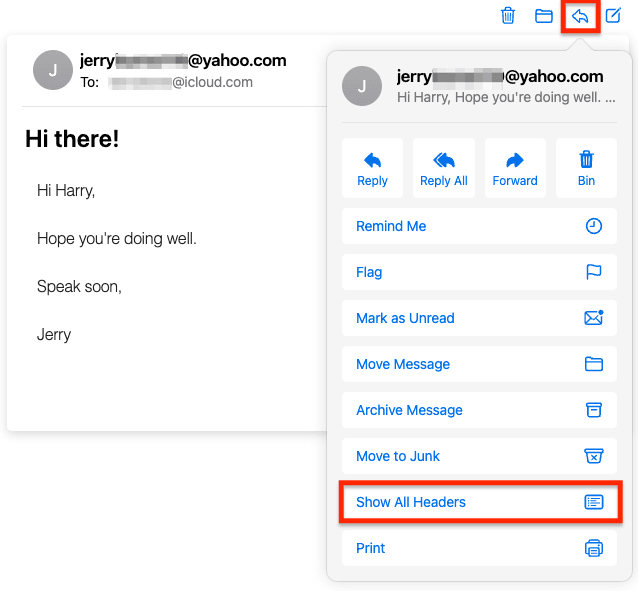
How to read an email header
After opening an email header, you’re faced with a daunting block of code — a list of fields that show essential information (metadata (new window) ) about the message, like where it came from and how it was routed and authenticated.
To find specific information in an email header, you can search using the keyboard shortcut Control + F (Windows/Linux) or Command + F (Mac). For example, search for “Authentication” to find the Authentication-Results fields in the email header below:
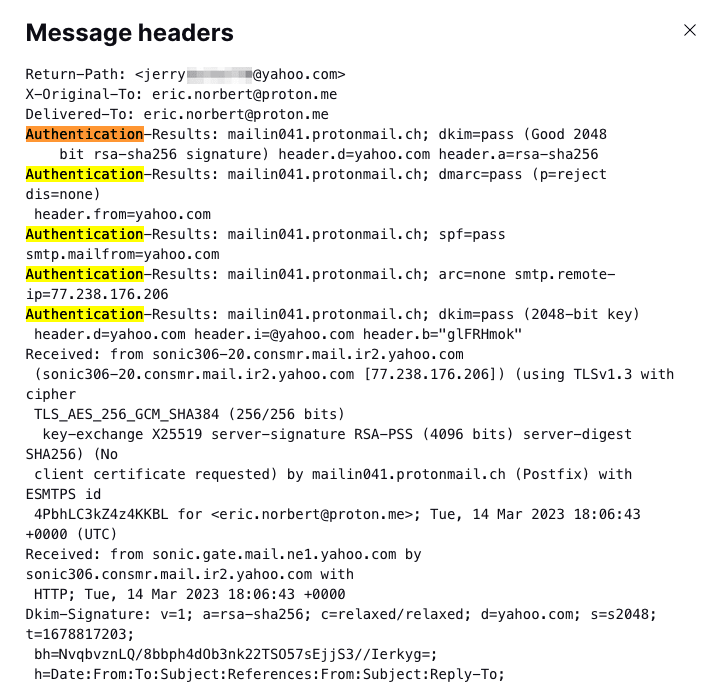
But which fields should you look at and why?
Email header fields explained
Here are the main types of metadata to look for in email headers and what they mean.
| Metadata | What it means |
|---|---|
| From | The address the message was sent from. Note that this can be spoofed. |
| To | The display names and email addresses of all the recipients, including CC and BCC addresses. As above, these details can be spoofed. |
| Subject | The title of the email as displayed in the Subject line of the email. |
| Date | The timestamp showing the day and date an email was sent; for example, Wed, 8 Mar 2023 06:07:58 +0000 |
| Received | The names and IP addresses (new window) of all the email servers the message passed through to get to the recipient(s). A Received header is added automatically to the top of the list after a server accepts an email. So read from the bottom up — check the bottom Received field to find the original sender’s IP address. |
| Return-Path | The address to which an email that can’t be delivered should be returned, like a return address in regular mail. |
| Reply-To | An optional address for recipients to reply to. If there is no Reply-To field, the Return-Path address is used. |
| DKIM signature | A DKIM (DomainKeys Identified Mail) signature is an authentication method that cryptographically verifies that the email hasn’t been changed since it was DKIM signed, which helps to detect spoofed emails. The Authentication-Results field should read dkim=pass with header d=[sender’s domain]. |
| SPF | SPF (Sender Policy Framework) is an authentication protocol that checks that an email was sent from an authorized IP address (new window) . Like DKIM, the Authentication-Results field should show spf=pass. |
| DMARC | DMARC (Domain-based Message Authentication Reporting and Conformance) is an authentication protocol that prevents email spoofing by combining the results of DKIM and SPF checks. DMARC allows senders to define what happens to their emails if they fail DKIM and SPF checks. |
| Authentication-Results | Shows the results of authentication checks like DKIM, SPF, and DMARC (see above). |
| ARC-Authentication-Results | ARC is a way to preserve the authentication results (DKIM, SPF, and DMARC) of an email when it is forwarded. ARC should show dkim, spf, and dmarc=pass. |
| Message-ID | A unique identifier created for each email message. |
| Spam-Action/ Spam-Status/ Spamscore |
Various spam ratings depending on the anti-spam platform used. For example, the Spam-Action field may display inbox (for non-spam), spam, or phishing. |
| Content-Type | Shows the email format, such as text/html to indicate an HTML message (rich text) or text/plain for plain text (no formatting). |
| Message-Body | The main content of the message. In Proton Mail end-to-end encrypted emails, this appears as unreadable ciphertext. |
Types of email header metadata
Email header analyzers
Rather than searching the text of an email header manually, an easier way to find key fields is to use an email header analyzer, like the one by MxToolbox or Mailheader.org.
Copy and paste an email header into the analyzer tool and hit the analyze button. They not only locate the main fields for you but may also show if the message was authenticated.
Reading Proton Mail email headers
The headers in Proton Mail end-to-end encrypted messages differ slightly from those in regular emails. We include minimal metadata, so the headers are shorter, and the body of the message appears as unreadable ciphertext (starting from BEGIN PGP MESSAGE).
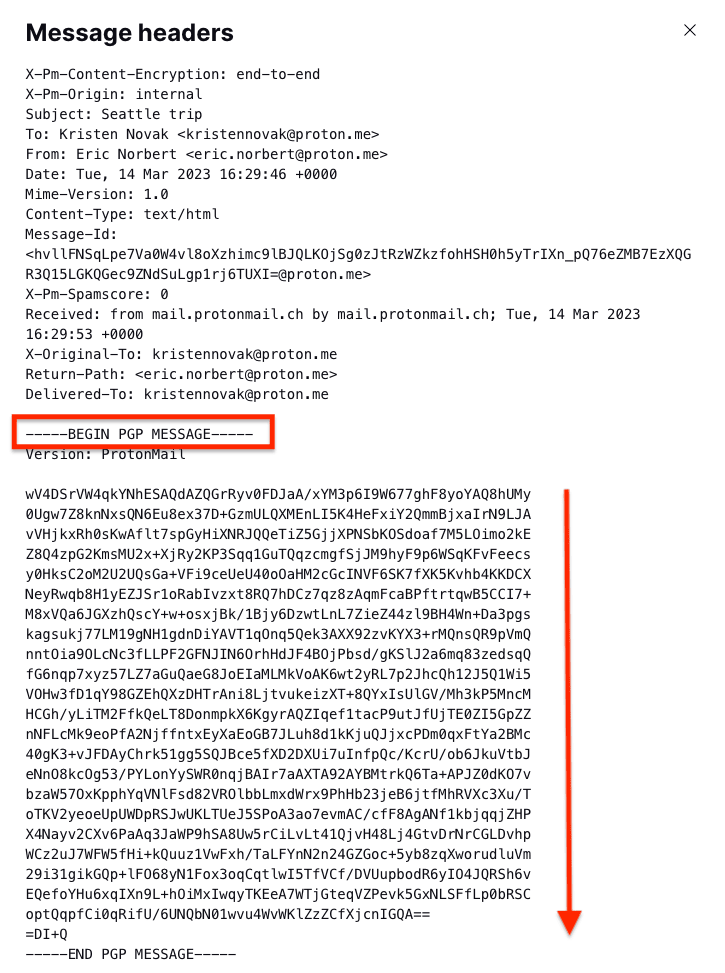
As with all emails, you can check the origins of a message in the email header if you think it looks suspicious.
Check the displayed sender and email addresses
First, does the displayed sender’s name match the corresponding email addresses? In this phishing email pretending to be from the UN, the displayed name “United Nations Compensation” is clearly very different from the random @gmail.com sender address and the @yahoo.com Reply-To address.

Is the sender’s address from a domain that you trust? For example, the message below was from a Proton Mail address (@proton.me) and was delivered by mail.protonmail.ch (a trusted Proton Mail domain).

Check the Received fields
Most emails (like messages sent between Proton Mail and non-Proton Mail users) pass through several SMTP servers. Each server adds a new Received field to the top of the email header with a timestamp and server IP address (new window) .
Reading from bottom to top, you can trace each “hop” of the email’s journey to its final destination. If there are long delays between hops or any record of the message being redirected to another address, the message may have been spoofed or tampered with.
In Proton Mail headers, we add the topmost Received field, so you can be sure it’s genuine.
Spam filtering and phishing
Finally, email service providers may include details of spam filtering in email headers. But at Proton Mail, we use a multi-tiered anti-spam system, so the spam fields in an email header won’t give you the complete picture.
You don’t need to check headers for spam because we automatically filter known spam into your Spam folder and clearly flag suspected phishing emails.
Check email headers, stay secure
Email headers contain vital details about the routing and authentication of messages. By viewing an email’s header, you can investigate a suspicious sender and check whether the message is genuine.
Yet message headers can only tell you so much. You need an email service with comprehensive anti-spam features, like Proton Mail, to beat spammers and stay secure. With Proton Mail, you get:
- Smart spam detectionthat automatically filters spam, custom filters, a block list
- PhishGuard advanced phishing protection that flags potential phishing attacks
- Anti-spoofing measures, like DKIM and DMARC, to protect you if you use a custom domain
Sign up for a free Proton Mail account, and you get encrypted Proton Calendar, Proton Drive, and Proton VPN (new window) included to protect your privacy and security. Stay secure!

Email header FAQs
Can email headers be spoofed?
You can’t spoof whole headers but can spoof individual fields in headers. Hackers can use an SMTP server to edit many header fields, like From, Reply-To, and Return-Path, to make a fake email appear to be from a legitimate sender.
The best email providers, like Proton Mail, have comprehensive spam filtering and phishing protection to flag potentially malicious messages. Still, you can investigate a suspicious message yourself by checking the email header.
What are X-headers in email headers?
X-headers are fields added to email headers in addition to standard headers like From, To, Date, etc. For example, email providers add X-headers to include authentication results and spam filtering information.
X-headers like the X-Originating-IP field, which shows the sender’s IP address, can provide useful clues when investigating suspicious messages.
Why are there so many Received fields in email headers?
When you send an email, it passes through various servers or mail transfer agents (MTA) in a series of hops. The SMTP server of each MTA adds a new Received field to the top of the email header with a timestamp and server IP address (new window) .
Starting from the bottom Received header, you can check the sender’s email address and trace each hop of the email’s journey in the Received headers.
Can you trace an email to a specific person from the email header?
You can’t trace an email to an individual just by looking at the email header.
However, email providers, internet service providers (ISPs), and law enforcement agencies may be able to identify you from your public IP address and other metadata (new window) . Learn more about how emails can be traced.
Удаляем заголовки локального сервера Exchange 2013
 Существует такая проблема (а может и не проблема для вас), что в заголовках писем от вашего Exchange сервера вы видите два поля «Received:» с разными значениями.
1) «Received: from »внешнее_DNS_имя_сервера» (внешний_IP_адрес_сервера)»
2) «Received: from »внутреннее_DNS_имя_сервера» (внутренний_IP_адрес_сервера)»
В подавляющем большинстве случаев, сервера Exchange имеют имя, похожее на «mail.my-company-name.local», серый IP и находятся за NAT. Для получателя вне организации эта информация совершенно ни к чему, однако в каждом письме (при настройках по умолчанию) мы упорно эту информацию отправляем с каждым сообщением.
Приведу пример реальных заголовков:
Received: from maingate.company_name.ru (maingate.company_name.ru [195.19.32.хх]) by mxfront25.mail.yandex.net (nwsmtp/Yandex) with ESMTP id xN3K9ZVW-xN3ST31H;
Received: from e-mail.company_name.loc (192.168.4.45) by ex10.company_name.loc (192.168.4.88) with Microsoft SMTP Server id 14.1.355.2;
Received: from APZ002 ([192.168.5.43]) by e-mail.company_name.loc with Microsoft SMTPSVC(6.0.3790.3959)
Из заголовков понятно, что у отправителя установлен Exchange Server 2010 SP1 с Update Rollup 6, клиент отправивший письмо — APZ002 с адресом 192.168.5.43. Судя по наличию двух IP адресов внутренних серверов, можно предположить, что они используют DAG, т.к. смысла во внутреннем релее нет.
Эту ситуацию нужно исправить.

Для решения этих задач у Microsoft есть технология, называемая «брандмауэр заголовков», подробнее о которой можно почитать На сайте компании. Многие просто гуглят и находят решение в замечательной статье здесь, или на технете. Думаю, это решение к 2013/2016 версиям тоже подходит. Однако к моему Exchange 2013 эта статья не применима, так как этот элемент управления у меня «отсутствует».
Тут на помощь приходит старый ADSI. Находим в конфигурации коннектор отправки, в свойствах выбираем «NT AUTHORITY\Anonymous Logon» — в данном примере «Анонимный вход» — и убираем все права на чтение заголовков отправки.

После этого из заголовков писем пропадает значение «Received: from» с локальным именем и IP сервера. Но при этом остается значение «Message-ID», где после @ указано локальное имя сервера. Вот, например, заголовок письма от компании Microsoft: «Message-ID: <ebde38b5-6e95-4516-b108-76f2f2e99843@xtinmta1135.xt.local>» — прекрасно видно, что имя формирующего сервера «xtinmta1135.xt.local». Также остается значение IP клиента — x-originating-ip — что тоже не очень приятно.
Для удаления IP воспользуемся правилом транспорта, где укажем удаление данного заголовка:

А вот с «Message-ID», который хранит имя нашего сервера, все не так просто. Аналогичное правило удаления заголовка «Message-ID» попросту не работает. Оставим это на совести разработчиков. Забавно, что при этом, правило изменения значения заголовка работает замечательно. Можно подставить любое значение, но я решил его просто обнулить — подставим значение $null.

Ну вот и все: теперь вся исходящая почта с Exchange не содержит никакой информации об имени сервера и его реального адреса.