What is Windows Web Experience Pack and How to Update it
Keep Windows Web Experience Pack updated for access to latest features and a smooth experience on your Windows 11 PC.
Sakshi Garg
Many users have come across a mysterious new app in their Microsoft Stores that goes by the moniker “Windows Web Experience Pack”. Why are we calling it mysterious? Well, because, it is. For starters, the Microsoft Store listing page doesn’t give away much about it.
In fact, if we’re being honest, it doesn’t give away anything. If you scrutinize the page, the only things you’ll find out are that it’s categorized under “Utilities and Tools.” The description for the app very comically and cryptically says – Windows Web Experience Pack. There are no acceptable screenshots that give any information; the only screenshot on the page is a Windows 10 logo image.
The only additional information the page lists are for system requirements. It’s as if Microsoft has designed the entire page to keep users confounded. So, it’s completely understandable if you are baffled by this app. A casual dive on the internet will not reveal much about this new app. But we’ve compiled a rundown for you.
What is Windows Web Experience Pack?
Downloading and installing updates to the Windows OS is a cumbersome process that takes a lot of time. Microsoft has decided to test out a new process for delivering some updates independently of the OS.
This makes it easier to install these updates while also drastically reducing the install time. Due to their independence from the OS, it also leaves more room for experimenting with these updates. Over the last couple of years, Microsoft has introduced several such services.
To deliver quicker updates for some features and settings, Windows will now push regular and smaller updates in form of Feature, Web, and Online service experience packs.
These experience packs update only specific settings on the PC, instead of doing a complete overhaul of the features.
Microsoft uses the feature experience pack to deliver a series of updates that focus on Windows apps that major updates generally skip. It can deliver broad improvements across multiple areas of Windows. The online service pack differs from the feature pack in this aspect; its servicing areas are narrow. Unlike the feature pack, it focuses on delivering updates and improvements for only specific areas. Currently, the online service pack includes only the new entry point for “Your Microsoft account” in the settings app. Over time, it might expand to include other areas.
Now, Microsoft provides all this information for these two packs. But curiously, there’s no word from Microsoft about the pack in question here. By now, this must be clear to you that its purpose is to provide updates to some apps or experiences across Windows.
But exactly what that feature or experience is, that’s unclear. There are only speculations at this point that it must provide improvements for some core web components in the OS that Microsoft Store apps use.
The only thing we know for sure is that it’s responsible for Widgets in Windows. The Web Experience pack is available on both Windows 10 and 11.
How to Update the Web Experience Pack
Now, that we know that the Windows Web Experience pack is responsible for delivering updates in Windows, let’s get around to the part about updating it. If you’re unable to find certain features announced for Windows or are experiencing problems with a widget, updating the Web Experience pack will help. Updating it ensures that you always have access to the latest Windows features.
Manually Update Web Experience Pack
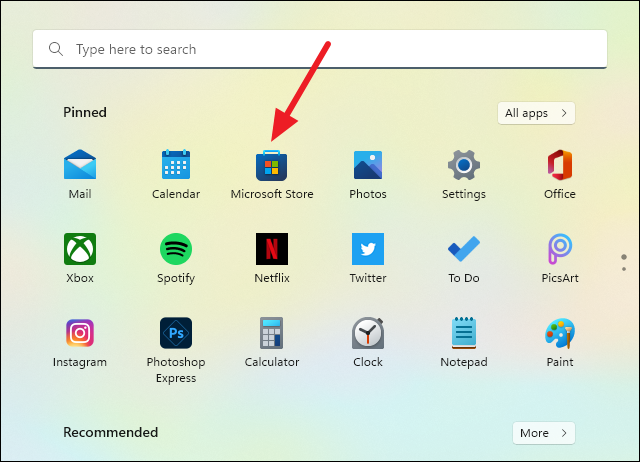
You can get the Windows Web Experience Pack from the Microsoft Store. Open the Microsoft Store from either the Start menu or by searching for it.
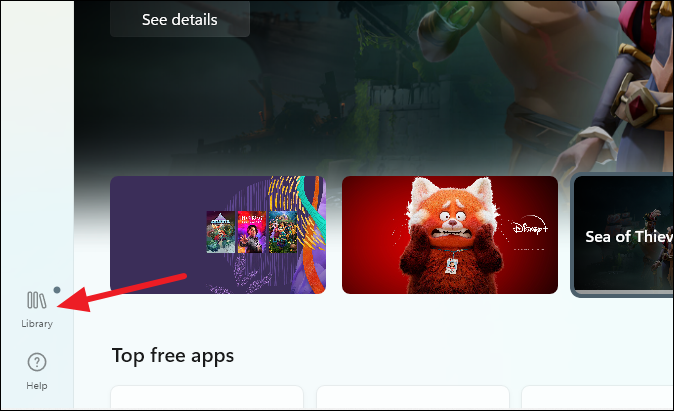
Then, go to ‘Library’ from the bottom part of the navigation menu on the left.
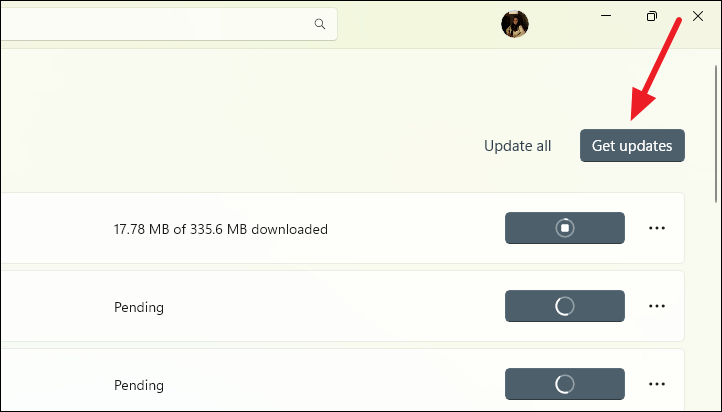
Go to ‘Get Updates’ in the upper right corner.
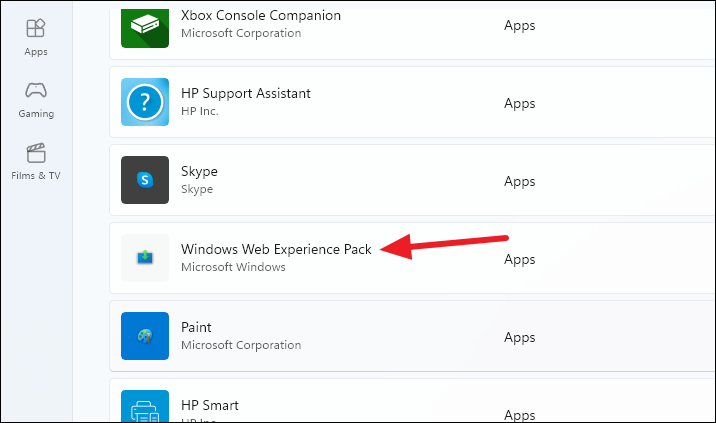
Then, find the Windows Web Experience pack from the list of apps.
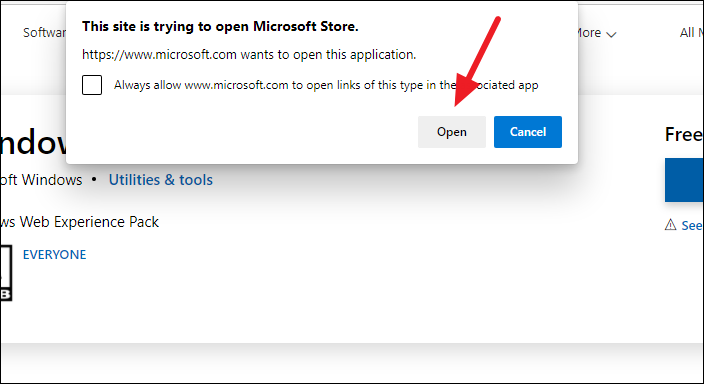
If you can’t find it, open it using this link. It’ll open in the browser. Click ‘Get’ and then click ‘Open’ in the dialog box that appears to open it in the Microsoft Store.
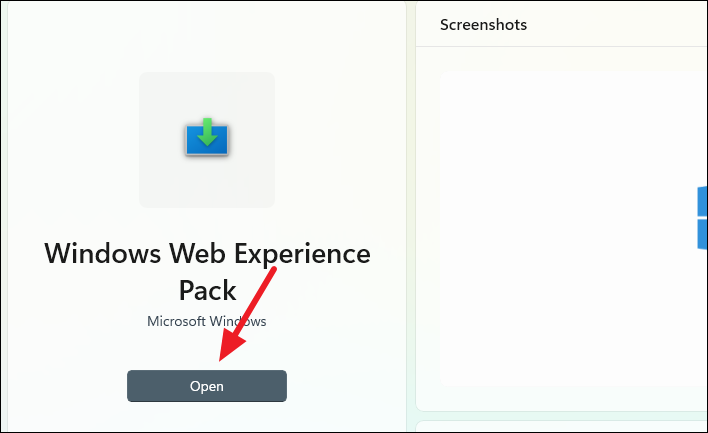
Click the option for ‘Update’ to update to the latest version. If it says ‘Open’ instead of ‘Update’, you’re already using the latest version.
Enable Automatic Updates
You don’t have to worry about updating the Windows Web Experience pack all the time to get access to the latest features. You can enable automatic updates for the web experience pack by enabling automatic updates for all Microsoft Store apps.
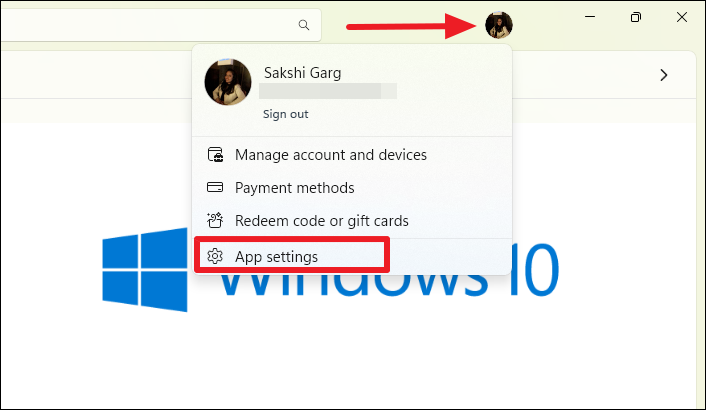
Open the Microsoft Store. Go to your Profile icon on the title bar of the Microsoft Store. Then, select ‘App Settings’ from the menu that opens.
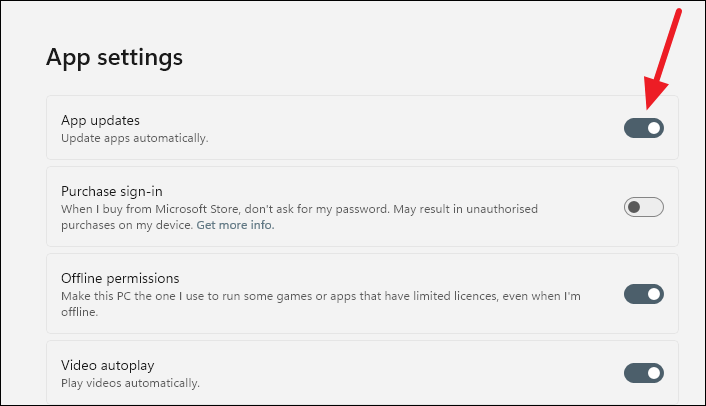
Make sure that the toggle for ‘App Updates’ is on.
Note: If you can’t change this setting on your work system, your organization has configured it this way on purpose.
Microsoft might not have provided much information about what the Windows Web Experience pack does. But we know that we still need to keep it updated to make sure all new features run smoothly in Windows.
What is Windows Web Experience Pack and How to Update It?
Downloading and installing Windows operating system updates is a tedious and time-consuming operation. Microsoft has opted to try a new method for distributing updates independent of the operating system.
What is Windows Web Experience Pack?
This is how the Windows Web Experience Pack came to be.
This new infrastructure using Windows Store (instead of Windows Update) facilitates the installation of these updates and substantially reduces the installation time.
Note: Due to their independence from the operating system, these upgrades provide more freedom for experimentation.
In the past several years, Microsoft has released a number of these services. First came Feature Experience packs for insider builds of Windows 10, then Online Experience Packs before we finally got Web Experience Packs. Now, we are seeing the same pattern for Windows 11.
Windows 11 will now push frequent and smaller updates in the form of Feature, Web, and Online service experience packs in order to give faster upgrades for certain features and settings.
Windows Web Experience Pack on Windows 11
These experience packs do not completely redesign the PC’s functions, but instead, update key settings.
Note: Microsoft utilizes the feature experience pack to offer a series of upgrades focused on Windows applications that are typically omitted from major releases. It can provide significant enhancements to numerous Windows components. In this way, the online service pack differs from the feature pack; its servicing regions are limited.
Unlike the feature pack, it concentrates on providing updates and enhancements for certain areas alone. Currently, the online service pack simply includes the new “Your Microsoft account” access point in the settings app. Over time, it may extend to encompass more areas.
The Mystery around the Web Experience Pack
Microsoft now offers this information for both packs. Curiously, though, Microsoft has said nothing about the pack-in issue. It should be obvious by now that its aim is to give upgrades to Windows programs and experiences.
However, the nature of this feature and its experience are unknown. At this time, it is merely conjectured that it will deliver enhancements to key web components used by Microsoft Store applications.
We only know for certain that it is responsible for Windows’ widgets. The Web Experience bundle is compatible with both Windows 10 and Windows 11.
How to Update & Maintain the Web Experience Pack
Now that we’ve established that the Windows Web Experience bundle is responsible for delivering Windows updates, let’s move on to upgrading it.
If you are unable to locate specific Windows features or are experiencing troubles with a widget, upgrading the Web Experience bundle could be of assistance.
Microsoft may not have revealed many details on the Windows Web Experience bundle. However, we are aware that we must maintain it up-to-date to ensure that all new Windows features function properly.
By updating this component, you will always have access to the most recent Windows features.
1. Update the Web Experience Pack Automatically
You do not need to constantly update the Windows Web Experience bundle to have access to the most recent features. Enabling automatic updates for all Microsoft Store applications enables automatic updates for the web experience bundle.
Since this new component is handled indirectly by the Windows Store, all you need to do is access the App Settings and ensure that App Updates are enabled:
Here’s how to do this:
- Press Windows key + R to open up a Run dialog box.
- Next, type ‘ms-windows-store:’ and press Ctrl + Shift + Enter to open the Microsoft Store with admin access.
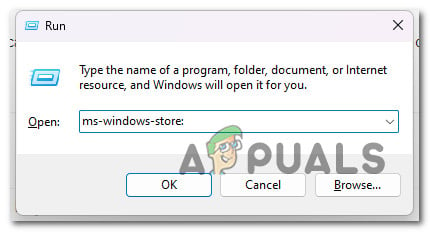 Open up the Microsoft Store
 - At the User Account Control (UAC), click Yes to grant admin access.
- From the main Microsoft Store menu, click on your account icon (top-right corner of the screen).
- From the context menu that just appeared, click on App Settings.
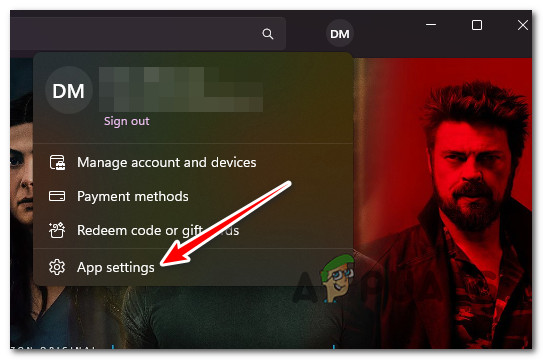 Access the App Settings menu
 - Inside the App settings menu, make sure the App updates toggle is enabled.
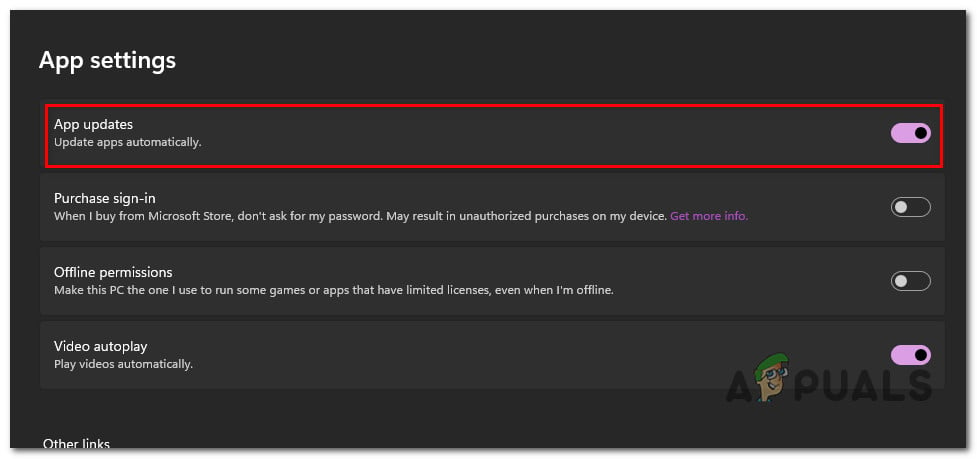 Enable App updates for Microsoft Store
2. Update the Web Experience Pack Manually
If you’re on Windows 11, the Windows Web Experience pack should be already installed on your PC. If you’ve stopped this update purposefully or you’ve postponed it, there’s a way to install it immediately.
Here’s a quick guide on using the Microsoft Store to manually update the Web Experience Pack:
- Press Windows key + R to open up a Run dialog box.
- Next, type ‘ms-windows-store:’ and press Ctrl + Shift + Enter to open the Microsoft Store with admin access. Open up the Microsoft Store
- At the User Account Control (UAC), click Yes to grant admin access.
- Inside the Microsoft Store, click on the Library icon from the bottom-left section of the screen.
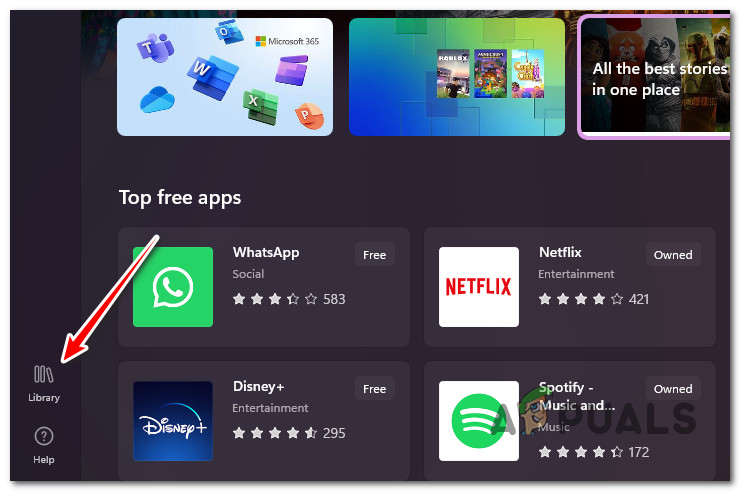 Access the Library Tab
 - Inside the Library tab, click on the Get Updates button in the top-right corner of the screen.
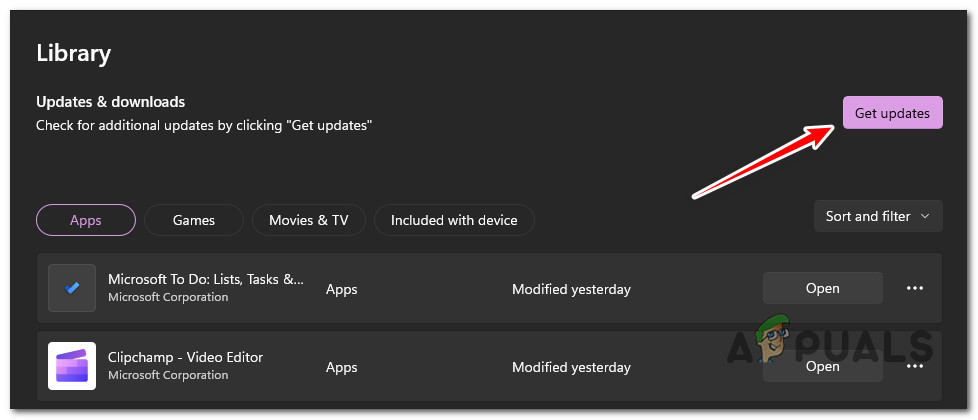 Retrieve new updates available via Microsoft Store
 - Once the list has been refreshed, find the Windows Web Experience pack from the list of available updates.
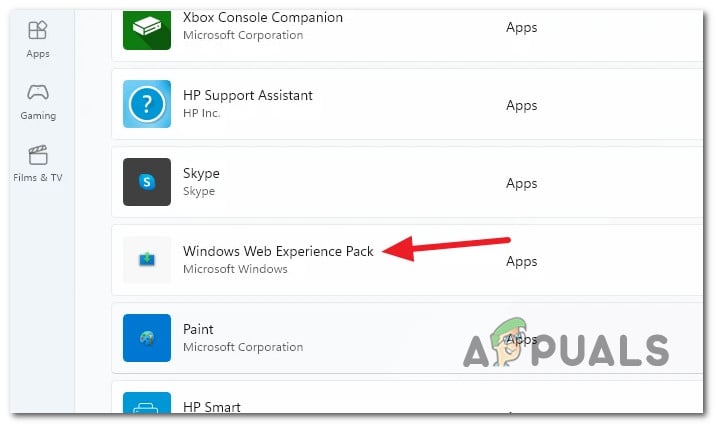 Click on the Windows Web Experience Pack listing
Note: If you can’t find it, you can access the Store link manually and click on Get to download the latest version. From the prompt that just appeared, click on Open.
Windows web experience pack что это
Microsoft недавно заявила, что в этом месяце выпустит свое первое настоящее обновление для Windows 11, включая улучшенную панель задач и виджет погоды на ней. Но то, как он доставляет эти новые функции на ваш ПК, будет не сразу очевидным. Однако недавнее сообщение в блоге дает некоторые подсказки о том, чего ожидать.

реклама
Пользователи Windows 10 и Windows 11 привыкли получать уведомления о предстоящих обновлениях функций Windows либо в подразделе «Центр обновления Windows» меню «Настройки Windows 10», либо во всплывающем уведомлении. Microsoft недавно заявила, что в будущем Windows будет выпускать одно большое обновление функций в год. Но есть и новые, более мелкие способы, с помощью которых Microsoft будет внедрять улучшения в Windows и за пределами этих промежуточных выпусков.
В сообщении блога, объясняющем, что будет дальше с программой Windows Insider, Microsoft объяснила, как она будет предоставлять обновления для своих бета-каналов и каналов разработки помимо новых формальных сборок. Механизмы, которые будет использовать Microsoft, были объяснены в контексте программы Insider, но они могут и, вероятно, будут использоваться для доставки обновлений на стабильную версию Windows 11 (и, возможно, 10 тоже). Они известны как Feature Experience Packs, Web Experience Packs и Online Service Experience Packs, и вы можете увидеть, что все три отображаются в Центре обновления Windows.
Исторически новые функции поставлялись с новыми выпусками. Microsoft поставляла их как в «пакетах обновлений» для более старых версий Windows, так и переносила их в Windows 10 и Windows 11 в выпусках функций, таких как, например, Windows 10 Creators Update. Но Microsoft попыталась разделить различные элементы Windows на отдельные направления разработки, чтобы их можно было поддерживать и обновлять по собственному графику. Хорошим примером этого являются некоторые встроенные приложения Windows, которые теперь обычно обновляются через Магазин Windows.
Feature Experience Packs
В 2020 году Microsoft представила новый механизм обновлений: Windows Feature Experience Pack, через который компания пыталась внедрять небольшие улучшения. «Справедливо ли охарактеризовать WFEP как канал обновления возможностей, которые не тесно связаны с ОС, не являются приложениями в Магазине и не являются функциями по запросу?» — спросил тогда один пользователь — и ответ был простым «да».
Одним из примеров нового «функционального опыта» было использование фрагмента экрана ( Win + Shift + S ), чтобы создать фрагмент вашего экрана и сохранить его в папку по вашему выбору в проводнике. Так что тут что-то новое — но ничего, что заслуживает полноценного обновления.
Online Service Experience Packs
Online Service Experience Packs появились в октябре прошлого года в составе Windows 11 Insider Preview Build 22489. Microsoft использовала новый пакет Online Service Experience Pack, чтобы добавить «панель мониторинга» в подменю «Настройки Windows 11» > «Учетная запись», показывающую, например, состояние ваших подписок на Microsoft 365. В то время Microsoft заявила, что развернет новую панель инструментов для очень небольшого числа инсайдеров.
«Разница между [Feature Packes и Online Experience Packs] заключается в том, что Windows Feature Experience Packs может обеспечить широкий круг улучшений в нескольких областях Windows, тогда как Online Service Experience Packs сосредоточен на предоставлении улучшений для конкретных функций, таких как новая учетная запись Microsoft», — пояснила компания. «Например, в Центре обновления Windows это будет отображаться как «Пакет возможностей онлайн-сервиса — Windows.Settings.Account» с номером версии».
Это последнее предложение будет подсказкой — если вы увидите уведомление о новом пакете возможностей онлайн-сервиса в меню Центра обновления Windows, то что-то новое и конкретное будет отправлено на ваш компьютер с Windows 11.
Web Experience Packs
Что касается «Web Experience Pack», то тут пока точной информации нет. Можно представить, что это будет что-то, что связано с Интернетом.
Однако это несколько подрывает план Microsoft по переходу на один ежегодный выпуск функций для Windows, поскольку эти небольшие «точечные» выпуски могут быть выпущены в любое время. С одной стороны, те из пользователей, которые предпочитают не обновлять Windows, могут быть расстроены тем, что теперь у Microsoft есть простой способ обновлений OC. С другой стороны, отдельные группы разработчиков в Microsoft теперь будут иметь новые инструменты для более быстрого реагирования на пожелания пользователей.
Пока нельзя точно сказать, как Microsoft будет использовать эти новые возможности. Станут ли обычными мелкие обновления? Объявит ли их Microsoft?
What Is Windows Web Experience Pack In Microsoft Store
OK, so we believe the Windows Web Experience Pack won’t be found on every computer running Windows 11. Chances are, it may depend on your version of Windows 11 or Windows 10 and possibly your hardware specs. Now, to find out if this service is already installed, the best way to know is to fire up the Microsoft Store from the Taskbar, then search for Windows Web Experience Pack. If you can find it from within the Store, then you either have it and it says Installed – or the option is there for you to Download.
Which version of Windows supports the Windows Web Experience Pack?#
At the time of writing, we can say for 100 percent certainty that the Windows Web Experience Pack is only available for Windows 11/10 operating systems. It comes to both operating systems in the form of an update, though on Windows 11, you have the option to get it from the Store.
When was the Windows Web Experience Pack first introduced?#
From our investigation on the web, it would seem as if the Web Experience Pack was first brought to the forefront in Windows 10’s May 2020 Update, version 2004.
What is the Windows Web Experience Pack?#
Here’s the thing, Microsoft no longer wants to tie everything to Windows, and that’s a good thing. We suspect the company will continue down this road for the foreseeable future in order to make updates more seamless. The pack is expected to offer faster updates for certain web-related components of Windows OS. As you can tell, Microsoft Edge is a separate entity from the operating system, which is why the software giant can release updates for it more often. This was not possible with Internet Explorer and the original version of Edge. So, similarly to the Windows Feature Experience Pack, we believe the Web Experience Pack is designed to allow Microsoft to update certain components of Windows 11/10 independently of the operating system. In fact, there are other Experience Packs outside the two mentioned here, for example, the Local Experience Pack and Online Service Experience Packs. Each one is capable of being updated without having to wait until Windows itself needs an update. Microsoft has yet to give any detail regarding this particular Experience Pack. However, our investigation leads us to believe it has something to do with the new Widgets feature. Still, we could be wrong about here but worry not because we will continue to update this article with new information whenever they become available. Read: What are Online Service Experience Packs?
What is the Windows Feature Experience Pack?#
While Microsoft has not clarified anything about it, but what looks like is going to be a way to roll out an update for parts of the user interface. Since its a pack, we should see more apps and features made available. Right now, the UI update and Core Update go hand in hand. However, now that the team is split, additional user interface changes may get rolled out with Windows Feature Experience Pack. It is listed as one Feature on Demand for Windows 10 and Windows Server along with IE 11, Notepad, Paint, PowerShell, Print Management Console, and more. It can be easily noticed in the Abut section of the computer, which upgraded to 2004.