Невозможно выполнить эту операцию так как сообщение было изменено outlook
Последнее обновление: 3 марта 2020 г.
Это относится к Outlook 2016 при подключении к почтовым ящикам Microsoft 365.
Рассмотрим следующий сценарий.
Вы работаете в режиме кэширования в Microsoft Outlook.
Вам предоставляется делегированное разрешение для календаря другого пользователя.
В календаре другого пользователя вы создаете приглашение на собрание и добавляете пользователей в собрание с помощью помощника по планированию.
Вы вводите в запрос сведения о собрании и ожидаете автоматического сохранения запроса в папке Черновики.
Вы добавляете собрание Skype или Teams, нажав кнопку Новое собрание Skype или Новое собрание Teams на ленте.
Вы нажимаете кнопку Отправить, чтобы отправить приглашение на собрание после нескольких часов, в течение которых черновик мог находиться в открытом состоянии.
В этом сценарии может появиться сообщение об ошибке примерно следующего содержания:
Изменения, внесенные в собрание, невозможно сохранить. Собрание было обновлено другим пользователем. Закройте и снова откройте собрание, а затем внесите необходимые изменения. Невозможно выполнить операцию, так как сообщение изменилось.

СОСТОЯНИЕ: ИСПРАВЛЕНО
Исправление реализовано в службе начиная со сборки 15.20.2730.00 и более поздних версий. Используйте диалоговое окно состояния подключения, чтобы подтвердить версию службы: Описание диалогового окна состояния подключения в Outlook.
Эта проблем связана с тем, что помощники Exchange (EBA) вносят изменения в элемент собрания, что приводит к возникновению проблемы разрешения конфликтов. Текущее исправление — пропустить все уведомления о черновиках собраний, тем самым не позволяя помощникам EBA или ItemAssistant изменять эти черновики. При обновлении статуса собрания с черновика на беловик помощникам EBA и ItemAssistant направляется уведомление, и они могут вносить изменения в элемент собрания. Это решение позволяет избежать внесения изменений помощниками EBA и появления ошибки в течение примерно 1,5 часов после сохранения собрания. Чтобы избежать возникновения конфликта и ошибки, отправьте собрание в течение 1,5 часов после его сохранения.
Команды Outlook работают над долгосрочным решением. После получения дополнительных сведений мы укажем их в этом документе.
Дополнительные ресурсы

Общение с экспертами
Обращайтесь к экспертам, обсуждайте последние новости, обновления и рекомендации для Outlook, а также читайте наш блог.

Поддержка сообщества
Задавайте вопросы агентам поддержки, MVP, инженерам и другим пользователям Outlook и находите решения.

Предложение новых функций
Мы будем рады вашим отзывам и предложениям. Вам наверняка есть, что сказать. Поделитесь с нами своими мыслями.
Невозможно выполнить эту операцию так как сообщение было изменено outlook
Доброго всем дня!
Один из пользователей начал жаловаться, что его Outlook неадекватно себя ведёт. Пишет он ответ, пытается отправить, а аутглю ему вот такое сообщение: "Невозможно выполнить эту операцию, так как сообщение было изменено." Бывает ещё вот такое: "Невозможно выполнить операцию. Интерфейс передачи сообщений возвратил неизвестную ошибку. Если это повторится, перезагрузите Outlook."
Невозможно выполнить операцию так как сообщение было изменено
Во время отладки я не могу реально имитировать ситуацию, когда это происходит, я просто получил файл журнала с клиента, где эта ошибка случается очень часто. Мне интересно, почему так случайно, что я вообще не получаю эту ошибку, и клиент получает ее много, но не каждый раз. Одна из моих идей заключалась в том, что IMAP каким-то образом обновляет письма, прежде чем я их спасую — это даже возможно? Другое дело после выполнения кода с ошибкой: Outlook пытается сохранить несохраненные элементы после попытки закрыть программу, и, судя по всему, программа создает копии почты в папке черновиков (но я не уверен, связано ли это с моей проблемой). Могу ли я каким-то образом сэкономить на MailItem? Использование Outlook 2013

Есть некоторые временные исправления, которые некоторые пользователи пробовали и смогли решить проблему. Мы описали эти решения ниже:
Вышеупомянутые исправления являются временными, поэтому они не решат проблему навсегда. Если вы хотите навсегда избавиться от проблемы, попробуйте следующие решения:
- Запустите инструмент Microsoft SARA (Помощник по поддержке и восстановлению).
- Отключить параметры очистки разговора
- Удалить письмо из черновиков
- Устранение неполадок Outlook в безопасном режиме
- Отключите антивирусный сканер электронной почты
- Обратитесь в службу поддержки клиентов Касперского (решение для пользователей антивируса Касперского).
- Настроить параметры учетной записи IMAP (решения для пользователей с учетной записью IMAP в Outlook)
- Отключить автосохранение в Outlook
- Выполните онлайн-ремонт
Давайте посмотрим на эти решения подробнее.
1]Запустите Microsoft Support and Recovery Assistant Tool.

Microsoft Support and Recovery Assistant Tool — это настольный клиент, который помогает пользователям устранять неполадки и диагностировать проблемы. Он запускает тесты на компьютере, чтобы определить причину проблемы и предлагает пользователям лучшее решение для ее устранения. Вы можете запустить этот инструмент, если у вас возникла ошибка в Office, Office 365 и Windows. Если этот инструмент не может решить проблему, он предложит вам несколько советов по ее устранению.
Шаги по запуску инструмента SARA перечислены ниже:
2]Отключить параметры очистки разговора
Отключение параметров очистки разговора устранило проблему для многих пользователей. Следовательно, есть высокие шансы, что это решение сработает и для вас.

Следуйте инструкциям ниже:
Если указанный выше параметр уже не отмечен в настройках Outlook, установите или включите его, перезапустите Outlook, затем выполните указанные выше действия, чтобы снять этот флажок, а затем снова перезапустите Outlook.
3]Удалить письмо из черновиков
4]Устранение неполадок Outlook в безопасном режиме
Некоторые пользователи нашли причину проблемы в следующих надстройках:
- Adobe Send & Track для Microsoft Outlook — Acrobat
- Антивирус Касперского Outlook
Если вы установили любую из вышеперечисленных надстроек, отключите эти надстройки, а затем проверьте, возникает ли ошибка. Это сэкономит ваше время при устранении неполадок Outlook в безопасном режиме.
Если вы не устанавливали эти надстройки, продолжайте и устраняйте неполадки Outlook в безопасном режиме, чтобы определить проблемную надстройку. Мы объяснили всю процедуру ниже:
5]Отключите антивирусный сканер электронной почты.
Некоторые антивирусные программы поставляются со сканером электронной почты. Сканер электронной почты в антивирусном программном обеспечении проверяет электронные письма и вложения перед их загрузкой. Иногда эта служба сканирования электронной почты вызывает некоторые проблемы с почтовыми клиентами. Если ваше антивирусное программное обеспечение поддерживает функцию сканирования электронной почты и вы включили ее, возможно, проблема связана с этой службой.
6]Обратитесь в службу поддержки клиентов Касперского (решение для пользователей антивируса Касперского).
7]Настройте параметры учетной записи IMAP (решение для пользователей с учетной записью IMAP в Outlook)
Outlook предлагает три типа учетных записей: Exchange, IMAP и POP. Если вы используете учетную запись IMAP в Outlook, это решение может помочь вам решить проблему.

Следуйте инструкциям, написанным ниже:
8]Отключить автосохранение в Outlook
Инструкции по отключению этой функции в Outlook перечислены ниже:
Перезапустите Outlook и проверьте, возникает ли проблема. Если это не решит проблему, вы можете снова включить функцию автосохранения.
Если ни одно из вышеперечисленных решений не решит проблему, последняя надежда — выполнить восстановление Microsoft Office через Интернет. Если после подготовки Outlook проблема не исчезнет, мы рекомендуем вам обратиться в службу поддержки Microsoft.
Как сбросить Outlook?
В операционных системах Windows 11 и Windows 10 есть встроенная функция восстановления и сброса установленных приложений. Параметр сброса Outlook доступен в настройках Windows 11/10.
Почему Outlook возвращает операцию, ошибка вложения вложения?
Есть много причин возникновения этой проблемы, мы собрали почти все из них, как указано ниже.
Перед тем как приступить к устранению неполадок, убедитесь, что у вас есть доступ администратора к системе. Кроме того, если вы работаете в корпоративной сети, сообщите об этом вашей организации. администратор первый.
1. Обновление Outlook
2. Запустите Outlook в обычном режиме (режим несовместимости)
3. Откройте Outlook в безопасном режиме
Если Windows не может найти Outlook.exe / safe, попробуйте использовать полный путь к Outlook (подробный путь объяснен в решении 7).
Теперь проверьте, нормально ли работает Outlook. Если это работает нормально. затем отключите надстройки Outlook одну за другой, выполнив следующие действия
Помните, что включение и отключение надстройки Microsoft Exchange и перезапуск Outlook могут решить проблему.
5. Изменить режим подключения Outlook
Outlook имеет два режима для подключения к серверу Exchange; один из них находится в режиме онлайн, а другой — в режиме кэширования. В режиме кэширования Outlook сохраняет локальную копию пользовательского почтового ящика Exchange, хранящуюся на жестком диске, в виде файла OST. Таким образом, если Outlook имеет проблемы с подключением к учетной записи Exchange, то это может привести к тому, что Outlook не сможет выполнить операцию Outlook. В этом случае изменение режима соединения с обменом может решить проблему.
6. Отключите функцию автоматического сохранения
7. Восстановите файл данных Outlook
Расположение PST-файла зависит от версии Outlook, версии Windows и настроек вашей учетной записи. Ниже приведены местоположения вашего PST-файла в соответствии с их ОС:
- Windows 10drive: Users AppData Local Microsoft Outlookdrive: Users Roaming Local Microsoft Outlook
- Старый Windows Versiondrive: Documents and Settings Локальные настройки Данные приложения Microsoft Outlook
8. Очистите загрузочную Windows или используйте безопасный режим Windows
- Чистая загрузка Windows или загрузка Windows в безопасном режиме с сетевым подключением.
- Откройте Outlook и проверьте, что Outlook начал функционировать должным образом, и если это так, попробуйте определить проблемное приложение и разобраться в проблеме между приложениями.
9. Настройте новый профиль пользователя
10. Ремонт Office / Outlook
Если сама установка Microsoft Office / Outlook повреждена, это может вызвать проблемы при добавлении вложений в электронные письма. Запуск встроенного средства восстановления Microsoft Office устранит все проблемы с установкой и, таким образом, может устранить проблему.
11. Удалить правила Outlook

Многие люди используют Outlook для отправки электронной почты и организации своей работы. Однако многие пользователи сталкиваются с серьезными проблемами в Outlook, которые влияют на их работу.
Переключиться на другой канал выпуска
Вывод
Обходной путь, описанный выше, не будет работать в бизнес-среде. Эти изменения должны быть сделаны для каждого пользователя, что является утомительной работой.
Также стоит отметить, что эта проблема появилась после обновления. Таким образом, пользователи теперь могут только надеяться на новый патч, который решит проблему и удалит это раздражающее всплывающее окно.
Более того, вы можете вернуться к предыдущей версии Outlook, но, опять же, это нецелесообразно для компании.
Хорошей новостью является то, что Microsoft признала эту проблему, и они работают над ее устранением. Мы до сих пор не знаем, когда они решат проблему.
Fix: “The Operation Cannot be Performed because the Message has been Changed” on Microsoft Outlook
Many users reported the error message “the operation cannot be performed because the message has been changed” on Outlook while connecting to Microsoft Office 365. As per the users, they see the error message while trying to move an email to the folder.
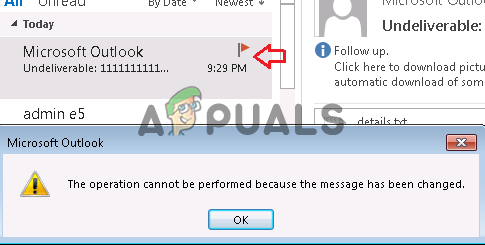
The Operation Cannot be Performed because the Message has been Changed Outlook Error
The error is configured to occur on Outlook 2013, and 2016 as well. After investigating we find out there are many different reasons ranging from MS office corruption. So, before directly jumping to the fixes it is important to understand the common reasons responsible for the occurrence of the error.
What Causes the Error “The Operation Cannot Be Performed because the Message has been Changed”?
- MS Office Corruption – There is a possibility that the MS office files get corrupted or damaged during the office installation and this is might be a reason that causes the error. To fix this try repairing the MS office.
- Conflicting Add-ins – Sometimes the add-ins start causing conflict with the Outlook and block files. Check if you have installed any third-party add-ins then temporarily disable it and see if this works for you.
- Antivirus/firewall Confliction – If you are running a third-party antivirus program then this might be conflicting with the Outlook client and causes problems. Disabling the antivirus and firewall program may work for you.
- Enabled Email Scanning – For many users who have enabled email scanning on their system through the antivirus program may work for you. If this case is applicable in your case the disabling the email scanning may solve the error for you.
- Outlook Settings – Some of your Outlook settings might be stopping the program from performing on your system. Therefore, it is suggested, to tweak the Outlook settings and check if now the error is fixed.
As you are now familiar with the common culprits causing the error, try the possible solutions that worked for several users to get past The Operation Cannot Be Performed error.
Update MS Outlook
Various updates are released by Microsoft for Outlook to optimize its performance, make it more stable and secure as well as fix various errors and issues. So, if you are not running the latest updated version then installing the latest update may help you to solve the error.
Microsoft might have fixed the current error in the latest updates. Check for the recent Outlook update, download and install it by following the steps given:
- First, click the File menu and then click on the Office account option
- Now click on the Update Options
- And for updating the Outlook program click on the Update Now option.
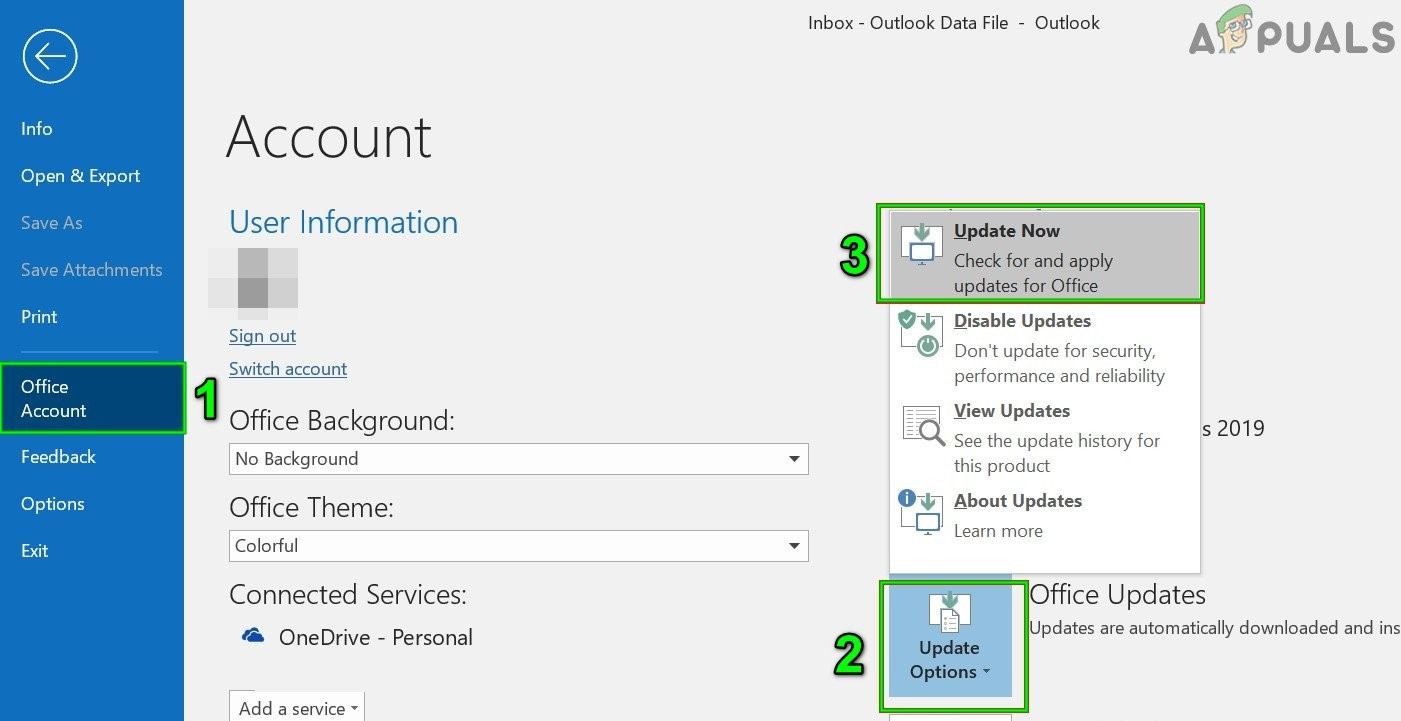 Run Update Now of Outlook
 - Wait for the updating process to complete and once it is finished, reboot Outlook.
It is estimated this works for you to fix the error but if still seeing the error then follow the next possible solution.
Repair MS Office/ Outlook
It might happen while installing the Microsoft Office/Outlook files gets corrupted and causes the error while performing any task. So, here it is suggested to run the MS Office inbuilt tool as this fixed problem with the installation and other issues.
Follow the instruction to run the Repair tool:
- Click on Windows + R button, which will open the Run command. Over there, in the text box type appwiz.cpl command and tap on the Enter button
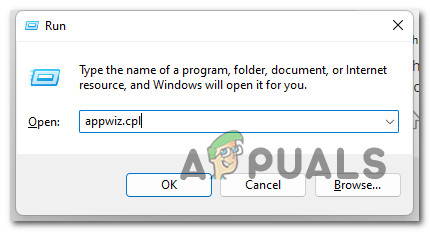 Open up the Programs and Features menu
 - After that, a list of programs appears which indicate the program installed on your system.
- From there, you need to choose “Microsoft Office Professional” and then click Change
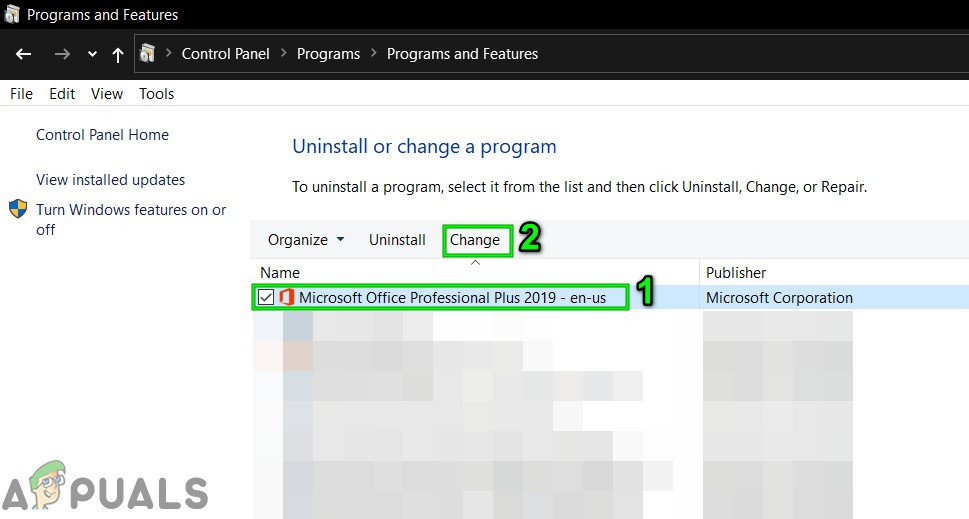 Change Office Installation
 - Here, you have to click on the Quick Repair option, and then click on the Repair button to start the repairing process.
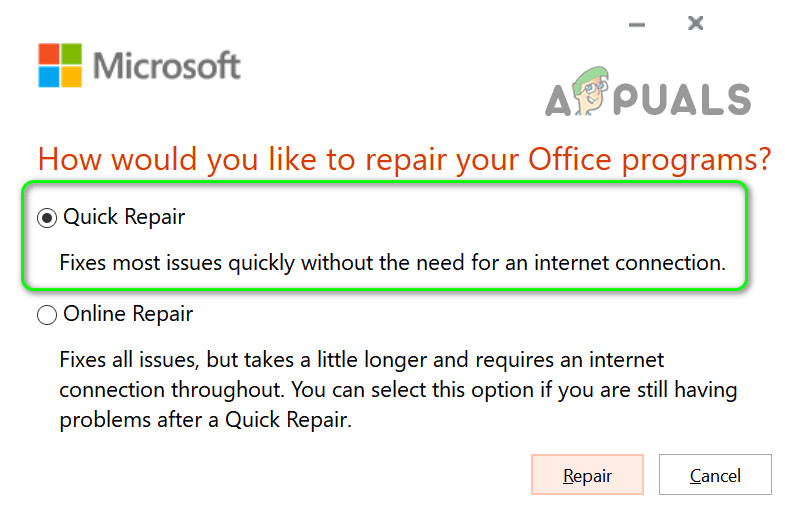 Quick Repair Office
 - Once the process gets completed then Check whether your problem is fixed or not, if in case you face the same problem then move on to the next solution.
Leave the Email in the Draft Folder
First, write an email, and save the Email as drafts. Wait for a few minutes and then click on the send button.
Sending an email to the recipients after waiting for a few minutes will fix this error OR you can also close the Office and then reopen the office after a couple of minutes.
This quick trick worked for many users to solve the problem.
Remove 3 rd Party Add-Ins
The add-ins offer great functionality in MS Outlook and allow you to perform tasks correctly from the inbox. Many add-ins allow performing tasks automatically while creating or viewing messages. But in some cases, the add-ins installed start conflicting with the regular Outlook functions.
So, here it is a possibility that the add-ins are conflicting and blocking certain outlook operations. And removing the add-ins may work for you to fix the Outlook operation failed error message.
Here follow the steps to do so:
- First, Open the Office 365 Login | Microsoft Office and enter your email and password and then click on the Sign In button.
- Click on the option “Account Settings” which you will get on the right corner side of your PC screen. After that navigate to the context menu option from there click on the “Options” button.
- From the left side panel opened, navigate to Add-Ins. From the menu opened, select the “COM Add-Ins” option.
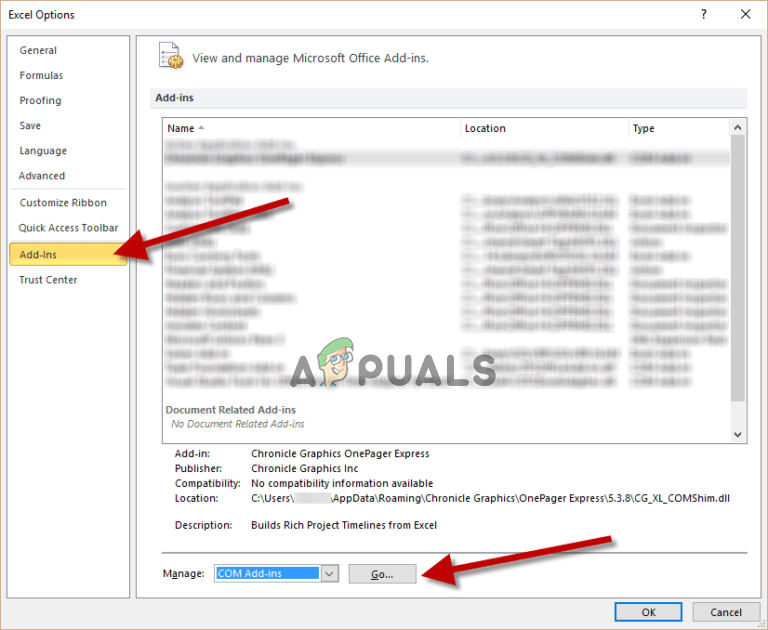 Select COM Add-Ins Option
 - Press the “Check Box” to remove the “Adobe Send & Track for Microsoft Outlook – Acrobat”.
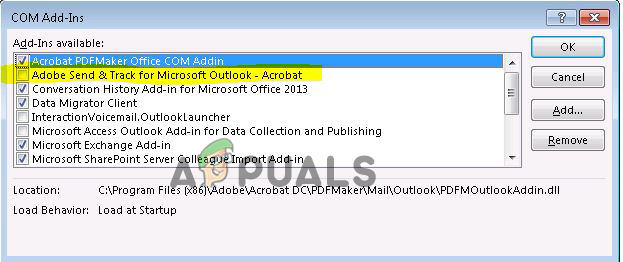 Uncheck Adobe Send & Track for Microsoft Outlook – Acrobat”
 - Remove the Add-Ins
- Try closing and reopening the browser to check whether the error persists or has been resolved.
If in case you are unable to follow the above mentioned steps then it is suggested to disable the COM add-ins following the below-mentioned steps:
- First, click on the Windows + R button together to open the Run prompt. Once the dialogue box will be opened, Type “Outlook/Safe”. in the box.
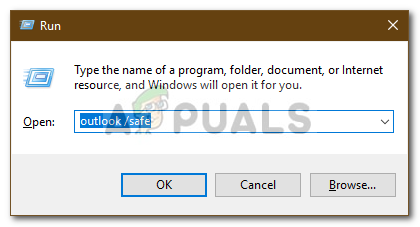 Running Outlook in Safe Mode
 - After that, your Outlook will be opened in the Safe Mode, just open any file in Outlook. Click on the File option from the top.
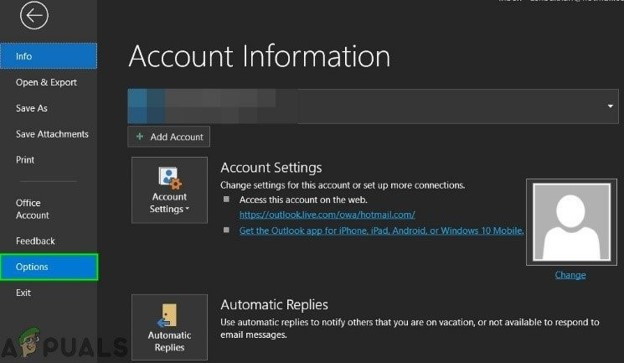 Open Outlook Options
 - Once it is done, then move to the Options menu to open the dialogue box “Outlook Options”.
- Navigate towards the tab “add-Ins”, opened in the left side panel and in the drop-down menu opened after clicking on “manage menu”, click on “COM Add-Ins”.
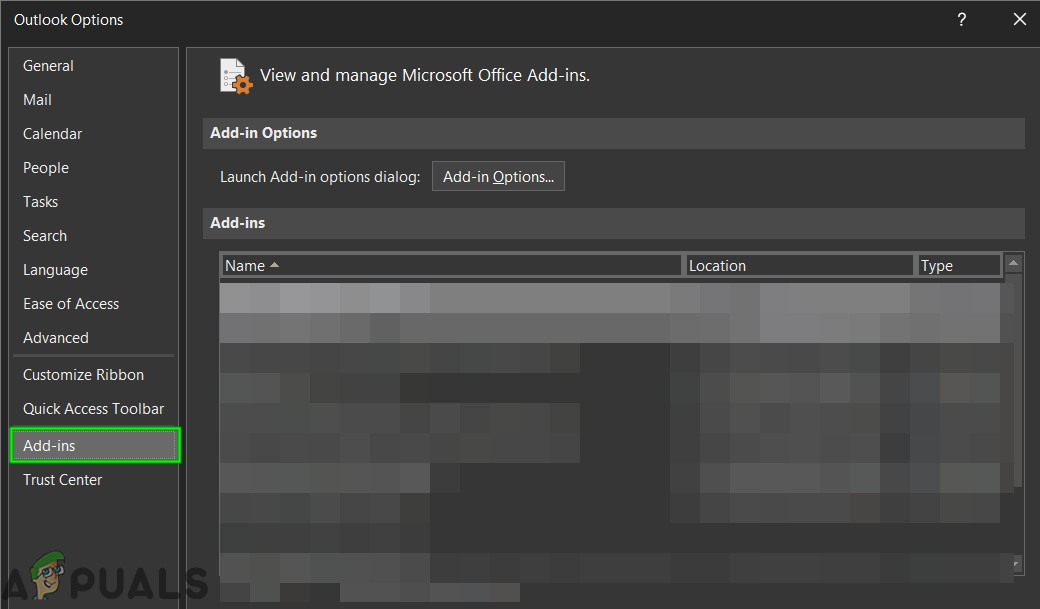 Click Add-ins in Outlook Options
 - Now disable each Add-In one after another and check whether the error persists or not after disabling each Add-In to know which one was causing the error.
Hope this worked for you to solve the Outlook saying “operation failed” problem.
Check and Disable the Email Scanning
Many antivirus programs have the option to enable email scanning and if you have enabled this option then might be blocking the outlook from sending the email to the draft folder or sending certain emails.
Disabling the scanning option may help you to fix the error in your case. Well, the steps to disable the option may differ as per the antivirus programs.
Here follow the steps to disable the option in the Avast antivirus program.
- Search for the antivirus “Avast” on your system and open it.
- Open the menu. On the left-hand side of the panel, click on the Settings option.
- From the menu, select the option “Active Protection”
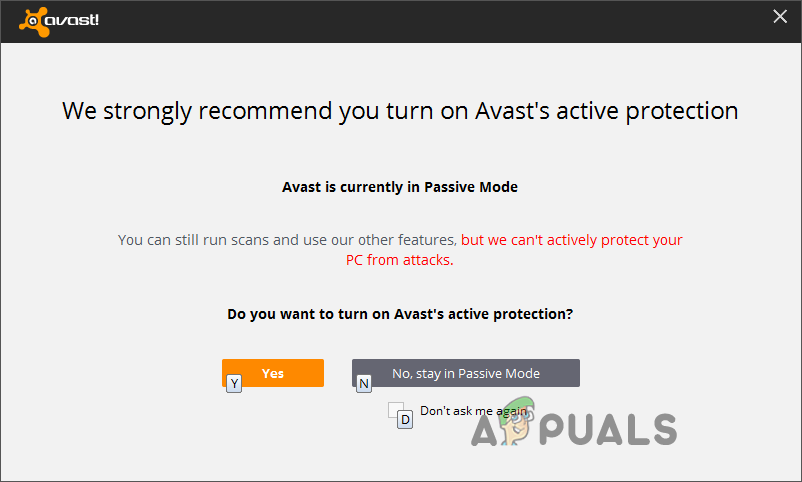 Choose Active Protection
 - Just beside Mail Shield, press on the “Customize[+]” option.
- Over here the “Scan Outbound Mail (SMTP)” needs to be unticked. Then proceed by clicking on the “OK” button. Now check if the error has been resolved or not or else head to the next potential fix.
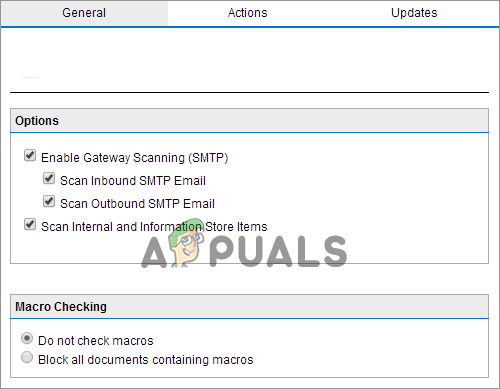 Uncheck Scan Outbound Mail (SMTP) option
Use the SARA (Support and Recovery Assistant) Tool
Some users recommend downloading the Microsoft Support and Recovery Assistant (SARA) tool, as this worked for them to solve the operation cannot be performed because the message has been changed office 365 error.
Follow the instructions given:
- Download the file from the “Microsoft Support and Recovery Assistant Tool” and from the File Directory, run the executable file “SetUpProd.exe”.
- Follow all the instructions shown on the screen to set up this tool and then proceed to click on the “Program” which is making this error happen. And then click on the Next button.
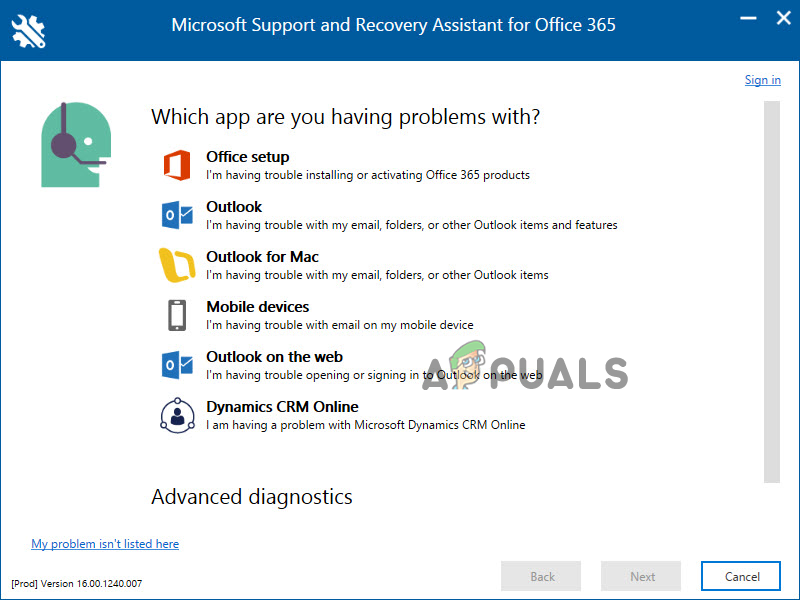 Use the Microsoft Support and Recovery Assistant Tool
 - Now, follow the necessary instructions shown on your PC screen, to fix your issue.
After that, check whether the issue you are facing has been resolved or not.
Remove Conversational Cleanups Options in Outlook
Here it is suggested to uncheck the entire options under the Conversational Cleanups in the Outlook app and save the settings. Disabling all the entries may work for you, so follow the instructions given to do so:
- Open the Outlook app and from the left side click on Files.
- From the menu opened, move to the Options menu and open the dialogue box “Outlook Options.”
- In the left menu panel opened, navigate to the “Mail” tab. Move down and click on the “Conversational Cleanups” Option.
- You need to disable all the entries in this section and proceed by clicking on the OK button.
- Now, disable the “Conversational Cleanups” option.
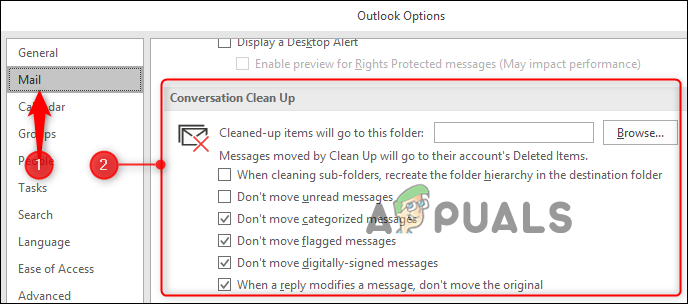 Disable the Conversational Cleanups options
 - After that, open the Outlook application. You can also try another method by unchecking the option “When A Reply Modifies A Message, Don’t Move the Original” and then try to open your Outlook application.
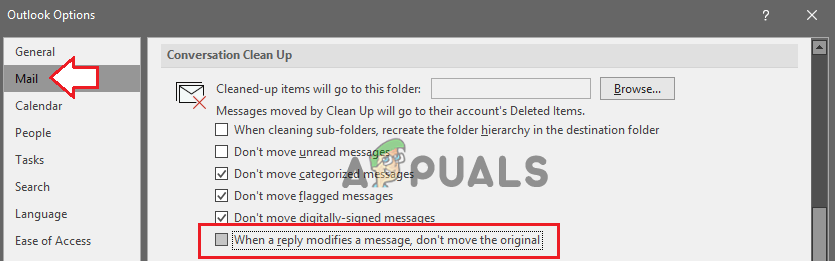 Uncheck When A Reply Modifies A Message, Don’t Move The Original option
- If you get “When A Reply Modifies A Message, Don’t Move The Original” then that means it is already“Unchecked”, so, now click on the check box to tick and it will restart Outlook.
- Now follow the same procedure, by moving to Files, then Options, then Menu and then to Conversational Cleanups. Now uncheck the option and to open Outlook again,
Check whether the error you were facing has been resolved or not.
Changes the Outlook Settings
If you have modified certain Outlook settings, then this might be conflicting with operations you were trying to perform in Outlook ad showing the error.
Try tweaking certain Outlook settings and check if the error is prevented. Follow the given instructions to do so:
- Open the Outlook app and from the left side click on “File”.
- From the menu opened, move to the Options menu and open the dialogue box “Outlook Options.”
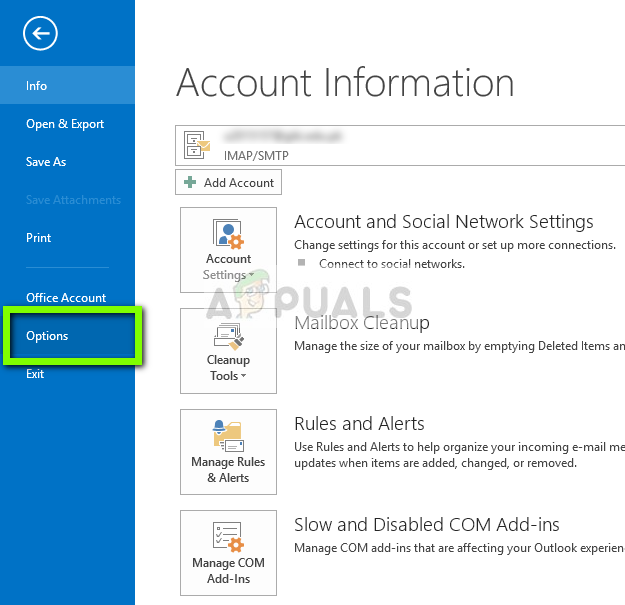 Opening Outlook Options
 - In the left menu panel opened, navigate to the “Mail” tab. Move towards the section “Saved Messages”.
- Click the option “Automatically save items that have not been sent after this many minute’s options” and after setting up the time gap click on OK.
Now check to see the error persists or has been resolved, if still encountering the error, then follow the next solution.
Restore Trash to Inbox
In many cases restoring the deleted emails from the trash folder to the outlook inbox solve the problem. Well, there is no valid reason for this but this worked for many users to resolve the Microsoft Outlook error.
Follow the simple steps to do so:
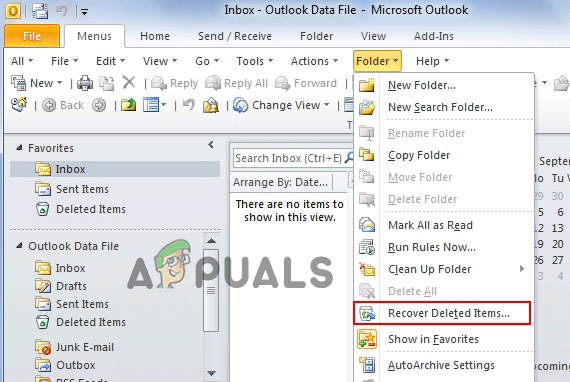
- Find the message you need to shift out of the folder “Deleted Items”.
- At the right of the message selected, all the Checkboxes or you can simply open the messages.
- Click on the “Move To” option and then select the “Inbox” option where you intent your messages to be moved. Restore deleted emails from trash folder
- This will move all the Junk Messages to Inbox.
- Once this shifting process gets over, a prompt will be indicated on the screen stating that the messages have been successfully been moved to the inbox.
Now check whether this solution has helped in overcoming the error or not.
Utilize Word or Notepad to Write Mail Content
There is a possibility the message is having some hidden rich text and formatting and this is what prevents the operation from performing. Therefore, copy and paste the mail content to the word document or the Notepad and paste it new email.
This will remove the formatting which might be blocking or preventing the Outlook mail from sending.
- Copy the entire mail content into a Word or a Notepad, before sending the email.
- Close your email and reopen it.
- Now, copy & paste the entire content back into the email and click on send option.
- Next check to see whether the error has been fixed or not.
Disable Antivirus Program
If none of the above-listed solutions worked for you then disabling the antivirus program may work for you. There is a possibility that the antivirus program installed on your system might be conflicting with the MS Outlook and causing the error code.
Check for the third-party antivirus application and temporarily disable it by right-clicking the antivirus icon in the taskbar and choosing to disable option.
After disabling restart your computer to let the changes take effect and see if the error message “The Operation cannot be performed because the Message has been Changed” in Outlook is resolved.
So, these are solutions that are worth giving try to circumvent the MS Outlook error. It is estimated the fixes given works for you to get past the error.