How to Enable Developer Mode on Samsung Smart TV
Developer Mode on smart devices provides additional tools to customize the settings. By enabling the Developer Mode on Samsung Smart TV, you can access different hidden settings like the behaviors of your TV, debug the app’s performances, and more.
There are two methods that are widely used to enable the developer mode on your Samsung Smart TV.
Steps to Enable Developer Mode on Samsung TV
1. Open the Smart Hub on your Samsung Smart TV.
2. Select the Apps section.
3. Using your Samsung TV remote, enter the numbers 12345 or 00000.
4. The menu to enable the developer mode appears on the screen.
5. Turn on the Developer Mode.
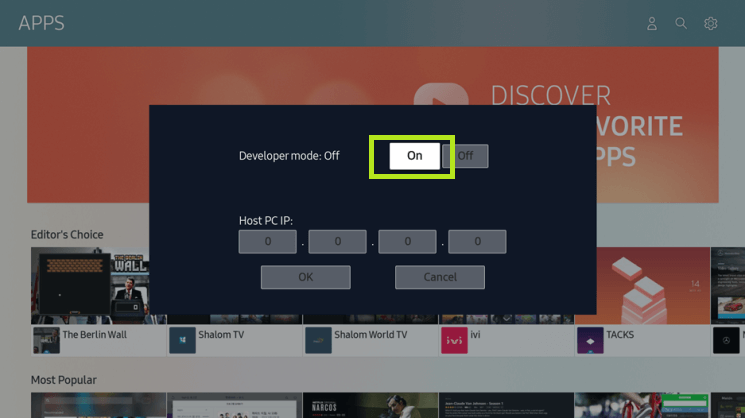
6. Enter the IP Address of your PC that you want to connect with your TV.
7. Click on OK to confirm the process.
8. When the process is completed, restart your Samsung Smart TV by holding the power button for 2 seconds.
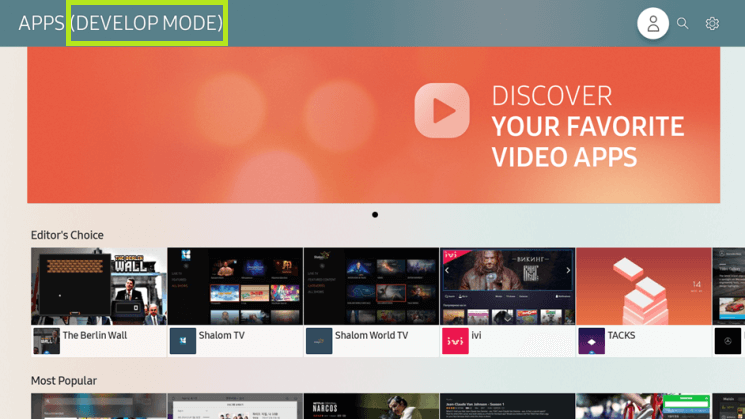
9. When you restart your TV, you can see the Developer Mode attached at the top of the screen.
How to Enable Developer Mode on Older Samsung TVs [2014-2016 Models]
1. On your Samsung Smart TV, click on About TV.
2. Move down the Model number option.
3. Press the option 5-7 times.
4. You can see a message on your screen that says that YOU ARE ALREADY A DEVELOPER.
How to Use Developer Mode on Samsung TV
To use developer mode on Samsung TV, you have to get a PC. The Tizen Studio application is available for Windows, Mac (from macOS X), and Ubuntu.
How to Connect Samsung TV to SDK
1. Open the Tizen Studio on your PC. You can download the Tizen Studio from the Tizen Developer website.
2. Click on Tools >> Device Manager.
3. Select the Remote Device Manager and click on the Plus icon to add a TV.
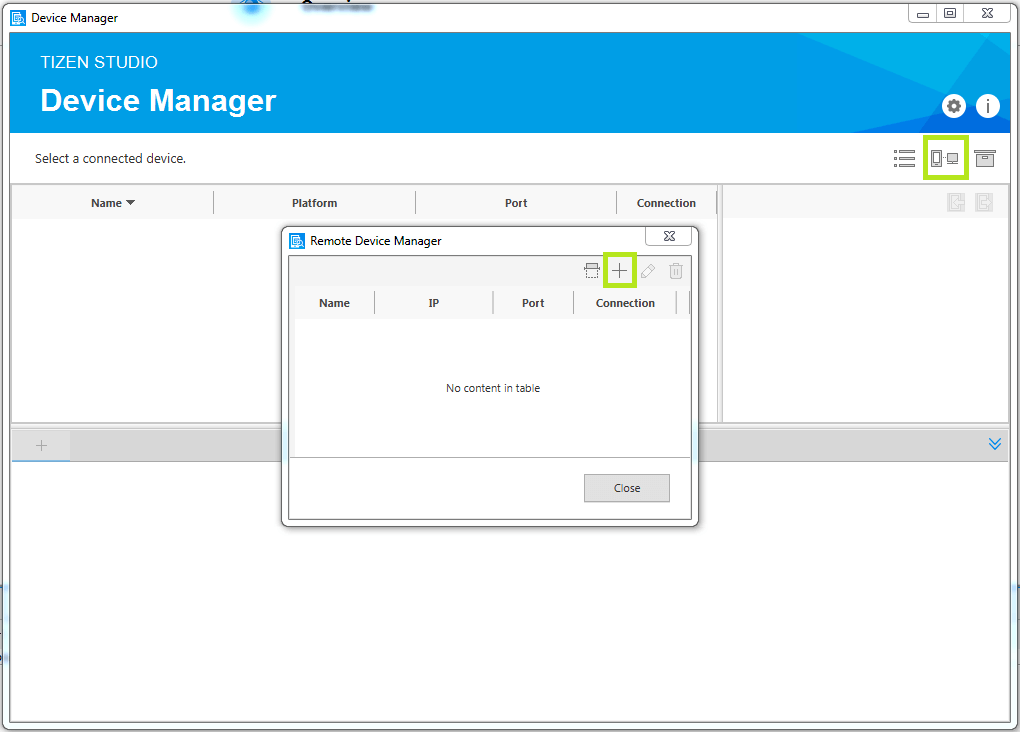
5. In the Add Device menu, enter the IP address of your Samsung TV and click on Add button.
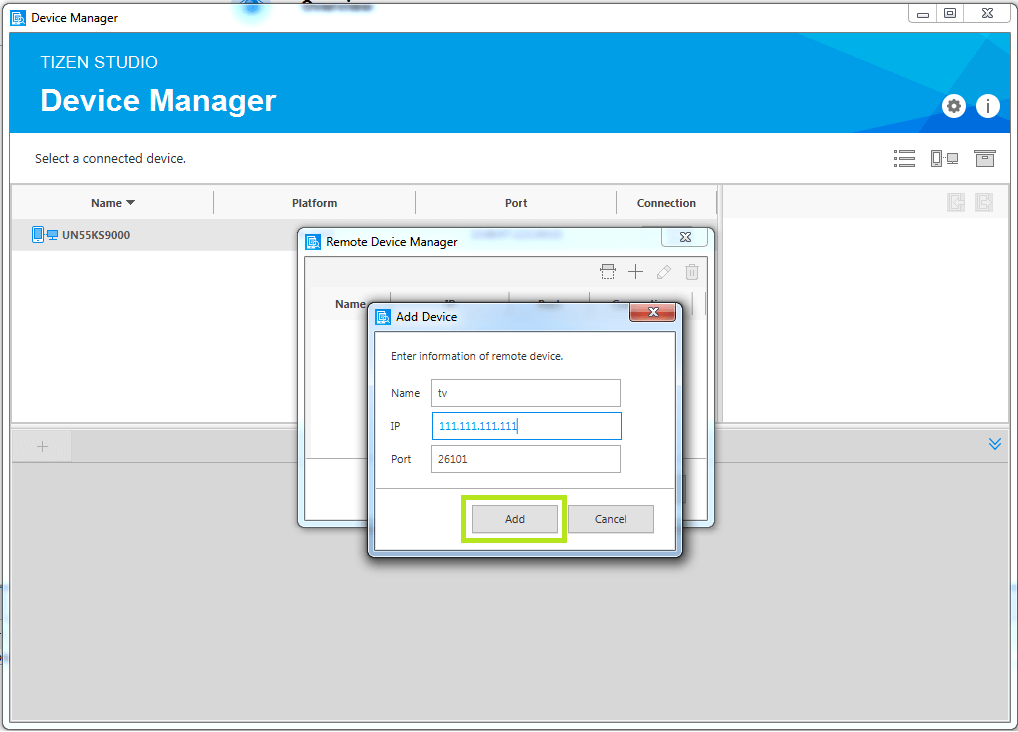
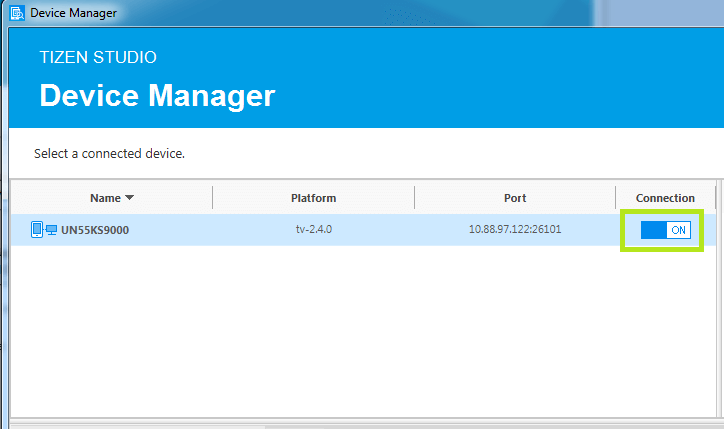
6. Select the TV that you have added now from the Device Manager Window and turn on the Connection toggle.
How to Launch Apps with Developer Mode on Samsung TV
Now, the Samsung TV is connected to your PC, you can launch applications on your Samsung Smart TV using your PC.
Launch the Application in Normal Mode
1. In the Project Explorer view, right-click the Project.
2. Select Run As and choose a specific launch mode. The launch mode is given below, you can choose one among them.
- Tizen Web Application – Run the application on the connected device.
- Tizen Web Unit Test Application – Run the application with the unit test.
Launch the Application in Debug Mode
1. In the Project Explorer view, right-click the Project.
2. Now, select the Debug as Tizen Web Application.
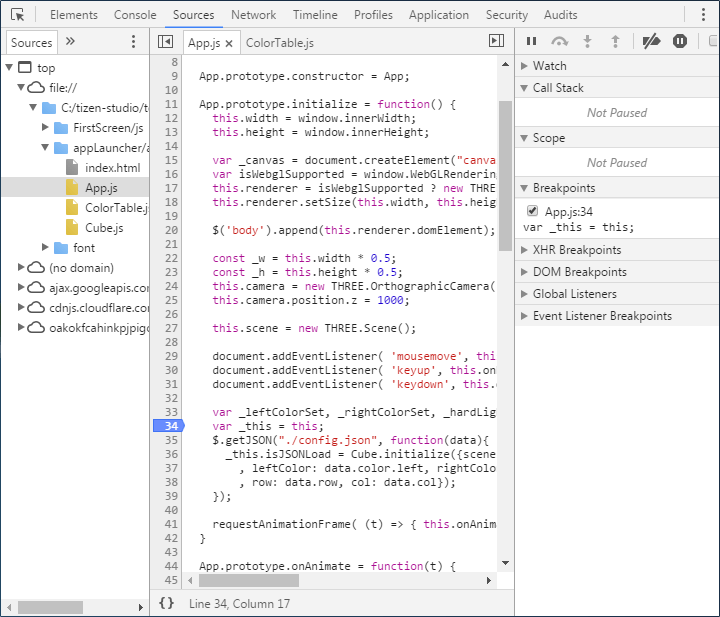
3. When you launch the application in debug mode, the Web Inspector will run automatically.
4. Using the Web Inspector, you can launch and delete apps from the Developer Mode on Samsung TV.
Developer Mode on Samsung TV Not Working
While launching an application on Developer Mode, you can see certain error codes and messages appearing. While working with an application on your TV, you may experience the following issues.
- 1009 (App uninstall Fail) – This error occurs due to an internal device problem. With this, you cannot download any apps on your Samsung TV. You have to uninstall the Tizen Studio app and install it again to fix the issue.
- 1010 (App install Fail) – This error arises due to issues with the signing certificates. You have to check all the certificates and permissions to fix the issue. You can also go to the certificate manager and create a new certificate.
- 1013 (App run Fail) – This indicates that the app is not configured properly on the Tizen Studio. Reboot the Tizen Studio to fix the issue.
- Null Pointer error(NPE) – You may experience this error when you are using the older version of Tizen Studio. Sometimes, you will get a “You are not an authorized user!” error. Get the latest version of Tizen Studio from the developed website.
- Failed to get a device information – You can see this message only on the 2015 models of Samsung TVs. This error message won’t affect any of the running tasks. You can simply ignore this error message.
- If the Tizen Studio freezes or frequently hangs on your Mac or Windows PC, you can update your Java Development Kit.
Steps to Turn Off Developer Mode on Samsung Smart TV
1. Enter into the Developer Options on your Samsung Smart TV.
2. You can see the Developer Mode turned on.
3. Slide that switch to turn off the Developer Mode.
Click the Settings button on the Samsung TV remote multiple times. You will get the secret menu on your Samsung TV.
If you know a thing or two about the Tizen OS internally, you can play with the Developer Mode options. If not, it is safer to turn off the Developer Mode.
Как включить режим разработчика на телевизоре Samsung, чтобы можно было устанавливать сторонние приложения
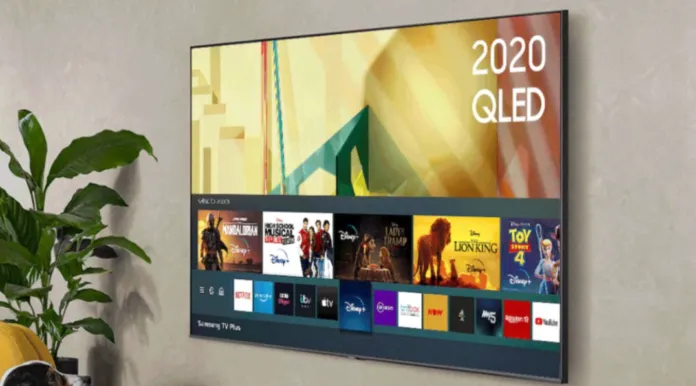
Фактически, почти все владельцы телевизоров Samsung используют их только для просмотра контента, поэтому им не нужны никакие дополнительные функции. Однако если вы более продвинутый пользователь, вам может понадобиться больше функций, чем предусмотрено в комплекте. Например, вы можете использовать режим разработчика на телевизоре Samsung для установки приложений из внешних источников, например, приложений сторонних разработчиков, которые недоступны в Samsung Apps.
Если вы пользователь более продвинутый — вы можете использовать режим разработчика, чтобы получить углубленный доступ к телевизору Samsung и установить сторонние приложения. Но, прежде всего, подумайте, действительно ли вам нужны сторонние приложения.
На самом деле, режим разработчика (как это не удивительно) предназначен для разработчиков, поэтому если вы не являетесь разработчиком приложений, единственное, как вы можете использовать эту функцию, это устанавливать сторонние приложения из внешних источников.
Как включить режим разработчика на телевизоре Samsung — вот что нужно сделать
Если вы хотите включить режим разработчика на телевизоре Samsung, выполните следующие действия:
- Перейдите в раздел «Настройки».
- Откройте Smart Hub.
- Перейти в раздел «Приложения».
- Введите свой PIN-код — стандартным является 00000 или 12345.
- Переключите режим разработчика в положение ВКЛ.
- Введите IP-адрес вашего ПК, Mac или ноутбука.
- Подтвердите действие, нажав кнопку OK.
Вам нужно перезагрузить телевизор Samsung, чтобы обновить настройки и активировать режим разработчика.
Теперь режим разработчика активен, и вы можете устанавливать сторонние приложения на свой Samsung Smart TV. Однако некоторые пользователи сталкиваются с проблемами. Ниже я объясню наиболее распространенные проблемы.
Как исправить ситуацию, когда не удается активировать режим разработчика
В своей статье для Splaitor я рассказал о наиболее распространенных проблемах, которые я обнаружил в Сети:
- PIN-код неверен. Попробуйте ввести и 12345, и 00000, если ни один не подходит — вероятно, вы меняли PIN-код, поэтому постарайтесь его вспомнить.
- PIN-код неверен, но вы его не изменили. Это проблема программного обеспечения — просто подключите внешнюю клавиатуру и введите PIN-код с ее помощью.
Как установить сторонние приложения на телевизор Samsung
У меня есть статья о том, как установить сторонние приложения на телевизор Samsung Smart TV, так что вы можете прочитать ее. Но здесь я приведу краткое руководство.
Но прежде чем продолжить, необходимо включить внешние источники на телевизоре Samsung Smart TV. Вот что вам нужно сделать:
- Перейдите в раздел «Настройки».
- Откройте вкладку Личные.
- Перейдите в раздел «Безопасность».
- Найдите пункт Неизвестные источники и установите для него значение Включено.
Теперь у вас есть три разных способа установки сторонних приложений:
- Как Apk-файл.
- Через USB или флэш-накопитель.
- Использование командной строки.
Как установить apk-файл на телевизор Samsung
- Загрузите apk с помощью родного браузера.
- Откройте его и следуйте инструкциям на экране.
Как установить сторонние приложения через USB или флэш-накопитель
Вот что вам следует делать в этом случае:
- Найдите apk-файл в Интернете с помощью ПК, Mac или ноутбука.
- Сохраните apk-файлы на флэш-накопителе или USB-накопителе.
- Подключите USB-порт или флэш-накопитель к телевизору Samsung и откройте apk-файл
- Следуйте инструкциям на экране.
Как установить сторонние приложения с помощью Командной строки
Вот что вам следует делать в этом случае:
- Найдите и загрузите apk-файл нужного приложения.
- Найдите IP-адрес вашего телевизора Samsung (перейдите в Настройки — Опция Сеть — Информация).
- Откройте Командную строку на вашем компьютере или ноутбуке.
- Введите adb connect и IP-адрес вашего телевизора.
- Введите install D/ и имя вашего файла apk (с .apk в конце).
- После завершения процесса необходимо ввести adb disconnect и IP-адрес вашего телевизора
На мой взгляд, первый способ (загрузка apk-файлов непосредственно на телевизор) является лучшим, так как он самый простой. Поэтому я рекомендую использовать его.
Как включить режим разработчика на телевизоре samsung
The following questions are related to testing applications.
To test your application on a TV, you must use the Tizen Studio IDE. You can also use the USB Demo Packaging Tool, available in the Samsung Apps TV Seller Office.
You can test your application on the emulator without using the IDE. The Tizen Studio Command Line Interface (CLI) provides functionalities for installing, running, and uninstalling applications.
#emulator #command line interface #cli #tv device
To install and test your application on a TV, you must connect the TV and the Tizen Studio. For more information, see TV Device.
If you do not have access to an actual Samsung Smart TV, you can also test your application in the TV emulator.
#tv device #install #tizen studio
Before connecting a Samsung Smart TV to the Tizen Studio, you must enable Developer Mode on the TV. For more information, see Connecting the TV and SDK.
#developer mode #tizen studio #samsung instant on #tv device
To connect a Smart TV to the Tizen Studio, you must enable Developer Mode on the TV, connect the TV and your computer to the same network, and launch the Remote Device Manager in the Tizen Studio. For more information, see TV Device.
#tv device #tizen studio #connect
Make sure that you have connected the TV and computer to the same network, and enabled Developer Mode on the TV. For more information, see TV Device.
You can also try to connect the TV to the Tizen Studio without using the Remote Device Manager:
- On the TV, enable Developer Mode.
- In the Windows® command prompt, navigate to your <Tizen Studio>\tools directory.
- Enter the sdb connect <your TV IP address> command.
#tizen studio #connect #tv device
The emulator and the TV environments are very similar, but there are some differences at the hardware level. For more information, see Emulator Limitations.
Make sure you perform the final testing of your application on the TV.
The TV emulator does not support hotel TV environment.
#emulator #limitations #tv device #different result
Applications installed to a TV through the Tizen Studio are uninstalled when the TV is switched off or disconnected from the Tizen Studio. This is the intended platform behavior.
#tizen studio #uninstall #disconnect #tv device
The TV emulator is a virtual machine that reduces the inconvenience of testing the application on a real device, by providing an environment similar to a real TV. For information about using the emulator, see TV Emulator.
#emulator #virtual machine
Prelaunching allows several applications to load in the background when the Samsung TV is switched on. When the user runs a prelaunched application, it launches immediately with no loading time. Prelaunching is supported on the TV emulator. For more information, see Prelaunching Applications.
#prelaunching #testing #background loading
You can test DRM-protected content playback on an actual TV.
Due to possible security issues, using DRM functions in the emulator is not possible. DRM-protected content can only be played back on a real device.
#drm #emulator #multimedia #playready #verimatrix
You can use the Web Inspector to help you optimize your Web applications. It provides a debugging environment, and allows you to inspect the CSS and layout of HTML pages, and monitor resource and network usage.
#web inspector #performance #analyze #optimize
Select a model based on the media formats you want to support. For information on which TV models are included in each model group, see TV Model Groups.
#model group #tv model #media format
For information about testing hosted applications on a TV, contact your Samsung Apps TV Seller Office Content Manager.
#hosted application #cloud based application #dynamic web page #redirect application #tv device
When no applications are running on the TV or emulator, the Web socket connection to the computer closes, disconnecting the Web Inspector. To prevent Web Inspector disconnection:
- To install your application on the TV or emulator and launch the Web Inspector, run the application in debug mode from the Tizen Studio.
- When the Web Inspector finishes loading, launch a different application from the Smart Hub.
- Return to the Smart Hub and launch your application.
The first application remains running but hidden, and prevents the Web Inspector from disconnecting when you close your application.
#web inspector #disconnection #web socket #multitasking
No. Automated testing is not supported on Samsung TVs.
Additionally, the Automatic Testing Tools provided for Samsung Legacy Platform are no longer supported.
#automated testing #automatic testing tool #samsung legacy platform #web driver
TV applications do not support generating crash logs. However, you can detect when the application stops or closes unexpectedly, by implementing a software watchdog timer.
#crash log #watchdog timer
Yes. To test accessing content from another country or region, connect the TV to the Internet through a VPN.
#vpn #geolocation #geo restricted #geoblocking
You can view network traffic statistics in the Web Inspector. However, the Web Inspector detects only ordinary Web traffic. It does not detect network traffic from, for example, media playback using the AVPlay API.
#network traffic #statistics #web inspector
The Web Inspector does not work properly with Samsung TVs on later versions of Google Chrome™. You can try using an older Google Chrome™ version.
#web inspector #google chrome #older version
No. For security reasons, the Tizen Studio Dynamic Analyzer is not supported on Samsung TVs.
#dynamic analyzer #tizen studio #memory profiling
No. It is not possible to obtain root access to the TV.
#root access #sdb tool
No. The sdb logging feature is not supported on Samsung TVs. It is not possible to retrieve system logs.
#sdb tool #system log
This error is related to a certificate issue. Try creating a new certificate profile, making sure you select the distributor certificate privilege level you need, then building the project with the new certificate profile.
#distributor certificate #privilege level #tizen studio #certificate profile #error
If you have modified the content of a «.wgt» file after packaging it, it can no longer be installed. You must build the package again through the Tizen Studio.
#wgt file #packaging #tizen studio #error #building
Samsung TVs support only Web applications («.wgt» files). They do not support native applications («.tpk» files).
#tpk file #native application #wgt file #web application
No. Testing by proxy is not supported on Samsung TVs.
#proxy #network traffic #security certificate
No. To test Samsung TV applications, the device must have access to the Tizen and Samsung Product APIs. The Samsung Product API is only available on Samsung devices.
Как включить режим разработчика на телевизоре Samsung Smart TV
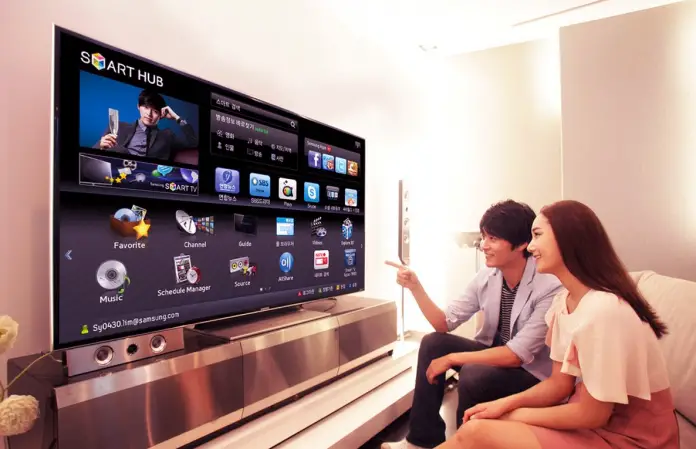
Обычно люди покупают телевизор только для того, чтобы смотреть контент, но иногда возникают ситуации, когда вам не хватает функций, которые телевизор предоставляет из коробки. В этом случае существуют некоторые хитрости, которые помогут вам получить доступ к системе и тем самым получить больше функций.
Одной из таких функций может быть установка сторонних приложений, что может быть полезно, если вы хотите установить приложение, которое недоступно в приложении Samsung Apps (извините за тавтологию) на вашем телевизоре Samsung.
Режим разработчика на Samsung Smart TV позволяет устанавливать на телевизор приложения сторонних разработчиков, чтобы сделать процесс просмотра еще лучше и использовать некоторые дополнительные функции.
Если вы просто пользуетесь телевизором и не являетесь разработчиком приложений, это единственное, для чего вы можете использовать эту функцию. Сторонние приложения — это мощный инструмент, который может обогатить ваш опыт просмотра, поэтому, возможно, стоит попробовать.
Как активировать режим разработчика Samsung Smart TV?
- Откройте меню настроек Samsung Smart TV
- Перейти в Smart Hub
- Нажмите на Приложения
- Вам потребуется использовать PIN-код. PIN-код по умолчанию для Samsung Smart TV — 12345 или 00000.
- Переключить режим разработчика в положение ON
- Введите IP-адрес вашего компьютера и нажмите OK
- Перезапустите Samsung Smart TV, чтобы запустить режим разработчика в работу
После этого режим разработчика будет активирован для вашего Samsung Smart TV, и теперь вы можете использовать его и устанавливать сторонние приложения. Однако могут возникнуть некоторые проблемы. Я поискал в Интернете наиболее распространенные проблемы, и теперь могу помочь вам решить их.
Что делать, если вы не можете активировать режим разработчика на телевизоре Samsung?
Одна из распространенных проблем описана на форуме Samsung Developers. Она выглядит следующим образом:
Пользователь под ником MarvinMep пытается получить доступ к режиму разработчика с помощью руководства, описанного выше, и вводит код 12345, однако ничего не происходит.
Чаще всего проблема очень проста — PIN-код не 12345, а 00000, поэтому для доступа к режиму разработчика следует попробовать оба PIN-кода. Если вы не меняли PIN-код, то один из них 100% сработает. Если нет — это означает, что вы уже меняли PIN-код.
Другой способ решения этой проблемы довольно странный, но тоже может сработать — просто подключите клавиатуру к телевизору Samsung и введите PIN-код с ее помощью.