Why Discord Bots Go Offline
Discord bots perform a lot of functions on the service. Bots can play music, send automated messages, moderate serves, and perform any range of functions that you configure it to perform as long as they don’t violate Discord’s terms of service. If you moderate any sufficiently large serve you will need a bot to automate some of the more common tasks. A bot can, for example, send welcome messages to every new person who joins your server, delete messages that contain foul language, mute, kick or even permanently ban users who repeatedly violate the rules of your server.
But Discord bots sometimes go offline. There are four major reasons:
- The code for your bot may have bugs.
- Your bot may be violating Discord’s terms of service
- The computer or server hosting your bot may be turned off.
- Your bot may not be designed to be always online.
Why is your Discord bot not working?
- Bugs
A major cause of most Discord bots going offline is bugs. If there are significant errors in your code, your bot may encounter a problem every time it runs and shut down. You can solve this by carefully reviewing and debugging your code before publishing your bot. Sites like Glitch and Stack Overflow may help you in pinpointing the origin of specific error messages.
- Offline host
The second reason may be hosting. Some of the more popular bots are made by developers and offered for a subscription fee or for free. These bots are usually hosted externally so you only need to invite them to your server. All the hosting and processing is done externally. If these go offline, then it’s usually because of a problem with the bot creator and you need to contact them.
But you may choose to code your own bot for any number of reasons. For such a bot, you will need to host it yourself. To stay online, such a bot will need a host that is always online. If you choose to host it on your own computer, it will always go offline whenever you switch off your computer. Your bot may also go offline if your computer lacks sufficient RAM and processing power to handle all incoming requests. And self-hosting a particularly popular bot will not do your Wi-Fi plan any favors.
You can easily solve this problem by hosting your bot on a virtual private server. Many charge a small monthly fee (around $5) and are the ones we would suggest. While free VPSs exist, they will often limit the bandwidth of your bot and its hours of operation so it may not always be online 24/7.
- Violating Discord’s ToS
The third reason is straight-up violating Discord’s terms of service. Discord, for example, does not allow self-bots. These are bots that automate your own personal account, sending messages and doing everything else a human can do under a human username. This is not allowed. Bots on Discord have their own user accounts and aren’t supposed to impersonate humans.
The other terms of service violations are pretty standard. Bots that violate copyrights, bully and harass users or facilitate illegal activities are all banned.
- Bot design
A bot that is only designed to send messages at regular intervals, for example, doesn’t need to be always online. If you check on it during an unscheduled operational time, it will appear offline.
How do you make a bot stay online in Discord?
For a bot to keep running, it needs a computer. If you’re self-hosting your bot, you need to keep your computer/server always on and maintain a stable internet connection. You also have to make sure that your hardware (processor and RAM) is powerful enough to handle the expected volume of requests.

The best way to ensure a bot is continuously active is to host it in the cloud. There are countless cloud hosting services you can use. Many charge a small fee. If your cloud-hosted bot still goes offline then it’s usually because of a problem on their side and there’s often nothing you can do. You just have to wait for them to fix it. To limit this, choose a cloud service with good customer service and a reputation for reliable server uptimes.
How do you make a bot always active on Discord?
Keeping a bot active is just a matter of maintaining a continuous connection between the bot and Discord’s gateway. For this, you need to host the bot on either a cloud server or a computer that is always on in addition to having a stable internet connection and sufficient processing power to handle incoming requests.
How do you reset a Discord bot?
You can reset a troublesome Discord bot by simply uninviting it to your channel. You can wait a couple of minutes and then invite it back. If it’s a bot you made yourself, you can terminate its operations and restart it again in addition to the uninvite-invite operation.
Troubleshooting Tips for a Discord Bot That Won’t Come Online
Spending hundreds of hours creating and fine-tuning a Discord bot only for it to refuse to go online is a whole other type of headache and annoyance.
I have a few potential explanations for why the bot is behaving this way:
- There’s an error in the code
- There’s a VPS server outage
- An unstable internet connection is affecting the network
- The bot doesn’t have all the required permissions
There are several tips I can offer that should restore functionality (or provide it in the first place) to your bot.
Read through my guide below – I’ve included step-by-step instructions and screenshots to help you understand better ��
Tip #1 – Debug Your Code Thoroughly
I’m not going to assume that you didn’t debug the code thoroughly the first time, but mistakes happen to the best of us.
Bad code is also the no. 1 cause of programs and bots that don’t work as intended. Sometimes, it could be something as simple as not connecting the bot’s token or not setting it to “online” in the code.
Check the code all over again, and:
- Connect the token
- Set the bot to “online“
- Start the bot using special commands
I know, coding problems sometimes feel like you’d need three heads to solve them, but patience and attention are often all you need.
Tip # 2 – Check the Server Availability
Alright, hear me out – maybe this isn’t your fault. Perhaps the VPS is experiencing an outage momentarily? I know, this doesn’t happen to often, but it’s also not impossible.
We all know that the best way to run bots on Discord is through a VPS (Virtual Private Server). Well, those servers aren’t perfect either.
I recommend checking with the hosting platform to confirm if the server is online or if there’s an outage. It’d be pretty irritating to brainstorm technical issues with the bot when the solution is, in fact, out of your hands.
Tip #3 – Check Your Internet Connection
Yeah, the age-old advice – check your internet connection or reboot your router. However, there’s a nudge of truth to this advice.
You see, if your internet connection is unstable, the bot’s activation process might not go through completely.
If even if it goes online, it’ll go offline the moment your internet connection goes unstable or silent for even a few seconds.
So, here’s what you can do:
- Do a couple of internet speed tests and make sure you get similar results every time
- Check your internet connection’s uptime
- Restart the router
- Plug your internet cable into another port
You can perform speed tests on Ookla, restarting the router is pretty simple, and you should also know where to find the router ports.
However, checking the internet connection’s uptime to see if something’s wrong isn’t that intuitive, especially since you almost never do it.
So, how about following along with my instructions to see how to do this? See below:
1. Right-click on the “Network” icon on the Taskbar
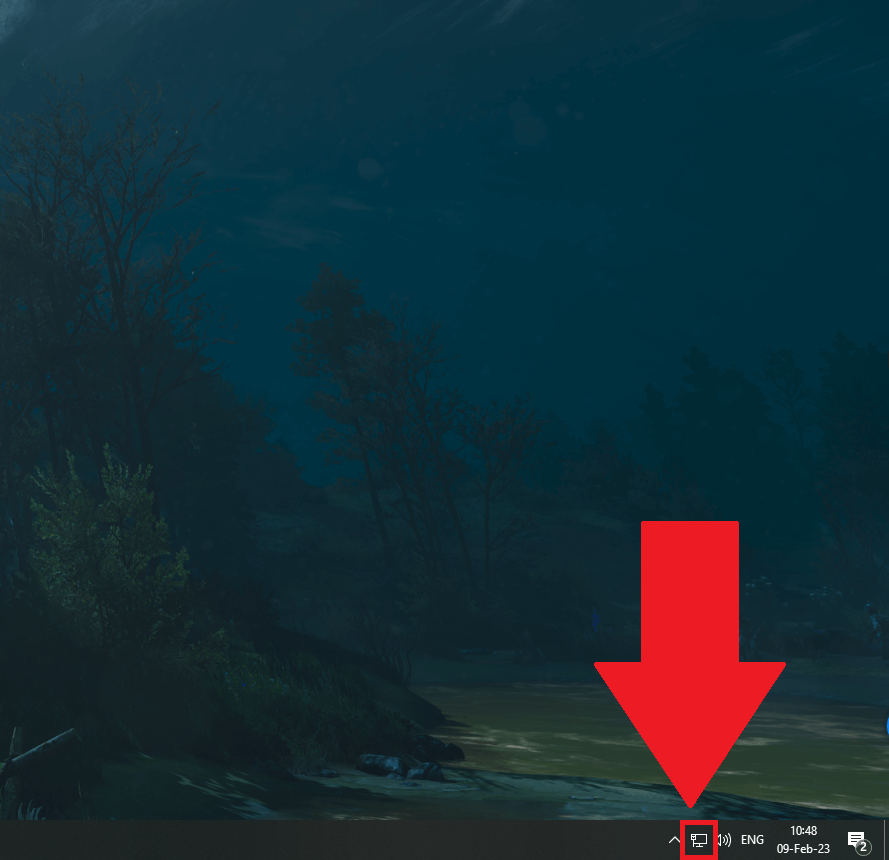
Windows 10 desktop showing the “Network” icon highlighted on the taskbar
Begin by looking for the “Network” icon (looks like a computer) in the bottom-right corner, on your taskbar. You can see it highlighted in the screenshot above.
Right-click on it and see the next steps:
2. Select “Open Network & Internet Settings“
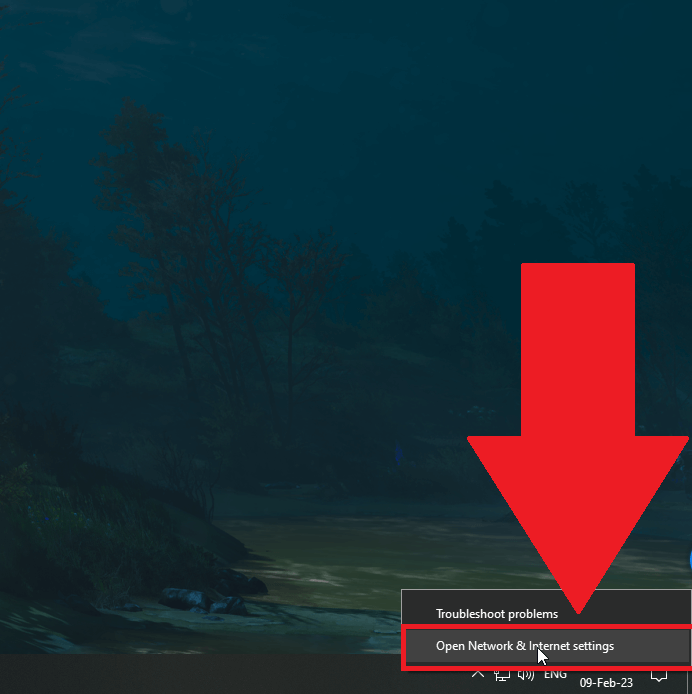
Windows 10 desktop showing the “Open Network & Internet Settings” option highlighted on the “Network” icon
3. Select “Status” and then “Change adapter options“
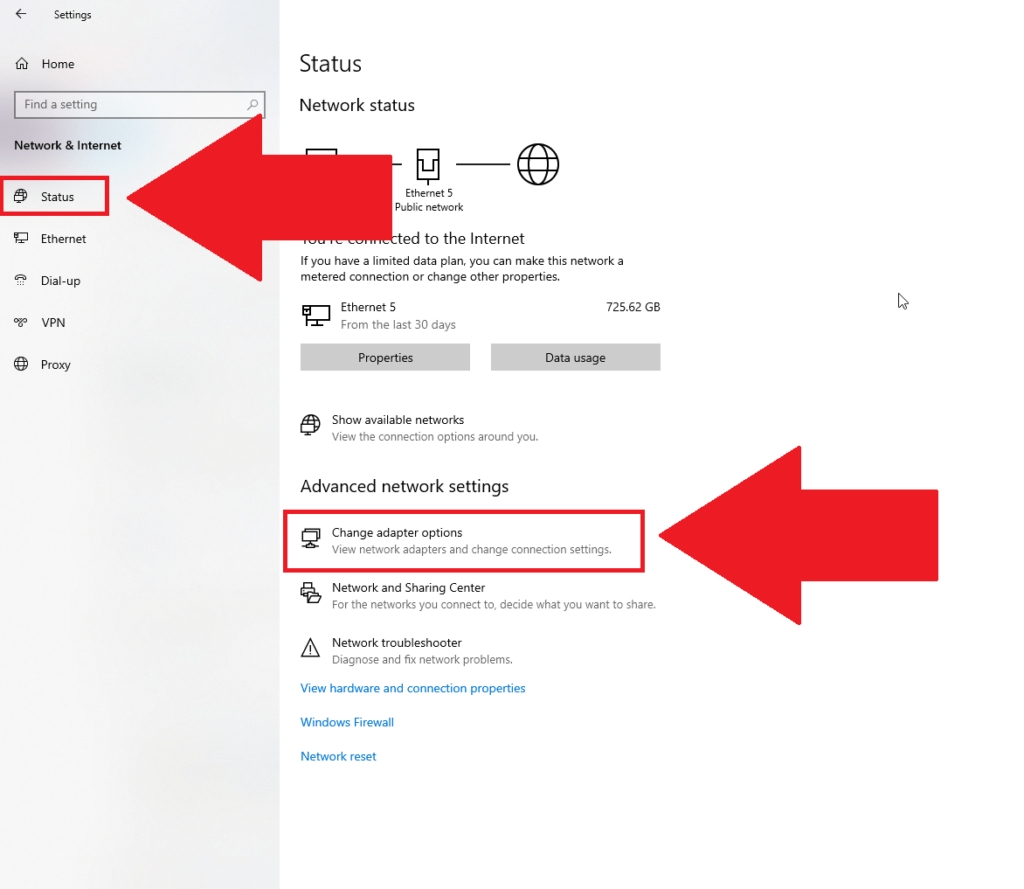 Network settings page showing the “Status” menu selected on the left, and the “Change adapter options” option selected
Now, you should have arrived on the Settings page (using Windows 10 here), more specifically on the “Network” page.
Look on the left-hand side menu for the “Status” option (highlighted in the screenshot above). This will show you the currently active internet connection you’re using.
The “Change adapter options” option should be under the “Advanced network settings” heading (highlighted above).
Select it and keep reading!
4. Select your network connection and select “View status of this connection“
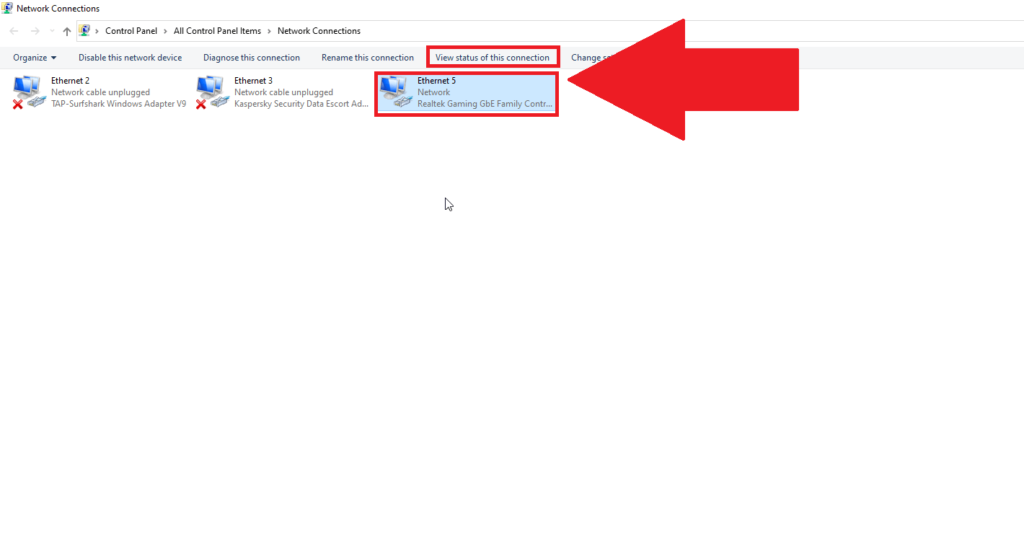
Windows 10 “Network Connection‘ page showing your internet connection selected, and the “View status of this connection” option highlighted in red
Good, now that you’re on this page, you should see multiple options (named Ethernet, most likely). The ethernet connection you’re using right now doesn’t have a red X in the bottom-left corner.
Check the screenshot above and notice how the first two (Ethernet 2 and 3) have that red X. The third one (my active internet connection) doesn’t have that X.
Search for a similar one on your computer, select it with a left-click, and then click on “View status of this connection” on the upper menu.
One more step, hang on there ��
5. Check the “Duration“
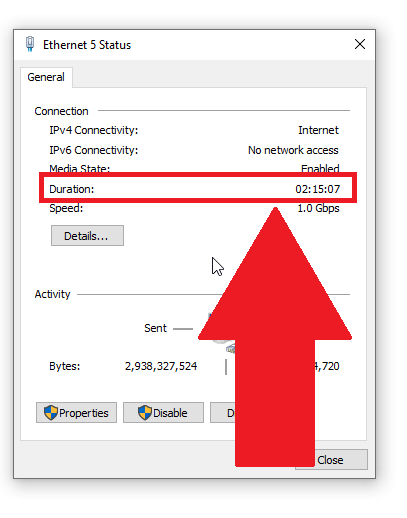
Ethernet status window showing the “Duration” marker highlighted in red
Here you are, finally. This window will show you more details about your internet connection. Notice the “Duration” marker under the “Media State” marker.
That’ll show you the uptime of your internet connection – the length of time it was online since you started your computer.
Compare the time that elapsed between turning on the computer (an approximation is good) and the time shown in the “Duration” in the screenshot above.
Did you start your computer 6 hours ago and the “Duration” is only 5.5 hours? It means that for 30 minutes (added up over time), your internet connection was interrupted.
More precisely, your internet connection suffered random interruptions that, when added up, amount to 30 minutes.
The bigger the difference between your ACTUAL time since starting the computer and the internet connection duration, the more unstable your internet connection is.
I don’t have a good solution for this, unfortunately. Try plugging your internet cable into another port in the router and if this doesn’t work, contact your internet provider…
I hope you’ve managed to troubleshoot why your Discord bot is offline. Ask me anything below, especially if you need help with something related to Discord!
Until then, stay tuned for other helpful articles about Discord and not only. Cheers ��
Why Is My Discord Bot Not Online? – Fix Guide
 Kevin Wood Updated on 17 August 2023

If you are a regular user of the Discord server, you may be wondering why is my Discord bot not online sometimes?
There are many reasons why a bot may be shown as being offline. The answer to this question is not a straightforward one. The first thing you must consider is that Discord offers so many bots.
The type of bot and the functions it performs could also have an impact.
The most common reason why your Discord bot may be offline is that you do not have permission to use it. If you already have permission for the bot, chances are that the Discord server is down and bots are not reflecting.
There are other reasons why a Discord bot may appear to be offline. If you are trying to use your Discord bot but it appears to be offline, keep on reading to find the solution.
Reasons Why Discord Bot is Not Online
To answer the question of why is my Discord bot offline, we must first know which type of bot you are referring to.
If you are referring to your personal bot, there could be many issues.

For instance, if your code is not complete, the bot will not be activated.
If you are referring to public bots, then your problem is likely related to activation and permission.
The most common causes of Discord bot offline errors are as follows:
- The bot you are trying to use is not yet active on your server
- The owner of the bot you wish to use has been banned from Discord
- The Discord bot you are using does not have permission to perform functions
- Your Discord bot function mode has not been turned on
- Your Discord bot is not well developed for the bot to start functioning
This could also affect your bot from being seen online.
Solutions to Why is My Discord Bot Not Online?

If your Discord bot is offline, you do not have to worry that much. You will most likely get our bot back online in no time.
However, there are times when the bot may never be activated. In answering the question, why do Discord bots go offline , we mentioned banned members.
You must realize that all the bots available on Discord are developed by individual users and not Discord itself.
Therefore, if a developer is banned from the community, the bots they developed may also stop functioning.
Below are the solutions to the problem of the Discord bot offline.
Solution #1 Activate the Discord Bot You Want
The first reason you might see a bot as being offline is that you have not activated it.
You probably might have tried to activate it but did not complete the activation process.
If this is the case, you can go ahead and complete activating the bot.

Activating public bots is much easier as long as you have permission. For privately developed bots, you have to take a lot of time before you make a worthy bot.
How to activate a Public Discord bot
- Login to your Discord Account
- Navigate to the Application Page
- Navigate through Public Bots
- Find the bot you wish to use eg Dyno
- Click on the Invite Link
- Then give your bot instructions on what you want it to do
How to Activate Self-Developed Discord Bot
To activate your self-created bot, you must copy your application token and create a public bot.
After this, you must create an invitation link that you will follow to activate your bot and it will be shown as being online.
- Login to your Discord Website
- Go to the Applications Page
- Select New Application
- Give a Name to your New Bot and click on Create
- Create your Bot User under the Bot tab and click on Add Bot
- Tap on Yes Do It to continue
- Tick the Public Bot box if you wish to share your bot with other users
- Using the Copy button copy the bot Token
- Now use the copied code to access your bot and manage it
- To activate this bot, you will have to find it under OAuth2 and click on its link
Solution #2 Give Permission to Your Discord Bot

The next solution to this problem is simply giving permission to your Discord bot.
If you have already added a bot to your account, it must have the required permissions to perform functions.
If the bot does not have any permissions it may appear to be offline or inactive.
How to give permission to a Discord bot
- Go to OAuth2 URL Generator
- Enter your Client ID
- Select the bot Scope
- Scroll down to Permissions
- Select all the permissions that your bot needs
- In the Application Info Area, copy the link
- Paste your link on a server to get the bot Online on that server
This usually depends on the permissions the bot has.
Solution #3 Activate Online Mode for Self-Developed Apps

While Discord allows all users to develop their individual bots, this is a tiresome process.
Whichever programming language you are using, developing an active bot takes time.
Some of the well-advanced bots used by the public have taken hundreds of hours to be finalized. If you decide to develop a complex bot, you must follow all the steps clearly.
One of the most common mistakes that most developers commit is failing to activate the online mode.
You might have developed a good bot, but failure to activate its activity may make it redundant.
How to activate online activity
- Open your bot Source Code
- If you used Javascript confirm that you started with typing node(File Name)
- If your bot is never started this way, you could run into problems trying to get it online
Solution #4 Wait for Discord Server to Respond

In some situations, the problem could actually be with the Discord server. If the server you are using is experiencing downtime, you may not be able to see your bots online.
If this is the case, just give your bot a few minutes and it will come back online.
However, if it takes more than an hour, you might want to consider looking into other options.
Solution #5 Add the Bot to a Specific Discord Server

We have seen that a bot could be active on one server but inactive on another server. If you are running multiple servers and you want the bot to be active on all, you should give it permission.
For Public bots, you will need to request authorization from the bot administrator to add it to other servers.
If you are the administrator of the specific bot, you can invite it to the server you wish and give it permission.
Invite Discord bot to a specific server
- Login to your Discord Account
- Tap on the button indicated Add to Discord
- Enter your Discord Logins again to authenticate
- Click on Set up(bot name) next to the server name eg “Set up MEE6″
- A pop-up window should open with the names of all your servers
- Select the server where you would like to add the bot and click on Continue
- Scroll down and click on Authorize
- Click on Welcome
- Select the roles you want your bot to perform and you will be done
You can repeat this process and select other servers where you wish the bot to be active at all times.
Solution #6 You Have Been Muted by the Admin

Finally, if you are offline, chances are that you could have been muted by the bot admin.
This is where the bot admin or moderator takes away your permissions. If this is the case, you may be unable to access some features of the bot or all features.
If the server admin mutes your actions, you can request to be unmuted by the admin. Otherwise, you do not have many options.
Summary
This post fully addresses the question “why is my Discord bot not online”.
Your bot may fail to be seen online due to a myriad of causes. Among them include your configurations and permissions from the bot developers.
If your situation can be salvaged, use the best approach above to solve it.
Kevin has over five years of experience working in various Tech startups and providing Technical solutions. He has contributed to many Tech publications and websites.
Why Does My Discord Bot Go Offline? Solved

Discord is one of the best voice-over IP services, with over 150 million monthly active users.
The flexibility of Discord’s features, which allow it to support gamers and streamers, has led to widespread adoption in both communities. Discord gives you direct voice channels to talk to friends and team members while playing. It also gives you different bots to perform different commands.
Bots help you to play music, give welcome messages, add notifications, add memes, get game updates, create avatars, and do many other things. But your server will not perform these tasks if your bots are offline. Here are a few tips to get your bots online again and resolve this issue for good.
Why Does My Discord Bot Go Offline?
- Host Server Outage
- Replace The Bot
- Check Connectivity and Network
- Give Discord Permissions
- Discord Update Issues
The most common reasons for a bot going offline are bot and Discord updates from the creator/servers, network and connectivity issues, Discord permissions and bugs, and Discord update issues. All of these problems are temporary and can be resolved with simple techniques.
Whenever you add a bot to your server, you add another member to your Discord channel. Bots are not installed on each server individually; rather, they are executed on other servers and then added to yours so that they can carry out specific tasks. That is why you only need to add a bot to receive services.
Bots help you to play music, give welcome messages, add notifications, add memes, get game updates, create avatars, and do many other things. But your server will not perform these tasks if your bots are offline. Here are reasons/tips to get your bots online again and resolve this issue for good.
1. Host Server Outage
The bots you use in Discord are not from your computer or drives but from servers and hosts on other networks. It is because even if you are not online, other users on your server can still access it, and your bots will continue to function normally.
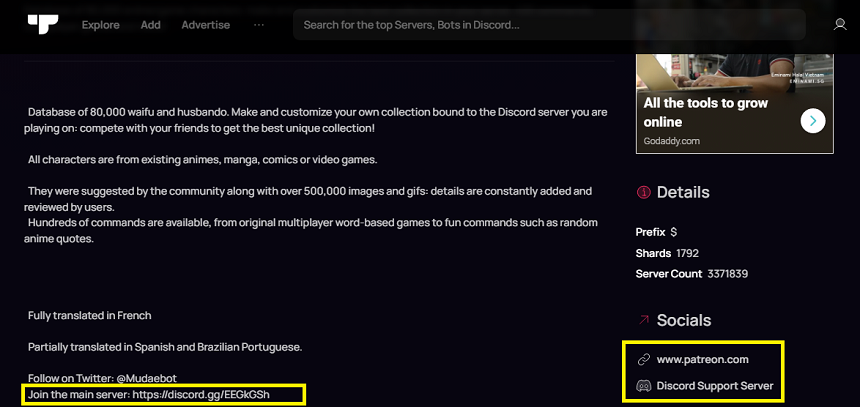
So, whenever you face an offline issue, confirm that the server related to your Discord bot is not offline. Go to Top.gg and search for the bot to ensure this. Click to open the bot details , and here you will find a link to that bot’s official Discord. Go to that link and read the news feed.
2. Replace The Bot
Hundreds of Discord bots perform similar functions. Each creator has its addition of bots. If one bot is not working, you can use the alternative bot. Several websites like Top.gg provide you with a list of bots and their functionality. You can also get an invite link from these websites.
If your bot is going offline repeatedly, it might be the bot itself that is the problem. You have to replace the bot. Go to Top.gg and search for an alternative bot like “ Music Box ,” which can be replaced with “ Maki Music. ” Both bots have the same functions.
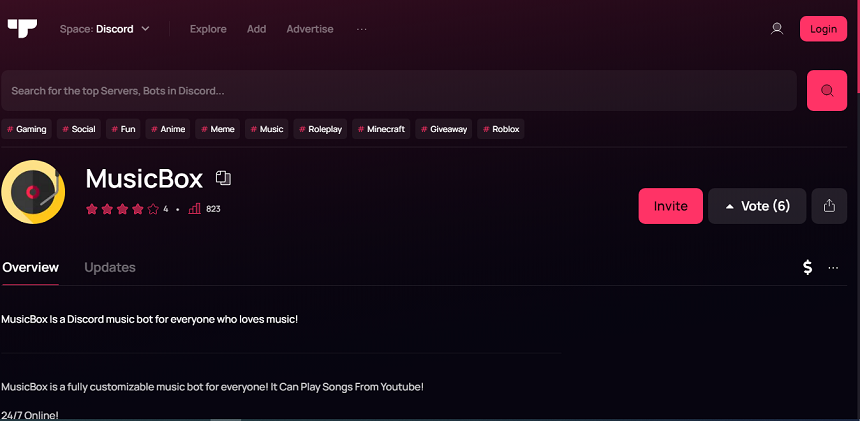
In the same way, you can use these to replace any bot that has gone offline. All bots have their alternatives. Moreover, you can search on the website to find the most related bot you want, then just get the invite link and invite the bot to your server.
3. Check Connectivity and Network
When the bot goes offline, the first thing you have to check is the internet connection. If the internet connection is unstable, the bot will also go offline. Ensure your Wi-Fi connection is stable and your internet connection is working properly.
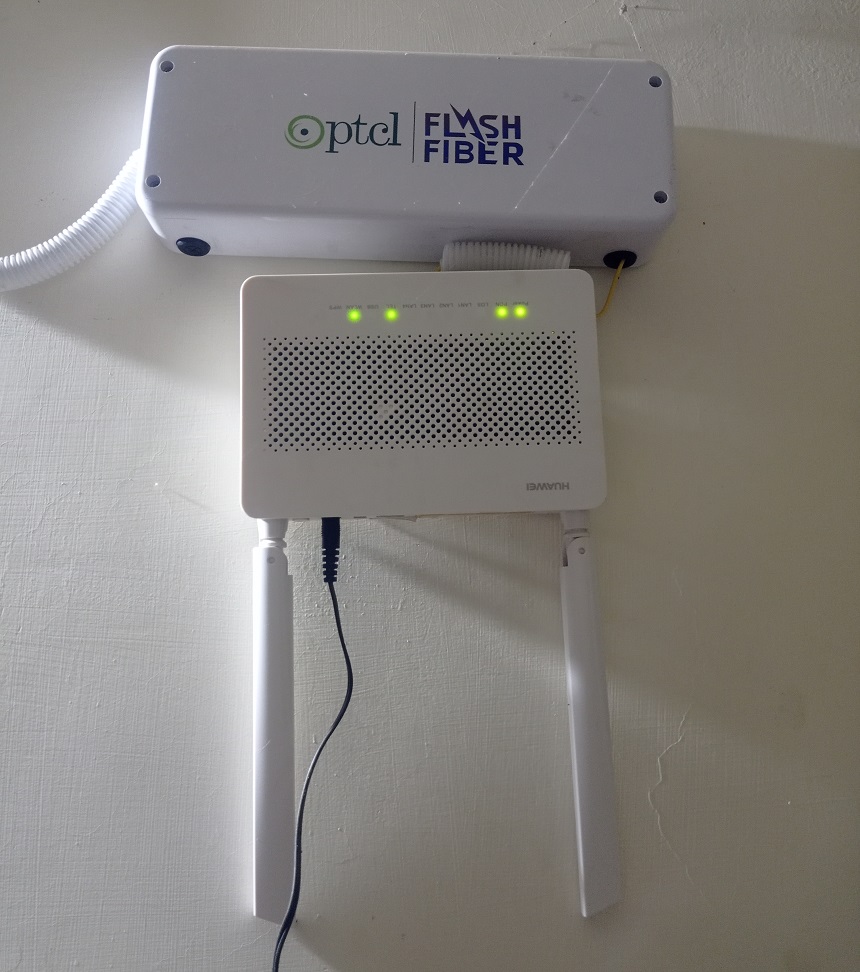
You can also check the server settings. The bot might disconnect from the server if the settings are not correctly set. So always ensure a secure connection. Another option is to restart the router, which will restart your Wi-Fi connection. Simply disconnect your router from the power source, then reconnect it.
4. Give Discord Permissions
After installing your Discord server, bots will require specific permissions to function properly. These permissions included the roles of your members to change bot settings and which channels can access the bot. Without these permissions, you won’t be able to run bots in channels.
You can change the permission settings in your Discord. To do that, right-click on the Discord bot and select “Manage integration.” It will take you to the Discord bot permissions and managing Windows page. Select the channels to add bots from this window and the users that can change bot settings.

5. Discord Update Issues
Discord updates are necessary to ensure the platform remains secure and runs smoothly. They help fix bugs or glitches, improve features, and keep the user experience current. They also add new features to the platform, making it more enjoyable and accessible for users.
Updates to Discord help protect against possible security risks, such as data breaches caused by hackers and malicious software. Discord alerts you about new updates; if you get one, update your server immediately.
How Do You Reset A Discord Bot?
Restarting the bot on the server can help remove errors because it helps to refresh the system, clear out any memory and CPU caches, and free up any resources that might have been tied up in a buggy or corrupt script. Restarting the bot can also help reset any connection issues causing errors.
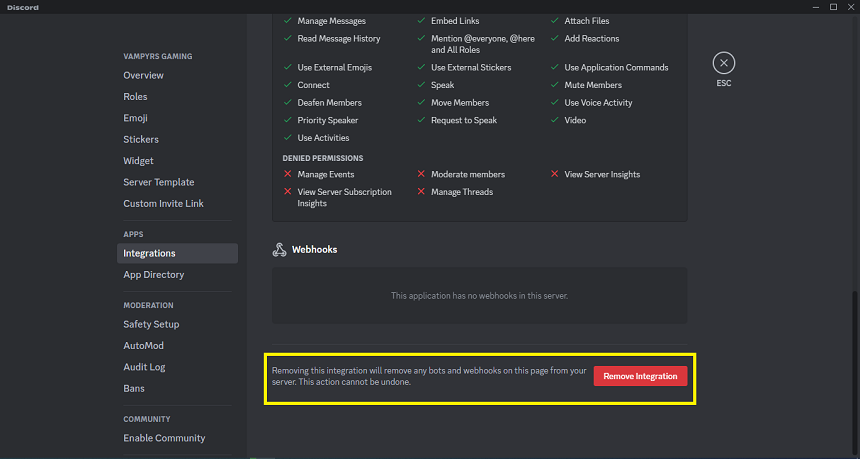
It can help resolve errors related to communication between the server and the bot. To restart the bot, you must remove the bot integration and add it again from the Top.gg website. Just right-click on the bot and go to “Manage Integration.”

Here, scroll down to find the “Remove Integration” option. Click and remove it. Now go to Top.gg and add the bot again to your server. Now your bot is on default settings, and it will also resolve the offline issue.
How Do You Make A Bot Always Active On Discord?
Most of the Discord bots work online even when you are offline. Discord is not a PC-specific app. Your members can use all plugins and bots if you are offline. But some bots go offline. To make them always active, you have to integrate them with the Discloud service.
To add this service, go to Discloud, click “Enter” on the right-upper corner, and then “Log in with Discord.” Discloud will ask for the permissions; click on “Authorize” to give them permission to Discloud. Once linked, your account details will be displayed in the window.

Here you will find a list of hosted sites and bots. Find the bot you want to keep online and click the “On” button. Now open your Discord, and go to settings. Here, navigate to “Authorized apps.” If you find the “Discloud” there, give access to both the “Access your username and avatar” and “Access your email” options.

Select “Advance” from the settings to enable that bot and enable “Developer mode.” After enabling, click “ Discord Api ” to open the developer settings. Once in the “Developer” settings, click “Applications.” If you don’t have any active applications, Click “New application” to add one.

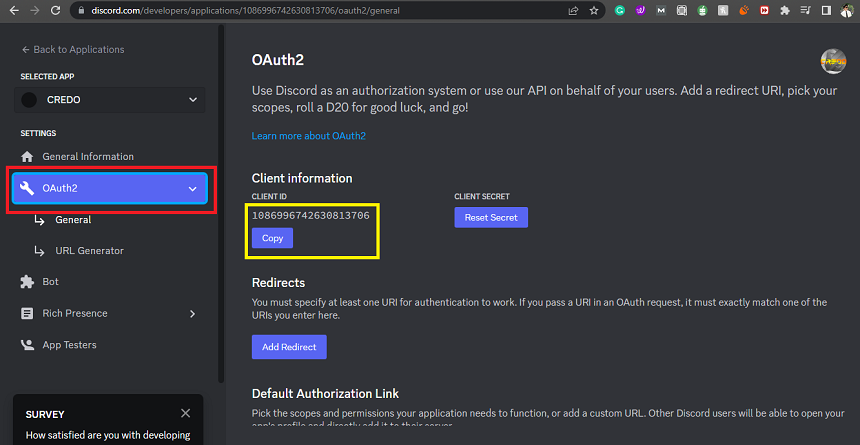
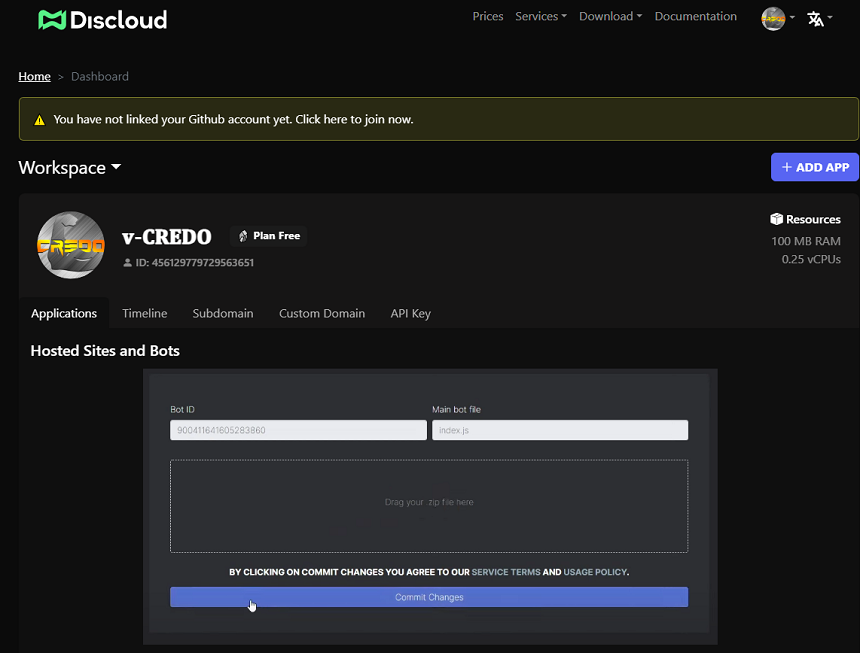
Now go to “OAuth2” option and copy the “Client ID” from here. Now open Discloud and paste that ID into the Bot ID section. In the main bot file name, just type “Index.js.”
Add the bot’s downloaded zip files by clicking “Drag a zip file here” and pressing commit changes. C ongratulations! Your bot has been added and will stay online.
Conclusion
Discord bots are a great way to improve your server and make it more interactive for users. They offer various services, from playing music to giving notifications to adding memes. However, there are various reasons why your Discord bot may go offline. These issues can be resolved with simple techniques.
The most common reasons bots go offline are bots from the creator/servers, network and connectivity issues, Discord permissions and bugs, and Discord update issues. To fix the issue, check the host server outage and replace the bot if necessary.
Additionally, you should ensure that your internet connection is working properly and that your Discord permissions are set correctly. Finally, update the server immediately if you have received a Discord update notification. With these steps, you should be able to get your bots online again and resolve the issue.
Additionally, you can ensure that your bots are always active by integrating them with the Discloud service. With these tips, you can ensure that your Discord bots are always running smoothly and keeping your server up to date.