VLC vs Windows Media Player vs PotPlayer – Comparison (Pros and Cons)

While each media player has the same basic functions, such as playing audio and video files, each has its own unique features, pros, and cons.
In this comparison, we’ll take a closer look at these three media players to help you decide which one is the best fit for your needs.
What is VLC?
VLC Media Player is a free and open-source video player that supports almost any video or audio format and optimizes playback for various devices. It also includes advanced features such as streaming and downloadable plugins.
VLC’s compatibility with various operating systems and devices and its playback quality make it a popular choice. However, its options menu can be confusing.
Overall, VLC remains the top choice for playing downloaded movies and obscure video file formats that are not supported by default media players.
What is Pot Player?
PotPlayer is a multimedia software player developed by South Korean company Kakao, formerly known as Daum Communications, for Microsoft Windows.
One speculation why Pot Player has become popular is due to the fact it has been bundled with certain softwares – this is both a pro and con because not everyone requests this to be installed.
It competes with other popular Windows media players and is praised for its wide range of settings and support for various media formats.
However, its options menu has been criticized as confusing and checkbox-laden. PotPlayer has a minimalist design and includes a built-in video editor, screen recorder, and TV receiver in addition to its media player functionality.
Overall, it is a lightweight and customizable media player with advanced features with 64 & 32 bit download options.
What is Windows Media Player?
Windows Media Player (WMP) is a free media player and library app from Microsoft that plays audio and video on personal computers.
It can organize media files, create playlists, rip music from CDs and DVDs, synchronize content with digital audio players and mobile devices, and purchase or rent music from online stores.
However, WMP has some drawbacks such as limited ability to stream videos properly, and inability to sync with certain portable devices. Despite this, WMP remains a popular choice for Windows users as it’s the default app and it works with minimal issues for simple video playback.
VLC vs Windows Media Player

VLC Media Player supports almost any video or audio format, including DVD playback, and has a customizable interface with advanced features such as streaming and downloadable plugins.
In contrast, Windows Media Player is pre-installed on Windows computers and has a user-friendly interface, but has limited codec support and lacks advanced features like streaming. Overall, VLC is the preferred choice for its wide range of file format support and customizable interface.
Feature differences
VLC Media Player offers more advanced features, such as the ability to optimize playback for any device, zoom in videos, cut and trim videos, rotate and flip, merge, and even play videos as they’re downloading.
It also allows users to search for album covers, while Windows Media Player is more basic and lacks these features.
You can also rip a DVD with VLC with advanced options – while WMP can do this, it’s the settings for adjustment didn’t seem as advanced when i tested it.
Video File Format Compatibility comparison
Here’s a table we created based on our research. It displays the supported media formats by VLC Media Player and Windows Media Player side by side:

if you’re looking for a lightweight and fast media player with basic features, PotPlayer is a good option. But if you want a reliable media player with advanced features and broad compatibility, VLC Media Player is a better choice.
Feature differences
VLC Media Player is great for playing almost any media file on your computer and portable devices, with plenty of advanced settings to make your experience more enjoyable. But some of its features may feel outdated.
PotPlayer offers many effects and filters to enhance video clips, a built-in screen recorder and supports 3D video files. You can customize the interface to your liking.
Say you have a large collection of media files in various formats, and want a player that can handle all of them. VLC Media Player would be a great choice because it can play make any file format you throw at it, including popular ones like MP4, AVI, and MKV. Plus, with its advanced settings, you can fine-tune the playback like adjusting the playback speed, add subtitles, or even take screenshots while watching a video.
But if you’re a video editor or content creator, you may need a media player that offers more advanced features. PotPlayer is an excellent option here because it offers a screen recorder. You can use it to capture your screen and record your voiceover.
In short, if you want a simple media player that can play almost anything, VLC Media Player is a good choice. But if you require more advanced features like a screen recorder or 3D support, PotPlayer is the way to go.
Video File Format Compatibility comparison
Here’s a table displaying the supported media formats by VLC Media Player and PotPlayer.

Below i’ll compare PotPlayer with Windows Media Player. Note that Windows Media Player (WMP) is the default media player on most Windows operating systems, while Pot Player must be downloaded separately.
Feature differences
Windows Media Player is a solid choice for playing audio, video, and pictures, and it offers some useful tools like fast-forward, reverse, file markers, and variable playback speed. It also supports local playback and streaming playback, with multi-cast streams and progressive downloads. You can also connect, share, and sync data with portable handheld devices.
Whereas PotPlayer offers a more modern approach to media playback. It supports most file formats, and it can even play broken files. It also offers the ability to watch videos through a proxy, change the playback speed, and even support various types of 3D glasses. Plus, it has a bookmarking feature that allows users to save their favorite scenes or chapters.
For example, let’s say you have a video file that won’t play on Windows Media Player because it’s a broken file. PotPlayer would be the better option here because it supports playing broken files. Or, if you’re watching a video on a slow internet connection and need to reduce the playback speed to avoid buffering, PotPlayer’s ability to change the playback speed is useful.
Overall, both Windows Media Player and PotPlayer have their unique features, but PotPlayer caters more towards modern user requirements.
Video File Format Compatibility comparison
Here’s a table displaying the supported media formats by Windows Media Player and PotPlayer.

The winner: VLC Media Player. It’s the better choice in almost every scenario, especially for those who want more advanced features and customization options, while Windows Media Player may be a more straightforward and convenient option for basic video playback needs, especially since it is pre-installed on Windows devices.
Ultimately, the best media player for an individual will depend on their specific needs and preferences, but VLC excels in most areas between the two media players.
Best for Mac & Windows: VLC Media Player
VLC Media Player is a good option for Mac & Windows users because it is a versatile media player that can handle almost any video or audio format, including some that may not be supported by other media players on the Mac platform.
VLC is free and open-source, making it an accessible option for users who may not want to spend money on a media player.
It’s also ideal for those who want advanced capabilities such as the ability to filter video playback, optimize playback for any device, zoom in videos, cut and trim videos, and more, making it a powerful and flexible media player for Mac users.
Whats interesting is you can even convert youtube videos as well as
Alternatives
In addition to VLC, Windows Media Player, and PotPlayer, there are several other media player alternatives available. MPV Media Player, for example, offers hardware acceleration and uses FFmpeg.
- IINA: which provides a modern interface and supports a wide range of video formats. I personally use Quicktime over INNA on my Mac, but many users find it to be one of the best out there.
- Movist: is a media player for Mac users with a simple and easy-to-use interface. It offers high-quality playback, subtitle support, and customizable preferences.
- Elmedia Player: aA universal video player for Mac that supports various video formats, subtitles, and has built-in streaming options. QuickTime is a default media player for Mac devices.
- GOM player: GOM Player is a free video player that supports various file formats and offers skins to choose from. It also has a large subtitle library and supports 360-degree VR playback.
Note: Compared to other players, GOM Player’s unique features include its subtitle library and VR playback support. GOM Player Plus is an upgraded version that provides an ad-free playback environment and allows for high-resolution 4K UHD movies without buffering.
Other alternatives include Plex, Infuse, 5KPlayer, Emby, and Jellyfin, each offering different features and functionality. However, VLC, WMP, and PotPlayer are our go-to choices.
Причины, по которым в 2022 году стоит заменить медиаплеер VLC на более продвинутый
За более, чем 40 летнюю историю развития персональных компьютеров полноценное воспроизведение на них видео стало доступно лишь около 20 лет назад. Еще в конце 90-х годов прошлого века не каждый компьютер мог осилить воспроизвести видео, закодированное кодеком MPEG-2 в разрешении 352 × 288, а уже в начале 2000-х годов нам стало доступно воспроизведение видео в DVD-качестве. А потом, всего за несколько лет, в этом направлении произошел рывок и видео в разрешении Ultra HD 4K уже почти 10 лет могут воспроизводить даже бюджетные компьютеры с встроенной графикой.

реклама
Заметно упростилось и подключение к компьютеру телевизоров. Если еще 10-15 лет назад мы смотрели фильмы на ПК на довольно небольших мониторах, то теперь нужен только HDMI кабель нужной длины и любой современный телевизор легко превращается в полноценный дополнительный монитор, на котором очень удобно смотреть видео из интернета и фильмы.

Все эти годы развивались и средства просмотра видео на ПК, ведь возможностей и функционала встроенного в Windows проигрывателя Windows Media Player хватало только неискушенным пользователям. Каких только медиаплееров не появилось в те годы, казалось, что каждая компания, пишущая софт, отметилась на этом поприще, но большинство из тех проектов уже давно забыты.
реклама

Одним из самых популярным медиаплеером тех времен стал Media Player Classic, который обеспечивал на ПК воспроизведение любых возможных видеофайлов, устанавливая в систему все нужные кодеки. Это было спорное решение, с одной стороны, мы получали возможность воспроизвести любой видеофайл, с другой — это вызывало проблемы и конфликты с игровыми кодеками. И часто гайд по устранению проблем с игрой, например, The Elder Scrolls IV: Oblivion, первым пунктом включал полное удаление Media Player Classic.

Этих проблем оказались лишены медиаплееры, имеющие все нужные кодеки для воспроизведения видео внутри себя, например VLC media player или The KMPlayer. Подобные плееры быстро стали негласным стандартом на ПК и ноутбуке любого пользователя, просматривающего видео и фильмы. Ведь даже Windows Media Player, встроенный в Windows 7, без дополнительных настроек не мог открыть файлы, закодированные кодеком H.264, который до сих пор является одним из самых популярных, позволяя нам смотреть фильмы с Blu-ray качеством, сжатые до размера в 8 ГБ.
реклама

Я, как и многие пользователи, смотрящие видео и фильмы на своих ПК, уже давно пользуюсь проигрывателем VLC media player и он стал для меня одной из первых программ, которые я устанавливал сразу после установки Windows 7 еще в 2009 году. За эти годы VLC media player стал настолько привычен, что я уже совсем забыл про существование других медиаплееров. Оранжевый значок VLC стал для меня равен воспроизведению фильма или видео, записанного на смартфон или фотоаппарат.

Надо признать, что Windows Media Player и приложение «Кино и ТВ», встроенные в Windows 10 и Windows 11, дают возможность смотреть фильмы «из коробки», сразу после установки Windows. И если вы редко смотрите видео на компьютере, то вполне можете удовлетворится ими. Но стоит вам захотеть чего-либо большего, например, посмотреть сериал или документальный фильм на ускоренной скорости, выровнять уровень звука, который обычно очень тихий при разговорах и зашкаливает в динамичных сценах, то вам потребуется что-то более продвинутое, чем стандартный проигрыватель.
реклама

Все эти задачи для меня решал VLC media player, но нельзя сказать, что это всегда было удобно и не имело проблем. Первый звоночек, заставивший меня искать замену для VLC, прозвенел, когда все больше видеофайлов стали использовать кодек H.265 или HEVC, обеспечивающий почти на 50 % более эффективное сжатие видеофайлов.
То один, то другой фильм у меня стал открываться с рывками и «дерганьем», а особенно это было заметно при открытии такого файла через VLC media player из файлового сервера, подключенного по 100 мегабитной сети, иногда дело доходило и до артефактов.

Надо заметить, что у меня к компьютеру подключен не только монитор, но и телевизор через длинный HDMI кабель. Телевизор является вторым монитором в настройках Windows 10 и обычно включено «Дублирование экрана», дающее дополнительную нагрузку на видеосистему и плеер. Чтобы посмотреть фильм, мне достаточно выключить монитор, сесть на диван в другом конце комнаты, включить телевизор и управлять воспроизведением с помощью дополнительной беспроводной мышки, подключенной к ПК.

Надо сказать, что такая схема оказалась на порядок удобнее технологии Smart TV, дополнительных медиаприставок или подключения телевизора к ПК по сети через DLNA. Ведь в этом случае вы не ограничены только видео, но можете с комфортом играть или серфить интернет. Организовать такую систему у себя дома очень просто. Вам понадобится современный телевизор с HDMI входом, например, Xiaomi MI TV 43 P1 из Ситилинка. А телевизор в 2022 году стоит брать только Ultra HD 4K и выше, о чем я недавно делал блог.

Еще нужна компактная беспроводная мышка, долго работающая от батареек типа AA, например, Logitech M170. Самые дешевые мышки покупать не стоит, если не вы хотите столкнуться с неуверенным приемом, быстрым разрядом батарейки и отвратительным позиционированием курсора.

При выборе HDMI кабеля обратите внимание на его длину, он должен иметь запас для удобной укладки от ПК к телевизору, и его версию, которая должна обеспечить передачу UHD сигнала при частоте 60 Гц, такой, как Tripp Lite HDMI.
Но вернемся к претензиям в сторону VLC media player. Моя проблема решилась после долгих танцев с бубном, после изменения довольно редкой его настройки — размера кеша файлового буфера.

Но было неприятно то, что эта проблема сохранялась уже довольно давно и не исчезала при обновлении VLC media player до новой версии и его переустановки.
Вторая нерешенная проблема VLC media player на моей системе — блокировка уровня звука на телевизоре при воспроизведении фильма. То есть, если я включил VLC media player и переключил вывод звука с ПК на ТВ по HDMI, то регулировка звука через регулятор Windows 10 или регулятор VLC media player не давала ничего — звук регулировался только через пульт телевизора. И эта проблема не уходила при обновлении VLC или переустановках Windows.

И когда я столкнулся со третьей проблемой, а именно, с зависанием видеофайлов при попытке их ускоренного даже на 10% воспроизведения, я решил, что пора искать замену VLC media player. А ведь претензий к нему немало и без технических проблем, например, куцый и спартанский интерфейс, выглядящий убого в 2022 году и неудобность настройки. А главное — VLC media player застыл в своем развитии и практически не изменился за те 13 лет, что стал заменой для Windows Media Player.

Я начал искать ему замену и довольно быстро нашел плеер, сочетающий все качества VLC media player, но лишенный его недостатков. Это PotPlayer, ранее известный как Daum PotPlayer, от создателей The KMPlayer. Нашел я его при подготовке заключительного блога про портабельные утилиты, и оказалось, что PotPlayer, как и VLC media player, можно установить в портабельном режиме, что сохранит все ваши настройки при переустановке Windows.

Разобравшись с его настройками за несколько минут, я сразу понял, насколько PotPlayer удобен по сравнению с VLC media player. Почти все настройки воспроизведения и фильтров доступны по нажатию правой кнопки мыши по экрану. Справа можно в один клик вывести или убрать плейлист.

Функционал настроек заметно шире, чем у VLC media player. Например, я часто увеличиваю «узкие» фильмы формата 2,35:1, но не до полного заполнения экрана формата 16:9, а частично. VLC media player дает набор фиксированных значений увеличения (кадрирования).

PotPlayer не ограничивает вас фиксированными значениями и дает расширять и кадрировать видео на произвольную величину. А делать это можно горячими клавишами, которых в плеере множество.

Нажав на значок шестеренки в PotPlayer, вы вызываете небольшую панель управления, с помощью которой можно настроить звук, яркость и контраст, скорость воспроизведения или его зацикливание.

Но главная изюминка PotPlayer — огромное количество настроек, с помощью которых вы можете настроить практически все. Например, сделать перемотку видео назад и вперед с помощью колесика мыши — это не проблема, как и многое другое.

Думаю не стоит говорить, что проблемы с зависанием ускоренного видео, рывками HEVC видео или блокировкой звука, мучившие меня в VLC media player, в PotPlayer отсутствуют. Все работает гладко, ровно и не требует вмешательства или тонких настроек.
PotPlayer vs VLC Media Player | Which One is Best?
There are few suitable multimedia players around us and we are quite comfortable with them. But in some cases, we find some issues and at that time we think of the best multimedia player. We think if we could have the best one. We know your concern. So we have come up with a solution for you. In this article, we’ll directly put PotPlayer vs VLC Media Player into comparison.
Potplayer and VLC are the most popular multimedia players among all of them. But in between them which one is best? Let’s clear the confusion between the most popular multimedia players PotPlayer vs VLC Media Player. So, vlc or potplayer, which one to choose? We are going to go through their features. Here we go for this investigation.
Please enable JavaScript
Table of Contents
Comparison Between PotPlayer and VLC Media Player
If you look into the main features of these two pot player vs vlc multimedia players, we will come to know that both of them are amazing players. But if you want to choose between them, which one are you are going to take?
Let’s go through each feature of these two multimedia players.
1. Video Formats / Media Formats
The majority of video and audio formats can be accessed by the PotPlayer media player. Again, this can access so many codecs which is astonishing. You won’t face further hindrance if you download all the codecs. The temporary problem can be solved by downloading the required video codec. The hardware acceleration is good enough to play high-quality videos.
On the other hand, VLC player is great in supporting all video formats like the MKV media file formats, MOV files, SWF files, and VOB files, but not too good with the audio formats. In this area, you may have to struggle if you use VLC player. So, Potplayer wins in terms of comparison of video format supports between Potplayer vs VLC player.
2. 3D Support
There is a piece of cool news about PotPlayer media player. This feature can make it more useful between vlc player vs potplayer. So, is potplayer better than vlc media player? PotPlayer supports 3D video file. By having a pair of virtual reality 3D glasses you can have the experience of enjoying your favorite 3D movie and games in your room without going to the theatre by using this video player.
This cool feature is not available in the VLC video player.
3. User Interface
Is potplayer good enough as a free video player in terms of UI? PotPlayer app has a clean and fast-loading user interface. So this is very friendly to users and users feel very easy to access this. On the other hand, VLC’s user interface is a little difficult to understand and is confusing sometimes. Both of them provide different keyboard shortcuts.
4. Software Support Platform
As VLC is old and free media player software in the multimedia players, so it has access to all the platforms from Windows PC to Mac and vlc media player features a lot of things for that. In terms of support, VLC is better than potplayer as well as media player classic and windows media player. In this sector, PotPlayer is not the winner as this is the new one. Plotplayer is only accessible in Windows OS and it doesn’t provide any potplayer for mac. So, the Potplayer still now should be called pot player for Windows. That’s the drawback of PlotPlayer for now. Though Potplayer supports different codecs and among them, potplayer swf codec is very much used. The codec pack has a good amount of codecs too.
5. Extensibility
You can watch and stream movies directly from the browser through the VLC plugin in Mozilla Firefox. But PotPlayer video player does not have this access as it has to work on the software platform now. But can we say that potplayer is better player than vlc? Let’s find out.
6. File Size
The download size of the Pot Player for PC or potplayer exe is 23.5MB and the download size of VLC is 30MB. So you do not have much space and do not want to waste megabytes then you can easily go for PotPlayer.
7. Autoplay
PotPlayer has the autoplay option and so the video playback plays sequentially. You do not need to play every time during playing a playlist of multimedia files. You only need to play once and then one by one the videos will be played just like Netflix.
But in VLC you have to play each time to watch or stream any video media file. But in terms of advertising, potplayer ads will surely irritate you.
Our Verdict
If you are looking for small details in your multimedia player, then you can go for PlotPlayer without a second thought. It can provide even such videos and audio which can not be played by other players like GOM player or MX player. So as you have got a clear idea, you can say PlotPlayer is the best. In the case of Mac, Android, or iOS, you can use VLC for the time being as in these PlotPlayer is not available.
Frequently Asked Questions
Can PotPlayer play 4K?
Yes, you can play 4k videos in PotPlayer very smoothly.
Can VLC play 4K content?
If you are using an older version of VLC, for example, VLC version 2.0 then you will face issues while playing 4k content. But the latest update, version 3.0 allows to play 4k content smoothly. So, if you are using VLC, update the player and enjoy 4k content.
Conclusion
From those above features, it is quite easy to decide which one is better for you for playing media file. PotPlayer! Though it is only available for windows for now, in no time it will be available for other software platforms also. If you are just a simple video watcher or streamer then PlotPlayer is best and VLC is also quite good. So for daily uses, you can pick any of them.
Аналоги PotPlayer — обзор VLC, MPC и Light Alloy
В мире программного обеспечения, как и во многих других сферах, конкуренция — двигатель прогресса. Конечный пользователь лишь выигрывает, если на рынке присутствует сразу несколько близких по классу продуктов. Этот факт заставляет разработчиков не расслабляться и «держать марку», а также есть лишний повод подсмотреть и, возможно, позаимствовать удачное нововведение конкурента. Хоть мы всю дорогу и хвалим PotPlayer, но нет предела совершенству и поэтому хотелось бы отметить 3 похожих проекта и детальнее остановиться на сравнительных характеристиках этих, безусловно, узнаваемых программ.
Представляем конкурентов: VLC, Media Player Classic и Light Alloy
К каждой программе применимо стандартное описание: проигрывает всё и даже больше; содержит кодеки; понимает субтитры и аудиодорожки, потоковое видео и т.п. Это итак умеют все приличные проигрыватели мультимедиа, притом бесплатно.
Чем схожи и особенно хороши плееры из нашей подборки?
- Качественным программным кодом, который на практике выражается в моментальном старте, отсутствии «подвисаний», максимальном использовании аппаратных возможностей.
- Фирменными «фишкам». У PotPlayer это великолепная настраиваемость и регулярное внедрение новых функций, пусть и не всегда действительно востребованных.
- Возможностью использования приложения в стиле «установил и забыл», основной функционал работает «из коробки».
В дистрибутив размером 28 скромных Мб (скачать ) разработчики умудрились внедрить, помимо собственно плеера, едва ли не лучший комплекс для проведения сетевых и интернет-трансляций. Онлайн-вещание – это к проекту VideoLAN. VLC принимает и успешно воспроизводит сигнал не только с накопителей или из сети, но и с карт видеозахвата, со спутниковых и обычных тюнеров цифрового ТВ.
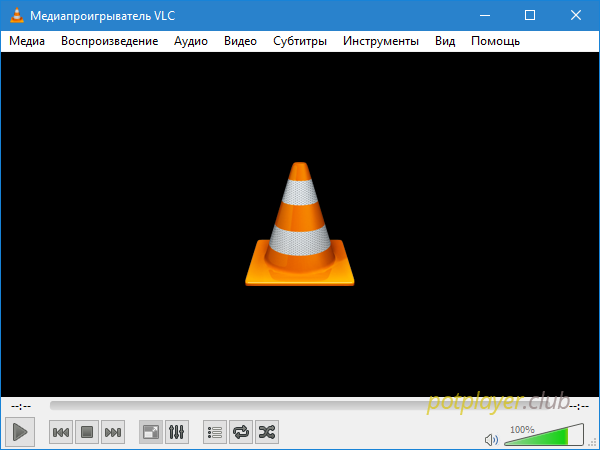
Программа обладает роскошной коллекцией видеоэффектов: устранение помех, вращение экрана с шагом в 1 градус, кадрирование и подстройка цветности, увеличение отдельной области видео, «зеркала» и «волны», наложение логотипов. Перечисленные «примочки» составляют не более 10% от полного списка эффектов VLC. Все нестандартные возможности скрыты от глаз неискушённых пользователей, которым, зачастую, требуется лишь быстрый и простой проигрыватель.
Ещё один эксклюзив VLC: возможность поднять громкость до уровня выше 100%, используя скрытые функции аудиодрайвера и DirectSound.
Начальный проект разработчика Gabest закрыт. Нынешние версии активно развиваются (скачать ) под брендом MPC-HC (Home Cinema). Таким должен был быть стандартный проигрыватель Windows: быстрый, сравнительно скромный по возможностям, с понятным интерфейсом и регулярными апдейтами. Дизайн встроенного плеера действительно был таким в эпоху Win98: отсюда и название Classic. Преимущества интерфейса – не в ностальгии «раньше трава была зеленее», а в изысканной и потрясающе продуманной простоте.
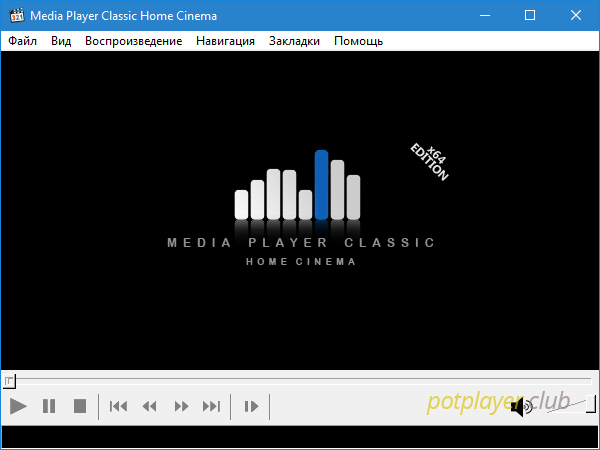
Главная отличительная черта — возможность работы на самых слабых компьютерах, MPC потребляет минимум ресурсов. Одна из обратных сторон такой аскетичности — низкая степень кастомизации интерфейса, можно менять только тулбар управления и логотип, поддержки скинов нет.
Light Alloy
Отечественная разработка (скачать ). В начале 2000х LA-Player был стандартом де-факто. Быстрый, с симпатичным интерфейсом и наличием «плюшек», наподобие воспроизведения повреждённых и недокачанных файлов, Light Alloy породил приятную тенденцию создания столь же шустрых и визуально простых приложений.
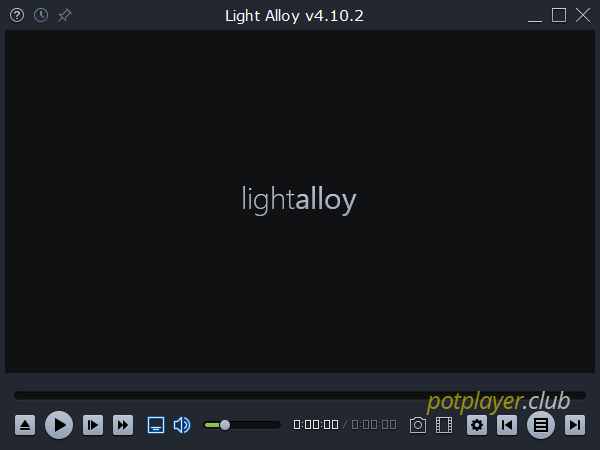
Разработка часто переходила от одной команды программистов к другой. Плеер категорически устаревал, затем новые владельцы осовременивали его до аналогов – и вновь приостанавливали разработку. Аудитория постепенно переходила на альтернативы. В последние пару лет проект не получал значимых апдейтов. К апрелю 2017 разработчик объявил о фактическом закрытии Light Alloy: «4.10.0 — последняя версия с нововведениями. Проект переходит в режим исключительно технической поддержки. Команда теперь сфокусирована в работе над новым проигрывателем — Verona».
Сравнительная таблица
Для большей наглядности приведём сравнительные характеристики важных на наш взгляд параметров для программы просмотра видео в виде таблицы. И уточним, каким образом они реализованы в каждом из рассматриваемых нами аналогов PotPlayer и, конечно, в нём самом.