4 Easy Ways to Fix AnyDesk Waiting for Image
This post is a intuitive troubleshooting guide for AnyDesk waiting for image error. It will greatly help you if you face the same problem when establishing an AnyDesk session. Please keep reading to learn more.

By Hester  / Last Updated May 9, 2023
The issue: AnyDesk waiting for image
I use Anydesk to connect to a remote host. The connection has been made, but there is no visible image, and a message says, ‘Waiting for image.’ Any solutions for AnyDesk waiting for image?»
— Question from a user
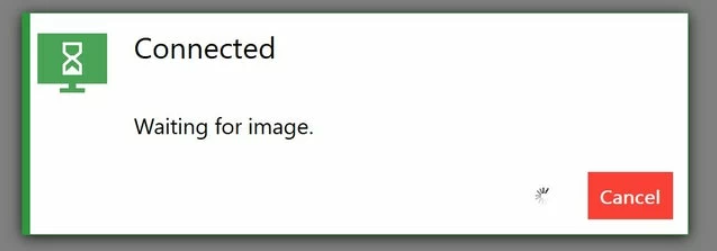
How to fix AnyDesk stuck on waiting for image on Windows 10, 11 [4 solutions]
AnyDesk is a well-known remote access software that enables you to connect to another device and see its screen and files from anywhere in the world. Users might occasionally run into problems during a remote session, though. For instance, the client computer may experience AnyDesk connected but waiting for image due to the unstable Internet connection, blocked Firewall, or monitor connection. Thankfully, there are a couple simple fixes for this issue.
Solution 1. Check the Internet connection
If you encounter AnyDesk stuck on waiting for image, you may have an unstable Internet connection. We recommend checking your Internet connection first.
Step 1. Press Win+ R keys, input “cmd”, then click OK.
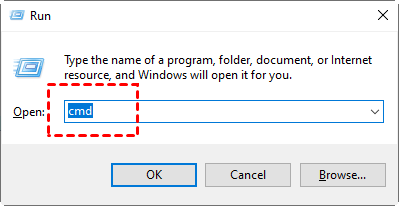
Step 2. Runthe command “ping -t 8.8.8.8” and check the time value. If the data indicate considerable swings, your Internet connection needs assistance.
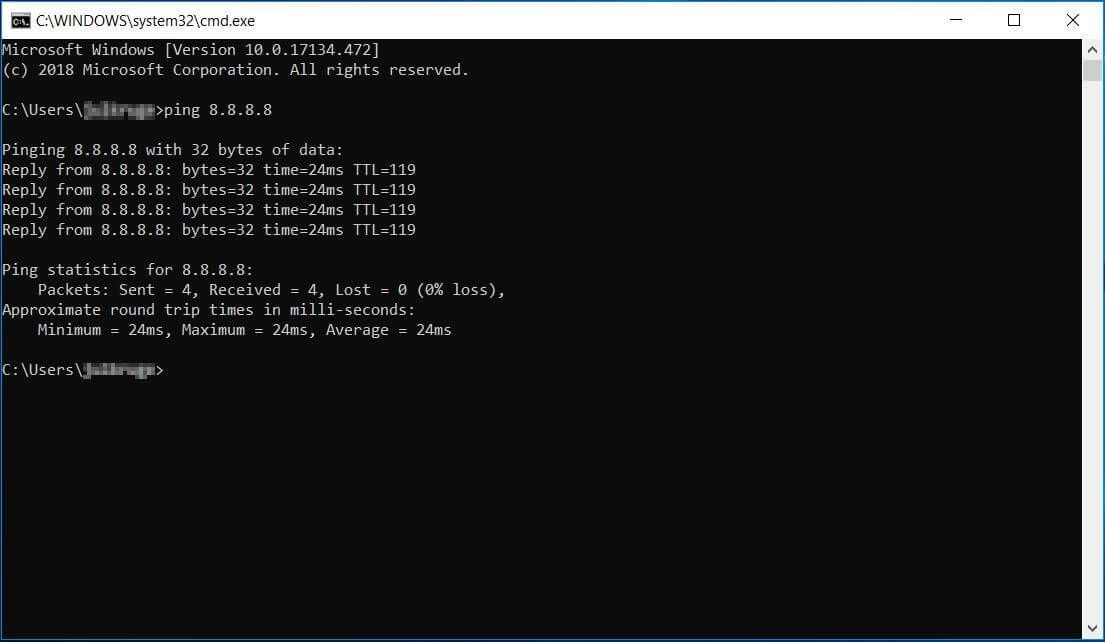
Step 3. If you’re having issues with your Internet, close the computer, unplug the router or modem, wait 30 seconds, then plug it back in.
Step 4. Re login to the router and modem, and restart your computer to try again.
Solution 2. Configure AnyDesk in Windows Firewall
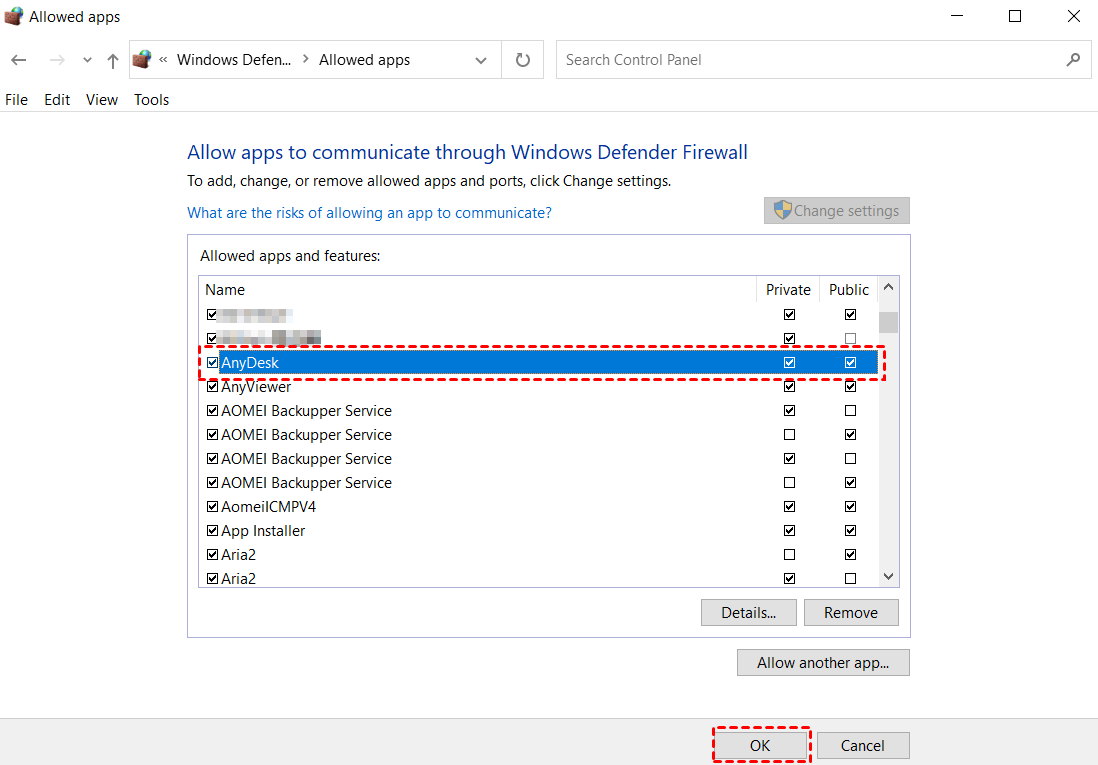
A weakly constructed Firewall may also be the source of the error message. The Windows Firewall on both the local and remote sides should not interfere with the AnyDesk connection. Therefore, you have to make sure that AnyDesk is whitelisted in Windows Firewall.
Step 1. Go to System and Security > Windows Defender Firewall in Control Panel. Click Allow an app or feature through Windows Defender Firewall.
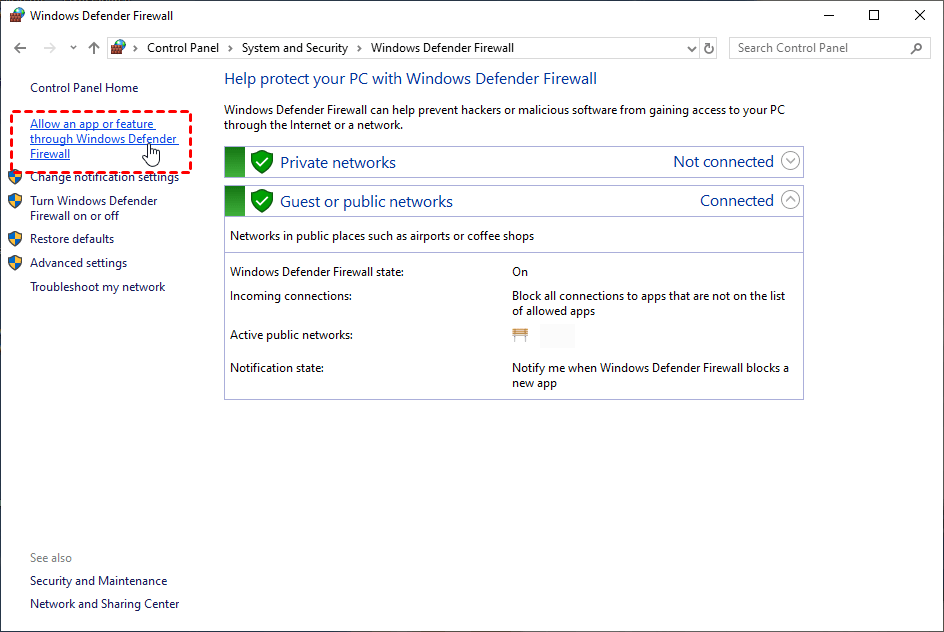
Step 2. Click the Change settings button, find and check the Private and Public boxes for AnyDesk, then click OK.
Solution 3. Use Ctrl + Alt + Del keys to evoke the display settings
Sometimes you’ll find AnyDesk waiting for image when you connect to a pc without a monitor. The following steps can help you let AnyDesk start working again.
Step 1. In the session window, click the Actions button on the upper toolbar, and click Ctrl + Alt + Del.
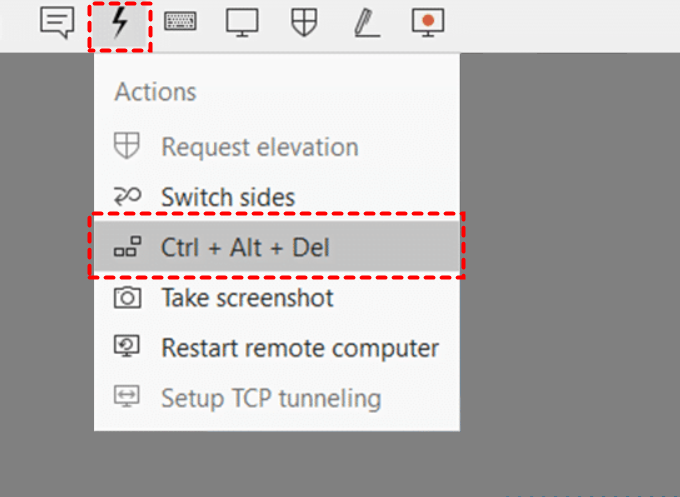
Step 2. Click Cancel if something shows up.
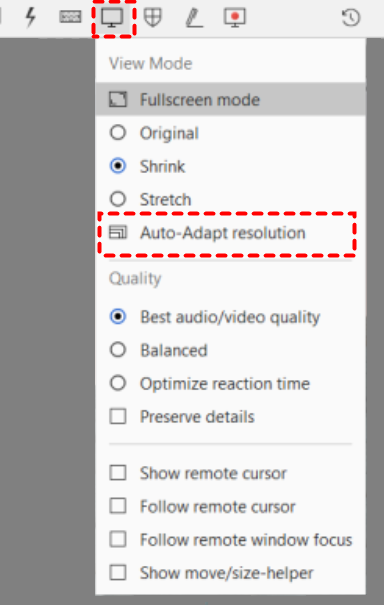
Step 3. Then screen will be frozen again. Click the View Mode option, and select Auto-Adapt resolution.Then everything will start working again.
Solution 4. Use a reliable AnyDesk alternative
The effective way to solve the display errors is by using an AnyDesk alternative. Thus you won’t face these problems anymore. Many remote access tools are on the market, and our top selection is the powerful and safe software AnyViewer.
As the best remote access software, AnyViewer offers the most stable connections without interruptions and errors. Besides, it is an effective all-in-one solution. All of the features are free to use, including unattended access, remote desktop file transfer, multiple sessions, multiple monitor navigation, and remote reboot.
AnyViewer is very easy to use. Download it on your computer, and let’s get started.
Step 1. On the host device, launch AnyViewer, sign up for an account by clicking Sign up, and log in.
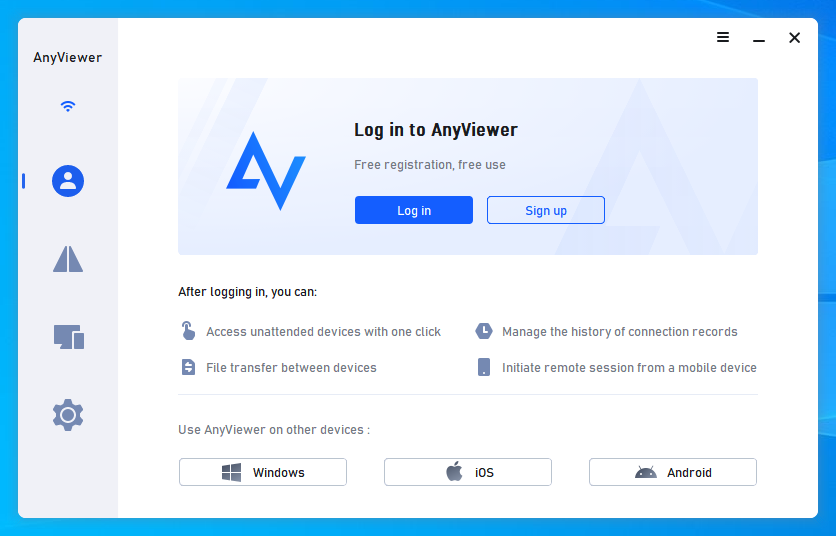
Step 2. Utilize the same login credentials as the host to sign in to AnyViewer on the client device.
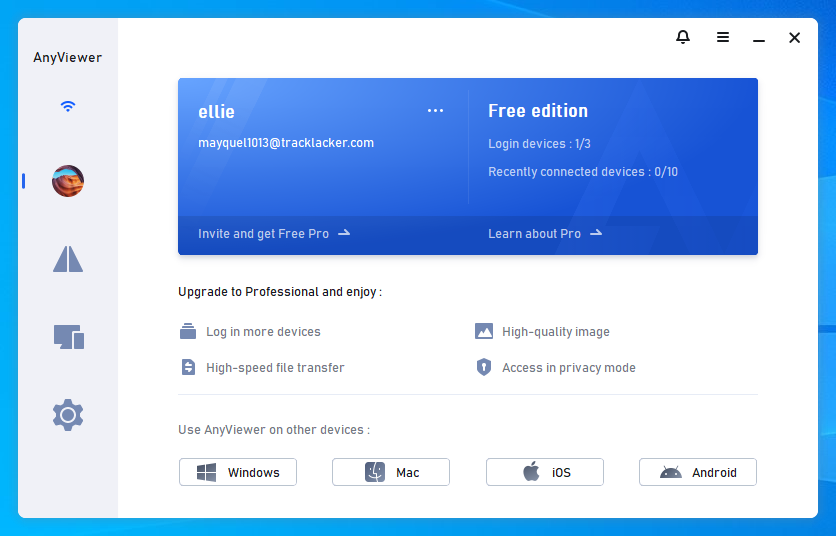
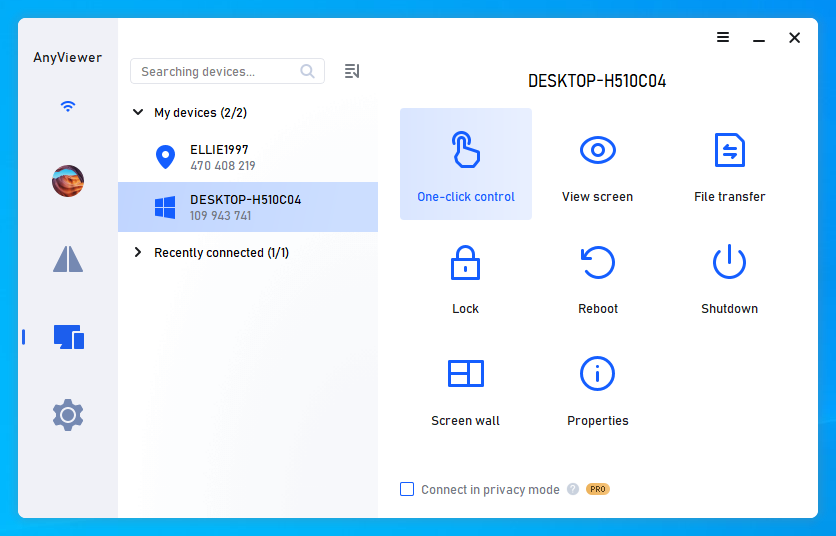
Step 3. Navigate tothe Device interface to see a list of your assigned devices. Click the remote device you want to connect to, then click One-click control.
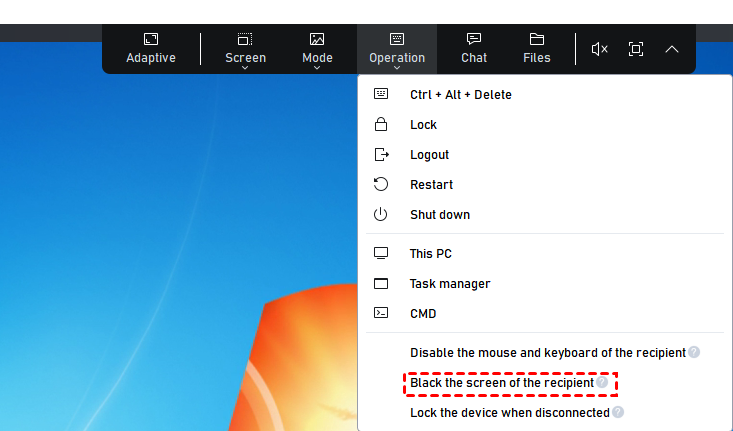
If you don’t want anyone else to be able to see what you’re doing on your remote computer, instead of disconnecting the remote computer from a monitor, you can upgrade your account to black the remote screen or disable the remote mouse and keyboard in the session. In this way, your colleagues or roommates cannot view content on your remote PC.
Bonus tip: Other common issues and fixes in AnyDesk sessions [3 cases]
User complaints about AnyDesk problems with the audio, mouse, and keyboard are also frequent. Continue to the subsequent steps to fix the issues.
Case 1. AnyDesk audio not working
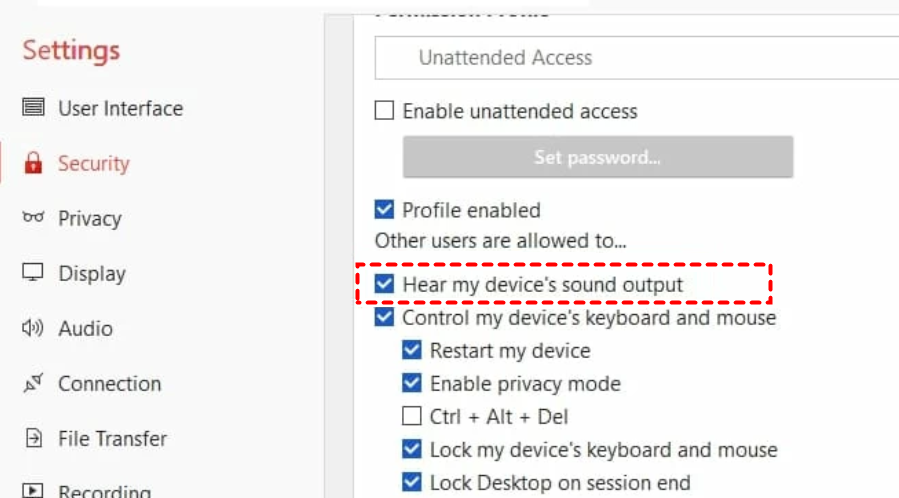
Make sure you enable the Transmit audio output of this desk option in the audio settings.
Open AnyDesk Settings and go to the Security tab > Unattended Access > Permissions for remote users > check Hear my device’s sound output.
Case 2. AnyDesk mouse not working
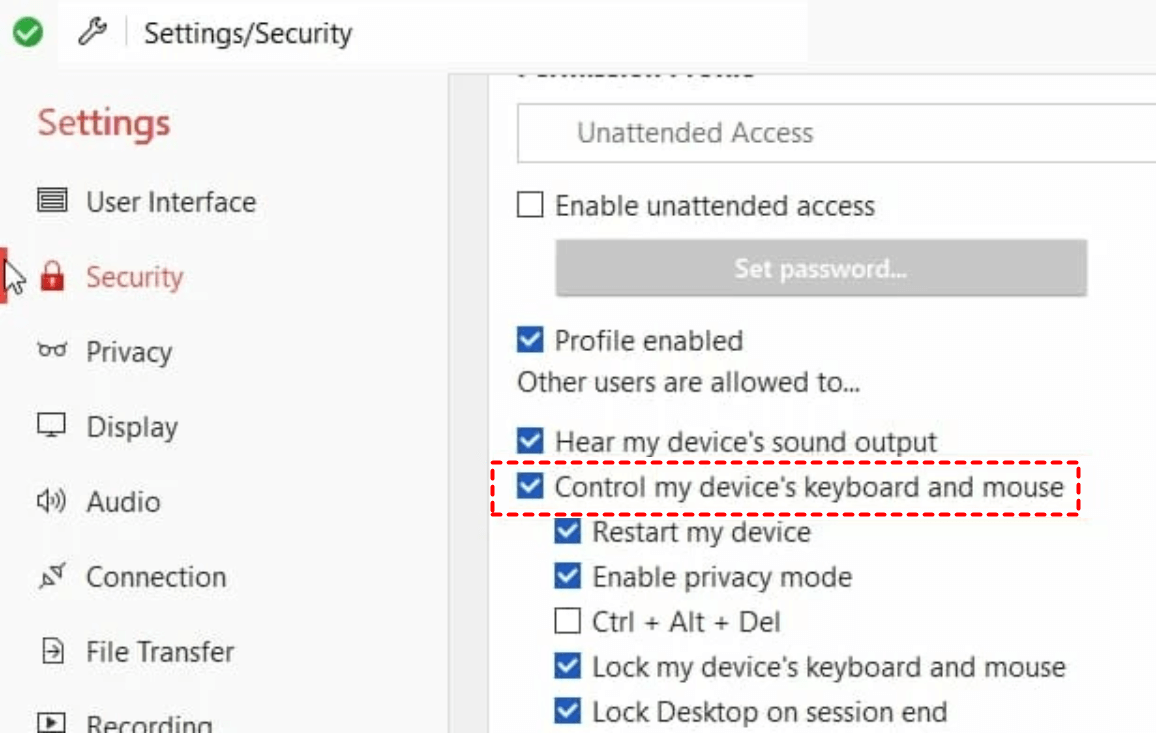
Activating the Control my computer’s keyboard and mouse option and launching AnyDesk as an administrator on the remote side may resolve this issue.
Open AnyDesk Settings and go to the Security tab > Unattended Access > Permissions for remote users > check Control my device’s keyboard and mouse.
Case 3. AnyDesk keyboard not working
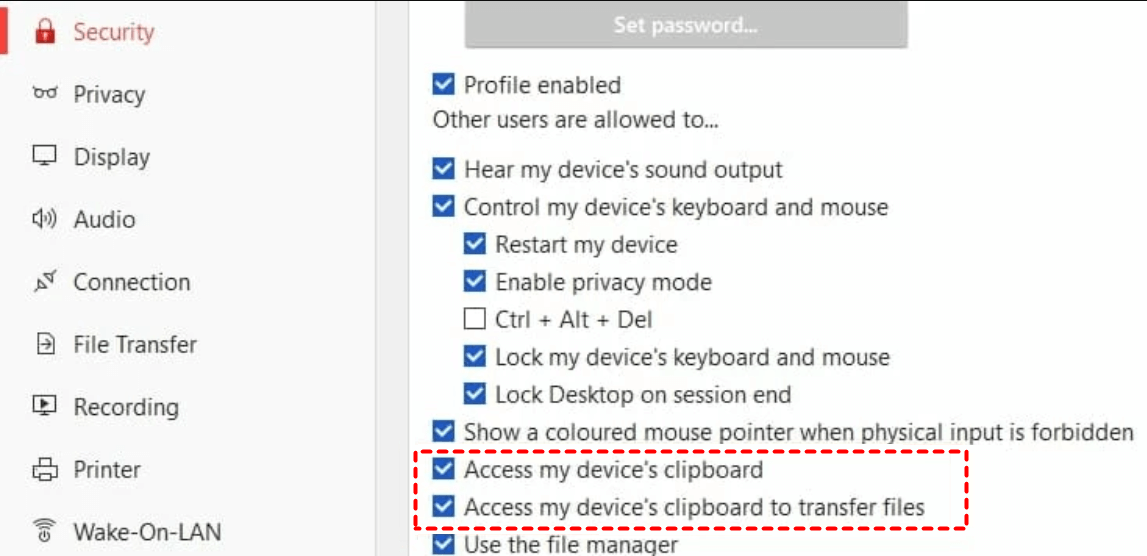
If you can’t perform hotkeys in a session, follow the next steps to enable the related options.
Open AnyDesk Settings and go to the Security tab > Unattended Access > Permissions for remote users > check Access my device’s clipboard and Access my device’s clipboard to transfer files.
Conclusion
We offered several ways to fix AnyDesk waiting for image. This error frequently happens when you connect to a remote computer that does not have a monitor. If you don’t want the remote monitor to show your actions, we recommend using AnyViewer which supports black the remote screen in a session to protect your privacy.
Waiting for image/Black screen
If you are seeing the «Waiting for image» message or a black screen for an extended period of time after connecting, it’s possible that the display drivers on the remote device you’re connecting to have been disabled or turned off.
This issue is particularly common with modern hardware, as the display drivers often turn off when no monitor is detected. As a result, AnyDesk is unable to pull information from the drivers, resulting in the message or black screen.
Anydesk ожидание изображения что делать
Reddit and its partners use cookies and similar technologies to provide you with a better experience.
By accepting all cookies, you agree to our use of cookies to deliver and maintain our services and site, improve the quality of Reddit, personalize Reddit content and advertising, and measure the effectiveness of advertising.
By rejecting non-essential cookies, Reddit may still use certain cookies to ensure the proper functionality of our platform.
For more information, please see our Cookie Notice and our Privacy Policy .
Get the Reddit app
AnyDesk is a blazing-fast and the most comfortable Remote Desktop Software. Download now: https://anydesk.com/en/downloads Our official Helpcenter: https://help.anydesk.com/
I normally use Teamviewer to connect between machines but I thought I'd try out Any Desk. I have it work on some machines but when trying to connect to a specific laptop, I just get stuck at the Anydesk program saying: Waiting for image.
Everything I've found online talks about machines that are sleeping or that don't have monitors, and this doesn't apply. This is a standard laptop that I can TeamViewer into just fine but can't get Anydesk to work.
Anydesk showing "waiting for image"

molan 
Can you connect to the users PC with Anydesk? If you can I suspect the user has a really poor internet connection wherever they are located and I would check that.
Have them run a speedtest.net and send you a screenshot if you don’t have remote access to the computer they are connecting from.
Hi Molan I did the speed test and the connection is good plus they’re using a Ethernet cable. And no I am not using Anydesk to connect to the user’s using a splashtop application to connect to their PC and the PC they’re trying to remote to.

molan
I would also have them run a ping test for several minutes and watch what the latency (time) is and watch for lost packets
this will show if they are having quality issues with there connection
You want the results to look like this

If the time value is in the triple digits or if you have no reply lines then they have problem with their local network or their ISP connection
thank you molan much appreciated
- local_offer Tagged Items
 molan
molan
I had this issue on a media server. If the computer doesnt recognize the monitor, it will give that error. Make sure you have a monitor connected and the driver is installed if needed. That fixed the issue for me.
Wow, thanks. Literally turning the monitor on fixed this — with the monitor turned off Anydesk was stuck. Am going to try new drivers now but thanks for the tip 😉

What a garbage software. I am 3k miles away from home and did not know anydesk was going to be USELESS if i wanted to not have my monitor on for 3 weeks while away from home. Trash tier software. BUT OH LOOK, parsec works fine ¯\_(ツ)_/¯
This is really awesome software, but you need to sort out this waiting for image crap. I have a laptop at home which is closed but ready for connection. I can connect no problem but until I physically open my laptop and display a screen it will not display me desktop. kind of defeats the whole remote connect don’t you think. Surely there must be someone at Anydesk who can overcome this quite well know issue?
i am living in where that speed internet is changing every day . this problem more is happening when internet speed is low . of course speed internet remote computer too is important
This topic has been locked by an administrator and is no longer open for commenting.
To continue this discussion, please ask a new question.
Read these next.
Snap! — Supernova Shockwave, AI Backpacks, Safer Than Humans, Saving Kākāpō
Your daily dose of tech news, in brief. Welcome to the Snap! Flashback: September 1, 1994: US Library of Congress Starts Virtual Library Project (Read more HERE.) Bonus Flashback: September 1, 1977: First Flyby of Saturn (Read more HERE.).
SpiceQuest September (2023) — Of Pirates and Parties
Welcome to another SpiceQuest! In this series, we call out current holidays and give you the chance to earn the monthly SpiceQuest badge! (Each task can be done at any time. They don't have to be completed on a certain holiday.) This month.
Silent install
Hello everyone,Im trying to install Asus display driver for a user via Intune but there is no silent install switch for this software. I tried /q /s and so on but it doesnt help. Does anyone got an idea how to deploy this software?
iOS — openvpn and sophos xg no dns gets through.
Any suggestions? Sophos support says it's my DNS server.If it's my DNS server, why does DNS work fine for iOS devices on site connected to wifi?If it's my DNS server, why does DNS work fine for Windows workstations through the vpn?Does anyone have this w.
Spark! Pro Series — September 1st, 2023
OK, so I have to ask, "who stole summer and what did you do with it"? With my son heading back to school and all the staff back from holidays the long grind from September to December starts. Summer seemed to last longer when I was younger. As things .