How to Reset SSD to Factory Settings Completely without Hurting It?
Here. we will teach you how to reset SSD to factory setting safely without adversely impacting its performance. With AOMEI Partition Assistant software, you can restore (Samsung) SSD to factory default setting by securely erasing it.
By Emily  / Last Updated May 12, 2023
When do you need to reset SSD to factory settings?
Many users have installed Windows 11/10/8/7 on a solid-state drive (SSD) to get better read/write speed and boot speed. You may want to factory reset SSD to default settings and start it over when your SSD is running slow or when you just want to dump it.
As you know, like USB flash drives, SSDs have a limited number of times that you can write data to. Therefore, you cannot reset SSD to factory default using the way of wiping hard disk drive (HDD). How can you remove all data without hurting the SSD and restore its factory setting? You can perform an SSD Secure Erase.
What is SSD Secure Erase?
Based on the ATA specification, Secure Erase can erase all stored data on every cell and restore SSD to the original performance level. Once the erasure is complete, you will not be able to recover the data even with data recovery software.
The Secure Erase only takes seconds to completely delete all data from your SSD. The SSD should be attached with SATA controller to ensure reliability. SAS controllers or hardware RAID controllers will also work, but you cannot connect it via USB interface to restore SSD to factory default.
Reset Samsung SSD via Samsung Magician software
You do not need to manually type the ATA Secure Erase command to securely erase an SSD. Many of the SSD manufacturers also provide an SSD management tool that allows you to securely erase SSD without issue such as the Samsung Magician utilitty. It can help reset Samsung ssd to factory settings via the «secure erase». The detailed steps are:
1. Install and run Samsung Magician software, click «Secure Erase» on the left side.
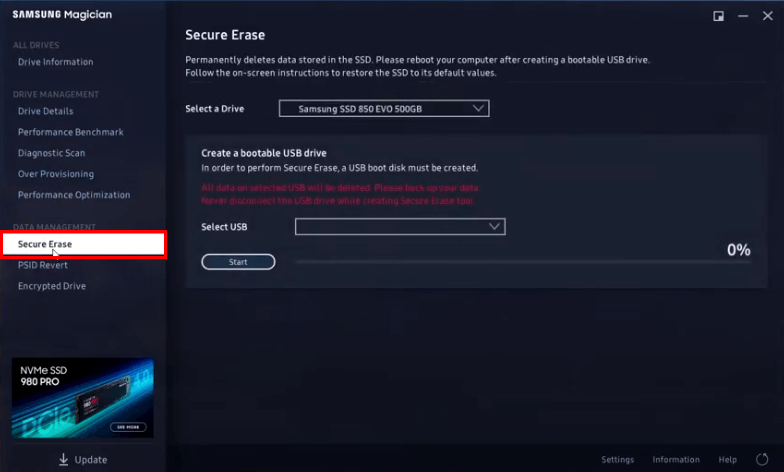
Step 2. Select the SSD drive you want to reset and choose a USB flash drive which is required to create a bootable media for securely erasing SSD in BIOS mode.
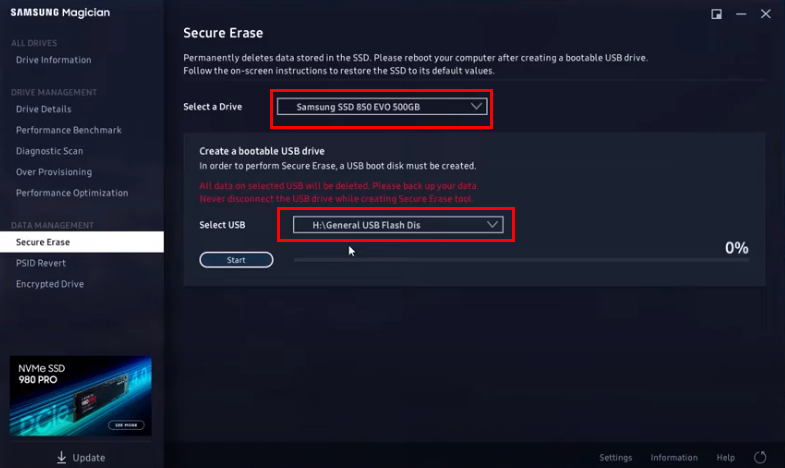
Then, the computer will restart, press a specific key to enter BIOS and perform the secure erase. This process is a little completed with creating a bootable USB flash drive. Besides, it only works with its own brand’s (Samsung )SSD. For example, you cannot use Samsung SSD Secure Erase utility to erase Intel SSD or other SSD drives.
Best tool for secure erasing SSD and restoring the SSD factory settings
What if your SSD does not come with a specialized Secure Erase tool? What if you have more than one SSD that needs factory reset? Don’t worry. There is a tool AOMEI Partition Assistant Professional that allows you to perform Secure Erase for all types of SSDs in the market.
PS.: You can download the demo version of AOMEI Partition Assistant Professional to have a try at first!
Reset any SSD to factory settings by «Secure Erase»
Now we will show how to erase SSD. If the SSD is your current system disk where Windows is installed, you can connect your SSD to another computer that runs Windows 7 via SATA port (since the feature is only workable in Windows 7 at present).
Note: The data will be removed completely via this method and it’s impossible to recover them after that. So please be careful and back up important data to cloud or external at first.
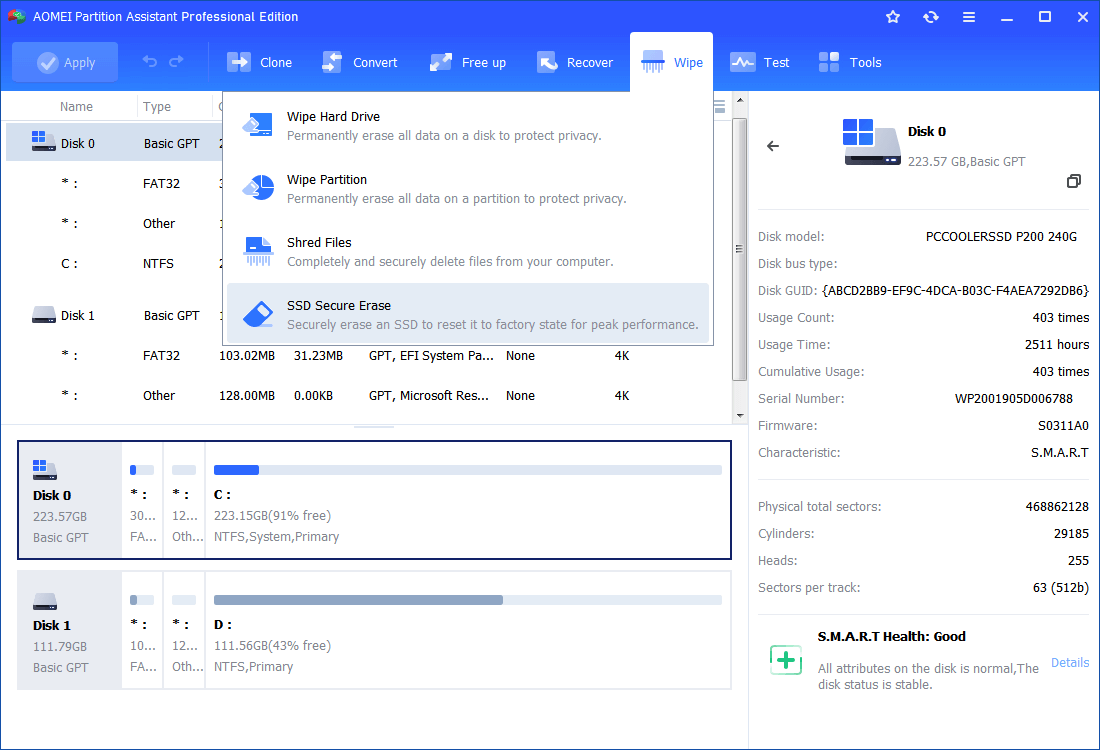
Step 1. In the left menu of AOMEI Partition Assistant, Click “Wipe” on in the top toolbar, and choose “SSD Secure Erase”.
Step 2. Select the SSD that you want to reset to factory settings and click «Next».
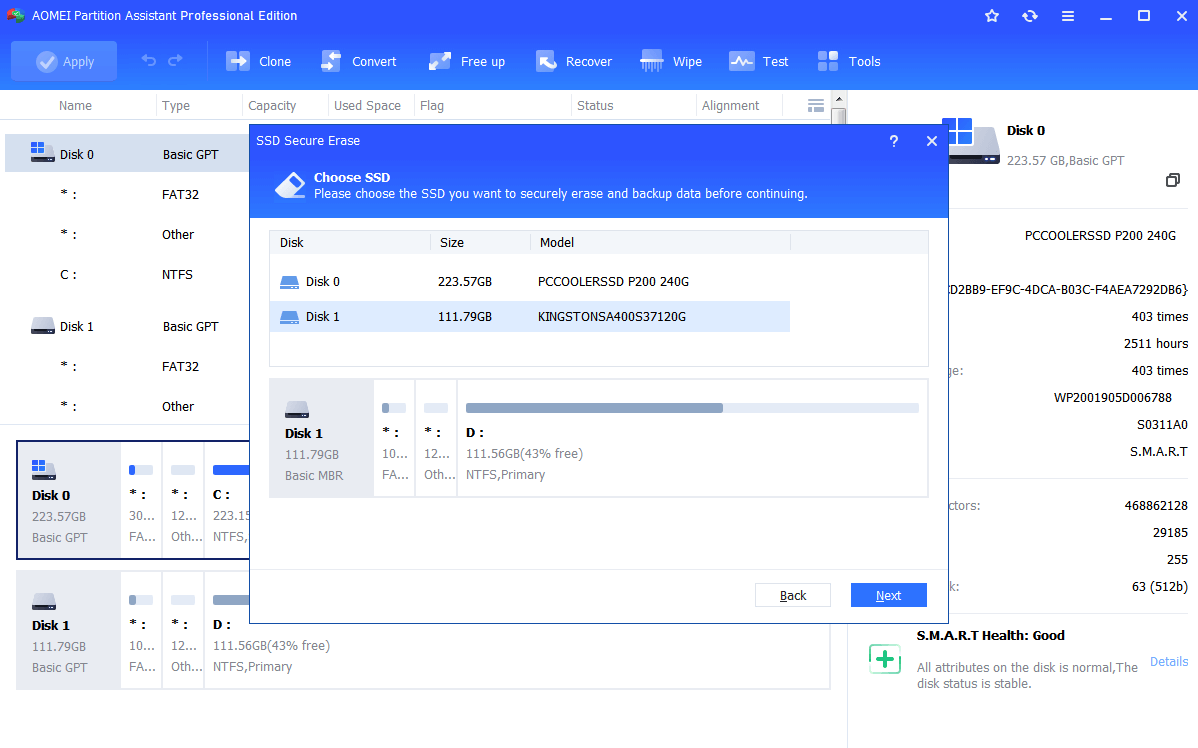
Step 3. Confirm the SSD identification information just in case of deleting the wrong SSD. Click Next to continue.
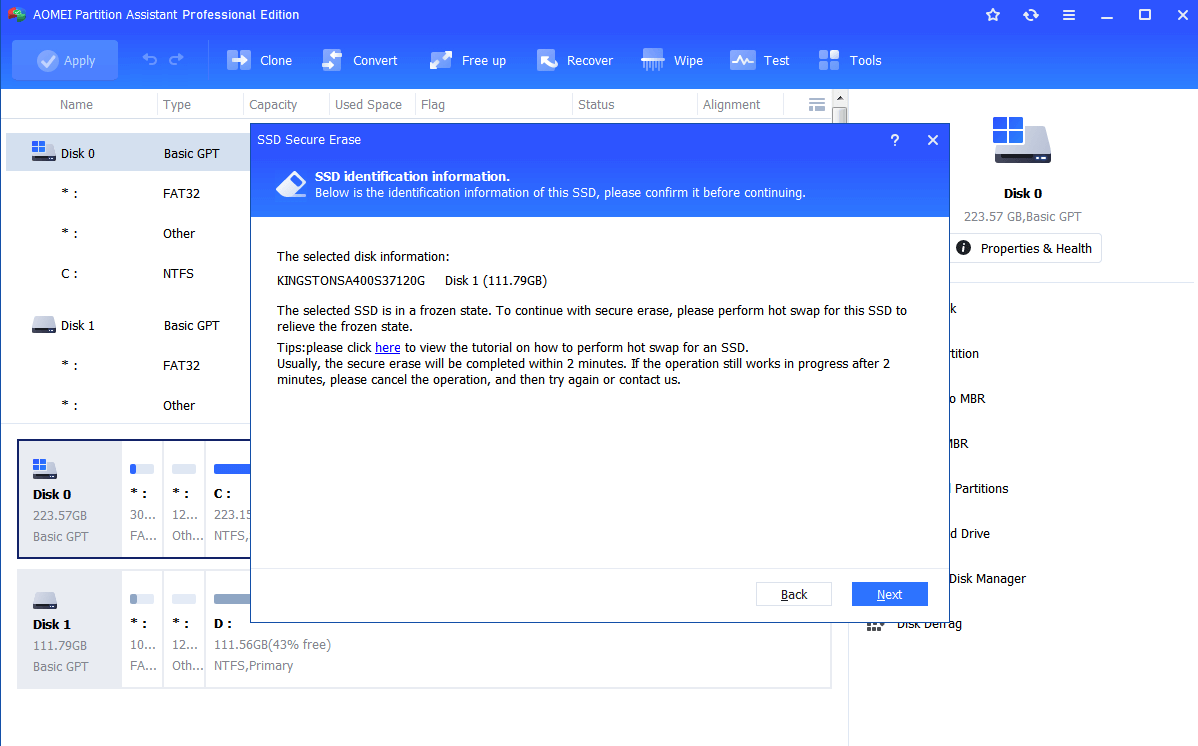
Step 4. In the next window, you will probably see the SSD is in Frozen state and it cannot be unlocked. Then you should perform a hot swap for this SSD just as instructed.
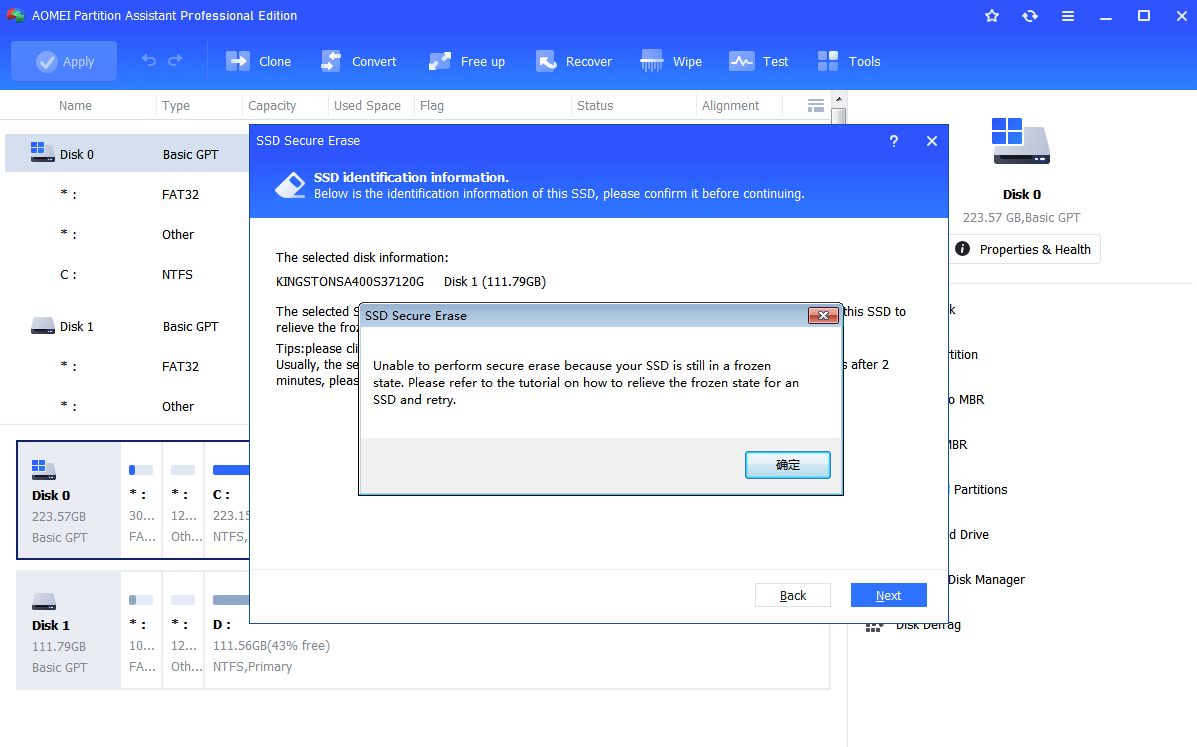
Step 5. After reconnecting the SSD, click OK to start the Secure Erase for your SSD.
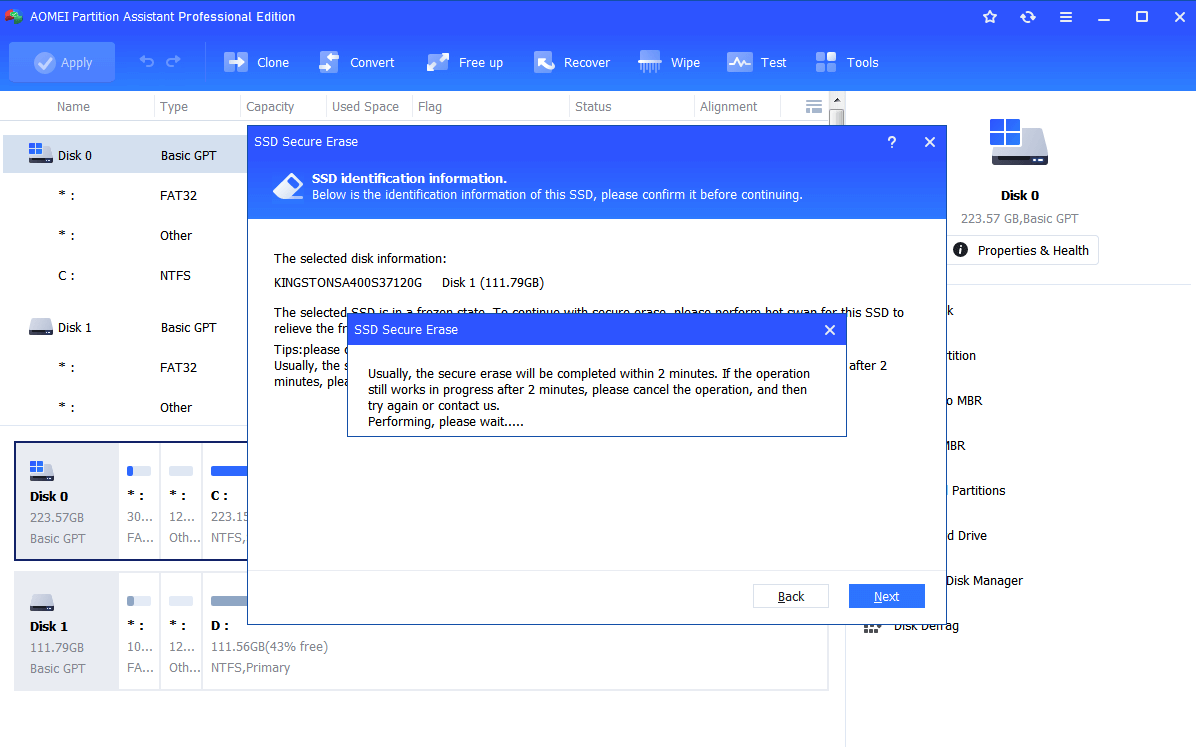
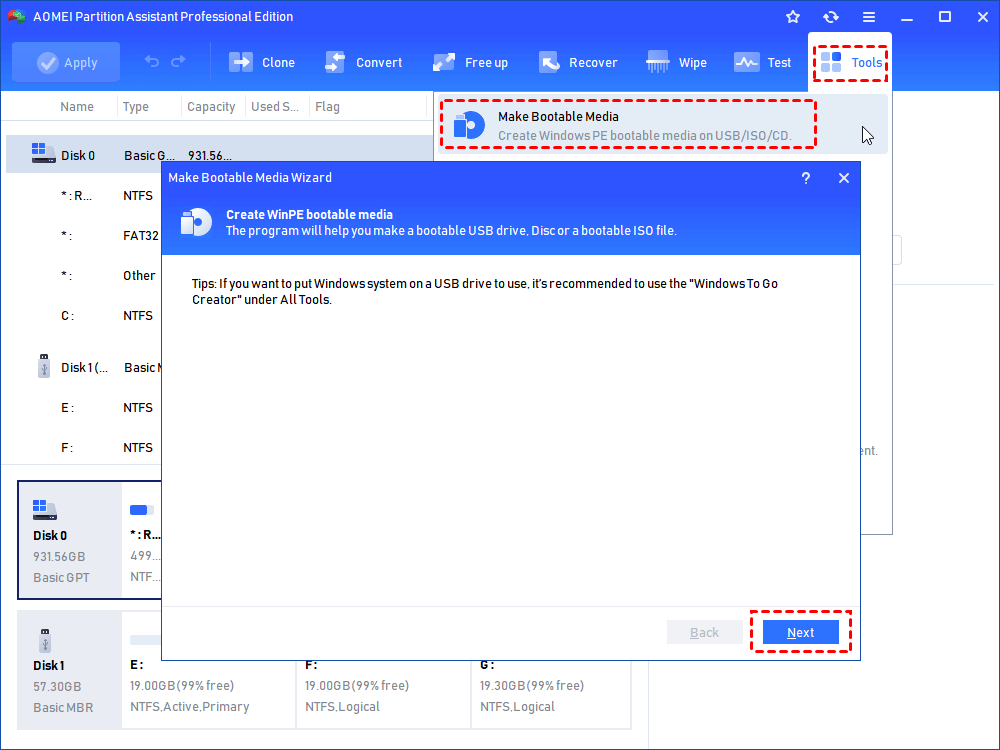
In seconds or probably milliseconds, you will see the SSD is a block of unallocated space and then you have successfully reset SSD to factory settings. Before you install Windows, you can use this software to quick partition the SSD and format SSD as you like. If you need to factory reset SSD from BIOS, you can make a bootable media first of all, enter WinPE mode and then perform the operation.
Summary
So, with the AOMEI Partition Assistant Professional, you can easily reset SSD to factory settings no matter which brand it belongs to, Samsung, Intel , Kingston, etc by securely erasing it. Besides this function, it is also able to clone SSD, align SSD partitions, convert SSD to GPT or MBR without deleting partitions, and more. To manage partitions and disks in Windows Server, you can use AOMEI Partition Assistant Server.
Reset SSD to Factory Settings: Secure, Simple, Complete
From this page, you can easily reset SSD to factory settings using the presented top 3 ways. And once the SSD has been wiped, no one else can recover it to access the critical data.

By Clytze / Updated on November 15, 2022
Why need to make SSD reset to factory defaults?
Resetting SSD to factory settings indicates completely overwriting the data on each partition on the SSD, and data erased will never be recoverable by any method. In contrast, simply formatting the file system and deleting partitions is not completely safe, it can be recovered by third-party data recovery software easily.
Therefore, if you need to have an SSD completely reset to factory settings and never be able to recover the erased data, then what you need is to secure erase the SSD. Some of the common reasons to factory reset SSD can be listed as follows.
For reuse: You may need to reset the SSD to use it as a system drive to install your operating system, as a game drive, or as a second data drive, etc.
For reselling: If you want to resell your SSD, one important thing is to erase all the data on it, which will prevent others from recovering and accessing your sensitive files.
To clean up malware and viruses from SSDs: If your SSD is infected with a virus or malware, a secure wipe can restore it to a healthy, usable state.
How to reset SSD to factory settings in top 3 ways
In the following contents, you are capable to master the top 3 methods to solve how to reset SSD to factory settings. Choose the most suitable one of these methods according to your SSD and follow the detailed steps provided to complete this task.
Factory reset SSD using SSD manufacturer’s utility
Most manufacturers offer software for use with their SSDs. These software can help you manage your SSD well by providing you with firmware update tools, secure erase tools, encryption tools, etc. If the SSD you are using comes with a utility, then using it to secure erase the SSD is a good option. Following are some manufacturers’ tools that come with SSDs.
Intel solid-state drive Toolbox
Toshiba SSD Utility
Kingston SSD Manager
If the SSD you are using does not have its own tool, or there is no erase function inside it, then you can refer to the methods described below.
How to factory reset SSD from BIOS
There is a hard drive utility embedded in the BIOS settings named Secure Erase, which you can use it to completely wipe an SSD. Here I will take the steps of HP computer as an example, diverse computers may have slightly different settings and steps, so please take the actual operation according to your PC.
1. Shut down your computer and restart it. Press the specific keys (usually can be Del/F2/F8/F10) indicated at the beginning of the computer’s start up process to enter BIOS.
2. When you boot in, go to the Security tab and click on Hard Drive Utilities (It can differ as Hard Drive Tools as well).
3. Select Secure Erase. From the listed results, select the SSD drive you want to securely erase.
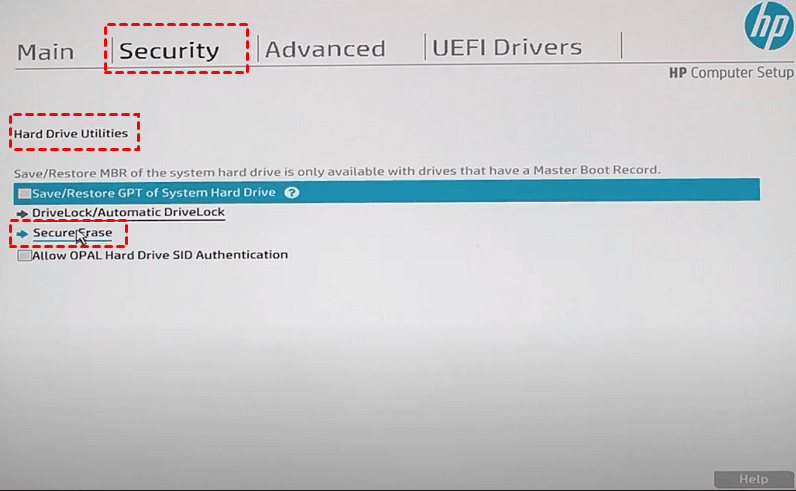
4. After that, click Continue to complete the process to make the SSD back to factory settings.
Reset SSD to factory settings with best disk wiping tool
If you are using an SSD that does not have the manufacturer’s utility provided or you can find the Secure Erase tool in BIOS, then you may need to choose reliable third-party erase software to help you factory reset SSD. AOMEI Backupper can be your exact choice. As the best wiping tool, it has the following powerful features:
❂ It helps you to securely clean up all data on SSD, a hard drive, USB drive, SD card, etc. You can use it to erase unlimited SSD types such as SATA, NVMe, PCIe, M.2, U.2, etc., and different SSD brands such as Crucial, Intel, Samsung, Western Digital, Integral, etc.
❂ You can choose to wipe an entire disk, a selected partition, wipe free space on Windows 11, or unallocated space using this software to meet your various needs.
❂ It is designed to run on all Windows operating systems, including Windows 11, 10, 8, 7, Vista, and XP.
❂ You need to be aware that your data cannot be recovered after factory reset the SSD. So, if you have any important files on this SSD, please create SSD backup image in advance as continuous data protection.
Follow the graphical steps below to learn how to factory reset SSD in Windows 10/11 via AOMEI Backupper.
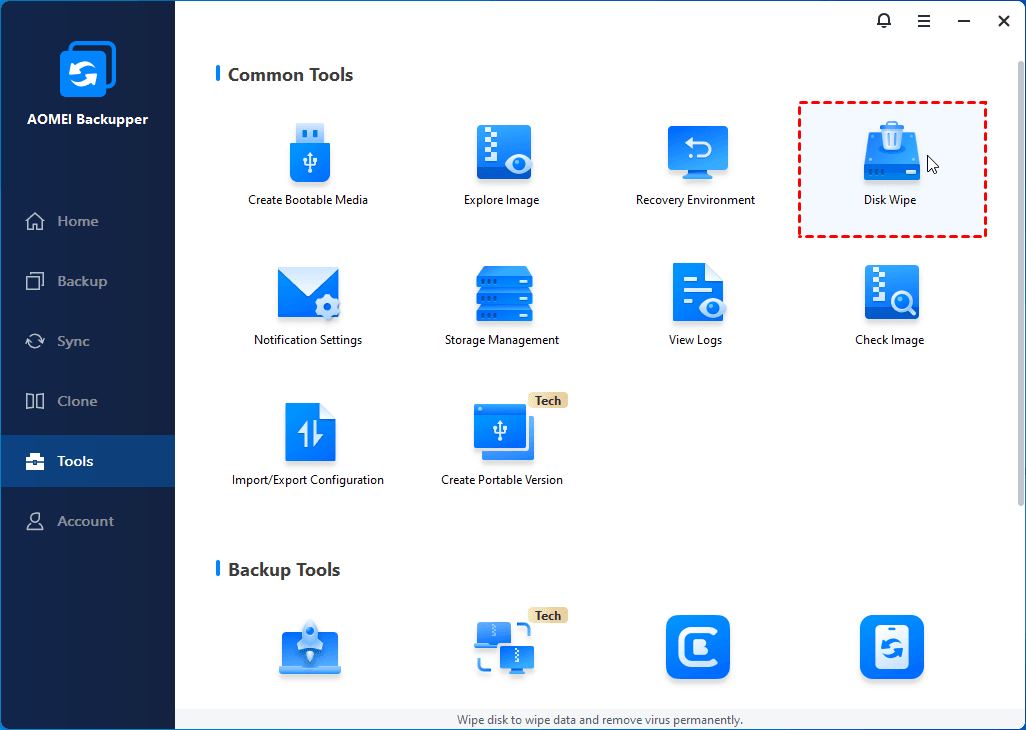
Step 1. Download this reliable wiping tool on your PC. Once it starts, click Tools from the left menu, and then choose Disk Wipe from the right side.
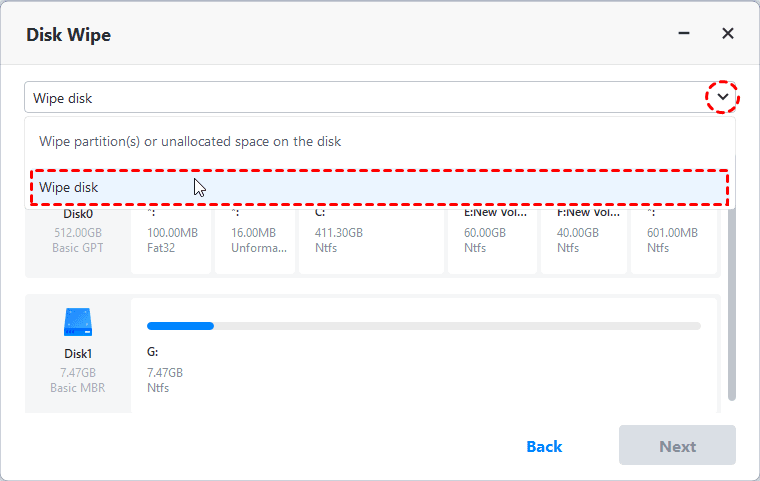
Step 2. Then you will be asked to select your desired wiping type. You will be offered 2 types: Wipe partitions or unallocated space and Wipe disk. Choose the latter one and then click Next.
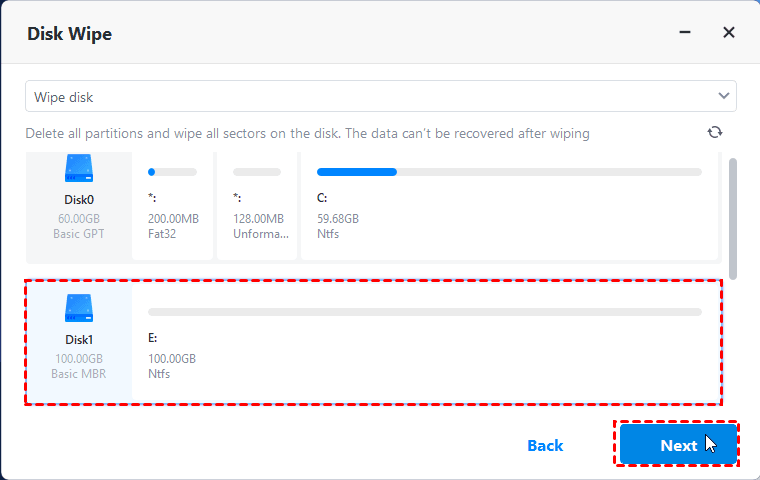
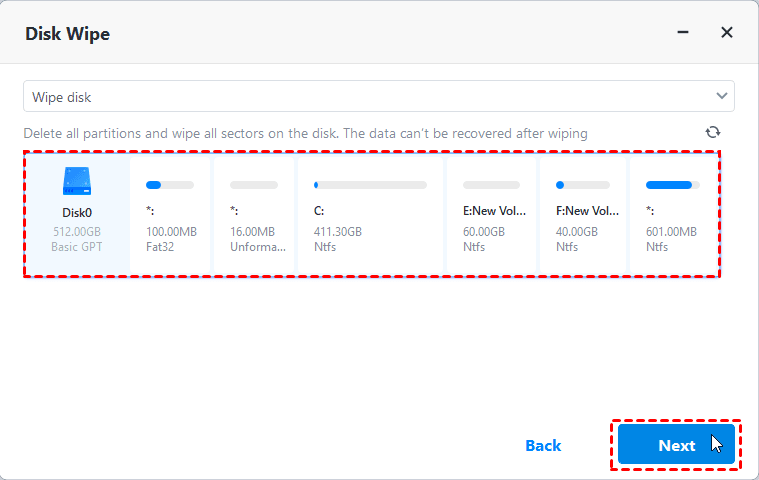
Step 3. Select the SSD you want to wipe and click Next to continue.
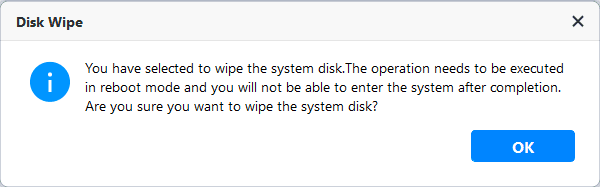
Tip: If you are choosing to wipe the system disk, a popup window will prompt you that wipe boot drive will run in reboot mode, press OK to confirm.
Step 4. Then you need to choose the wiping method and hit Start to begin the wiping process.
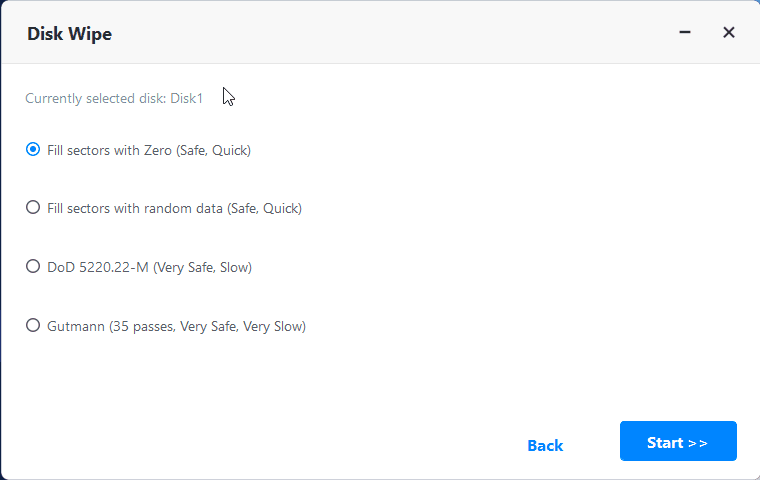
Tip: You are provided with 4 options: Fill sectors with Zero, Fill sectors with random data, DoD 5220.22-M, or Gutmann. Typically safer wiping methods come with more wipe passes and lower wiping speeds, you can choose according to your situation.
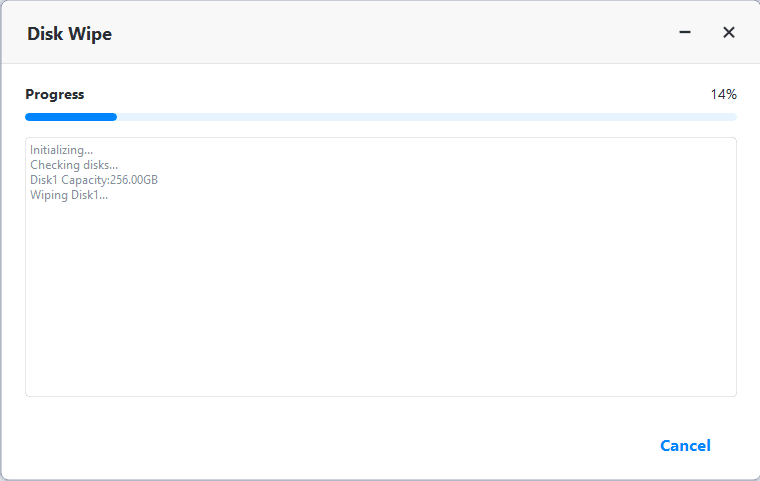
Step 5. Then you will enter the wiping process page. If you want to stop this process, you can click Cancel.
To sum up
Now you should be familiar with how to reset SSD to factory settings after reading this post. This page provided top 3 ways for you to securely and completely erase an SSD and make it unrecoverable for selling or reuse. No matter which way you choose, I hope it will satisfy your needs.
But I sincerely recommended that you use AOMEI Backupper to wipe your disks, as it has no restrictions on disk brands or disk types and allows you to wipe your disks multiple times to get safer results. With the help of its Disk Clone feature, you can clone SSD to another SSD to protect your data before you erase the SSD. Don’t hesitate to try it now!
Related Articles
How to Erase M.2 SSD on Windows 10/11 – Securely and Completely
This article will tell you how to erase M.2 SSD in the safest way possible. The erasure software can provide you with data protection and prevent any data leakage incidents from occurring.
How to Wipe or Clean a Hard Drive in Windows 10 Securely
If you want to clean a hard drive in Windows 10, try following methods to delete everything and write zeros to hard drive; or if you want perform disk cleanup to free up space, there are also some common solutions.
How to Factory Reset a Laptop in Windows 10/8/7?
How to factory reset a laptop for it is running slowly or you want to clear your information? This article will show you how to do it step by step.
Удалить всё: как стереть данные и вернуть NVMe SSD к заводским настройкам
Привет, Хабр! Мы часто говорим о способах восстановления данных на магнитных и твердотельных накопителях, резервном копировании, создании RAID’ов и прочих ухищрениях, которые помогают не остаться без важной информации в самый неподходящий момент нашей цифровой жизни. А что делать, если в какой-то момент нам понадобится уничтожить данные на одном из SSD-накопителей и вернуть его в исходное состояние, будто он только что из коробки?

Или же, наоборот. Понадобилось вам, допустим, надежно затереть все данные на твердотельном “диске”. Причем так, чтобы восстановить их было невозможно. А то мало ли любопытных людей и охотников за данными. Что делать в таких ситуациях? Достаточно ли просто форматнуть SSD, как традиционный HDD (если вы не шаманили с прошивкой “жестянки”, конечно) или же потребуется что-то еще?
К сожалению, простое форматирование ячеек памяти нельзя назвать высоким залогом надежного стирания данных. В случае с SATA-накопителями поможет функция ATA Secure Erase, о которой мы рассказывали в другой статье. Но что делать с в m.2/mSATA-накопителями? Здесь на помощь приходит функция криптографического стирания (Crypto Erase), которая реализована на таких устройствах, как Kingston UV500, A2000, KC2000, KC600. Безопасность — одна из основных функций этих накопителей, включающая 256-битное самошифрование основе алгоритма AES, совместимость с решениями безопасности TCG Opal 2.0, стандартом безопасности IEEE1667, а также встроенной поддержкой Microsoft eDrive и BitLocker.
С вышеперечисленными SSD-накопителями конечные пользователи могут содержать все данные в безопасности от посторонних глаз, даже если накопитель будет вынут из основного компьютера и установлен в чужой ПК. Нетрудно догадаться, что подобные накопители нацелены на использование по большей части в бизнес-среде для предотвращения, например, попыток промышленного шпионажа. Не менее трудно предположить и то, что для обеспечения максимальной безопасности в этих накопителях просто обязана быть возможность стирания данных навсегда. В нашем с вами случае — эта функция называется TCG Revert.
SSD с самошифрованием: как это работает?
Диски с самошифрованием (SED / Self-Encrypting Drive) существуют на рынке в течение многих лет, но на самом деле очень немногие люди полностью используют возможности этих накопителей. Такие SSD используют механизм шифрования, встроенный в контроллер накопителя, для шифрования каждого файла, хранящегося в ячейках флеш-памяти. Этот аппаратный метод шифрования обеспечивает высокий уровень безопасности данных, невидим для пользователя, не может быть отключен и не влияет на производительность.
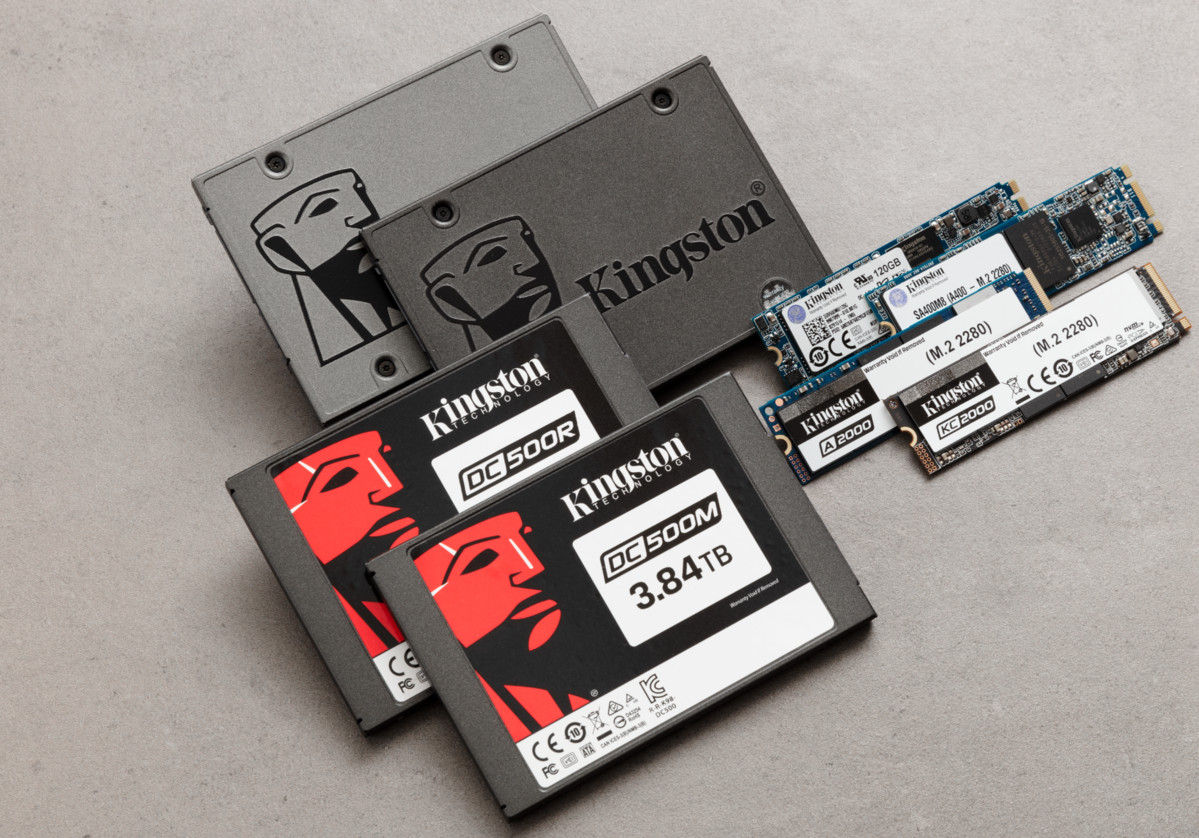
Современные самошифрующиеся накопители основаны на отраслевом стандарте SSC V1.0 Trusted Computing Group (TCG) Enterprise. В старых продуктах механизм аппаратного шифрования просто использовал бы ключ шифрования, предоставленный пользователем. В случае с TCG Opal 2.0 аппаратный механизм использует случайный “ключ шифрования ключей” (KEK), созданный генератором случайных чисел. Этот ключ недоступен для любого внешнего интерфейса и используется для шифрования ключей MEK (или “ключей шифрования мультимедиа”), которые всегда хранятся в зашифрованном виде внутри контроллера SED SSD.
Что такое TCG Opal?
Класс подсистемы безопасности TCG — это аппаратная фича для самошифрующихся SED SSD, помогающая ускорить шифрование данных на накопителе. В отличие от программного, аппаратное шифрование освобождает процессор или операционную систему от нагрузки процесса шифрования и дешифрования, поэтому общая производительность не ухудшается. Сам набор спецификаций Opal SSC представляет набор стандартов управления безопасностью для защиты данных от кражи и взлома недобросовестными лицами, которые могут получить доступ к устройству хранения или хост-системе, в которую оно установлено. Стоит отметить, что функция TCG Opal не работает сама по себе, а предусматривает установку на накопитель специального софта (от Symantec, McAfee, WinMagic и других компаний), который обеспечивает настройку параметров безопасности и инициализацию пользователя при каждом включении компьютера.
Спецификации Opal SSC предназначены для защиты данных в состоянии покоя, когда запоминающее устройство было выключено, а пользователь вылогинился из системы. В данном случае не стоит ассоциировать состояние покоя со “спящим режимом”, когда выхода пользователя из системы не происходит. Как итог: приходится идти на компромиссы и отказываться от удобного использования режима StandBy. Также стоит принимать во внимание, что SED SSD не предназначены для защиты от доступа к данным после того, как устройство хранения было разблокировано с использованием действительных учетных данных.

В состоянии покоя основная область диска полностью заблокирована и недоступна. Однако при загрузке системы зашифрованный диск запускает теневую копию основного загрузочного раздела для проведения предзагрузочной идентификации. Эта теневая MBR представляет собой небольшую операционную систему, запрашивающую у пользователя пароль от накопителя, который затем передается на контроллер SSD через команды OPAL. Если пароль действителен, диск разблокируется, а затем загружается реальная операционная система. В итоге только авторизованные пользователи могут получить доступ к данным на устройстве, к которому они добавили защиту паролем; это сводит к минимуму вероятность кражи, подделки или потери данных.
Как безвозвратно стереть данные с SSD?
Некоторые SSD-накопители, включая самошифрующиеся, попросту нельзя стереть начисто из-за этого самого аппаратного шифрования. В то же время есть эффективное решение, позволяющее произвести так называемое криптографическое “стирание” информации посредством операции PSID Revert. По сути, вся процедура чистки сводится к процессу уничтожения всех ключей шифрования. Таким образом, данные больше не смогут быть расшифрованы. Обратите внимание, что этот метод не может быть задействован на SSD-накопителях без поддержки TCG Opal. Также она не будет работать, если опции TCG Opal и eDrive не активизированы. С более подробным мануалом по работе с TCG Opal, применительно к накопителям Kingston, можно ознакомиться на официальном сайте компании. В данной же статье мы затронем только лишь тему полного удаления данных с SSD, не вдаваясь в тонкости предварительных настроек, которые необходимо производить перед использованием Opal-совместимых накопителей.
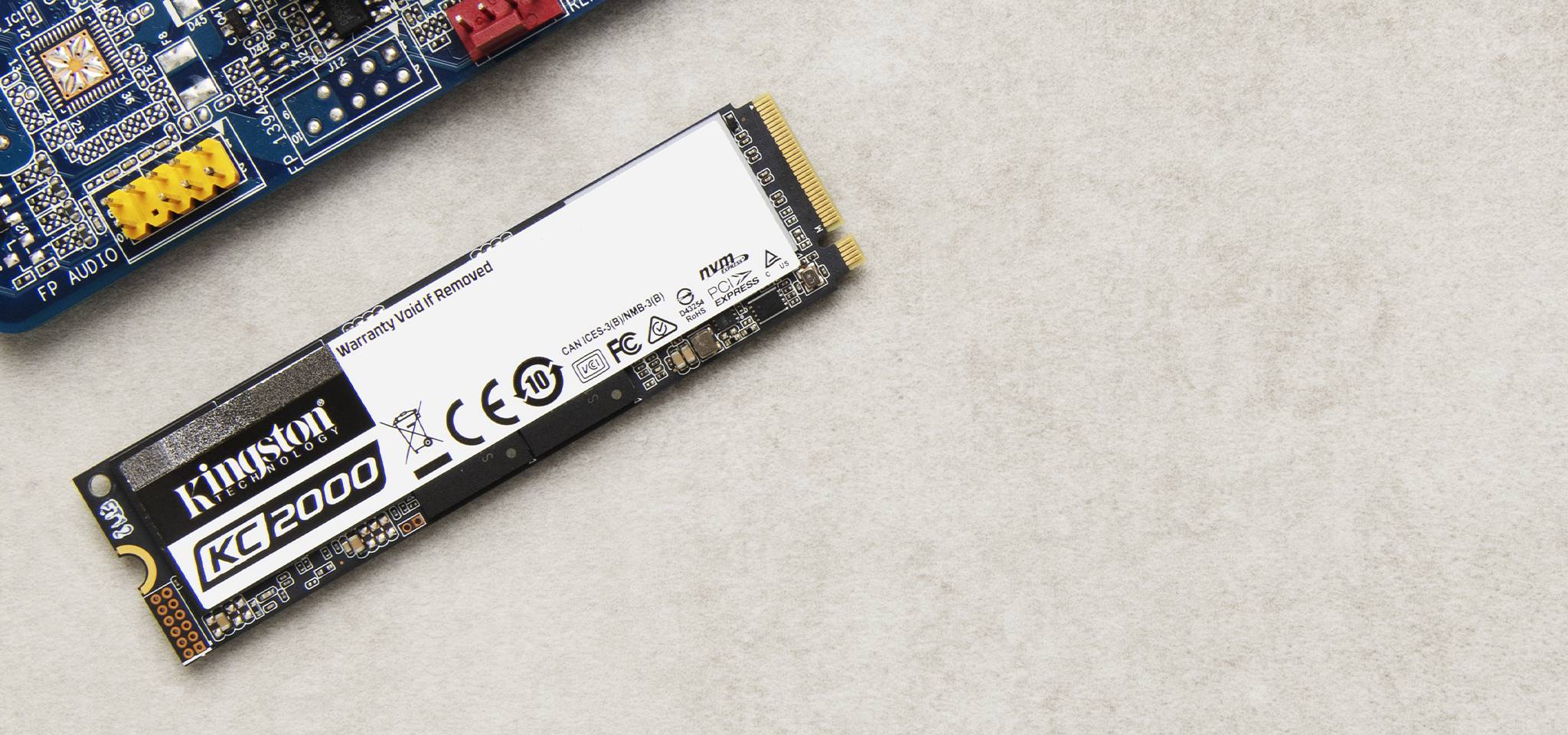
Итак. от слов к делу. Чтобы стереть все данные с твердотельного накопителя Kingston KC2000 500GB, воспользовавшись методом Revert, вам потребуется назначить вышеуказанный “диск” в качестве вторичного накопителя в среде Windows 8, 10 или Windows Server 2012. Когда все будет готово, останется лишь скачать с официального сайта производителя утилиту Kingston SSD Manager, установить ее на основной накопитель и запустить (для накопителей других производителей также предусмотрены аварийные утилиты с похожей функциональностью, так что метод криптографического стирания будет схожим). Среди настроек по обслуживанию диска есть необходимая нам опция по сбросу настроек накопителя.

Найти ее можно на вкладке Security (“Безопасность”), где потребуется выбрать команду TCG Revert (“Возврат исходных настроек TCG”). Для подтверждения доступа к SSD введите в текстовое поле справа от TCG Revert номер PSID — уникальный 32-циферный идентификатор SSD (найти его можно на самом накопителе) и активируйте опцию сброса настроек. После завершения операции сброса, программа выдаст сообщение об успешном выполнении операции. В противном случае (если сообщение не появилось: например, вы ошиблись и ввели неверный номер PSID) сброс настроек нужно выполнить заново.
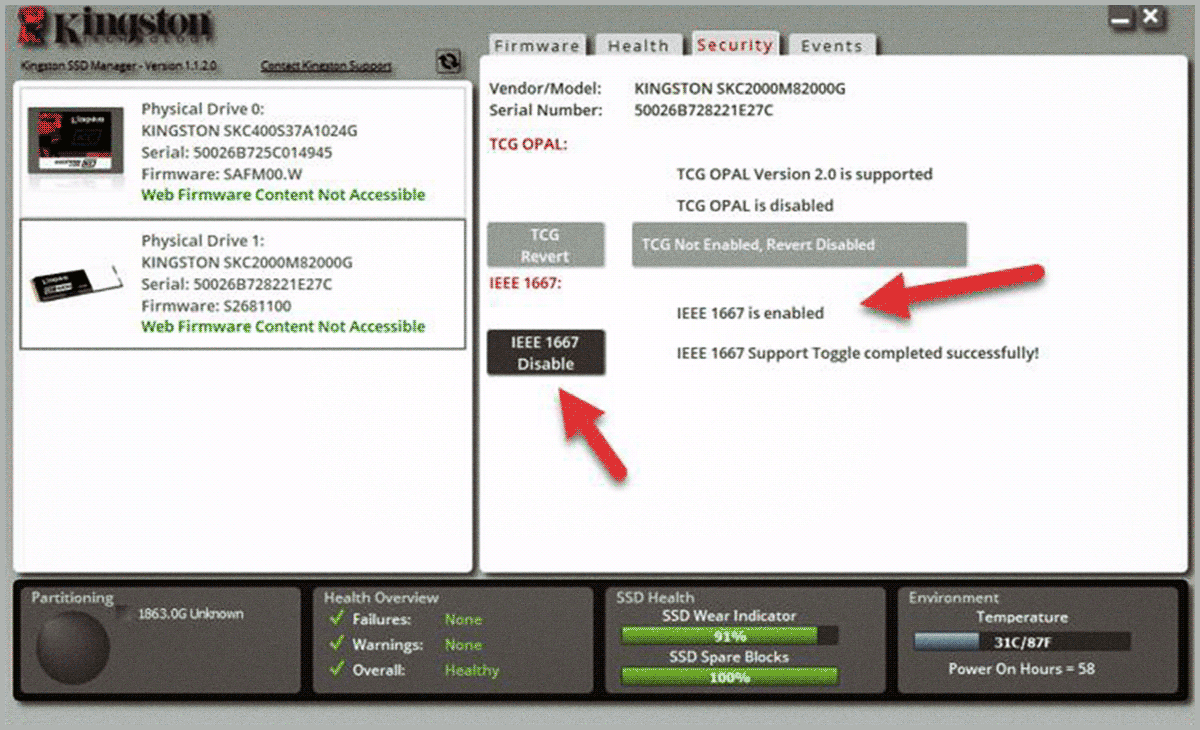
По итогам выполнения процедуры все данные на накопителе будут криптографически удалены, а SSD сброшен к заводским настройкам. Осталось отключить поддержку IEEE1667, и накопитель готов к повторному использованию без каких-либо опасений на тему того, что информацию на нем получится восстановить. Более того, для повторной активации OPAL или eDrive на таком SSD можно использовать любое совместимое приложение безопасности.
Для получения дополнительной информации о продуктах Kingston Technology обращайтесь на официальный сайт компании.
Reset Your SSD with Windows ® DiskPart
These steps show you how to use the Windows DiskPart Clean command to quickly delete any partitions on the SSD and reset it to an uninitialized state. Follow the steps here to reinitialize your drive after resetting it with Windows DiskPart Clean.
Please note, these steps in themselves do not actually remove the data from the cells on the SSD. The command removes any partitions that were created, meaning you no longer can access the data and the drive appears as uninitialized. This is ideal if you have set up an incorrect partition or selected GPT instead of MBR or any other situation where you need to reset the drive to appear as it did when you first received it.
Open command prompt as an Administrator
To run the DiskPart command, you need to open a command prompt as an Administrator.
Windows 8 and later steps:
1. Go to Search and type CMD
2. Command Prompt will appear on the left, right-click it and select Run as Administrator
After the command prompt has started successfully as an Administrator, it will show the path C:\Windows\System32
Windows 7 steps:
- Click Start and type cmd into the Search field
2. Cmd.exe will appear at the top, right click on this and choose Run as Administrator
Run DiskPart
1. Type diskpart into the command prompt and press Enter
2. Type list disk and press Enter to see all the attached disks
3. Make sure you know which disk you want to reset before continuing! (If you are unsure, you can double check in Disk Management.)
To check the disk number in Disk Management:
- Type Computer Management into search and open the Computer Management utility
- Select Disk Management near the bottom of the left-hand menu
- A list of all attached disks is loaded and listed as Disk 0, Disk 1, etc.
- These numbers correspond to the numbers in the list disk above
- It should be easy to tell from that list which is the main drive and which is the drive you wish to reset
4. Type select disk # and press Enter (where # is the disk number you want to reset)
5. Type clean to delete all partitions and reset the drive
6. The drive will now appear as it did when you first purchased it
7. Type exit and press Enter to exit out of DiskPart
8. Type exit again and press Enter, or click the X at the top to close the command prompt
Troubleshooting
If you get any errors about permissions when trying to run DiskPart, make sure you have administrator privileges on that computer and that the command prompt is opened as an administrator. "Administrator" will appear in the title bar and defaults to the path C:\Windows\system32>.
Writing to disk
If you get a message telling you that the disk cannot be written to or is not accessible, double-check the connection of your SSD. For example if you are using an external caddy, try using an alternative connection like a USB to SATA cable.