[Инструкция] Android Auto. YouTube, IPTV-каналы, Веб-браузер на авто без root. Установка и настройка Fermata Auto.

Записал подробную инструкцию с установкой и настройкой Fermata Auto для возможности смотреть YouTube, IPTV-каналы, использовать Веб-браузер, открывать любые аудио и видеофайлы с телефона прямо на ГУ вашего авто и все это без root-прав.
На момент записи видео у меня все работает на версии AndroidAuto 9.3.631434-release, должно работать и на других версиях, здесь нет никаких взломов и необходимости в root-правах, все работает как говорится "из коробки".
Мое видео по настройке:
Инструкция в двух словах, кому лень смотреть записанное мной видео:
1. Качаем архив с файлами (пароль: greeshan.ru) и распаковываем их на телефон.
2. Устанавливаем "KingInstaller 1.2.apk", запускаем его, выбираем apk файл "Fermata Auto 1.9.0_github.apk" и устанавливаем. Устанавливать исключительно через Kinginstaller, иначе приложение не появится в меню AA!
3. Открываем Fermata Auto, даем ему все разрешения, которые оно запросит. Также советую включить(разрешить) автозапуск приложения (для прошивок, где это есть, например MIUI).
4. На данному этапе Fermata Auto уже должно быть доступно и работать в AndroidAuto. Подробная настройка приложения рассмотрена в моем видео. Если по какой-то причине его нет в AndroidAuto, смотрите ниже пункт "нюансы".
Нюансы:
1. Если приложение недоступно(нет ярлыка) в меню AndroidAuto на ГУ авто, необходимо открыть на телефоне AndroidAuto (как его открыть написано в п.2), в самом низу жмем по пункту "Версия" несколько раз, пока не станет доступным меню "Для разработчиков". Оно находится вверху справа где три точки. Открываем это меню (Для разработчиков) и внизу включаем пункт "Неизвестные источники" (как это сделать показано на первой минуте видео отсюда). Далее выходим в главное меню AndroidAuto, открываем пункт "Настройка панели запуска" и видим список AA приложений, там должен быть Fermata Auto. Если он там есть, значит в меню AndroidAuto также будет, проверяйте��
2. Как открыть\запустить AndroidAuto на телефоне?
— для Android 9 и ниже: ярлык AndroidAuto должен быть доступен в списке всех приложений, просто откройте его как обычное приложение;
— для Android 10 и новее: устанавливаем из архива файл "Android Auto на экране телефона 1.2.apk" и запускаем;
— для прошивок MIUI 14: открывается через "Настройки — Подключение и общий доступ — в самом низу Android Auto"
3. Если у вас по какой-то причине приложение(ярлык) Fermata Auto было, но затем пропало из меню AndroidAuto на автомобиле, необходимо снова установить файл "Fermata Auto 1.9.0_github.apk" через KingInstaller (поверх, без удаления прошлой версии) и оно снова появится в меню AndroidAuto. Пропадает обычно после обновления AndroidAuto.
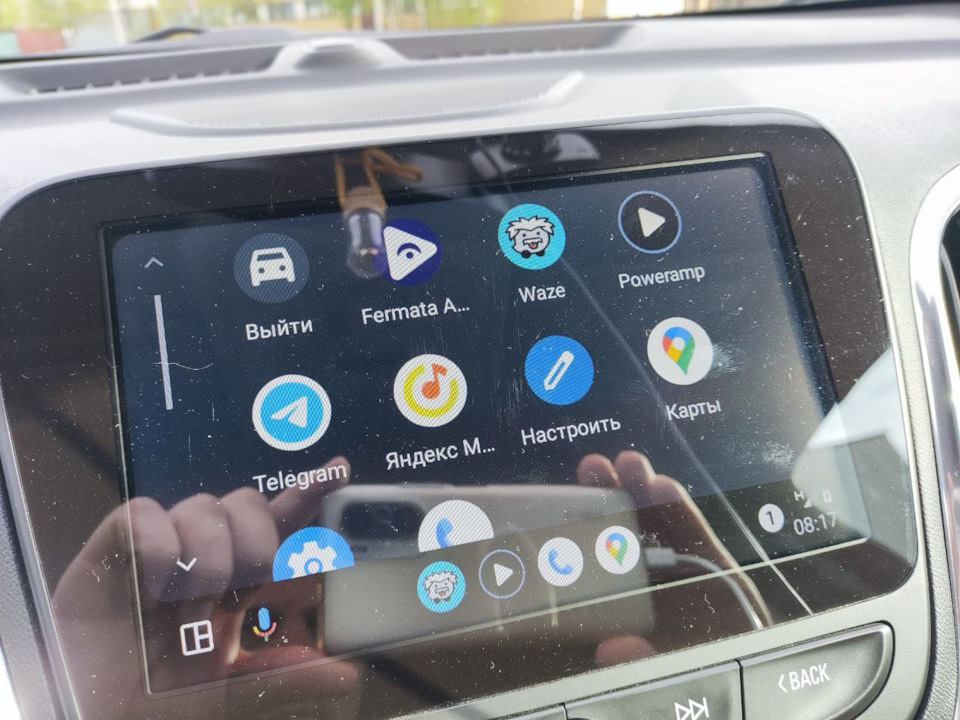 ярлык Fermata Auto должен быть в главном меню AA
 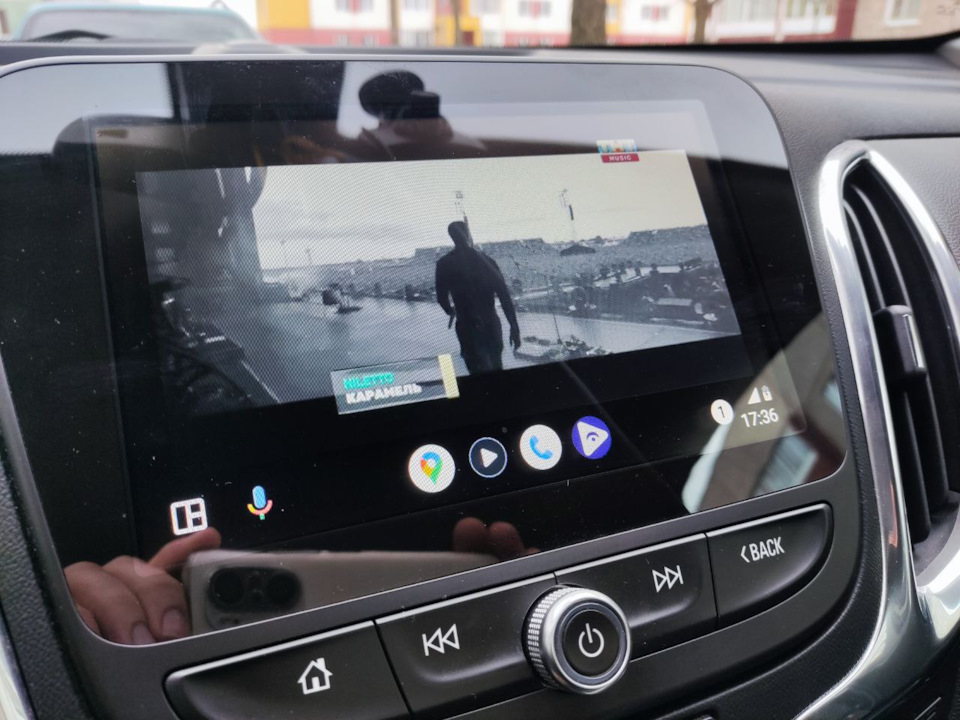 проигрывается iptv-канал
 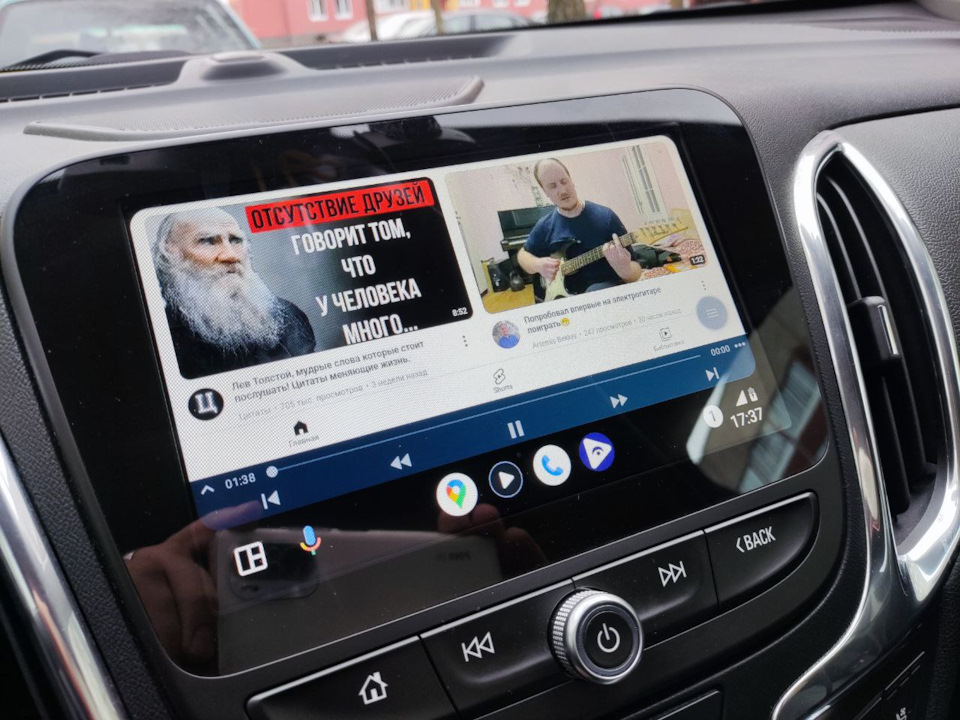 youtube
 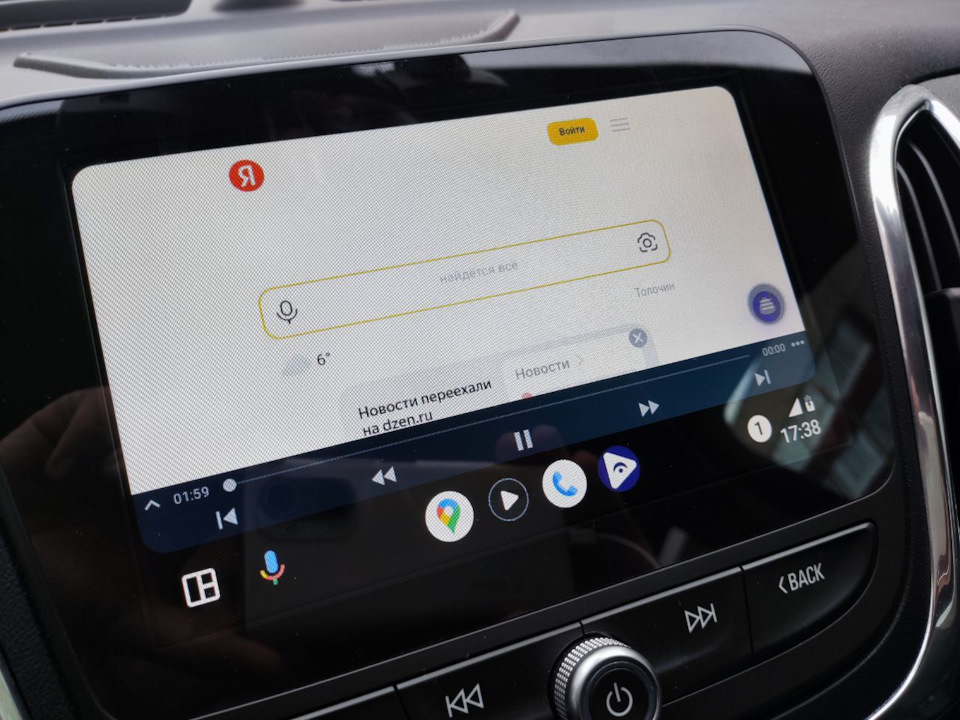 также доступен браузер
Как смотреть видео из YouTube на Android Auto магнитоле с помощью YouTubeAuto (Обновлено)
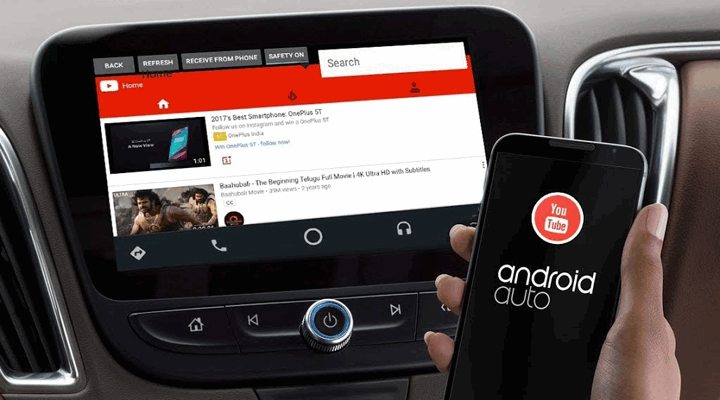
Если вы являетесь счастливым владельцем автомобиля, головное устройство которого имеет поддержку Android Auto, то вам наверняка известно, что Google не позволяет нам смотреть видео с Youtube на этих устройствах. Но это ограничение можно обойти и сегодня мы расскажем вам как сделать это.
Во-первых, чтобы получить возможность смотреть Youtube ролики на экране своей магнитолы, вы можете установить на свое устройство более старые версии Сервисов Google Play и приложения Android Auto, но при этом вы лишитесь множества нововведений Google, которые регулярно появляются вместе с ними на вашем смартфоне.
Вторым, более оптимальным путем будет установка на ваш смартфон приложения CarStream (YouTube auto), которое позволит вам смотреть YouTube прямо на магнитоле. Единственное, что вам при этом потребуется кроме самого приложения – это наличие Root прав на смартфоне.
Как установить CarStream (YouTube auto) и настроить просмотр видео с Youtube на Android Auto устройствах
1. Скачайте APK файл приложения CarStream с этой страницы Github и установите его на свой смартфон, просто запустив его
2. Откройте на своем смартфоне приложение Android Auto
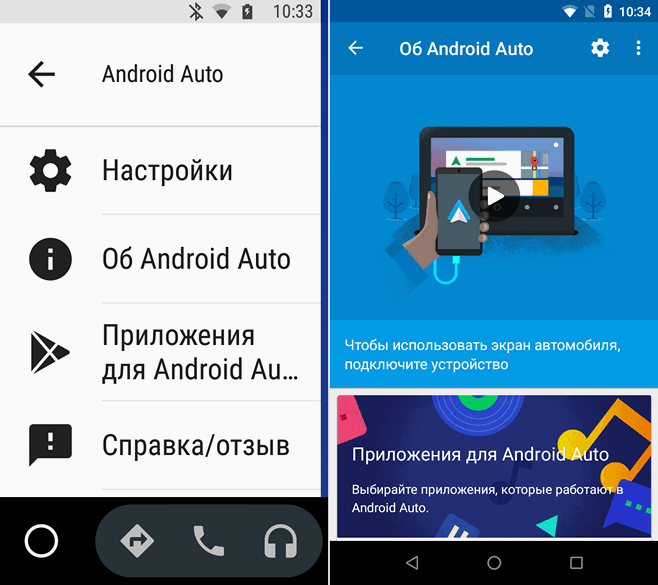
3. Нажмите на кнопку меню в виде гамбургера (три горизонтальные полоски) в левом верхнем углу и выберите пункт «Об Android Auto»
4. Нажмите на верхнюю панель с надписью «Об Android Auto» 10 раз, что приведет к включению режима для разработчиков.
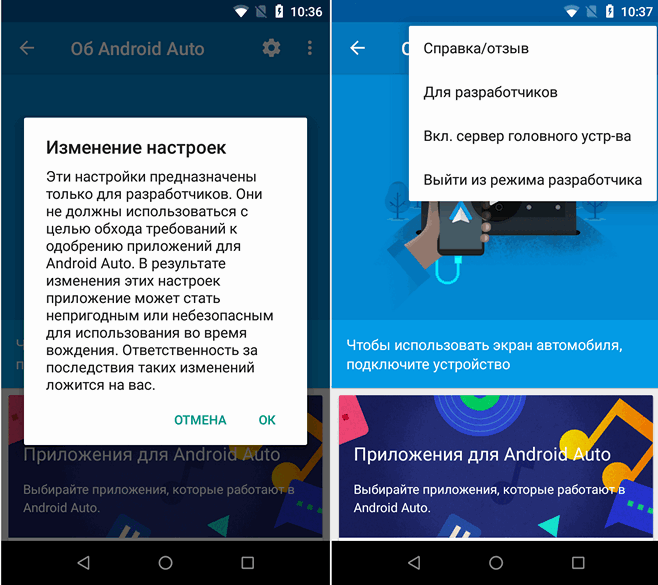
5. Нажмите на кнопку вызова меню в виде вертикального троеточия и выберите пункт «Для разработчиков»
6. В открывшемся окне кликните по пункту «Версия приложения» и в появившемся меню выберите «Для разработчиков»
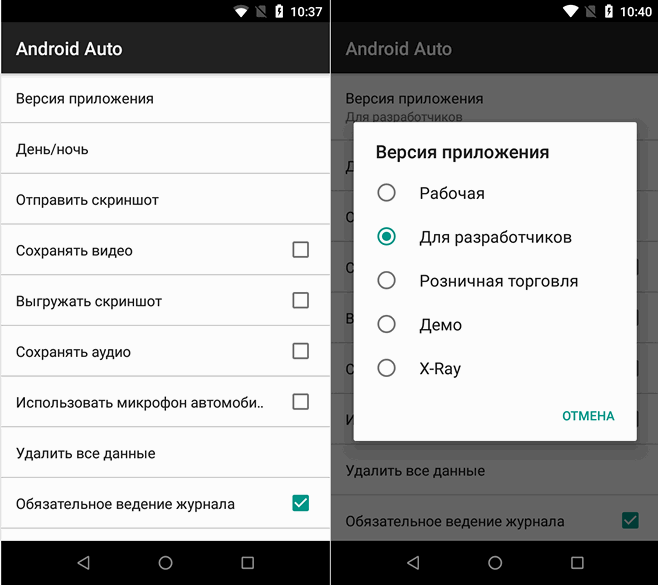
7. В разделе «Для разработчиков» опуститесь вниз и поставьте отметку напротив пункта «Неизвестные источники»
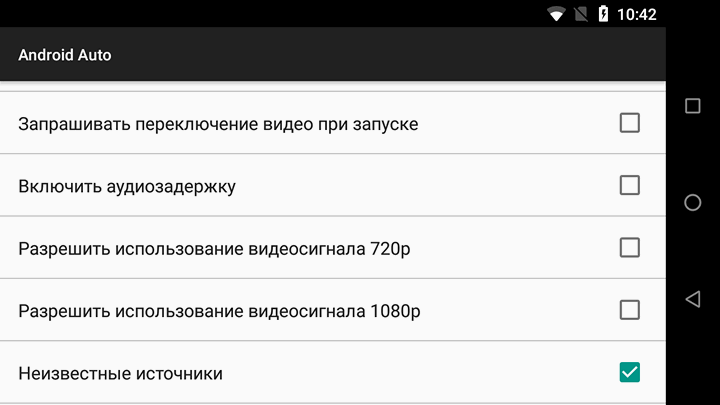
8. Вернитесь назад, в окно «Об Android Auto», снова нажмите на кнопку в виде вертикального троеточия и в открывшемся окне нажмите на «Вкл. Сервер головного устройства».
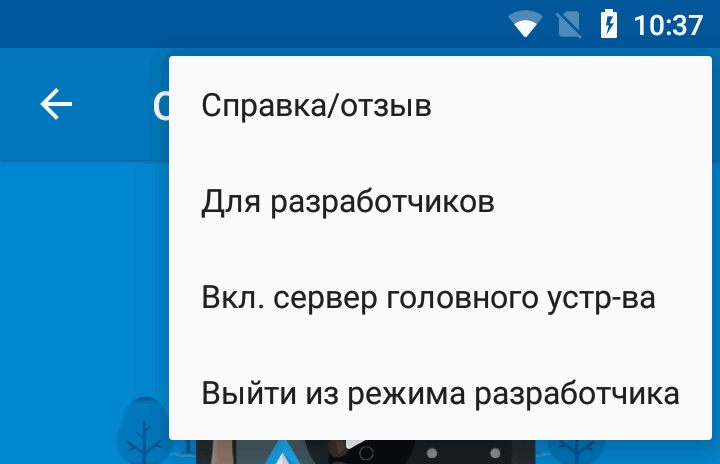
9. Подключите смартфон к автомобилю и предоставьте все права, которые будут запрошены при этом.
10. Отключите смартфон от авто и на головном устройстве в панели уведомлений нажмите на кнопку «Stop»
11. Запустите на смартфоне приложение Carstream
12. Предоставьте ему права доступа Root
13. Перезагрузите смартфон
14. После перезагрузки подключите смартфон к автомагнитоле и запустите Android Auto
15. На экране головного устройства нажмите на кнопку с изображением спидометра, расположенную в правом нижнем углу и в списке приложений выберите «Youtube Auto».
Видео с инструкцией, которую вы прочли выше от разработчика CarStream (YouTube Auto):
Скачать APK файл YouTubeAuto самой последней версии вы также можете на этой странице сайта его разработчика.
Android Auto YouTube Hack — No Root required [100% free]
Android Auto YouTube hack is a common query from Android Auto users as Google has not introduced YouTube for Android Auto due to the fact being people tend to lose their focus while driving. Yet there are situations that the drivers can get entertained just with the audio part while the others can enjoy videos on YouTube. Let’s see 100% working safe methods which do not require root access to enjoy YouTube on Android Auto.
Contents:
Requirements for enjoying YouTube on Android Auto.
Android Auto YouTube hacks.
- Using CarStream
- Using InCar
Possibilities of using Android Auto YouTube
Conclusion
Requirements for enjoying YouTube on Android Auto.
For enjoying YouTube Android Auto, You should have the following requirements basically.
- An Android Auto compatible car / or a head unit.
- An Android phone compatible with Android Auto
- You should be in an Android Auto supported location.
If you could not fulfill the above requirements, still do not worry, you can still enjoy YouTube on Android Auto with InCar app. Also, if you have CarPlay instead of Android Auto you can follow the CarPlay YouTube hack.
But if you have fulfilled all the above requirements, then here are the methods to enjoy YouTube on Android Auto.
Android Auto YouTube hacks
1. Using CarStream
CarStream (Previously named as YouTube Auto) which is developed by Kiran Kumar is the best solution to enjoy youTube videos on Android Auto. It allows you to play YouTube videos on Android Auto with translation additions including Chinese and Italian. In order to use this Car Streaming you need to make sure that you have downloaded both Android Auto app and Car Stream.
Follow the following steps to download and set up CarStream.
Note: These steps may slightly vary depending on your Android version and the phone model.
How to set up CarStream (YouTube Auto) — for Android 8 and Upper
- Download and Install Android Auto app if you have not installed it already. If you are unable to find the APK in Google Play Store, or if it does not support your location you can download it from apkmirror.com .
2. Download and Install the CarStream application.
3. Launch the installed Android Auto app on your Android home screen
4. Click on the hamburger menu at the top left corner
5. Click on the “Settings” .
6. Scroll down to the section “About” and tap on the “Version” so that the version information will appear.
7. Tap several times on the version information so that a pop up will appear asking whether to enable developer mode. Click ok and enable it. This is necessary for CarStream to work.
8. Click on the menu located on the top right corner and tap on “Developer Settings”
9. Tick on the “Unknown resources” checkbox.
10. Click on the “Video Resolution” option on the same view. (Developer settings)
11. Then select an option as you prefer.
12. Now launch Car Stream App
13. There you go! Now you can enjoy YouTube on Android Auto.
How to set up CarStream (YouTube Auto) — for Android 7 and lower
- Launch the installed Android Auto app on your Android home screen
2. Click on the hamburger menu at the top left corner
3. Tap on “About Android Auto”
4. Tap again on the “About Android Auto” multiple times on the opened window
5. Click on the menu located on the top right corner and tap on “Developer Settings”
6. Check the “Unknown Resources” box, Video 720p and 1080p.
7. Now launch Car Stream App
8. There you have… Enjoy YouTube on Android Auto
2. Enjoy YouTube on Android Auto Using InCar
If you do not have Android Auto, and still want to enjoy YouTube while driving, then InCar App is the best solution for you. It is an Android Auto simulator which gives the same experience on Android Phone. It contains a set of apps including apps which are not available on Android Auto by default. Eg: YouTube, Facebook, Messenger, Browsers, Waze, Video Players etc.
What you simply have to do is download InCar from Google Play Store. Read more on how to use InCar App.
Possibilities of using Android Auto YouTube
We know that watching any video while driving puts you in risk. Because it distracts and keeps you out of focus on the road even if it comes via CarPlay. But a tactful mind could use YouTube in a safe and effective way while bringing entertainment into the car.
Let’s say there was an inspiring speech or a story you would like to hear most of the time on YouTube Or a stand up comedy programme that your family enjoys together. Or at least imagine how many times that perhaps your kids might have been sitting in the back of the car lonely without having anything to enjoy. Under such a circumstance, wouldn’t you think that YouTube on your car’s system is an ideal option?
Conclusion
If you already use Android Auto, then you can go ahead with CarStream and if Android Auto is not available for you at the moment , you can enjoy YouTube on Android phone or tab using InCar App. However, I must emphasize that please keep your focus on the road while driving as safety should come first than entertainment.
How to Watch Youtube Videos on Android Auto in 2023
Watching videos by the drivers while driving a vehicle could prove to be life-threatening for them. Or passengers. Or pedestrians. Basically everyone! Therefore, Google has blocked apps like YouTube and Netflix on Android Auto by default for safety reasons. For cases where you would still want to access these apps and watch videos on Android Auto, there is a way you can do that. Read further to learn how to watch YouTube videos on Android Auto in 2023.
NOTE: For your safety reasons, we recommend you NOT to, though.
Play YouTube Videos on Android Auto via CarStream
CarStream, which was initially called YouTubeAuto, is an app that lets you run YouTube on your Android Auto screen. It allows the users to search their favorite videos, check out the trending ones, and play whichever video they like. Not to mention, CarStream is not available on the Play Store for obvious reasons, one being that it violates the store’s guidelines.
Created by a developer named Kiran Kumar, CarStream has garnered millions of downloads. The app has all the features of YouTube and can be accessed through the dashboard display of your car. The only drawback of the application is that it runs only on rooted devices.
UPDATE: The CarStream app no more requires root. However, to install the CarStream app without root and spoof it as an Android Auto compatible app, you need the AAAD App. Below we have discussed the steps to install the CarStream app and watch YouTube videos on Android Auto Without Root.
Method 1: Install CarStream on Non-Rooted Android Phone via AAAD App
AAAD or Android Auto Apps Downloader is an Android app developed by a senior XDA member shmykelsa, which allows you to install unofficial Android Auto apps, such as CarStream, on your Android device. It doesn’t require root or PC or any other special permissions. The AAAD app makes Android think that the app, such as CarStream, is an Android Auto app installed from the Google Play Store.
You can also install a few other apps offered by AAAD on your Android phone and use them with your car’s Android Auto. The steps are as follow,
- Visit the link to download the latest AAAD APK file
- Tap on downloaded AAD APK file. If you are installing an APK file for the first time, enable Unknown sources from the Settings (in devices running on Android OS prior to 8.0) or tap ‘Settings‘ and then turn on ‘Allow from this source‘

- Tap ‘Install‘ to install the AAAD app on your Android.

- Once installed, open the AAAD app and tap on the CarStream app. Choose the latest build version to install it.

- After installing the CarStream app, connect your Android phone to Android AUto wirelessly or via USB cable
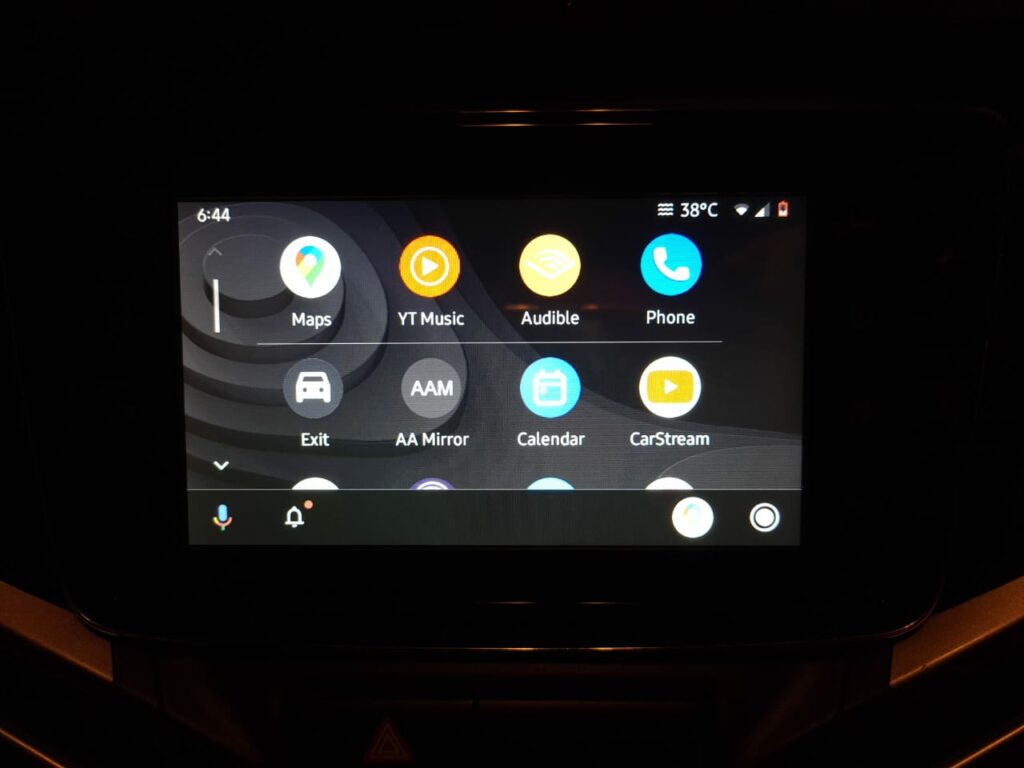
- Tap on CarStream App and enjoy watching YouTube videos on the Android Auto screen.
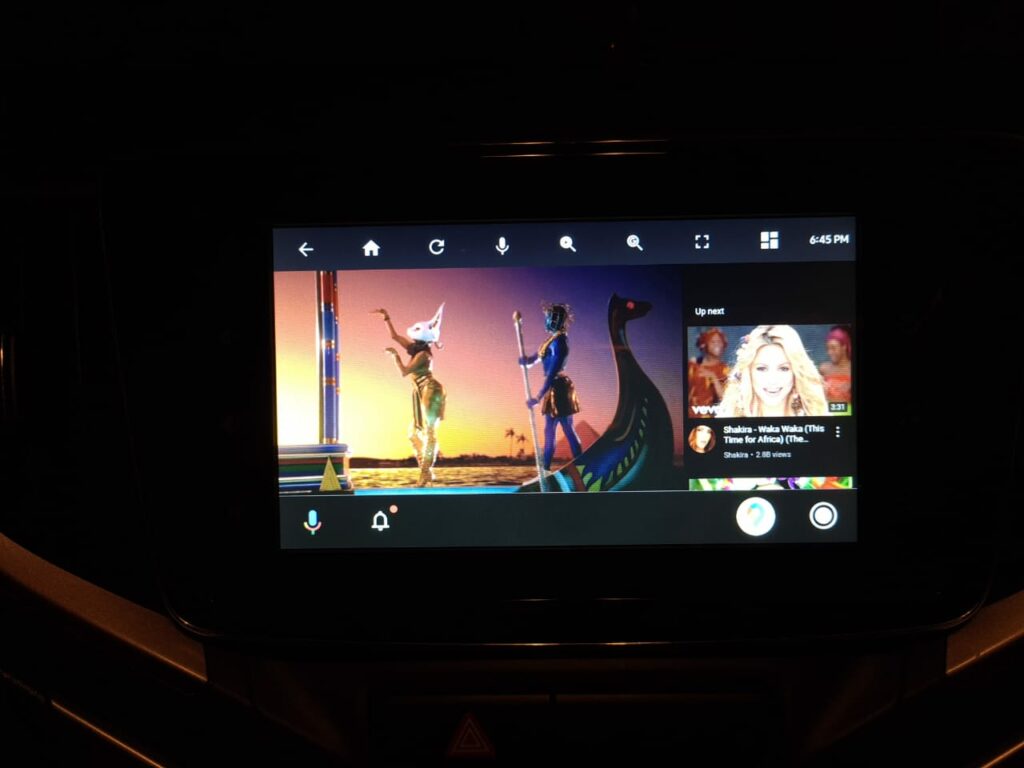
The YouTube videos play even when the you are driving the car. This method is applicable and works on both rooted and non-rooted Android phones.

However, if you own a rooted device, you can follow the next method and avoid installing the AAAD app.
NOTE: Although the AAAD app is free, it only allows you to install one unofficial Android Auto app per month for free. If you want to install other apps from the list and can’t wait, you can buy the Pro version for €3.5 or INR 330.

Video Guide to Install AAAD and Install CarStream or AA Mirror App to Play YouTube Videos in Android Auto
Method 2: Install CarStream on Rooted Android Phones
You can download CarStream from the developer’s official website.
Recommended for You
To watch and play YouTube videos on Android Auto, you can follow the steps given below.
- Make sure you have the official version of the YouTube app installed on your device. If not, you can download it from the Play Store.
- Download and install Android Auto (from the Play Store) and CarStream (from the official website).
- Launch Android Auto.
- Tap on the hamburger icon on the top left corner of the application. The hamburger icon is an icon with three horizontal lines.

- Select About.

- Tap the gear icon on the top right corner that represents the settings.

- Scroll all the way down until you see the Version section of the app. Tap on it a few times to enable the developer mode.

- You will see a prompt asking for a confirmation to enable the developer mode. Select OK.

- Tap on the hamburger icon on the top right corner and select Developer settings.


- Check the Unknown Sources option.

- Minimize the app and launch CarStream. It will open Youtube.com by default. Enjoy watching YouTube videos on Android Auto.

If you have followed the above steps carefully, you would now be able to play YouTube videos on Android Auto. The experience is seamless and works smoothly every time. For a better experience, make sure you have the latest version of the applications installed on your device.
Suggested Read
CarStream Android Auto Issues
Though CarStream is a widely popular application, it might come with certain limitations and issues. It might run perfectly for you for weeks and months but might cause an error later. Though these issues are small most of the time, there are cases where they needed to be fixed by the developer and the community.
Some of the earlier caused bugs which now have been fixed are given below.
- A black screen would appear sometimes. This is related to the Power Saver feature of the mobile device. For CarStream to work properly without interruptions, the Power Saving Mode of the device should be turned off.
- App crashed while playing YouTube purchased videos.
- Google blocked a version of YouTube Auto earlier which resulted in the disappearance of it from Android Auto.
- Issues related to local video files not playing properly.
- The “I understand the risks” dialog box had an Accept button that could not be clicked.
- Various links inside the app redirected to error 404: page not found.
The above-described bugs were fixed in every upcoming version of the app either by the developer or the community. CarStream is open-source software and it is open to modification by anyone through GitHub. On his website, the developer gives a disclaimer that he maintains the app during his free time and is his hobby project. Google has blocked his application multiple times, which also resulted in the changing of the app’s name (from YouTubeAuto to CarStream). He also states that it is difficult for him to combat Google alone.
This brings us to the end of the guide. Watching YouTube videos on Android Auto has never been simpler, thanks to Kiran Kumar. We now conclude this article in the hope that you remain safe and secure while you choose to Play YouTube videos on Android Auto.