3 Steps To Export Your Google Calendar Data To Excel 2022 – FAQ
Are you wondering how to export your Google Calendar data to Excel? Google Calendar is a popular tool for tracking day-to-day events. Almost every Android user uses it to track events and set up aspects like reminders, repeat events, etc.
When Google Calendar users want to view their schedule in a presentable way they can exporting calendar data into an Excel sheet. To do this, you’ll need to export your Google Calendar to a Zipped folder. Next, you’ll extract the ICS file from this folder and convert it to a CSV file. You can then import the CSV file into Excel to view the data.
One of the most daunting tasks is analyzing events in Google Calendar. Exporting the data is the right thing to do because Google does not allow you to keep and maintain the calendar data for a long time. The calendar will remove your events and records after a certain period.
Follow the below steps to successfully import and export the file from Google calendar.
Steps to Export Your Google Calendar Data to Excel
#1. Export Google Calendar File

- Open Google Calendar and log in with your Google account credentials.
- Click on the gear icon in the top right corner of the screen.
- Select the “Settings” option from the list.
- Select the “Import & export” option in the left panel of the screen.
- Click the “Export” button to export the calendar into a zip file.
- Now the Zip file will download. Extract it to have the ICS file.
- Done.
#2. Convert Google Calendar ICS Into Excel CSV File
Fortunately, you can export Google Calendar data into an ICS file and do this for multiple calendars in your Google account. However, an ICS file is not compatible with the Excel file format. So, after downloading the ICS file from the calendar, you must convert that file into a CSV file.

- Go to the free Indigoblue tool to convert the ICS file into CSV.
- Click on “Choose file” to select the file from your computer.
- Select the format like “MM/DD/YYYY” and date&time.
- Scroll down and select the columns you want in the excel sheet.
- Click on “Convert to CSV.”
- Now the CSV file will start downloading.
- Done.
#3. Import the CSV File into Excel
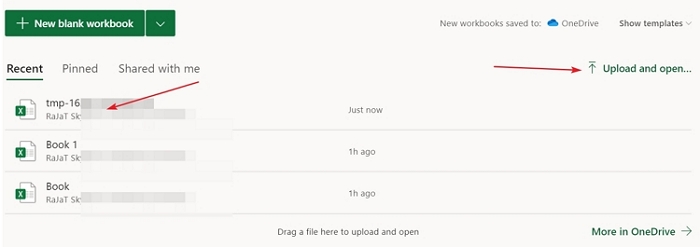
- Open Google search and type “Excel“.
- Open the office.live excel option and log in with your Microsoft account credentials.
- Select the Excel app from office pack of Microsoft.
- Click “upload and open” in the Excel dashboard.
- Now upload the CSV file from the upload window. Click to open the file.

- The Excel sheet will open in a new window with all the data imported from your Google Calendar.
- Done.
Conclusion
Viewing your schedule in an Excel spreadsheet affords you so many more options for ease of organization and storing of data. It’s also a much simpler, more concise way to view your upcoming appointments. If you prefer, you can upload the Excel sheet to a Google Sheet or save the info in a Google Doc table. Executing the export may seem like a roundabout process. But it’s actually super easy to export your Google Calendar data to Excel if you follow the 3 easy steps above.
How to Export Google Calendar to MS Excel
Unfortunately, Google Calendar does not offer any method of directly exporting a calendar to MS Excel in CSV format. But Excel can open the iCal file from Google calendar just as easily. To start with, you must let Google calendar export the calendar in ICS format.
Once the ICS file is available, you have three ways of exporting it to Excel.
3 ways to Export Google Calendar ICS File to MS Excel
- Open ICS file in Excel
- Use MS Outlook to export to CSV format
- Use an online application to export to CSV format
Please note the CSV format does not support repeat events.
You will also lose information on reminders, event time-zone data, attachments, invitations and so on.
We will show you in simple, step-by-step instructions, three methods of exporting Google calendar to Excel.
Method #1: Open ICS File in Excel
Step #1: Open Google Calendar
Login to the Google suite using your credentials.
Open Google Calendar.

Step #2: Open the Exports Menu
Click on the gear icon in the top right corner.

This opens a menu.
Click on Settings.

This opens the detailed Settings menu.
Scroll down and click on Import and export in the left panel.
This will open a secondary menu.
Click on Export.

Step #3: Export the Calendar
In the right pane, under Export, click on Export.

This will open the File Manager.
Navigate to the location where you want to save the calendar file.
Type a suitable File name: for the calendar file.
Ensure that Save as Type: is Compressed (Zipped) folder.
Click on the Save button at the bottom.

A notification will appear for the saved file.

Step #4: Unzip the Calendar File
In the bottom of your browser window, a message will be displayed: Show all downloads.
Click on Show all downloads.
The File Manager will open.
Click on the zipped ICS file you just created.
Depending on your operating system, you may have to double click on the zipped file to unzip and open it.
The zipped file will open to show two files.
Right-click on the file with your Google id as its name.
A menu will open, click on Copy.

Navigate to the place where you want to save the calendar file.
Paste the calendar file.
Rename it if necessary.

Step #5: Open Calendar File in Excel
Open the Excel application.
Click on File in the main menu bar.
Click on Open in the dropdown menu.
The File Manager window will open.
Navigate to the location of the calendar file.
Click on the file name.
Click on the Open button in the File Manager window.
A Text Import Wizard will open.
Click on and select Delimited.
Click on the Next button at the bottom.

The next screen opens.
Click on and select Comma.
Click on the Next button at the bottom.

The next screen opens.
Click and select Text.
Click on the Finish button at the bottom.

MS Excel displays the contents of the calendar file.

Caution: You may lose some information if you save the file in CSV format. Instead, save it as an Excel file.
Method #2: Use MS Outlook to Export as CSV
Step #1: Open Google Calendar
Login to the Google suite using your credentials.
Open Google Calendar.

Step #2: Open the Exports Menu
Click on the gear icon in the top right corner.

This opens a menu.
Click on Settings.

This opens the detailed Settings menu.
Scroll down and click on Import and export in the left panel.
This will open a secondary menu.
Click on Export.

Step #3: Export the Calendar
In the right pane, under Export, click on Export.

This will open the File Manager.
Navigate to the location where you want to save the calendar file.
Type a suitable File name: for the calendar file.
Ensure that Save as Type: is Compressed (Zipped) folder.
Click on the Save button at the bottom.

A notification will appear for the saved file.

Step #4: Unzip the Calendar File
Click on Show all downloads.
The File Manager will open.
Click on the zipped ICS file you just created.
Depending on your operating system, you may have to double click on the zipped file to unzip and open it.
The zipped file will open to show two files.
Right-click on the file with your Google id as its name.
A menu will open, click on Copy.

Navigate to the place where you want to save the calendar file.
Paste the calendar file.
Rename it if necessary.

Step #5: Import Calendar in Outlook
Open the MS Outlook program.
Click on the File tab in the top main menu bar.

This opens the File menu.
Click on Open & Export in the left pane.

In the right pane, click on the Import/Export button.

The Import Export Wizard will open.
Click on Import an iCalendar (ics) or vCalendar file (vcs).
Click on the Next button at the bottom.

This will open the File Manager.
Navigate to the location of your calendar file.
Click on the calendar file name.
A dialog box will open.
Click on the Import button.

Outlook will import the calendar.
Step #6: Export as CSV File
Click on the File tab in the top main menu bar.

The File menu will open.
Click on Open & Export in the left panel.

In the right panel, click on the Import/Export button.
The Import and Export Wizard will open.
Click on Export to a File.
Click on the Next button at the bottom.

In the next dialog box, click on Comma Separated Values.
Click on the Next button at the bottom.

In the next screen, click on Calendar (This computer only).
Click on the Next button at the bottom.

In the next screen, you can change the location and name of the exported file.
Make the necessary changes, and click on the Next button at the bottom.

In the next screen, click on the Finish button at the bottom.

In the next screen, you can change the date range if you want.
Click on the OK button at the bottom.

Outlook will export your calendar in CSV format.
Step #7: Open CSV File in Excel
Open the Excel application.
Click on File in the main menu bar.
Click on Open in the dropdown menu.
The File Manager window will open.
Navigate to the location of the CSV file.
Click on the CSV file name.
Click on the Open button.
A Text Import Wizard will open.
Click on and select Delimited.
Click on the Next button at the bottom.

The next screen opens.
Click on and select Comma.
Click on the Next tab at the bottom.

The next screen opens.
Click and select Text.
Click on the Finish button at the bottom.

Excel now displays the contents of the CSV file.

Caution: You may lose some information if you save the file in CSV format. Instead, save it as an Excel file.
Method #3: Use an Online Application to Export to CSV Format
Step #1: Open Google Calendar
Login to the Google suite using your credentials.
Open Google Calendar.

Step #2: Open the Exports Menu
Click on the gear icon in the top right corner.

This opens a menu.
Click on Settings.

This opens the detailed Settings menu.
Scroll down and click on Import and export in the left panel.
This will open a secondary menu.
Click on Export.

Step #3: Export the Calendar
In the right pane, under Export, click on Export.

This will open the File Manager.
Navigate to the location where you want to save the calendar file.
Type a suitable File name: for the calendar file.
Ensure that Save as Type: is Compressed (Zipped) folder.
Click on the Save button at the bottom.

A notification will appear for the saved file.

Step #4: Unzip the Calendar File
Click on Show all downloads.
The File Manager will open.
Click on the zipped ICS file you just created.
Depending on your operating system, you may have to double click on the zipped file to unzip and open it.
The zipped file will open to show two files.
Right-click on the file with your Google id as its name.
A menu will open, click on Copy.

Navigate to the place where you want to save the calendar file.
Paste the calendar file.
Rename it if necessary.

Step #5: Open Online Application
Open your favorite Browser.
The converter application will open.

Step #6: Choose Your Calendar File
Click on the Choose Files button.

File Manager will open.
Navigate to your calendar file.
Click on your calendar file name to select it.
Step #7: Select Separator
Click on the Select Separator tab
In the menu that opens, select comma.

Step #8: Select Date Format
Click on the Date Format tab.
In the menu that opens, select MM/DD/YYYY.

Step #9: Convert File and Save
Click on the Convert to CSV button.

The File Manager will open.
Save the converted CSV file in a suitable location.
Step #10: Open CSV File in Excel
Open the Excel application.
Click on File in the main menu bar.
Click on Open in the dropdown menu.
The File Manager window will open.
Navigate to the location of the CSV file.
Click on the CSV file name.
Click on the Open button.
Excel displays the contents of the CSV file.

Caution: You may lose some information if you save the file in CSV format. Instead, save it as an Excel file.
Conclusion
We have shown you three ways to export your Google Calendar to Microsoft Excel. Use any of the methods suitable for your needs.
How To Export Google Calendar To Excel?
Step 1: Go to your Google Calendar at https://calendar.google.com. Step 2: Click the menu button to the right of the calendar you want to view in Excel, then choose the Settings and sharing option. Step 3: Click the Export Calendar option, which will save a . zip file of the calendar to your computer.
Is there a way to Export Google Calendar to Excel?
Open your Google calendar and click the gear icon for Settings. Next click on the left menu option for Import & Export. From the screen, select one or more calendars to export and click the “Export” button. You will get an ics file for each calendar and need to process each one separately.
How do I Export my Google Calendar?
Ways to export calendars
- On your computer, open Google Calendar. You can’t export your calendar from the Google Calendar app.
- In the top right, click Settings. Settings.
- In the menu on the left, click Import & export.
- Under “Export,” click Export. A ZIP file downloads to your computer.
How do I Export Google Calendar to CSV?
Step 1: Open Google calendar at https://calendar.google.com and click Settings on the top right corner. From the left sidebar click Import & Export. Step 2: Choose the option Select file from your computer and then choose the downloaded exported file with the extension ics or CSV.
How do I copy a calendar into Excel?
Please do as follows:
- Shift the Calendar folder, and select the calendar which you will export to Excel.
- Change the calendar view with clicking View > Change View > List.
- Select all calendar items or multiple ones you will export to Excel.
- Right click the selected items, and select the Copy from the right-clicking menu.
Can you export from Google Calendar to Word?
Google Calendar can be converted to many customizable layouts in native graphical Word (doc / docx) and Excel (xls / xlsx) format.
Can you export a shared Google Calendar?
On your computer, open Google Calendar. In the calendar list on left-hand side, move your mouse over the calendar you would like to export and click the three dots. Select Settings and sharing. Click Export calendar in calendar settings.
How do I sync my Google Calendar with Excel?
You can import with ICS and CSV files on a computer.
- Open Google Calendar.
- In the top right, click Settings. Settings.
- In the menu on the left, click Import & Export.
- Click Select file from your computer and select the file you exported.
- Choose which calendar to add the imported events to.
- Click Import.
- If you have a .
How do I download Google Calendar to my computer?
Get Google Calendar
- On your computer, visit Google Calendar.
- If you already have a Google Account, sign in. If you don’t have one yet, click Create an account.
- Once you sign in, you’ll be taken to Google Calendar.
- To change any of your settings, go to the top right corner and click Settings .
How do I sync my Google Calendar with spreadsheets?
Here’s how to set it up:
- Create your spreadsheet in Google Sheets (and make sure to sign up for Zapier if you haven’t already).
- Connect your Google Sheets account and customize your trigger.
- Connect your Google Calendar account and customize your calendar event.
- Test your Zap and turn it on.
How do I save a Google Calendar as a PDF?
On your computer, open Google Calendar.
- Follow the steps to print your calendar.
- In the final window with print options, under “Destination,” click Change.
- Under “Print destinations,” click Save as PDF.
- Click Save.
How do I create an automatic calendar in Excel?
How to make automatic calendar in Excel
- Step 1: Add a dropdown list.
- Step 2: Another Drop-down list for the year.
- Step 3: Create the first date in function of the drop down.
- Step 4: Extend the days.
- Step 5: Change the date format.
- Step 6: Change the orientation of the text.
- Step 7: Add color and borders.
How do I embed a Google Calendar into a Word document?
Customizing and inserting a calendar into your Word document is easy–here’s how to do it.
- In Word, go to File > New from Template > scroll down and select the Calendar option or do a search for “calendar” in the search bar in the top-right corner.
- Select a calendar.
- You can also tweak the appearance a little bit.
How do I export Google Calendar to Excel on Mac?
To export data from a single calendar:
- Open Google Calendar in a web browser, such as Google Chrome or Apple Safari.
- Hover over the calendar you wish to export and click the options icon to the right.
- Click Settings & Sharing.
- In the Calendar Settings box, click Export Calendar.
- Locate your iCal data download.
Can you export a shared calendar?
(You should be able to paste it anywhere under your exchange account.) Once the shared calendar was under my personal account, I could go into File > Open & Export > etc. as you already did, and I could select the shared calendar that was copied into my personal account to export as a csv.
How do I export a shared Google Calendar to Google Sheets?
Open Google Calendar. In the top right, click the Settings icon, then click Settings from the menu. On the Settings page, click the Import & export > Export menu. Then, under the Export section, click the Export button.
Can you link calendar to Excel?
If you want to link your Outlook Calendar to your Excel, you can do it in two ways. You can export your Outlook calendar to Excel or import your Excel files to Microsoft Outlook.By doing this, you can easily use the records in your calendar in both Microsoft programs.
Can you connect a calendar to Excel?
Launch Excel and select “File” from the menu.Move your cursor to the cell to which you will be linking your calendar and click “Insert” then “Object.” Choose “Create from file” and “Browse” to open the file explorer window. Locate the Outlook calendar file you saved earlier and click “OK” to create the link.
How do I sync my Google calendar with Windows 10?
How do sync my Google calendar with Windows 10 and Cortana?
- Go to Mail app.
- Click on Settings option.
- Click on Add an account.
- Then type your Google mail id and add it.
- Then go to Accounts and click on sync.
- This method will sync all your mail, calendar and contacts of Google with Windows.
How do I download Google Calendar on Windows 10?
How to import your Google Calendar into the Calendar app on Windows 10 PC
Как выгрузить гугл календарь в excel
Getting calendar data in any usable format is hard. So we built Tackle. In minutes, you can get the data from your calendars in Excel without requiring a developer or script tweaking.
7-day free trial ⸱ Cancel in 1 click

Trusted by 300+ teams
Say goodbye to Calendar data hassles
Save yourself headaches with Tackle: Extract calendar data in minutes!

Free up a day every month
Say goodbye to manual data entry. What’re you going to do with your newly freed time?

Remove manual review
Tackle provides an error-free way to export your Google Calendar data to Excel. No more eye-straining manual review!

Works out of the box
Easy-to-use, intuitive interface that feels familiar straightaway. No need to pull your hair trying to figure things out.

Fitted to your needs
Ample options to filter, format, or augment your calendar data. All your customizations are only one wish away.
Features
Save your configuration once and reuse every time for one click export. Tackle’s Google Sheet Sync feature can automate your end to end workflow. Use Sync to periodically ingest calendar data into your own data warehouse or to magically get your weekly reports in your inbox.
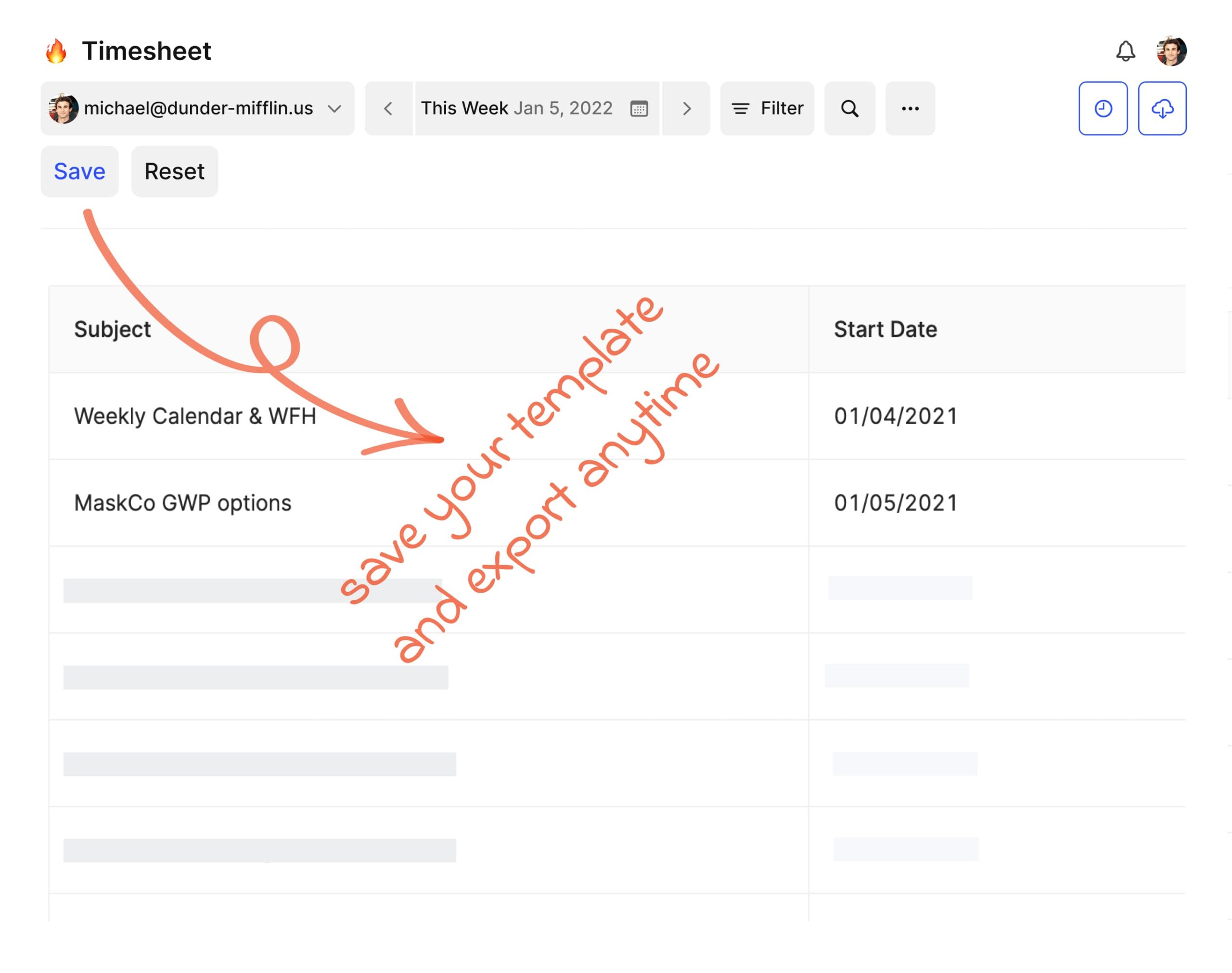
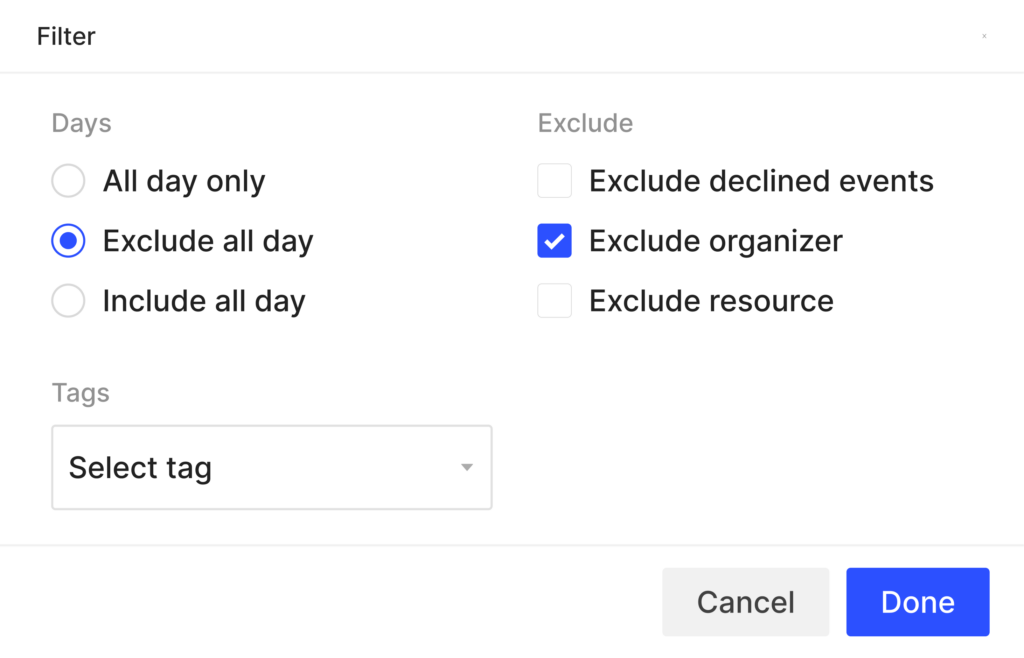
Filters help remove unwanted events. With filters, you can remove all those all
day events that you don’t need. Or get rid of those block times / personal
appointments that you don’t want.
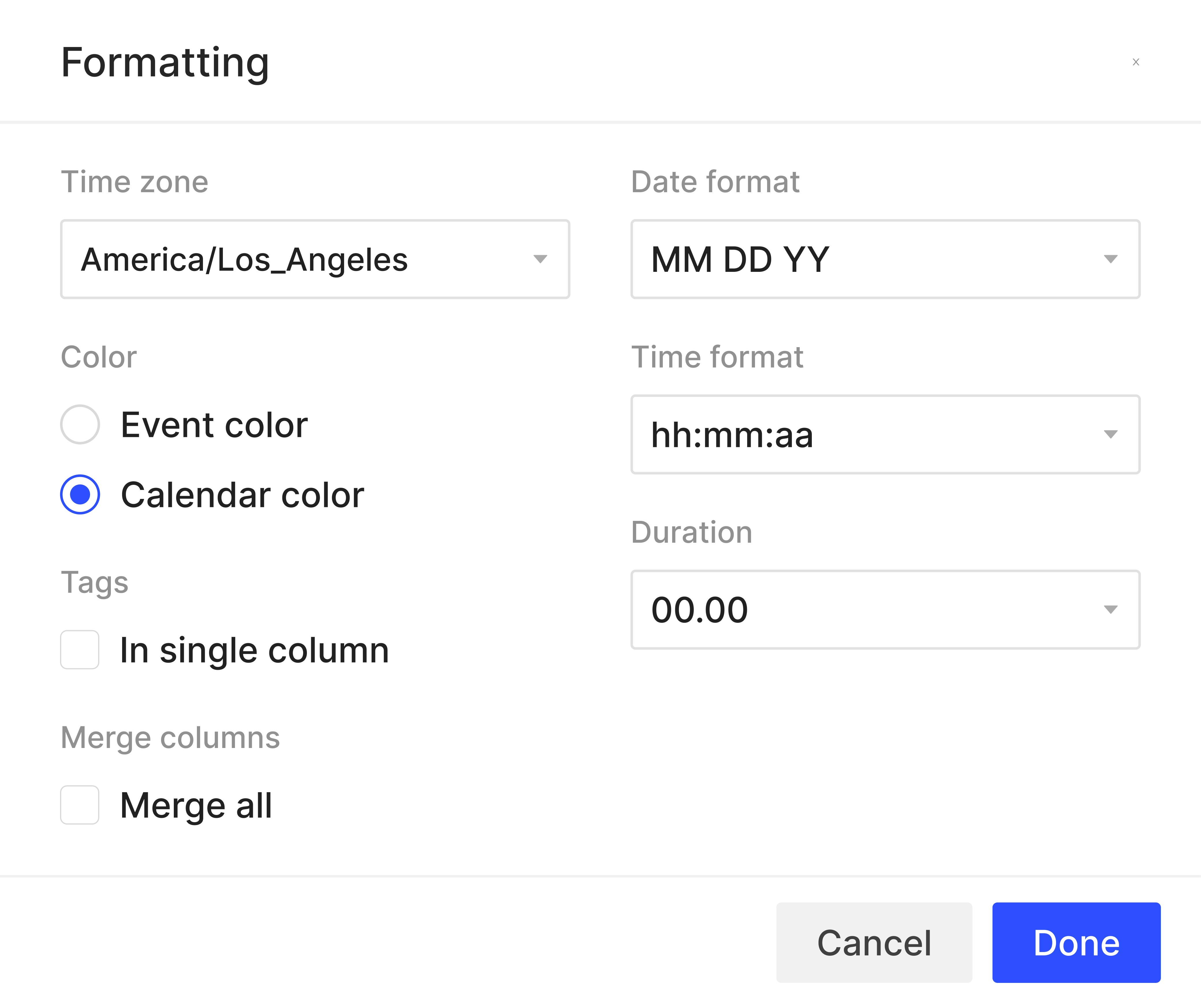
Tackle provides different ways to format your data to fit your needs. With
Tackle, you can show durations in decimal or configure the date or time format.
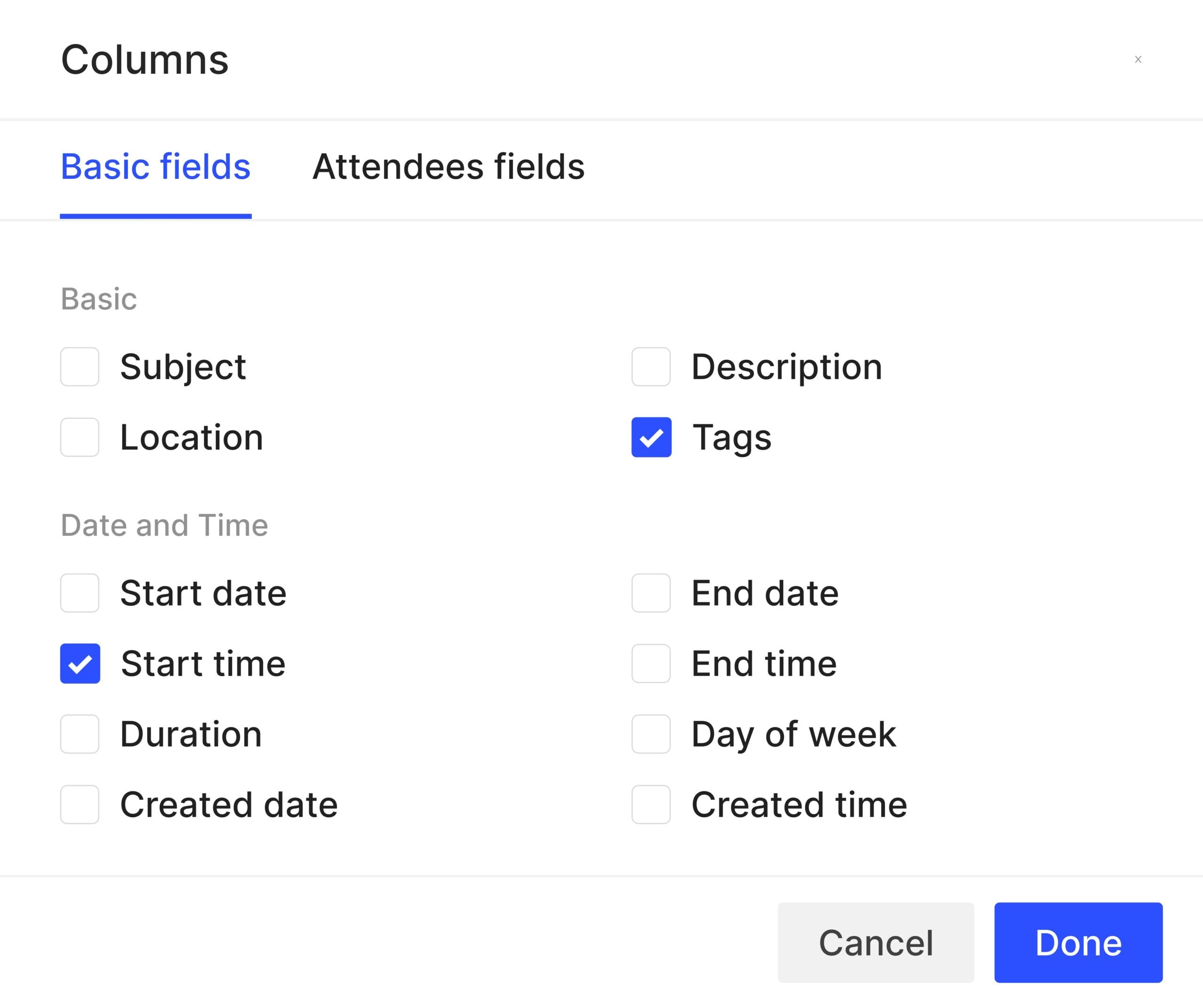
No need to dump everything blindly. You can choose which columns you need
and remove the ones you don’t. Tackle can export fields like Day of Week,
Duration, or Attendees as Excel columns. Need to extract certain information
from your calendar event? Chances are we already have that.
Want to categorize your calendar events into some buckets? Wish you could
add additional information to your calendar events, like customer name or
project name? Tackle’s Tagging feature can help you add any metadata to your
events. On top of that, tags can be extracted into their own Excel columnsso
that you get a clean structured output.

Automatically export your Google Calendar to MS Excel in 3 easy steps
Sign in with your Google account
Filter and format your calendar data
- In the left panel, You will find the “Sheets” page, under the Analyze section
- Rename your report e.g. Google calendar import
- Filter the calendars you want to export
- Use the format section to format your data just the way you want your report to be
- From the “Columns” section, select the data fields you want to export along with the calendar events

Download your Excel report
- Click on the download button to download the file to your computer in your chosen format.
- You can now choose the file format you want to export into. You can export your calendar as Microsoft Excel file or into Google Sheets.
Why use Tackle?
You can securely and reliably export Google Calendar to Excel, Google Sheets, CSV or even PDF. Your Google calendar events are essentially records of all your work-related activities. Tackle allows you to extract the data and use them in new ways to streamline and automate your workflows. Convert any ics file to CSV file for CRM purpose.
You can also create custom reports with the data to analyze how you or your team are spending time as it directly impacts your business efficiency. Tackle also provides many ways to format, aggregate, and filter calendar data to fit your use case so that you can use it your way.
Here is how to
Manually export Google Calendar to Microsoft Excel
Exporting your Google Calendar event data manually involves more steps to follow and most importantly it is very time-consuming.
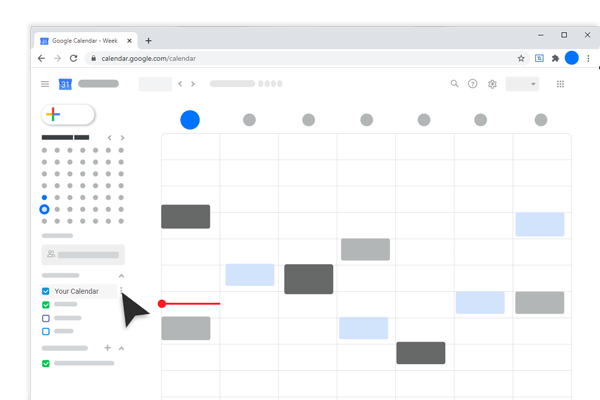 Step 1: Go to your Google Calendar at calendar.google.com & click on this 3 dot calendar settings icon
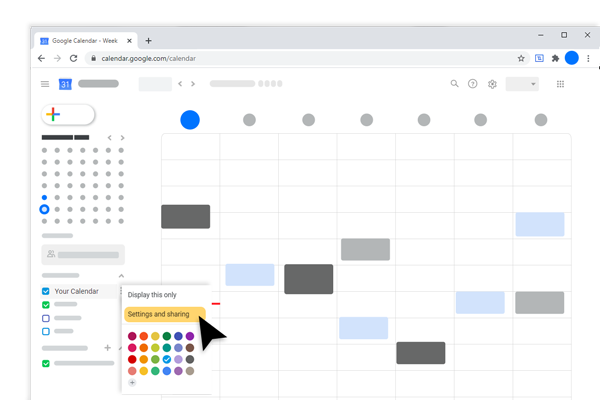 Step 2: On the left panel, under My Calendars, choose the calendar you want to view in Excel, click on the three dots to open a pop-up window. Choose Settings and sharing.
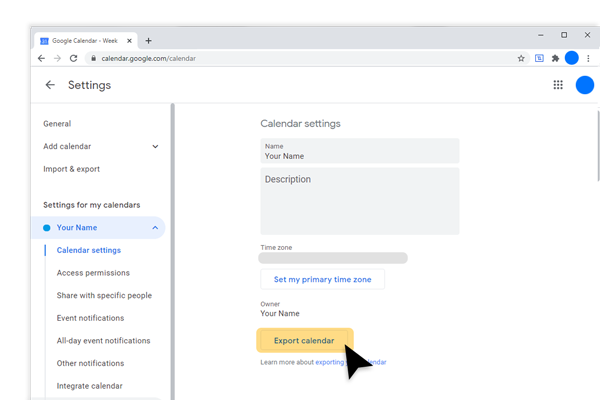 Step 3: Click on the Export button for exporting Google calendar and a zip file will be downloaded on your computer.
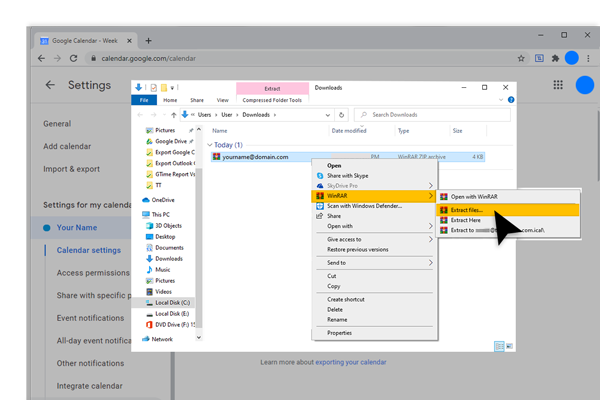 Step 4: Locate the downloaded zip file in your computer and right-click to extract all ICS files in your chosen folder.
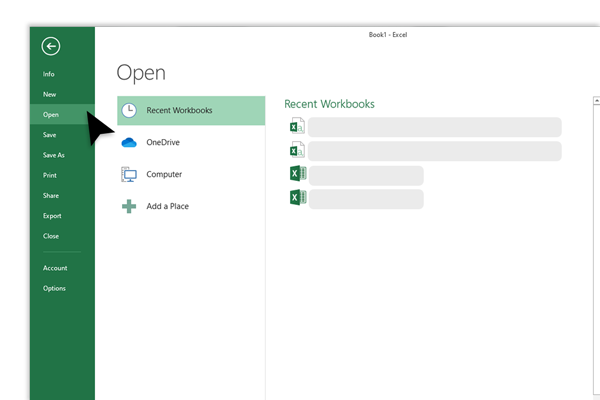 Step 5: This step explains how to open ics file. Open a new sheet in Microsoft Excel, click the File tab on the top left, choose open.
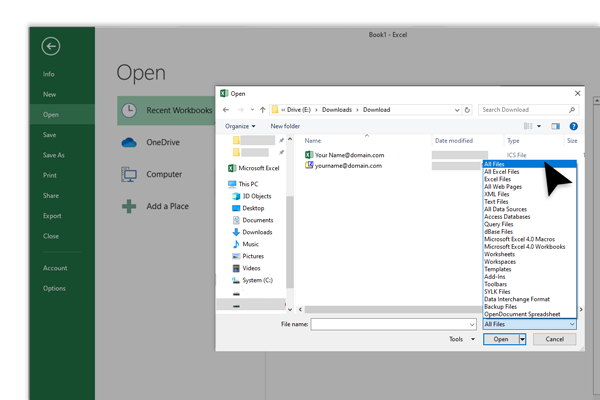 Step 6: Browse to select the downloaded file. From the drop-down menu, change All Excel File to select All Files.
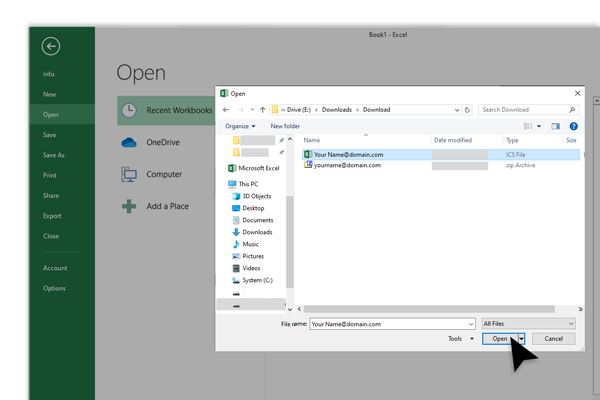 Step 7: Select the extracted file and click on the Open button.
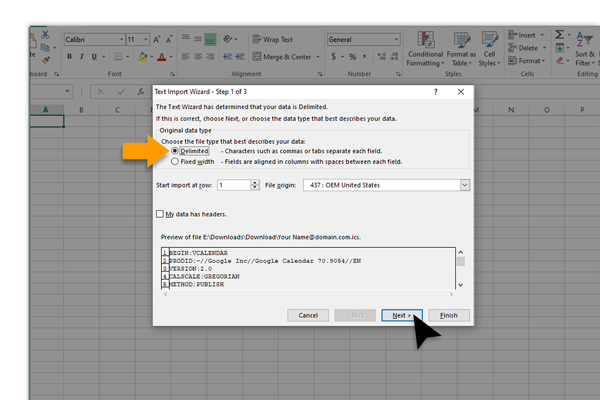 Step 8: Check if the Delimited option is selected and then click the Next button.
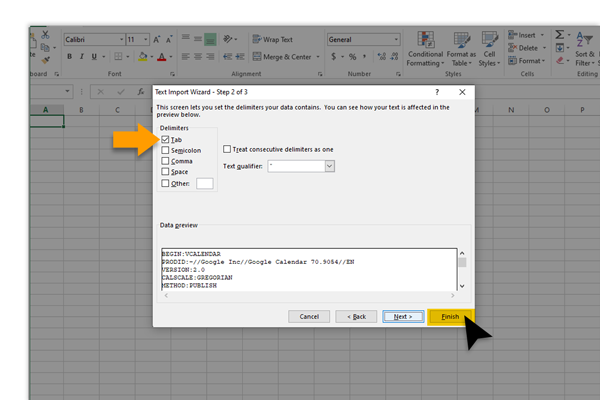 Step 9: Check the box beside the Tab option and click the Finish button.
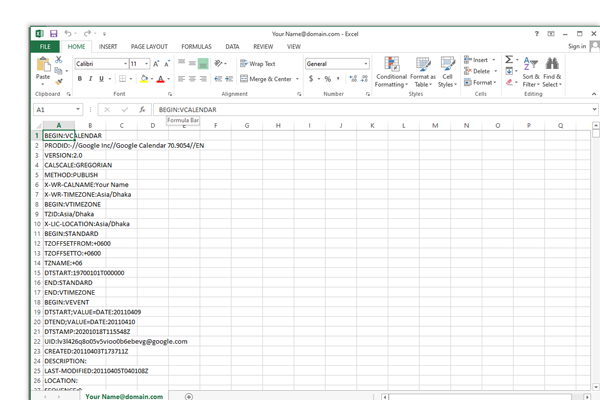 Step 10: You will see the Google calendar events in your excel sheet.