How to create batch script files on Windows 11
Here are three ways to create and run batch files on Windows 11 to automate tasks.
- Create batch
- Run batch
A batch file refers to those text files that usually end with a «.bat» extension that contains multiple commands that the system can run in sequence from the Command Prompt to perform different tasks.
On Windows 11, you can use a batch file to quickly make system changes, query system information, automate routines, and launch apps while reducing the steps, mistakes, and time it could take to type the commands or perform specific actions.
Although you can always create more comprehensive scripts with PowerShell, batch files you can run on Command Prompt are still useful and easier to craft to perform an extended range of tasks.
This how-to guide will walk you through the different ways in which you can create and run a batch file on Windows 11.
How to create batch files on Windows 11
You can quickly write batch files with any text editor, such as Notepad or Visual Studio Code. You will only need some basic Command Prompt skills.
This guide will show you three examples. The first one will help you build a basic batch file with three lines of code. The second example is a little more advanced, outlining the basics of running multiple commands. Finally, the third example demonstrates that you can perform different actions.
Compose basic batch file
To write a basic batch file on Windows 11, use these steps:
- Open Start.
- Search for Notepad and click the top result to open the text editor.
- Type the following lines of code in the text file:
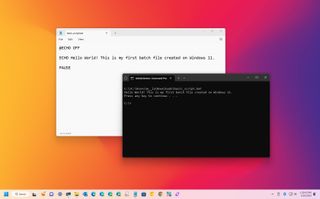
@ECHO OFF
ECHO Hello World! This is my first batch file created on Windows 11.
PAUSE
The above code will output the «Hello World! This is my first batch file created on Windows 11» message on the screen.
- Click the File menu and select the Save as option.
- Confirm a name for the script – for example, basic_batch.bat.
Once you complete the steps, double-click the file to run the script.
You will typically find batch files with the «.bat» extension, but it’s also possible to use the «.cmd» or «.btm» file extensions.
Here’s a break down of the commands:
- @ECHO OFF — Disables the display prompt and shows content in a clean line.
- ECHO — Prints the text after the space on the screen.
- PAUSE — Keeps the window open after running the commands. If you don’t use this option, the prompt will close automatically after the script finishes. You can use this command at the end of the script or after a specific command to insert a break on each line.
Compose advanced batch file
To create an advanced batch script, use these steps:
- Open Start.
- Search for Notepad and click the top result to open the text editor.
- Type the following lines in the text file to create an advanced script:
@ECHO OFF
:: This batch file reveals Windows 11, hardware, and networking configuration.
TITLE My Computer Information
ECHO Checking system information.
:: Section 1: Windows 11 details
ECHO WINDOWS 11 INFO
systeminfo | findstr /c:»OS Name»
systeminfo | findstr /c:»OS Version»
:: Section 2: Hardware details
ECHO HARDWARE INFO
systeminfo | findstr /c:»Total Physical Memory»
wmic cpu get name
wmic diskdrive get name,model,size
wmic path win32_videocontroller get name
wmic path win32_VideoController get CurrentHorizontalResolution,CurrentVerticalResolution
:: Section 3: Network details.
ECHO NETWORK INFO
ipconfig | findstr IPv4ipconfig | findstr IPv6
PAUSE
This script executes multiple system commands in sequence and outputs the computer information in three different categories, including «Windows details,» «hardware details,» and «network details.»
- Click the File menu and select the Save as option.
- Type a name for the script — for example, advanced_batch.bat.
After you complete the steps, running the batch file will open a Command Prompt console outputting the results for each command.
Here’s a breakdown of the commands:
- @ECHO OFF — Disables the display prompt and shows content in a clean line.
- TITLE — Renders a custom name for the window title bar.
- :: — Ignores the contents of the line. Usually, it’s used to write comments and documentation information.
- ECHO — Prints the text after the space on the screen.
- PAUSE — Keeps the window open after running the commands.
Compose actionable batch file
One of the most common reasons to use scripts is to automatize different tasks to make system changes, such as connecting a network drive, installing an application, or changing system settings.
To create a script to change system settings on Windows 11, use these steps:
- Open Start.
- Search for Notepad and click the top result to open the app.
- Type the following command in the text editor: net use z: \\PATH-NETWORK-SHARE\FOLDER-NAME /user:USERNAME PASSWORD
In the command, replace the «\\PATH-NETWORK-SHARE\FOLDER-NAME» for the folder network path to mount on the device and «USERNAME PASSWORD» with the username and password that authenticates access to the network share. This example maps a network folder using «Z» as the drive letter: net use z: \\10.1.4.57\ShareFiles
- Click the File menu and select the Save as option.
- Confirm a name for the script — for example, network-drive-batch.bat.
Once you complete the steps, this particular batch file will map a network on File Explorer.
How to run batch files on Windows 11
On Windows 11, you can run batch files in at least three ways from Command Prompt, File Explorer, or automatically during startup.
Run script from Command Prompt
To run a batch file from Command Prompt on Windows 11, use these steps:
- Open Start.
- Search for Command Prompt, right-click the top result, and select the Run as administrator option.
- Type the following command to run a Windows 11 batch file and press Enter: C:\PATH\TO\FOLDER\BATCH.bat
In the command, specify the path and name for your script. This example runs the batch file located in the «scripts» folder inside the «Downloads» folder: C:\Users\ACCOUNT\Downloads\basic_batch.bat
After you complete the steps, the batch file will run and display the results in the console. Since you opened Command Prompt manually, it won’t close automatically if the script doesn’t include the «Pause» option.
Run script from File Explorer
To run a script file from File Explorer on Windows 11, use these steps:
- Open File Explorer.
- Browse to the folder with the batch file.
- Right-click the file and select the Open option to run it.
- (Optional) Right-click the file and select the Run as administrator option if elevation is required.
Once you complete the steps, the batch file will run and execute every command. If you have specified the «Pause» option, the window will remain open. Otherwise, it’ll close immediately after completing the sequence of commands.
Run script from Startup
To run a batch file on startup, use these steps:
- Open File Explorer.
- Open the folder with the batch file.
- Right-click the file and select the Copy option.
- Type the following command in the address bar and press Enter: shell:startup
- Click the Paste button from the command bar in the Startup folder.
After you complete the steps, Windows 11 will run the script every time the computer starts, and the user logs in to the account.
More resources
For more helpful articles, coverage, and answers to common questions about Windows 10 and Windows 11, visit the following resources:
5 Ways to Create a Batch (.bat) File on Windows 11
Performing repetitive tasks or running a series of commands might be essential to your computing routine, but it can take a lot of time. That’s where creating a Batch (.bat) file on Windows 11 comes to the rescue.
In this guide, we will discuss step-by-step instructions to create a batch script file on Windows 11 to automate tasks while reducing errors and saving time.
Batch files can be beneficial for novice and experienced users:
- Automate repetitive tasks and streamline workflows, saving significant time & effort.
- Consistent execution of tasks, reducing human error and improving efficiency.
- Carry out specific tedious tasks like backups, system configuration, software installation & more.
- Help you execute commands on multiple computers at the same time.
- Can carry out complex procedures that involve multiple steps.
- Are portable and can be shared with other computers.
How do I create a batch file in Windows 11?
1. Create a basic batch file
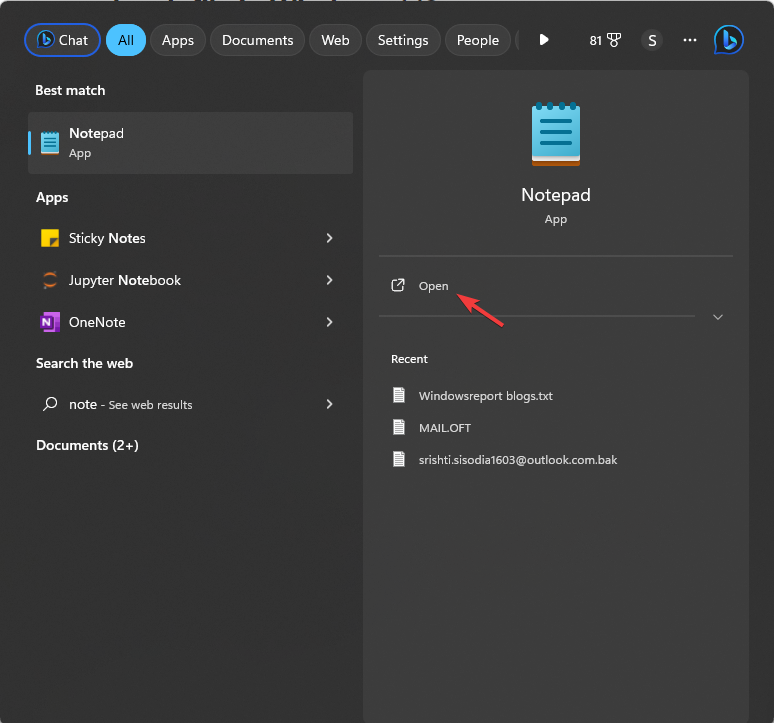
- Press the Windows key, type notepad, and click Open.
- Type the following lines:
- @ECHO OFF
ECHO Hi, this is my first batch file.
PAUSE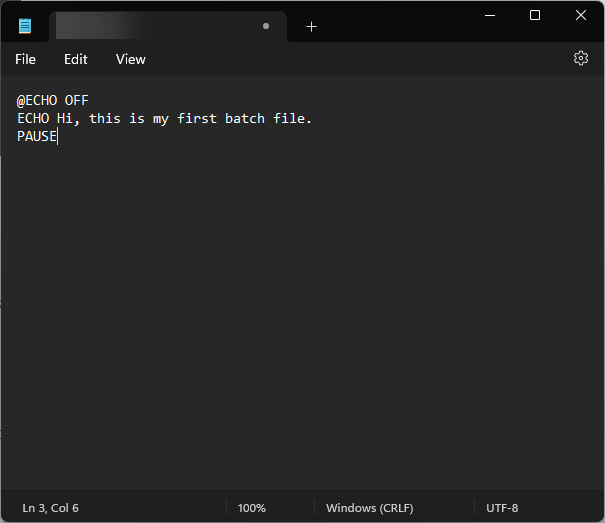
- @ECHO OFF
- Here @ECHO OFF – Disables the display prompts & shows content; ECHO – Prints the text after the space; PAUSE – Keeps the window open after executing commands.
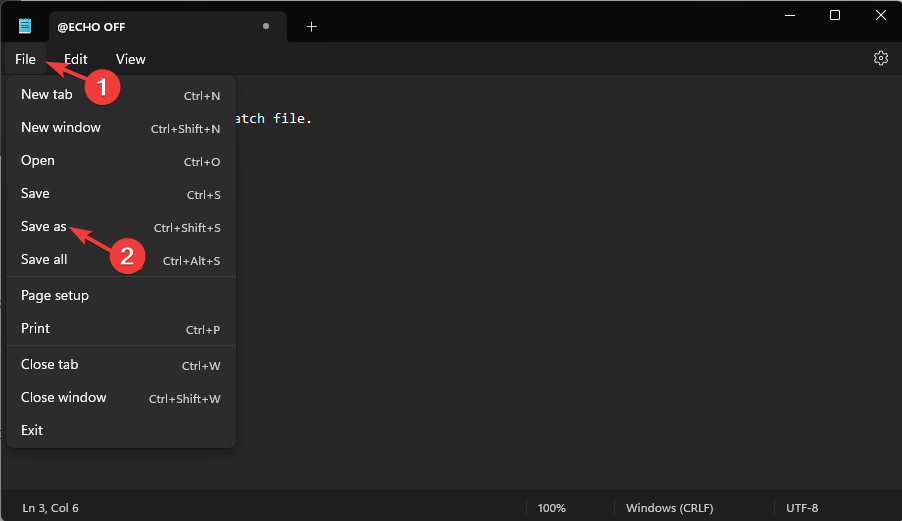
- Go to File and click Save as.
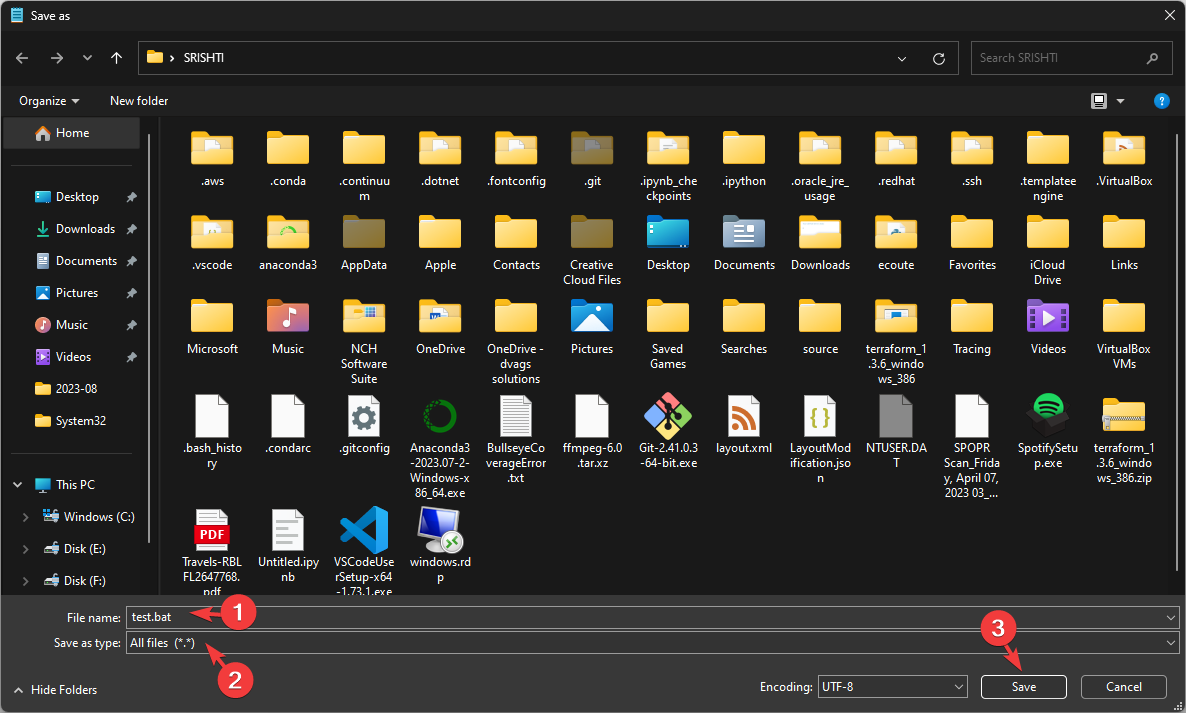
- Name the file Test.bat, and for Save as type, select All files, then click Save.
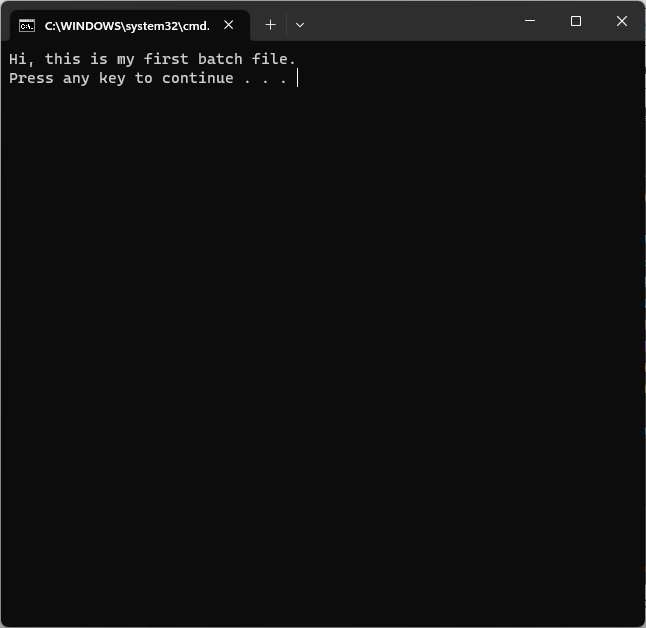
- Once created, locate the file and double-click to open it. On the Command Prompt window, you will see the Hi, this is my first batch file message.
You can also save the .reg files in .bat file format to automate the modification of your registry files, which can minimize the risks involved.
2. Access network drives and folders
- Press the Windows key, type notepad, and click Open.
- Type the following line after replacing the driver letter F with the one you want: Echo Create new F: drive mapping
- Copy & paste the following command after replacing the Network path with the path you want to map to: @net use F: \Network path /persistent: yes
- Repeat the process if you want to add multiple drives. Type the following lines:
- : exit
@pause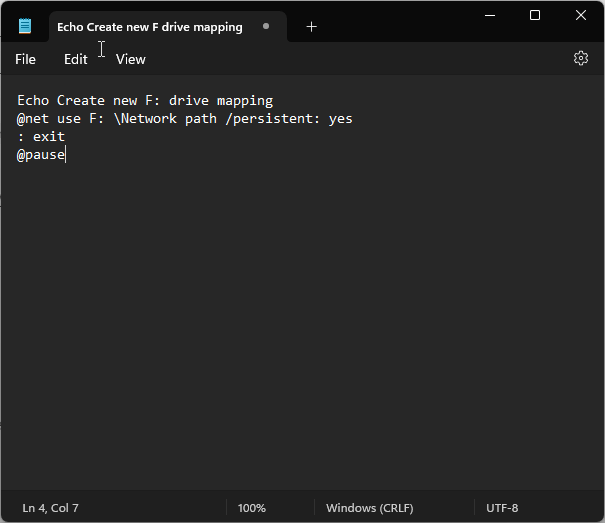
- : exit
- Click File, then choose Save As. Now name the file and add a .bat extension. For Save as type, select All files, then click Save.
- Once the file is created, locate and double-click it to execute the task.
3. Add user inputs
To create a batch file that takes user input and displays a customized message, follow these steps:
- Press the Windows key, type notepad, and click Open.
- Type the following script:
- @echo off
: start
set /p input = Enter the Name:
echo %input% We are thrilled to welcome you to the event!
pause
go to start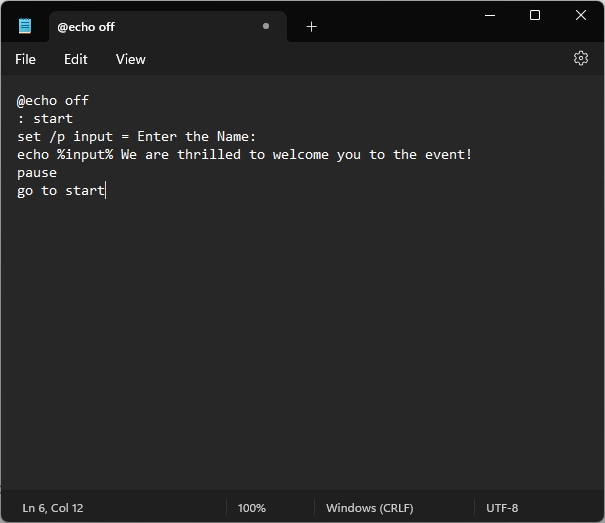
- @echo off
- You can change the Enter the Name instruction and the personalized message you see after that as per your task & preferences.
- Click File, then Save As. Name the file, add a .bat file extension and for Save as type, select All files, then click Save.
- Once the file is created, locate and double-click it to open it in the Command Prompt & execute the task.
4. Automate repetitive tasks
- Press the Windows key, type notepad, and click Open.
- Here, we will show you how we automated the process of opening frequently used apps on our computer.
- This is the script we used to open Google Chrome, Word, Slack, and ShareX:
- @echo off
cd «C:\Program Files\Google\Chrome\Application\chrome.exe»
start chrome.exe
start – «C:\Program Files\Microsoft Office\root\Office16\WINWORD.EXE»
cd «C:\Program Files\ShareX\ShareX.exe»
start ShareX.exe
Exit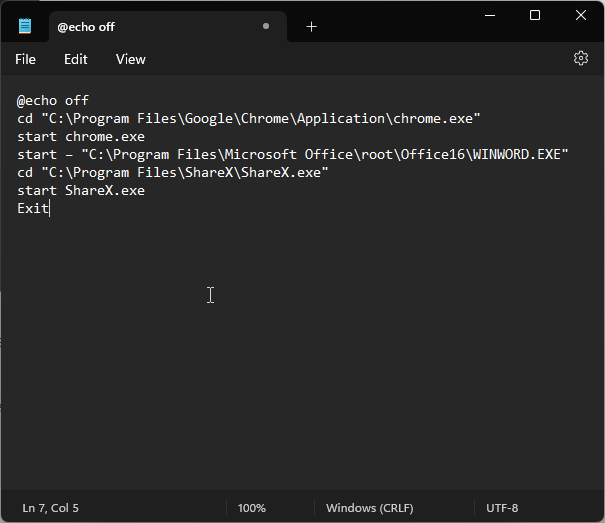
- @echo off
- You can use the script, but replace the app path with the one you want to open. Click the File menu and choose Save As.
- Name the file, add a .bat extension, for Save as type, select All files, then click Save.
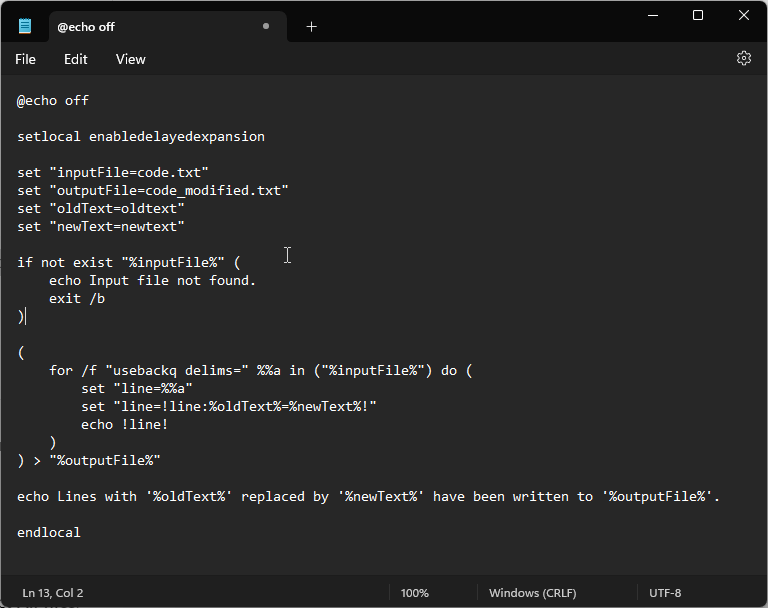
5. Edit lines of code with the command window
- Press the Windows key, type notepad, and click Open.
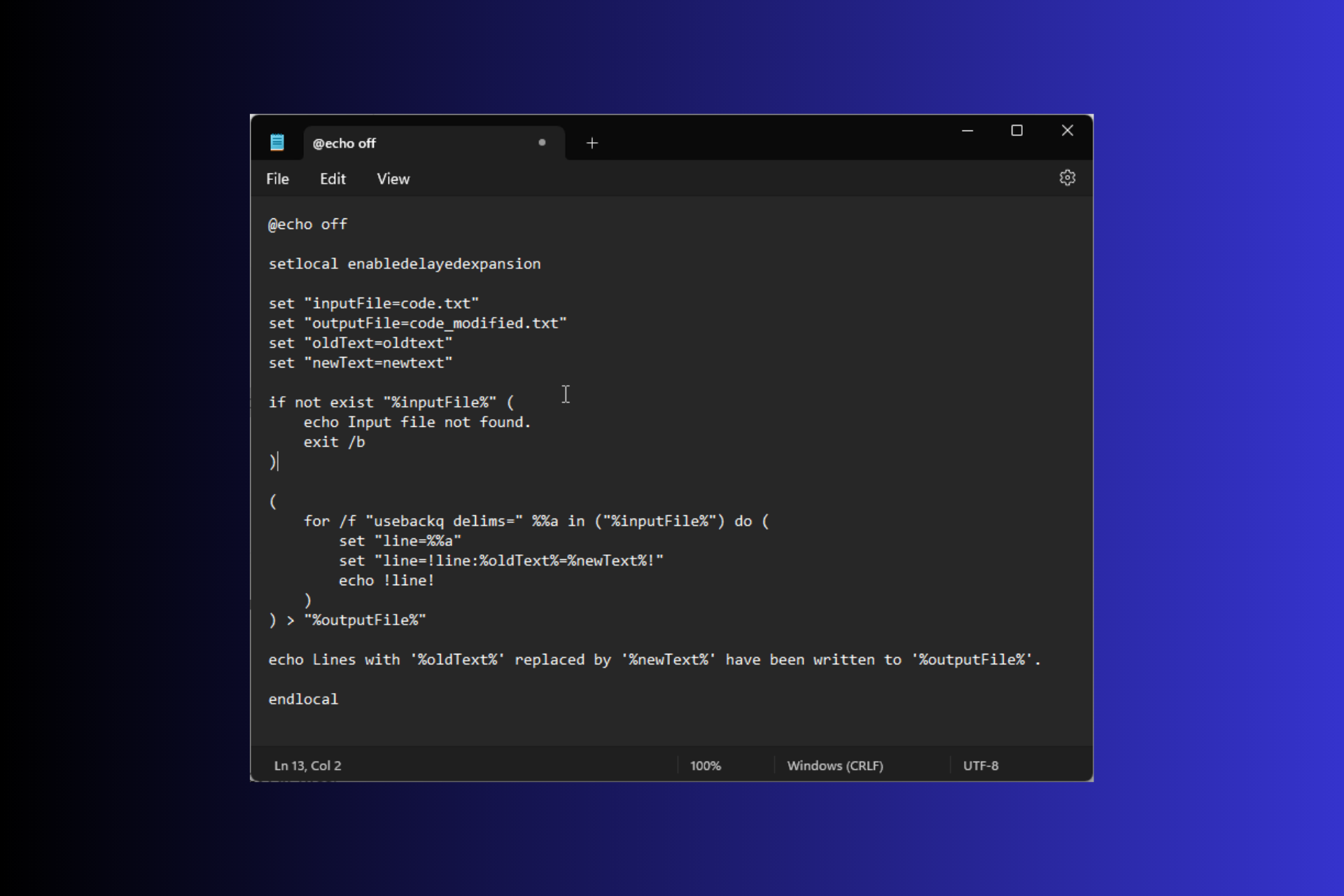
- This script can help you replace lines in a simple code; let’s assume you have a file named code.txt, which has oldtext mentioned multiple times, and you want to replace it with newtext.
- For that, you can use this script:
You need to change code.txt with your file name and replace oldtext and newtext with the lines you want to use.
Now save the file using these steps:
- Click File and choose Save As. Name the file, add a .bat extension, for Save as type, select All files, then click Save.
- Locate and double-click the file to open it in the Command Prompt window & execute the task.
Now that you have created .bat file, you can use the Windows Task Scheduler to schedule it to run automatically at specific intervals.
How do I edit a batch file in Windows 11?
To edit a batch file, you can open Notepad and click File>Open, or you can locate and right-click the file and choose Edit from the context menu.
You can make the required changes once the file is opened in Notepad. Once edited, click Ctrl + S to save the changes.
To run the batch file in Windows 11, you can locate it in the File Explorer window and double-click it or open Command Prompt and use the cd command to go to the folder where the batch file is located, then type the batch file name and press Enter.
You should always save the batch script file to an accessible location like your user account’s Document or Desktop folder.
Remember that the batch files can execute commands, interact with your system, automate tasks, and edit simple codes; however, if you want to do sophisticated editing or code manipulation, we suggest you use a programming language like Python or PowerShell.
What tasks would you carry on using batch files? Feel free to mention them in the comments section below.
Как создать BAT файл в Windows 11 или Windows 10
В статьях по настройке операционной системы Windows 11 или Windows 10 часто можно встретить рекомендацию создать BAT файл, записать в него определенные команды и выполнить. Но, при этом, далеко не всегда объясняется, что это такое, как оно создается и запускается.
В данной инструкции мы постараемся закрыть данный вопрос. Здесь вы узнаете, что такое BAT файл, как создать BAT файл в Windows 11 или Windows 10, а также как его редактировать и выполнять.
Что такое BAT-файл в Windows 11 или Windows 10
 BAT файл (или пакетный файл) – это текстовый документ с расширением « .BAT », в котором хранится список команд для выполнения командным интерпретатором операционной системы. Запуск такого файла позволяет выполнить все сохраненные в нем команды одна за одной. Пакетные файлы используются для запуска программ и автоматизации рутинных или часто повторяющихся задач. Например, с помощью BAT можно организовать регулярную очистку временных папок, создание резервных копий, редактирование реестра, а также решение других задач по системному администрированию Windows 11 и Windows 10.
Поддержка BAT файлов в операционных системах Microsoft появилась еще в MS-DOS, в которой команды выполнялись командным интерпретатором « COMMAND.COM ». Данный интерпретатор также присутствовал и в операционных системах семейства Windows 9x, но с приходом Windows NT был заменен на « cmd.exe ».
Интерпретатор « cmd.exe » сохранил совместимость с « COMMAND.COM », а также получил ряд новых функций. В частности, он получил поддержку расширения « .CMD ». В результате в современных версиях Windows для пакетных файлов можно использовать как старое расширение « .BAT », так и новое « .CMD ».
Создание BAT файла через Блокнот
Самый простой вариант создания BAT файлов в Windows 11 и Windows 10 — это создание через « Блокнот » или другой простой текстовый редактор . Например, можно использовать Notepad++ или Akelpad.
Чтобы запустить « Блокнот » можно воспользоваться поиском в меню « Пуск » или нажать комбинацию клавиш Win-R и выполнить команду « notepad ».
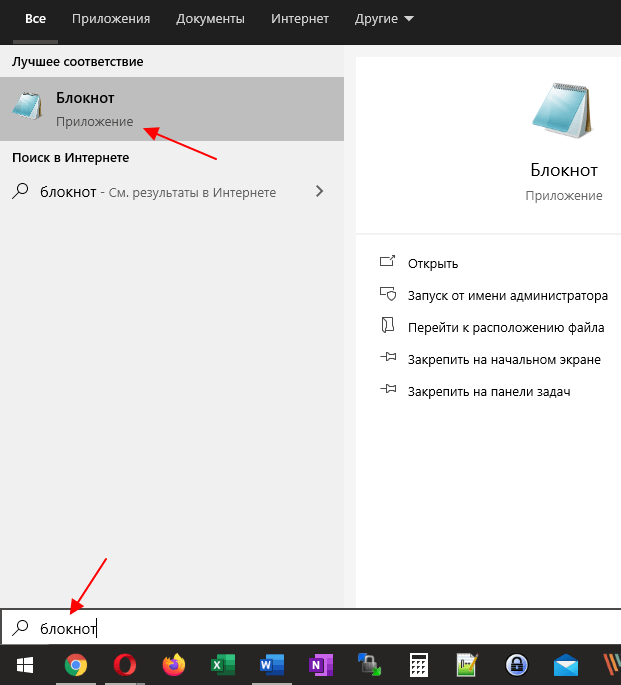
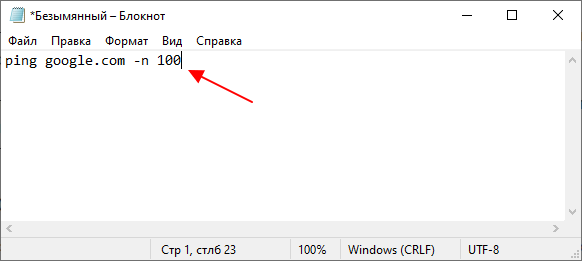
После открытия программы « Блокнот » в нее нужно вставить команды для выполнения. Для примера введем команду, которая выполнит 100 запросов ping к домену Google.
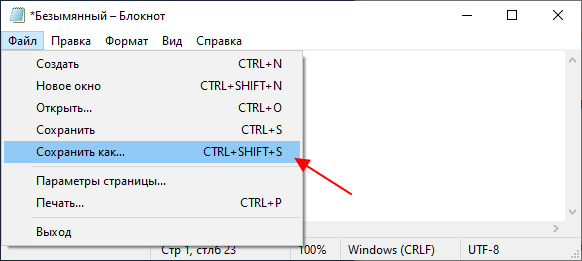
После ввода команд, документ нужно сохранить с расширением BAT. Для этого открываем меню « Файл – Сохранить как » или используем комбинацию клавиш Ctrl-Shift-S.
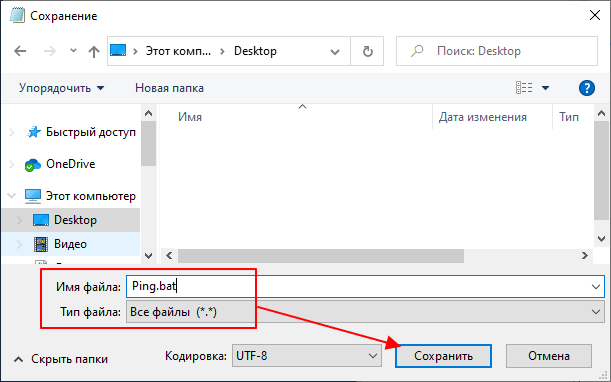
Дальше откроется стандартное окно для сохранения документов. Здесь нужно указать папку для сохранения, выбрать « Тип файла – Все файлы (*.*) » и ввести имя с расширением BAT (.bat). Например, можно ввести « Ping.bat ».
Обратите внимание, если вы запустили « Блокнот » без прав администратора, то сохранить документ на системный диск ( C:) не получится. В этом случае его можно сохранить в папку пользователя или на другой диск и потом переместить.
После сохранения в выбранной вами папке появится готовый к использованию BAT файл.
Создание BAT файла переименованием TXT
Также в Windows 11 и Windows 10 можно создавать BAT файлы с помощью переименования обычных текстовых файлов (с расширением *.txt). Другими словами, вы можете сначала создать обычный текстовый документ с расширением TXT, сохранить в него все нужные команды, и уже потом превратить его в исполняемый пакетный файл изменив расширение с TXT на BAT.
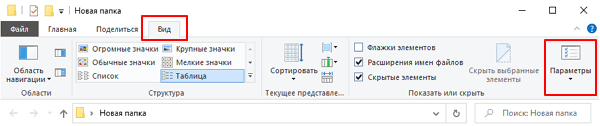
Чтобы воспользоваться этим способом необходимо включить отображение расширений в окне « Параметры папок ». В Windows 10 для этого нужно открыть любую папку, перейти на вкладку « Вид » и нажать на кнопку « Параметры ».
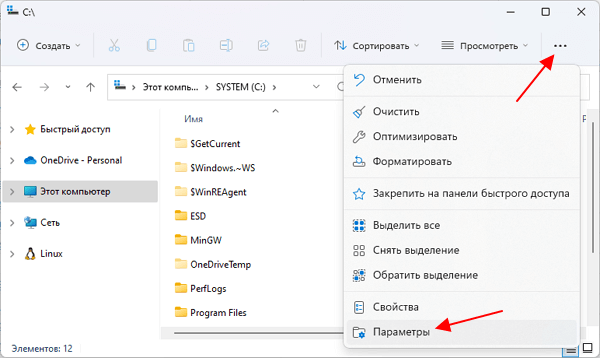
В Windows 11 для этого нужно открыть любую папку, нажать на кнопку с тремя точками и в открывшемся меню выбрать « Параметры ».
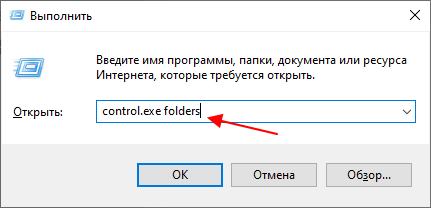
Также « Параметры папок » можно открыть с помощью меню « Выполнить ». Для этого нужно нажать комбинацию клавиш Win-R и ввести команду « control.exe folders ».
Какой бы вы способ не выбрали, перед вами откроется окно « Параметры папок ». Здесь нужно перейти на вкладку « Вид » и отключить функцию « Скрывать расширения для зарегистрированных типов ».
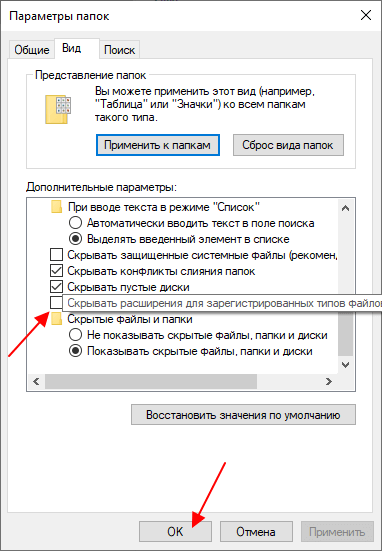
После этого, при переименовании вы сможете изменять расширение.
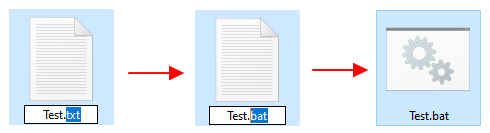
Изменив расширение с TXT на BAT вы получите исполняемый пакетный файл.
Редактирование созданных BAT-файлов
Для того чтобы отредактировать уже созданный BAT-файл его нужно открыть в любом простом текстовом редаторе (например, в Блокноте, Notepad++ или Akelpad). Чтобы отредактировать BAT с помощью Блокнота достаточно кликнуть по нему правой кнопкой мыши и выбрать пункт « Изменить ».
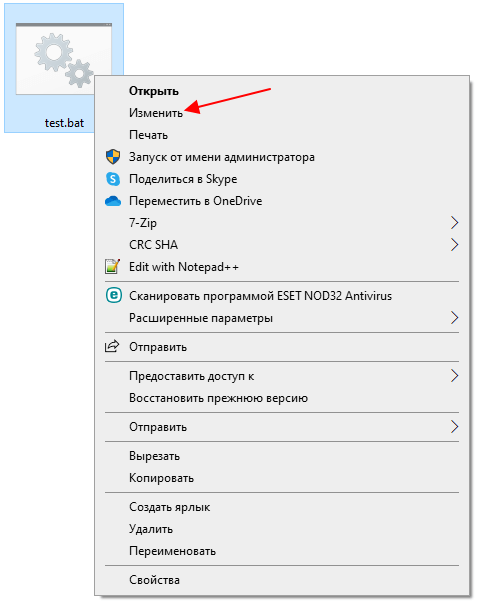
После этого выбранный файл откроется в программе Блокнот и вы сможете отредактировать его содержимое.
Создание BAT файлов для запуска программ
В BAT файле вы можете использовать любые команды, которые могут быть выполнены при помощи « Командной строки » Windows 11 или Windows 10. Но, BAT-файлы также могут использоваться для запуска программ и приложений.
Для запуска программ c помощью BAT файла нужно использовать команду « start ». Ниже показано, как выглядит формат записи данной команды.
Например, для того чтобы запусть браузер Google Chrome нужно выполнить:
При необходимости можно укзать полный путь к программе, которую нужно запустить:
Для запуска других пакетных файлов нужно использовть команду « call ». Ниже показано, как выглядит формат записи данной команды.
Например, для того чтобы запустить пакетный файл « test.bat », который находится на рабочем столе, нужно выполнить:
Другие команды для BAT файлов
Вывод текста . Для вывода текстовых сообщений на экран необходимо сначала включить режим отображения вводимых команд (команда « echo ON »), а потом вывести сообщение (команда « echo »). Например, для того чтобы вывести сообщение « Hello CMD » нужно выполнить следующие команды:
Также в BAT файлах часто используется команда « @echo off ». Данная команда наоборот, отключает вывод выполняемых команд на экран, а знак « @ » предотвращает вывод самой команды « echo ».
Остановка выполнения . При выполнении пакетного файла может понадобится временная остановка, например, для того чтобы просмотреть результаты. Для такой остановки используют команду «@pause».
Работа с переменными . Для работы с переменными в BAT используют команду « set ». С помощью данной команды можно создать новую переменную или переопределить уже существующую. Например, для того чтобы создать переменную « Name » и присвоить ей значение « Ivan » нужно выполнить следующую команду:
Операции с файлами и папками . Кроме этого в BAT часто используют команды для работы с файлами. Ниже мы рассмотрим несколько самых популярных из них.
- MD — Создание папки;
- RD — Удаление папки;
- CD — Смена текущей папки;
- MOVE — Перемещение или переименование папки;
- XCOPY — Копирование структур папок;
- COPY CON — Создание файла;
- TYPE — Вывод содержимого файла на экран;
- DEL — Удаление файла;
- COPY — Копирование или обьединения файлов;
- MOVE — Перемещение или переименование файла;
- REN — Переименование файлов;
- Как закрепить BAT-файл на панели задач или в меню «Пуск»
- Как переименовать файл (папку) в командной строке Windows 10, 7
- Выключение компьютера через командную строку
- Как перезагрузить компьютер через командную строку
- Как вызвать командную строку в Windows 7
Создатель сайта comp-security.net, автор более 2000 статей о ремонте компьютеров, работе с программами, настройке операционных систем.
Задайте вопрос в комментариях под статьей или на странице «Задать вопрос» и вы обязательно получите ответ.
How To Create And Run Batch Script File On Windows 11?

A Batch file is a complex file created on Windows OS that helps users to carry out repetitive tasks with one or two mouse clicks. For example, if you wish to clear the temp and junk files of your PC every week, then you have to navigate to some specific folders and select the files and delete them. But this consumes time and effort and we might even skip doing this sometimes. If you create a Batch file on Windows, then you need to run that file by double-clicking on it and it will automatically delete all the contents of the folders mentioned in the file.
There are many other tasks you can shorten or automate by creating Batch files. So without further ado, let us explore the world of Windows Batch Script and create a few to make life easier.
How To Create An Empty Batch Script File On Windows PC?
First, we will explore the steps to create a basic Batch Script File format that can be used to create other bat files by adding or modifying text within.
Step 1: Open the Notepad app on your PC.
Step 2: Add the following command in the notepad file:
Title [Write the title of your Batch Script]
Step 3: Click on the File tab and choose Save As from the drop-down menu. Enter the file name followed by “.bat”. Also, choose the location where you wish to save this file from the section above.
Step 4: In the save as type box, choose All Files and click on the Save button.

Step 5: Make double-click on the Bat file you just created and it will execute. You can also right-click on it and select Open.

Step 6: If you wish to edit this Bat file then you can make right-click on the file and select Edit from the context menu.

Here is an example of a basic bat file that you can start with.

Once you run this batch file, this is what you will see.

Please don’t get disappointed by the end result just yet. You need to understand that the first batch script we created had only four lines including the opening, the closing line, and the Title. The only command line in this script was “Echo” which means to display something and that is what this Batch file just did.
Some Examples Of Useful Batch Files That You Can Create
Now that you know how to create and run a Batch script file, let us check a few examples of some useful batch files that you can actually create. Remember, a batch file uses the same command as the Command Prompt, without having to open the Command Prompt app.
Example 1: Open Multiple Websites With A Double-Click
If the first thing you do every morning is to open a few websites on news, stocks, gossip, YouTube, etc. then you can reduce the task effort by creating a Bat file. Instead of clicking on website shortcuts on your desktop or opening each website in the browser by typing its address, you can reduce the task to a double click on a batch script file. Here is the batch file:
Note: You need to copy and paste the above lines in a Bat file and execute it by double-clicking on it. All the websites listed in the command will open in different tabs of one browser window of your default browser.
You need to change the websites according to your needs. Remember to delete the websites mentioned from “Http” and click on the address bar of the website you wish to add and copy and then paste the address after Start””.
Example 2: Launch Multiple Programs
If there are a few apps that you regularly use and want to open all of them in one go, here is a batch script file for that. I have mentioned 3 apps namely Calculator, Command Prompt, and MS Word as I use these apps quite frequently. You can mention any number of apps of your own choice.
cd “C:\Program Files\Microsoft Office\root\Office16\”

Note: You need to specify the path of the executable file of the app you wish to open in the first line beginning with “cd”. And then mention the name of the executable file after “Start” to launch the app.
The Final Word On How To Create And Run Batch Script File On Windows 11?
It is not easy to create an advanced batch file. You need to know what command would work and how to place them in the bat file. You also need to research and gather information from Google and other sources. Once you successfully create a batch file, you are going to enjoy using it as it reduces the time and effort required to do everyday’s tasks.
Please let us know in the comments below if you have any questions or recommendations. We would be delighted to provide you with a resolution. We frequently publish advice, tricks, and solutions to common tech-related problems. You can also find us on Facebook, Twitter, YouTube, Instagram, Flipboard, and Pinterest.
People Who Read This Post Also Like
How To Reset Power Plans To Default In Windows?
How To Fix No DP Signal From Your Device On Dell Monitor?
How to Remove a Rapid Security Response Update from Your iPhone and Mac
Leave a Reply Cancel reply
Recent Posts
AI Takes Center Stage at Zoom: Meet the Generative AI Assistant
How To Reset Power Plans To Default In Windows?
How To Fix No DP Signal From Your Device On Dell Monitor?
SwifDoo PDF Editor Review for Windows 11/10
ChatGPT Meets Canva – ChatGPT Now Collaborates Seamlessly with Canva
Subscribe & be the first to know!
Signup for your newsletter and never miss out on any tech update.
All product names, trademarks and registered trademarks are property of their respective owners. All company, product and service names used in this website are for identification purposes only. Use of these names, trademarks and brands does not imply endorsement. WeTheGeek does not imply any relationship with any of the companies, products and service names in any form.
WeTheGeek is an independent website and has not been authorized, sponsored, or otherwise approved by Apple Inc.
WeTheGeek is not affiliated with Microsoft Corporation, nor claim any such implied or direct affiliation.
Disclaimer Last updated: January 01,2023 The information contained on wethegeek.com website (the “Service”) is for general information purposes only. Wethegeek.com assumes no responsibility for errors or omissions in the contents on the Service. In no event shall wethegeek.com be liable for any special, direct, indirect, consequential, or incidental damages or any damages whatsoever, whether in an action of contract, negligence or other tort, arising out of or in connection with the use of the Service or the contents of the Service. Wethegeek.com reserves the right to make additions, deletions, or modification to the contents on the Service at any time without prior notice. Wethegeek.com does not warrant that the website is free of viruses or other harmful components.External links disclaimer Wethegeek.com website may contain links to external websites that are not provided or maintained by or may not be in any way affiliated with wethegeek.com. Please note that the wethegeek.com does not guarantee the accuracy, relevance, timeliness, or completeness of any information on these external websites.
Please note that wethegeek.com may receive commissions when you click our links and make purchases. However, this does not impact our reviews and comparisons. We try our best to keep things fair, objective and balanced, in order to help you make the best choice for you.
Copyright © Wethegeek.com , 2023 All rights reserved.

 Subscribe Now & Never Miss The Latest Tech Updates!
Enter your e-mail address and click the Subscribe button to receive great content and coupon codes for amazing discounts.