How to Fix uTorrent not Responding (Solved)?

Do you get a message like ‘It seems like uTorrent is already running, but not responding’ whenever you are trying to download stuff online? Are you not sure what to do when uTorrent stops responding midway? uTorrent is one of the most used clients for downloading data globally. Despite intense competition, it has managed to rank above its rivals. However, there are certain times when the uTorrent gets into a non-responsive state.
This issue has become very common nowadays, and every uTorrent user must have faced it at least once in a while. Check out Easy And Effective Ways To Download Movies Using Torrent ( Easy Guide)
Table of Contents
How to Fix uTorrent not Responding (Solved)
So, read this article to know about the ways of fixing uTorrent when it is not responding.
Solution 1: Functioning as Administrator
uTorrent often faces massive network traffic over several systems. People mainly use this client to download several gigabytes of data. However, when the software is involved in a vast data flow, it is customary to get blocked or stop functioning in terms of permission. Therefore, Administrative access is a necessity for such clients. This is to ensure that uTorrent works at the expected level. Hence, the following steps will guide you by enabling running uTorrent as an administrator permanently.
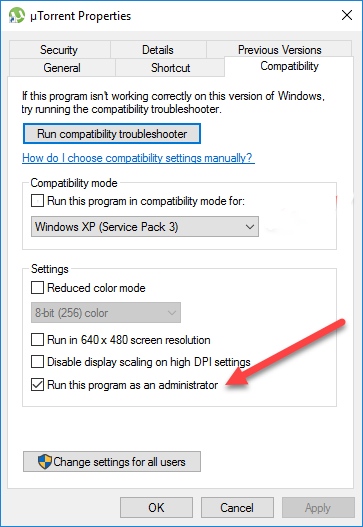
- Find uTorrent on your device, right-click on it and choose the ‘Properties’ option.
- Select the Compatibility tab in the Properties window and click on the ‘Run this program as an Administrator’ option.
- The next step is to press Apply to save the changes. Restart your device and start uTorrent once more. Check whether the problem is solved or not. You can always revoke the administrator permission according to your need.
Solution 2: Delete Downloading Files
Deleting the current downloading files is another process that has proven beneficial for many users. This process is simple. Just navigate to the download directory in uTorrent and delete the downloading files. Close uTorrent after this.
When you relaunch uTorrent, the files that were getting downloaded are shown missing. The software will show an error or will try to download those files again. This solution is beneficial for the unresponsiveness issue caused by the corrupted downloading files.
Solution 3: Stopping Proxy Servers
Proxy servers are mainly used in networks present in public places or an organization. They are used for granting fast internet service by caching elements that are accessed often. However, although this system is used worldwide, it can cause problems for network applications like uTorrent. Therefore, when using uTorrent in a place where proxy servers are necessary, you should change the network. The process for disabling proxy servers in computers are:
- At first, press Windows + R on your home screen to open the Run window. Type ‘inetcpl.cpl‘ in the Run box and click Enter.
- After the Internet Properties window opens, click on the Connection tab. Then select LAN Settings.
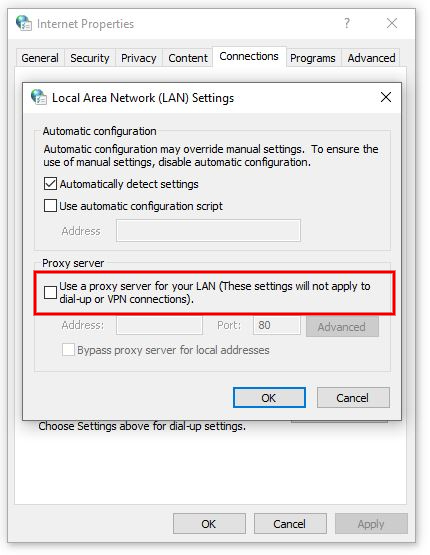
- If you are connected with a proxy server, you can see the fields checked. Uncheck every enabled proxy server. Then restart uTorrent and check if the issue persists.
Solution 4: Uninstalling Windows KB4338818 Update
The Windows Update KB4338818 is another issue that throws uTorrent into an unresponsiveness state. It generates a problem with the client. Therefore, the only solution, in this case, is to uninstall the update. Uninstalling will also change your system into the previous version. When the uTorrent developers roll out an official fix for the client creating an issue with this particular update, you can again update your Windows and continue. The steps for uninstalling the KB4338818 update are:
- After creating a backup of your data, press Windows + I to run the Settings application. Then select ‘Updates and Security’.
- Click on Update History.
- Once inside the Update History window, search for the ‘Uninstall Updates’ option present at the top of the display. Click on it.
- Navigate to Microsoft Windows. Look for the updates. Right-click on the KB4338818 update and press Uninstall.
- Windows will then start uninstalling this particular update, followed by some restarts. Open uTorrent to check whether the issue remains after the uninstallation is completed. If the problem persists, reinstall uTorrent.
Solution 5: Making Firewall Accessible
A firewall acts as a protecting barrier between the internet and your computer. Every traffic goes through the Firewall. Hence, if the Firewall has restricted accessibility for an application, it will not communicate over the internet. Although in most cases, uTorrent has permission in the Firewall, there can be cases where licenses for private and public networks are not the same. Therefore it is essential to check this.
- Press Windows + S on your home screen and type ‘firewall’ in the dialogue box. Pressing Enter will launch the Settings application.
- Click on ‘Allow an app through firewall‘.
- Then click on ‘Change Settings’. From the list that appears, select uTorrent. Check both the Public and Private options.
- Save the changes and click on the ‘Exit’ option. Restart your device and rerun uTorrent to check whether the problems are still there or not.
Solution 6: Installing or Reinstalling Older Version
Often when using a beta client of uTorrent, there are chances that you will get the ‘not responding’ error message. Beta version of any application is useful for testing purposes. Therefore, whenever an application doesn’t respond, an error report goes to the developers. The developers then use this report to improve the system. Hence, the ideal move is to uninstall the existing version you use and install an older version of uTorrent. Moreover, you can also reinstall the latest version.
- Press Windows + R for opening the Run window. Write ‘appwiz.cpl‘ in the Run box and press Enter.
- After the Application Manager window opens, navigate to uTorrent. Right-click on it and press Uninstall.
- The next step is to exit the Application Manager and restart your device. Then download the latest version of uTorrent from the official site and install it. You can also install an older version from any third-party website.
Therefore, these are the ways to fix uTorrent when it gets into an unresponsive state. Hence, you can try these fixes to solve your uTorrent issues and enjoy uninterrupted downloading.
Fix: uTorrent not Responding
uTorrent is one of the most used torrent clients in the global market with its reach pertaining up to thousands of customers. It has very competitive rivals but it sustained its position on the internet while also offering the application on different platforms such as Android, Mac, Windows etc.
 uTorrent not Responding
One specific issue which is very common with the uTorrent client is it getting into a non-responsive state. This is a very common scenario and occurs to almost every user now and then. In this article, we will go through the causes of why the application misbehaves and later go through the solutions which you can use to solve it. This not responsive issue is often accompanied by the error message “It seems like uTorrent is already running, but not responding”.
What causes uTorrent to go into an Unresponsive state?
There are several different reasons why uTorrent might get into an unresponsive state ranging from permission issues to internal bugs in the application. After going through various user reports and replicating the conditions in our test PCs, we gathered several causes why this behavior occurs. Here are some of them:
- Administrative Privileges: It is seen that the uTorrent client requires elevated access in order to download data without any barriers from the firewall or have issues with accessing the hard drive.
- Windows Firewall: If Windows Firewall is blocking the internet traffic of uTorrent, the client might misbehave and cause various issues. Here you have to manually navigate to the Firewall and make sure the client is whitelisted.
- Windows update: Some Windows updates were observed to conflict with the uTorrent client. These were specific updates and until the official fix is launched by the uTorrent publisher, the only method is to uninstall the update.
- Corrupt AppData: uTorrent’s local configuration files might have gotten corrupt. If the configuration files are corrupt, the client will not be able to load all the pre-saved data and cause various issues such as not responding.
- Proxy servers: A unique case was observed where the use of proxy servers had effects on the client’s behavior. Proxy servers are known to improve the existing network architecture but they also conflict and cause problems with network related applications such as uTorrent.
- Bad uTorrent Files: Sometimes the very installation files of uTorrent client get corrupt and cause related issues. Reinstalling the application usually solves this problem.
Solution 1: Running as Administrator
As you all might already know, uTorrent has huge network traffic over your computer and people usually use the client to download gigabytes of data. When an application is transferring this much data, it is sometimes blocked or is choked down the permissions drain. Administrative privileges are a must for these kinds of applications because if they do not get an elevated status, they will not perform as expected. In this solution, we will enable an option which will permanently get uTorrent to run as an administrator until you turn the option off again.
- Locate the uTorrent client, right-click it and select Properties.
- Once in the properties window, navigate to the compatibility tab and select Run this program as an administrator.
 Running uTorrent as Administrator
 - Press Apply to save changes and exit. Restart your computer and launch uTorrent again. Check if the issue is resolved.
Solution 2: Disabling Proxy Servers
Proxy servers are used in some networks (most organizations or public places) where they are used to provide faster internet by caching elements which are accessed frequently. This mechanism is used throughout the world but to this date, it is known to conflict with network applications (including uTorrent). If you are using uTorrent in an organization where proxy servers are mandatory, it is recommended that you change the network and try again. Here is the method to disable the proxy server in your computer.
- Press Windows + R, type “inetcpl.cpl” in the dialogue box and press Enter.
- Now Internet Properties will be opened. Click on the tab Connections and then LAN settings.
- Now if you are using a proxy server, the field will be checked with the details inside. Uncheck any proxy servers if enabled. Now restart the application and check if the issue is resolved.
Solution 3: Deleting AppData
Like all other applications, uTorrent also creates temporary user data for use in its running processes. These user configuration files can get corrupt easily and feed bad data to the application whenever it runs. Think of these user configurations as the main data sources which the application loads up before it launches on your computer. If the very data sources are corrupt, uTorrent will load bad data and cause issues like the one under discussion. In this solution, we will navigate to the application configurations folder and delete uTorrent’s data from there.
- Press Windows + R, type “%AppData%\utorrent” in the dialogue box and press Enter.
- Now delete all the contents of the folder present. After you have deleted the files, restart your computer and launch uTorrent again.
The client will take a while as it will be rebuilding all the configuration files which we deleted. Be patient and check if the issue is resolved.
Solution 4: Granting Access in Firewall
Firewalls are a shield between your computer and the internet. All of your traffic passes through Firewall and if Firewall has restricted access of an application, the application will not be able to communicate over the internet. Usually, uTorrent has the permissions in the Firewall but there are several cases where permissions in public and private network are different. In this solution, we will open your Firewall settings and see if uTorrent has complete access.
- Press Windows + S, type “firewall” in the dialogue box and open the Settings application.
- Once the Firewall settings are launched, click on the option Allow an app through firewall.
- Now click on the option of Change Settings and locate uTorrent from the list of entries. Make sure that you check both the options of private and public.
- Save changes and exit. Restart your computer and launch uTorrent again. Check if the issue is resolved.
Solution 5: Deleting Downloading Files
Another workaround which worked for several users was deleting the currently downloading files. Here you have to navigate to the download directory where uTorrent is downloading the files and delete all the files.
Later on, when you launch uTorrent again, it will notice that the files it was downloading are missing and it will either attempt to show an error or try to download the files all over again. This solution solves the issue of not responding if the downloading files were corrupt or were causing the issue.
Solution 6: Creating a new User Account
User profiles are known to get corrupt and applications often run into errors and not responding situations like the one under discussion. Here what you can do is create a new user account and see if uTorrent works properly in it. If it does, it means that your user account was corrupt and you can continue to transfer all your data to the new account and delete the older one.
Note: It is wise to back up your entire data files to an accessible location before proceeding.
- Open an administrator account. Type Settings in the start menu dialogue box and click on Accounts.
- Now click “Family and other users” options present at the left side of the window.
- Once inside select the menu, select “Add someone else to this PC”.
- Now Windows will guide you through its wizard on how to create a new account. When the new window comes forth, click “I don’t have this person’s sign-in information”.
- Now select the option “Add a user without Microsoft”. Windows will now prompt you to make a new Microsoft account and display a window like this.
- Enter all the details and chose an easy password which you can remember.
- Check thoroughly if this new local account is working properly and has all the functionalities which you require.
- Your local account is now created. Log into the account and launch an instance of uTorrent. Check if it works properly there.
If the client works as expected, you can move on and migrate all your data.
Solution 7: Reinstalling/Installing Older Version
If you are using a beta client of uTorrent, chances are that you will be getting the not responding error message. Beta versions are meant for testing purposes and whenever the application goes into a not responding state, an error report is sent to the developers who use the information to improve their products. You can uninstall the current version of uTorrent and install an older stable version in your computer.
Furthermore, you can also simply try reinstalling the latest version without getting into the hassle of obtaining an older version on the internet. If the current version doesn’t work, you can try older versions and see if this does the trick for you.
- Press Windows + R, type “appwiz.cpl” in the dialogue box and press Enter.
- Once in the application manager, search for the entry of uTorrent, right-click on it and select Uninstall.
- After uninstalling the application, restart your computer and either download the latest version from the official uTorrent website or navigate to third-party websites and install an older version.
Solution 8: Uninstalling Windows Update KB4338818
Like mentioned at the start, there was a Windows Update (KB4338818) which was known to be problematic and caused issues with the uTorrent client. The only solution is to uninstall the installed update and revert to the previous version. Later on, when the uTorrent developers launch an official fix for the client misbehaving with this specific update, you can continue and update your Windows again.
Note: Make sure that you backup your data and information before proceeding.
- Press Windows + I to launch the Settings application. Now select Updates and security from the list of sub-headings.
- Now click Update history from the list of options.
- Now click on Uninstall updates present at the top of the screen.
- Navigate down to Microsoft Windows. Here all the updates will be listed down. Right-click on the update and select Uninstall.
- Now Windows will attempt at uninstalling the update. A few restarts will occur. After the uninstalling process is complete, launch uTorrent and check if this solved the issue. If not, reinstall uTorrent and try again.
Solution 9: Using BitTorrent
BitTorrent and uTorrent belong to the same family and almost have the same features. If you are constantly experiencing issues with uTorrent, you can go ahead and ditch the uTorrent client and use BitTorrent. According to our survey, we noticed that BitTorrent is a lot more stable and didn’t face unstable issues which uTorrent does. You can launch the same magnets and torrent files using BitTorrent as well.
Торрент выдает ошибку it seems like utorrent is already running but not responding

Здравствуйте. Многие из нас привыкли качать нужный софт, игры, фильмы через торрент. Но иногда при попытке запуска загрузки выскакивает окно с ошибкой «It seems like uTorrent is already running but not responding» что делать? Это довольно распространенная проблема, которая устраняется крайне просто. Расскажу о причинах и способах исправления.

Почему возникает ошибка Torrent
Перевод текста сообщения формулируется следующим образом – «Похоже, что торрент уже запущен, но не отвечает». Очевидно, возникает блокировка приложения, причиной которой могут стать:
- Работающие антивирусные программы;
- Запущенные процессы сторонних утилит;
- Внутренние ошибки uTorrent клиента;
- Сбои операционной системы Виндовс, приводящие к несовместимости конфигураций.
Исходя из перечисленных факторов будем подбирать методы удаления ошибки.
It seems like uTorrent is already running but not responding – как исправить?
Начнём с самых простых и очевидных способов, которые могут помочь в 99% случаев.
- Перезапускаем компьютер. Дело в том, что, если Вы в течении дня работаете за ПК, собирается куча мусора (кеша), который может приводить к различным дефектам. Перезагрузите ПК – и всё наладится (возможно);
- Завершение процесса. Очень эффективный шаг, заключающийся в снятии задачи torrent.exe посредством диспетчера (вызываем его сочетанием клавиш Ctrl + Esc + Shift ):

- Обновление клиента. Бывает так, что Вы используете неактуальную версию торрента, которая не очень «дружит» в Windows Необходимо открыть официальный сайт в браузере, загрузить на диск новый инсталлятор, установить ПО. Подробно об этой процедуре я рассказывал в тематической статье;
- Сторонний софт, вирусы. Если заметили, что ошибка «It seems like uTorrent is already running but not responding» (как перевести на русский я уже рассказывал) появилась после установки определенных программ, то попробуйте их удалить. Также, не помещает проверить систему на наличие фишинговых и рекламных скриптов. Для этого рекомендую применять бесплатный софт AdwCleaner:
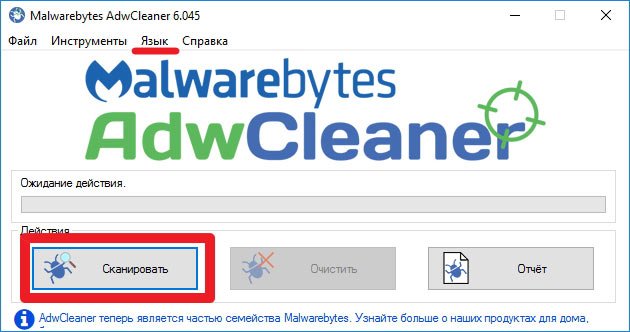
Если в системе имеется установленный антивирус, то он также может блокировать доступ к торренту. Как вараинт, на время отключите защиту. Или же внесите torrent-клиент в перечень исключений (белый список);
- Оптимизация реестра. Если Вы длительное время не чистили файловую систему и реестр ПК, то следует запустить сканирование оптимизатором CCleaner (вот инструкция и ссылка на скачивание). Можно использовать и прочие аналоги, которые найдете в списке лучших приложений –оптимизаторов для Виндовс.
- Ищем решение на официальном форуме. Этот ресурс содержит массу ответов на самые распространенные вопросы пользователей. Я уверен, что там Вы точно найдете методы устранения проблемы «Похоже, что торрент уже запущен, но не отвечает».
Я сам неоднократно сталкивался с сообщением об ошибке «It seems like uTorrent is already running but not responding». Из всех перечисленных методов мне чаще всего приходил на помощь тот, который связан с отключением процесса в диспетчере задач. После «снятия» я снова запускал торрент, и всё работало как надо.
С уважением, Виктор!

Вам помогло? Поделитесь с друзьями — помогите и нам!
Перейти к содержанию
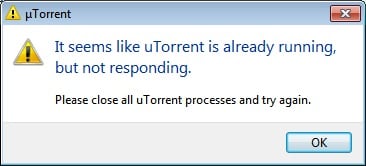
При попытке загрузки какого-либо торрент-файла с помощью популярного торрент-клиента «uTorrent» юзер может столкнуться с месаджем «It seems like uTorrent is already running but not responding», после которого попросту ничего не происходит. Попытки перезагрузить клиент обычно не дают какого-либо ощутимого результата, вынуждая человека искать в сети различные алгоритмы решения проблемы. В этом материале я расскажу, в чём суть данной дисфункции, каковы её причины, и как исправить проблему «uTorrent is already running» на вашем ПК.
- Перевод и причины ошибки в Торрент
- Как исправить дисфункцию «It seems like uTorrent is already running but not responding»
- Заключение
Перевод и причины ошибки в Торрент
В переводе с языка Шекспира текст ошибки звучит как «Кажется, uTorrent уже запущен, но не отвечает» . Обычно это означает ситуацию, при которой система обращается к торрент-клиенту с запросом на обработку торрент-файла, но не получает ответа от указанного клиента по различным причинам. Среди таких причин я бы назвал следующие:

- Случайный сбой в работе пользовательского ПК;
- Сбой в работе торрент-клиента;
- Жесткий диск перегружен 100% в uTorrent;
- Нормальную работу торрент-клиента блокируют антивирус или брандмауэр (в частности, этим отметился брандмауэр «ZoneAlarm»);
- В некорректной работе торрент-клиента виновата одна из установленных недавно программ;
- Корректной работе клиента мешает вирусный зловред;
- На пользовательской машине установлена устаревшая версия торрент-клиента.
Как исправить дисфункцию «It seems like uTorrent is already running but not responding»
Для решения проблемы рекомендую выполнить следующее:
- Закройте процесс(ы) торрент-клиента в Диспетчере задач. Нажмите на кнопку «Пуск», в строке поиска введите taskmgr и нажмите ввод. Перейдите во вкладку процессов, найдите там соответствующий торрент-процесс (к примеру, это uTorrent), и закройте его (снимите задачу). Затем попробуйте заново скачать требуемый торрент-файл, проблема может быть уже решена;
- Если предыдущий совет не помог, попробуйте просто перезагрузить вашу машину. Если проблема имела стохастический характер, после этого она может быть решена;
- Временно отключите антивирус и брандмауэр на вашем ПК. Если после этого ситуация нормализуется, тогда попробуйте добавить торрент-клиент в исключения вашего антивируса и файервола;
- Переустановите ваш торрент-клиент для исправления «It seems like uTorrent is already running but not responding». Для этого удалите предыдущую версию клиента через установку и удаление программ (нажмите на кнопку «Пуск», в строке поиска введите appwiz.cpl и нажмите ввод). Затем перезагрузите ваш компьютер, и установите самую актуальную версию торрент-клиента (к примеру, свежую версию «uTorrent» можно установить с сайта utorrent.com). Настройте автоматическое открытие торрент-файлов с помощью загруженного вами торрент-клиента;
- Проверьте компьютер на наличие вирусных программ. Помогут такие испытанные решения как «Dr.Web CureIt!», «AVG», «Malwarebytes Anti-Malware» и другие аналоги;
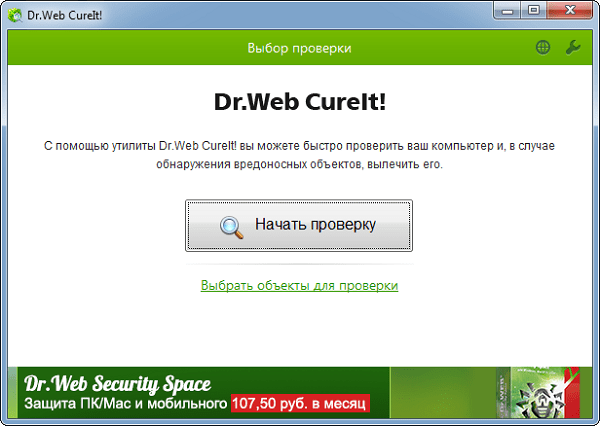
- Проверьте, какие программы вы недавно устанавливали на свой ПК. Какие-либо из установленных программ могла дезорганизовать работу торрент-клиента, и привести к различным сбоям в его функционале. Если проблема возникла после установки какой-либо программы, стоит деинсталлировать её, и понаблюдать, нормализуется ли работа пиринговых сетей на вашем ПК;
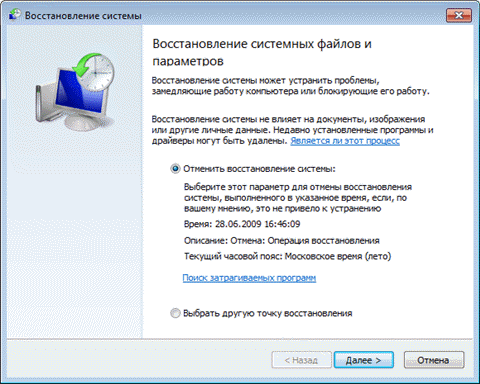
- Откатите систему на стабильную точку восстановления. Если ничего из перечисленного не помогло (что бывает крайне редко), рекомендую выполнить откат системы на предыдущую точку восстановление, при которой рассматриваемой ошибки не наблюдалось. Нажмите на кнопку «Пуск», в строке поиска введите rstrui и нажмите ввод. Выберите нужную точку, и откатите систему на указанное состояние.
Заключение
Для устранения ошибки «It seems like uTorrent is already running but not responding» рекомендую перейти в «Диспетчер задач», найти там процесс(ы) вашего торрент-клиента, и прекратить их работу. В большинстве случаев после этого ситуация нормализуется, и вы сможете работать с P2P-сетями без каких-либо проблем. Если же ошибка продолжает возникать, рекомендую использовать весь комплекс перечисленных мной советов, это поможет нормализовать работу торрент-клиента на вашем ПК.
Опубликовано 03.10.2017 Обновлено 05.11.2020
It seems like uTorrent is already running but not responding как исправить
При попытке загрузки какого-либо торрент-файла с помощью популярного торрент-клиента «uTorrent» юзер может столкнуться с месаджем «It seems like uTorrent is already running but not responding», после которого попросту ничего не происходит. Попытки перезагрузить клиент обычно не дают какого-либо ощутимого результата, вынуждая человека искать в сети различные алгоритмы решения проблемы. В этом материале я расскажу, в чём суть данной дисфункции, каковы её причины, и как исправить проблему «uTorrent is already running» на вашем ПК.
Внешний вид окна с сообщением
Перевод и причины ошибки в Торрент
В переводе с языка Шекспира текст ошибки звучит как «Кажется, uTorrent уже запущен, но не отвечает» . Обычно это означает ситуацию, при которой система обращается к торрент-клиенту с запросом на обработку торрент-файла, но не получает ответа от указанного клиента по различным причинам. Среди таких причин я бы назвал следующие:
- Случайный сбой в работе пользовательского ПК;
- Сбой в работе торрент-клиента;
- Жесткий диск перегружен 100% в uTorrent;
- Нормальную работу торрент-клиента блокируют антивирус или брандмауэр (в частности, этим отметился брандмауэр «ZoneAlarm»);
- В некорректной работе торрент-клиента виновата одна из установленных недавно программ;
- Корректной работе клиента мешает вирусный зловред;
- На пользовательской машине установлена устаревшая версия торрент-клиента.
Как исправить дисфункцию «It seems like uTorrent is already running but not responding»
Для решения проблемы рекомендую выполнить следующее:
- Закройте процесс(ы) торрент-клиента в Диспетчере задач. Нажмите на кнопку «Пуск», в строке поиска введите taskmgr и нажмите ввод. Перейдите во вкладку процессов, найдите там соответствующий торрент-процесс (к примеру, это uTorrent), и закройте его (снимите задачу). Затем попробуйте заново скачать требуемый торрент-файл, проблема может быть уже решена;
- Если предыдущий совет не помог, попробуйте просто перезагрузить вашу машину. Если проблема имела стохастический характер, после этого она может быть решена;
- Временно отключите антивирус и брандмауэр на вашем ПК. Если после этого ситуация нормализуется, тогда попробуйте добавить торрент-клиент в исключения вашего антивируса и файервола;
- Переустановите ваш торрент-клиент для исправления «It seems like uTorrent is already running but not responding». Для этого удалите предыдущую версию клиента через установку и удаление программ (нажмите на кнопку «Пуск», в строке поиска введите appwiz.cpl и нажмите ввод). Затем перезагрузите ваш компьютер, и установите самую актуальную версию торрент-клиента (к примеру, свежую версию «uTorrent» можно установить с сайта utorrent.com). Настройте автоматическое открытие торрент-файлов с помощью загруженного вами торрент-клиента;
- Проверьте компьютер на наличие вирусных программ. Помогут такие испытанные решения как «Dr.Web CureIt!», «AVG», «Malwarebytes Anti-Malware» и другие аналоги;
- Проверьте, какие программы вы недавно устанавливали на свой ПК. Какие-либо из установленных программ могла дезорганизовать работу торрент-клиента, и привести к различным сбоям в его функционале. Если проблема возникла после установки какой-либо программы, стоит деинсталлировать её, и понаблюдать, нормализуется ли работа пиринговых сетей на вашем ПК;
- Откатите систему на стабильную точку восстановления. Если ничего из перечисленного не помогло (что бывает крайне редко), рекомендую выполнить откат системы на предыдущую точку восстановление, при которой рассматриваемой ошибки не наблюдалось. Нажмите на кнопку «Пуск», в строке поиска введите rstrui и нажмите ввод. Выберите нужную точку, и откатите систему на указанное состояние.
Заключение
Для устранения ошибки «It seems like uTorrent is already running but not responding» рекомендую перейти в «Диспетчер задач», найти там процесс(ы) вашего торрент-клиента, и прекратить их работу. В большинстве случаев после этого ситуация нормализуется, и вы сможете работать с P2P-сетями без каких-либо проблем. Если же ошибка продолжает возникать, рекомендую использовать весь комплекс перечисленных мной советов, это поможет нормализовать работу торрент-клиента на вашем ПК.
Fix: uTorrent not Responding
uTorrent is one of the most used torrent clients in the global market with its reach pertaining up to thousands of customers. It has very competitive rivals but it sustained its position on the internet while also offering the application on different platforms such as Android, Mac, Windows etc.
uTorrent not Responding
One specific issue which is very common with the uTorrent client is it getting into a non-responsive state. This is a very common scenario and occurs to almost every user now and then. In this article, we will go through the causes of why the application misbehaves and later go through the solutions which you can use to solve it. This not responsive issue is often accompanied by the error message “It seems like uTorrent is already running, but not responding”.
What causes uTorrent to go into an Unresponsive state?
There are several different reasons why uTorrent might get into an unresponsive state ranging from permission issues to internal bugs in the application. After going through various user reports and replicating the conditions in our test PCs, we gathered several causes why this behavior occurs. Here are some of them:
- Administrative Privileges: It is seen that the uTorrent client requires elevated access in order to download data without any barriers from the firewall or have issues with accessing the hard drive.
- Windows Firewall: If Windows Firewall is blocking the internet traffic of uTorrent, the client might misbehave and cause various issues. Here you have to manually navigate to the Firewall and make sure the client is whitelisted.
- Windows update: Some Windows updates were observed to conflict with the uTorrent client. These were specific updates and until the official fix is launched by the uTorrent publisher, the only method is to uninstall the update.
- Corrupt AppData: uTorrent’s local configuration files might have gotten corrupt. If the configuration files are corrupt, the client will not be able to load all the pre-saved data and cause various issues such as not responding.
- Proxy servers: A unique case was observed where the use of proxy servers had effects on the client’s behavior. Proxy servers are known to improve the existing network architecture but they also conflict and cause problems with network related applications such as uTorrent.
- Bad uTorrent Files: Sometimes the very installation files of uTorrent client get corrupt and cause related issues. Reinstalling the application usually solves this problem.
Solution 1: Running as Administrator
As you all might already know, uTorrent has huge network traffic over your computer and people usually use the client to download gigabytes of data. When an application is transferring this much data, it is sometimes blocked or is choked down the permissions drain. Administrative privileges are a must for these kinds of applications because if they do not get an elevated status, they will not perform as expected. In this solution, we will enable an option which will permanently get uTorrent to run as an administrator until you turn the option off again.
- Locate the uTorrent client, right-click it and select Properties.
- Once in the properties window, navigate to the compatibility tab and select Run this program as an administrator. Running uTorrent as Administrator
- Press Apply to save changes and exit. Restart your computer and launch uTorrent again. Check if the issue is resolved.
Solution 2: Disabling Proxy Servers
Proxy servers are used in some networks (most organizations or public places) where they are used to provide faster internet by caching elements which are accessed frequently. This mechanism is used throughout the world but to this date, it is known to conflict with network applications (including uTorrent). If you are using uTorrent in an organization where proxy servers are mandatory, it is recommended that you change the network and try again. Here is the method to disable the proxy server in your computer.
- Press Windows + R, type “inetcpl.cpl” in the dialogue box and press Enter.
- Now Internet Properties will be opened. Click on the tab Connections and then LAN settings.
 Disabling Proxy Server
- Now if you are using a proxy server, the field will be checked with the details inside. Uncheck any proxy servers if enabled. Now restart the application and check if the issue is resolved.
Solution 3: Deleting AppData
Like all other applications, uTorrent also creates temporary user data for use in its running processes. These user configuration files can get corrupt easily and feed bad data to the application whenever it runs. Think of these user configurations as the main data sources which the application loads up before it launches on your computer. If the very data sources are corrupt, uTorrent will load bad data and cause issues like the one under discussion. In this solution, we will navigate to the application configurations folder and delete uTorrent’s data from there.
- Press Windows + R, type “%AppData%utorrent” in the dialogue box and press Enter.
- Now delete all the contents of the folder present. After you have deleted the files, restart your computer and launch uTorrent again.
The client will take a while as it will be rebuilding all the configuration files which we deleted. Be patient and check if the issue is resolved.
Solution 4: Granting Access in Firewall
Firewalls are a shield between your computer and the internet. All of your traffic passes through Firewall and if Firewall has restricted access of an application, the application will not be able to communicate over the internet. Usually, uTorrent has the permissions in the Firewall but there are several cases where permissions in public and private network are different. In this solution, we will open your Firewall settings and see if uTorrent has complete access.
- Press Windows + S, type “firewall” in the dialogue box and open the Settings application.
 Opening Windows Firewall
- Once the Firewall settings are launched, click on the option Allow an app through firewall.
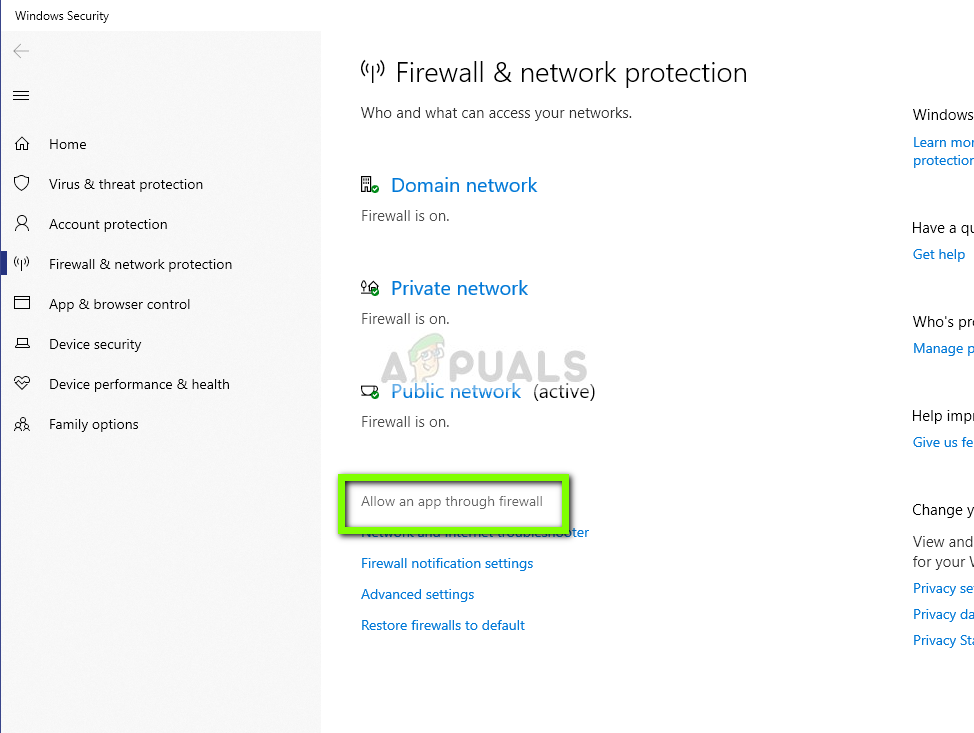 Allowing an app through firewall – Firewall Settings
- Now click on the option of Change Settings and locate uTorrent from the list of entries. Make sure that you check both the options of private and public.
 Whitelisting uTorrent
- Save changes and exit. Restart your computer and launch uTorrent again. Check if the issue is resolved.
Solution 5: Deleting Downloading Files
Another workaround which worked for several users was deleting the currently downloading files. Here you have to navigate to the download directory where uTorrent is downloading the files and delete all the files.
Later on, when you launch uTorrent again, it will notice that the files it was downloading are missing and it will either attempt to show an error or try to download the files all over again. This solution solves the issue of not responding if the downloading files were corrupt or were causing the issue.
Solution 6: Creating a new User Account
User profiles are known to get corrupt and applications often run into errors and not responding situations like the one under discussion. Here what you can do is create a new user account and see if uTorrent works properly in it. If it does, it means that your user account was corrupt and you can continue to transfer all your data to the new account and delete the older one.
Note: It is wise to back up your entire data files to an accessible location before proceeding.
- Open an administrator account. Type Settings in the start menu dialogue box and click on Accounts.
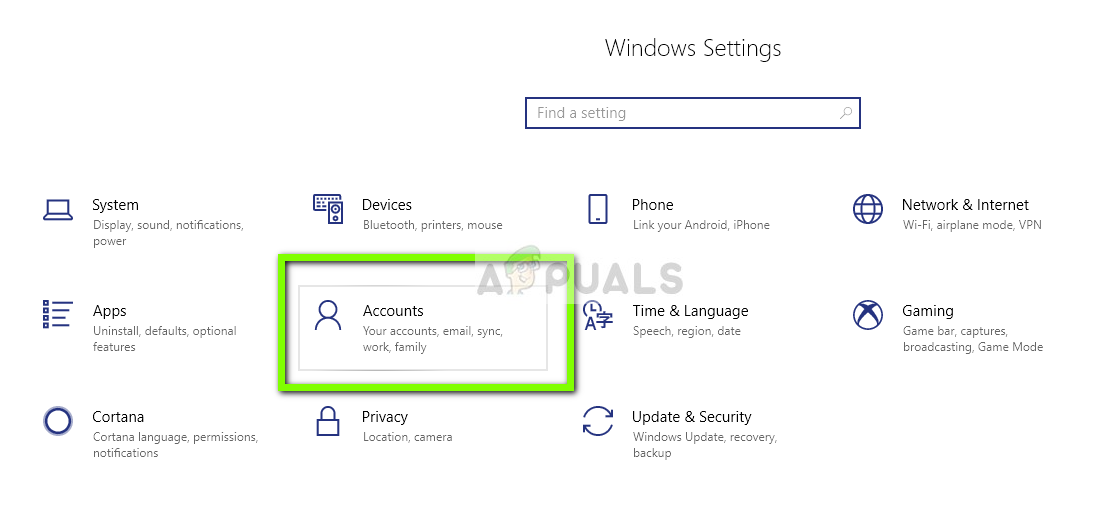 Accounts – Windows Settings
- Now click “Family and other users” options present at the left side of the window.
- Once inside select the menu, select “Add someone else to this PC”.
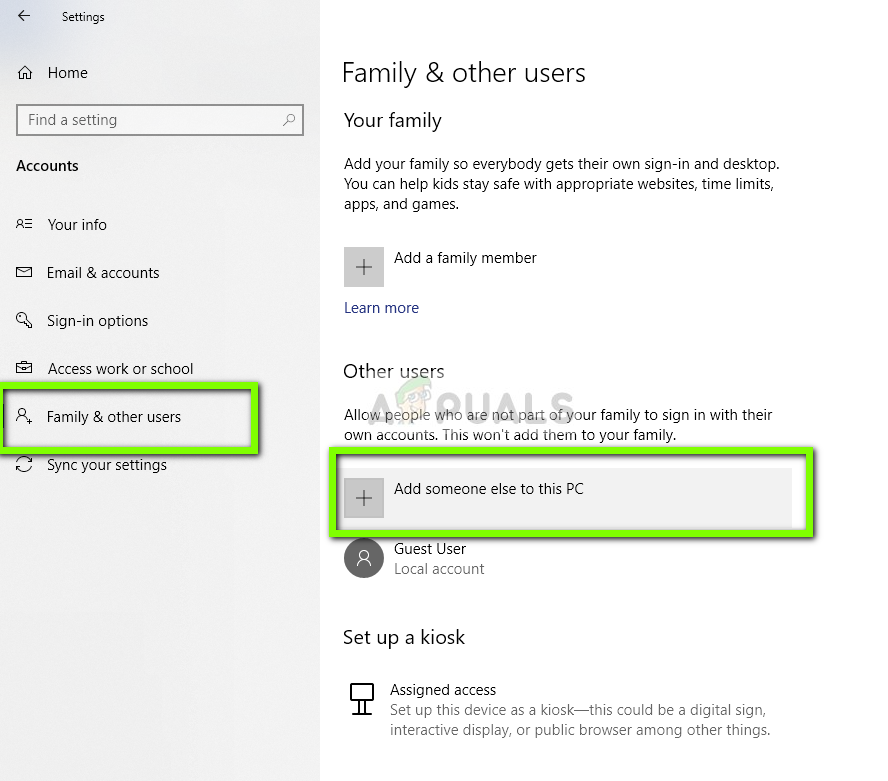 Creating a new account
- Now Windows will guide you through its wizard on how to create a new account. When the new window comes forth, click “I don’t have this person’s sign-in information”.
 Creating Account without sign-in information
- Now select the option “Add a user without Microsoft”. Windows will now prompt you to make a new Microsoft account and display a window like this.
 Adding a user without Microsoft Account
- Enter all the details and chose an easy password which you can remember.
- Check thoroughly if this new local account is working properly and has all the functionalities which you require.
- Your local account is now created. Log into the account and launch an instance of uTorrent. Check if it works properly there.
If the client works as expected, you can move on and migrate all your data.
Solution 7: Reinstalling/Installing Older Version
If you are using a beta client of uTorrent, chances are that you will be getting the not responding error message. Beta versions are meant for testing purposes and whenever the application goes into a not responding state, an error report is sent to the developers who use the information to improve their products. You can uninstall the current version of uTorrent and install an older stable version in your computer.
Furthermore, you can also simply try reinstalling the latest version without getting into the hassle of obtaining an older version on the internet. If the current version doesn’t work, you can try older versions and see if this does the trick for you.
- Press Windows + R, type “appwiz.cpl” in the dialogue box and press Enter.
- Once in the application manager, search for the entry of uTorrent, right-click on it and select Uninstall.
 Uninstalling uTorrent
- After uninstalling the application, restart your computer and either download the latest version from the official uTorrent website or navigate to third-party websites and install an older version.
Solution 8: Uninstalling Windows Update KB4338818
Like mentioned at the start, there was a Windows Update (KB4338818) which was known to be problematic and caused issues with the uTorrent client. The only solution is to uninstall the installed update and revert to the previous version. Later on, when the uTorrent developers launch an official fix for the client misbehaving with this specific update, you can continue and update your Windows again.
Note: Make sure that you backup your data and information before proceeding.
- Press Windows + I to launch the Settings application. Now select Updates and security from the list of sub-headings.
- Now click Update history from the list of options.
 Update History – Update Settings
- Now click on Uninstall updates present at the top of the screen.
 Uninstalling Updates
- Navigate down to Microsoft Windows. Here all the updates will be listed down. Right-click on the update and select Uninstall.
 Uninstalling Problematic Update
- Now Windows will attempt at uninstalling the update. A few restarts will occur. After the uninstalling process is complete, launch uTorrent and check if this solved the issue. If not, reinstall uTorrent and try again.
Solution 9: Using BitTorrent
BitTorrent and uTorrent belong to the same family and almost have the same features. If you are constantly experiencing issues with uTorrent, you can go ahead and ditch the uTorrent client and use BitTorrent. According to our survey, we noticed that BitTorrent is a lot more stable and didn’t face unstable issues which uTorrent does. You can launch the same magnets and torrent files using BitTorrent as well.
- Open the application manager and uninstall uTorrent from your computer as we did in Solution 6.
- After uninstalling uTorrent, restart your computer and navigate to the official BitTorrent website.
 Downloading BitTorrent
It seems like utorrent is already running but not responding windows 10
It seems like uTorrent is already running but not responding как исправить
При попытке загрузки какого-либо торрент-файла с помощью популярного торрент-клиента «uTorrent» юзер может столкнуться с месаджем «It seems like uTorrent is already running but not responding», после которого попросту ничего не происходит. Попытки перезагрузить клиент обычно не дают какого-либо ощутимого результата, вынуждая человека искать в сети различные алгоритмы решения проблемы. В этом материале я расскажу, в чём суть данной дисфункции, каковы её причины, и как исправить проблему «uTorrent is already running» на вашем ПК.
Внешний вид окна с сообщением
Перевод и причины ошибки в Торрент
В переводе с языка Шекспира текст ошибки звучит как «Кажется, uTorrent уже запущен, но не отвечает» . Обычно это означает ситуацию, при которой система обращается к торрент-клиенту с запросом на обработку торрент-файла, но не получает ответа от указанного клиента по различным причинам. Среди таких причин я бы назвал следующие:
- Случайный сбой в работе пользовательского ПК;
- Сбой в работе торрент-клиента;
- Жесткий диск перегружен 100% в uTorrent;
- Нормальную работу торрент-клиента блокируют антивирус или брандмауэр (в частности, этим отметился брандмауэр «ZoneAlarm»);
- В некорректной работе торрент-клиента виновата одна из установленных недавно программ;
- Корректной работе клиента мешает вирусный зловред;
- На пользовательской машине установлена устаревшая версия торрент-клиента.
Как исправить дисфункцию «It seems like uTorrent is already running but not responding»
Для решения проблемы рекомендую выполнить следующее:
- Закройте процесс(ы) торрент-клиента в Диспетчере задач. Нажмите на кнопку «Пуск», в строке поиска введите taskmgr и нажмите ввод. Перейдите во вкладку процессов, найдите там соответствующий торрент-процесс (к примеру, это uTorrent), и закройте его (снимите задачу). Затем попробуйте заново скачать требуемый торрент-файл, проблема может быть уже решена;
- Если предыдущий совет не помог, попробуйте просто перезагрузить вашу машину. Если проблема имела стохастический характер, после этого она может быть решена;
- Временно отключите антивирус и брандмауэр на вашем ПК. Если после этого ситуация нормализуется, тогда попробуйте добавить торрент-клиент в исключения вашего антивируса и файервола;
- Переустановите ваш торрент-клиент для исправления «It seems like uTorrent is already running but not responding». Для этого удалите предыдущую версию клиента через установку и удаление программ (нажмите на кнопку «Пуск», в строке поиска введите appwiz.cpl и нажмите ввод). Затем перезагрузите ваш компьютер, и установите самую актуальную версию торрент-клиента (к примеру, свежую версию «uTorrent» можно установить с сайта utorrent.com). Настройте автоматическое открытие торрент-файлов с помощью загруженного вами торрент-клиента;
- Проверьте компьютер на наличие вирусных программ. Помогут такие испытанные решения как «Dr.Web CureIt!», «AVG», «Malwarebytes Anti-Malware» и другие аналоги;
- Проверьте, какие программы вы недавно устанавливали на свой ПК. Какие-либо из установленных программ могла дезорганизовать работу торрент-клиента, и привести к различным сбоям в его функционале. Если проблема возникла после установки какой-либо программы, стоит деинсталлировать её, и понаблюдать, нормализуется ли работа пиринговых сетей на вашем ПК;
- Откатите систему на стабильную точку восстановления. Если ничего из перечисленного не помогло (что бывает крайне редко), рекомендую выполнить откат системы на предыдущую точку восстановление, при которой рассматриваемой ошибки не наблюдалось. Нажмите на кнопку «Пуск», в строке поиска введите rstrui и нажмите ввод. Выберите нужную точку, и откатите систему на указанное состояние.
Заключение
Для устранения ошибки «It seems like uTorrent is already running but not responding» рекомендую перейти в «Диспетчер задач», найти там процесс(ы) вашего торрент-клиента, и прекратить их работу. В большинстве случаев после этого ситуация нормализуется, и вы сможете работать с P2P-сетями без каких-либо проблем. Если же ошибка продолжает возникать, рекомендую использовать весь комплекс перечисленных мной советов, это поможет нормализовать работу торрент-клиента на вашем ПК.
Fix: uTorrent not Responding
uTorrent is one of the most used torrent clients in the global market with its reach pertaining up to thousands of customers. It has very competitive rivals but it sustained its position on the internet while also offering the application on different platforms such as Android, Mac, Windows etc.
uTorrent not Responding
One specific issue which is very common with the uTorrent client is it getting into a non-responsive state. This is a very common scenario and occurs to almost every user now and then. In this article, we will go through the causes of why the application misbehaves and later go through the solutions which you can use to solve it. This not responsive issue is often accompanied by the error message “It seems like uTorrent is already running, but not responding”.
What causes uTorrent to go into an Unresponsive state?
There are several different reasons why uTorrent might get into an unresponsive state ranging from permission issues to internal bugs in the application. After going through various user reports and replicating the conditions in our test PCs, we gathered several causes why this behavior occurs. Here are some of them:
- Administrative Privileges: It is seen that the uTorrent client requires elevated access in order to download data without any barriers from the firewall or have issues with accessing the hard drive.
- Windows Firewall: If Windows Firewall is blocking the internet traffic of uTorrent, the client might misbehave and cause various issues. Here you have to manually navigate to the Firewall and make sure the client is whitelisted.
- Windows update: Some Windows updates were observed to conflict with the uTorrent client. These were specific updates and until the official fix is launched by the uTorrent publisher, the only method is to uninstall the update.
- Corrupt AppData: uTorrent’s local configuration files might have gotten corrupt. If the configuration files are corrupt, the client will not be able to load all the pre-saved data and cause various issues such as not responding.
- Proxy servers: A unique case was observed where the use of proxy servers had effects on the client’s behavior. Proxy servers are known to improve the existing network architecture but they also conflict and cause problems with network related applications such as uTorrent.
- Bad uTorrent Files: Sometimes the very installation files of uTorrent client get corrupt and cause related issues. Reinstalling the application usually solves this problem.
Solution 1: Running as Administrator
As you all might already know, uTorrent has huge network traffic over your computer and people usually use the client to download gigabytes of data. When an application is transferring this much data, it is sometimes blocked or is choked down the permissions drain. Administrative privileges are a must for these kinds of applications because if they do not get an elevated status, they will not perform as expected. In this solution, we will enable an option which will permanently get uTorrent to run as an administrator until you turn the option off again.
- Locate the uTorrent client, right-click it and select Properties.
- Once in the properties window, navigate to the compatibility tab and select Run this program as an administrator. Running uTorrent as Administrator
- Press Apply to save changes and exit. Restart your computer and launch uTorrent again. Check if the issue is resolved.
Solution 2: Disabling Proxy Servers
Proxy servers are used in some networks (most organizations or public places) where they are used to provide faster internet by caching elements which are accessed frequently. This mechanism is used throughout the world but to this date, it is known to conflict with network applications (including uTorrent). If you are using uTorrent in an organization where proxy servers are mandatory, it is recommended that you change the network and try again. Here is the method to disable the proxy server in your computer.
- Press Windows + R, type “inetcpl.cpl” in the dialogue box and press Enter.
- Now Internet Properties will be opened. Click on the tab Connections and then LAN settings.
Disabling Proxy Server
- Now if you are using a proxy server, the field will be checked with the details inside. Uncheck any proxy servers if enabled. Now restart the application and check if the issue is resolved.
Solution 3: Deleting AppData
Like all other applications, uTorrent also creates temporary user data for use in its running processes. These user configuration files can get corrupt easily and feed bad data to the application whenever it runs. Think of these user configurations as the main data sources which the application loads up before it launches on your computer. If the very data sources are corrupt, uTorrent will load bad data and cause issues like the one under discussion. In this solution, we will navigate to the application configurations folder and delete uTorrent’s data from there.
- Press Windows + R, type “%AppData%\utorrent” in the dialogue box and press Enter.
- Now delete all the contents of the folder present. After you have deleted the files, restart your computer and launch uTorrent again.
The client will take a while as it will be rebuilding all the configuration files which we deleted. Be patient and check if the issue is resolved.
Solution 4: Granting Access in Firewall
Firewalls are a shield between your computer and the internet. All of your traffic passes through Firewall and if Firewall has restricted access of an application, the application will not be able to communicate over the internet. Usually, uTorrent has the permissions in the Firewall but there are several cases where permissions in public and private network are different. In this solution, we will open your Firewall settings and see if uTorrent has complete access.
- Press Windows + S, type “firewall” in the dialogue box and open the Settings application.
Opening Windows Firewall
- Once the Firewall settings are launched, click on the option Allow an app through firewall.
Allowing an app through firewall – Firewall Settings
- Now click on the option of Change Settings and locate uTorrent from the list of entries. Make sure that you check both the options of private and public.
Whitelisting uTorrent
- Save changes and exit. Restart your computer and launch uTorrent again. Check if the issue is resolved.
Solution 5: Deleting Downloading Files
Another workaround which worked for several users was deleting the currently downloading files. Here you have to navigate to the download directory where uTorrent is downloading the files and delete all the files.
Later on, when you launch uTorrent again, it will notice that the files it was downloading are missing and it will either attempt to show an error or try to download the files all over again. This solution solves the issue of not responding if the downloading files were corrupt or were causing the issue.
Solution 6: Creating a new User Account
User profiles are known to get corrupt and applications often run into errors and not responding situations like the one under discussion. Here what you can do is create a new user account and see if uTorrent works properly in it. If it does, it means that your user account was corrupt and you can continue to transfer all your data to the new account and delete the older one.
Note: It is wise to back up your entire data files to an accessible location before proceeding.
- Open an administrator account. Type Settings in the start menu dialogue box and click on Accounts.
Accounts – Windows Settings
- Now click “Family and other users” options present at the left side of the window.
- Once inside select the menu, select “Add someone else to this PC”.
Creating a new account
- Now Windows will guide you through its wizard on how to create a new account. When the new window comes forth, click “I don’t have this person’s sign-in information”.
Creating Account without sign-in information
- Now select the option “Add a user without Microsoft”. Windows will now prompt you to make a new Microsoft account and display a window like this.
Adding a user without Microsoft Account
- Enter all the details and chose an easy password which you can remember.
- Check thoroughly if this new local account is working properly and has all the functionalities which you require.
- Your local account is now created. Log into the account and launch an instance of uTorrent. Check if it works properly there.
If the client works as expected, you can move on and migrate all your data.
Solution 7: Reinstalling/Installing Older Version
If you are using a beta client of uTorrent, chances are that you will be getting the not responding error message. Beta versions are meant for testing purposes and whenever the application goes into a not responding state, an error report is sent to the developers who use the information to improve their products. You can uninstall the current version of uTorrent and install an older stable version in your computer.
Furthermore, you can also simply try reinstalling the latest version without getting into the hassle of obtaining an older version on the internet. If the current version doesn’t work, you can try older versions and see if this does the trick for you.
- Press Windows + R, type “appwiz.cpl” in the dialogue box and press Enter.
- Once in the application manager, search for the entry of uTorrent, right-click on it and select Uninstall.
Uninstalling uTorrent
- After uninstalling the application, restart your computer and either download the latest version from the official uTorrent website or navigate to third-party websites and install an older version.
Solution 8: Uninstalling Windows Update KB4338818
Like mentioned at the start, there was a Windows Update (KB4338818) which was known to be problematic and caused issues with the uTorrent client. The only solution is to uninstall the installed update and revert to the previous version. Later on, when the uTorrent developers launch an official fix for the client misbehaving with this specific update, you can continue and update your Windows again.
Note: Make sure that you backup your data and information before proceeding.
- Press Windows + I to launch the Settings application. Now select Updates and security from the list of sub-headings.
- Now click Update history from the list of options.
Update History – Update Settings
- Now click on Uninstall updates present at the top of the screen.
Uninstalling Updates
- Navigate down to Microsoft Windows. Here all the updates will be listed down. Right-click on the update and select Uninstall.
Uninstalling Problematic Update
- Now Windows will attempt at uninstalling the update. A few restarts will occur. After the uninstalling process is complete, launch uTorrent and check if this solved the issue. If not, reinstall uTorrent and try again.
Solution 9: Using BitTorrent
BitTorrent and uTorrent belong to the same family and almost have the same features. If you are constantly experiencing issues with uTorrent, you can go ahead and ditch the uTorrent client and use BitTorrent. According to our survey, we noticed that BitTorrent is a lot more stable and didn’t face unstable issues which uTorrent does. You can launch the same magnets and torrent files using BitTorrent as well.
- Open the application manager and uninstall uTorrent from your computer as we did in Solution 6.
- After uninstalling uTorrent, restart your computer and navigate to the official BitTorrent website.
Downloading BitTorrent