How to Delete Snapchat Cameo 2022 [Android and iPhone]
Snapchat cameos are the best way to make a normal conversation fun and engaging. If you are bored of sending regular chat messages or stickers then take your conversation to the next level with a cameo. But if you are already using the cameos and looking to change your cameo picture then you have to first delete Snapchat cameo.
To delete cameos in Snapchat you have to open your Snapchat application and click on your “Profile” section. Now click on the “Settings” option and scroll down your page and select the “Cameos” option and tap on “Clear My Cameos Selfie”.
Once you’ve deleted your pictures or selfie of cameo then you can take a new photo using a Snapchat camera to new cameo. More, you can also add two people’s faces in the cameo and customize it according to your needs.
Now, let’s see the step-by-step process to change the Snapchat cameo on Android and iPhone devices by removing a current one.
Table of Contents
What Does Snapchat Cameo Mean and How Does It Work?
Snapchat cameo is like a bitmoji but every cameo has your selfie face on it. In other words, every cameo character has your face attached which will work just like a bitmoji. You can send the cameo on your chat message just like stickers or gifs.
Every Snapchat cameos are moving or animated character just like gifs. When you type something on the chat or any word (eating, love, hug) then Snapchat will automatically show an animated cameo related to your searched keywords.
Furthermore, you can make a Snapchat cameo by taking a selfie or snap. It means you have to use your real face to do cameos on Snapchat. The AI will detect the real image of your face which is later turned into a cameo.
Users can choose both male and female while creating cameos on Snapchat. Not only that, you can also make a double cameo with a person that already has cameos. And you can change and replace your Snapchat cameo selfie or image whenever you want.
How to Get a Snapchat Cameos?
To create a Snapchat cameo you have to take a selfie using the front camera of Snapchat. Once the AI scan and detect your face then it will automatically make a cameo using your face.
In case you can’t take Snapchat cameo selfies for some reason then you are not following the proper guidelines of taking selfie for a cameo.
So, take a look to get a Snapchat cameo on Android and iOS properly in the following steps.
Note: Make sure to update your Snapchat app before following the below procedure.
Step 1: Open Snapchat App
First of all, open the Snapchat app on your device whether it’s Android or iPhone.
Step 2: Tap on Chat Icon
Now, tap on the “Chat Icon” from the bottom left side next to the camera icon.
Step 3: Open the Chat Message
Next, select and open any chat message according to your desire.
Step 4: Tap on Smiley Face Emoji
After that, tap on the “Smiley face” emoji on the right side next to the text bar.
Step 5: Tap on Double Face Icon
Now, tap on the “Double-face” icon from the bottom side next to the heart icon. You will also see a “+” sign on the 1st face and an empty one on 2 nd face.
Step 6: Take a Selfie
Next, select any character and place your face in the recommended place to take a picture. Make sure your face is properly visible and don’t smile.
Step 7: Tap on Create My Cameo Button
Once you are satisfied with your selfie or image of your face then tap on the “Create My Cameo” button while placing your face in the center.
Step 7: Pick a Gender
After taking a good selfie for a cameo then pick your gender.
Step 8: Tap on Continue Button
Finally, tap on the “Continue” button after selecting a gender to get a Snapchat cameo.
Who Can See Your Snapchat Cameo?
When creating a cameo on Snapchat then anyone to whom you’ve shared your cameos can see them. In other words, if you’ve sent your cameo to your friends then they can view your cameo selfie or picture.
So, there is no limitation or restriction of viewing your cameo on Snapchat once you’ve created them. However, you can restrict or choose who can use your cameo picture when you send them.
How to Delete Snapchat Cameo?
If you are not satisfied with your current cameo selfie or picture then you can delete them. It means you have to replace your current cameo image with a new one.
Remember your every Snapchat friend can view your cameo picture and access them. So, it’s important for you to take a good-looking picture so that you won’t feel embarrassed with your friends as well as new people.
Now, let’s see the simple steps to delete your cameo on Snapchat on Android and iOS devices.
Note: Clearing Snapchat cameo will delete your current cameos selfie, selected body type, and related photo data. Also, update the Snapchat app to delete cameo off of Snapchat.
Step 1: Open Snapchat App
First of all, open the Snapchat app on your device whether it’s Android or iPhone in order to delete Snapchat cameo.
If you don’t have an updated version of Snapchat then first update and then follow the rest of the steps.
Step 2: Go to Your Profile Section
After accessing your Snapchat account then tap on the “Profile” icon from the upper left corner of the screen. Your profile picture is also indicated with a Bitmoji icon that will let you access your entire Snapchat profile section.
Step 3: Tap on Settings Gear Icon
After accessing your profile section of Snapchat then tap on the “Settings Gear” icon from the upper right corner of the screen. This is where you can access and customize the entire settings of your Snapchat account.
Step 4: Select Cameos Option
Now, scroll and then tap on the “Cameos” option from the settings. From there you can remove your current cameo selfie and use a new one.
Step 5: Tap on Clear My Cameos Selfie Button
Finally, tap on the red “Clear My Cameos Selfie” button to turn off your Snapchat cameo picture. From now on, no one can view your cameo picture and you can’t send any cameo animated bitmoji to your friends either. Plus, your friends also can’t do a double cameo with you.
How to Change Snapchat Cameo?
If you don’t want to clear your current or old Snapchat cameo data completely then you can also simply change your Snapchat cameo selfie or image. In this way, you don’t have to follow the above steps of deleting cameos on Snapchat.
Changing Snapchat cameo is even more simple than deleting it. You just need to select your current cameo and replace it with your new selfie.
I know some of you never get satisfied with just one selfie for the cameo. So, if you don’t bother following a long process of deleting it and then only adding a new picture, you can simply change it within 5 seconds.
Now, let’s see the easy steps to change and edit your Snapchat cameo selfie on Android and iPhone.
Step 1: Open the Chatbox
The first step is to open your Snapchat app and access your account with your email and password.
After that, go to the chat section and open any chat messages from your friends. You can choose any chatbox according to your needs.
Step 2: Tap on Smiley-face Emoji
Now, tap on the “Smiley-face” icon from the chat text bar at the bottom on the right side. From there you can send emojis, gifs, bitmoji, cameo, and more to your friends while having a conversation.
Step 3: Long tap on Cameo Emoji
Next, long-tap on any cameo from the recent tab to change its selfie. You can select any cameo image you want to replace an old image with a new one.
Step 4: Select New Selfie
After selecting a cameo then simply tap on the “New Selfie” option at the bottom. This is where it will take you to change Snapchat cameo selfie.
Step 5: Take a New Selfie for Cameo
Now, take a good selfie by placing your face in the center. Just focus on taking a perfect selfie so that everyone and admire it.
Step 6: Tap on Create My Cameo
While your face is still in the center and you are ready to do a new cameo selfie then simply tap on the “Create My Cameo” option.
Step 7: Select a Gender for New Cameo
At last, choose the gender of your choice and you have successfully changed and replaced your Snapchat cameo selfie or picture on Android and iOS devices.
From now on, you can follow the same steps if you are still not satisfied with your recent cameo selfie.
How to Limit Who Can Share Your Snapchat Cameos?
Anyone can view your cameo selfie once you share it with them. Not only that, but they can also use and merge your cameo with their cameo and create a double cameo.
But you can restrict the people and prevent them from using your cameo picture without your permission. To be more precise, if you don’t want to let other people or friends share your cameo and use them then you can easily limit or choose who can share your cameos.
You can select whether “Everyone”, “My Friends” or “Only Me” options to use your cameos on Snapchat.
Now, let’s see how you can do that and protect your cameo picture from sharing and using.
Step 1: Go to Your Profile Section
First of all, open the Snapchat app and access your account. After that, tap on your “Profile Icon” or Bitmoji from the upper left corner of the screen.
Step 2: Tap on Settings Gear Icon
Now, tap on the “Settings Gear” icon from the upper right corner of the screen to access the entire settings of your Snapchat account.
Step 3: Select “Use My Cameos Selfie” Option
Next, scroll down and tap on the “Use My Cameos Selfie” option under the “Who Can…” section.
Step 4: Select Either “Everyone”, “My Friends” or “Only Me” Option
At last, choose your preferred options who can use your cameo selfie according to your needs. In this way, you can restrict people from sharing your cameos without your concern.
How Secure are Snapchat Cameos?
Snapchat cameos are the best way to add a twist to your conversation. If you are bored of sending regular text messages and other gifs or stickers or bitmojis then cameos give a little bit of heat.
But how secure are Snapchat cameos?
Snapchat cameo is quite safe to use. You can easily trust to use your face for making cameos and share with your friends. It will protect your identity and don’t let other people to use it for any illegal and unwanted things.
But remember anyone you are on your friend’s list can view your cameo even though you don’t talk to them till now. They can easily go to their cameo section and see your cameo. So, if you want to keep your cameo identity private within yourself then you have to choose friends wisely.
In other words, don’t add random people which you don’t know and have never met before. But if you don’t have any cameos and even a profile picture then you can talk to anyone on Snapchat.
Why Is Snapchat Cameos Not Working?
There are various reasons why Snapchat cameos are not working on your devices. Some of the issues can be from your device side and others can be within the app. So, here are the combined troubleshooting solutions to fix cameo on Snapchat not changing or working on Android and iPhone.
- Check your internet connection.
- Clear Snapchat cache data.
- Restart Snapchat app.
- Update Snapchat App.
- Restart your device.
- Allow Snapchat permission on your device to use media files.
- Log in and Log-out of Snapchat.
- Check the Snapchat server.
- Delete Snapchat cameos.
- Re-install the Snapchat app.
Frequently Asked Question
Can You Do Cameo on Snapchat?
Yes, you can easily do a cameo on Snapchat and send it to your friends and family members.
Can You Delete Cameos in Snapchat?
Yes, you can remove your cameo selfie on Snapchat.
Who Is In My Snapchat Cameo Story?
Your image will be available in your Snapchat cameo story.
Are Snapchat Cameos Public?
Yes, your Snapchat cameo is public.
Is Snapchat Cameo Random?
Yes, you can select a wide variety of cameos on Snapchat.
Why Can’t I Use Snapchat Cameo?
If you can’t use Snapchat cameos then clear the Snapchat cache, refresh the Snapchat app, give Snapchat media files permission, restart your device, check your internet connection, update Snapchat, and examine the Snapchat system server.
Final Word
You can easily do cameos on Snapchat and share them with your friends. More, you can also make double cameos with a person together and enjoy your moment. But if any time you wanted to change and replace your old cameo then remembers the above-mentioned steps to delete Snapchat cameo.
Besides, you can also change your cameo without deleting them if you don’t like your current clicked cameo selfie.
If you have any queries or suggestions related to Snapchat then feel free to ask in the comment section down below.
What is a Snapchat Cameo: How to get, change, and delete your cameo

If you’ve ever wanted to star in your own GIFs, you can now do so, with Snapchat Cameos. The feature allows users to paste their heads over a looping video; and the best part is, there are hundreds of Cameos to choose from! If you thought Bitmoji stickers were personalized, welcome to a whole new ballgame.
- What are Snapchat Cameos?
- How to set up Snapchat Cameos
- How to do a two-person cameo on Snapchat
- How to use Snapchat Cameos
- How to change your Cameo
- How to delete your Cameo
What are Snapchat Cameos?
Building on the huge success of Bitmoji stickers, which basically pasted your Bitmoji avatar in relatable situations, Snapchat Cameos are here to bring your messages to a new level of personalized.
Snapchat Cameos require you to take a picture of your head and then stick that image on top of an existing video from Snapchat’s own video bank. So now, instead of using your animated Bitmoji avatar, you can send a personalized GIF-like video to better portray your feeling!
How to set up Snapchat Cameos
The Snapchat Cameo option is already present in your emoji section, but you probably haven’t noticed it yet(yes, there’s a lot going on there). In order to start using Cameos, you first have to set up your Cameo selfie.
To set up a new Cameo selfie, launch the Snapchat app, and open a chat with any user. Now tap the emoji option next to the chatbox. You should see all your regular Bitmoji stickers (if you have linked Bitmoji to Snapchat)
In the bottom panel, tap the option next to ‘Bitmoji’. The icon displays a face with a + sign on it.

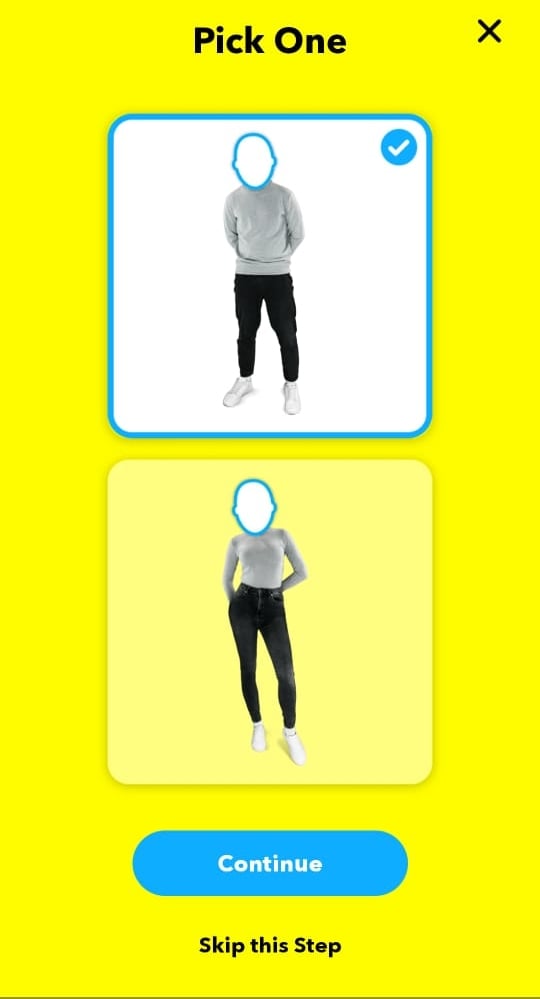
Now tap on any video, and get ready to take a selfie. Position your face perfectly within the given cutout (don’t worry, you can always take another selfie if the first one doesn’t work out), and click the picture.

Next, select your gender, and tap ‘Continue’. You can also choose to skip this step. Now, wait and watch while the app creates your own arsenal of you-faced Cameos! If you do not like the selfie you took, you can choose ‘Retake Selfie’ at this point, to go back to the start.

How to do a two-person cameo on Snapchat
Cameos can also feature another person from your contact list! You will automatically be paired with the person you are chatting with. If you don’t want ‘Two-person Cameo’, select the ‘Disable Two-Person Cameos’ option under the OK button. Otherwise, go ahead and finish up! You should now see yourself staring in your own Cameos.

Note: If you disable ‘Two-person Cameo’, and want to enable it at a later point in time, you will have to remove your Cameo selfie, and redo the process. Read on to learn more.
How to use Snapchat Cameos
Snapchat Cameos work in a similar way to Bitmoji stickers. You must first enter a chat with a user in Snapchat. Since Snapchat Cameos do now have a search option, you will need to use the chatbox itself.
Snapchat Cameos are designed to understand what it is you are talking about in your text, and give you related content. So, once you have typed out your message, view your Cameos by tapping on ‘Emoji’. Your Cameos will appear below your Bitmoji stickers. Select the Cameo you would like to send and simply tap it.

Tip: You can even use single words to find Cameos. For example, typing ‘Hello’ in the chatbox, will bring up related Cameos of you saying Hello.
How to change your Cameo
If it has been a while, and you want to change your Cameo selfie, the only way to do it, it by deleting your old selfie. There is no option to ‘take a new Cameo selfie’.
So, to change your cameo on Snapchat, delete your current one first the guide given below, and then create one again as per the guide given above.
How to delete your Cameo
To delete your Cameo selfie, launch the Snapchat app, and tap on your Bitmoji in the top left corner of the screen. Now go to Settings, and scroll down right to the bottom. Select ‘Clear My Cameos Selfie’, then ‘Clear’. Now simply follow the guide above to take a new Cameo selfie.
How to turn off or delete cameo on Snapchat? Here’s a step-by-step guide

From Lenses to Bitmojis, Snapchat knows how to keep the app engaging. The app has consistently improved user experience by adding tons of features like these.
The most recent addition is the Cameo feature that lets users create gifs with their selfies overlapped with different backgrounds.
Quirky features like these take the Snap game to a different level. The only thing that can spoil the fun is an awkward Cameo which you might wanna re-create.

As much as it is fun to create one of these, deleting them would be a tricky task. So, we have laid the steps which you can follow to either delete or change the Snapchat Cameo selfie.
How to delete or change Snapchat Cameo
In case you’re not quite satisfied with the current Cameo, there are two ways in which you can always update your selfie.
Change the Cameos selfie
1) Open a chatbox
2) Find the smiley face icon in the Chat bar below
3) Long press on a Cameo tile and a pop-up will appear
4) Tap on ‘New Selfie’ and you’re all done
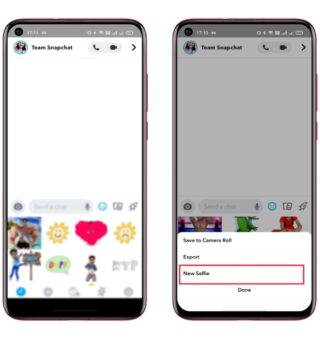
This will delete the current selfie data for both you and your friends, letting you add a new one.
Clear the Cameos selfie
1) Head towards the Settings option in My Profile
2) Find ‘Clear My Cameos Selfie’ under ‘Account Actions’
3) Tap ‘Clear’ to clear the complete selfie data
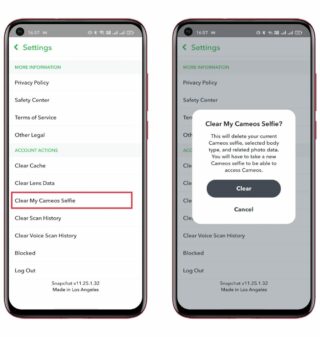
This will wipe up the previously enrolled selfie data and will prompt you to upload a new selfie next time you try to access the Cameo feature.
This should help you play with the newly introduced feature on Snapchat. We will have more such informative posts in the future so stay tuned.

Note: We have more such stories in our dedicated Snapchat Section so be sure to follow them as well.
PiunikaWeb started as purely an investigative tech journalism website with main focus on ‘breaking’ or ‘exclusive’ news. In no time, our stories got picked up by the likes of Forbes, Foxnews, Gizmodo, TechCrunch, Engadget, The Verge, Macrumors, and many others. Want to know more about us? Head here.
How To Delete Cameo Selfie On Snapchat? | Here’s A Complete Guide For You
Snapchat is evolving ever since its launch and non of its updates have ever let its users down be it Snapchat’s Bitmoji or be it be Snapchat’s Map, Snapchat is a trendsetter for all the other social media apps such as Instagram has also launched avatars on Instagram with works just like Snapchat’s bitmoji. With that one of the most loved features is Snapchat Cameo, we bet everyone has used this feature to make their Snapchat experience a bit more fun and expressive.
But this fun feature can get a bit awkward or humiliating when your Cameo selfie is not perfect and you want to change it or Even delete it but as Snapchat is a bit complicated you don’t know how to do it. Don’t worry in this article We will show you how to delete a cameo selfie on Snapchat and how to change the cameo selfie on Snapchat with a few steps. So without any further ado Let’s get started.
Please enable JavaScript
If you’ve used the Cameo feature on Snapchat then you know the feature lets you create gifs with their selfies overlapped with different backgrounds. Snapchat Cameo can be fun to create and you can have hundreds of Cameos to choose from but when it comes to deleting the Cameo selfie on Snapchat it can be tricky Af! So here’s a quick guide to making the process a bit easier.
Table of Contents
What Is Cameo Selfie On Snapchat?
Cameo selfie was launched by Snapchat in the year 2019, and since then is used by many active Snapchat users. If we put it in simple words it’s just a selfie with a background. You just have to take a selfie via Snapchat’s cameo feature and this will paste your head over a looping video or a sticker. The selfie taken by you will be applied to a collection of still pictures and GIFs featuring that selfie.
With that whenever you are having a conversation on Snapchat you can access the Cameo section in the sticker option in the chatbox of the particular person where Some Cameos will use both people’s faces, adding a unique, personal twist to conversations. Other than that you can also use it in their Story as well. Therefore Snapchat Cameos are one of the most creative ways to message people on the app, but unfortunately, settings for Cameos aren’t very clear so if you wish to change or delete their Cameo, read the section below and follow the given steps to know how to delete cameo selfie on Snapchat.
How To Delete Cameo Selfie On Snapchat?
If you wish to delete Cameo Selfie On Snapchat for What so ever reason Snapchat does allow you to do so. Follow the steps given below to Delete Cameo Selfie On Snapchat
Steps to Delete Cameo Selfie On Snapchat

Step 1: Firstly open Snapchat and log into your Snapchat account
Step 2: Now you’ll notice your Bitmoji or story icon (if you’ve recently uploaded a Snapchat story) on the top left corner of your screen Tap on it.
Step 3: This will open your “Profile Page” where you have to Tap on the Gear icon located on the top right side of your screen.
Step 4: Now this will lead you to the settings screen. Where you have to Look for the “Cameos” option and select it
Step 5: On the next setting page find and Tap on the “Clear My Cameos Selfie” option located at the end.
Step 6: To erase the Cameo selfie, press “Clear” from the pop-up message shown on your screen which asks if you want to delete your current Cameo selfie or not.
That’s it this is How you can Delete Cameo Selfie On Snapchat.
How To Change Cameo Selfie On Snapchat?
If you wish to change your Cameo Selfie On Snapchat and replace it with a better one you can easily do it by following the steps given below:
Step 1: Open Snapchat and login into your Snapchat account
Step 2: Now you’ll notice your Bitmoji or story icon (if you’ve recently uploaded a Snapchat story) on the top left corner of your screen Tap on it.
Step 3: This will open your “Profile Page” where you have to Tap on the Gear icon located on the top right side of your screen.
Step 4: Next Click on the Cameos option from the setting Page.
Step 5: From there select the ‘Change my Cameo Selfie’ option under the Action section.
Step 6: Now you can take a new selfie and once you have a satisfactory Selfie Tap on creating my Cameo and you are done.
This is how you can Change Cameo Selfie On Snapchat
Alternate way To Change Cameo Selfie On Snapchat?
Step 1: Open Snapchat and slide into one of your Snapchat conversations.
Step 2: Now Tap on the sticker option it is a smiley icon usually located at the bottom bar
Step 3: From there Tap on the smiley face with a star option this is where you can find all your Cameo stickers and Gifs and send them to your friend in the chat.
Step 4: Now long press on one of the Cameo GIF/stickers this gives you a pop-up menu and then select ‘Change Selfie’.
Step 5: Now you can take a new selfie and once you have a satisfactory Selfie Tap on creating my Cameo and you are done.
This is how you can Change Cameo Selfie On Snapchat
How To Change who can use Cameo Selfie On Snapchat?
Follow the steps below to know How Change who can See Cameo Selfie On Snapchat To use Cameo Selfie On Snapchat
Step 1: One Snapchat and Tap on your Bitmoji from the Top to open your profile page.
Step 2: Now click on the gear icon on the top right corner of your profile page to open settings.
Step 3: Next Click on the Cameos option from the setting Page.
Step 4: Now from the given Options Tap on ‘Use my Cameo Selfie’ and then select one option to decide who will only be able to use your Cameo selfie. You can change it to ‘Everyone’ to allow it to be used by all Snapchatters or Tap ‘My Friends’ to restrict Cameo Selfie use to friends only. You can also change it to only me which will hide your Cameo Selfie from everyone
Note: By selecting’ Only Me you can disable the two-person Cameo option.
Wrapping up!
Snapchat’s cameo feature is indeed a fun way to express yourself on Snapchat but if somehow you wish to delete it or change it you can always do that in a few clicks by following our guide on How to change cameo selfies on Snapchat. And we hope by now you’ve learned how to delete Cameo Selfie on Snapchat as well as how to change your Cameo selfie on Snapchat.
With that, you can also change who can use Cameo Selfie On Snapchat by following the steps given above in our guide. If our article was helpful enough please leave us feedback in the comment box below If you have any other queries you can always reach us by commenting in the comment box below. We will be happy to help!
Thank You For Reading!
Leave a Reply Cancel reply
This site uses Akismet to reduce spam. Learn how your comment data is processed.