What Does Steam ID Mean
As is well known, Steam ID can be used to identify individual users on Steam. You can be able to change the profile name at any time. However, sometimes you need to enter your Steam ID to work when using some online tools for checking the specific game or overall Steam status.
In addition, the following situations also need you to have a Steam ID on hand.
- To access those web forums that require you to enter Steam ID.
- To check the community profiles that are associated with a given user.
- To report a cheating or inappropriate behavior to Steam, Valve or another platforms.
- To contest some other account action or an online game ban with Steam or Valve.
Here comes with a question. How to find my Steam ID when encountering the above situations? Now, please keep reading the following context.
How to Find Your Steam ID
There are 3 effective methods to find your Steam ID. You can find it in the Steam Client or in Team Fortress, or using a Steam ID Look-up tool.
Method 1. Find Steam ID in the Steam Client
The first and simplest method to find Steam is to view your Steam profile. Now, let’s see how to find Steam ID in Steam client.
Step 1. Open the Steam client and login to your account, and then select the View section and click Settings option from context menu.
Step 2. In the pop-up window, select the Interface option on the left pane and make sure the checkbox for Display Steam URL address when available is checked, and click OK.
Step 3. Select your username to view the user profile and take a look at the URL bar near the top and voila, Steam ID. If you find a name in the URL instead, it means that you have a custom URL and you need to try another methods to find your Steam ID.
Method 2. Use a Steam ID Look-up Tool
If the first method fails to find the Steam ID, you can utilize a free tool. The tool cab be able to obtain a Steam ID or the user name from a custom Steam URL. Now, let’s see how to find Steam ID using a look-up tool.
Step 1. Open your web browser and type the steamidfinder.com in the address bar.
Step 2. Then enter the user name that you use for your custom Steam URL into the text file and click on the Get SteamID button.
Step 3. Examine the result to check your Steam ID. There are 3 types of SteamID forms. SteamID64 is the most common, but you may also know the SteamID or SteamID3 instead.
Method 3. Find Steam ID in Team Fortress 2 and Other Games
In addition, you can try the last method to find Steam ID using a game such as Team Fortress 2. This game was made by Valve, and Valve makes Steam. So, you can overlap the user name. The method enables you to see your own SteamID and other players’ SteamIDs connected to the same server.
Now, let’s see how to find Steam ID in Team Fortress 2.
Step 1. Launch the game and enable the develop console.
Step 2. Press the tilde key to open the console.
Step 3. Type status and click on the Submit button.
Step 4. Navigate to the player that you are interested in and you will find their SteamID in console window.
How to find your Steam ID? The 3 methods have been told to you. Now, its your turn to have a try!
Как узнать свой Steam ID 64
Каждому пользователю после регистрации в Steam присваивается уникальный идентификатор, который называется Steam ID 64. В отличии от никнейма, ID состоит только из цифр и не может быть изменен пользователем на другой. Существует 3 способа узнать свой Steam ID, не обращаясь в техническую поддержку. Рассмотрим каждый из них в инструкции ниже.
Способ 1
Простой, но не всегда эффективный способ – заглянуть в информацию о профиле в клиенте Steam. Кликните на имя пользователя в правом верхнем углу программы и выберите команду «Просмотреть профиль».

На открывшейся странице кликните правой кнопкой мыши на пустом месте в центре и выберите команду «Скопировать адрес страницы».

Откройте браузер или текстовый редактор и вставьте скопированную строку, которая должна выглядеть вот так:
Где цифры 1234567890 – ваш Steam ID 64.
Если вместо цифр отображается набор букв, значит для этого профиля в настройках была прописана персональная ссылка. Есть 2 варианта действий – стереть ссылку в окне редактирования профиля и скопировать адрес страницы заново, или перейти к следующему способу «узнавания» своего идентификатора.
Способ 2
Если персональная ссылка используется, скопируйте ее таким же образом и вставьте в адресную строку браузера, только в конце добавьте символы
?xml=1
и нажмите Enter, чтобы получилось, как на скриншоте ниже.

В конструкции <steamID64>01234567890</steamID64> отображается ваш Steam ID 64.
Способ 3
Если вариант в способе 2 вызывает трудности, воспользуйтесь любым онлайн сервисом распознавания Steam ID из списка ниже и вставьте скопированную строку туда.
Простая инструкция узнать свой стим ID
Steam ID (стим айди) – это индивидуальный идентификатор, который присваивается каждому пользователю, после его регистрации в сервисе. Всего существует три различных идентификатора: Steam ID, Steam ID 64 и Steam ID 3. Все они используются для различных действий в игровых активностях и личном профиле. Состоят только из набора различных цифр. О лучшем способе узнать стим id читайте далее ⇒
Через личную ссылку в стиме
- Заходим с Steam > наводим мышь на свой никнейм > вбираем вкладку «Профиль» > и далее жмем «Редактировать профиль»

- В поле «Личная ссылка»
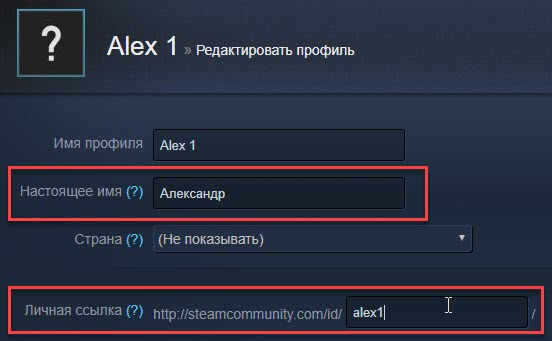 впишите свое имя, никнейм или любой набор символов. Может быть такое, что имя введенное вами будет уже занято
 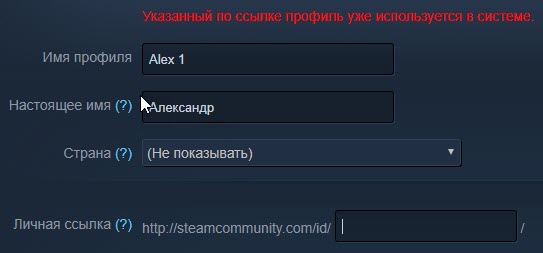 , тогда ищем другое. После успешного завершения регистрации личной ссылки стима, вы увидите такое или похожее сообщение
 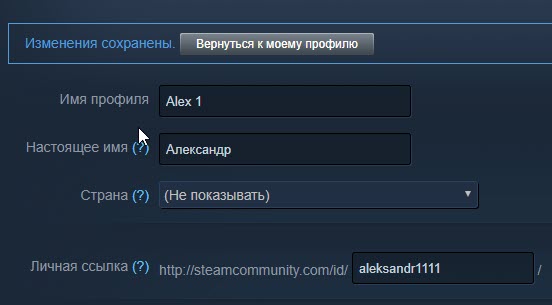 . У меня получилось зарегистрировать свое имя только с четырьмя единицами, остальные варианты оказались уже заняты. Далее можете заполнить более полно свой профиль (вписать настоящее имя и вставить фотку). Обязательно сохраняем изменения, кликнув по кнопке
  находящейся в конце страницы.
Не стоит путать ссылку и свой id. Ссылка ведет на адрес профиля и не имеет никакого отношения к стим айди.
Пример для steamid.co
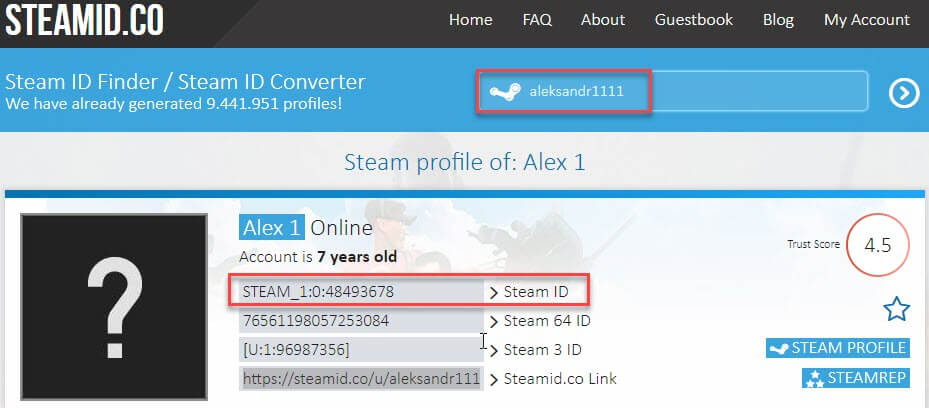
Пример для steamidfinder.com
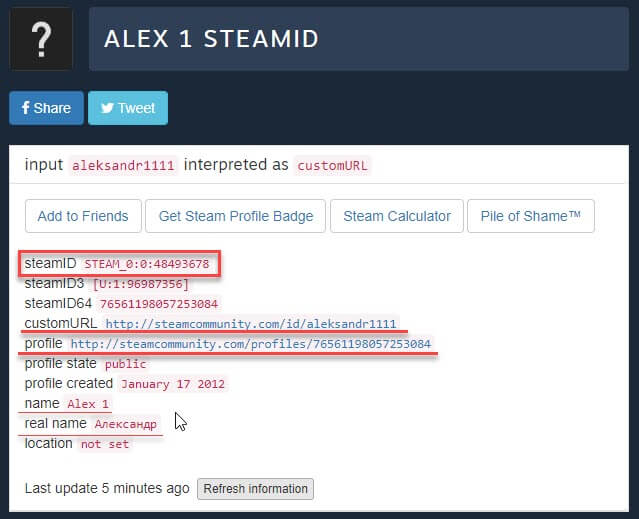
Пример для steamid.io

Через адресную строку броузера
Данным способом мы сможем только узнать steam id 64 ⇒
- Заходим в стим > выбираем профиль > жмем правую кнопку мыши > кликаем по ссылке «Скопировать адрес страницы»
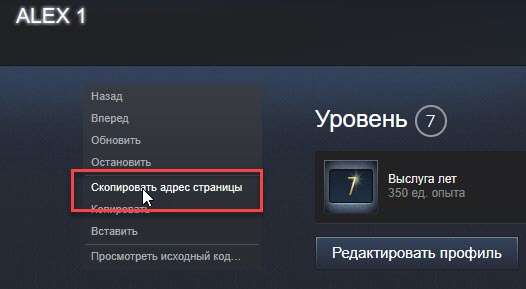
- Вставляем скопированное в адресную строку броузера. Цифры в конце
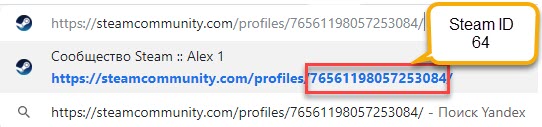 , это и есть стим id 64. Можете сравнить полученный результат с сервисами. Если была прописана личная ссылка (как это мы сделали выше), то вместо цифр, будет отображается это имя. Тогда просто в конце строки, после слэша, дописываем ?xml=1. Нажимаем ввод и в коде открывшейся страницы, между открывающим и закрывающим тегом steamID64 вы увидите свой идентификатор
 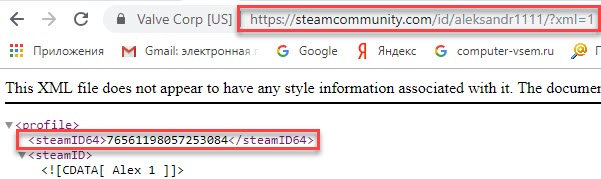 .
.
В играх через консоль
ID в steam можно узнать только через лицензионные версии игр. Способ работает не на всех играх.
- Зайдите в игру и откройте консоль для команд, нажав на тильду (∼) (буква ё на клавиатуре) или F1
- В поле ввода команд пропишите status и нажмите на Enter
- Появится список играющих и напротив ников — их айди
- Ищем себя.
Ну вот вроде про все способы, как узнать стим айди рассказал. Будут вопросы, спрашивайте. Всем пока.
Как узнать свой steam id

A Steam ID is a unique identifier used to identify a Steam account. A Steam ID can be converted to the newer SteamID3 and to a SteamID64, sometimes referred to as Community ID or Friend ID. With this SteamID64, a user’s Steam community page can be found. A Custom URL is an optional, more personalised identifier to look up a user’s Steam Community page with.
Steamid64.net is a Steam ID Finder that can easily help you find any Steam ID.
Enter any of the accepted inputs and the system will automatically look up all information you need. On top of that, you can also see other useful profile information.
You can search for users using one of the allowed inputs listed below.
- Profile URL (eg. steamcommunity.com/profiles/76561198408846151/)
- Custom URL (eg. steamcommunity.com/id/realmatti)
- Custom name (eg. realmatti)
- SteamID64 (eg. 76561198408846151)
- SteamID32 (eg. STEAM_1:1:224290211)
- SteamID3 (eg. [U:1:448580423])
Steam Client
Method 1 — Copy page url
- 1. Go to the users profile
- 2. Right click anywhere on the page and copy page url
-
1. Go to Steam -> Settings -> Interface -> Display Steam URL address bar when available
- 1. Go to the users profile
- 2. Copy the URL
Thank you for reading this guide.
If you have any problems feel free to leave a comment below on this guide and I will assist you further.
While you’re at it, please give this guide a favorite or thumbs up if you found it helpful. It means a lot to me and allows the guide to be seen by more people. Thanks.
ENG: Choose the one that’s on the list and write in my profile, I will answer the same!
RUS: Выберите что то одно из этого списка и напишите в моём профиле, отвечу тем же!
GER: Such dir eine Sache aus der Liste aus und schreib es unter mein Profil und ich mache es auch bei dir!
PL: Wybierz jeden z komentarzy ponizej i zamieść w moim profilu, odwdzięcze się tym samym !
+rep talent!
+rep such a god
+rep lol too good
+rep nice one
+rep teach me!
+rep nice player
+rep aim machine!
+rep fpl incoming