Ошибка Please Power Down And Connect The Pcie Cable Dor This Graphics Card что делать
Дорогие друзья, сегодняшняя статья будет вновь посвящена ошибки. Дело в том, что многие пользователи не обладают достаточными знаниями в области компьютерных технологий, поэтому допускают некоторые ошибки при сборке компьютера, либо замене комплектующего.
Есть те, кто подключит новую видеокарту к своей материнской плате, при загрузке сталкиваются с ошибкой: Please Power Down And Connect The Pcie Cable Dor This Graphics Card. Что означает данная ошибка?
.jpg)
Данная ошибка означает, что вашей видеокарте не хватает питания, для нормального функционирования.
Что делать, читайте дальше.
Первым делом, вскрываем системный блок и смотрим, что мы забыли подключить? Дело в том, что многие современные видеокарты, по мимо того, что вставляются в слот материнской платы, еще и имеют провод дополнительного питания, который также должен подключаться в материнскую плату. Проверьте, быть может вы забыли подключить этот небольшой провод.
Далее, если провод дополнительного питания подключаем, а сообщение об ошибке Please Power Down And Connect The Pcie Cable Dor This Graphics Card все равно имеется, дело видимо в вашем блоке питания.
Скорее всего ваш блок питания не справляется с мощной видеокартой и необходимо заменить ваш блок питания на более мощной.
Проведите эксперимент. Вставьте видеокарту в другой компьютер с более мощным блоком питания и попробуйте загрузиться. Если все прошло удачно, то дело видимо в вашем блоке питания. Придется раскошелиться на новый более мощный блок питания.
Сегодня мы познакомились с ошибкой Please Power Down And Connect The Pcie Cable Dor This Graphics Card и узнали почему она возникает и, главное, что делать если вы с ней столкнулись. Надеюсь, статья была для вас полезна и с ее помощью вы устранили проблемы с загрузкой вашего компьютера.
Please Power Down and Connect the PCIe: How To Resolve This Problem
If your computer says please power down and connect the PCIe, it means that your GPU isn’t getting enough power from where it is connected to. Power consumption is a critical but overlooked factor in PC building.
When you have a quality GPU, your PSU’s power connectors are bound to take a beating. In this article, we’ll be talking about different adapters and connectors for your graphics card, as well as how to reconnect your PCIe power cable to fix the please connect PCIe power cable problem.
Graphics Card Power Source
Many low-tier to mid-tier GPUs use the PCIe x16 slot as their power sources. However, demanding or top-of-the-line PSUs utilize an 8-pin or 6-pin connector as their power connectors. You can have all of these mixed up, especially when building a system with multiple graphics cards or with an SLI.
In cases like these, you’ll need to power your GPU with enough voltage for two or more GPUs. To understand this better, we’ll talk about the different connectors, and their power requirement as knowing these will help you fix the please power down and connect the PCIe power cables for this graphics card issue.
– PCIe x16 Connectors
Motherboards that utilize PCIe x16 power connectors can provide up to 75 watts of power. Some of them may come with multiple connectors that allow you to connect more than one GPU. As we mentioned earlier, connecting more than one GPU means there’ll be an increase in power requirements.
Graphics card units that have little processing power, such as the GT 1030, RX 550, GTX 1050 2GB variant, and RX 460, won’t require more than 75 watts of power. However, if you’re using a GPU with lots of processing power, then you’re sure to need more than 75 watts of power.
– PCIe 6-Pin Connectors
A typical 6-pin connector has the capability to supply graphics cards with an extra 75 watts of power. With this connector, your GPU can pull up to 75 extra watts of power from your PSU, making it a total of 150 watts when paired with the 75 watts from your motherboard.
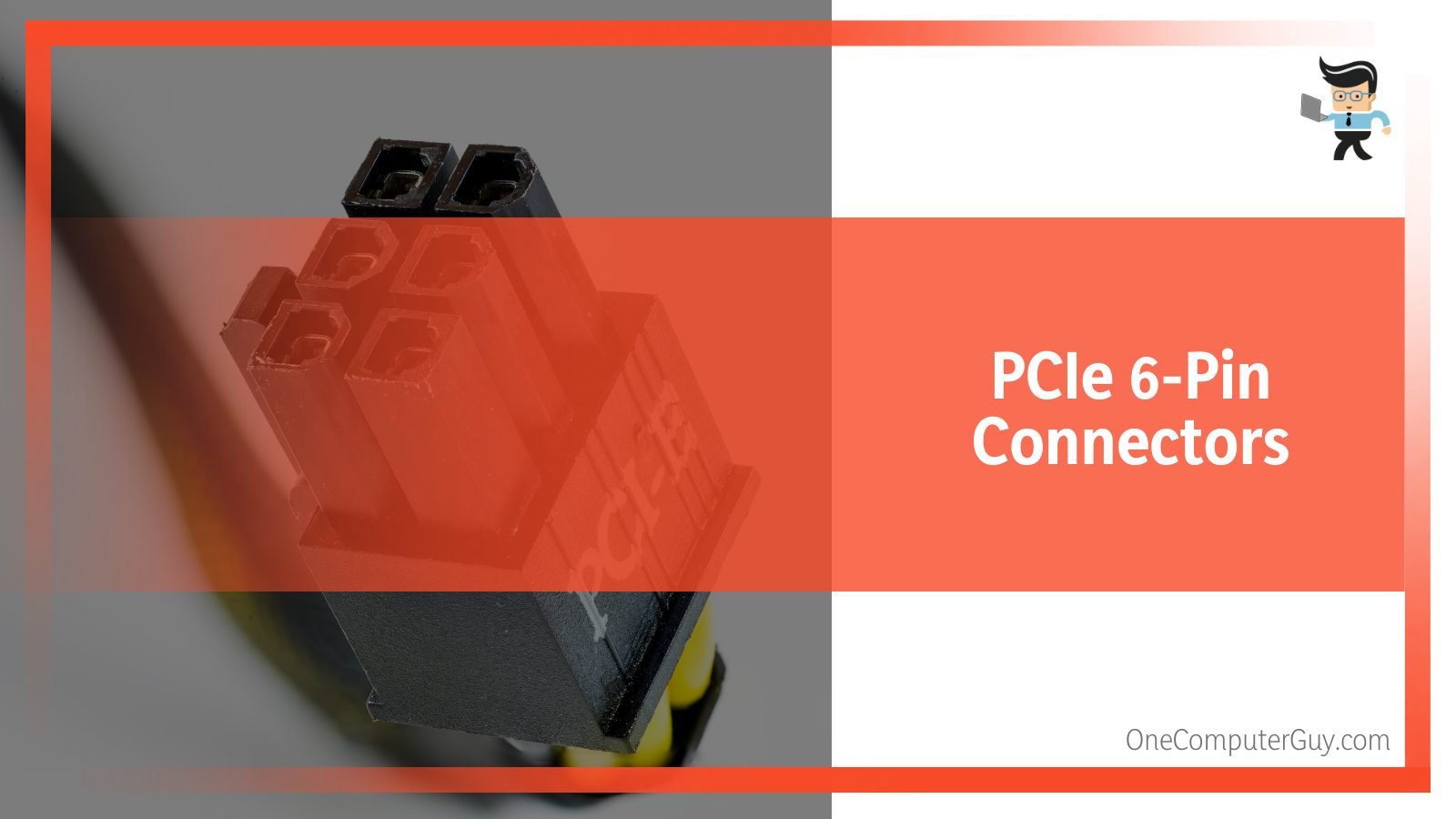
While 150 watts of power is enough for most GPUs, high-end graphics cards like the NVIDIA RTX 3080 need more than 300 watts of power and about 750 watts of system power.
Since 150 watts is enough for most mid-tier graphics cards, you’ll find many of them with a 6-pin power connector. These connectors are known as PCI Express Graphics cables (PEG cables) or PCI express cables.
– PCIe 8-Pin Connectors
A typical 8-pin connector delivers up to 150 watts of power to a graphics card. You are likely going to find an 8-pin connector in a GPU that requires up to 150 watts of power or two 6-pin connectors.
However, there are exceptions. If you buy a power-hungry graphics card, you’re bound to find an 8-pin connector as well as a 6-pin connector in the box.
For instance, the GeForce RTX 3060 from NVIDIA comes with both connector types given the fact that its maximum power consumption is about 170 watts. So with a card like this, your PC needs to have about 340 watts of power, so you don’t experience the “please power down and connect the PCIe” problem.
There are even more exceptional situations where a GPU comes with a 6-pin connector and two 8-pin connectors. This means you’ll need up to 375 watts of power for the said GPU. And don’t forget that you still need to consider the power consumption for your CPU, which is another huge power consumer, as well as the rest of your computer components.
Although they are rare, there are also enthusiast GPUs that need up to three 8-pin connectors to get the necessary power. These graphics cards are usually on the highest end of the spectrum and are designed to offer the best overclocking and cooling possible. A typical example of such a card is NVIDIA’s GeForce RTX 2080 Ti Lightning Z.
Generally, your computer won’t have any issues if you utilize a PSU capable of providing up to 650 watts of power. However, if you’re looking at a long-term build that can be upgraded in the future, or you’re building a gaming PC with a GPU like the RTX 3080 or 3090, you can look at buying a PSU with more power.
Note that more power on a PSU means more chances of overheating, which means you need to make careful considerations before buying a more powerful PSU.
– 12-Pin Connectors
The advent of the RTX 3000 by NVIDIA saw the introduction of the 12-pin connectors. This graphic card power cable was made out of necessity because NVIDIA was looking for a way to power its most powerful cards and came up with an excellent solution.
While a 12-pin power connector is about the same size as an 8-pin connector, it has the ability to draw out more power from your PSU. However, at the time the GPUs were launched, NVIDIA had not released the 12-pin connector to the public yet.
Instead, the brand made an adapter that connects two 6-pin connectors to the interface of the graphics card’s 12-pin slot. The original 12-pin connector is touted to be able to provide up to 648 watts of power.
Converters or Adapters for Connectors
Experiencing compatibility issues when building a PC is no news. But this same phenomenon applies to power connectors as well. Fortunately, computers are designed and built by engineers who naturally like to modify hardware to suit their needs.
That is why a company known as Molex started creating these pin converters in the late 50s and early 60s. Since then, these connectors have been referred to as the Molex converters or Molex adapters irrespective of the company that makes them.
– 4-Pin Molex To 6-Pin PCIe Power Cable
If your PSU doesn’t have a 6-pin power connector, but your graphics card requires one, this PCI express power cable connector is what you want to buy. PSUs in this kind of situation are older generation PSUs, so you may want to start thinking about getting an upgrade.
However, if you want to keep the PSU because of one factor or the other, you should note that this adapter often needs two 4 pin connectors. Although sometimes, you’ll find one that requires a 4-pin connector.
– 4-Pin Molex To 8-Pin PCIe Power Cable
This adapter cable connects two 4-pin connectors to an 8-pin connector interface. It’s a cable useful for graphics in the upper mid-range to high-range.
– 6-Pin To 8-Pin PCIe Power Cable
Top-class graphics cards made today often feature 8-pin connectors that aren’t available on many PSUs. If you are in a situation like this, the 6-pin to 8-pin PCIe power cable is the right option for you.
– Dual 8-Pin To 12-Pin PCIe Power Cable
As we mentioned earlier, NVIDIA’s 12-pin power connector is the latest technology featured in the brand’s 3000 series GPUs. And since there were little to no PSUs with 12-pin connectors at the time these GPUs were launched, NVIDIA designed a 2x 8-pin to 12-pin adapter and shipped it with the products.
– SATA To 6-Pin PCIe Power Cable
With this adapter cable, you’ll be able to convert your SATA connectors to 6-pin connectors. However, this isn’t recommended as SATA may not handle the amount of power required by your GPU. You don’t want a situation like this, especially if the cable comes with a label saying “SATA only.”
– SATA To 8-Pin Power Cable
You can also adapt SATA to 8-pin connectors. However, the connection will be two SATA connectors to one 8-pin connector.
How To Fix Please Power Down and Connect the PCIe Power Cables for This Graphics Card
The “please connect PCIe power cable” issue is a problem that’s often caused by an insufficient power supply from your computer’s motherboard or PSU. Other faults include the GPU not sitting well in its cage and having a bad port or connector.
Below are the fixes you can apply to resolve this graphic card power cable problem.
Check Whether You’re Getting Enough Power
Like we noted above, not getting enough power from your PSU or motherboard is the main reason why your GPU may start having the “please power down and connect the PCIe problem.”
What you want to do is ascertain the amount of power needed for your GPU to function properly. Then use a tool like HWInfo to see whether your GPU is getting enough power or not.
If it’s not getting enough power, you want to connect the PCIe connector to your PSU. Make sure it aligns with the connector explanation we made above. The x16 PCIe connector can provide only 75 watts of power. Therefore, if you’re using a gaming graphics card and not getting enough power supply, you want to connect your PCI express power cable to your PSU.
With a 6-pin connector, you’ll get up to 150 watts when paired with the 75 watts from the x16 PCIe connector. Using an 8-pin connector increases the power supply, and a 12-pin connector bumps it up even higher.
Change Your PSU
If you’ve connected your power cable to your PSU but are still getting the “please power down and connect the PCIe” error, then you may want to get a new PSU. It’s probable that your PSU can’t supply enough power to your GPU, then share the rest among the remaining components in your PC. So, getting a better PSU may be the ideal solution for you.
Reseat Your Graphics Card
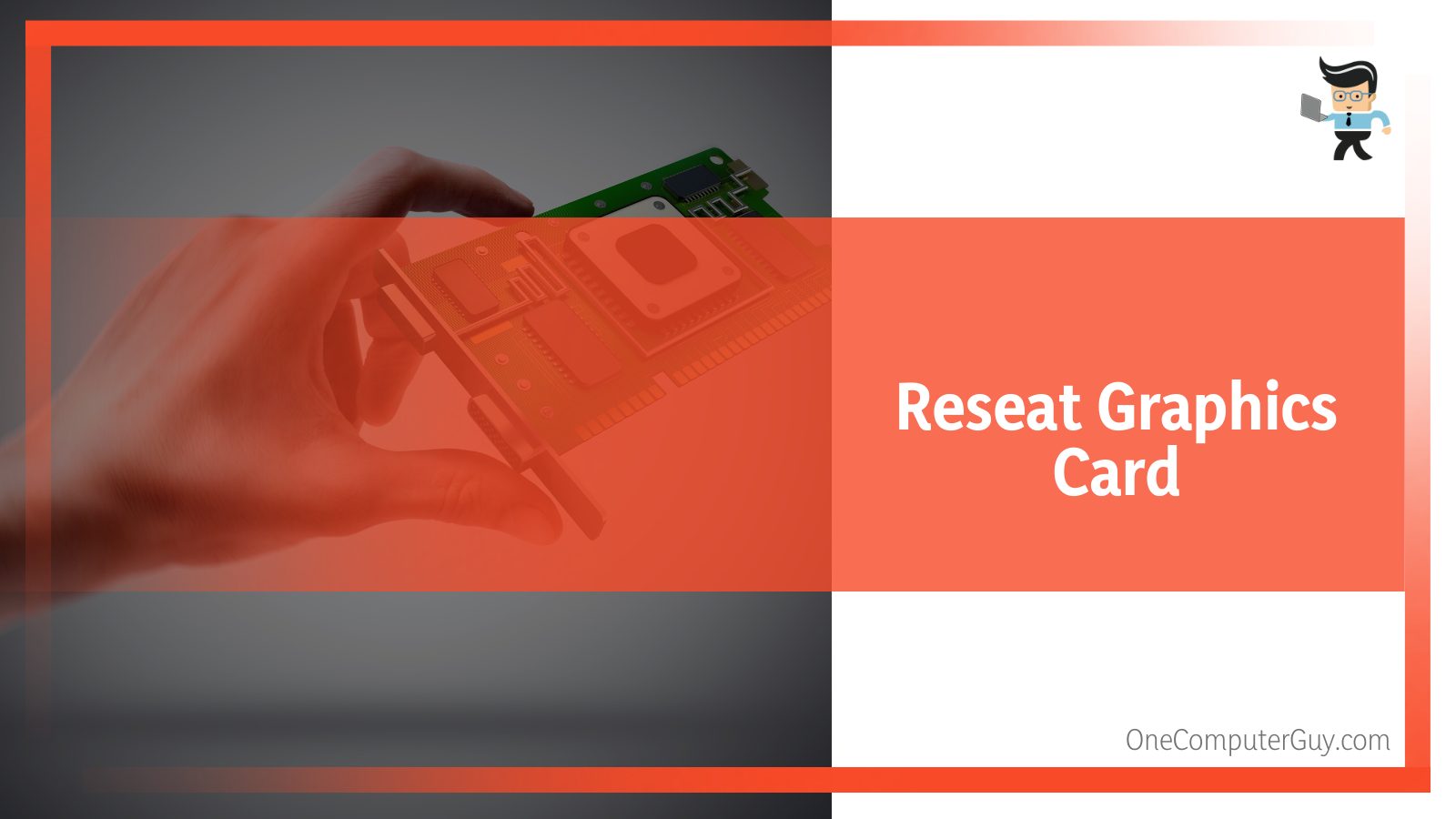
If your graphics card isn’t properly seated in its cage, you may experience the “please connect PCIe power cable” problem. Check that your GPU is properly seated in its cage, and the cables aren’t squished together.
Inspect Your Connectors
Even if your GPU or PSU is a new one, there’s no telling what might have happened to their connectors during transit or even quality control checks. Make sure your connectors aren’t damaged or crooked in any way.
If you’re using an adapter, make sure it’s not a SATA to Molex adapter as using this kind of adapter would result in burnout if your graphics card pulls too much power because of overclocking or a higher load.
The best practice is to connect your GPU to a PSU. It’s recommended that you upgrade your PSU instead of using adapters. However, if you’re going to use an adapter, a Molex to Molex should be your choice instead of a SATA to Molex adapter. Molex to Molex adapters can transfer more power thanks to the thicker wires they’re designed with.
Conclusion
We’ve discussed the different power connector cables on the market and how you can resolve the please power down and connect the PCIe power cables for this graphics card issue.
Here are a few reminders to keep in mind:
- The x16 PCIe power cable can provide up to 75 watts of power
- The 6-pin PCIe cable offers up to 75 watts of power
- You can get up to 150 watts of juice from the 8-pin power cable
- The 12-pin power connector isn’t available yet, but NVIDIA ships an adapter for its GPUs that utilizes this connector
- Using a SATA to Molex adapter may lead to burnout
- If you want to use an adapter, make sure it’s a Molex to Molex adapter
- You can resolve the please power down and connect the PCIe problem by reseating your GPU
- Insufficient power from your motherboard may be why you’re getting the PCI express power cable error
- Connecting your GPU to your PSU can help resolve the PCIe power cable error
- Check to see whether or not your connectors and ports aren’t damage
- Reseat your GPU to fix the problem
You should be able to fix the “please connect PCIe power cable” issue with the explanations and solutions offered above. Remember that using a SATA to Molex adapter can cause your SATA connector to burn out as it isn’t designed to provide power to your GPU.
Upgrading your PSU to one with the right connectors is highly recommended. But if you must use an adapter, make sure it’s a Molex to Molex adapter.
[5 Fixes] Please Power Down and Connect the PCIe Power Cable?
When you get the message saying- please power down and connect the PCIe power cable, what can you need to do?
The good news is, I am writing this article to answer the query.
The first thing I would like to share with you is that it is a GPU card-related error. The error may occur for various reasons. Whatever the reason is, it is solvable. Let’s explore the fixes.
Please enable JavaScript
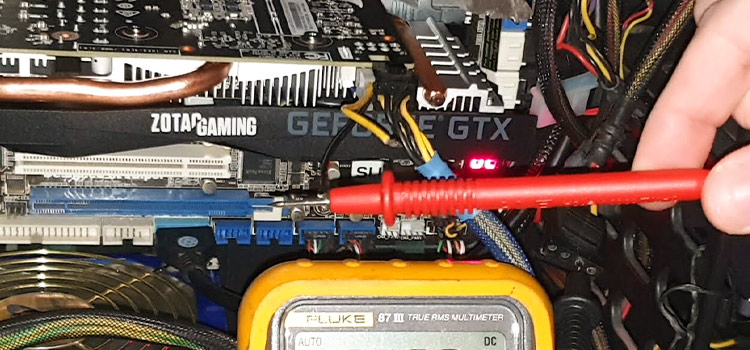
Why the Error Message – ‘Please Power Down and Connect the PCIe Power Cable’
- Connecting cable wrongly: If the connectors are injected wrongly, the GPU may not perform and release the error message.
- Supplying insufficient power: When the PC does not supply the proper power according to the GPU requirement, there will be the highest chance of the error occurring.
- Dirty PCIe lane: In some cases, the PCIe lane becomes dirty. It is one of the big reasons for occurring the error.
What to Do If the Message- ‘Please Power Down and Connect the PCIe Power Cable’ Appear
- Fix 1: Check All Connectors
- Fix 2: Check for Adequate Power
- Fix 3: Try Alternate Power Supply
- Fix 4: Clean PCIe Lane
- Fix 5: Reseat GPU Card
Fix 1: Check All Connectors
When you get the error message, the first thing you need to check is the GPU connectors. Here you need to confirm that you connect the GPU with the exact connectors and adapters according to the manufacturer’s guidelines.
In many cases, attaching connectors wrongly is the reason for occurring the discussed error. You have to ensure that you inject the appropriate connectors in GPU to avoid the occurrence.
Fix 2: Check for Adequate Power
Sometimes, scarcity of power may create the issue. So, you have to check for adequate power when you confront the error.
How much power you need depends on your GPU. If the power supply can not provide adequate power according to the need, you will need to take proper steps to run the GPU errorlessly.
Fix 3: Try Alternate Power Supply
When your existing Power Supply does not handle the situation, you need to try an alternate Power Supply (PSU).
First, measure the required power to run the problematic GPU. You will find it in the official specifications. According to the finding, you have to provide the perfect Power Supply.
Then check the existence of the issue. If you face the error again, you need to move to the next fix.
Ensure stable power delivery to your GPU with these reliable alternate Power Supplies (PSU).
Fix 4: Clean PCIe Lane
Your GPU card may not work and show the discussed error message for the dirty PCIe lane. In this case, you have to clean the PCIe lane.
In many cases, it has solved the error dramatically. So, when none other fixes help you, you can try this fix undoubtedly to resolve the error.
Eliminate GPU errors with this powerful PCIe lane-cleaning solution.
Fix 5: Reseat GPU Card
If you see no other processes fix the issue, you better reseat the GPU card as a final action. It will be easy to do this.
Simply remove the GPU card from the PCI lane first. Then inject it into the lane again. After that, run the PC and observe the error existence. Hopefully, you will not face it furthermore.
Frequently Asked Questions (FAQs)
What is PCIe power cable?
Basically, PCIe power cables are used to power the installed expansion cards, especially larger ones. For example, sound card, video card, wifi card, modem, etc.
What are the power requirements for PCIe?
Basically, any card connector for PCIe demands two primary power rails. One is 12V and the other one is 3.3V. Sometimes there is an optional rail that is also 3.3V.
Can I use CPU power cable for PCIe GPU?
The simplest answer is no. You cannot utilize a CPU power cable in terms of PCIe graphics card as GPU power cables come with different hole shapes. Only the GPU power cable can be successfully used for the GPU. Forcefully trying the CPU power cable can bring damage.
Final Words
In the end, I assume that you handle the ‘Please power down and connect the PCIe power cable’ error successfully after exploring the article.
Please power down and connect the PCIe power cable for this graphics card: что делать?
Сегодня мы рассмотрим достаточно давнююпроблему, когда при включении компьютера на мониторе выскакивает ошибка «Please power down and connect the PCIe power cable(s) for this graphics card. После этого ПК зависает, либо уходит в перезагрузку. Чаще всего такому предупреждению предшествуют изменения в аппаратной части компьютера. Давайте разберемся: как переводится и что означает это оповещение при загрузке PC.
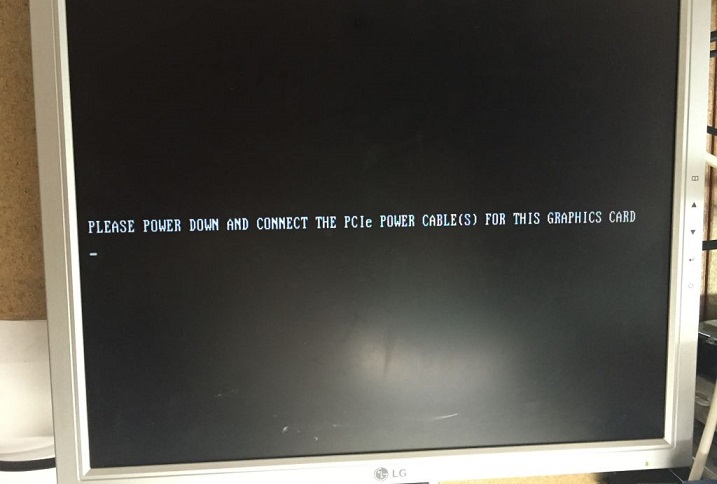
Ошибка Please power down and connect the PCIe при запуске ПК
Что ошибка означает?
Сбой включения «Please power down and connect the PCIe power cable for this graphics card» буквально переводится так: Пожалуйста, выключите питание и подключите кабель питания PCI-e для этой видеокарты. Если говорить простыми словами: появление такой ошибки означает, что видеокарте не хватает достаточного питания для нормального запуска.
Чаще всего такое предупреждение выскакивает при замене видеокарты на новую (более высокого класса), реже — при обычном переподключении. В отдельных случаях проблема может указывать на перегрев материнской платы или нестабильную работу блока питания (замыкание, сильный перегрев, играющее напряжение).
Давайте теперь разберемся с кабелем PCIe, о котором говорится в ошибке. Практически все современные видеокарты требуют подключения к дополнительному питанию, которое обеспечивается от блока питания специальным кабелем PCI-E. Такой кабель бывает двух видов 6-PIN и 8-PIN. В зависимости от класса и мощности видеокарты, на неё могут устанавливать один, два и даже три разъема для доп-питания. Чаще всего выполняют комбинации из нескольких разъемов под 6-PIN или 8-PIN.
- Если вы не подключили кабель PCI-E от блока питания к видеокарте — получаете ошибку.
- Если вы воткнули кабель 6-PIN в разъем под 8-PIN — получаете ошибку.
- Если мощности вашего блока не хватает (менее 550W) — получаете ошибку.
В случае с устаревшими компьютерами, разъем под питание видеокарты от PCI-E находится на самой материнской плате и выполнен в комбинации 6-PIN плюс 2-PIN (перемычка). Так вот, если дополнительно питание от блока не подается на «материнку» — вы получаете ошибку.
Как исправить проблему «Please power down and connect the PCIe»
- Первым делом проверьте правильность подключения всех проводов. Все делается банально — отсоединяем и подсоединяем все контакты заново. Особое внимание к штекерам от блока питания в материнскую плату и видеокарту.
- Если на видеокарте нет разъемов под 6 или 8 пин — проверьте материнскую плату, возможно там отошел контакт кабеля PCI-E (имеется надпись). Если в разъеме имеется 8 контактов, а ваш PCIe состоит из шести — необходимо воткнуть туда дополнительный разъем, состоящий из двух контактов.
Если в комплекте к видеокарте нет нужных по пинам PCIe кабелей (переходников к ним) — потребуется их купить. Стоимость варьируется в пределах 200-300 рублей и продаются они во многих компьютерных магазинах. Не забывайте про отличие контактов (MOLEX или SATA) на устаревших и новых блоках питания, под которые будете покупать кабель — при покупке учитывайте этот момент. В любом случае, опытный продавец вам все разъяснит и подскажет.
Если ваша видеокарта является достаточно требовательной по мощности и имеет разъемы питания в 8 пин — PCI-E кабель к ней будет иметь раздвоенный контакт. Подключать их желательно на разные ветки проводов, дабы избежать нагрева.
Проблема может быть вызвана слабым блоком питания
Может быть и такое, что ваш блок питания просто устарел для новой видеокарты и банально не тянет её. Например, если на видеокарте установлено два разъема в комбинации 6+8 или 8+8 пин — потребуется мощный блок питания. Такие видеокарты съедают по 300-400W, поэтому под них нужен блок начиная от 600W и выше. Некогда нормальные блоки в 450W и 550W вам уже не подойдут.
Внимательно изучите возможности своего блока питания: если он банально слаб для обновленного «железа» — придется его заменить. Постарайтесь взять блок с запасом мощности.
Заключение
Как видите, развитие аппаратной части компьютеров не стоит на месте и требует все больших мощностей. Чаще всего обновление железа производится частично и нюансы, связанные с блоком питания, учитываются не всегда. Именно поэтому все чаще владельцы компьютеров получают ошибку «Please power down and connect the PCIe». Пишите в комментариях — что в вашем случае стало причиной сбоя.