4 способа проверить версию CentOS или RHEL
Знаете ли вы версию выпуска CentOS/RHEL, которую вы используете на своем сервере? Почему это вообще важно? Есть несколько причин помнить эту информацию: чтобы быстро собрать информацию о вашей системе; следите за исправлениями ошибок и обновлениями безопасности, а также настраивайте правильные репозитории программного обеспечения для определенного выпуска, среди прочего.
Это, вероятно, простая задача для опытных пользователей, но обычно не для новичков. В этой статье мы покажем, как проверить версию CentOS или RHEL Linux, установленных на вашем сервере.
Как проверить версию ядра Linux в CentOS
Знать версию ядра так же важно, как и версию выпуска дистрибутива. Чтобы проверить версию ядра Linux, вы можете использовать команду uname.

Судя по результату приведенной выше команды, CentOS использует старую версию ядра, чтобы установить или обновить до последней версии ядра, следуйте инструкциям в нашей статье: Как установить или обновить до ядра 4.15. в CentOS 7.
Как проверить версию выпуска CentOS или RHEL
Номера версий выпуска CentOS состоят из двух частей: основной версии, такой как \6 или \7, и дополнительной или обновленной версии, например, \6.x или \7.x, которые соответствуют основной версии и набору обновлений RHEL. , используемый для сборки определенного выпуска CentOS.
Чтобы уточнить это, возьмем, например, CentOS 7.5, созданную из исходных пакетов RHEL 7 обновление 5 (также известное как RHEL версии 7.5), которая называется точечной версией RHEL 7.
Давайте рассмотрим эти 4 полезных способа проверить версию выпуска CentOS или RHEL.
1. Использование команды RPM
RPM (Red Hat Package Manager) — популярная и основная утилита управления пакетами для систем на базе Red Hat, таких как (RHEL, CentOS и Fedora), используя эту команду rpm, вы получите версию выпуска CentOS/REHL.

2. Использование команды Hostnamectl
команда hostnamectl используется для запроса и установки имени хоста системы Linux, а также для отображения другой информации, связанной с системой, такой как версия выпуска операционной системы, как показано на снимке экрана.

3. Использование команды lsb_release
Команда lsb_release отображает некоторый LSB (Стандартная база Linux) и информацию о распространении. В CentOS/REHL 7 команда lsb_release предоставляется в пакете redhat-lsb, который вы можете установить.
После того, как вы его установили, вы можете проверить свою версию CentOS/REHL, как показано ниже.

4. Использование файлов выпуска дистрибутива
Все приведенные выше команды извлекают информацию о выпуске ОС из ряда системных файлов. Вы можете просмотреть содержимое этих файлов напрямую, используя команду cat.

Это пока все! Если вы знаете какой-либо другой метод, который должен быть описан здесь, сообщите нам об этом через форму комментариев ниже. Также вы можете задать любые вопросы по теме.
4 Ways to Check CentOS or RHEL Version
Do you know the version of CentOS/RHEL release you are running on your server? Why is this even important? There are several reasons to keep this information in mind: to quickly gather information about your system; keep up with bug fixes and security updates, and configure correct software repositories for a specific release, among others.
This is probably an easy task for experienced users, but it’s not usually the case for newbies. In this article, we will show how to check the version of CentOS or RHEL Linux installed on your server.
How to Check Linux Kernel Version in CentOS
Knowing the kernel version is just as important as knowing the distro release version. To check Linux kernel version, you can use the uname command.

Check Kernel Version in CentOS
From the output of the above command, the CentOS is powered by an old kernel version, to install or upgrade to the latest kernel release, follow the instructions in our article: How to Install or Upgrade to Kernel 4.15 in CentOS 7.
How to Check CentOS or RHEL Release Version
CentOS release version numbers have two parts, a major version such as “6” or “7” and a minor or update version, such as or “6.x” or “7.x”, which correspond to the major version and update set of RHEL receptively, used to build a particular CentOS release.
To elaborate more in this, take for instance CentOS 7.5 is built from the source packages of RHEL 7 update 5 (also known as RHEL version 7.5), which is referred to as a “point release” of RHEL 7.
Let’s take a look at these 4 useful ways to check CentOS or RHEL release version.
1. Using RPM Command
RPM (Red Hat Package Manager) is a popular and core package management utility for Red Hat based systems like (RHEL, CentOS and Fedora), using this rpm command, you will get your CentOS/REHL release version.

Check CentOS Version Using RPM Command
2. Using Hostnamectl Command
hostnamectl command is used to query and set Linux system hostname, and show other system related information, such as operating system release version as shown in the screenshot.
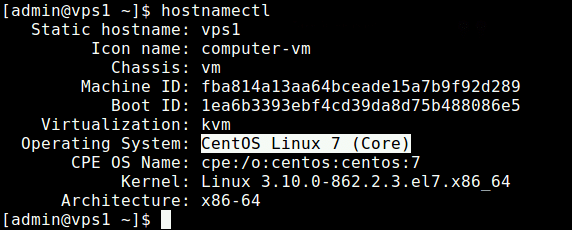
Check CentOS Version Using hostnamectl Command
3. Using lsb_release Command
lsb_release command displays some LSB (Linux Standard Base) and distribution information. On CentOS/REHL 7, the lsb_release command is provided in the redhat-lsb package which you can install it.
Once you have installed it, you can check your CentOS/REHL version as shown.

Show CentOS Version
4. Using Distro Release Files
All the above commands retrieve OS release information from a number of system files. You can view the contents of these files directly, using the cat command.
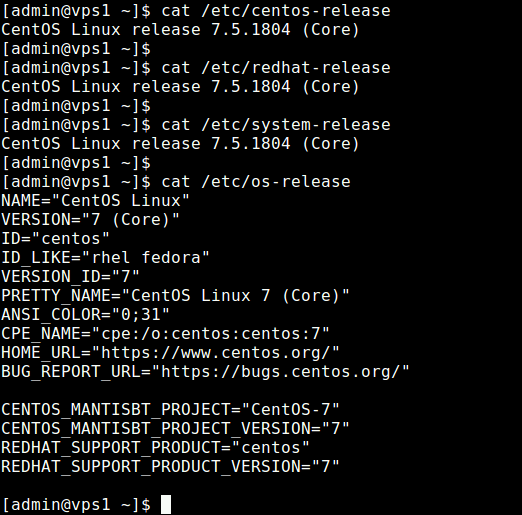
Check CentOS Release Version
That’s all for now! If you know any other method that should be covered here, let us know via the comment form below. You can also ask any questions related to the topic.
4 Ways to Check CentOS Version in Linux Command Line
Here are several ways you can check the version of CentOS Linux distribution running on your machine.
CentOS is a great OS when comes to server software because they have longer support cycle and great stable software in the repositories and a larger community. To know more about why CentOS is better, check out this page.
It happens most of the time when installing or selecting a software package, one needs to know the version of the CentOS running in their systems to avoid dependency mismatch and other issues.
In this tutorial, I’ll show you some ways by which you can check the version of the CentOS.
How to Check CentOS Version
To check CentOS version, you can use a command like this:
The result will give you the CentOS version number.
Before we see other methods to check CentOS version, let’s first understand the version number and what those number means.
CentOS version consists of three parts, which can be best understood with an example. Consider the version:
7.14.1234
- 7-major release: This is the most important version number because software packages developed for one version may not be supported in other versions. This is because newer versions will have some bugs fixed which are not in new versions and also they will have new features, new packages, and new hooks into the system. So, there will be a problem when running the software intended for other versions and hence can mess up the system.
- 14-minor release: These are less important, but they are crucial for maintaining major security updates and a few new features.
- 1234-build number: This is a version for distributing the software with minor security updates and bug fixes. This doesn’t affect the software versions running on the system that much.
Method 1: Using hostnamectl
The hostnamectl command can be used to query and set the hostname for the system. I also display the Version number of the OS running in the system. This Command displays only the major version number.
Your output will be similar to like the one below.
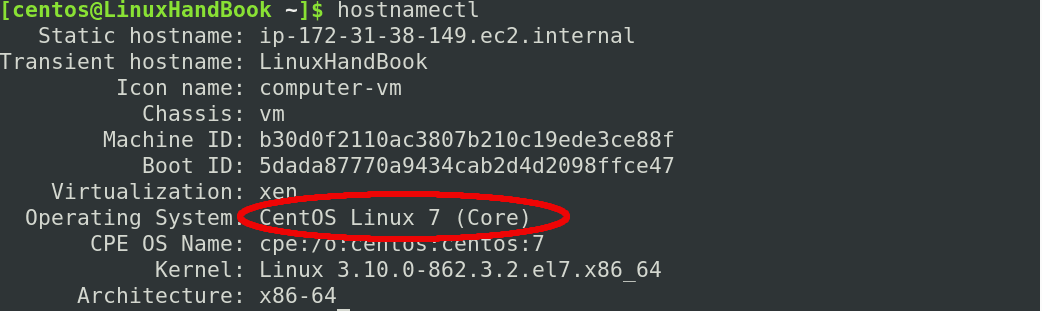
hostnamectl displays the major version number
Method 2: Using rpm package manager
Since os itself considered as a package by most package managers one can query the package manager(rpm in this case) to find the version of the OS.
- rpm is the package manager
- -q or –-query is the option for querying
- centos-release is the package that we want to query on
Note: If you need to check any other software replace centos-release with <packagename>.
Result of the above will be similar to the one below:

rpm command to query the system for version info
Method 3: Refer the files /etc/*release
Every Linux OS hosts teh important and configuration details about itself and packages in /etc/ directory. And so does centOS.
If you issue ls /etc/*release , following files will be listed.
- centos-release
- os-release
- redhat-release
- system-release
One can guess by the name of the files, they carry information about the system release. You can manually open the files using any text editor and examine the files for version information or cat command can be used to see the contents of the files. If you don’t know what is cat or you want to brush up your cat skills, Check out this detailed guide on using cat command.
Result of the command will be similar to below:

examine /etc/*release files for version information
Method 4: Using lsb_release tool
lsb release command displays important lsb (linux standard base) information and distribution information. But this tool is available inside the package redhat-lsb.
Install the package in your system using the below command to continue (if you don’t have already).
As you might have noticed, you need to be a sudoer for running this command as you are installing a package. If you are a sudoer and you want to give someone sudoer rights, learn how to create sudo user. If you are not a sudoer, try contacting your system admin.
After installing the package, run the below command:
- -d is the option to display a description of the OS
The result will be similar to the one below:

using lsb_release to find version information
This lsb_release command can be used in other distributions as well. For example, you can run it in Debian to check the Debian version.
Congratulations!. By now, you know various ways by which version number of the CentOS can be found.
I hope you found this article useful. If you have any suggestions or comments, feel free to drop them below.
Как определить версию Linux?
Линукс — как много в этом слове эмоциональной и смысловой нагрузки. А как много разных дистрибутивов входят в это семейство И частенько требуется понять, какая конкретно версия установлена и этому помогает пакет systemd, который в настоящее время имплементирован во многие дистрибутивы.
Самый простой способ проверить версию Linux это просто использовать hostnamectl команду без каких-либо аргументов. Эта команда возвращает название дистрибутива, версию и кодовое название вместе с конкретной версией ядра.
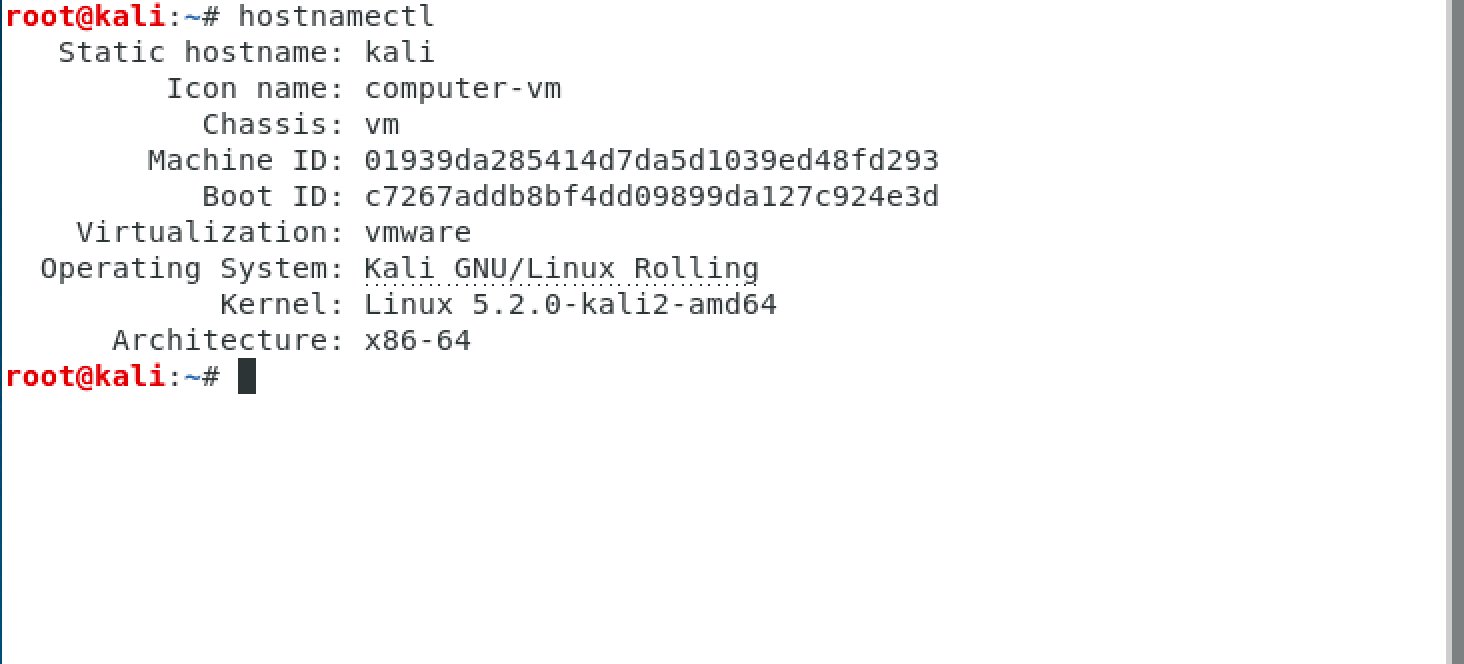
Дополнительные способы определения
Системы управления пакетами в Linux
Если команда выше вам не помогла, следующим шагом будет проверка установленного пакетного менеджера, так как вероятность, что один из трех пакетных менеджеров все-таки установлен крайне высока.
- rpm — пакетный менеджер для систем RedHat
- dpkg — пакетный менеджер для систем Debian
- pacman — пакетный менеджер для систем Arch
Таким образом, если система использует rpm, то скорее всего у вас используется RHEL, CentOS, Fedora и т.д. Если deb, то скорее всего это Ubuntu, Debian, Mint. И соответственно в случае pacman это будет Arch или Manjaro (и им подобные).Для определения пакетного менеджера нужно ввести команду
В случае deb и rpm она вернет следующее: /usr/bin/dpkg и /bin/rpm соответственно.

Проверка версии CentOS/RHEL
Самый простой способ проверки версии CentOS это чтение файла /etc/centos-release с помощью команды cat /etc/centos-release
В свою очередь для RHEL нужно будет прочитать файл /etc/redhat-release
Команду соответственно меняем:
Думаю логика здесь понятна, для Fedora нужно будет поменять команду на fedora-release — проще некуда.
Проверка версии Debian, Mint и Ubuntu
Для Debian — подобных систем нужно прочесть файл /etc/issue:

Проверка версии Arch
Проверять версию Arch не имеет смысла, так как каждый раз при запуске команды pacman -Suy ваша система автоматически обновляется до последней версии.
Проверка системных параметров
Проверка системной архитектуры и версии ядра
Самый простой и популярный способ определения системной архитектуры и версии ядра Linux это использование команды uname с аргументом -a.
То есть команда будет выглядеть следующим образом:
В выводе будет указана версия ядра и разрядность архитектуры.

Проверка архитектуры ЦПУ
Самым простым и распространенным способом является команда:
Как видно из вывода, вместе с моделью процессора и его частотой также видна его разрядность и еще много различных параметров.