NAT Boost / Acceleration in Wi-Fi routers – Pros & Cons!
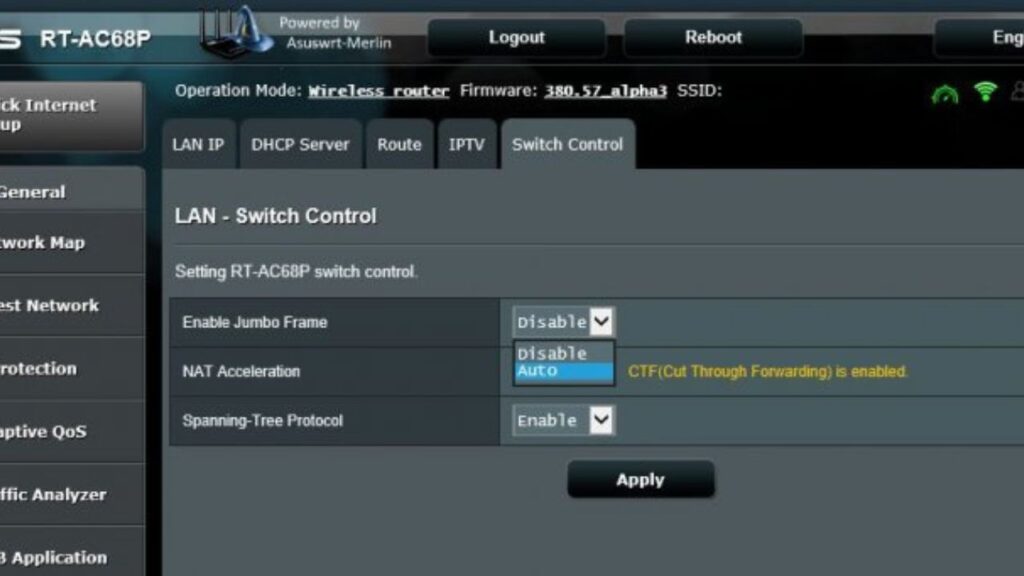
NAT Boost or NAT Acceleration or Hardware Acceleration in Wi-Fi routers is a feature which helps you to get peak speed of your high-speed broadband connection, called by different names by different Wi-Fi brands. It’s actually CTF (cut-through forwarding) and FA (flow accelerator). It’s available in most mid-range to flagship grade Wi-Fi routers and mainly helps those with high-speed Internet connection.
It will be helpful for those who got faster than 200 Mbps connection. However, if your connection speed is 200 Mbps or lower than it’s basically useless for you because your router should be able to stay on its peak speed without issues and besides that, NAT Boost / Acceleration also conflicts with several other features and use cases. So, in some cases you might not want to use it.
What is NAT Boost / Acceleration in Wi-Fi routers?
It’s a feature which helps you achieve peak speed of your connection when your broadband connection is having over 200 Mbps speed. For those who don’t have faster connection, I’ll say it’s better to turn it off because it conflicts with many other services.
It works by sending the packets as soon as it receives the destination without checking for errors instead it waits for the receiver’s response to know whether there was any error or corruption in data and if there is then it resends it. It’s the reason why it doesn’t work alongside many other features.
There are two options for the same–
Level 1 – Cut-through forwarding.
Level 2 – Cut-through forwarding alongside Flow Accelerator.
Conflicting use cases and features of NAT Boost / Acceleration-
1. Port Forwarding and Gaming:

Port Forwarding doesn’t work alongside NAT Boost / Acceleration in Wi-Fi routers which means if you play certain game which requires port forwarding, you’ll have to disable NAT Boost before you can play. Besides that, as the router sends packets without checking for errors, your gaming experience in other online games will be impacted as well, even if they are mobile game like PUBG Mobile or Call of Duty Mobile.
2. Quality of Service:

As QoS features usually have to hold the data to take decision based on the command provided to it. Meanwhile, when you’ve NAT Boost / Acceleration feature turned on, your data is transmitted as soon as it knows the receiver, hence, QoS cannot work alongside this.
However, in some routers, you might be able to use “adaptive QoS” with level 2 NAT Boost.
3. Parental Control:

If you’re someone who got kids at home and want to have parental control then again, it won’t work alongside this NAT Boost / Acceleration due to the way it works.
4. Screen mirroring & VoIP:

Screen mirroring features like Chromecast or AirPlay also suffers issues like stuttering during video playback with NAT Boost / Acceleration. Similar problem can be noticed during VoIP sessions as well. Hence, if you’re user of either of these, it’s better to turn this feature off.
Conclusion:
If you need any of the features mentioned above or if your Internet speed is not more than 200 Mbps then it’s better to disable this feature. However, if you got faster connection than that and you also need one or more features mentioned above then it’s on you whether you want those feature or higher peak speed. I recommend setting it on Auto if you don’t need those features and also having faster than 200 Mbps connection.
Akash Deep Satpathi
I am the creator of this blog who mainly like to write articles about topics related to computers and smartphones. Besides those, my interest includes the telecommunication field and cats.
Leave a Reply Cancel reply
This site uses Akismet to reduce spam. Learn how your comment data is processed.
NAT Acceleration On or Off – What Should be Your Move?
A perfect wireless network configuration demands high performance, minimal lagging, and reliable security standards. As a regular internet user, it might be confusing to understand what you should keep enabled and whatnot. Among other terms of router configuration, NAT Acceleration or Hardware Acceleration is the talk of the town.
NAT acceleration for routers is quite different from a computer’s hardware acceleration. Only Asus routers have the hardware acceleration known as NAT acceleration, while you have to address it as hardware acceleration for other brands. Other terms for the same hardware forwarding are Cut-Through Forwarding (CTF), Flow Accelerator (FA), etc.
Let’s explore NAT acceleration, how it impacts your wireless network, and whether you should enable this feature.
NAT Acceleration: Definition
NAT (Network Address Translation) acceleration is a combination of hardware features and software setups designed to improve network speed. If you want to speed up your network experience, then you can turn on NAT acceleration or hardware acceleration on your router. However, you need not enable this feature if you can achieve an internet speed of at least 100 Mbps or higher.
You can easily locate NAT acceleration settings under your router’s LAN configurations. Generally, you can find two levels of NAT acceleration on Asus routers. The first level or Cut-Through Forwarding refers to a software optimisation technique that accelerates the NAT traffic. If you want to achieve a peak internet speed above 200 Mbps and your ISP offers a speed of over 100mbps, then you can activate the CTF technology.
While having the level-1 NAT acceleration or CTF enabled, the access point saves the complete frame before it sends it to its final destination. However, the holding interval might use more CPU resources of the router than required.
Whereas the level-2 NAT acceleration is a set of CTF and FA settings. This hardware acceleration mechanism supports accelerating Static IP and wired DHCP connections. You can enable this option of NAT acceleration when you want to use what your ISP offers best.
How does NAT Acceleration or Hardware Acceleration Work for Routers?
Any router closely examines incoming traffic to every port and takes care of the destination ports. Additionally, the router routes the traffic in its path so that data can reach the correct destination.
Now, while forwarding traffic, the router might have to decide whether it will accept or discard the traffic. This is decided by the Network Address Translation and modifies the traffic address to a public address from a local private one.
The router has to send a specific packet or information to its CPU when it’s about to allow or discard the traffic. Any CPU consists of limited resources, and you can’t stretch them. The router’s CPU has to verify the initial bytes of each packet, and the decision is made.
However, a router receives a lot of traffic requests every second. Verifying every packet’s first few bytes might take a considerable time. Additionally, the processes might own all the CPU resources, so the performance might lag behind as expected. Here, NAT acceleration or hardware acceleration can improve your networking speed.
NAT acceleration or hardware acceleration allows the router to inspect only the first few traffic packets. Thus, the router doesn’t have to waste time inspecting each packet of the remaining traffic. Once the router’s CPU allows those first packets to forward to their destination, the traffic will directly reach its destination. Needless to say, enabled NAT acceleration will improve your network’s performance and speed.
Should You Enable NAT Acceleration on your Router?
Enabled NAT acceleration is a proven technique to get higher throughput regarding your wireless network’s performance and efficiency. In addition, it assists your router in eliminating unnecessary traffic and latency. You can achieve a highly optimised router CPU with NAT acceleration enabled.
NAT acceleration is not only about benefits. Cons are present there, and you might lose the port forwarding ability with active NAT acceleration. Port forwarding might be your usual option to filter your uninterrupted networking experience if you are a gaming enthusiast. NAT acceleration can ruin it for you.
In addition, your router might stop parental controls, PPPoE or Point-to-Point Protocol over Ethernet, STP for bridged Ethernet LANs, and more. You might also face issues related to streaming on devices, such as Chromecast, Apple TV, etc., with NAT acceleration. Users have reported that hardware acceleration can disrupt streaming services, and they can become unstable.
Hence, you should prefer NAT acceleration as enabled only when you want to reduce CPU overloading. Additionally, check out whether your router comes with hardware acceleration facilities or not.
Why Should You Disable NAT or Hardware Acceleration on Your Router?
You can manually turn off NAT acceleration on your router if you don’t require it. Home routers don’t necessarily have to access NAT acceleration as they don’t have to deal with heavy workloads. However, you can enable it for your intense gaming routers if you don’t want a drop in the network’s speed.
Otherwise, you can disable NAT acceleration if you’re experiencing compatibility issues with the feature enabled. You can encounter different problems, disconnected devices, etc. when you have enabled NAT acceleration for short-range Wi-Fi connectivity.
Here’s how you can disable NAT or hardware acceleration on a router that comes with NAT acceleration support:
- Make sure that your router is turned on and it connects to the modem through an Ethernet cable. In addition, check that your router has a stable internet connection.
- Now, connect any of your computers or mobile devices to the router through a wired or wireless medium. You need to access an internet browser on the device, so choose a device accordingly. Open any internet browser on that device.
- Next, enter your router’s gateway URL or IP address to access its control panel. Or, you can explore your router’s dedicated application to make NAT acceleration changes.
- Check out specific settings for NAT acceleration after you log into that admin panel, firmware, or application. Disable NAT acceleration for your router, and you are good to go.
Issues Caused by Enabled NAT Acceleration
Conflicts are inevitable between NAT acceleration and other useful features of the router. Here are a few common issues that can arise from active NAT acceleration:
Port Forwarding not Working
Reportedly, port forwarding gets disabled or erroneous with enabled NAT acceleration. You might face challenges hosting gaming sessions from your home network if you turn on NAT acceleration. Hosting gaming servers for MMO, Minecraft, or other popular titles will be uncertain with active NAT acceleration.
QoS Obstacles
Quality of Service features is designed to have some priority in deciding the traffic that should reach its destination first. With NAT acceleration enabled, you are triggering serious conflicts with QoS standards. QoS allows the router to hold on to the traffic or data for a while before deciding what to do with the traffic.
NAT acceleration doesn’t permit the router to hold on to that traffic, and it initiates the transmission as soon as possible. With CTF or Level-1 NAT acceleration, your router can access Adaptive QoS. On the other hand, no QoS is active with the Level-2 or CTF+FA NAT acceleration.
Streaming & Mirroring Restrictions
Are you encountering issues with streaming devices and mirroring? Chances are there that you might have enabled hardware or NAT acceleration on your router. Chromecast and Apple TV users have complained about such instances, and you might also come across corrupted data. Routers have to resend them, and you might eventually notice considerable latency in streaming on those devices.
Parental Control & IP Traffic Monitoring
These features allow the router to examine data packets closely before passing them on. If you keep NAT acceleration enabled, the router will not get the privilege of inspecting every data packet.
Thus, such security features will remain compromised. Therefore, you must reconsider the NAT acceleration feature to keep parental control and IP traffic monitoring active.
Wrapping up….
NAT acceleration is a great approach to escalate your network speed. However, you are aware of the disadvantages of NAT acceleration enabled. Hence, you should disable NAT acceleration if you don’t require high-speed networking right now.
Moreover, NAT acceleration might interfere with your router’s security. So, keep NAT acceleration disabled for both public and private networks unless it’s extremely necessary.
На какие функции может влиять ускорение nat
Дорогие пользователи! У нас появился новый форум на платформе tp-link.community (Сообщество)
Если при регистрации в Сообществе Вы укажете адрес электронный почты, который используете на данном форуме, то Ваши данные будут перенесены на форум Сообщества автоматически.
Также, если на форуме Сообщества Ваш никнейм будет занят, то Вам предложат сменить его или оставить, но с приставкой «_RU».
Убедительная просьба не дублировать темы на старом/новом форуме.
Что такое "Включить ускорение NAT"?
Что такое "Включить ускорение NAT"?
Сообщение eleabkru » 07 июн 2021, 17:44
Название темы : Что такое «Включить ускорение NAT»?
Аппаратная версия устройства : v2.0
Тип подключения : PPPoE, Dynamic IP
Описание проблемы : Есть где-то понятное пояснение данной функции? Я по разному пробовал — не понимаю, что дает эта функция.
П.С. и доп.вопросик.
Есть ли функция маскарадинка IP источника? Чтобы при пробросе порта, к примеру того же http, чтобы сервер все внешние запросы видел не как их белые адреса (пример: 62.33.84.115), а как ip адрес маршрутизатора (Пример: 192.168.0.1).
Aleksey.PL Модератор
 Сообщения: 558 Зарегистрирован: 02 сен 2020, 09:45 Страна: Россия
Re: Что такое "Включить ускорение NAT"?
Сообщение Aleksey.PL » 09 июн 2021, 10:25
Re: Что такое "Включить ускорение NAT"?
Сообщение eleabkru » 09 июн 2021, 12:41
По первому понятно.
А по «Включить ускорение NAT» — это значит, что галочка просто «оптимизация работы», а не изменение в логике работы? Как для пользователя — все остается так же, но просто быстрее за счет внутренней, какой-то оптимизации. Так?
Aleksey.PL Модератор
Сообщения: 558 Зарегистрирован: 02 сен 2020, 09:45 Страна: Россия
QoS vs NAT Boost: What’s the Difference?

As a network administrator, one of the most important things you need to consider is the quality of service (QoS) and network address translation (NAT) boost on your network. These two features are critical for ensuring that your network runs smoothly and that your users can access the resources they need.
But what is the difference between QoS and NAT boost, and how do you decide which one to use?
Table of Contents
What is QoS?
QoS is a set of technologies used to manage and prioritize network traffic. This is important because different types of traffic have different requirements and can cause issues if they are not properly managed.
For example, real-time applications like video conferencing and online gaming require low latency and high bandwidth. In contrast, non-real-time applications like email and file transfers can tolerate higher levels of delay.
The main goal of QoS is to ensure that critical traffic gets the resources it needs while preventing non-critical traffic from consuming too many resources. This is done by classifying traffic into different categories and applying policies to each category. For example, you might give priority to real-time traffic and lower priority to non-real-time traffic.
- Traffic shaping: This limits the bandwidth a particular type of traffic can use. This can help to prevent non-critical traffic from consuming too many resources.
- Traffic policing: This is used to drop or re-mark packets that exceed a particular rate. This can help to prevent non-critical traffic from consuming too many resources.
- Class-based queuing: This is used to assign different priorities to different types of traffic. This can help to ensure that critical traffic gets the resources it needs.
When deciding which QoS technology to use, you should consider the specific requirements of your network and the types of traffic you need to manage.
What is NAT Boost?
NAT boost (also known as NAT acceleration) is a feature used to improve the performance of NAT on your network. NAT is used to translate between the private IP addresses used on your internal network and the public IP addresses used on the Internet. NAT is an important feature because it allows you to use a single public IP address for multiple devices on your network.
However, NAT can also cause issues when it comes to performance. This is because NAT can introduce additional latency and reduce the available bandwidth for certain types of traffic. NAT boost is designed to address these issues by improving the performance of NAT on your network.
- Connection tracking: NAT boost uses connection tracking to track all the connections passing through the router. This allows the router to find and forward packets to the correct destination quickly.
- Fast path forwarding: NAT boost uses fast path forwarding to forward packets directly to the destination without going through the NAT table. This can help to reduce the amount of latency that NAT introduces.
- Flow acceleration: NAT boost uses flow acceleration to group together similar packets and forward them as a single flow. This can help to increase the available bandwidth for certain types of traffic.
When deciding whether to use NAT boost on your network, you should consider the specific requirements of your network and the types of traffic you need to manage.
Please enable JavaScript
How to Choose Between QoS and NAT Boost?
When choosing between QoS and NAT boost, you should consider the specific requirements of your network and the types of traffic you need to manage. If your network primarily deals with real-time applications such as video conferencing and online gaming, then QoS would be the better option.
It allows you to prioritize and manage those types of traffic to ensure they receive the necessary resources and have minimal latency.
On the other hand, if your network primarily deals with NAT and you are experiencing issues with performance, such as latency and reduced bandwidth, then a NAT boost would be the better option. It improves the performance of NAT by reducing latency and increasing available bandwidth.
It is also important to note that QoS and NAT boost can be used together. By implementing both QoS and NAT boost, you can ensure that your network can handle all types of traffic efficiently and effectively.
Conclusion
QoS and NAT boost are two important features that network administrators need to consider when managing their networks. QoS is used to manage and prioritize different types of network traffic, while NAT boost is used to improve the performance of NAT.
By understanding the difference between these two features and considering the specific requirements of your network, you can make an informed decision on which one to use or even both.
Frequently Asked Questions
Can QoS and NAT boost be used together?
Yes, QoS and NAT boost can be used together. By implementing both QoS and NAT boost, you can ensure that your network can handle all traffic efficiently and effectively.
Is QoS only for real-time applications?
QoS is primarily used for real-time applications such as video conferencing and online gaming, but it can also be used to manage and prioritize other types of traffic.
Is NAT Boost only for improving NAT performance?
Yes, NAT Boost is primarily used to improve the performance of NAT by reducing latency and increasing available bandwidth.
How do I decide which one to use?
The decision of whether to use QoS or NAT Boost, or both depends on the specific requirements of your network and the types of traffic that you need to manage. If your network primarily deals with real-time applications, then QoS would be the better option.
If your network primarily deals with NAT and you are experiencing issues with performance, then NAT Boost would be the better option.
Are there any downsides to using QoS and NAT Boost?
As with any technology, there can be downsides to using QoS and NAT Boost. QoS can be complex to set up and manage and may not be necessary for all types of networks. NAT Boost can also add some complexity to your network, and it may not be able to improve performance in all cases.
It is important to carefully evaluate the specific requirements of your network and weigh the potential downsides before implementing QoS and NAT Boost.
How do I set up QoS and NAT Boost on my network?
Setting up QoS and NAT Boost can vary depending on the specific router or network device you are using. You may need to consult the documentation or seek assistance from the manufacturer to set up and configure these features on your network correctly.