WiFi – Wireless Adapter Settings
It’s safe to say that we live in a world where every laptop has one and the number of desktop motherboards with them is increasing. WiFi adapters. But with the many WiFi standards the past years and the variety of WLAN Access Points you might need to change a setting to get a good WiFi connection. Here’s what the settings mean:
Use 802.11n channel width to set high throughput mode channel width in order to maximize performance.
- Auto (default): For band 5.2, this setting uses 20 or 40 MHz depending on the wireless access point or router
- 20 MHz
The 802.11n standard adds multiple-input multiple-output (MIMO). MIMO increases data throughput to improve the transfer rate. Use the setting to enable or disable high throughput mode support (MIMO – 802.11n).
- Enabled (Default)
- Disabled
Ad–hoc channel 802.11 b/g
Ad-hoc channel 802.11 b/g is the band and channel selection for device to device (ad-hoc) networks. You don’t need to change the channel unless the other computers in the ad-hoc network are not using the default channel.
If you must change the channel, select the allowed operating channel:
- 802.11b/g (Default): Select when using 802.11b and 802.11g (2.4 GHz) ad-hoc band frequency.
- 802.11a: Select when using 802.11a (5 GHz) ad-hoc band frequency.
Set power-saving features for device to device (ad-hoc) networks.
- Disabled: Select when connecting to ad-hoc networks with stations that don’t support ad-hoc power management.
- Maximum Power Savings: Select to optimize battery life.
- Noisy Environment: Select when connecting in a noisy environment to prevent performance degradation.
Ad-hoc QoS mode
The Quality of Service (QoS) control in ad-hoc networks prioritizes traffic from the access point over a Wi-Fi Local Area Network (LAN) based on traffic classification. WMM* (Wi-Fi Multimedia*) is the QoS certification of te Wi-Fi Alliance* (WFA). When WMM is enabled, the adapter uses WMM to support priority tagging and queuing capabilities for Wi-Fi networks.
- WMM Enabled
- WMM Disabled (Default)
Bluetooth® AMP
Enable or disable Bluetooth® AMP.
AMP stands for Alternate MAC/PHY and uses the 802.11(Wi-Fi) as the high-speed transport. If disabled, Bluetooth HS is turned off.
- Enabled
- Disabled
Fat channel intolerant
The setting communicates to surrounding networks that the Wi-Fi adapter is not tolerant of 40 MHz channels in the 2.4 GHz band. The setting’s default is disabled (turned off) so that the adapter does not send this notification.
Mixed mode protection
Use mixed mode protection to avoid data collisions in a mixed 802.11b and 802.11g environment. Use Request to Send/Clear to Send (RTS/CTS) in an environment where clients may not hear each other. Use CTS-to-self to gain more throughput in an environment where clients are within hearing proximity.
| Note | The setting is not valid when 802.11n mode is enabled. |
- No Preference
- Prefer 2.4 GHz band
- Prefer 5.2 GHz band
Roaming aggressiveness
Define how aggressively your Wi-Fi client roams to improve connection to an access point. Click Use default value to balance between not roaming and performance.
- Lowest: Your wireless client won’t roam. Only significant link quality degradation causes it to roam to another access point.
- Medium-Low/Medium-High: Allow roaming.
- Medium: Balanced setting between not roaming and performance.
- Highest: Your Wi-Fi client continuously tracks the link quality. If any degradation occurs, it tries to find and roam to a better access point.
Throughput Enhancement/Booster
Enhance the transmit throughput by enabling packet bursting. The default setting is Disable.
Transmit power
The optimal setting is to set the transmit power at the lowest possible level still compatible with communication quality. The setting allows the maximum number of wireless devices to operate in dense areas. It reduces interference with other devices that share the radio spectrum. If you decrease the transmit power, you reduce the radio coverage.
- Lowest: Sets the adapter to the lowest transmit power. Increase the number of coverage areas or confine a coverage area. You should reduce the coverage area in high traffic areas to improve overall transmission quality and avoid congestion or interference with other devices.
- Medium-low/Medium/Medium-high: Set by country requirements.
- Highest (Default): Sets the adapter to a maximum transmit power level. Use this setting for maximum performance and range in environments with limited radio devices.
Wake on magic packet
If enabled, the setting wakes the computer from a sleep state when it receives a “magic packet” from a sending computer. The magic packet contains the MAC address of the intended destination computer. Enabling turns on Wake on Magic Packet. Disabling turns off Wake on Magic Packet. It only disables the magic packet feature, not Wake on Wireless LAN
- Enabled
- Disabled
Wake on pattern match
The feature wakes the computer from a sleep state when an adapter receives a particular wake pattern. Window 7* and Windows 8* support the feature. Patterns are typically:
- Wake on new incoming TCP connection for IPv4 and IPv6 (TCP SYN IPv4 and TCP SYN IPv6)
- Wake on 802.1x reauthentication packets.
Disabling only disables the pattern match feature, not Wake on Wireless LAN.
- Enabled
- Disabled
Wireless mode
The setting allows you to select whether the adapter operates in the 802.11b, 802.11g, and 802.11a bands.
- 802.11b only: Connect the wireless adapter to 802.11b networks only.
- 802.11g only: Connect the wireless adapter to 802.11g networks only.
- 802.11a and 802.11g: Connect the wireless adapter to 802.11a and 802.11g networks only.
- 802.11b and 802.11g: Connect the wireless adapter to 802.11b and 802.11g networks only.
- 802.11a, 802.11b, and 802.11g (Default): Connect to 802.11a, 802.11b, or 802.1g wireless networks.
NS offloading for WOWLAN
NS offload is the ability of the network adapter to respond to a Neighbor Discovery Neighbor Solicitation request with a Neighbor Advertisement without waking the computer. Both the hardware and the driver must support NS offload to enable this feature.
- Enabled
- Disabled
Packet Coalescing
The feature enables power saving by reducing the number of receive interrupts. The feature reduces receive interrupts by coalescing random broadcast or multicast packets.
ARP offload is the network adapter’s ability to respond to an IPv4 ARP request without waking the computer. To enable the feature, both the hardware and the driver must support ARP offload.
- Enabled
- Disabled
GTK rekeying for WOWLAN
Group Temporal Key (GTK) Rekey is used to encrypt and decrypt network traffic.
- Enabled
- Disabled
HT mode
The setting lets you select HT Mode (High Throughput mode), select VHT Mode (Very High Throughput Mode), or disable both modes.
- Disabled
- HT mode (supports 802.11n compatibility)
- VHT mode (supports 802.11ac compatibility)
Sleep on WOWLAN disconnect
Sleep on WOWLAN Disconnect is the ability to put the device to sleep/drop connection when WOWLAN is disconnected.
- Enabled
- Disabled
U-APSD support
uAPSD (or WMM-Power Save or WMM-PS) is a WiFi capability that saves power consumption on low periodic latency-sensitive traffic modes, like a VOIP. We have identified IOT (interoperability) issues with certain access points that result in reduced Rx throughput.
Should ARP offload be enabled?
ARP Offload RECOMMENDATION: Keep this turned off. This offload is enables a feature where your computer responds to packets in sleep state. Unless you use that, there’s little reason to leave it on.
What is ARP offload enable or disable?
ARP Offload: Enables the adapter to respond to ARP requests, which prevents the computer from having to wake for them when asleep.
Should I disable Large Send Offload?
Large Send Offload is a technique of improving network performance while at the same time reducing CPU overhead. Apparently it does not work very well, so it was suggested to disable it. If you would like to know about LSO, check this MSDN article from 2001 (Task Offload (NDIS 5.1) (Windows Drivers)).
Should I enable or disable flow control?
When to enable flow control It is generally safe to leave flow control enabled on computers. Switches, though, should either have flow control disabled or configured such that they will honor received pause frames but will never send out new pause frames.
What is ARP offload for WoWLAN?
ARP offloading for WoWLAN ARP offload is the network adapter’s ability to respond to an IPv4 ARP request without waking the computer. To enable the feature, both the hardware and the driver must support ARP offload.
Should I turn off checksum offload?
Address Checksum Offloads should ALWAYS be enabled no matter what workload or circumstance. This most basic of all offload technologies always improve your network performance.
Is large send offload good?
Large Send Offload is a technique of improving network performance while at the same time reducing CPU overhead. Apparently it does not work very well, so it was suggested to disable it.
Should I disable offload?
Disabling Checksum Offload On a system operating at full capacity, this can result in a delay large enough to cause the packet to be dropped or sent once the calling client has given up waiting. Disabling the checksum offloading feature will cause the NIC to take care of these calls and usually improves throughput.
4 Easy Ways to Optimize Ethernet Settings For Gaming
Surefire tips to taking your gaming experience to the next level
- English
- Spanish
- Italian
- You may have been playing games for a while without optimizing your network settings .
- This guide recommends some advanced Ethernet driver settings for gaming optimization.
- One effective tip to take your gaming to the next level is to disable power for your network adapter.
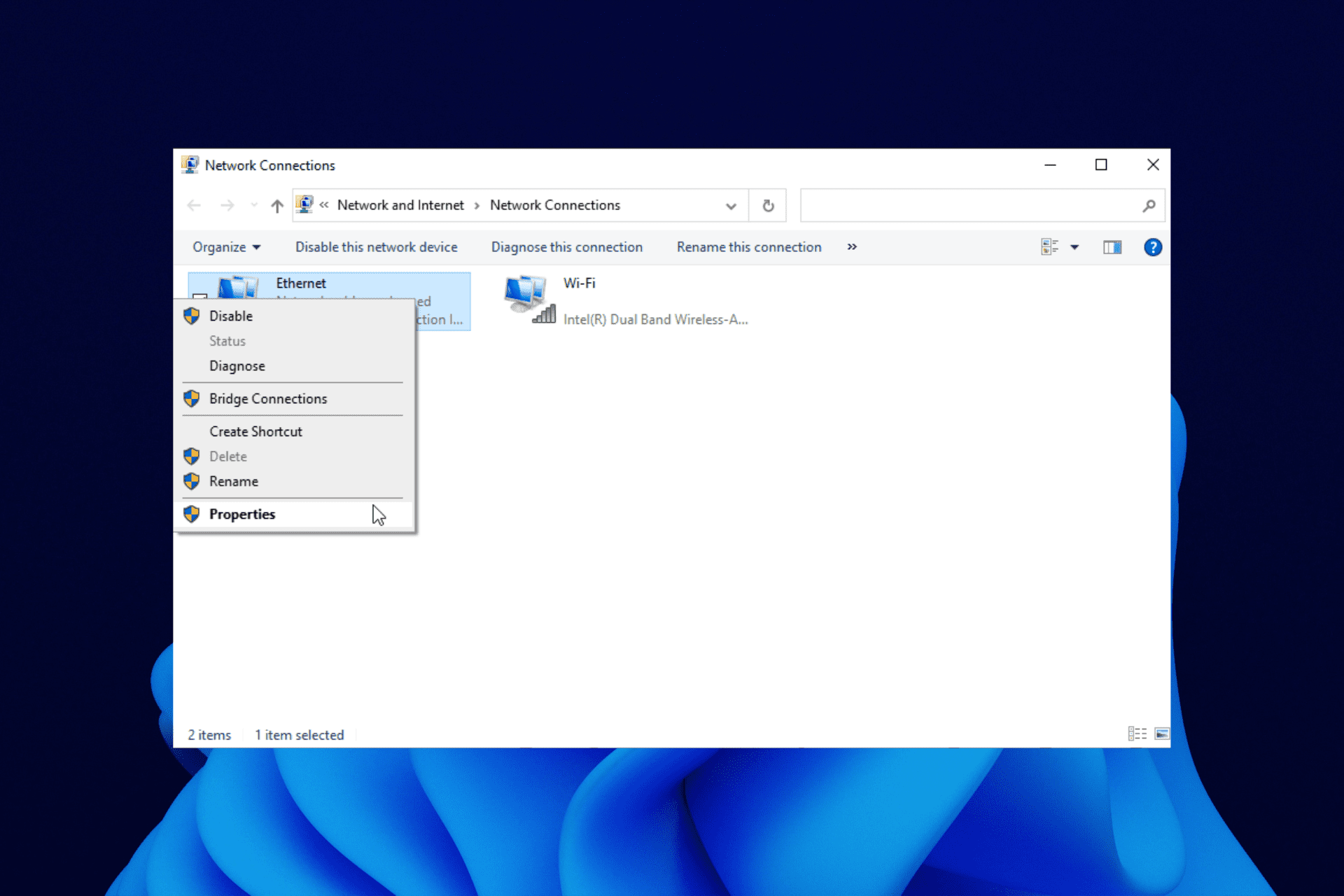
Your internet performance determines the quality of your gaming experience. There’s nothing worse than constant lagging when you play games online.
You may not be using the best gaming PCs or the fastest network, but you can optimize what you have with the best Ethernet settings for gaming.
This guide will show you the settings to apply to take your gaming performance to the next level.
A true gamer needs the best browser
Complete your gaming setup with Opera GX. It’s a customizable browser designed for gamers, with a futuristic design and a game-focused interface. It includes optimization features for resource consumption: CPU, RAM and bandwidth limiters.
The browser has integrations with Twitch, Discord, and other messengers, plus a gaming newsfeed with a new releases calendar, tournaments info and other gaming events. Moreover, to keep your sight focused on gaming elements, Opera GX includes an easy to enable dark theme.

Opera GX
How do I optimize my Ethernet for gaming?
You need to make intelligent changes to your network settings to optimize your ethernet settings for gaming. One setting to apply is to disable Internet Protocol Version 6 (IPv6).
Another option is to disable Ethernet adapter components. We will show the steps to apply these settings with other solutions later in this guide.
How can I change my Ethernet adapter settings for gaming?
1. Disable IPv6
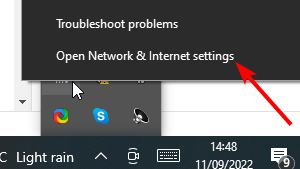
- Right-click on the network icon on your taskbar.
- Select Open Network & Internet settings.
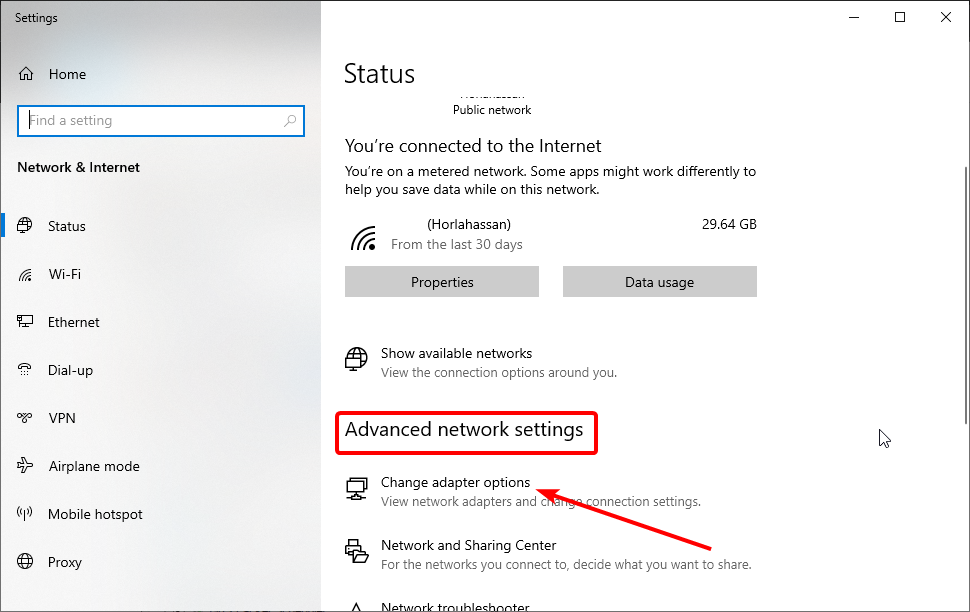
- Click on Change adapter options under the Advanced network settings section.
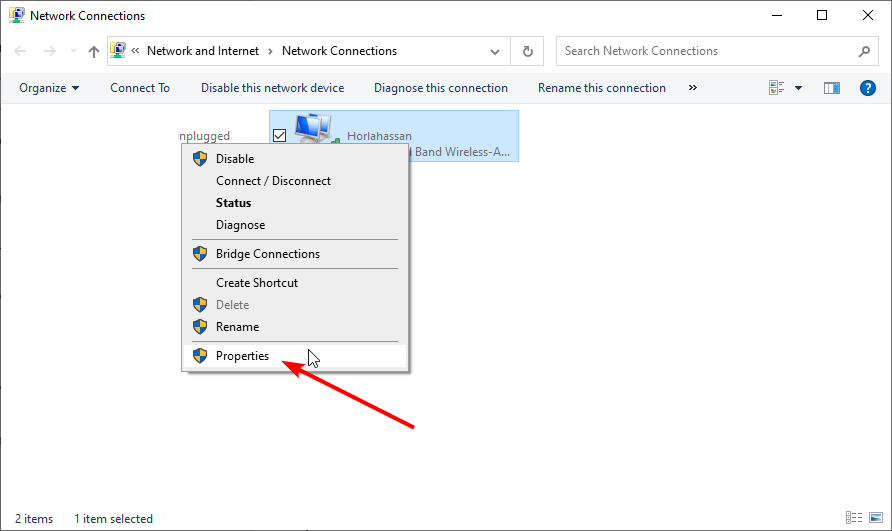
- Right-click on your Ethernet connection and select Properties.
- Unmark the Internet Protocol Version 6 (TCP/IPv6) option.
- Hit the OK button.
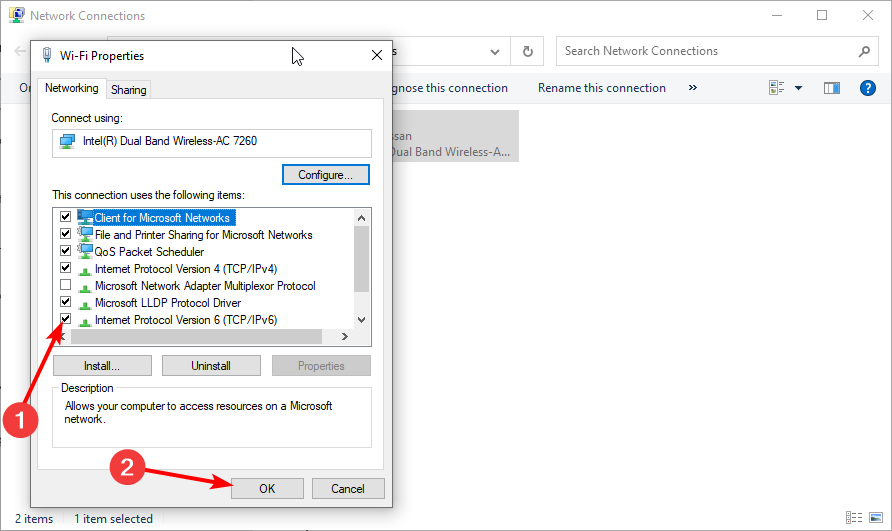
Disabling IPv6 is one of the best Ethernet adapter network settings for optimizing your gaming performance to the maximum on Windows 10/11. With this feature disabled, you should notice improved performance.
2. Disable Ethernet adapter components
- Right-click on the network connection icon on your taskbar.
- Click on the Open Network & Internet Settings button.
- Select Change adapter options.
- Right-click on the connection you want to modify.
- Select Properties from the context menu.
- Click on the Configure button.
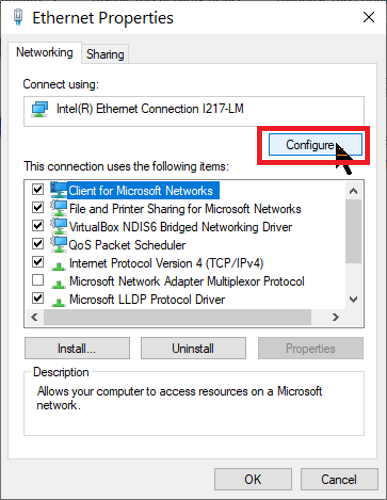
- Switch to the Advanced tab.
- Find and click on Interrupt Moderation from the list here.
- Disable the selected option from the dropdown under Value on the right-hand side of the screen.
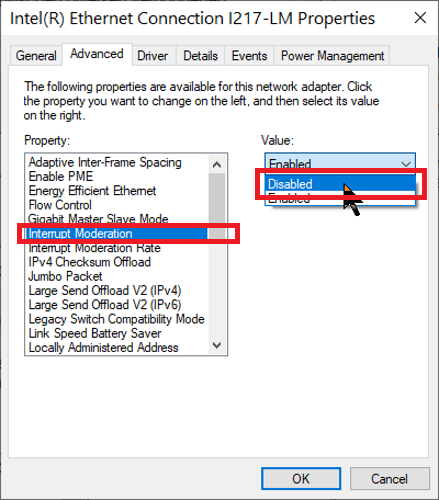
- Repeat steps 8 and 9 for the following options:
- Flow Control.
- Receive Side Scaling.
- TCP Checksum Offload (IPv4).
- UDP Checksum Offload (IPv4).
3. Ethernet advanced settings gaming optimization
- Press the Windows key + R and type devmgmt.msc in the run box.
- Click the OK button to open Device Manager.
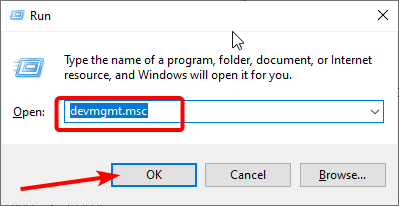
- Double-click the Network adapters option to expand it.
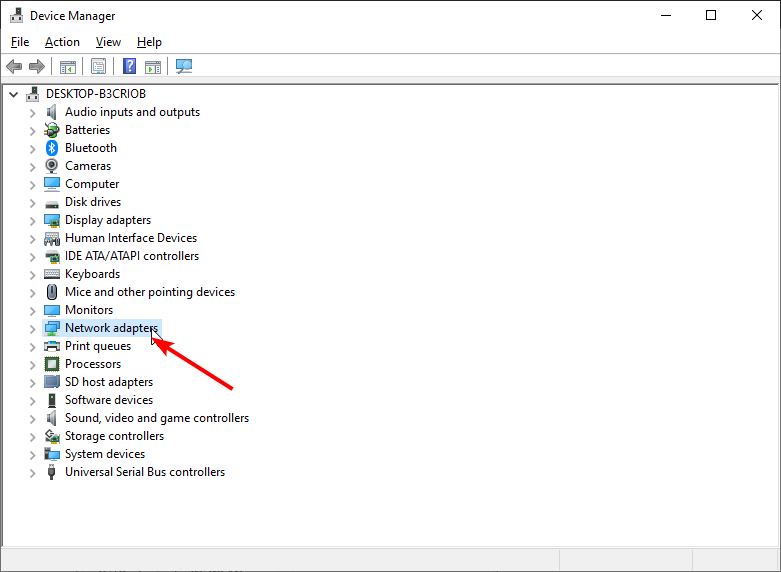
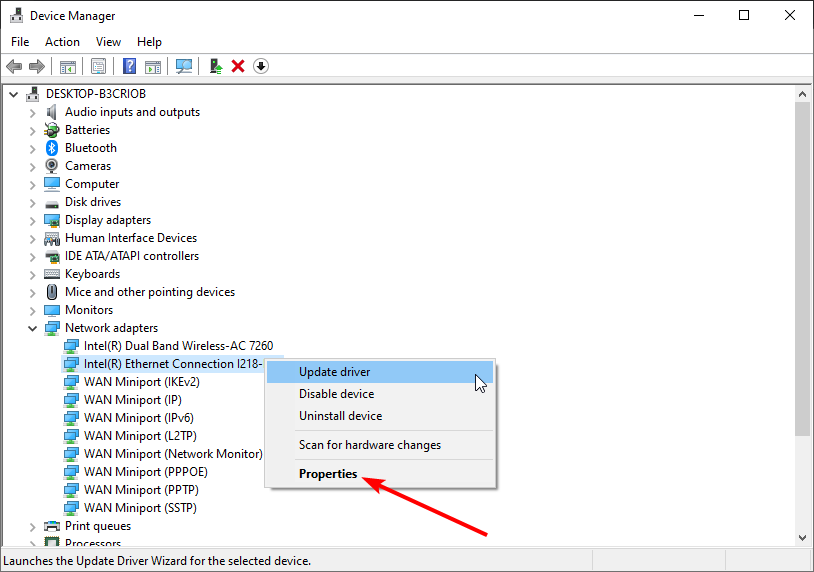
- Right-click on your network adapter and select Properties.
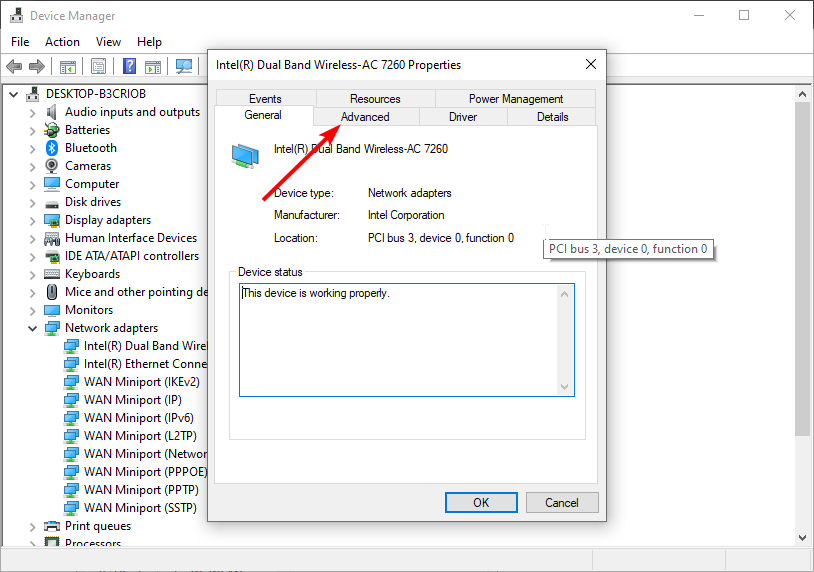
- Switch to the Advanced tab.
- Select the ARP offload for WoWLAN option.
- Now, click the dropdown under Value and select Disabled.
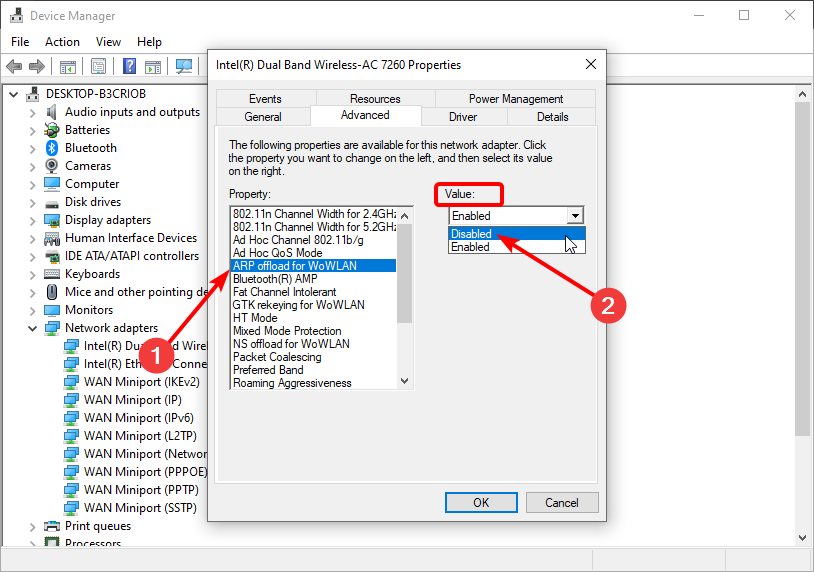
- Select the properties below and disable them too:
- NS offload for WoWLAN.
- Interrupt Moderation.
- Flow Control.
- Receive Side Scaling.
- Adaptive Inter-Frame Spacing.
- Enable PME.
- Packet Priority & VLAN.
- Jumbo Packet.
In addition to these settings, you can also ensure that your PC isn’t running on Power Saving mode. You want to use all your resources for the game.
4. Disable power saving for the network adapter
- Click the Windows key + X and select Device Manager.
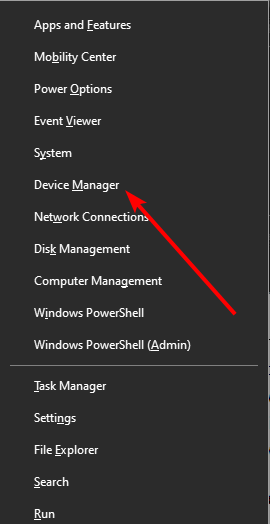
- Double-click the Network adapters option to expand it.
- Right-click on your Ethernet adapter and select Properties.
- Click the Power Management tab.
- Uncheck the Allow the computer to turn off this device to save power option.
- Click on the OK button.
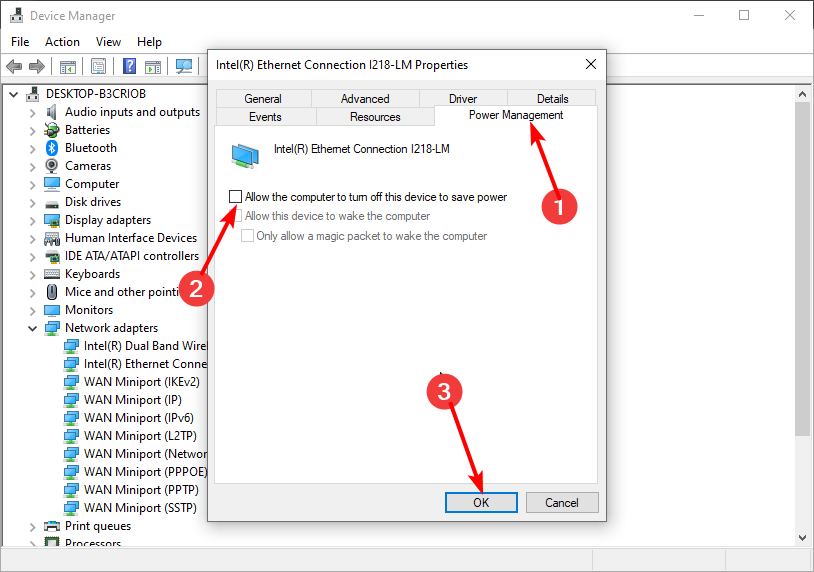
The power management settings help to save energy on your PC. However, it can cause your game to slow down by turning off your driver when it needs to save power. Disabling this feature allows your network drivers to work constantly.
Should I disable Energy Efficient Ethernet for gaming?
Energy Efficient Ethernet reduces the power consumption of some components in times of low link utilization. This helps to save energy on your PC.
However, this affects your gaming as the primary aim is to save energy. So, you should disable this setting to optimize gaming.
These are the best Ethernet settings for gaming and improving your network throughput. However, ensure that your network drivers are updated. Running outdated network drivers will take a toll on your gaming performance.
If you’ve followed all of the steps in this guide but still experience lagging when you game, disable your antivirus.
Feel free to let us know if the tips above helped optimize your gaming in the comments below.
What is ARP offload?
ARP Offload: Enables the adapter to respond to ARP requests, which prevents the computer from having to wake for them when asleep. NS Offload: Enables the adapter to respond to Neighbor Discovery Neighbor Solicitation requests, which prevents the computer from having to wake for them when asleep.
Should I disable Large Send Offload?
Large Send Offload is a technique of improving network performance while at the same time reducing CPU overhead. Apparently it does not work very well, so it was suggested to disable it. If you would like to know about LSO, check this MSDN article from 2001 (Task Offload (NDIS 5.1) (Windows Drivers)).
Should I disable receive side scaling?
Side scaling allows your system to distribute all the receive data processing to multiple processors or processor cores. But the CPUs nowadays are capable of handling it, so there’s no reason to disable RSS. Some adapters might support RSS queue settings.
How do I change from Ethernet to 1gbps Windows 10?
The steps to follow are these:
- In the window where the speed was indicated, click on properties.
- Make sure that the Microsoft Network Client option is checked.
- We click on configure.
- We go to advanced options and look for Speed & Duplex.
- We have to change the value by 1.0 Gbps Full Duplex.
- Press accept.
Should I Enable ARP offload?
ARP Offload RECOMMENDATION: Keep this turned off. This offload is enables a feature where your computer responds to packets in sleep state. Unless you use that, there’s little reason to leave it on.
Should I enable auto disable gigabit?
When users change the setting to Re-Link and user unplugs and plugs network cable again, the driver will automatically disable gigabit capability. Gigabit has much higher power consumption than 10/100 MBps. For notebook users, it is recommended to turn on this to reduce power consumption.
Should I disable large send offload Windows 10?
Click the Advanced tab. Scroll down to IPv4 Large Send Offload, or Large Send Offload v2 (IPV4), and highlight the item. On the right portion of the display, select Disabled….Operating System and Release Information.
| Date Modified: | 2011-04-05 10:11:43 |
|---|---|
| Date Created: | 2010-06-14 10:56:03 |
What is the purpose of receive side scaling RSS )?
Receive side scaling (RSS) is a network driver technology that enables the efficient distribution of network receive processing across multiple CPUs in multiprocessor systems.
How do I enable 1Gbps on Ethernet?
Open Windows Device Manager, and click Network adapters. Under Network adapters, right-click the Gigabit Ethernet adapter entry dedicated to the camera network connection and click Properties in the context menu. In the Adapter Properties dialog box, click the Driver tab to verify the driver.
Should I disable Energy Efficient Ethernet?
Press in the IEEE 802.3az EEE ON/OFF button on the front panel to turn on the EEE feature. Disable it if you don’t want the network performance to be impacted due to the latency from the additional time required for the sleep and wake transition or if the remote side doesn’t support it.
Should I disable Priority & VLAN?
Priority & VLAN is automatically enabled when you set up a VLAN on the VLAN tab. You cannot disable tagging because tagging is required for VLANs….Advanced Driver Settings for Intel® Ethernet 10 Gigabit Server Adapters.
| OS | All for IPv4, Windows Server 2008 for IPv6 |
|---|---|
| Default | RX and TX Enabled |
What happens if you turn off ARP offload?
What does UDP offload do for network adapter?
Why do some applications use periodic ARP Request packets?
Why is Arp still working when IP lease expires?
Should I enable NS offload?
This feature is used to establish a connection between two or more Windows operating systems. You should avoid disabling this feature in a multi PC environment, such as a workplace or college since all of them are connected on a network to each other. However, at home, there’s no need to keep them enabled.
Should I enable or disable flow control?
When to enable flow control It is generally safe to leave flow control enabled on computers. Switches, though, should either have flow control disabled or configured such that they will honor received pause frames but will never send out new pause frames.
What is ARP offload for WoWLAN?
ARP offloading for WoWLAN ARP offload is the network adapter’s ability to respond to an IPv4 ARP request without waking the computer. To enable the feature, both the hardware and the driver must support ARP offload.
How can I improve my Ethernet performance?
As such, it’s always worth trying before delving into more complex fixes.
- Restart Your Network Adapter. One of the easiest and fastest fixes is to reset your network adapter.
- Use the Network Adapter Troubleshooter.
- Restart Your Router.
- Try a Different Port on Router or Switch.
- Scan for Malware.
- Change the Ethernet Cable.
How do I optimize my Ethernet speed?
Double-click on the “Network Connections” icon. Right-click on the icon for your Ethernet adapter and choose “Properties.” Click on the “Configure Button” and go to the “Link Speed & Duplex” options. Adjust the settings in the “Value” list to see which option produces the highest network speed.