How to mute Discord on OBS? The Easiest Way
Everyone knows and uses Discord for talking to their buddies while gaming and streaming. Discord is the best & the easiest way to talk to your friends via voice, text, or video chat. The other features available on Discord make it even better and make it the perfect voice chat app for friends during gaming. This is the reason why many streamers use discord as their go-to app while streaming games, as it provides a bunch of streamer-friendly options that can be tweaked around.
Similarly, for streaming, OBS Studio (Open Broadcaster Software) is the best app for streaming that’s used widely among the streamers due to its flexibility, simplicity, and the most important part, it’s free. The active developer community makes it even better by delivering the requests of the streamers and by updating it regularly.
Check out our guide on How to record screen using OBS if you are getting started with OBS as it covers the basics of OBS.
As said earlier, gamers use Discord and OBS to make the stream engaging to their audience by talking to their friends, capturing reactions, and making the overall stream more interactive. But there’s a problem with it. Using Discord means there will be constant notification sounds, sounds of people joining & leaving the voice channel, and several other notification sounds that must be taken care of.
— Advertisement —
How to add Discord audio in OBS studio?
To understand how OBS works and integrate with discord, follow the below steps –
1. Headover to the discord app and click on the small gear icon ⚙️ to access the settings.
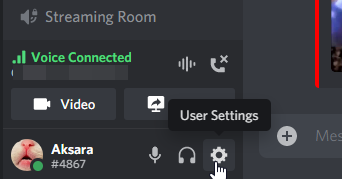 Discord Settings
2. In User Settings, head to Voice and Video settings and select the Output Device. If you have assigned a default device in the sound settings, let it in the Default or if you have any device connected and want that output, then select the device.
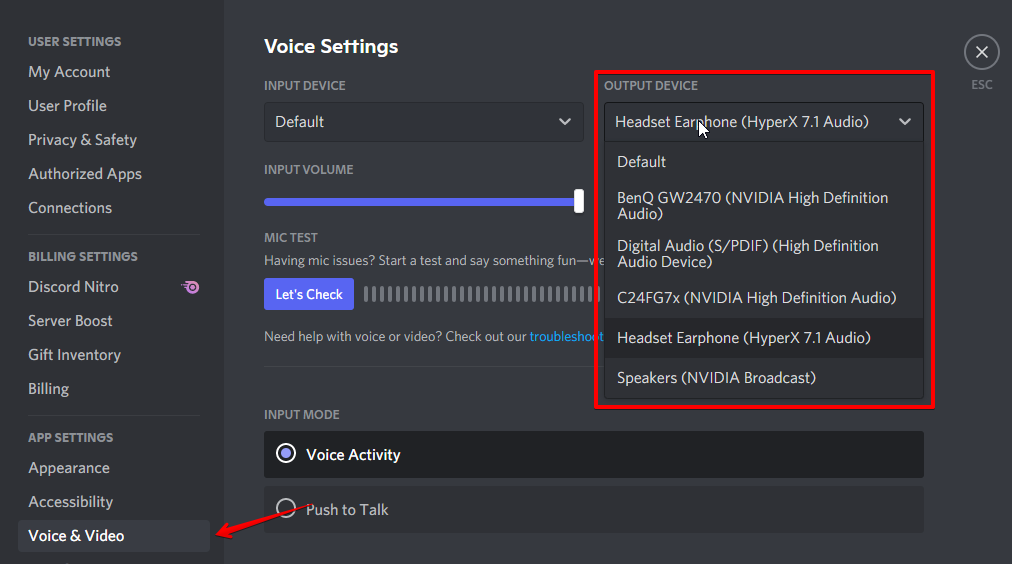 Change output device
3. Now that you have configured the Output Device, head over to OBS Studio, and under the Scenes panel, create a new scene and name it as you desire.
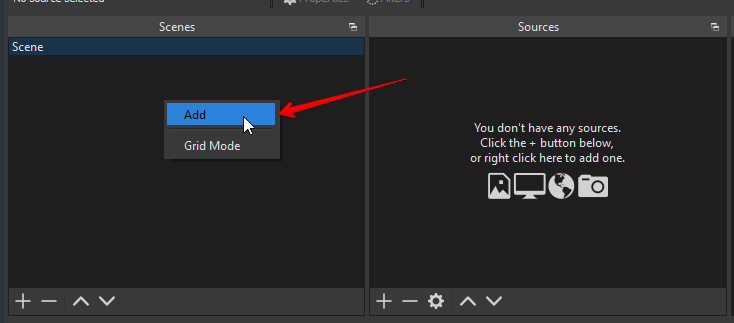 Add new scene OBS
4. Once you have created a New Scene, go to the Sources section and add a new source “Audio Output Capture” option and name the New Source as you desire.
— Advertisement —
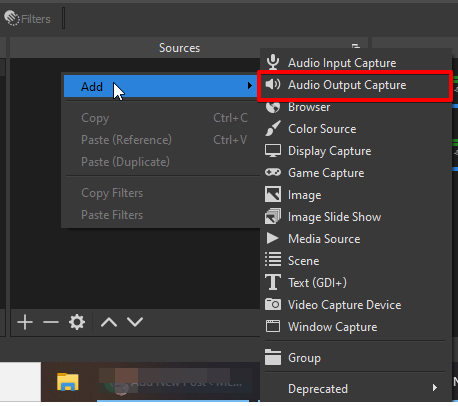 OBS Audio Output Capture
5. Now choose the same output device you chose in Discord Settings and click on OK. That’s it, you have successfully added Discord audio in OBS.
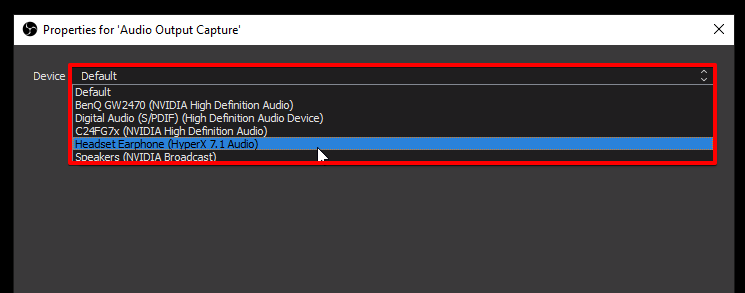 Change Audio Output Capture
How to mute Discord on OBS?
There are several ways you can mute discord audio in OBS. They are pretty simple and don’t worry, we have shared three different methods down below
– Via Discord
Discord has a handy feature that enables Streamer Mode every time OBS runs on your PC.
— Advertisement —
Streamer mode disables all discord sounds right from notification sounds like message tags, server notification, discord user joining voice channel sounds, and everything else.
How to enable Streamer Mode in Discord
1. Open Discord settings by clicking on the small gear icon ⚙️ in the bottom left.
Discord User Settings
2. Scroll down to App Settings and click on Streamer Mode.
3. In the Streamer Mode settings, toggle Enable Streamer Mode.
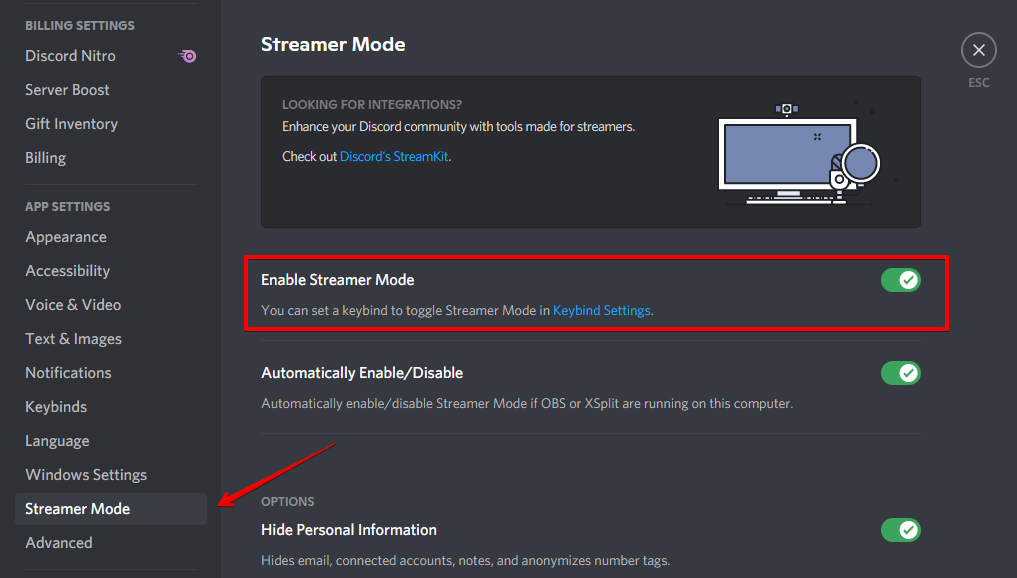
Streamer Mode Discord
4. Additionally, there are more settings to customize like Hide Personal Information, Hide Invite Links, Disable Sounds & Disable Notifications can come in handy if you want to hide more information during your stream.
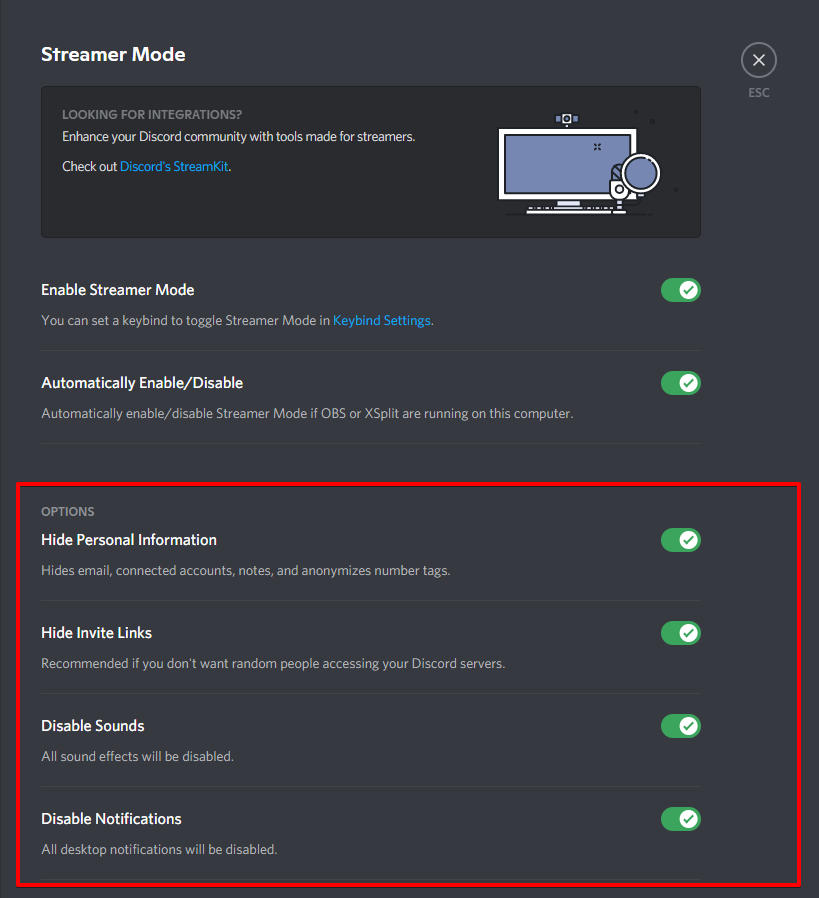
Additional Options in Discord Streamer Mode
– Via OBS Studio Mixer
1. Open OBS Studio and head over to the Audio Mixer panel.
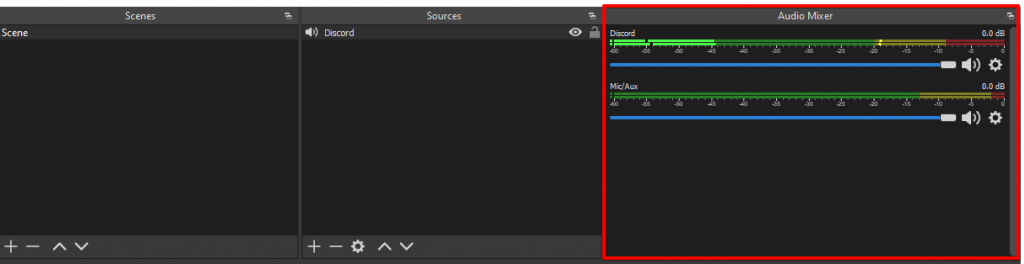
OBS Audio Mixer
2. Find the Audio Source you added in the previous step. You can check it with the name you added to your audio source.
3. Find the slider below the Audio Source and drag it to the extreme left to Mute Discord Audio in OBS.
– Mute Discord chat & server notifications
1. Open Discord settings by clicking on the small gear icon ⚙️.
OBS User Settings
2. Head over to App Settings and click on Notifications.
3. Here you have all sorts of customizations with the Discord Notification Settings & Sounds. Here you can see lots of options that you can enable or disable according to your needs. This tab will help you customize Discord Notification Sounds and enhance your stream better.
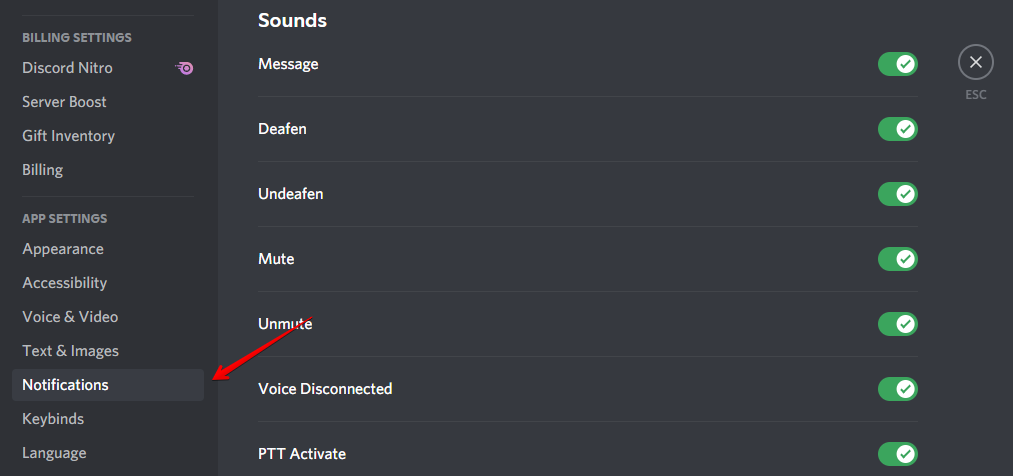 OBS Notifications settings
– Via Volume Mixer
1. Right-click on the Volume Icon in the Windows taskbar and click on Open Volume Mixer.
2. In the Volume Mixer Settings, find Discord and reduce the volume by dragging it down and adjusting it according to your need.
Also Check:
Frequently Asked Questions:
How to mute discord in OBS?
You can Mute Discord in by enabling Streamer Mode or disabling sound notifications under Settings > App Settings > Notifications.
Can I mute discord while streaming?
Yes, you can assign a hotkey to mute discord completely. The hotkey can be enabled by going to Settings > Keybinds > Add a Keybind.
How to remove discord audio completely?
You can remove discord audio and notifications sounds completely by enabling the Streamer mode and disabling all notification sounds in Discord Settings.
How To Mute Discord on Twitch Stream
 By Richard Hebert December 10, 2022 June 13, 2023
Discord is an instant messaging social media application that has provided streamers with a platform to form an online community of like-minded individuals and engage with each other while playing games.
Combined with a live streaming service such as Twitch, it allows users to carry out interactive gameplay with fellow players while simultaneously interacting with their viewers. However, Discord can get a little disruptive with all the notifications, chat pop-ups, etc.
To mute Discord on Twitch, open OBS studio. Click on the Audio Mixer panel and locate the audio output from Discord. Pull the slider to the extreme left to mute Discord.
It should be noted that Twitch makes use of external software for streaming. The two most popular ones are OBS Studio and XSplit. Therefore, muting Discord on Twitch depends upon the type of software used to stream gameplay.
Before learning how to mute Discord on Twitch, let’s first discuss how to livestream on Twitch.
How To Livestream on Twitch?
There are many ways to live stream on Twitch. The most common ones are OBS Studio, Streamlabs, XSplit, vMix, and Restream Studio. We have explained them in detail below.
OBS Studio
OBS is a free and open-source live-streaming software. This software also comes with cross-platform proficiency. Thus making It is one of the most popular live-streaming platforms because it is easy to use and has many features.
However, some people might need help to use it, i.e., only if you are using streaming software for the first time.
Streamlabs
Streamlabs is packed with unique features which are perfect for monetizing any channel. Its user-friendly interface can get you set up with just a few clicks.
XSplit
This is truly a dream come true for all broadcasters out there. XSplit is by far the most powerful software that you will come across. The best part is that you can use XSplit to live stream on Twitch, YouTube, Facebook, and other platforms. Get a paid version to reap more benefits.
vMix
Do you want to live stream on Twitch? Well, this is the perfect fit for you as it houses multiple features that will enhance the quality of your work in just a few clicks.
Restream Studio
This is yet another simple and easy-to-use streaming software packed with multiple features. You can make professional quality work without using any other software.
Ways of Muting Discord on Twitch
You can mute Discord on Twitch by muting the relevant software that you are using to stream on Twitch. Two of the most common ones are OBS studio and Streamlabs.
So, if you are using either of the two software, then you can effectively mute Discord on Twitch through them.
Method #1: Mute Discord on OBS
You can also mute Discord through the audio mixer available on OBS. It is much simpler as it can be done by following these three simple steps.
- Open OBS Studio.
- Next, check the “Audio Mixer” panel.
- Locate the audio output from Discord from the list. It is usually named “Discord” or any term similar to it. A slider below the audio source will appear, which adjusts the volume.
- Next, to mute Discord audio on OBS, pull the slider to the extreme left.
Method #2: Mute Discord on Streamlabs
Like OBS, you can easily mute Discord on Streamlabs. Just follow the steps given below.
- Open Desktop Sound Settings and pick VB-Audio Voicemeter (VAIO) as your output device. Pick a microphone for your input device.
- Next, open your Discord app and click the gear icon at the bottom.
- Spot the “App Settings” section and click “Voice & Video.”
- Select your input and output devices just like in step 1.
- Then, open Streamlabs Studio.
- Find the “Sources” tab and click the plus icon to pick a new source for your scenes.
- Double-click on “Audio Output Capture.” Click “Add a new source instead,” name it “Discord,” and click “Add Source.”
- From the “Device” option, select the output device you selected on Discord. Then close the window.
- Under the “Mixer” tab on Streamlabs, you can mute Discord by clicking on the speaker icon.
Conclusion
Discord has become the top application for streamers to build a community of fellow gamers interacting with each other and coordinating their gameplay. The server can be connected to other live streaming services, such as Twitch, to make gameplay interactive simultaneously.
However, sounds coming from the Discord server can cause disruptions and affect the quality of streams. So, sometimes it becomes necessary to mute it. Twitch uses software such as OBS Studio and Streamlabs for streaming which can be used to mute Discord effectively and efficiently.
FAQs
Another software that gamers use to live stream on Twitch is XSplit. It is much simpler than OBS. All you have to do is to follow these simple steps:
2. Select Broadcast and then Add Channel.
3. Next, add Twitch.
4. Click on Authorize and enter your Twitch username and password.
5. Select Finish.
6. Edit your stream properties and click OK.
Set the scene and go live:
1. Go to Screen Sources at the bottom left of the XSplit screen and click on “Add.”
Twitch studio как убрать звук из дискорда
Reddit and its partners use cookies and similar technologies to provide you with a better experience.
By accepting all cookies, you agree to our use of cookies to deliver and maintain our services and site, improve the quality of Reddit, personalize Reddit content and advertising, and measure the effectiveness of advertising.
By rejecting non-essential cookies, Reddit may still use certain cookies to ensure the proper functionality of our platform.
For more information, please see our Cookie Notice and our Privacy Policy .
How to mute Discord on OBS?
A lot of streamers make use of Discord while streaming their gameplay to friends and viewers. Discord provides gamers an easy way to communicate with friends while streaming. Also, the multitude of features available on Discord makes it the ideal chat app while gaming.
OBS Studio (Open Broadcast Software) is among the most widely used streaming platforms. The software is free, easy to use and has an interactive community. These features work toward making the streaming experience great as a whole.
Gamers usually combine Discord and OBS, as it helps to engage more viewers, and get them to interact. This works well towards getting the best of both apps. But, Discord tends to be a noisy app. Constant notifications, people talking in the voice channels, other disturbances add up to create a lot of noise on Discord. And when streaming, this can be quite annoying for users. So, what can you do to avoid all these disturbances from Discord? How do you have a smooth streaming experience on OBS?
Muting Discord can enhance your OBS stream quality. This will ensure that your viewers do not get annoyed and increase engagement. In the below sections, we have explained in detail how to add and mute Discord audio on OBS. Also find answers to some common questions.
TABLE OF CONTENTS
How to add Discord Audio on OBS Studio?
Check out the below guide if you’re new to OBS and are wondering how to integrate it with Discord.
- Go to Discord, click on the gear icon at the bottom of the screen to access ‘User Settings’. Check the ‘Voice and Video’ settings and select the output device. If you do not have earphones or speakers connected, then your computer’s speakers would be the default audio source.
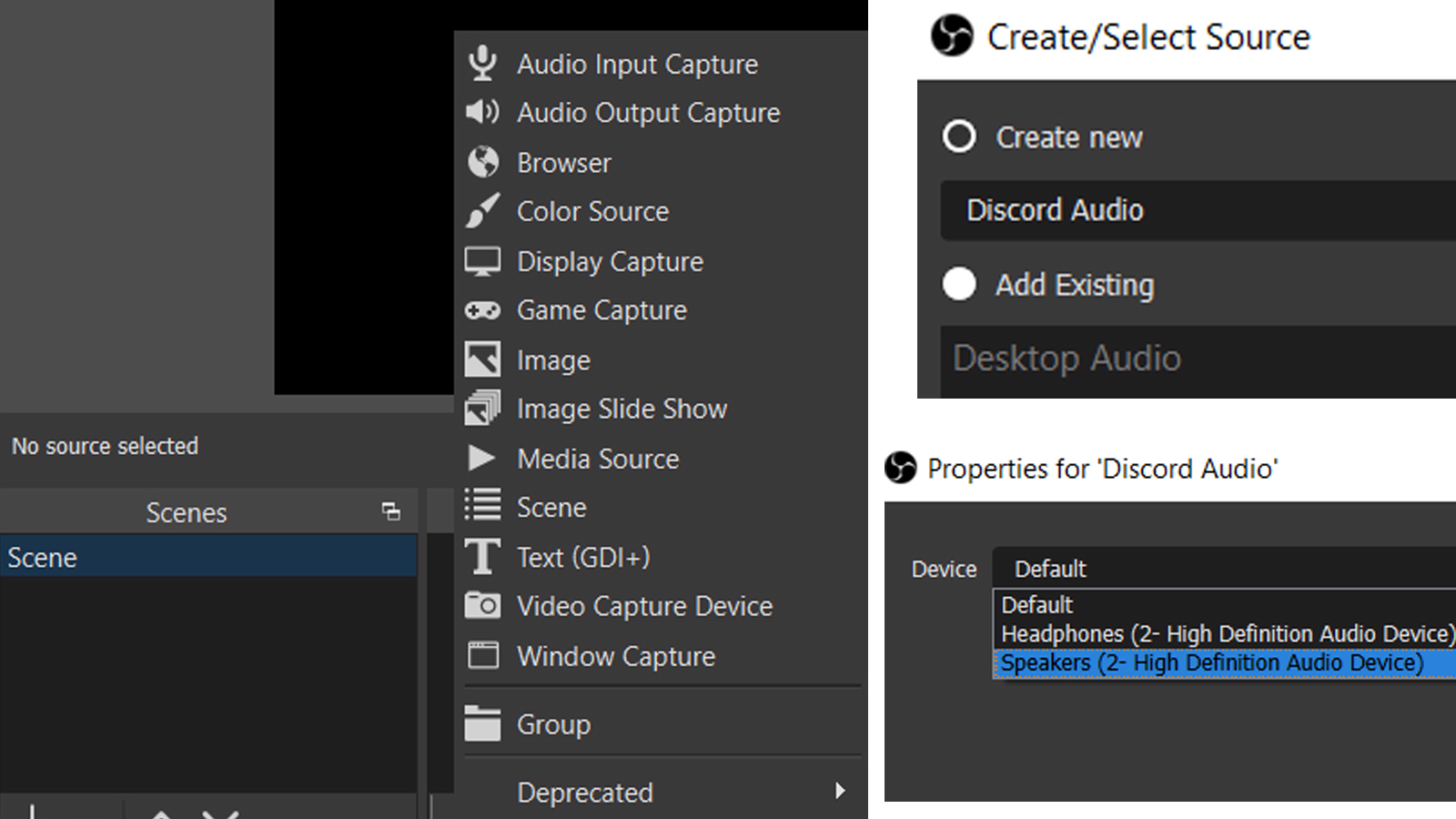
- Open OBS and select your scene from the ‘Scenes’ panel, now click on the ‘+’ in the ‘Sources’ panel. Go to the ‘Audio Output Capture’ option.
- On the next popup, under ‘Create new’, you can name this as ‘Discord’ or any name of your choice. Press ‘OK’.
- Now, select the audio device. Make sure it’s the same one as you’d selected in the first step on Discord.
- Press ‘OK’ again, to confirm this and your Discord audio would be added on OBS Studio.
How to mute Discord on OBS?
Through Discord Streamer Mode
The Streamer Mode on Discord is enabled every time you open OBS, unless you have the setting toggled off. You can use this to mute Discord on OBS efficiently. This method also works on Streamlabs OBS.
- Open Discord and click on the gear icon next to your username to access ‘User Settings’.
- If streamer mode is enabled, you should see a button saying so and can click on it. This is present in the ‘My Account’ section to protect your privacy when streaming. Alternatively, go to the ‘Streamer Mode’ settings from the left menu.
- In the ‘Streamer Mode’ settings, toggle on the ‘Disable Sounds’ option. You can also toggle on the ‘Disable Notifications’ option. This will keep notifications from popping up.
- The ‘Streamer Mode’ allows you to also toggle other settings, too. This improves the overall streaming experience.
Through the OBS Studio Audio Mixer
- Open OBS Studio and check the ‘Audio Mixer’ panel.
- In the list of audio outputs shown, locate the one from Discord. You’ve most likely named this ‘Discord’ or a similar term when connecting as given above. You should see a slider below the audio source, this is used to adjust the volume.
- Drag the slider to the extreme left to mute Discord audio on OBS.
Mute Discord Notifications
- Open Discord and click on the ‘User Settings’ gear icon. Go to the ‘Notifications’ settings on the left of the screen.
- Toggle down to the ‘Sounds’ settings, and toggle off the sounds that you wish to mute.
This method is useful if you are bothered only by some sounds on Discord and not all of them. So if you are wondering how to mute only certain Discord sounds on OBS, this is the best way to go about it. But, if at all you find your Discord notifications not working, you may want to look into it as well.
How to mute Discord on Streamlabs OBS?
Muting Discord through ‘User Settings’ → ‘Streamer Mode’ should work here. Toggle ‘Disable Sounds’ on to mute Discord on Streamlabs OBS.
Should I restart the stream to mute Discord audio on OBS?
No, you do not need to restart the stream to mute Discord audio on OBS. You can go to the streamer mode on Discord and do so with no hassle.
How do I completely remove the Discord audio source?
To remove the Discord audio source, select the Discord audio source in the ‘Sources’ panel. Hit the ‘Delete’ button and confirm the action. Or, right click and select ‘Remove’, then confirm.