Vigua.A virus (Removal Instructions) — Free Guide
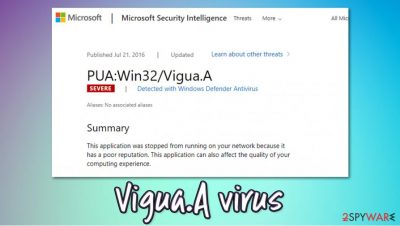
Vigua.A virus, otherwise known as PUA:Win32/Vigua.A, is a detection name used by Windows Defender security software to flag potentially unwanted programs. These apps typically travel within software bundles or fake Flash Player update prompts, which results in unintentional installation from users' point of view.
Once inside the system, Vigua.A virus might perform a variety of system and browser modifications. For example, the homepage and new tab address might be changed to something else, and all the searchers might be redirected to Yahoo. Adware is typically compiled in a way that allows it to engage in intrusive ad campaigns. Hence, the infected users are accustomed to popups, deals, offers, in-text links, auto-play, and similar advertisements that can greatly diminish the web browsing experience. In the background, Win32/Vigua.A might also track user information, which sometimes may include personal details.
| Name | Vigua.A virus, PUA:Win32/Vigua.A |
| Type | Potentially unwanted application, adware |
| Danger level | Medium. It can infect any systems and populate advertisements on all the web browsers and track user data; it can also use persistence mechanisms that prevent easy elimination |
| Distribution | Software bundle packages, fake updates, misleading advertisements, software cracks |
| Symptoms | Unexpected changes to the web browser's homepage and new tab address; intrusive advertisements; slow web browser; PUA:Win32/Vigua.A popup shows up despite the security software claiming it's been deleted |
| Removal | To eliminate the infection, simply allow Windows Defender to move it to quarantine; in case the detection returns, perform scans with alternative security programs ( SpyHunter 5 Combo Cleaner , Malwarebytes, for example) |
| Further steps | In case the detection does not go away, and you are spammed by your security software, it might be a browser or Google account syncing problem. In such a case, reset your web browser and sync, and later perform a scan with Fortect Intego for best results |
Potentially unwanted programs are distributed in a way that typically results in an unintentional installation. The most commonly used method is software bundling, where several applications are compiled into a single installer and optional ones are deliberately hidden from careless users' sight. Thus, to avoid future encounters and Vigua.A virus removal problems, you should install applications carefully and never install programs offered via fake Flash Player installers. [1]
Adware programs such as Vigua.A virus are designed to perform background activities in order to monetize users' clicks. For the purpose, authors of a potentially unwanted program employ a variety of methods that would allow for a maximum monetization:
- Distribute apps in various deceptive ways;
- Change web browser's homepage and new tab to some other URL;
- Redirect all searches to Yahoo or a dubious provider;
- Insert sponsored links into search results;
- Display intrusive ads on all visited websites;
- Redirect to malicious domains;
- Track users' browsing data to sell it to third-parties.
Unfortunately, these are just a few traits that adware might possess. Some PUPs can be much more dangerous – they might set the “Managed by your organization” feature in order to prevent users from easy app termination. Others might straight out steal sensitive information such as banking details – Adload adware family does precisely that wit the help of extensions such as ExploreParameter, OperativeFraction, SectionBrowser, and many others.
To make matters more clear, PUA:Win32/Vigua.A is a heuristic detection, which indicates that it is not the name of the virus itself but rather a detection name given to apps the expose certain malicious behavior. Thus, there could be many different PUPs under the mantle of this name.
Usually, when an anti-malware detects something, it delivers the detection to quarantine, later to be removed automatically. Unfortunately, users who reported Vigua.A virus popups claimed that they come back on a regular basis. This behavior is typical to PUPs that use various persistence mechanisms in order to stay on the system as long as possible to deliver ads to users, earning profits in the process.
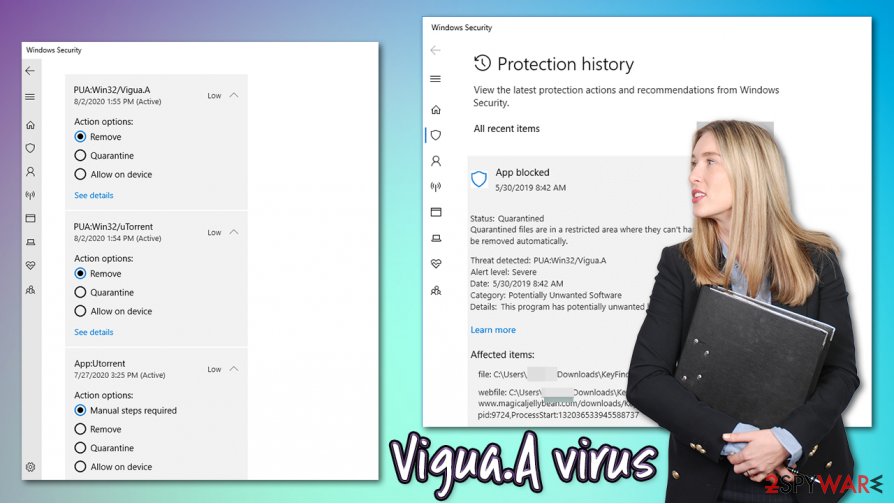
PUA:Win32/Vigua.A is a potentially unwanted application that users struggle to remove due to its persistence tactics
If you are one of such users, you should remove Vigua.A virus by scanning the device with alternative security software – experts recommend Malwarebytes or SpyHunter 5 Combo Cleaner , although other reputable tools should do the job as well. You can also look for potentially unwanted programs via the Control Panel (Windows) or Applications folder (Mac) and uninstall PUPs manually – we provide the instructions below.
In case scanning the machine with alternative software did not help, the issue might lie within Google account and its syncing problems. To find out more about how to reset Chrome sync, refer to the bottom section below.
Watch out for potentially unwanted programs – install software from third parties carefully
Potentially unwanted programs are typically installed behind users' backs with the help of various tricks employed by its authors or distributors. Most commonly, software bundling is used, as it is very effective – users often rush through the installation steps of new software and don't pay attention to important clues that might sometimes not be so apparent.
First of all, you should install applications from official sources if possible – this would usually eliminate PUP infiltration altogether. The unwanted apps downloaded from official sources such as browser extensions are typically very easy to eliminate and do not cause any major dangers.
Third-party sites often use bundles as one of the main ways to monetize, which means that it is in their best interest to make as many users as possible to install additional software. Unfortunately, such apps are often useless, intrusive, and even malicious. To avoid installation of PUPs, always pay close attention to the installation process:
- Pick Advanced/Custom settings instead of Recommended/Quick ones;
- Remove all ticks from checkboxes that offer additional programs;
- Watch out for misplaced buttons and misleading offers you could encounter on the way.
Also, many PUPs can be downloaded along with pirated software installers or software cracks. As a general rule, security experts [2] recommend staying away from such high-risk websites, as downloading software from there might result in malware infection, such as Kasp ransomware.
A method that could help you remove Vigua.A virus popups once and for all
PUA:Win32/Vigua.A removal might be a real pain to many users, as Windows Defender often fails to eliminate it completely – or at least it might seem so. Some users reported that they received the detection along with uTorrent client – this app is often used for illegal software installer downloads. Despite being legitimate, it has been recently bundled with potentially harmful software and is not recommended to use.
As previously mentioned, you can try to remove Vigua.A virus by scanning the machine with alternative security software. Unfortunately, many users claimed that, after trying other tools, the virus came back, and Windows Defender kept flagging the issue non-stop. [3]
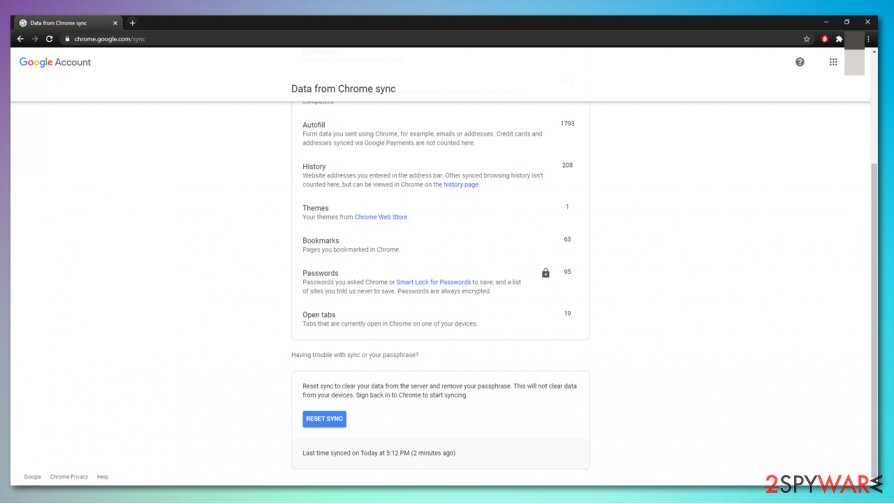
Try to remove Vigua.A virus by resetting Google’s synced items to your browser
Vigua.A virus detection might sometimes be related to your Google account. Some synced items might remain on Google's servers, and no matter if your anti-malware removes malicious components that are placed on your system through your account, they will come back as soon as your use your browser again.
Therefore, the best solution is to reset your web browser, as well as Chrome Sync. For that, access the synced items page, and click “Reset Sync” at the bottom. Make sure you do this before you reset your browser.
You may remove virus damage with a help of Fortect Intego . SpyHunter 5 Combo Cleaner and Malwarebytes are recommended to detect potentially unwanted programs and viruses with all their files and registry entries that are related to them.
PUA:Win32/Vigua.A Virus Removal
![What is the Win32:Evo-gen [Trj] virus?](https://howtofix.guide/wp-content/uploads/2019/11/trojan-ransom-1140x760.jpg)
PUA:Win32/Vigua.A is an adware program that can display unwanted and intrusive ads in your web browser or desktop. It may also collect information about your browsing behavior and send it to third-party advertisers without your consent.
Some symptoms of PUA:Win32/Vigua.A infection includes:
- Increased amount of ads displayed in your browser or desktop
- Pop-ups that appear even when your browser is closed
- Slowdowns or freezes on your computer
- Changes to your browser settings, such as the homepage or search engine
- Unusual behavior, such as redirecting you to unfamiliar websites
It’s important to remove PUA:Win32/Vigua.A from your computer as soon as possible to avoid any further harm to your system. You can do this by running a full scan with Microsoft Defender Antivirus or any other reputable antivirus software like Gridinsoft Anti-Malware.
PUA:Win32/Vigua.A Summary
These adjustments can be as adheres to:
- Executable code extraction;
- Network activity detected but not expressed in API logs;
- Anomalous binary characteristics;
- Ciphering the papers located on the sufferer’s hard drive — so the target can no longer use the information;
- Preventing routine accessibility to the sufferer’s workstation;
PUA:Win32/Vigua.A
The most normal networks through which PUA:Win32/Vigua.A are infused are:
- By means of phishing emails;
- As a consequence of user ending up on a resource that organizes a destructive software program;
As quickly as the Trojan is efficiently injected, it will either cipher the data on the victim’s PC or avoid the gadget from working in a proper way – while likewise positioning a ransom note that states the demand for the sufferers to effect the payment for the function of decrypting the documents or recovering the data system back to the preliminary problem. In the majority of instances, the ransom money note will turn up when the customer restarts the COMPUTER after the system has actually currently been harmed.
PUA:Win32/Vigua.A Distribution
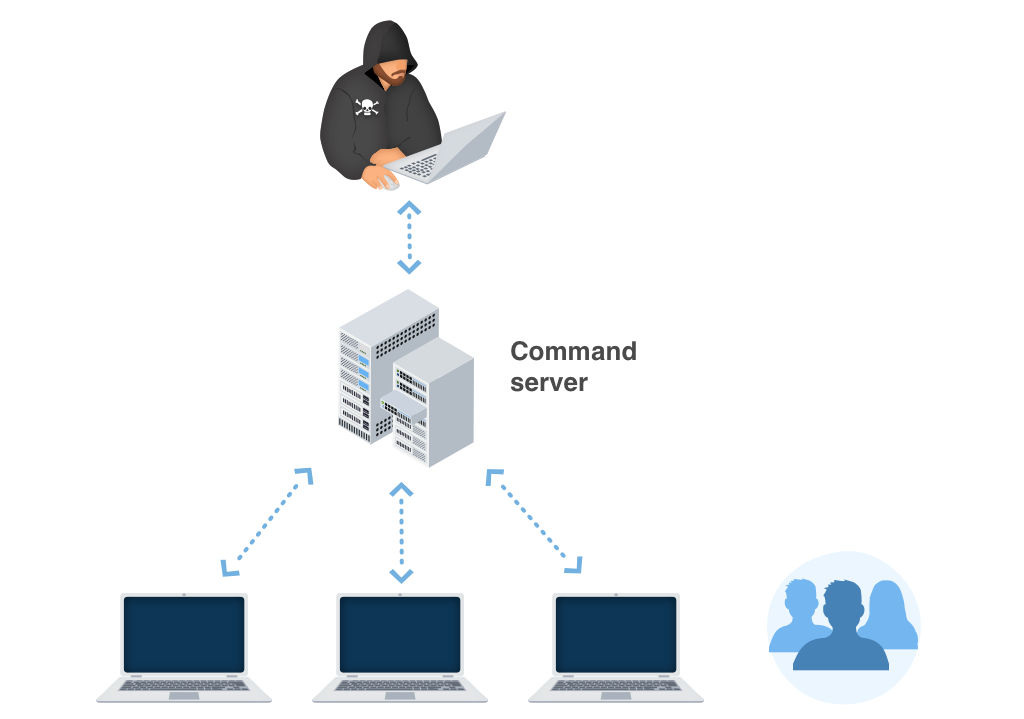
Faulty notifies about unlicensed software applications.
In particular areas, the Trojans typically wrongfully report having detected some unlicensed applications that made it possible for on the sufferer’s PC. The sharp then demand the customer to pay the ransom.
Faulty statements concerning illegal content.
In countries where software program piracy is less preferred, this technique is not as efficient for cyber scams. Alternatively, the PUA:Win32/Vigua.A popup alert may incorrectly declare deriving from a law enforcement institution and will report having situated child porn or various other illegal data on the gadget.
PUA:Win32/Vigua.A popup alert may incorrectly declare to be obtained from a legislation enforcement organization and will report having located kid pornography or other unlawful data on the tool. The alert will likewise contain a requirement for the individual to pay the ransom.
Technical details
PUA:Win32/Vigua.A also known as:
| GridinSoft | Trojan.Ransom.Gen |
| Bkav | W32.AIDetect.malware1 |
| K7AntiVirus | Riskware ( 0040eff71 ) |
| Lionic | Trojan.Win32.PornoBlocker.totH |
| Elastic | malicious (high confidence) |
| Cynet | Malicious (score: 99) |
| ALYac | Gen:Variant.Ursu.781049 |
| Cylance | Unsafe |
| Zillya | Trojan.PornoBlocker.Win32.4482 |
| CrowdStrike | win/malicious_confidence_80% (D) |
| Alibaba | Ransom:Win32/PornoBlocker.f7e381f4 |
| Cybereason | malicious.ddc2eb |
| Cyren | W32/S-c94c84de!Eldorado |
| Symantec | ML.Attribute.HighConfidence |
| APEX | Malicious |
| Avast | Win32:Virut [Inf] |
| Kaspersky | Trojan-Ransom.Win32.PornoBlocker.ekqd |
| BitDefender | Gen:Variant.Ursu.781049 |
| NANO-Antivirus | Trojan.Win32.KillFiles.dwwvsr |
| MicroWorld-eScan | Gen:Variant.Ursu.781049 |
| Tencent | Win32.Trojan.Pornoblocker.Eamr |
| Ad-Aware | Gen:Variant.Ursu.781049 |
| Sophos | Mal/Generic-S |
| Comodo | Malware@#bm8hll3wd3cr |
| BitDefenderTheta | Gen:NN.ZevbaF.34170.sm0@aOfRltci |
| VIPRE | Trojan.Win32.Generic!BT |
| McAfee-GW-Edition | BehavesLike.Win32.Swisyn.dt |
| FireEye | Generic.mg.f609c3bddc2eb0e2 |
| SentinelOne | Static AI – Malicious PE |
| Jiangmin | Trojan.PornoBlocker.ef |
| Avira | TR/Vundo.Gen |
| Antiy-AVL | Trojan/Generic.ASMalwS.5ECF61 |
| Microsoft | PUA:Win32/Vigua.A |
| Arcabit | Trojan.Ursu.DBEAF9 |
| GData | Gen:Variant.Ursu.781049 |
| McAfee | W32/Virut.rem.E |
| MAX | malware (ai score=87) |
| VBA32 | Hoax.PornoBlocker |
| Malwarebytes | Trojan.VBCrypt |
| Panda | Trj/CI.A |
| Ikarus | Trojan-Ransom.PornoBlocker |
| Fortinet | W32/PornoBlocker.EKQD!tr |
| AVG | Win32:Virut [Inf] |
| Paloalto | generic.ml |
How to remove PUA:Win32/Vigua.A virus?
Unwanted application has often come with other viruses and spyware. This threat can steal account credentials or crypt your documents for ransom.
Reasons why I would recommend GridinSoft 1
There is no better way to recognize, remove and prevent PC threats than to use anti-malware software from GridinSoft 2 .
PUA:Win32/Vigua.A
PUA:Win32/Vigua.A is a detection for a suspicious program. Antivirus software may send an alert about this detection if it spots a file or application that was downloaded accidentally on the computer. Though, not all unknown programs may be identified as PUA:Win32/Vigua. This detection is very selective and often linked to rogue software or malicious browser extension. One thing is sure, once Microsoft Defender Antivirus or any security application sends a warning about PUA:Win32/Vigua, users must immediately scan the computer to remove this virus.
Threat Behavior
PUA:Win32/Vigua may infiltrate the computer through malicious software bundles. It may come along with freeware or shareware. In some cases, this threat is packed with a pirated software or serial key generator that can be obtained from illicit sites.
Bear in mind that attackers these days are also relying on an advertising campaign to spread their virus. For example, PUA:Win32/Vigua may be integrated with fake software updates, and it can entice the web users to download such via aggressive pop-up advertisements.
Once run, PUA:Win32/Vigua immediately installs the payload on the computer. In case that the payload is a browser extension, the script is integrated to Google Chrome, Mozilla Firefox, or Microsoft Edge without the consent of the user.
Payload
PUA:Win32/Vigua was designed by cyber crooks to discretely install a potentially unwanted application (PUA) on the computer. It could be a dedicated malicious programs like rogue security tool or system optimizer. There are also cases that malicious browser extension is detected as PUA:Win32/Vigua. Either way, the objective of this virus is to extort money from victims by enticing them to purchase a product or avail an online customer support service.

How to remove PUA:Win32/Vigua.A?
To totally remove PUA:Win32/Vigua.A from the computer and get rid of relevant virus and trojan, please execute the procedures as stated on this page. Make sure that you have completely scan the system with suggested malware removal tools and virus scanners.
Quick Fix — Scan the PC with Combo Cleaner for Windows
Combo Cleaner is a trusted PC security and optimization tool equipped with powerful virus and malware detection engine. This program can get rid of hazardous virus like PUA:Win32/Vigua.A through this procedure.
1. Download the application from the following page:
2. Save the file to your preferred location.
3. Double-click the downloaded file CCSetup.exe and install with the default settings.
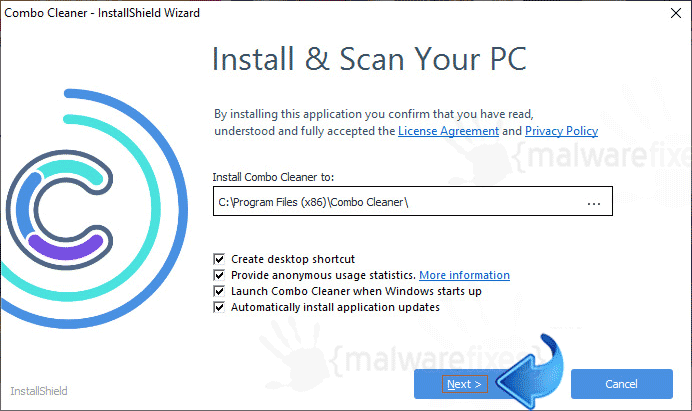
4. At the end of the setup process, click Finish to run Combo Cleaner.
5. The tool will update the signature file, please wait for this process to complete.
6. To begin checking for threats like PUA:Win32/Vigua.A, click on the Start Scan button. Wait for this scan to finish.
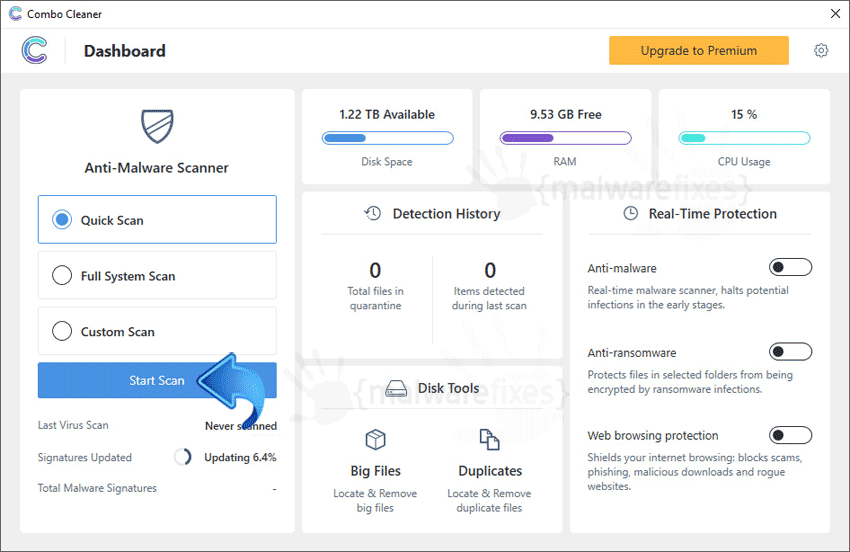
7. At the end of the scan process, click on Remove all threats to delete PUA:Win32/Vigua.A virus including all malicious objects from the computer.
Free features of Combo Cleaner for Windows include Disk Cleaner, Big Files finder, Duplicate files finder, and Uninstaller. To use antivirus, privacy scanner, and to delete identified threats, users have to upgrade to a premium version.
Please continue with the succeeding removal procedures if your are comfortable to manually get rid of the virus and malicious items linked with it.
Stage 1 : Start Windows in Safe Mode With Networking
Windows 10 Guide
1. Click on Windows logo and select Power icon when options pop-ups.
2. Select Restart from the options while pressing Shift key on the keyboard.
3. Choose an Option window will appear, select the Troubleshoot button.
4. On next window, please choose Advanced Option.
5. On Advanced Option window, click on Startup Settings and then, click Restart button to reboot the computer.
6. When Windows boot on Startup Settings, press function key F5 or number 5 on keyboard.
A simpler alternative for Windows 10 users is to scan the computer with Microsoft Defender Offline. This will run a virus scan in the recovery environment.
Windows 8 Guide
1. Click Windows Start icon at the lower left section of the screen.
2. Open Search window and type Advanced in the field. It will open General PC Settings.
3. Click on Advanced Startup and then, click on Restart Now button.
4. Once the computer starts in Advanced Startup option menu, select Troubleshoot.
5. Next, click on Advanced Options to reveal the next section.
6. Click Startup settings and then, click Restart button to boot the PC in Startup Settings.
7. Use function key F5 or number key 5 to Enable Safe Mode with Networking.
Stage 2 : Run a virus scanner
To remove PUA:Win32/Vigua.A, we suggest that you scan the infected computer with this powerful virus removal tool. It can detect and get rid of Trojans, viruses, malware, and adware from the infected computer. To fully protect the computer against PUA:Win32/Vigua.A or similar attack, you can activate Sophos to have real-time scanning and complete defense against all forms of threats.
1. Download Sophos Virus Removal Tool from the link below. Save the file on your computer where you can easily access it.
2. Once the download completes, browse the location of the file. Double-click to run the program and begin the install process.
3. On first windows of installation wizard, click Next to continue. Then, it will display the program’s License Agreement. You need to Accept the terms in order to proceed. If Windows prompts for User Account Control, please click Yes to proceed.
4. On succeeding windows, click Next or Continue to carry on with the installation. After completing the installation process, Launch Sophos Virus Removal Tool.
5. Internet connection is required when running this scanner in order to download important updates. Make sure that everything is up-to-date to effectively remove virus like PUA:Win32/Vigua.A.
6. Click the button to carry out the Scan. This will check the system for presence of malicious objects, malware, and viruses. The tool reveals items that were found linked to PUA:Win32/Vigua.A and other suspicious entities. Be sure to remove all identified threats.
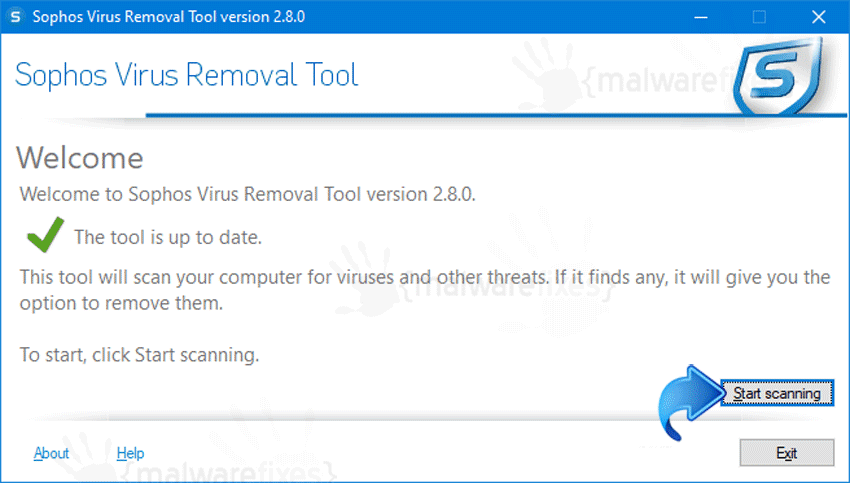
After executing the above instructions, PUA:Win32/Vigua.A should have been eliminated totally from the computer. If there are still signs of infection or computer is displaying unusual behaviors, please continue with the remaining procedures.
Stage 2 :Double Check with Microsoft Security Apps
Microsoft Windows has built-in security application that you can use to double-check if computer is still infected with PUA:Win32/Vigua.A. For Windows 8 and 10 users, please run Windows Defender. Users of Windows Vista and older versions can utilize Microsoft Security Essentials to remove PUA:Win32/Vigua.A virus.
Windows 8 / 10 Instructions:
Windows Defender is a free tool that was built help you remove PUA:Win32/Vigua.A, viruses, and other malicious items from Windows 8 or Windows 10 system. Follow these procedures to scan your computer with Windows Defender:
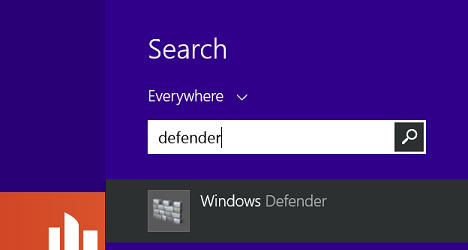
1. Tap or click the Search charm, search for defender, and then open Windows Defender.
If Windows Defender is not yet installed on the computer, please proceed to download page using the link below. It also contains detailed instruction to install and use the program effectively. Proper usage is required to totally remove PUA:Win32/Vigua.A
2. On the Home tab, click Full under Scan Options. Click Scan now to start scanning for presence of PUA:Win32/Vigua.A. The process may take a while to complete.
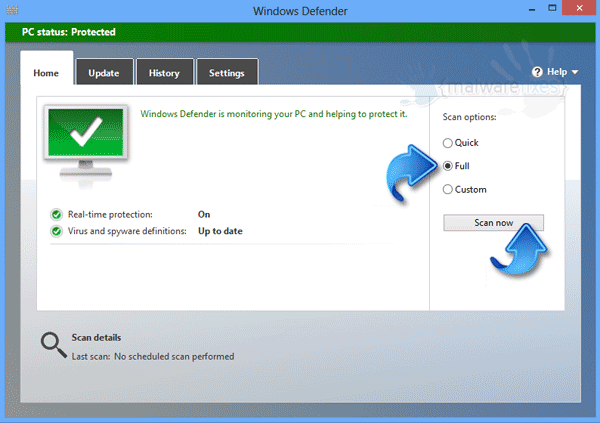
3. After the scan, delete/quarantine identified threats wether it is relevant to PUA:Win32/Vigua.A or not. You may now restart Windows to complete the virus removal process.
Windows XP, Windows Vista, and Windows 7 Instructions:
1. Open Microsoft Security Essentials by going to Windows Start > All Programs. If the tool is not yet installed on the computer, please download Microsoft Security Essentials from the link below. Save the file on your hard drive.
Complete installation guide and usage are also provided on the same link. It is essential in removing PUA:Win32/Vigua.A effectively. If Microsoft Security Essentials is already installed on the PC, please proceed with the steps below.
2. On Microsoft Security Essentials Home screen, please choose Full under Scan Options.
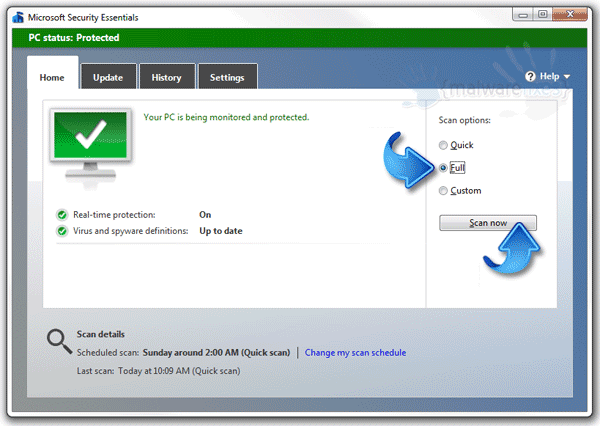
3. Click on Scan Now button to start detecting PUA:Win32/Vigua.A items, viruses, and malware on the PC. Scan may take a while, please be patient and wait for the process to end.
How to protect the computer from PUA:Win32/Vigua.A?
The initial defense that comes to the mind of any computer users is to install an anti-virus or anti-malware program. This move is sensible and probably the most practical way to protect the computer against PUA:Win32/Vigua.A attack. Hence, keep in mind that having a security software do not give full guarantee of protection. The most part of the prevention still lies on being cautious of users and therefore we are providing the following information as guidelines to protect the computer from virus infection.
Avoid Malicious Websites
There are enormous numbers of websites that was made for the primary purpose of spreading PUA:Win32/Vigua.A. Normally, these sites are involved in integrating malicious pop-up and browser hijacker, that will eventually cause further virus infection. Avoid such kind of websites.
Delete Phishing Emails
The mass-mailing of computer viruses gives the attackers the luxury of spreading their malicious code in just one send off. This will arrive in the inbox as email that appears to be from a legitimate organization. So, if you receive an unexpected email with a link or an attached file, better delete it immediately.
Do Not Click a Suspicious Link
Links from social media, forums, and blog sites are sometimes being utilized by attackers to drive web users to a malicious page that contains malicious code. Therefore, do not just click on any link especially if it looks suspicious. Accidental access to the destination site may lead to PUA:Win32/Vigua.A infection.
Be Careful When Downloading Files
Cracked software, serial key generators, and several freeware are seen as another method that spreads the PUA:Win32/Vigua.A virus. Avoid acquiring these types of application and if there is a need to download a freeware or shareware, be sure to obtain it from the official website or trusted providers.
About the author
Malwarefixes is a team of computer security enthusiasts compose of malware researchers, IT consultants, and technicians. Founded in 2013 to provide specific removal instructions to help computer users easily deal with virus and malware.
How to Remove PUA:Win32/Vigua.A?

PUA:Win32/Vigua.A is a very nasty and stubborn Trojan virus released by hackers to attack users’ computers. PUA:Win32/Vigua.A virus is usually distributed via removable USB drives, junk email attachments, malicious links and various free applications. Once it arrives at your computer, it immediately adds malcodes to Windows registry and generates a bunch of hidden files. Every time you turn on your machine the virus always runs itself automatically, taking up lots of system resources. This is the main reason why your PC performance slows down immensely. Moreover, PUA:Win32/Vigua.A virus can delete your important files. It won’t allow you to open some of your programs, especially antivirus tools. By doing this, PUA:Win32/Vigua.A virus attempts to reside on your computer forever. You should not let it achieve its goal. It is of great importance to remove this insidious virus as soon as possible. This is necessary and urgent, because if not deleted in time, PUA:Win32/Vigua.A virus will even steal your computer privacy and use it for evil purposes. We strongly recommend you to eliminate PUA:Win32/Vigua.A virus right now. Don’t wait until things get worse and worse. Here below I will steer you step by step to handle PUA:Win32/Vigua.A.
How to Remove PUA:Win32/Vigua.A? (Windows + Mac OS)
Quick Menu
Section A – PUA:Win32/Vigua.A Removal Steps For Windows OS
Section A – PUA:Win32/Vigua.A Removal Steps For Windows OS
( NOTE – Please bookmark this page first, because some steps will require you to restart your web browser or computer. )
Step 1. End malicious process run by PUA:Win32/Vigua.A and related malware.
1. Hit Ctrl + Shift + Esc keys at the same time to open Windows Task Manager:
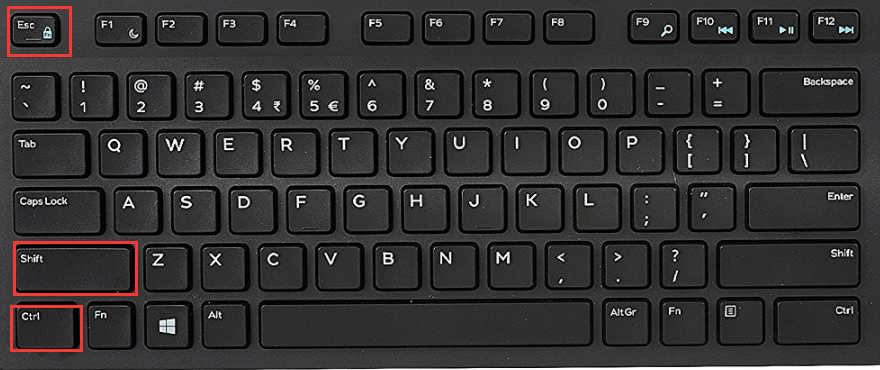
2. Find malicious process related with PUA:Win32/Vigua.A or malware, and then right-click on it and click End Process or End Task.

Step 2. Uninstall malicious programs related with PUA:Win32/Vigua.A.
Press “Win + R ” keys together to open the Run screen;

Type control panel in the Run window and click OK button;

In Control Panel, click Uninstall a program under Programs;

Look for malicious app related with PUA:Win32/Vigua.A; Right-click on the malicious program and click Uninstall.

Many malware may re-install themselves multiple times if you don’t delete thier core files. To get rid of PUA:Win32/Vigua.A completely, we recommend downloading SpyHunter Aniti-malware to scan entire system and delete all malicious files .
Free Remover allows you, subject to a 48-hour waiting period, one remediation and removal for results found. Read our EULA, Privacy Policy, Cookie Policy . See more Free SpyHunter Remover details.
Step 3. Delete extension installed by PUA:Win32/Vigua.A and related malware.
Chrome
On Chrome
Click the Chrome menu button >> Click Tools >> Select Extensions:

Find extension that may be related with PUA:Win32/Vigua.A or potential threat >> Click the trash can icon to delete them.

Microsoft Edge
On Microsoft Edge
Start Edge: Click the More (…) button ahe tog right corner and click Extensions:

Select the extensions you want to remove and click Remove:


Firefox
On Firefox
Click the menu button and choose Add-ons. The Add-ons Manager tab will open.

In the Add-ons Manager tab, select the Extensions panel >> find extension that may be related with PUA:Win32/Vigua.A or potential threat >> Click Remove button.

On Internet Explorer
Open the IE, click the Tools button , and then click Manage add-ons.

Choose Toolbars and Extensions on left side of the window >> Find extension that may be related with PUA:Win32/Vigua.A or potential threat>> Click Disable button

Malicious extensions may re-install itself on web browser if you don’t delete core files of PUA:Win32/Vigua.A and related malware. To get rid of PUA:Win32/Vigua.A completely, we recommend downloading SpyHunter Aniti-malware to scan entire system and delete all malicious files .
Free Remover allows you, subject to a 48-hour waiting period, one remediation and removal for results found. Read our EULA, Privacy Policy, Cookie Policy . See more Free SpyHunter Remover details.
Step 4. Remove malicious files created by PUA:Win32/Vigua.A or related malware.
1. Hit Windows + R keys at the same time to open Run window and input a regedit and click OK:

2. In the Registry Editor, hit Windows key + F key together to open Find window → Enter virus name → Press Enter key to start search.

3. When the search is completed, right click the folders related with PUA:Win32/Vigua.A and click Delete button:

Please Read This Before You Remove Registry Files
PLEASE Be Carefully, Do Not Delete Healthy Registry Entries, Or Your Computer May Be Damaged.
If you are not able to determine which regsitry files are malicious, we recommend downloading SpyHunter Anti-malware to scan entire system and find out all malicious files. It can avoid mistakes and may reduce the cleanup time from hours to minutes.
Free Remover allows you, subject to a 48-hour waiting period, one remediation and removal for results found. Read our EULA, Privacy Policy, Cookie Policy . See more Free SpyHunter Remover details.
Step 5. Reset Web Browsers to remove Hijackers Brought by PUA:Win32/Vigua.A.
Chrome
Reset Chrome:
- Click the Chrome menu button, represented by three horizontal lines;
- Click Settings when the drop-down menu appears;
- In the Settings screen, scroll to the bottom of the page and click on the “Advanced” link;
- Click on the “Reset settings to their original defaults” button.
- A confirmation dialog appears, click on the “Reset Settings” button.
Reset Microsoft Edge:
- Click on Microsoft Edge’s main menu button, represented by three horizontal dots;
- Click on “Settings“ button when the drop-down menu appears;
- Click on “Reset Settings”On the left side of the window;
- Click on “Restore settings to their default values”
- Click on the “Reset” button in the new confirmation window that opens.
Firefox
Reset Firefox:
- Click the menu button of firefox, represented by three horizontal lines;
- Click on “Help“ button when the drop-down menu appears;
- Click on “Troubleshooting Information“ from the Help menu;
- Click the “Refresh Firefox” button in the upper-right corner of the “Troubleshooting Information” page.
- Click on the “Refresh Firefox” button in the new confirmation window that opens.
Reset IE :
- Open Internet Explorer, click on the gear icon in the upper-right part of your browser, then select “Internet Options“.
- Now select the “Advanced” tab, then click on the “Reset” button
- In the “Reset Internet Explorer settings” section, select the “Delete personal settings” checkbox, then click on the “Reset” button.
NOTE – If the steps above doesn’t help, please rescan entire infected PC with Spyhunter anti-malware and let it help you fix all problems.
Section B – PUA:Win32/Vigua.A Removal Steps For Mac OS
Step 1 – Remove nasty extension and browser hijacker related with PUA:Win32/Vigua.A or malware.
Chrome
– Click the setting button “≡” at the top right of the browser window, choose “More Tools” and choose “Extensions“.

– Click the “trash can icon” button to remove extension related with PUA:Win32/Vigua.A or malware:

Safari
Safari:
– Choose Safari > Preferences

– On the ‘Extensions’ tab, find out the extension related with adware or hijacker and click Uninstall or Disable

Firefox
Mozilla Firefox:
– Click the settings button (three horizontal bars) in the top-right corner and then select ‘Add-ons’.

– Click “Extensions” tab under Add-on Manager page to view the extensions.
– Find the suspicious add-on you want to disable and click its “Disable” button.
– If you want to delete an extension entirely, click “Remove.”

Malicious browser extensions hijack your Google Search and redirect you to unwanted websites. To get rid of related search hijacker, you need to delete core files of PUA:Win32/Vigua.A and related malware. We recommend downloading SpyHunter Mac Antimalware to remove all malicious apps and hijacker for you. This may save you hours and ensure you don’t make mistakes that harm your system
Free Remover allows you, subject to a 48-hour waiting period, one remediation and removal for results found. Read our EULA, Privacy Policy, Cookie Policy . See more Free SpyHunter Remover details.
Step 2 – Uninstall harmful Apps related with PUA:Win32/Vigua.A or malware
– Open Finder at the Dock

– Select Applications and find out suspicious apps related with PUA:Win32/Vigua.A , then right click on the app and click Move to Trash:

– Right click on Trash icon to select Empty Trash

Step 3 – Remove malicious files generated by PUA:Win32/Vigua.A or malware from your Mac
Malware geneates lots of malicious files and folders on infected Mac, to avoid PUA:Win32/Vigua.A reinstalling itself, you need to find out and remove all malicious files:
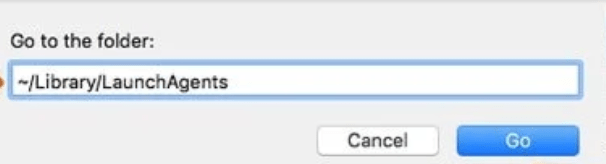
1. Click the Finder icon from the menu bar >> choose “Go” then click on “Go to Folder“:

2. In the Go to Folder… bar, type “/Library/LaunchAgents” and click Go:

3. In LaunchAgents folder, search for any recently-added suspicious files and move them to the Trash.

Here are some examples of files generated by malware:
“installmac.AppRemoval.plist”, “com.genieo.completer.download.plist” “com.genieoinnovation.macextension.plist” “com.genieo.engine.plist” “com.adobe.fpsaud.plist” , “myppes.download.plist”, “mykotlerino.ltvbit.plist”
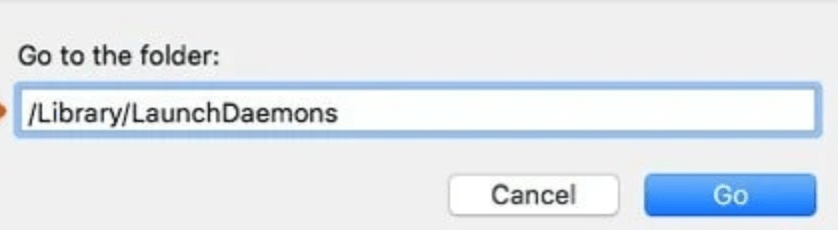
4.Repeat the process on the following folders:
/Library/Application Support

/Library/LaunchDaemons
Many malware may re-install themselves multiple times if you don’t delete thier core files. To find and remove all malicious files , We recommend downloading SpyHunter Mac Antimalware to scan your Mac. This may save you hours and ensure you don’t make mistakes that harm your system
Free Remover allows you, subject to a 48-hour waiting period, one remediation and removal for results found. Read our EULA, Privacy Policy, Cookie Policy . See more Free SpyHunter Remover details.
Step 4 – Download SpyHunter Antimalware For Mac to Scan For Malicious Apps and Files.
Lots of Malware keep generating malicious files on infected computer deeply, thus it’s quite difficult for common computer users to find out and remove all harmful items related with PUA:Win32/Vigua.A. Meanwhile, there will be possibility that users remove core system files by mistake and then the entire computer will be harmed seriously.
To avoid the risks, We recommend all users downloading SpyHunter Antimalware For Mac, a professional automatic malware removal tool which keeps your Mac away from virus and malware attack and avoid online spam and phishing websites and protect your privacy and files well.
1. Click Download button here to download SpyHunter For Mac :
(Free Remover allows you, subject to a 48-hour waiting period, one remediation and removal for results found. Read itsEULA, Privacy Policy See more Free SpyHunter Remover details.)
2. Double-click SpyHunter-1.2-15-7043-Installer.dmg to install Spyhunter For Mac:

3. Once SpyHunter For Mac is installed, run a scan and register its full version to remove all malicious objects on your Mac.

4. In case PUA:Win32/Vigua.A is still infecting your Mac, Submit a Support Ticket and the support agent will conact to help you.