Sorry, you have been blocked
This website is using a security service to protect itself from online attacks. The action you just performed triggered the security solution. There are several actions that could trigger this block including submitting a certain word or phrase, a SQL command or malformed data.
What can I do to resolve this?
You can email the site owner to let them know you were blocked. Please include what you were doing when this page came up and the Cloudflare Ray ID found at the bottom of this page.
Cloudflare Ray ID: 80163fe8ef9a787f • Your IP: Click to reveal 86.107.21.84 • Performance & security by Cloudflare
How to Reset All JBL Flip Speakers? – With Pictures
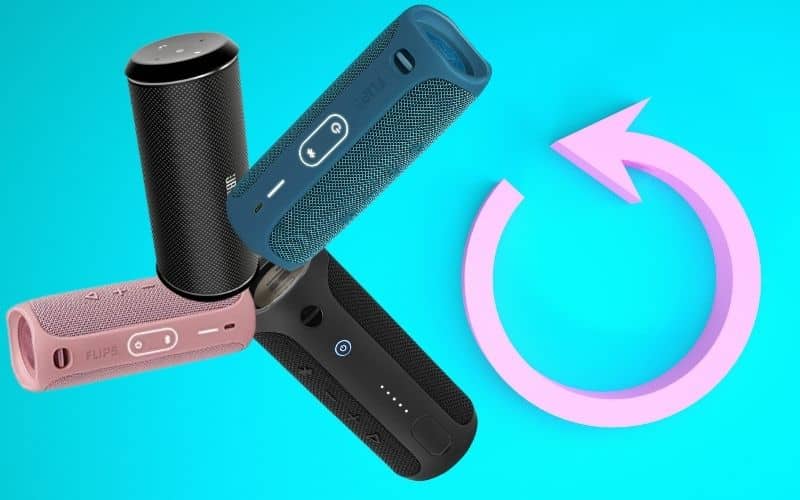
If you have a JBL Flip speaker and are having problems with it, it may be worthwhile to try resetting your speaker.
We’ll be going over how to reset your JBL Flip Speaker Step by Step.
JBL Flip speakers have a variety of models with varying reset instructions. To make things easier, we’ve compiled the details for each model below.
Note:
Resetting your speaker will clear the settings for any paired devices and delete your current Wi-Fi configuration.
Table of Contents
JBL Flip 6 Reset
The JBL Flip 6 was released to the public on December 2nd of 2021. It’s a wonderful speaker that gives great sound quality. But, like any other product, it may have some issues. In this case, resetting it may be the best solution.
To reset the JBL Flip 6 speaker, just follow these simple steps:
- Turn on your Flip 6.
- Next, press and hold the play ▶️ button and the volume + button together.
- Hold this position for about 5 seconds.
- The device will turn off and then restart to the factory settings.
- Power on your Flip 6 again, and it will be like it was when you first got it – in the factory default settings.
JBL Flip 5 Reset
The JBL Flip 5 was released August 1, 2019, and is a successor to the Flip 4 that was released in 2017.
The biggest improvement is that the Flip 5 is IPX7 waterproof and can withstand depths up to three feet deep.
- Power on your device
- Press and hold the play and the volume + buttons at the same time.
- Maintain this position for about 5 secs.
- The device will power off as it restores to the factory default
- Power on your Flip 5 again, and it will have restored to the factory default.
JBL Flip 4 Reset
The JBL Flip 4 was released in November 2017.
The ultimate in portability and convenience – perfect for hands-free voice calls with intuitive controls allowing you to take calls, receive messages & even activate your favorite playlist.
- Power on your device.
- Press and hold the play and the volume + buttons at the same time.
- Maintain this position for about 5 secs.
- The device will power off as it restores to the factory default
- Power on your Flip 4 again, and it will have restored to the factory default.
JBL Flip 3 Reset
The JBL Flip 3 was released in July 2016, as an earlier version of the Flip 4 which came out months later.
- Power on your device.
- Press and hold the play and the volume + buttons at the same time.
- Maintain this position for about 5 secs.
- The device will power off as it restores to the factory default.
- Power on your Flip 3 again, and it will have restored to the factory default.
JBL Flip 2 Reset
- Power on your device.
- Press and hold the Phone and the volume + buttons at the same time.
- Maintain this position for about 5 secs.
- The device will power off as it restores to the factory default.
- Power on your device again, and it will have restored to the factory default.
JBL Flip 1 Reset
The JBL Flip 1 is the first JBL Flip speaker that was released in 2012. It’s an extremely portable speaker that is designed for any occasion, and at that time it was a great buy.
It’s been discontinued for over 5 years now.
- Power off your speaker.
- Press and hold the Power button for 30 sec.
About Marea Harris
As a tech enthusiast and writer for Leads Rating, Marea brings a passion for technology and a unique perspective to the latest trends and innovations. With a commitment to making complex topics more accessible to readers, Marea enjoys explaining technical concepts in a clear and relatable way, providing helpful guides and informative articles that empower readers to make informed decisions about the latest gadgets and technology.
Marea recognizes the importance of visual aids in conveying technical concepts and provides detailed and easy-to-follow diagrams and images to accompany her articles. With a talent for design and a keen eye for detail, she is dedicated to providing a top-quality reading experience for readers.
Looking ahead, Marea plans to continue exploring the latest tech innovations and sharing her insights with readers, while also developing new skills and expanding her expertise in the field.
Reader Interactions
Comments
Hello, I have a Flip 6 and I often have the issue that it does not want to turn off after it has been charging. When this happens I also cannot change the volume up/down. I have tried to press the Play & Volume + button to restart and although that switched it off, when you switch it back on again it will not connect to any device. In fact, when I switch it on it immediately starts the sound like it is searching for a bluetooth connection but none of my devices can connect to it. Do you have any advice on how to fix this?
Как перезагрузить колонку JBL flip5?
После включения колонки нажмите и удерживайте кнопку увеличения громкости и кнопку Bluetooth вместе, пока устройство не выключится. Теперь снова включите колонку , нажав кнопку питания.
Как разблокировать колонку JBL?
Как разблокировать колонку JBL ? Подключите устройство к зарядке, жмите одновременно на кнопку Блютуз (Коннект) и «Плюс», удерживайте их в течение 10 секунд. Если не помогло, зажмите Bluetooth и Play до разблокировки девайс
Как перезагрузить колонку JBL 5?
Как перезагрузить колонку JBL ? Нажмите одновременно кнопки включения и ответа на вызов, зажмите кнопку Блютуза и увеличения громкости одновременно, просто нажмите и удерживайте кнопку питания. Это основные способы перезагрузки , которые можно использовать для устройств JBL
Как сделать сброс на JBL Flip 5?
Чтобы сбросить настройки портативной колонки JBL Flip 5 на заводские, нажмите кнопку питания, чтобы включить устройство. После включения колонки нажмите и удерживайте кнопку увеличения громкости и кнопку Bluetooth вместе, пока устройство не выключится. Теперь снова включите колонку, нажав кнопку питания.
Что делать если зависла колонка JBL?
- Жмите на кнопку повышения громкости (+) и Плей / Пауза.
- Удерживайте их три-пять секунд.
- Выключите колонку и выждите 10 секунд. Если устройство отключается, значит, работа сделана правильно.
Как снять блокировку с колонки JBL?
- Поставьте девайс на зарядку, и убедитесь в работе индикации.
- Нажмите на кнопку Play на передней консоли.
- Удерживайте ее в течение десяти секунд.
- Дождитесь, пока блокировка будет снята.
Как перезагрузить колонку JBL Charge 3?
- возьмите колонку и поверните ее к себе клавишами управления;
- найдите кнопки включения и ответа на вызов;
- нажмите на них одновременно и не отпускайте в течение 5-10 секунд.
Как сбросить колонку JBL Flip 5?
Чтобы сбросить настройки портативной колонки JBL Flip 5 на заводские, нажмите кнопку питания, чтобы включить устройство. После включения колонки нажмите и удерживайте кнопку увеличения громкости и кнопку Bluetooth вместе, пока устройство не выключится. Теперь снова включите колонку , нажав кнопку питания.
Как перезагрузить колонку JBL Charge 5?
Как перезагрузить колонку JBL ? Нажмите одновременно кнопки включения и ответа на вызов, зажмите кнопку Блютуза и увеличения громкости одновременно, просто нажмите и удерживайте кнопку питания. Это основные способы перезагрузки , которые можно использовать для устройств JBL .
Как сбросить колонку JBL Charge 5?
Необходимо зажать одновременно кнопки «плюс» и «блютуз», и дождаться момента, когда индикатор погаснет. Включить гаджет можно с помощью клавиши включения. После этого все сопряжения будут удалены. Сброс настроек колонки JBL прошёл успешно.
Как снять блокировку с колонки JBL Flip 5?
- Поставьте девайс на зарядку, и убедитесь в работе индикации.
- Нажмите на кнопку Play на передней консоли.
- Удерживайте ее в течение десяти секунд.
- Дождитесь, пока блокировка будет снята.
Можно ли мочить JBL Flip 5?
Неожиданный дождь? Ничего страшного. Вечеринка на пляже? Flip 5 имеет степень защиты от воды IPX7, а это значит, что он не боится брызг.
Что делать если колонка не выключается?
- Жмите на кнопку повышения громкости (+) и Плей / Пауза.
- Удерживайте их три-пять секунд.
- Выключите колонку и выждите 10 секунд. Если устройство отключается, значит, работа сделана правильно.
Что делать если зависла колонка?
Зависла колонка и не реагирует на все кнопки, что делать ? Дождаться, когда полностью разрядится, выждать денёк, потом зарядить и проверить. Либо сразу делать полный сброс или обновление ПО. отсоедените АКБ и подержите так минуту, если при подключении она не включится, то проблема вероятней всего в контроллере питани
How To Reset JBL Flip 5 Using the Volume and Play Button
How to reset JBL flip 5 speakers after it has stopped working or will not work like before? The JBL Flip 5 is a great device for outdoor and indoor music listening experiences, but sometimes due to various factors, it can lose its working.
Fortunately, you can reset the factory settings on the speakers to bring the software to square one which will help it work in the best way possible.
In this article, we will talk about the simple yet effective way that you can use to reset a JBL Flip 5 speaker.
How To Reset JBL Flip 5? Simple and Easy
You can reset a JBL Flip 5 speaker by turning it on and pressing the play and the volume-up button simultaneously . This trick will reset the whole speaker, making it sound and work like a brand-new one in no time.
There can be various reasons why you need to reset a JBL speaker, but the most common among them is the fact that, with time, the JBL Flip speaker starts acting weirdly.
The speaker sounds distorted , the buttons do not do what they are supposed to do, and mainly, the battery drains much faster than it used to. So in all of these cases, it is best to factory reset the speakers as a whole. Resetting it will give it a needed jolt, and the speakers will hopefully start to woke like before.
Before resetting it, make sure that no device is connected to it and also that it has enough battery to go on. Also, make sure that the reason behind its lagged working is its software and not because of any external damages.
In the latter case, resetting it will do no good for it. Following is a simple step-by-step way that you can use to reset the JBL Flip 5 speakers:
– Step 1: Power Up the JBL Flip 5
The first step in the process is to power up the JBL Flip 5 speakers . You can do this while it is on charge or connected to a power socket.
We want a good amount of battery in it for it to go through the reset process because if the battery runs out during the reset, it may die completely.
– Step 2: Press the Keys
The next step is to locate two important buttons. The play button and the volume up button. These two buttons, when pressed together, will hard reset the JBL speakers.
Make sure to hold the pressed button in place for at least thirty seconds before letting them both go. Sometimes, the speakers will make some noise after the reset, and sometimes, they will give no indication.
After you have let go of the button, give the device some time. Do not press any buttons or plug it off the charging if it was on charge before.
– Step 3: Restart the JBL Flip 5
After some time, restart the JBL Flip 5. Charge the speakers completely . Make sure not to drain the battery of the speaker to the maximum in a couple of initial uses. After that, use the device as freely and vigorously as you like; it should work just fine.
You can use this way of resetting on almost all sorts of JBL speakers and more devices. If the speakers started acting up again, follow the tutorial again, and you should be good to go.
– Why Won’t JBL Flip 5 Turn On? Most Common Reason
The reason why your JBL Flip 5 speakers are not turning is probably that the speakers have become faulty or are damaged . There might be an issue with the internal or external hardware that is not letting it turn on.
Another reason why your speakers are not tuning on is maybe that it is completely out of battery . This is one of the biggest reasons for a non-working speaker, especially in the case of JBL speakers.
Make sure that you have charged the speakers completely before tuning them. Let them charge for about more than three hours to ensure a full battery charge.
– How Long Does the Battery on JBL Flip 5 Last?
The battery on a JBL Flip 5 lasts for about 12 hours after a normal full charge . This may vary and this depends upon the condition of the charge and consequent and day-to-day use. Other than that, normally, it’s around 12 hours of full use.
With time, the speakers will lose their original battery life and run time . So if you have had your JBL speakers for a long time and the battery is not as great as it used to be, do not panic. It is actually very normal in the case of the JBL speakers and whichever model you choose.
– Is the JBL Flip 5 Waterproof?
Yes, the JBL Flip 5 is waterproof . It comes with an exceptional three feet deep water resistance. This is great for near the beach and swimming pool parties. It can be inside water and still manage to get some sound out of it.
Most of the speakers that JBL produces are waterproof because this company specializes in outdoor entertainment. Even if the speakers are waterproof it is not advised that you keep the speakers submerged in water for too long or give them constant dunks in the water.
This will ruin the sound system for the worst , and it may even stop working as a whole. So make sure that the waterproof feature is used sensibly and that you use it to its maximum capacity.
Conclusion
In this article, we talked about how you can reset a JBL Flip 5 speaker using the volume up key and play button, but in case you missed anything, here is a simple review to help you:
- You can reset a JBL Flip 5 speaker by turning it on and pressing the play and the volume-up button simultaneously.
- Before resetting it, make sure that no device is connected to it and also that it has enough battery to go on.
- You can use this method to reset almost all JBL speakers.
Here we come to the end of the article about resetting JBL speakers. We hope the article was informative for you. Happy Partying!