Как разогнать процессор если пишет CURRENT, POWER LIMIT
Столкнулся с проблемой ограничения максимальной частоты работы процессора Intel на ноутбуке, но, вероятно, такое может быть и с настольным компьютером. Как известно, процессоры имеют две тактовые частоты: стандартная и турбированная. В процессорах Intel встроенная технология разгона называется «Turbo Boost» , а для AMD – «Turbo Core» .
В характеристиках процессора можно встретить обозначение частоты «2300@3300 MHz» . Первая цифра — это номинальная скорость в MHz, вторая – максимальная. В реальности режим турбо включается автоматически, не требуя дополнительных действий от пользователя. Но максимальная скорость доступна только для одного или двух ядер. Например, для четырёхядерного процессора с турбо-частотой 3300 MHz, окажется, что:
- Первое ядро 3300 MHz
- Второе 3200 MHz
- Третье 3000 MHz
- Четвёртое ядро ограничено 2900 MHz
Ограничение мощности процессора
Технологию Intel Turbo Boost или AMD Turbo Core должен поддерживать BIOS материнской платы, и это не проблема. На самом деле, Turbo-частота расценивается как бонус к производительности, и не обязательна к воплощению, особенно на длительное время. Некоторые производители ноутбуков занижают максимальной ток потребления процессора, тем самым, не позволяя ему потреблять больше мощности, чем это возможно. Производитель ограничивает максимальную мощность по трём причинам:
- Экономит на деталях материнской платы
- Вынужденная мера, если это ультрабук, тонкий ноутбук, когда бОльшее потребление мощности приведёт к перегреву
- Маркетинговый ход, при наличии более мощных ноутбуков на такой же базе комплектующих
Ограничение по току вшито в BIOS материнской платы, и может не поддаваться изменению с помощью программ.
Ошибка EDP Current Limit
При работе всех ядер процессора на максимальных частотах, могут появляться ошибки превышения допустимых пределов (Throttling). При тротлинге понижается частота процессора до такой, при которой тротлинг прекратится, при этом он работает медленнее. Есть три вида ошибок тротлинга:
- Thermal Limit Throttling: перегрев процессора, достижение максимальной температуры
- Power Limit Throttling: достижение максимально-допустимой мощности
- Current Limit Throttling: процессор потребляет максимально-возможный ток
EDP Power и Current Limit, в принципе, одно и то же, но их лимиты задаются в разных местах.
Итак, получается, что операционная система пытается поднять частоту процессора до максимальной, и упирается в ошибку «EDP Current Limit» , потому что материнка говорит «я не могу обеспечить процессор током, необходимым для поддержания такой частоты».
Как разогнать процессор с ограничением по току
Есть три способа регулирования EDP-лимитов:
- В БИОС’е материнской платы, советов не дам, зависит от модели платы
- Программа «Intel Extreme Tuning Utility (XTU)»: громоздкая и по непонятной причине иногда сбрасываются настройки после перезагрузки
- Программа ThrottleStop: лёгкая и гибкая утилита, не требует установки, просто распакуйте и запустите
При первом запуске появится предупреждение, что приложение может менять производительность и теплоотдачу системы, нажмите «OK». Интерфейс на английском, и кажется немного запутанным, но ничего, сейчас разберёмся. Нажмите кнопки «Limits» и «TS Bench» , расставьте окошки поудобней:
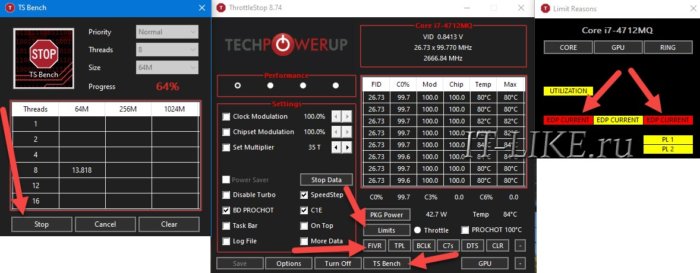
В окошке «Limit Reasons» мы видим причины активации лимитов. В окне «TS Bench» мы запустим тест скорости процессора кнопкой «Start» (на скриншоте это уже кнопка «Stop» ). Теперь видно, что загорелись ошибки «EDP CURRENT» , что означает материнская плата не даёт больше тока.
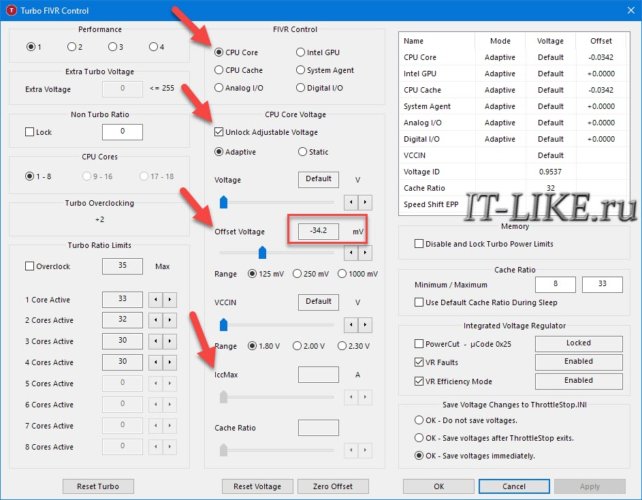
Попытаемся исправить ошибку, заходим в настройки по кнопке «FIVR» :
Максимальный ток потребления
Если вам повезло, то вы сможете регулировать значение «IccMax» в амперах (A). Увеличивайте максимальный ток «IccMax» , пока не пропадёт надпись «EDP Current» , а процессор будет работать на максимально-документированной частоте Turbo Boost.
На бОльший ток должен быть рассчитан блок питания ноутбука и система охлаждения. Впрочем, кратковременные перегрузки не страшны. Некоторые ноутбуки могут начать пищать на высоких звуковых частотах. Если на номинальных частотах писка нет, а при разгоне появляется, то лучше немного убавить максимальный ток. Писк из ноутбука без разгона – «нормальное явление» , «не гарантийный случай» , как заявляют сами производители устройств. На самом деле это проблема, но уже для другой статьи.
Андервольтинг
Регулирование «IccMax» бывает недоступно, как у меня. Это значит, что производитель вшил параметры в материнку. Мощность потребления процессора рассчитывается по формуле:
Мощность = Ток * Напряжение
Получается, если уменьшить напряжение питания процессора, при том же токе, — общая мощность снизится. Алгоритмы тротлинга работают так, что при уменьшении напряжения, получается выжать больше частоты, за счёт достижения пиковой мощности, теперь уже на более высоких частотах. Понижение напряжения процессора называется андервольтингом (undervoltage), и применяется для уменьшения температуры ядра. Дело в том, что производитель выставляет напряжение процессора с запасом, но чем больше напряжение, тем выше температура нагрева.
Итак, в окне «Turbo FIVR Control» выставляем:
- FIVR Control: «CPU Core»
- Ставим галочку «Unlock Adjustable Voltage»
- Передвигаем ползунок «Offset Voltage» влево. НЕ ПЕРЕПУТАЙТЕ ползунок c «Voltage» . Иначе можете спалить проц!
Затем ставим переключатель FIVR Control в положение «CPU Cache» и делаем то же самое для кэша. «Offset Voltage» должно быть таким же, как и для «CPU Core» (можно и разное, ничего не сгорит). Этими действиями вы выставляем смещение напряжения от номинального. Например, если системная плата хочет подать на процессор 1.8V, то при «Offset Voltage» равным -50mV, CPU получит только 1.75V. Нажимаем «OK» и запускаем «TS Bench» , следим, до какой частоты теперь разгоняются ядра.
Максимальное отрицательное смещение для вашего процессора индивидуально, зависит от модели и экземпляра. Начните с -30mv и увеличивайте с шагом 5mV. В отличие от метода разгона процессора увеличением напряжения, нашим андервольтингом ничего сломать нельзя. Максимум плохого, что может произойти – зависнет Windows. После перезагрузки всё вернётся как было.
Нужно нащупать максимальное снижение напряжения, желательно, с точностью до милливольта, при котором максимальные частоты ещё увеличиваются, и компьютер работает без зависаний. Может оказаться, например, что последнее «стабильное смещение» -70mV, но частота перестала увеличиваться на -65mV, тогда лучше оставить -65mV. Кстати, компьютер может не зависать определённое время, даже на стресс-тестах, но в каких-то программах всё равно зависнет. Например, у меня иногда при воспроизведении видео в Youtube, операционная система всё-таки зависала. Тогда нужно увеличить напряжение на один шаг.
С помощью андервольтинга мне удалось разогнать Turbo Boost процессора Intel Core i7-4712MQ с 2500MHz до 2800MHz. Это немного, но лишней производительности не бывает, учитывая абсолютную безопасность метода. Не исключаю, что на других ноутах результат может быть куда лучше (попалась совсем неудачная плата).
Кстати, недостаточно снять галочку «Unlock Adjustable Voltage» чтобы отменить настройку «Offset Voltage» . Нужно выставить значение на 0mV и нажать «OK» .
Ошибка «Power Limit»
EDP «Power Limit» возникает при превышении общей допустимой мощности потребления. Нажмите в главном окне программы «ThrottleStop» кнопку «TPL» и задайте более высокие пределы для долговременной нагрузки (Turbo Long Power Max) и кратковременной мощности (Turbo Long Power Max):
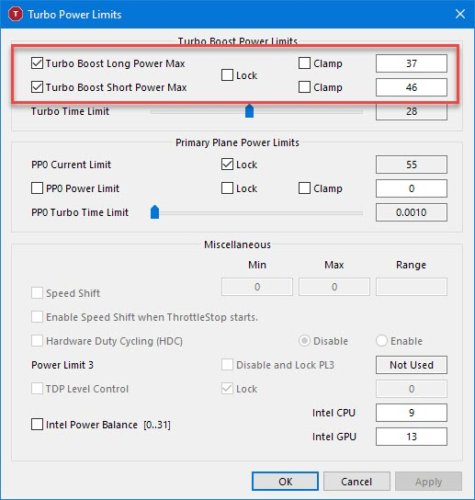
Также можно поиграться с параметрами «PP0 Current Limit» , задав более высокие пороги по току.
Автоматический запуск программы
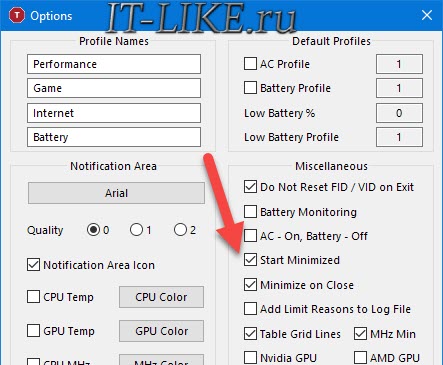
Настройки сбиваются после перезагрузки компьютера, поэтому программа ThrottleStop должна загружаться автоматически вместе с Windows. Добавьте ярлык на «ThrottleStop.exe» в автозагрузку любым удобным способом: в папку «Пуск -> Все программы -> Автозагрузка» , через реестр Windows или в Планировщике задач. Далее, в главном окне программы нажмите «Options» и поставьте галочки:
- «Start Minimized» : чтобы во время запуска Windows, программа запускалась свёрнутой;
- «Minimize on Close» : чтобы программа не закрывалась после клика по крестику, а сворачивалась.
ThrottleStop должна быть всё время запущенной, чтобы параметры процессора восстанавливались после выхода их режима «Сон» . А вообще, после применения настроек, программу можно закрыть.
Иначе может получится так, что вы выставите большое смещение и компьютер зависнет, а после перезагрузки, ThrottleStop снова загрузит новые настройки и компьютер будет зависать при каждом запуске.
What Is Power Limit Throttling? And How to Fix It
Power limit throttling is a well-known problem among PC users, especially power users who like to push their PC for intense workloads. Even if you are not a power user, you might have stumbled on a notification indicating that your PC is dealing with power limit throttling issues.
If you are a regular user, there’s nothing to be concerned about if you come across power limit throttling issues. In this article, we will dig deep into power limit throttling issues. I will further explain what power limit throttling is, the possible reasons behind it, and how to fix it as simply as possible is.
What is Power Limit Throttling?
There are default or safe temperatures for cores, and when the temperature exceeds the set limit, power limit throttling may occur. To break this down, the core reduces the power limit and tries to bring down the temperature. Power limit throttling is a preventive measure to keep your PC from any further harm. Another preventive measure is forced shutdown, and it happens when the cores exceed the maximum temperature. The throttle temperature may vary from manufacture to manufacture, and it can be tweaked from the bios settings. Power limit throttling is a matter of concern, and it implies that your PC is not running stable.
3 Reasons Behind Power Limit Throttle
There are many probably reasons behind power limit throttling. Covering all of them in one article is not reasonably possible. So we will talk about some of the most common reasons behind Power Limit Throttling which will help you understand the situation better.
1. Processor Power Limit
When the power limit of the processor is set too low, the processor does not get enough power limit to run at its capacity.
2. Core Voltage Limit
Power limit throttling may happen when the core voltage limit is set too low.
3. Limited Cooling Headroom
When the cooling system is not adequate to keep the temperature within the throttling limits.
9 Ways to Fix Power Limit Throttling
One thing you should keep in mind is that you can always test your CPU by putting it through a stress test to determine whether it power limit throttles or not.
Increase processor power limit
There are many ways you can try to increase your power limit from. It can be done from bios or tools like Intel XTU, Ryzen Master, MSI Afterburner, etc.
Increase core voltage limit
Core voltage limit can also be a major cause of power limit throttling, especially it is dialed lower than your requirements. In this case, you can try and crank up the core voltage limit using the tools and utilities mentioned beforehand.
Change PSU
The power supply unit (PSU) is responsible for the power delivery of your PC. If your power supply is delivering inconsistent power, it can cause a power limit throttle. In this case, you can try changing to a high-quality power supply.
Check your PC fans
Fans are included in the PC for only one purpose and it is cooling. If the fan is not doing its job properly, it might be a possible reason for power limit throttling. Disassemble your PC and check all the fans are working properly.
You can even check the RPM of your fan using any monitoring tool such as HWMonitor. Moreover, PC fans can get dirty easily and get jammed. In that case, try to clean it using a brush or a blower and ensure that the fans are spinning properly.
Add more casing fans
Adding more casing fans might make your PC a bit noisier, but it will surely benefit you with improved thermals.
Ensure proper breathing space
Make sure that your PC is not choking and getting enough space to breathe. Make sure that it is placed where there is adequate airflow and no blockades.
Change your casing
This is applicable if you are a desktop use only. Many casing tends to choke the internals of a PC because it is designed poorly with no room for proper airflow. If your casing is like this, you should consider changing the casing with good airflow.
Change thermal paste
Thermal compound ensures that the CPU and the cooler are in proper contact and dissipate heat properly. After using it for a long period, the thermal paste can get dried and cause high temperatures because of improper heat transfer. In this case, try changing your thermal compound to a high-quality one.
Better cooling solution
Power limit throttling can happen if the cooling system of your PC is not adequate. Try getting a high-performance tower cooler or an all-in-one (AIO) cooler for best thermal performance and prebent power limit throttling.
What is Power Limit Throttling? How to Fix it? [In-Details Study]
Are you facing constant stuttering or slowed down processor or chip too often? You know this situation is referred to as power throttling! It’s a common issue people have.
Generally, people with surface devices have it, and many laptops also have it. When the manufacturer sets a power limit and in my case, it’s a 15 watt power limit and when the system exceeds 15 watts, it starts doing this crazy thing called power throttling.
So, I’m going to tell you how I fixed this power throttling problem and now I said goodbye to this annoying issue for good. 
In super simple words, during computing a processor or chip slows down by reducing power to prevent overheating; this process is known as power limit throttling. Power limit throttling is a common issue among PC users, particularly among power users who frequently subject their devices to graphically intensive work or heavy workloads.
Power limit throttling can now be suppressed and neutralized, thanks to my acquisition! Specifically, those who own Surface Pro tablets or notebooks have been dealing more commonly with this incredibly tedious problem. So now, we will take a deep dive into what power limit throttling is and how to fix this issue in this article. Read to the end, and I hope you’ll get your answers.
What is Power Limit Throttling?
Power throttling tends to happen when a CPU continuously consumes power above its rated TDP for a predetermined amount of time. A constant high CPU load may cause this to occur. While the CPU can go above TDP for a brief period of time to handle load spikes and if the load persists for a predetermined amount of time (for example, 28 seconds), the CPU will throttle back to stay within the rated TDP (e.g. 65 watts).
A component has a power limit set by the manufacturer. Take the situation where you have a laptop with an RTX 2060 that is likely 80W power limited. While gaming, it may briefly exceed 80W but then stabilizes at 77 to 80W. The GPU is power limit throttled in this instance.
There is occasionally a power limit of 60W for laptop CPUs, say for 30 seconds or if only the CPU is working. The CPU may throttle down to 45W after the specified time has passed or if the GPU is also under load. It can be altered slightly.
If you are interested to know does power supply affect fps, check the article.
Typically, it’s difficult to raise the power limit because the BIOS has a hard cap set by the manufacturer to prevent overheating. However, some people choose to reduce their CPU’s power to around 35W in order to keep their system cooler at the expense of some performance. Software like Throttlestop or Intel XTU can be used for this.
How to Fix Power Limit Throttling?
We all face power throttling and if you’re facing this issue, you might’ve fixed all the basic solutions you would like: updating the drivers, updating windows, tried updating the bios, and many methods that didn’t work so here are some simple, effective methods to fix power limit throttling. Try which one works for you.
Method 1: Match the Turbo Boost Power Max
You take the turbo boost short power max and match it to the turbo boost power max. This will only deliver about 15 watts to the processor instead of 25, so it’s still going to exceed 15 watts a little bit. But not as much as it would if the turbo boost short power max with that 25 watts, so it’s not going to parallel match the model as significantly.
This solution does not eliminate power limit throttling entirely but reduces it significantly and greatly increases performance.
After you match the trimmer boost short power max with the turbo boost power max, you’ll notice that your temperature will also be much more stable.
Method 2: Clocking Down your CPU
You can simply clock down your CPU. You need to go into your BIOS or UEFI where it says enable or disable turbo boost technology.
You need to disable that and then after you’ve disabled turbo boost, your CPU will be stuck at its stock frequency. It allowed the CPU to use a lot less power and left a lot more wiggle room for the graphics to use a little more power.
Method 3: Disable CPU Management
If you want to destroy power limit throttling, destroy it in total.
How to do that?
First, Press the Delete or Enter button (depending on your keyboard layout) during the boot process to access the BIOS. Then select Advanced CPU Configuration and Advanced Power Management Configuration.
Change the Energy Efficient Turbo to Disable and the Power Technology to Custom. You need to switch to CPU P State Control and deactivate the EIST (P-States) and Turbo Mode.
Then, go to CPU C State Control, change the Package C State Limit to C0/C1, and deactivate the CPU C3 Report, CPU C6 Report, and Advanced Halt State (C1E).
What are the Common Causes of Power Limit Throttling?
- For the specified CPU, the motherboard is unable to supply a high enough current. Even though maximum current limits are used, pairing a low-power motherboard with a chip with a very high Thermal Design Power (TDP) can result in current throttling.
- Sometimes the system’s cooling and power delivery are insufficient.
- The system lacks adequate cooling and power delivery for your intended use.
How to Limit Power Limit Throttling?
- Ensure that your computer has enough space for heat dissipation. Keep in mind it isn’t in a temperature-sensitive area or exposed to direct sunlight.
- Make certain to turn off your computer before cleaning the fans with an air duster. A vacuum shouldn’t be used because it can cause damage due to the static it produces.
- You might want to upgrade your fan because your CPU significantly contributes to temperature increases.
- Adding a case fan is helpful as this. You should indeed cool the whole case. If you replace your CPU fan and are still experiencing temperature problems, your next course of action might be to add a case fan.
- Most computer enthusiasts and gamers will purchase a water-cooling kit to cool the CPU. This requires some setup time, but it works well.
- You can boost the processor power limit. You can increase your power limit in a variety of ways. It can be done from the bios or programs like Intel XTU, Ryzen Master, MSI Afterburner, etc.
You need to be mindful of your computer usage if you tried some of these tips or if the methods didn’t seem like the best options for you. While overclocking is a great way to increase your laptop’s performance, it will always produce heat because it will push your system’s capabilities to the limit.
FAQs
Is power limit throttling harmful to the CPU?
To some extent, yes. But the processor will automatically shut down to prevent long-term damage if the circumstances make throttling ineffective, such as a thermal solution failure or improper assembly.
How can I tell if my CPU has been throttled?
It’s pretty simple. Open the Run command box, and press the Windows Key + R. Enter “perfmon.exe /res” into the field that appears. There you’ll get your performance done.
Is it bad to disable power throttling?
Yes. Your computer may use more power than intended if your power limits are disabled. So it is not advisable to disable them.
Final Words
In this article, I’ve discussed the power limit throttle and how to fix it. So you need to carefully follow these methods and don’t forget to follow the tips. Typically power limit throttling indicates that your CPU has, for whatever reason, reached its thermal limits and has throttled down to prevent itself from frying.
If you’ve further comments or any questions, please state them in the comment box below. I’ll be honored to attend them.
What is power limit throttling? and how to fix it
Have you ever noticed your computer slowing down or even shutting off unexpectedly while performing a demanding task? If so, you may have experienced power limit throttling.
Power limit throttling is a common issue that affects many computers, particularly those with powerful hardware. It occurs when the computer’s processor reaches its power limit and is forced to slow down or even shut down to prevent damage.
While power limit throttling is a necessary safety feature, it can be frustrating for users who need their devices to perform at their best. Fortunately, there are ways to fix it and optimize your computer’s performance. In this article, we’ll explore what power limit throttling is, how it affects your computer, and some tips to fix it and get your device running smoothly again.
Fortunately, there are ways to fix power limit throttling and prevent it from happening again. In this article, we will explore what power limit throttling is, how it affects your computer’s performance, and most importantly, how to fix it. If you’re tired of dealing with slow or unstable performance, keep reading to learn more.
What is Power Limit Throttling?
Power limit throttling is a process that occurs when the processor in your computer reaches its power limit. When this happens, the processor will slow down or even shut down to avoid damage to the hardware. This can happen during intensive tasks like gaming, video editing, or other demanding applications. It’s an important safety feature that prevents damage to your system and keeps it running smoothly.

Power Limit Throttling is a feature in modern computer processors that helps prevent overheating and damage to the CPU by limiting the amount of power it can consume. When a processor is working at full load, it can generate a lot of heat, which can cause damage if it goes beyond the thermal design power (TDP) limit.
Power Limit Throttling is a safety mechanism that reduces the CPU’s power consumption by lowering its clock speed and voltage, which in turn reduces the amount of heat generated. While this can cause a decrease in performance, it is a necessary feature to prevent damage to the processor and ensure its longevity.
How Does Power Limit Throttling Affect Performance?
When power limit throttling occurs, it can cause your computer to slow down or even shut off unexpectedly. This can be especially frustrating if you were in the middle of an intensive task like gaming or video editing. It can also affect everyday activities such as web browsing and using productivity applications. All of this adds up to a noticeable decrease in performance.
Power limit throttling is a mechanism employed by processors to regulate power consumption and prevent overheating. When the processor draws more power than the system can handle, it reduces its clock speed, which in turn affects performance. This can cause a decrease in the overall processing speed of the system, resulting in lag, slow boot times, and overall poor performance. Power limit throttling can also cause instability and crashes in the system. It is essential to monitor power consumption and thermals to ensure that the processor is running at its optimal performance level.
How to Fix Power Limit Throttling?
Thankfully, there are several ways to fix power limit throttling and optimize your computer’s performance. Here are some of the most effective methods:
1. Upgrade Your BIOS: Upgrading your computer’s BIOS (Basic Input/Output System) can help reduce or even eliminate power limit throttling. Make sure that you check the manufacturer’s website for instructions on how to upgrade your BIOS safely.
2. Adjust Your Power Settings: You can also adjust your power settings to reduce power limit throttling. Go to the Control Panel and select “Power Options”. From here, you can change your power profile to a higher performance mode or disable power limit throttling altogether.
3 . Cool Down Your System: If your computer is overheating, this can cause power limit throttling to occur. Make sure that you keep your system cool by cleaning out dust and dirt buildup, using a cooling pad, or even adding additional fans or liquid cooling systems.
4. Replace Your Power Supply: Lastly, if all else fails, you may need to replace your power supply with one that is more powerful. This can help you avoid power limit throttling and get the most out of your computer.
3 Reasons Behind Power Limit Throttle
Have you ever experienced your computer’s performance slowing down even though you have a powerful processor? It could be because of power limit throttling.
Power limit throttling is a common issue that affects many computer users, especially those who use their devices for high-performance tasks like gaming or video editing. It occurs when the processor is not able to draw the required power from the system, which leads to a decrease in performance.
Understanding the reasons behind power limit throttling can help you optimize your computer’s performance and prevent it from slowing down. In this article, we will explore the three main reasons behind power limit throttling and how you can resolve them. So, if you want to get the most out of your computer’s processing power, keep reading!
1. Processor Power Limit
Processor power limit is an important factor to consider when dealing with power limit throttling. This is a feature that allows the processor to draw more or less power from the system, depending on the task. If it is set too low, it will cause the processor to run slower and decrease performance as a result. On the other hand, if it is set too high, it can cause the processor to draw more power than the system can handle, leading to overheating and power limit throttling.
2. Overheating
Overheating is another common cause of power limit throttling. It occurs when the processor draws more power than the system can handle, resulting in a tremendous amount of heat being generated. If this heat builds up too much, it will cause the processor to slow down, resulting in power limit throttling.
3. Thermal Throttling
Finally, thermal throttling is a feature of modern processors that allows them to reduce their clock speed in order to avoid overheating and power limit throttling.
This feature kicks in when the processor gets too hot, allowing it to cool down by reducing its clock speed and hence reducing performance. This is an important feature for keeping your processor from overheating, but it can lead to a decrease in performance as well.
9 Ways to Fix Power Limit Throttling
1. Upgrade Your BIOS: Upgrading your computer’s BIOS (Basic Input/Output System) can help reduce or even eliminate power limit throttling. Make sure that you check the manufacturer’s website for instructions on how to upgrade your BIOS safely.

2. Adjust Your Power Settings: You can also adjust your power settings to reduce power limit throttling. Go to the Control Panel and select Power Options. Here, you can adjust the power plan and CPU throttling settings to reduce the amount of power being drawn by the processor.
3. Optimize Your System Performance: Making sure that your system is optimized for performance can also help reduce power limit throttling. This includes disabling unnecessary startup programs and services, cleaning out your registry, and making sure your drivers are up-to-
4. Monitor Your System Temperatures: Keeping an eye on your system temperatures is another way to reduce power limit throttling. If the processor and other components are getting too hot, you can adjust the fan settings or look into buying a better cooling solution.
5. Install CPU Undervolting Software: Installing CPU undervolting software can also help reduce power limit throttling by allowing you to reduce the voltage supplied to the processor. This will reduce the amount of power being drawn and help keep temperatures in check.
6. Disable Turbo Boost: Disabling turbo boost is another way to reduce power limit throttling. You can do this by going into your BIOS settings and disabling the turbo boost option.
7. Reduce Overclocking: If you are overclocking your processor, it can lead to power limit throttling. Reducing the overclocking settings can help reduce the amount of power being drawn and help prevent throttling.
8. Reduce Graphics Settings: If you are playing games on your computer, reducing the graphics settings can also help reduce power limit throttling. This will allow the processor to draw less power and help keep temperatures in check.
9. Update Drivers and Firmware: Outdated drivers and firmware can also lead to power limit throttling. Make sure you keep your system up-to-date by regularly checking for driver and firmware updates from the manufacturer’s website.
John Brown is the go-to expert in the world of gaming and technology. With a deep understanding of the niche and a passion for all things gaming, John brings a unique and captivating perspective to his readers. His articles are packed with valuable insights that leave readers eager for more. With a writing style that combines creativity, authenticity, and expertise, John engages readers and sparks meaningful conversations. His articles not only provide expert knowledge but also dive deep into the intricacies of each topic. John’s ability to adapt to different topics while maintaining his authoritative voice sets him apart as a sought-after writer in the industry. Readers eagerly anticipate John’s next posts, as they know they can expect valuable content and fresh ideas that push the boundaries of their knowledge.