Как включить подсказки для Unity в Visual studio?
Так как в версии 18 года любимую MonoDevelop больше не поддерживают, придется пользоваться VS. Все будет ничего, но подсказок как в моно нет, вернее есть но команд юнити там нет (Time, touch, PlayerPrefs и все остальное), как их включить? В VS code тоже их нет

Всё до банальности просто, достаточно установить расширения для Visual Studio для этого прожмите:
Средства -> Расширения и обновления. (Tools -> Extentions and Updates..)
В появившемся окне вбить в поисковике Unity.
Установить расширение. (Visual Studio 2017 Tools for Unity)
Но по идее без него должно было всё работать, вроде бы.

В Unity надо открыть: Edit -> Preferences, вкладка External Tools, в External Script Editor выбирать: Visual Studio 2017 Community.

Была такая же проблема при использовании VSCode в юнити 2019.2.11f, т.е. не отображались контекстные подсказки при вводе для классов, методов и т.д.
Как решил: 1) Делаем все в точности как описано в официальном мануале по интеграции VSCode с Unity https://code.visualstudio.com/docs/other/unity
2) Если все сделали по мануалу, у вас должен быть установлен VSCode с плагинами C# и Debugger for Unity, при этом в юнити в Edit\Preferences\External tools у вас выставлен VSCode(с установленными параметрами ProjectPath, File, Line, Column) как редактор скриптов и установлен флажок Editor Attaching. Далее, открываем любой скрипт из юнити — он должен открыться в VSCode и в окне Explorer-а должна отображаться вся структура вашего проекта( а не только файл открытого скрипта).
3)Плагин C# внутри VSCode должен выдать предупреждение в лог (консоль можно открыть в самом нижнем поле редактора VSCode слева внизу два значка — ошибка и предупреждение), что файл проекта подгружен некорректно из-за отсутствия необходимого пакета .Net Framework какой-либо версии (в моем случае это была версия 4.7.1, в вашем случае может быть другая)! Устанавливаем требуемый пакет .NET Framework с оф. сайта майкрософта (https://dotnet.microsoft.com/download/dotnet-framework) или откуда угодно, ДАЖЕ ЕСЛИ УСТАНОВЛЕНА БОЛЕЕ ПОЗДНЯЯ ВЕРСИЯ (это никак не повредит ей).
После установки .Net Framework закройте на всякий случай Unity(если изменяли состояние флажка Editor attaching) и VSCode. Откройте юнити заново и откройте любой скрипт. В этот раз при открытии файла плагин C# в VSCode больше не должен выдавать ошибок загрузки проекта и контекстные подсказки будут работать.
How to enable IntelliSense on Visual Studio when working with Unity

‘IntelliSense’ is a code completion tool that is built into Microsoft Visual Studio. This is a question you might get during the early days of your Unity development. I see many ask this question during workshops. So thought of putting the steps into an article. If you wonder, when you are editing your scripts on Visual Studio, why some of the packages are not properly linked hence you cannot look into their implementation Or the autocompletion is not working as you see in many tutorials? Well, this is a very short article on how to solve this problem. For your additional information, ‘IntelliSense’ sometimes referred to as code completion or code assists as well.
Before diving into the steps, here are the versions of the tools that I am using in this article.
- Unity — Version 2019.3.15f1
- Microsoft Visual Studio Community 2019 — Version 16.7.1
The first step is if you have already opened your Visual Studio, close it. Then go to Unity and then go to Edit → Preferences… You will see the following window after you select the External Tools option on the left-hand side of the window. Refer to Figure 1
In this window, click on the drop-down in front of ‘External Script Editors’. Then select your favourite editor. Since I am using Visual Studio 2019, I selected that. Refer to Figure 2.
Also, I am gonna use the checkboxes below in .csproj files. Finally, the window settings looks like below in Figure 3
Now close this window and go to back to Unity project window and double click on the script that you were working on. Well, the problem should be solved.
Fixing Visual Studio’s IntelliSense (auto-complete) in Unity
If you like our article, do take some time to check out the rest of our site! We have plenty of Unity-related posts, tutorials and even some content on web development!
One of the biggest perks of using Microsoft’s Visual Studio to write your Unity scripts is IntelliSense — a code completion aid in Visual Studio that offers suggestions as you write your code, and contextually presents you with information about classes, properties and methods that you are working with.
Given Unity’s enormous scripting API, IntelliSense is a tremendously helpful feature, especially for coders who are beginning their foray into developing games and software with Unity; and while we’d love to say that IntelliSense is automatically set up and linked to Unity’s API when you install it with the Unity Editor, sometimes that’s just not the case. So, if you’ve got both Unity and Visual Studio set up, but find that IntelliSense is still not offering Unity API suggestions, then this guide is for you.
There can be many reasons why IntelliSense is failing to work properly on your device, and we are assuming that you’ve already scoured the Internet a fair bit before stumbling on our article. Hence, we’ve put together a table of contents of sorts below, so if you’ve already tried some of the solutions we have, you can skip right through them.
If you prefer watching a video instead of reading, do check out our video guide for this post too.
Article continues after the advertisement:
The Save Soil Movement
Poor farming practices and policies across the world have led to the degradation of agricultural soils in the world. This has led to the loss of nutritional value in our food over the years, and it will affect our food production capabilities in the coming decades.
1. Is my IntelliSense not working?
For IntelliSense to detect and work with Unity’s API, Visual Studio needs to:
- Be linked to the Unity Editor, and;
- Have the appropriate extensions installed (read further to find out what they are)
If you’ve installed Visual Studio via Unity Hub, this can have been automatically set up, but not always. Due to the bevy of ways which you can install Unity and Visual Studio, misconfigurations can happen, and you might end up with Visual Studio not integrating itself into Unity, and an IntelliSense feature that is not properly linked to Unity’s API.
We’ve found that, when installing some versions of Unity 2019 and 2020, Visual Studio does not always integrate with Unity’s API by default. So if things are not working properly, it might not be caused by misconfiguration on your end.
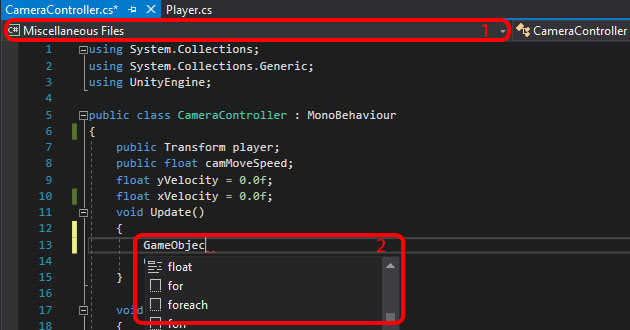
If you see these things, then IntelliSense hasn’t been set up on your device.
To check if IntelliSense is properly set up, open any script from the Unity Editor, and look out for 2 things:
- Whether the top-left dropdown says Miscellaneous Files. If it does, then IntelliSense is not set up (it has to say Assembly-Csharp.
- Try declaring a Unity variable, like a GameObject . If IntelliSense is properly set up, Visual Studio should have an auto-complete suggestion for you before you finish typing.
2. Getting IntelliSense working
So if IntelliSense isn’t working for you, what should you do?
a. Open your scripts from Unity
Before you try anything else from here, first make sure that your scripts are opened from within Unity, i.e. whenever you want to edit your scripts, double-click on them in the Unity Editor so that Visual Studio is opened by Unity.
If IntelliSense still doesn’t work when you do this, then continue onto the steps below:
b. Setting Unity’s External Script Editor
From the Unity Editor, access the Preferences window from Edit > Preferences. Then, click on 1) the External Tools tab.
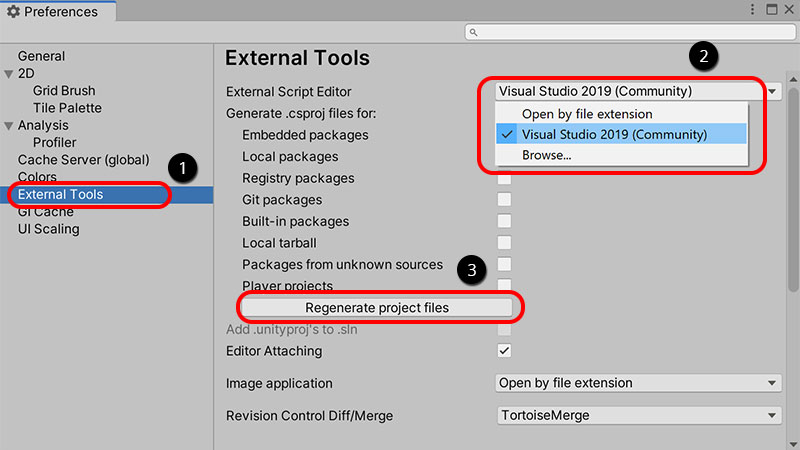
You’ll need to set the External Script Editor.
Set 2) the External Script Editor to the version of Visual Studio that you installed alongside Unity, then click on 3) the Regenerate project files button (if it’s there).
Once that’s done, restart Visual Studio and see if IntelliSense now works. If it still doesn’t, then you might be missing…
If Visual Studio doesn’t appear on the dropdown, you will have to use the Browse… option (pictured above) to find it. It’s typically under C:\Program Files (x86)\Microsoft Visual Studio\2019\Community\Common7\IDE\devenv.exe for Windows devices.
Article continues after the advertisement:
c. Visual Studio Tools for Unity
To install this, open Visual Studio and go to Tools > Get Tools and Features.
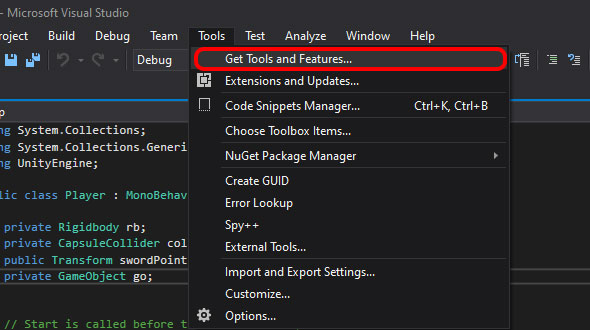
This opens the Visual Studio Installer.
Note: You’ll need administrator permissions to open this window, as it makes changes to the Visual Studio installation on your computer.
Once the installer is open, go to Workloads and find Game development with Unity. Check the box, and then click on the Modify button on the bottom-right corner to begin installation.
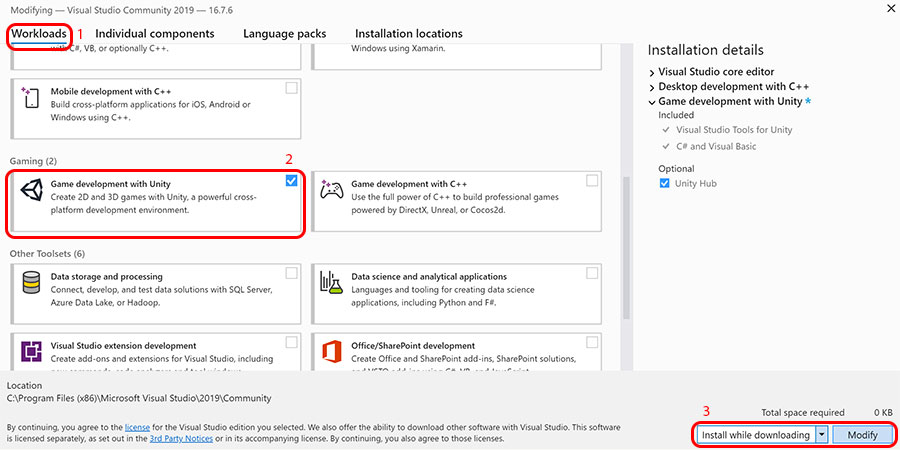
Install the Game development with Unity workload.
A popup may ask you to close certain processes before beginning installation. If this happens, close your Visual Studio project and the Unity Editor application.
When installation completes, restart both Unity and Visual Studio, then check to see if IntelliSense now works.
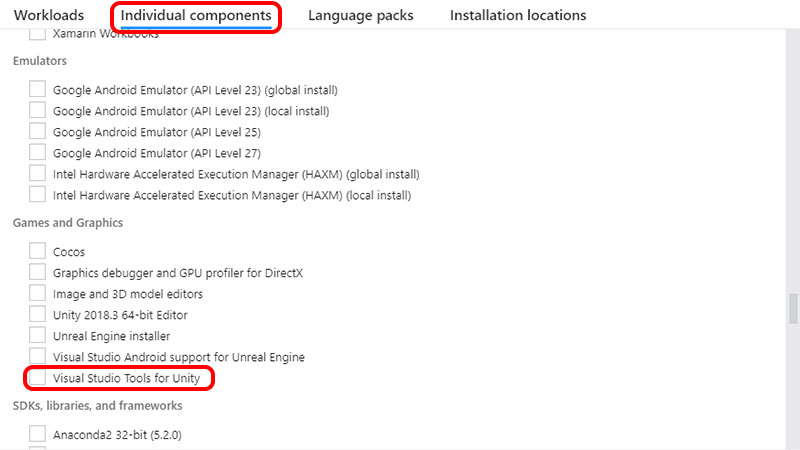
The Games development with Unity workload actually installs 2 additional Visual Studio components — Visual Studio Tools for Unity and C# and Visual Basic. You can install both modules individually by going to the Individual components tab, and checking both components in the list that is shown.
Article continues after the advertisement:
d. Check your .NET API compatibility level
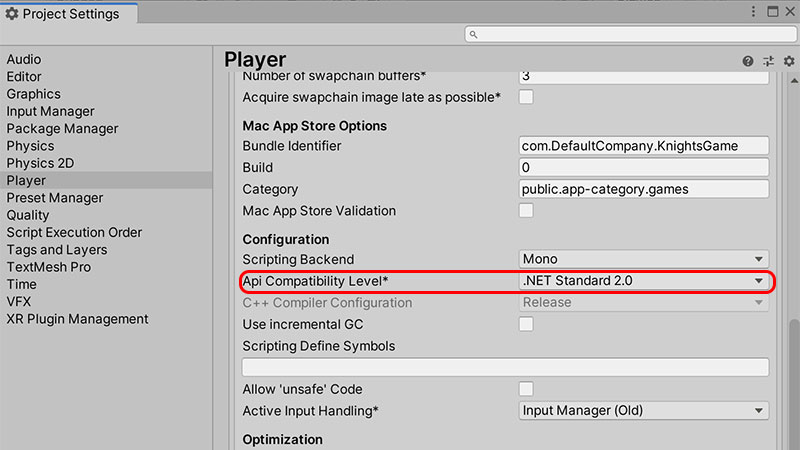
If IntelliSense still refuses to work, you can open the Unity Editor and head to Edit > Project Settings and access the Player (or Player Settings) tab. Scroll down to the Other Settings sub-tab, and find the Api Compatibility Level dropdown under the Configuration heading.
You want to set the Api Compatibility Level to a different option, and see which is the one that works for your device.
The Api Compatibility Level setting is nested quite deep in.
e. Check if the Assembly-Csharp solution is loaded
If you have tried all of the above steps, but your Intellisense still doesn’t work, then it may be because you have accidentally unloaded the solution (i.e. what Visual Studio calls their project setting files) for your project. To check if that is the case:
- In Visual Studio, go to View > Solution Explorer.
- The Solution window should pop up by the side of Visual Studio. Check if there is a tab that says Assembly-Csharp (unloaded). If there isn’t, you likely have not set your external script editor, or downloaded Visual Studio Tools for Unity.
- Right-click on Assembly-Csharp (unloaded) and select Reload project. The dropdown on the top left corner of Visual Studio should change from Miscellaneous Files to Assembly-Csharp. If that happens, congratulations! IntelliSense should now be working.
- If (3) fails, close Visual Studio and reopen it again.
Below is a GIF demonstrating the steps above.
f. Manually regenerating your Unity project files
If the above solutions we’ve proposed did not work for you, you can also try this solution from one of our comment contributions.
Note: Back up your Unity project before trying this, as we are deleting some essential project files and letting Unity regenerate them.
- Close both Visual Studio and Unity on your device.
- Remove all .sln and .csproj files in your Unity project folder.
- Remove the .vs and Library folders in your Unity project folder.
- Re-open the project in Unity, then go to Assets > Open C# Project to open Visual Studio.
3. Conclusion
As with the other articles on the blog, we’d love if you leave a comment below, especially if you:
- Find any errors in this article, or;
- Find an IntelliSense fix that is not listed in this article
Your comments will add on to the information that is already here, and help other future readers!
4. Video guide
Is this post not visual enough? Perhaps our video guide of this post can help.
Article continues after the advertisement:
There are 25 comments:
Got all the way down to e) then that fixed it. Thank you so much for improving my day!
Hi Bill, glad to hear that it helped!
God bless this blog post, and may the author find success in all of their endeavors. We salute you.
THANK YOU BRO LITTERALLY LET ME HAVE YOUR CHILDREN
Very helpful! Only thing I would add is that if you’re using perforce or a similar version control system, you need to check out the Assembly-CSharp.csproj in order to change the player api compatability level which ended up fixing my issue. Almost didn’t realize that was the issue, but I caught the error message
I had to right click on the project in VS and choose “Resolve Errors”. Wish everything was that easy.
Yeah step e. was what what finally fixed it for me. What I was move my game project folder to my desktop for easy access but the .vs and other solution file paths were pointing to the old folder location which was causing intellisense to not work. So if you move your project folder to another destination, follow step e. and ensure the previous steps were already tried too.
Thank you so much. It works! I had been trying a lot. But nothing worked until your way, thanks!
Thank you!! That worked very well for me!
This works for me! I had been trying a lot of possible solutions but nothing worked until your post, thanks!
Thank you! Mine has been broken for YEARS!
ps. I found a solution for me, and probably for a lot of Mac users too.
You have to go in VSCode into settings and search for “useGlobalMono” and then change the “Omnisharp: Use Global Mono” setting from “auto” to “always”.
here’s the video I got it from
https://www.youtube.com/watch?v=KJYrRv9cShY
I’ve tried all the proposed solutions, but it still does not work.
I couldn’t try the “Games development with Unity” because on Mac I didn’t find the tab “Get Tools and Features”.
Right click the solution explorer in visual studio, the solution also worked for me
I thought I had selected Visual Stuio as my External Script Editor – but apparently I hadn’t, and when I did it worked 🙂
Thank you very much!
I already has VS2019 16.11.1 installed and working perfectly and also the Unity tools.
I installed Unity from a download link in a tutorial which pointed to 2017.1.0f. Unity changed this to the latest free version 2020.3.16f and I had the problem described.
Even though the Unity objects did not highlight and had no auto-complete, the scripts worked fine?
All I had to do was set the external editor in Unity and then close VS.
The next time, I opened the script from Unity, which opened VS and magically everything now works.
Great tips, thanks
Thanks for the article. Point e (e. Regenerating your Unity project files) was the final step I had to do.
Thank you! Your instructions were concise, easy-to-follow, and in my case completely solved this problem. Much appreciated.
I followed this guide and about 5 others that where exactly the same and nothing worked.
what did work, was right clicking the project and clicking “reload with dependencies”.. This literally fixed it right away.
Might be worth putting this into the guide.. Because I just nearly started eating my keyboard.
Thanks for taking time out to post this. Is the “reload with dependencies” option in Unity, or in Visual Studio? I want to add your tip into the article, but I don’t know where to find this.
I figured this out taking the hint from the original poster. You right click the project in VS, and select “Load Direct Dependencies of Project” and it instantly worked for me too.
Visual studio 2019 не даёт подсказки по Unity
Как включить unity подсказки в visual studio code?
Всем здравствуйте! Как включить подсказки в visual studio code для unity? То есть когда я пишу ri.
Visual Studio 2019 Community перестал видеть Unity
Ничего не трогал, просто перестала работать, вылезает эта ошибка, при попытке перезагрузить проект.
 Visual Studio Installer после обновления не видит установленную Visual Studio 2019
При попытке добавить компоненты Visual Studio 2019 запускается Visual Studio Installer, который.
Не открывается форма в Visual Studio 2019 после JetBrains dotPeek 2019.3.2
Доброго времени суток! Столкнулся с проблемой, после распаковки .exe файла в программе dotPeek.
Размер Visual Studio 2017 и Visual Studio 2019
Почему visual studio 2019 после скачивания занимает 24гб, а visual studio 2017 до 45гб? может я что.
Не работает(не подключается) Visual Leak Detector для Visual Studio 2019
Всем доброго времени суток!Возникла проблема,что Visual Leak Detector не хочет подключаться с.
Visual Studio подсказки
Всем привет! Подскажите как настроить в Visual Studio вот такие подсказки
Подсказки в Visual Studio 2015
Здравствуйте. Недавно установил VS 2015 Community и столкнулся с проблемой. B VS Express.
Visual Studio всплывающие подсказки
Привет! Использую Microsoft Visual Studio Community 2019 (Версия 16.8.4) Стал замечать что.
Всплывающие подсказки в Visual Studio
Такой вопрос: Работаю в студии C# и C++ В первой — почти на каждый символ выплывают подсказки.