Fix File System error (-2018374635) in Windows 10
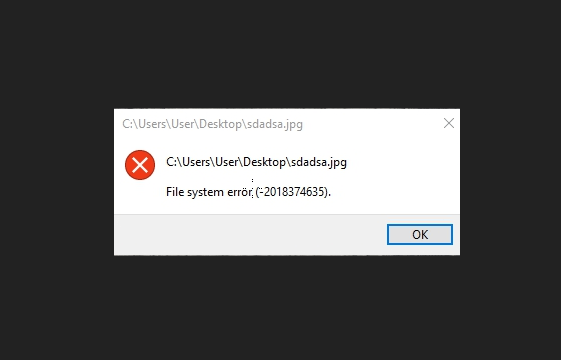
Windows 10 File System error commonly occurs because of missing installation files a 3rd party program like AMD, Dropbox, or any other. When Windows elements are not found you encounter this issue while opening Taskbar, Start menu, File Explorer, Photos, Microsoft Edge, etc. And if the files from a 3rd party software are missing you cannot open the tool and see the error message. You get File System error (-2018374635) in both the cases.
2018374635 problem generally occurs when the system detects that there is some missing component within the file that you are trying to open. In most cases, the fatal code gets resolved after running System File Checker in elevated Command Prompt. Furthermore, you might need to install the latest Windows 10 patches or create a new user account to get rid of similar unwanted issues.
File System error (-2018374635)
Here is how to fix File System error (-2018374635) in Windows 10 –
1] Repair missing or corrupted system files
As we said earlier, error 2018374635 is generated because of faulty or missing system files. To resolve the corruption and recover missing files, System File Checker will work as a handy tool. Running SFC (short name) in elevated Command Prompt scans all components present in your PC and fixes the issues. Here are the steps –
- Click on Taskbar search icon and type in cmd.exe.
- When Command Prompt appears in a result, select Run as administrator.
- Click Yes for the UAC prompt.
- Type the following syntax and press Enter –
- The tool will start scanning and show you the percentage in real time.
- When the process is 100% complete, restart your PC.
- Check if File System error (-2018374635) is fixed.
2] Run DISM
- If no corruption was found after running SFC, insert the below commands and press Enter key –
DISM.exe /Online /Cleanup-image /Scanhealth
- After finishing, run the following by pasting and entering –
DISM.exe /Online /Cleanup-image /Restorehealth
- Thereafter, exit Command Prompt and restart Windows 10.
3] Install the latest Windows patch to fix File System error (-2018374635)
When you don’t update your Windows 10 regularly, some of the system elements might become incompatible or missing. As a result, 2018374635 file system may occur. So, install the patches or updates rolled out recently. You can see a collection for the same here – Windows 10 Cumulative Updates List.
Steps are as followed –
- Press Windows key and I.
- Select the tile Update & Security.
- Click Check for updates in the next Settings page.
- Wait until the download is over and click on Restart now.
4] Change user account
Often, the user profile you are currently using gets corrupted and prevents Windows from using some specific system elements or setup file. This could be the reason behind File System error (-2018374635). Therefore, it will be a good idea to create a new account and sign in with that one in the next startup. To do so –
-
.
- Click on Accounts.
- Select Family & other users.
- Move to the adjacent right and click Add someone else to this PC.
- Provide the necessary info that the system asks for creating a new account.
- When the account is created, select the same and then hit Change account type.
- Pick the option Administrator from the drop-down list and click OK.
- Lastly, Sign out from the current account and sign back in with the new one.
- During the process, make sure that your PC is connected with an active internet connection.
Furthermore, sometimes disk checking tool also works to fix the error. So if the above solutions don’t solve the issue follow the instructions here – How to Check Faulty Drives with Chkdsk in Windows 10.
How to Fix File System Error (-2018374635) in Win10? (10 Ways)
What if you get the file system error (-2018374635) when trying to open certain Windows components in Windows 10? This error is a common issue but don’t worry, and you can find some workarounds from MiniTool in this post. Go on reading to know the details.
File System Error 2018374635
When using a computer, you may often run into a file system error and usually, you can see an error code in the message, for example, file system error 2147219196, 805305975, 2147219200, etc. Today, we will show you another issue – files system error (-2018374635).
According to reports, this error sometimes appears when trying to run ms settings via the Run window. This is mainly because of the missing system files or components. Besides, you may meet the error 2018374635 when trying to launch Taskbar, Start Menu, File Explorer, Microsoft Edge, a picture, etc. Additionally, a third-party app may also go wrong with this error if there is any missing component or file.
Fortunately, multiple ways can be used to help you out. In the following part, we will guide you on how to fix file system error 2018374635 in these methods.
How to Fix File System Error (-2018374635)
Run System File Checker
System File Checker, also known as SFC, is the built-in utility in Windows to be used to help check the system for corrupt or missing Windows files and restore them. With this tool, you can fix many system errors & problems including the file system error (-2018374635) since the error may be triggered by missing/corrupt Windows system files.
To know more about this too, refer to our previous post — The Detailed Information about System File Checker Windows 10.
Here is how to run an SFC scan to scan all the components in your PC and fix the issue:
Step 1: In Windows 10/11, type cmd to the search box, right-click on Command Prompt, and select Run as administrator. Click Yes in the User Account Control popup.

How to open Command Prompt (CMD) in Windows 11? If you are looking for methods to open this tool, read this post and you can find some ways.
Step 2: In the CMD interface, type in the command – SFC /scannow and then press Enter. Then, this tool starts the verification phase of the system scan to check for possible corruptions and repair them. Once the process reaches 100%, exit the CMD window and restart your PC to check if your issue is fixed.
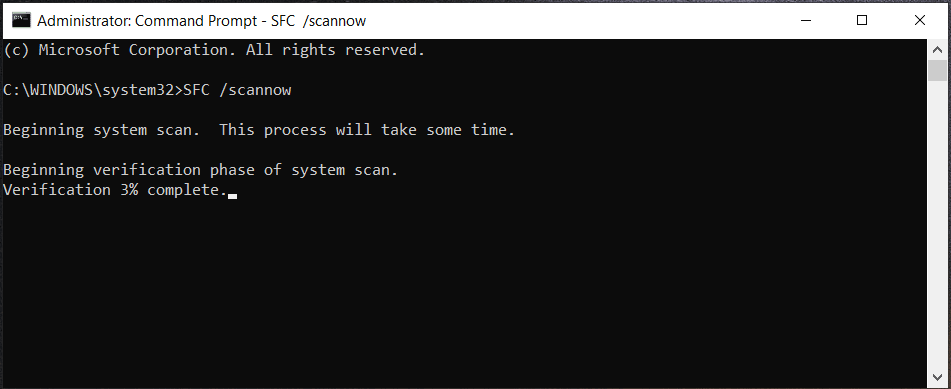
Sometimes SFC stops working and verification stuck is a common issue. If you run into it, refer to this post to find solutions — Windows 10 SFC /Scannow Stuck at 4/5/30/40/73, etc.? Try 7 Ways. Sometimes, SFC shows the error “Windows resource protection could not start the repair service or perform the requested operation”. Go to the related post — Quickly Fix – SFC Scannow Not Working (Focus on 2 Cases).
Use DISM
If SFC fails to fix file system error (-2018374635), you can use another Windows tool – DISM (Deployment Image Servicing and Management) to check whether there is any corruption in the Windows Image or not. See how to run a DISM scan:
Step 1: Launch Command Prompt with admin rights in Windows 11/10.
Step 2: Type in the commands one by one and press Enter after each one:
DISM /Online /Cleanup-Image /CheckHealth
DISM /Online /Cleanup-Image /ScanHealth
DISM /Online /Cleanup-Image /RestoreHealth
After finishing all the operations, reboot the PC and see if the file system error is removed from your computer.
Sometimes you may run into DISM error 87 when running this tool. Don’t panic and you can find solutions in the post — Full Solved — 6 Solutions to DISM Error 87 Windows 10/8/7.
Run Check Disk
According to users, this way is worth trying. Just launch Command Prompt with admin permissions, type in the command chkdsk C: /f /r /x, and press Enter. This can help to check for any bugs and errors inside the hard disk and fix them including this file system error.
Install the Latest Windows Updates
If you don’t update Windows 10 regularly, some compatibility issues may generate on the computer. As a result, the issue of being unable to launch ms settings file system error 2018374635 or other error messages with the error 2018374635 appear. So, follow the below-given instructions to update Windows 10.
Step 1: Click the Windows icon and tap on Settings or press Win + I to directly open Settings.
Sometimes the Settings app fails to open and you can find solutions from this related post — What to Do When Windows 10/11 Settings App Is Not Opening.
Step 2: Click on Update & Security and go to the Windows Update page.
Step 3: Click the Check for updates button. If Windows finds some available updates, the system will download and install them automatically. You are required to restart the PC several times to finish the installation.

Try Clean Boot in Windows 10/11
Clean Boot uses minimal drivers and startup programs to run Windows so that you can determine whether there is a background app interfering with your process. This is similar to Windows Safe Mode.
If you are interested in the difference between Safe Mode and Clean Boot, here is a related post for you — Clean Boot VS. Safe Mode: What’s the Difference and When to Use.
Try these steps now for Clean Boot:
Step 1: Press Win + R to get the Run dialog, type msconfig to the text box and click OK to open the System Configuration window.
Step 2: Check the option of Hide all Microsoft services and click Disable all.

Step 3: Click Apply and then OK.
If the file system error (-2018374635) disappears in the Clean Boot mode, it is obvious that the third program is triggering the issue. Enable the app processes on by one or in small batches in System Configuration to check which one is the culprit.
Restart Windows Explorer
According to users, this way may be helpful to fix file system error 2018374635.
Step 1: Right-click on Taskbar in Windows 10 and choose Task Manager.
Step 2: In the Processes tab, scroll down to find Windows Explorer.
Step 3: Right-click on it and choose End task.

Reset Your Apps via PowerShell
In some forums, some users recommend this way and just have a shot now.
See what you should do:
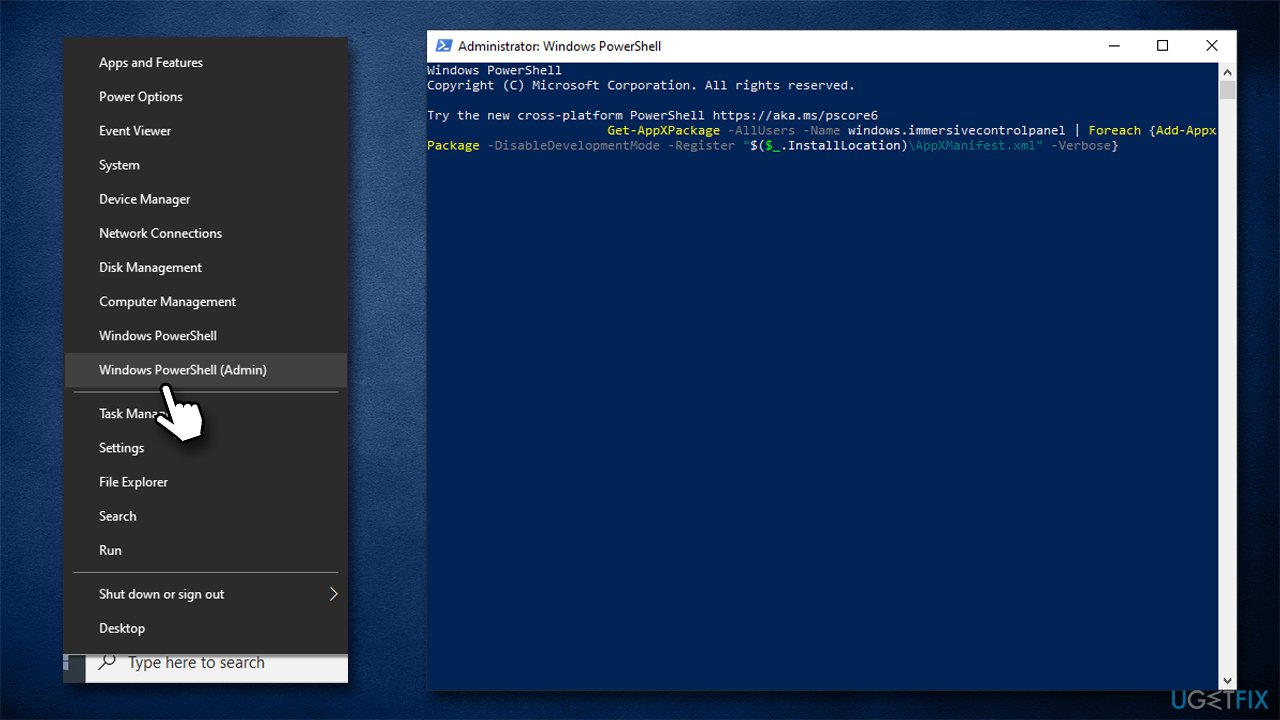
Step 1: Press Win + X and click Windows PowerShell (Admin). Or, you can type PowerShell to the search box and click Run as Administrator from the right pane to launch this command-line tool with admin rights.

Step 2: Click Yes when the User Account Control popup appears.
Step 3: Copy and paste the following commands to the PowerShell window and press Enter after each command:
Get-AppXPackage -AllUsers -Name windows.immersivecontrolpanel | Foreach
Get-AppXPackage | Foreach
Run System Restore
System Restore is another way to help to restore your PC to an earlier date where everything still works. If you encounter the file system error (-2018374635) in Windows 10, run System Restore now.
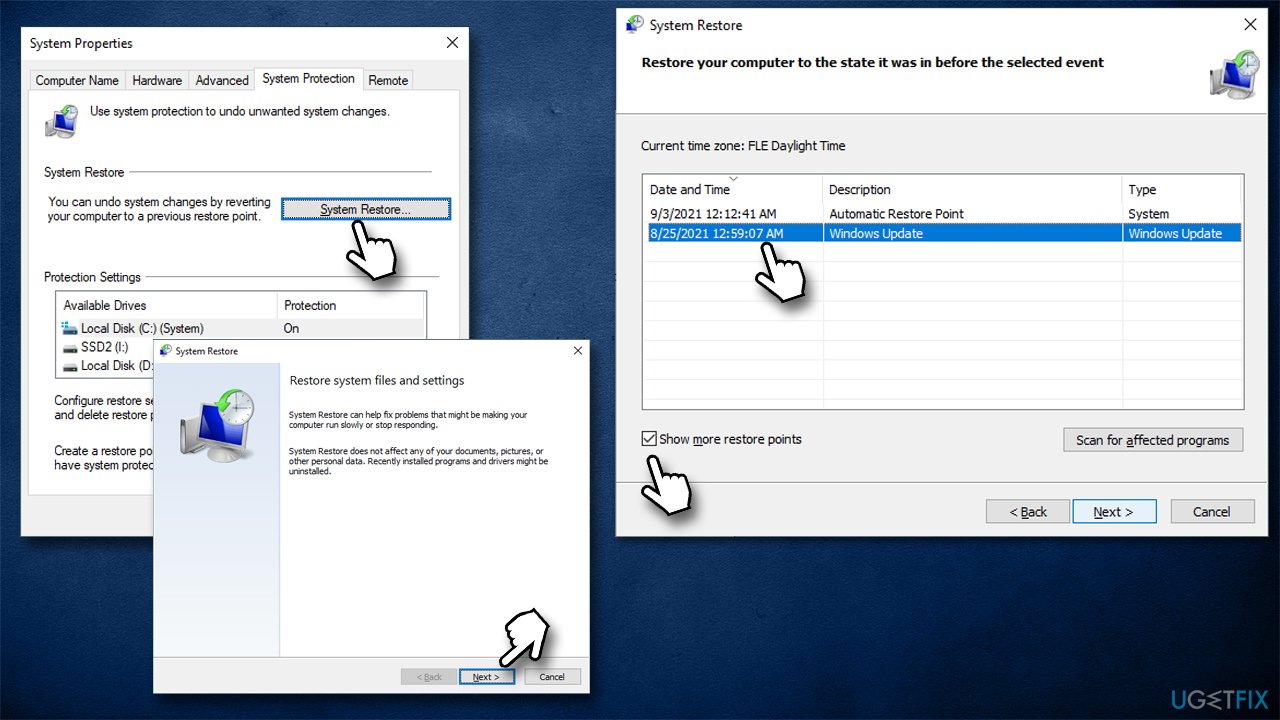
Step 1: Type create a restore point to the search box and click the exact result to open the System Properties window.
Step 2: Click System Restore to go on.

Step 3: Choose a restore point that should be created before the file system error (-2018374635) was troubling you.
Step 4: Click Next > Finish and the restoration process starts.
If there isn’t a restore point, this way cannot help you.
Windows 10 System Restore stuck on initializing or restoring files? This post gives helpful ways to fix System Restore stuck issue in 2 cases.
Change User Account
Sometimes the current user profile may get corrupt or damaged thus blocking Windows from using some specific system setup files or elements. As a result, the error 2018374635 happens on your Windows 10 PC. So, creating a new user account and signing in to the PC with this account next time will be a good idea.
Follow the steps to do so:
Step 1: Click the start icon and right-click on your profile image to choose Change account settings. Or, go to Settings > Accounts.
Step 2: Click Family & other users > Add someone else to this PC.
Step 3: In the Microsoft account popup, create a new account for this PC by following the on-screen wizards.

After creating the account, sign out of the current account and sign in with the new one to check if the error 2018374635 is disappeared.
Reset Windows
If none of these fixes can solve the file system error (-2018374635), you can try to reset your Windows. This way can cause data loss, so before you proceed with this operation, back up your important files. In terms of data backup, we recommend using the professional file backup software – MiniTool ShadowMaker. It is designed to back up files, folders, Windows systems, disks, and partitions. Automatic backup, incremental and differential backup are supported. Now, get its trial edition to have a shot.
Step 1: Open MiniTool ShadowMaker Trial Edition in Windows 10.
Step 2: In the Backup interface, choose files to back up by clicking Source. Then, choose a path to save the backed-up data by clicking Destination.
Step 3: Click Back up Now to start the backup task.

Next, start to reset your PC:
Step 1: Press Win + I to enter the Settings window.
Step 2: Click Update & Security > Recovery and click the Get started button from the Reset this PC section.
Step 3: Choose an option to continue and here we recommend choosing Keep my files.

Step 4: Select Cloud download or Local reinstall to go on. (Related post: Cloud Download vs Local Reinstall: Differences on Win 10/11 Reset)
Step 5: Finish all the operations by following the instructions on the screen.
Suggestion: Create a System Image with MiniTool ShadowMaker
After fixing file system error 2018374635 on your Windows 10 PC, you had better create a system image. This is because system issues/errors/bugs always happen suddenly, letting you feel annoyed. If you have a system image backup, you can quickly restore the PC to an earlier state to reduce the downtime and you won’t spend much time finding fixes for the issues.
To do this task, you can also run MiniTool ShadowMaker. See how to create a system image now:
Step 1: Launch MiniTool ShadowMaker and continue using its Trial Edition.
Step 2: In Backup, select system partitions as the backup source and then choose an external hard drive or USB flash drive as the backup target.
Step 3: Run the backup by clicking Back up Now.

After creating a system image, you had better go to Tools > Media Builder to create a bootable USB drive or USB external drive so that it can be used to run the PC for system recovery when it fails to start.
Bottom Line
How to fix file system error (-2018374635) in Windows 10? In this post, you can find 10 ways and try them one by one to fix your issue. Besides, creating a backup for your important data before PC resetting is recommended. As well, making a system image with MiniTool ShadowMaker is a good idea.
Should you have any other solutions to fix this file system error or ideas on this topic/MiniTool software, you can leave a comment in the following part. We will reply to you as soon as possible. Thanks a lot.
About The Author
Vera is an editor of the MiniTool Team since 2016 who has more than 7 years’ writing experiences in the field of technical articles. Her articles mainly focus on disk & partition management, PC data recovery, video conversion, as well as PC backup & restore, helping users to solve some errors and issues when using their computers. In her spare times, she likes shopping, playing games and reading some articles.
How to fix File System Error (-2018374635) in Windows?
Issue: How to fix File System Error (-2018374635) in Windows?
Hi, every time I try to click on certain Windows components, I receive a -2018374635 error. For example, I can't open Settings at all, and program icons won't show up in the taskbar. Please help me solve this. Thank you.
- Fix 1. Restart Windows Explorer
- Fix 2. Run SFC and DISM
- Fix 3. Try Clean Boot
- Fix 4. Reset Microsoft Store cache
- Fix 5. Reset your apps
- Fix 6. Use System restore
- Fix 7. Reset Windows
- Protect your online privacy with a VPN client
- Data recovery tools can prevent permanent file loss
- References
Windows is a complex operating system with thousands of files inside of it. With new programs being installed, registries changed, and other external actions performed, not all things go as planned in some cases. File System Error 2018374635 is among the more critical issues that users had to face, as it corrupts the operation of vital system components, such as taskbar, File Explorer, or Settings panel.
In other cases, people reported that they experienced the same issue when dealing with simple files that were previously imported (and worked fine) – pictures, videos, or music. Regardless of which instance you are facing, dealing with the File System Error 2018374635 is something that is mandatory for proper PC usage experience.
The message that users receive might vary, although it rarely provides any insights into the actual problem, and neither does it explain where to begin trying to fix it. The main reason why the error occurs is due to the missing or corrupted system files or files of third-party software, which can be related to apps like Dropbox.
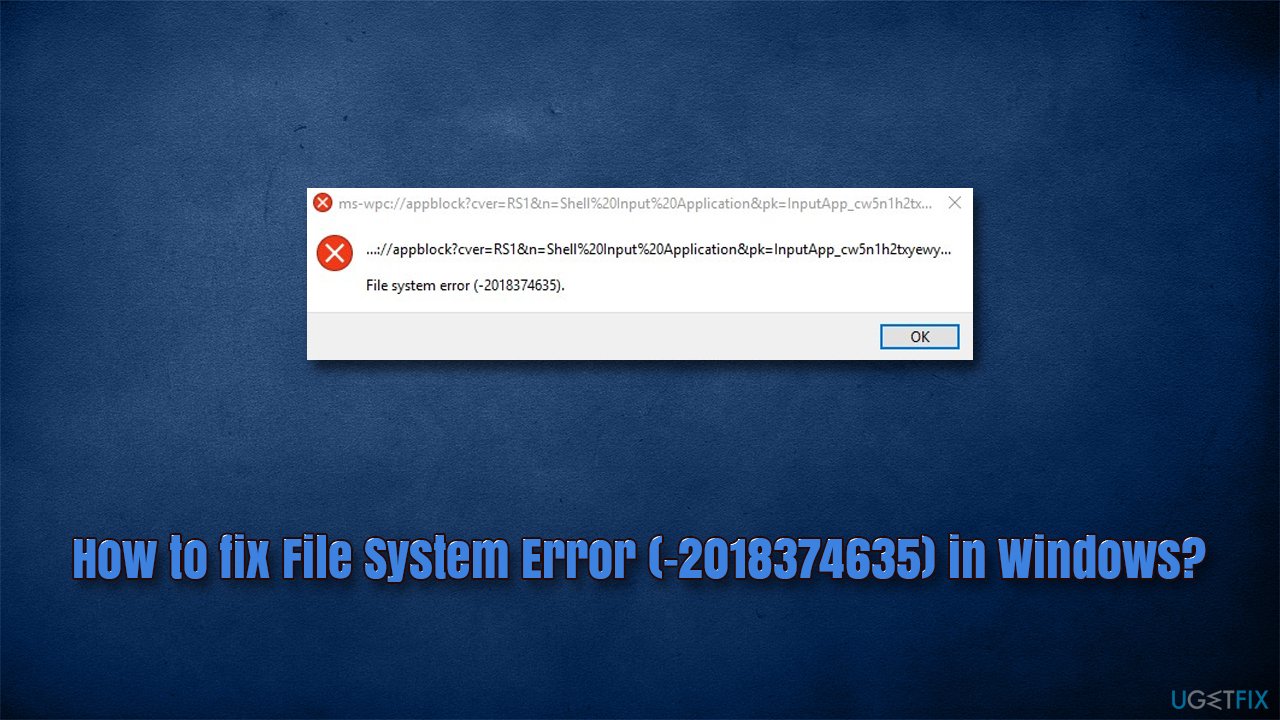
Luckily, there are several ways to troubleshoot and, ultimately, fix the File System Error (-2018374635) in Windows for good. If the issue is related to third-party software, you can use Clean Boot to identify the misbehaving app and remove it to resolve the issue. When it comes to system files, you can run several commands to repair them or instead rely on powerful PC repair software Fortect Mac Washing Machine X9 .
The app might not only help you fix the system file error but also heal you deal with problems related to post-malware [1] infection, clean your system from bugged caches, [2] prevent BSODs, [3] and take care of your privacy by removing caches from your browsers automatically. Alternatively, proceed with the solutions we provide below.
Fix 1. Restart Windows Explorer
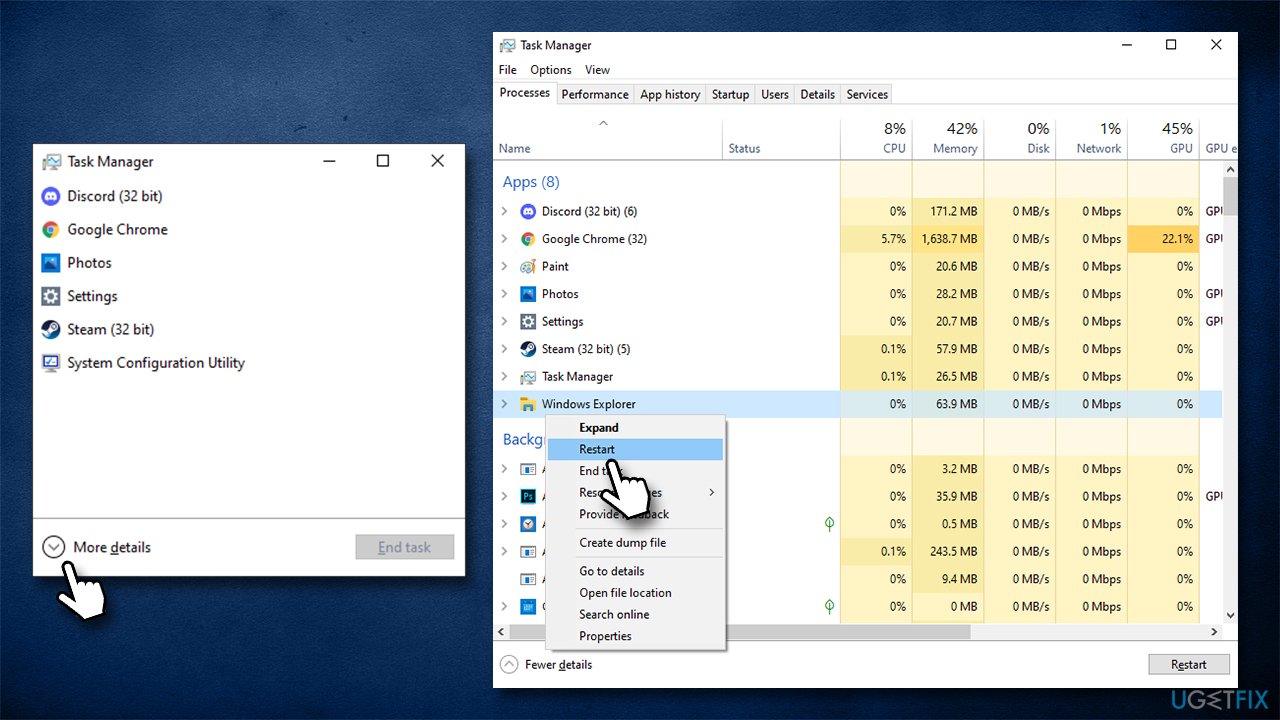
In some cases, the solution for the problem is a simple restart of Windows Explorer, so let's start from there:
- Press Ctrl + Shift + Esc to open Task Manager
- Click More details if required
- In the Processes tab, locate Windows Explorer
- Right-click on it and select Restart.
Fix 2. Run SFC and DISM
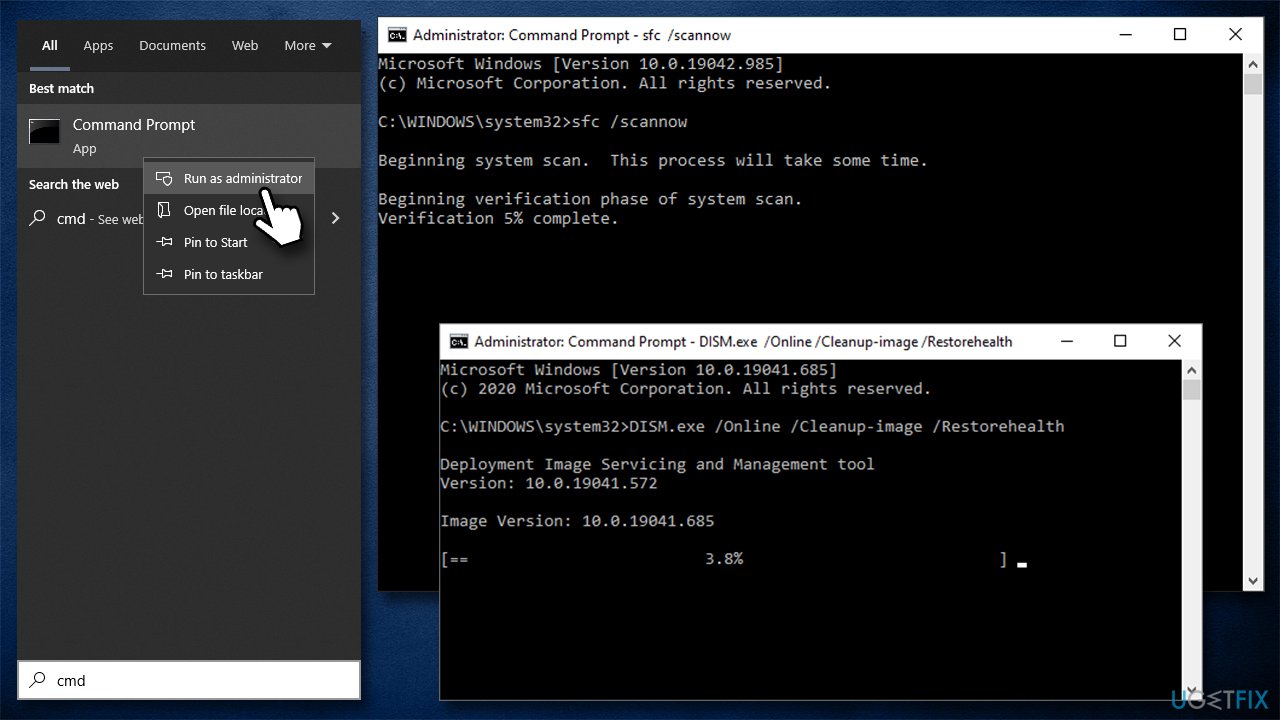
If the problem is related to corrupt system files, you can run commands via elevated Command Prompt to repair them.
- Type cmd in Windows search
- Right-click on Command Prompt and select Run as administrator
- When the User Account Control window pops up, click Yes
- Use the following command and press Enter:
sfc /scannow - Reboot your system
- If SFC returned an error or nothing was found, use the following command lines, pressing Enter after each:
DISM /Online /Cleanup-Image /CheckHealth
DISM /Online /Cleanup-Image /ScanHealth
DISM /Online /Cleanup-Image /RestoreHealth
Fix 3. Try Clean Boot
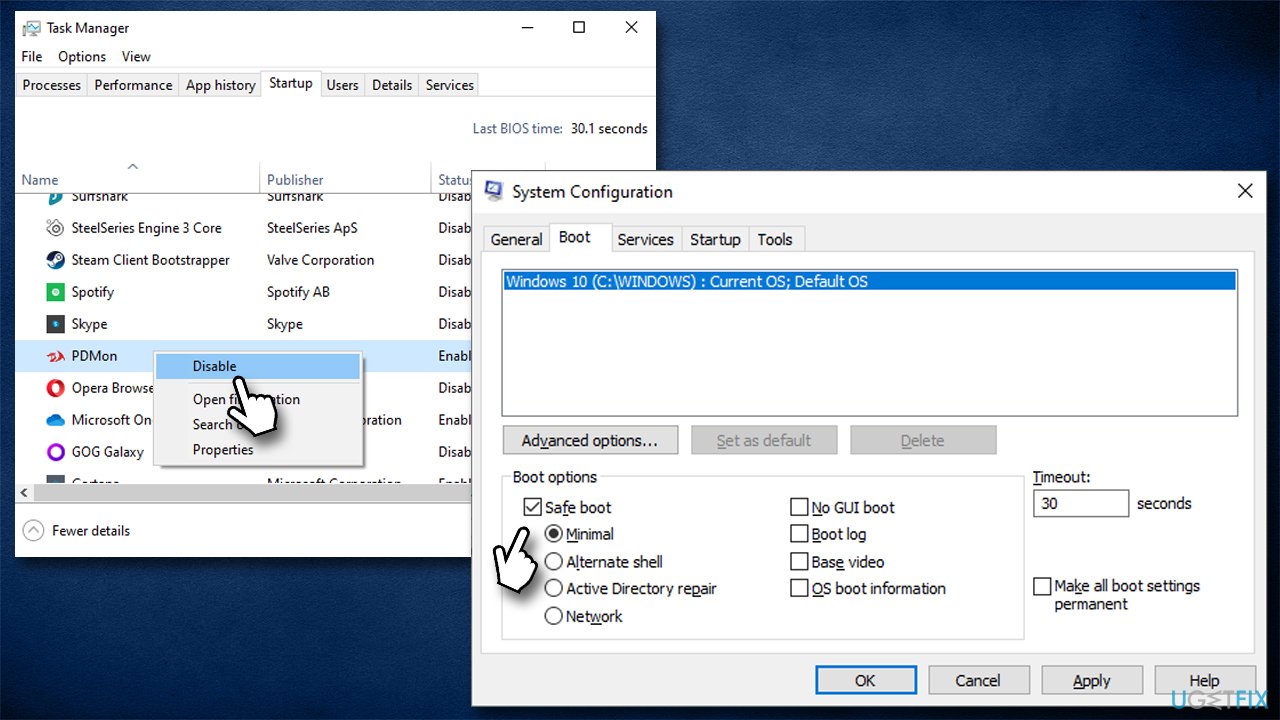
Clean Boot could help you identify the misbehaving app.
- Press Win + R, type msconfig, and hit Enter
- Go to the Services tab and tick the Hide all Microsoft services checkbox
- Select Disable all
- Go to the Startup tab and click Open Task Manager
- Here, right-click on each of the non-Windows entries and select Disable
- Close down the Task Manager
- Go to the Boot tab and tick the Safe boot option
If the problem is no longer present in the Clean Boot environment, it is indeed the third-party software that is causing the issue. Open the System Configuration window once again by using msconfig command go to Services tab, click Hide all Microsoft Services again – enable app processes one by one (or in small batches) to determine which one is causing the problem.
Fix 4. Reset Microsoft Store cache
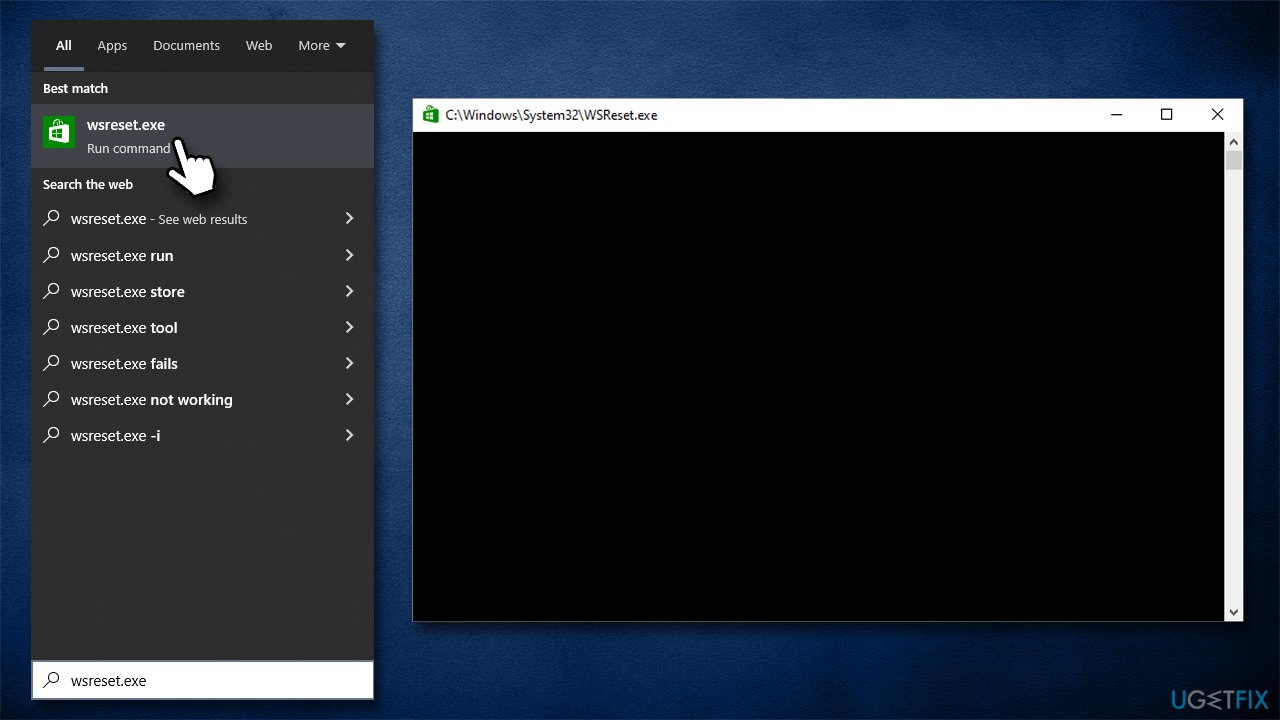
- In Windows search, type in wsreset.exe and hit Enter
- A pop-up window will show up – do not close it
Fix 5. Reset your apps
Resetting your apps might help you solve the issue:
- Right-click on Start and pick PowerShell (admin)
- If UAC shows up, click Yes
- In the new window, copy and paste the following commands and press Enter:
Get-AppXPackage -AllUsers -Name windows.immersivecontrolpanel | Foreach
Get-AppXPackage | Foreach
Fix 6. Use System restore
- Type in Create a Restore Point in Windows search and hit Enter
- Click System Restore
- Pick Choose a different restore point (if available) and click Next
- Mark the Show more restore points checkbox
Fix 7. Reset Windows
Before you proceed with this step, we recommend you backup your personal files and disconnect all the peripherals apart from the keyboard and mouse.
- Right-click on Start and pick Settings
- Go to the Update & Security section and select Recovery (type in Reset in Windows search box if settings are not working for you)
- Under Reset this PC, pick Get Started
- Select Keep my files and Cloud download
ошибка файловой системы 2018374635 windows 10 как исправить
Наиболее частые причины повреждения файловой системы связаны с неправильными процедурами выключения или запуска, сбоями оборудования или ошибками записи NFS. … Отказ оборудования может быть плохим блоком на диске, неисправным контроллером диска, отключением электроэнергии или случайным отключением системы.
Исправит ли восстановление системы поврежденные файлы?
Восстановление системы удаляет файлы? Восстановление системы, по определению, восстановит только ваши системные файлы и настройки. Он не оказывает никакого влияния на любые документы, изображения, видео, командные файлы или другие личные данные, хранящиеся на жестких дисках. Вам не нужно беспокоиться о потенциально удаленных файлах.
Исправит ли chkdsk поврежденные файлы?
Плохие секторы бывают двух видов: мягкие сбойные секторы, которые возникают при неправильной записи данных, и жесткие сбойные секторы, возникающие из-за физического повреждения диска. Chkdsk пытается решить эти проблемы, восстанавливая программно поврежденные сектора и помечая жесткие поврежденные сектора, чтобы они больше не использовались.
Не удается открыть файловую систему изображений?
Перейдите в Пуск, нажмите «Настройки»> «Система»> «Приложения и функции» и нажмите «Фото». В разделе «Дополнительные параметры» вы найдете кнопку сброса, которая позволит вам сбросить настройки приложения. Как только это будет сделано, перезагрузите компьютер и проверьте, можете ли вы сейчас просматривать изображения.
Что такое ошибка файловой системы (- 2147219196?
Вы можете увидеть ошибку файловой системы 2147219196 при попытке открыть изображения через приложение Windows Photo. … Ошибка 21472119196 вызвана ошибкой в Центре обновления Windows. Одно из последних обновлений Windows внесло эту ошибку в приложение Windows Photo, и многие люди сталкиваются с этой проблемой.
В чем смысл системной ошибки?
системная ошибка: сообщение отображается, когда компьютер выходит из строя или возникает непредвиденная ситуация.
Почему на диске написано NTFS?
Эта ошибка NTFS диска C может быть связана с поврежденной файловой системой диска C. Если эта ошибка по-прежнему появляется после перезагрузки и у вас есть установочный компакт-диск / DVD-диск Windows, попробуйте запустить восстановление при загрузке, выполнив следующие действия: … Вставьте установочный компакт-диск / DVD-диск Windows и введите BOIS, чтобы перезагрузить незагружаемый компьютер с него.
Что вызывает повреждение файловой системы NTFS?
Повреждение NTFS может быть вызвано аппаратными проблемами, такими как проблемы с кабелем, контроллером или отказом жесткого диска (механические проблемы, …). Если на диске включено кэширование записи, оборудование не сможет поддерживать запись данных на диск.
Что такое ошибка NTFS?
Ошибка может быть вызвана повреждением файловой системы NTFS раздела. Если повезет, успешная перезагрузка компьютера поможет вам исправить это, и это больше не повторится. Если вам не удается перезагрузить компьютер, вы можете использовать Windows 10 «Восстановление при загрузке», чтобы исправить ошибку.
Как повредить файл?
Файл обычно повреждается при возникновении проблемы во время сохранения. … Плохие сектора на вашем жестком диске или другом носителе также могут вызвать повреждение файла, даже если процесс сохранения завершился должным образом. Вирусы и другие вредоносные программы также могут вызывать повреждение файлов.
Можете ли вы восстановить файлы?
Office может исправить некоторые поврежденные документы самостоятельно. … Просто откройте файл как обычно, выберите нужный документ, затем щелкните стрелку справа от кнопки «Открыть» и выберите «Открыть и восстановить». Если повреждение относительно небольшое, этого может быть достаточно для восстановления вашей работы.
Как исправить поврежденные файлы в Linux?
Восстановить поврежденную файловую систему
Вот как исправить ошибку файловой системы (-2018375670) в Windows 10 навсегда
Ошибка файловой системы может быть проблематичной и может помешать вашей повседневной работе. Однако, есть способ решить эту проблему, и сегодня мы покажем вам, как это сделать правильно.
Ошибка файловой системы (-2018375670) может появиться в Windows 10 по одной из нескольких причин. Поврежденные или несовпадающие системные файлы, заражение вредоносным ПО, конфликтующие приложения или устаревшие драйверы могут быть причинами этой ошибки.
В этой статье мы рассмотрим некоторые способы устранения этой ошибки.
Исправьте ошибку файловой системы (-2018375670) с помощью этих решений
Решение 1. Запустите команду chkdsk.
Первое решение является самым простым. Вы можете попытаться устранить ошибку файловой системы (-2018375670), выполнив простую команду chkdsk. Следуй этим шагам:
Решение 2. Запустите проверку на вирусы и вредоносные программы всей вашей системы
Просто чтобы убедиться, что в вашей системе нет вредоносных программ, вызывающих ошибку File System error (-2018375670), запустите быстрое сканирование вашей системы. Вредоносные программы часто отвечают за удаление файлов DLL.
Используйте антивирусное программное обеспечение по вашему выбору. Надеемся, что это определит виновника и решит вашу проблему.
Вы также можете использовать встроенный антивирус Windows Defender Windows. Вот как выполнить полное сканирование системы в Windows 10 Creators Update:
– Получить Bitdefender (эксклюзивная цена со скидкой)
Решение 3 – Попробуйте сканирование DISM
Выполните следующие простые шаги, чтобы определить работоспособность вашего диска хранения:
Посмотрите, помогло ли это решить проблему. Если не перейти к четвертому решению.
Решение 4. Используйте средство проверки системных файлов
Использование средства проверки системных файлов также может помочь устранить ошибку файловой системы (-2018375670). Проверка системных файлов – это служебная программа Windows, которая помогает пользователям сканировать поврежденные системные файлы и восстанавливать их. Следуй этим шагам:
Решение 5 – установить тему Windows 10 по умолчанию
Кроме того, несохраненная тема может вызвать ошибки файловой системы. Чтобы избежать ошибки, вы можете установить для своей темы Windows 10 настройки по умолчанию. Вот как это сделать:
Решение 6 – Измените звуковую схему вашего ПК
Еще один метод исправления ошибки файловой системы 2018375670 на компьютере с Windows 10 – изменение звуковой схемы компьютера. Выполните следующие шаги, чтобы изменить звуковую схему:
Решение 7 – Сброс кеша Магазина Windows
Другой способ исправить ошибку отображения файловой системы – сброс кеша Магазина Windows. Выполните следующие действия, чтобы сбросить кэш Магазина Windows на вашем компьютере:
Решение 8 – Запустите Центр обновления Windows
Наконец, рассмотрите возможность обновления ОС Windows, чтобы установить последние обновления. Microsoft часто выпускает обновления, чтобы улучшить стабильность и производительность системы. Используйте эти шаги для обновления вашей ОС Windows:
Решение 9 – предварительно восстановить систему
Если вы продолжаете получать эту ошибку, возможно, вы сможете исправить ее, выполнив Восстановление системы. Это довольно просто, и вы можете сделать это, выполнив следующие действия:
После того, как вы восстановите свой компьютер, убедитесь, что проблема все еще существует.
Надеюсь, одно из этих решений сработало для вас. Если нет, попробуйте связаться со службой поддержки Microsoft.
Примечание редактора . Это сообщение было первоначально опубликовано в октябре 2017 года и с тех пор было обновлено и обновлено для обеспечения свежести, точности и полноты.
Ошибка файловой системы, не работает меню «пуск»
Помощь в написании контрольных, курсовых и дипломных работ здесь.
Ошибка: «Меню «Пуск» не работает. Мы попытаемся восстановить его при вашем следующем входе в систему»
Ни с того, ни с сего, начала возникать ошибка при нажатии на кнопку пуск:Меню «Пуск» не работает.
Критическая ошибка. Меню «Пуск» не работает
Доброго дня. Ни с того ни с сего (раньше долгое время никогда такого не было) после загрузки.
Не работает меню «Пуск» (не нажимается кнопка)
Привет, обновился с Windows 7 x86 Home Basic до Windows 10, вроде бы все было нормально, но через.
Имя журнала: Application
Источник: Microsoft-Windows-Wininit
Дата: 11.01.2019 16:30:45
Код события: 1001
Категория задачи:Отсутствует
Уровень: Сведения
Ключевые слова:Классический
Пользователь: Н/Д
Компьютер: User-PC
Описание:
Checking file system on C:
The type of the file system is NTFS.
Volume label is SYSTEM.
A disk check has been scheduled.
Windows will now check the disk.
File verification completed.
21338 large file records processed.
0 bad file records processed.
689066 index entries processed.
Index verification completed.
0 unindexed files scanned.
0 unindexed files recovered to lost and found.
37705 reparse records processed.
CHKDSK is verifying Usn Journal.
41347072 USN bytes processed.
Usn Journal verification completed.
Windows has scanned the file system and found no problems.
No further action is required.
104039463 KB total disk space.
65774784 KB in 276307 files.
180676 KB in 57815 indexes.
0 KB in bad sectors.
697731 KB in use by the system.
65536 KB occupied by the log file.
37386272 KB available on disk.
4096 bytes in each allocation unit.
26009865 total allocation units on disk.
9346568 allocation units available on disk.
Windows has finished checking your disk.
Please wait while your computer restarts.
Checking file system on C:
The type of the file system is NTFS.
Volume label is SYSTEM.
A disk check has been scheduled.
Windows will now check the disk.
File verification completed.
21338 large file records processed.
0 bad file records processed.
689066 index entries processed.
Index verification completed.
0 unindexed files scanned.
0 unindexed files recovered to lost and found.
37705 reparse records processed.
CHKDSK is verifying Usn Journal.
41347072 USN bytes processed.
Usn Journal verification completed.
Windows has scanned the file system and found no problems.
No further action is required.
104039463 KB total disk space.
65774784 KB in 276307 files.
180676 KB in 57815 indexes.
0 KB in bad sectors.
697731 KB in use by the system.
65536 KB occupied by the log file.
37386272 KB available on disk.
4096 bytes in each allocation unit.
26009865 total allocation units on disk.
9346568 allocation units available on disk.
Windows has finished checking your disk.
Please wait while your computer restarts.
Исправить ошибку файловой системы в Windows 10
Эти коды ошибок обозначают следующие сценарии,
Ошибка файловой системы в Windows 10
Мы предпримем следующие исправления и обходные пути, чтобы избавиться от ошибки файловой системы 2018375670 на компьютере с Windows 10,
1] Использовать восстановление системы
Теперь откроется новое окно, в котором вам нужно будет выбрать желаемую точку восстановления системы. После выбора нужной точки восстановления системы следуйте инструкциям на экране для восстановления компьютера.
Проверьте, смог ли этот метод решить вашу проблему.
2] с проверочным диском
Он либо начнет проверку на наличие ошибок и их исправление. В противном случае появится сообщение о том, что Chkdsk не может быть запущен, поскольку том используется другим процессом. Желаете ли вы проверить график этого тома при следующем перезапуске системы? (Y/N)
2] Используйте средство проверки системных файлов и DISM
Запустите CMD от имени администратора и затем выполните следующую команду для запуска средства проверки системных файлов:
Перезагрузите систему после завершения сканирования.
Вы также можете использовать нашу бесплатную программу FixWin для запуска утилиты проверки системных файлов одним щелчком мыши.
Теперь, чтобы исправить файлы Центра обновления Windows с помощью DISM, откройте Командная строка (Admin) и введите следующие три команды последовательно и одну за другой и нажмите Enter:
Дайте этим командам DISM запуститься и после этого перезагрузите компьютер и попробуйте снова.
Надеюсь, это решит вашу проблему!
Способы решения ошибки файловой системы 2147416359 windows 10
Уже многие пользователи привыкли, что каждая новинка от Microsoft несет огромное количество различных багов и недоработок. Так, было со всеми ранними версиями операционных систем, так случилось и с последним новшеством Windows 10.
Многие из ошибок не несут серьезных проблем, но то, что они портят настроение – это факт (ошибка файловой системы 2147416359 windows 10). Приходится искать способ решения проблемы, а это не всегда удается. Кроме того, не всегда возможно решить проблему стандартными методами. В результате уйма затраченного времени, чтобы устранить очередной дефект в системе.
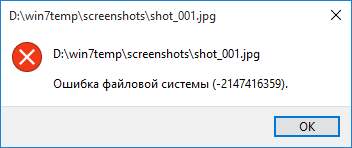
Ошибка файловой системы 2147416359
Данная ошибка проявила себя относительно недавно при открытии различных изображений на компьютере. Точные причины появления данной ошибки пока не установлены.
Специалисты Microsoft рекомендуют осуществить проверку системы с помощью стандартных средств, которые доступны каждому пользователю операционной системы.
Проверка через «Свойства»
ошибка файловой системы 2147416359 windows 10
Так как приходится проверять системный раздел, то выскочит предупреждение, что Windows не может проверить жесткий диск, так как он сейчас используется. Потребуется нажать на Расписание проверки диска. После чего перегрузите ваше устройство, в процессе загрузки начнется процесс проверки и устранения ошибок. Он может длиться несколько минут, а может целый час. После окончания проверки загрузиться операционная система.
Проверка с помощью утилиты chkdsk
Для этого потребуется, воспользоваться правами администратора и активировать командную строку. В ней вводим chkdsk C: /F /R.
После ввода команды появится сообщение, что проверяемый том занят другими действиями и будет предложено произвести проверку при перезагрузке компьютера. Соответственно разрешаем перезагрузку, процесс запустится в автоматическом режиме.
Следует подчеркнуть, что для осуществления подобной процедуры следует применять только внутренние утилиты. Сторонние программы могут не решить проблему, а только ее усугубить.