How To Uninstall Omen Gaming Hub In Windows 11
OMEN Gaming Hub is a built-in HP utility that can be used as a game launcher, game optimizer, and just a really good tool to control your computer. It lets you control the RGB lighting, monitor the CPU and GPU usage of your system, overclock them, and do some other tasks. One of the best things about this tool is its AI capability, it measures your gaming skills and then shows them to you. The Gaming Hub also allows you to not have various game launchers such as Steam and Epic Games, as the app itself can act like a game launcher. There are some other exciting features in the OMEN Gaming Hub, however, some users just don’t find these plethoras of features useful. They want to remove the app from their computer and for that, visiting Control Panel seems to not work. The app is not available on the list, hence, can’t be removed that way.
How to uninstall OMEN Gaming Hub in Windows 11/10#
If you want to uninstall OMEN Gaming Hub in Windows 11/10, follow any of the prescribed options. Let us talk about both of them in detail.
1] Remove OMEN Gaming Hub from Windows Search#
The easiest method to remove an app including OMEN Gaming Hub is by searching it out from the Start Menu and then clicking on the Uninstall button associated with it, in this solution, we will be doing the same. First of all, click on the Search icon from the Taskbar or hit Win + S, type “OMEN Gaming Hub”, and click on the Uninstall button (if you can’t find it, click on the drop-down icon and then click on the said button). You will be asked to confirm your actions, click on Uninstall once again and the app will be removed hopefully.
2] Uninstall OMEN Gaming Hub from Windows Settings#
In case the previous method didn’t work for you, use Windows Settings to remove the app. A lot of users reported that they couldn’t remove OMEN Gaming Hub using Control Panel, if you are one of them, Windows Settings is an excellent alternative. To remove OMEN Gaming Hub using Settings, follow the prescribed steps. This way, the app will be removed from your computer for good. Also read: How to Install or Uninstall Microsoft Store Apps in Windows 11/10
Can I disable OMEN Gaming Hub?#
Yes, if you don’t want to uninstall OMEN Gaming Hub, your best bet is to disable the service of the app. HP Omen HSA Service is associated with the app, you can go to Services (open the app from the Start Menu), look for the service in question, right-click on it, and select Stop.
How do I reinstall Omen Gaming Hub?#
To reinstall the Omen Gaming Hub, first of all, uninstall the app. We have mentioned two methods to do the same, you can check out any one of them and remove the app from your system. Once you have removed the app, either go to Omen.com or Microsoft Store and install the latest version of the app. Read: How to uninstall Programs in Windows 11
Does HP Omen have bloatware?#
Yes, just like pretty much any computer, the HP Omen has bloatware or redundant apps. These apps can take up a big portion of your driver and can even affect your system’s performance. We recommend you use any Bloatware Removal tool to clean up your computer. Also read: How to remove Bloatware from Windows 11/10.
Как удалить OMEN Gaming Hub в Windows 11
OMEN Gaming Hub — это программа HP, которая обычно предварительно устанавливается на большинство систем HP и может использоваться для оптимизации ПК для улучшения игрового процесса. Однако некоторые пользователи сообщили, что хотят удалить OMEN Gaming Hub со своих компьютеров с Windows 11. В этом посте мы поговорим о методах и посмотрим, как их выполнить.
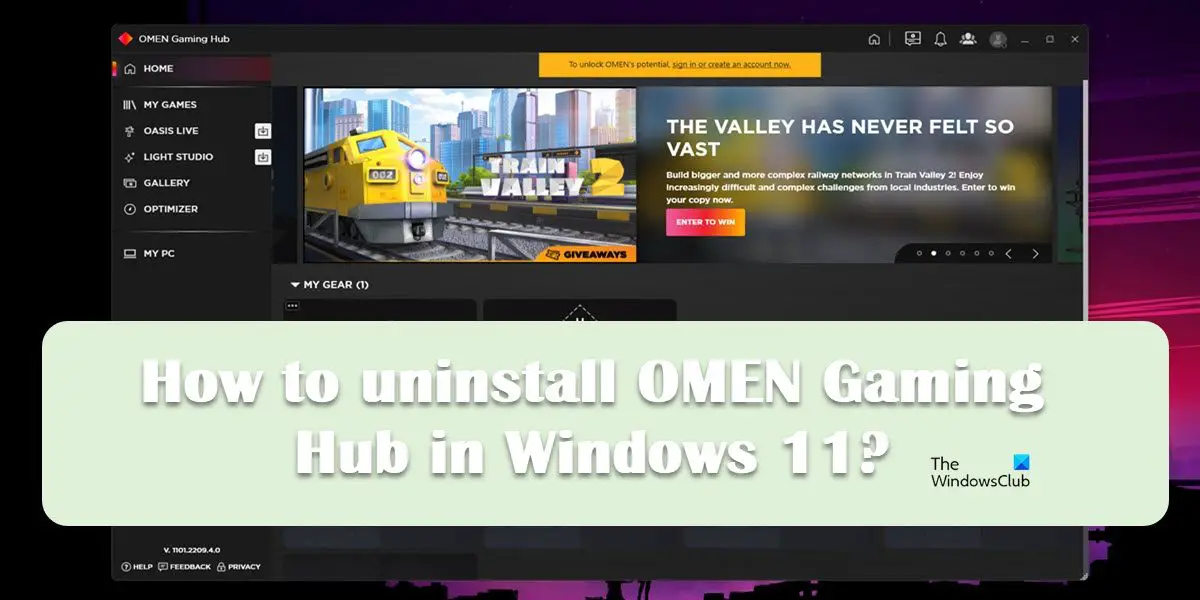
Зачем мне OMEN Gaming Hub?
OMEN Gaming Hub — это встроенная утилита HP, которую можно использовать в качестве средства запуска игр, оптимизатора игр и просто действительно хорошего инструмента для управления компьютером. Он позволяет вам управлять RGB-подсветкой, контролировать использование процессора и графического процессора вашей системы, разгонять их и выполнять некоторые другие задачи. Одна из лучших особенностей этого инструмента — его возможности искусственного интеллекта, он измеряет ваши игровые навыки, а затем показывает их вам.
Игровой центр также позволяет вам не использовать различные средства запуска игр, такие как Steam и Epic Games, поскольку само приложение может действовать как средство запуска игр. В OMEN Gaming Hub есть и другие интересные функции, однако некоторые пользователи просто не находят это множество полезных функций. Они хотят удалить приложение со своего компьютера, и для этого посещение панели управления, похоже, не работает. Приложение недоступно в списке, поэтому его нельзя удалить таким образом.
Программы для Windows, мобильные приложения, игры — ВСЁ БЕСПЛАТНО, в нашем закрытом телеграмм канале — Подписывайтесь:)
Как удалить OMEN Gaming Hub в Windows 11/10
Если вы хотите удалить OMEN Gaming Hub в Windows 11/10, выполните любой из предложенных вариантов.
- Удалить OMEN Gaming Hub из поиска Windows
- Удалите OMEN Gaming Hub из настроек Windows.
Давайте поговорим о них обоих подробно.
1]Удалить OMEN Gaming Hub из поиска Windows.
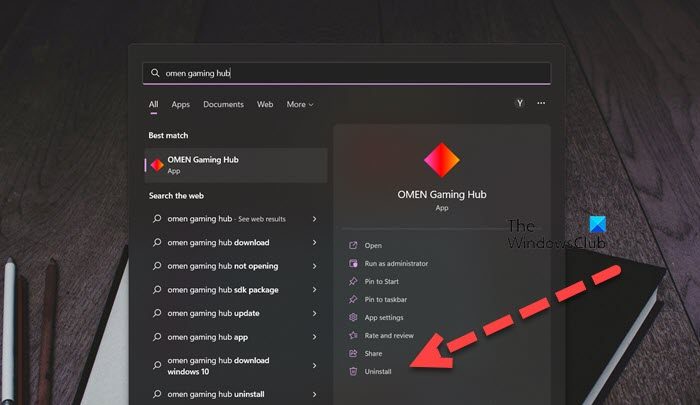
Самый простой способ удалить приложение, включая OMEN Gaming Hub, — найти его в меню «Пуск» и нажать связанную с ним кнопку «Удалить». В этом решении мы будем делать то же самое. Прежде всего, щелкните значок поиска на панели задач или нажмите Win + S, введите «Игровой центр OMEN» и нажмите кнопку «Удалить» (если вы не можете ее найти, щелкните значок раскрывающегося списка, а затем нажмите указанную кнопку). Вам будет предложено подтвердить свои действия, нажмите «Удалить» еще раз, и, надеюсь, приложение будет удалено.
2]Удалите OMEN Gaming Hub из настроек Windows.
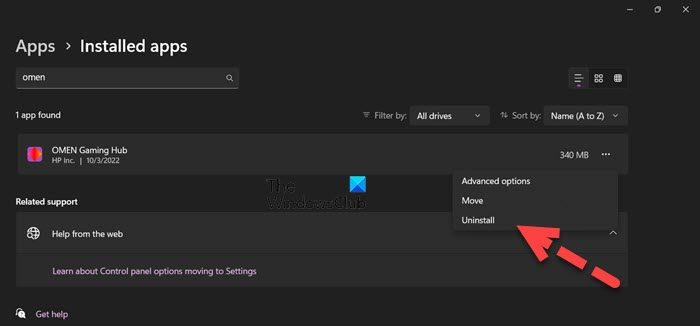
Если предыдущий метод не сработал для вас, используйте настройки Windows, чтобы удалить приложение. Многие пользователи сообщают, что не могут удалить OMEN Gaming Hub с помощью панели управления. Если вы один из них, Настройки Windows — отличная альтернатива. Чтобы удалить OMEN Gaming Hub с помощью настроек, выполните указанные действия.
- Откройте настройки Windows, выполнив поиск в меню «Пуск» или с помощью сочетания клавиш Win + I.
- Перейти к Приложения > Приложения и функции.
- Ищите OMEN Gaming Hub.
> Windows 11: нажмите на три вертикальные точки и выберите «Удалить».
> Windows 10: выберите приложение и нажмите «Удалить». - Нажмите «Удалить» еще раз, чтобы подтвердить свои действия.
Таким образом, приложение будет удалено с вашего компьютера навсегда.
Читайте также: Как установить или удалить приложения Microsoft Store в Windows 11/10
Можно ли отключить OMEN Gaming Hub?
Да, если вы не хотите удалять OMEN Gaming Hub, лучше всего отключить службу приложения. Служба HP Omen HSA связана с приложением, вы можете перейти в «Службы» (открыть приложение из меню «Пуск»), найти нужную службу, щелкнуть ее правой кнопкой мыши и выбрать «Остановить».
Как переустановить Omen Gaming Hub?
Чтобы переустановить Omen Gaming Hub, прежде всего удалите приложение. Мы упомянули два способа сделать то же самое, вы можете проверить любой из них и удалить приложение из своей системы. После удаления приложения перейдите на Omen.com или Магазин Майкрософт и установите последнюю версию приложения.
Читайте: Как удалить программы в Windows 11
Есть ли у HP Omen вирусы?
Да, как и на любом компьютере, на HP Omen есть вредоносные программы или избыточные приложения. Эти приложения могут занимать большую часть вашего драйвера и даже влиять на производительность вашей системы. Мы рекомендуем вам использовать любой инструмент для удаления Bloatware для очистки вашего компьютера.
Читайте также: Как удалить Bloatware из Windows 11/10.
Программы для Windows, мобильные приложения, игры — ВСЁ БЕСПЛАТНО, в нашем закрытом телеграмм канале — Подписывайтесь:)
Часто задаваемые вопросы об OMEN Gaming Hub
Ознакомьтесь с приведенными ниже ответами на часто задаваемые вопросы о ПО HP OMEN Gaming Hub.
Как установить самую актуальную версию ПО OMEN Gaming Hub?
Вы можете установить последнюю версию ОMEN Gaming Hub из Магазина Microsoft.
В ОС Windows выполните поиск и откройте Магазин Microsoft .
В магазине найдите и откройте OMEN Gaming Hub .
Щелкните Получить , затем щелкните Установить .
Установка приложений из Магазина Microsoft требует стабильное подключение к сети для надлежащей загрузки и установки.
Как переустановить OMEN Gaming Hub?
Удалите и затем снова установите приложение.
Чтобы удалить приложение, воспользуйтесь одним из следующих методов.
В ОС Windows найдите OMEN Gaming Hub .
В списке результатов поиска щелкните правой кнопкой мыши значок OMEN Gaming Hub и выберите Удалить для удаления приложения.
В меню «Пуск» выберите Параметры > Приложения .
В списке «Программы и компоненты» щелкните OMEN Gaming Hub .
Щелкните Удалить для удаления приложения.
После удаления приложения сведения о повторной установке можно найти в документе Как установить самую актуальную версию ПО OMEN Gaming Hub?.
Почему приложение OMEN Gaming Hub открывается по нажатию клавиши OMEN на клавиатуре?
Это может быть вызвано устаревшей версией приложения OMEN Gaming Hub.
Чтобы убедиться в наличии самой актуальной версии приложения, изучите Как установить самую актуальную версию ПО OMEN Gaming Hub?.
Чтобы переустановить приложение, изучите документ Как переустановить OMEN Gaming Hub?.
В OMEN Gaming Hub отображается всплывающее сообщение: «Для обеспечения полной функциональности требуется HP System Event Utility»
Приложение OMEN Gaming Hub нуждается в обновленной версии программного обеспечения HPSEU. Это сообщение появляется, если на компьютере установлена более старая версия программного обеспечения. Щелкните Установить , чтобы завершить обновление или установку требуемого программного обеспечения.
При использовании ускорителя сети в OMEN Gaming Hub отображается сообщение об ошибке.
Возможно, необходимо обновление одного или нескольких драйверов на вашем компьютере. Щелкните ссылку на пакет обновления, которая отображается в сообщении, и выполните инструкции по загрузке и установке пакета обновления.
При открытии OMEN Gaming Hub отображается сообщение об ошибке.
Сообщение об ошибке при открытии приложения может свидетельствовать о сбое приложения, отсутствии некоторых данных или неуспешном завершении обновления приложения.
Чтобы переустановить приложение, изучите документ Как переустановить OMEN Gaming Hub?.
Как добавить игры в список «Мои игры» приложения OMEN Gaming Hub?
OMEN Gaming Hub будет автоматически добавлять игры из меню «Пуск» в список «Мои игры». Чтобы обновить список после добавления новой игры, щелкните Обновить список в OMEN Gaming Hub.
Чтобы вручную добавить игру в список «Мои игры», щелкните значок со знаком «плюс» ( + ) на экране «Мои игры» в OMEN Gaming Hub и следуйте отображаемым на экране инструкциям.
Как удалить omen gaming hub windows 10

Приложение HP OMEN Gaming Hub заменяет Command Center. Обновление точно заслуживает Вашего внимания. В нём отображаются только поддерживаемые устройства. Его можно использовать для оптимизации и настройки ноутбуков, компьютеров или периферии OMEN.
Эта статья расскажет, как пользоваться OMEN Gaming Hub. Имеет много полезных возможностей: удалённое управление, интеллектуальный разгон, синхронизация подсветки и даже настройка макросов. На примере моего монитора выбирается режим, подсветка и другое.
Вот приобрёл монитор HP Omen 27i, что ранее уже было анонсировано. Только его подключил, ещё не успел проверить, а система уже подтянула OMEN Gaming Hub. Приложение было автоматически установлено с Microsoft Store. Остаётся только перейти к его использованию.
Запуск OMEN Gaming Hub — это как отдельный вид искусства. Вот несколько раз перезапустил приложение. И каждый раз, как в первый. Вас встречает новое словосочетание. Это как предсказание, только не каждый его поймёт. Возможно, скажете бесполезно, зато уникально.
Пока стартует игровой концентратор OMEN: Ставим на место любителя похвастаться… Терпим и не жалуемся… Проверяем стабилизатор ствола… Продаём собранный урожай за день… Исполняем магический танец… И это ещё далеко не всё, пришлось несколько раз перезайти.
Изображение
Весь интерфейс монитора без русской локализации. В разделе настройки изображения нельзя изменить яркость или контрастность. Можно только выбрать с предустановленных режимов изображения. Например, ИГРОВОЙ, ФИЛЬМЫ, ОСЛАБЛЕНИЕ СИНЕГО ЦВЕТА или HP ENHANCE+.

Собственно игровой — это повышенная яркость и сокращённое время отклика для оптимальной графики во время игры. Ослабление синего цвета идеально подходит для снижения нагрузки на глаза. Режим HP Enhance+ повышает чёткость картинки, но не текста.
Подсветка
Мой новый монитор HP Omen 27i имеет 2 зоны подсветки. Выбирается зона, режим, яркость и скорость. Я даже не знал, что первая зона является RGB (которая светит под монитор). А вторая не столько освещает стену (наверное, для этого её и проектировали), сколько тыльные порты.

Дисплей
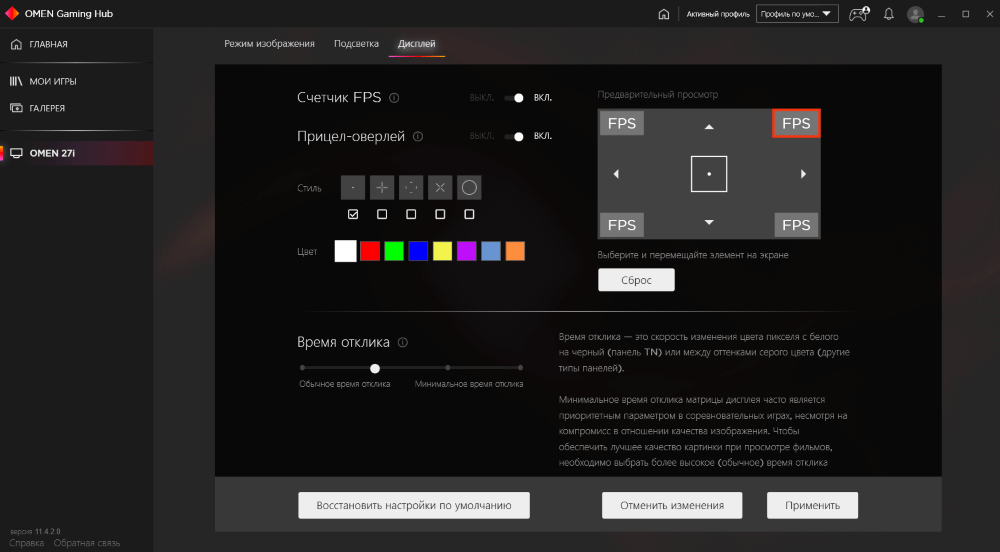
Этот раздел необходим для включения счётчика FPS или прицел-оверлея (поверх всех приложений). Ещё можно выбрать время отклика. Это скорость изменения цвета пикселя с белого на чёрный или между оттенками серого цвета. Все параметры имеют свои описания.
Ноутбук & Компьютер Omen и Gaming Hub
После обновления появился подраздел Мой компьютер, в котором отображаются Ключевые показатели системы. Можете мониторить состояние: процессор, видеокарта и память. Плюс, нагрузка на сеть, ресурсоемкие процессы и возможность просмотра общих характеристик.

С фирменными ноутбуками или компьютерами всё же значительно интересней…
Контролируйте производительность ноутбука, с помощью предустановленных режимов.
Внимание! Приложение OMEN Gaming Hub доступно на любом компьютере с Windows 10/11. Но в сравнении с игровыми ноутбуками HP его набор функций ограничен. А ещё в зависимости от Вашей конфигурации и местоположения функциональность также может отличаться.
Мои игры, Награды, Галерея
Все игры, независимо от издателя, собраны в одном месте. Зарабатывайте внутриигровые награды, просто играя в свои любимые игры. Ну и собственная галерея изображений и обоев. Плюс Вы можете следить за проведённым в игре временем (день, неделя, общее время).
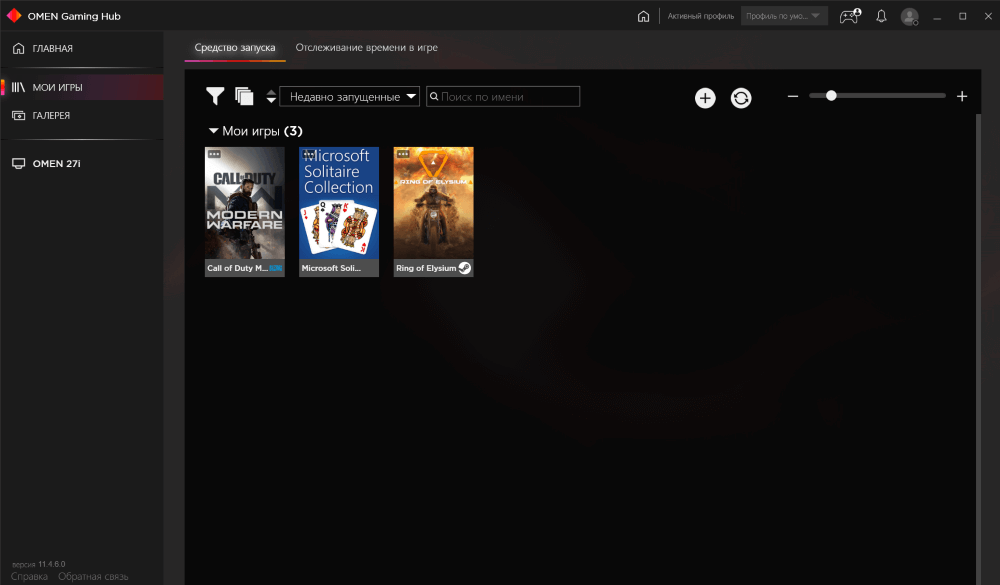
Как удалить OMEN Gaming Hub
Перейдите в раздел Параметры > Приложения > Приложения и возможности. Выделив OMEN Gaming Hub (Hp Inc.) нажмите Удалить. Подтвердите своё намерение и дождитесь завершения.

Или можно его убрать из автозагрузки… В расположении Автозагрузка отключите OMEN Gaming Hub Background. Просто перетянув один ползунок в разделе параметров или диспетчера задач.
Для своих устройств HP разработали приложение OMEN Gaming Hub. Ранее название OMEN Command Center. Был полностью переработан интерфейс. Добавлена возможность поиска, фильтрации и группировки игр. А также функции разгона, андервольтинга и даже бенчмарка.
(1 оценок, среднее: 5,00 из 5)
Администратор и основатель проекта Windd.ru. Интересуюсь всеми новыми технологиями. Знаю толк в правильной сборке ПК. Участник программы предварительной оценки Windows Insider Preview. Могу с лёгкостью подобрать комплектующие с учётом соотношения цены — качества. Мой Компьютер: AMD Ryzen 5 3600 | MSI B450 Gaming Plus MAX | ASUS STRIX RX580 8GB GAMING | V-COLOR 16GB Skywalker PRISM RGB (2х8GB).
- Sign up
- Sign in
- HP Community
- Gaming
- Gaming Desktops
- Can’t remove HP Omen Gaming Hub from System Tray
- Mark Topic as New
- Mark Topic as Read
- Float this Topic for Current User
- Bookmark
- Subscribe
- Mute
- Printer Friendly Page
Create an account on the HP Community to personalize your profile and ask a question
Your account also allows you to connect with HP support faster, access a personal dashboard to manage all of your devices in one place, view warranty information, case status and more.
- Mark as New
- Bookmark
- Subscribe
- Permalink
- Flag Post
Product: HP Omen 17
Operating System: Microsoft Windows 10 (64-bit)
Ever since a recent update, HP Omen Gaming Hub will not close out from my system tray on Windows 10. Even though I disabled it on startup from the Task Manager and never open it, it still shows up as if it’s running. Moreover, when I do open the software to try and find how to remove it from the system tray, there’s no option to do so. Finally, I tried to uninstall the Omen Gaming Hub, and apparently that’s not an option as well. I just want to get this off of my system tray. Are there any other options for removing it?
HP Support Agent
- Mark as New
- Bookmark
- Subscribe
- Permalink
- Flag Post
Thank you for posting on the HP Support Community.
Don’t worry, I assure you I will try my best to get this sorted.
I recommend you update the command center from Windows store and check whether it resolves the issue.
Here is how it is done.
- Click the Windows Store icon in the system tray.
- Search for OMEN Command Center.
- Click Update. Wait while the program downloads and installs.
- Click Play.
OMEN Command Center opens.
Hope this helps! Keep me posted for further assistance.
Please click “Accept as Solution” if you feel my post solved your issue, it will help others find the solution.
Was this reply helpful?
- Mark as New
- Bookmark
- Subscribe
- Permalink
- Flag Post
He asked how to remove it not open the program holy moly.
5 people found this reply helpful
Was this reply helpful?
- Mark as New
- Bookmark
- Subscribe
- Permalink
- Flag Post
I couldn’t believe the reply to OP when I saw that. HP’s own command center for the desktop doesn’t even work and they refuse to even fix the bloody thing. What is wrong with HP when their own developers can;t even fix the Hyper X Fury lighting controls? Seriously, it’s not rocket science to allow Omen owners the ability to remove the OGH. I’m appalled that they even thought it was a good idea to merge the two. I just purchased the Omen 30L and I couldn’t believe how utterly useless app is. I’m already searching for a solution to remove the thing from my system.
3 people found this reply helpful
Was this reply helpful?
HP Support Agent
- Mark as New
- Bookmark
- Subscribe
- Permalink
- Flag Post
Thank you for posting on the HP Support Community.
Don’t worry, I assure you I will try my best to get this sorted.
I recommend you update the command center from the Windows Store and check whether it resolves the issue.
Here is how it is done.
- Click the Windows Store icon in the system tray.
- Search for OMEN Command Center.
- Click Update. Wait while the program downloads and installs.
- Click Play.
OMEN Command Center opens.
Hope this helps! Keep me posted for further assistance.
Please click “Accept as Solution” if you feel my post solved your issue, it will help others find the solution.
Was this reply helpful?
- Mark as New
- Bookmark
- Subscribe
- Permalink
- Flag Post
You just posted the same worthless answer as last time. Stop giving us worthless answers. We want to be able to right click the program and click EXIT like we used instead of having to constantly being forced to End Process every time we start our computer to close it out.
4 people found this reply helpful
Was this reply helpful?
HP Support Agent
- Mark as New
- Bookmark
- Subscribe
- Permalink
- Flag Post
To disable the HP Omen Gaming Huband interests widget, use these steps:
1 — Right-click the taskbar.
2 — Select the HP Omen Gaming Hub and interests menu.
3 — Check the Turn off option to disable the feature.
4 — (Optional) Clear the Turn off option to enable the feature.
5 — Once you complete the steps, the news and interests taskbar widget will be permanently disabled on Windows 10.
I hope this helps. Feel free to ask back any questions and let us know how it goes. I will keep working with you until it’s resolved.
Was this reply helpful?
Be alert for scammers posting fake support phone numbers and/or email addresses on the community.
If you think you have received a fake HP Support message, please report it to us by clicking on «Flag Post».
† The opinions expressed above are the personal opinions of the authors, not of HP. By using this site, you accept the Terms of Use and Rules of Participation.
† The opinions expressed above are the personal opinions of the authors, not of HP. By using this site, you accept the <a href=»https://www8.hp.com/us/en/terms-of-use.html» of Use</a> and <a href=»/t5/custom/page/page-id/hp.rulespage» Rules of Participation</a>.
- Sign up
- Sign in
- HP Community
- Gaming
- Gaming Desktops
- Can’t remove HP Omen Gaming Hub from System Tray
- Mark Topic as New
- Mark Topic as Read
- Float this Topic for Current User
- Bookmark
- Subscribe
- Mute
- Printer Friendly Page
Create an account on the HP Community to personalize your profile and ask a question
Your account also allows you to connect with HP support faster, access a personal dashboard to manage all of your devices in one place, view warranty information, case status and more.
- Mark as New
- Bookmark
- Subscribe
- Permalink
- Flag Post
Product: HP Omen 17
Operating System: Microsoft Windows 10 (64-bit)
Ever since a recent update, HP Omen Gaming Hub will not close out from my system tray on Windows 10. Even though I disabled it on startup from the Task Manager and never open it, it still shows up as if it’s running. Moreover, when I do open the software to try and find how to remove it from the system tray, there’s no option to do so. Finally, I tried to uninstall the Omen Gaming Hub, and apparently that’s not an option as well. I just want to get this off of my system tray. Are there any other options for removing it?
HP Support Agent
- Mark as New
- Bookmark
- Subscribe
- Permalink
- Flag Post
Thank you for posting on the HP Support Community.
Don’t worry, I assure you I will try my best to get this sorted.
I recommend you update the command center from Windows store and check whether it resolves the issue.
Here is how it is done.
- Click the Windows Store icon in the system tray.
- Search for OMEN Command Center.
- Click Update. Wait while the program downloads and installs.
- Click Play.
OMEN Command Center opens.
Hope this helps! Keep me posted for further assistance.
Please click “Accept as Solution” if you feel my post solved your issue, it will help others find the solution.
Was this reply helpful?
- Mark as New
- Bookmark
- Subscribe
- Permalink
- Flag Post
He asked how to remove it not open the program holy moly.
5 people found this reply helpful
Was this reply helpful?
- Mark as New
- Bookmark
- Subscribe
- Permalink
- Flag Post
I couldn’t believe the reply to OP when I saw that. HP’s own command center for the desktop doesn’t even work and they refuse to even fix the bloody thing. What is wrong with HP when their own developers can;t even fix the Hyper X Fury lighting controls? Seriously, it’s not rocket science to allow Omen owners the ability to remove the OGH. I’m appalled that they even thought it was a good idea to merge the two. I just purchased the Omen 30L and I couldn’t believe how utterly useless app is. I’m already searching for a solution to remove the thing from my system.
3 people found this reply helpful
Was this reply helpful?
HP Support Agent
- Mark as New
- Bookmark
- Subscribe
- Permalink
- Flag Post
Thank you for posting on the HP Support Community.
Don’t worry, I assure you I will try my best to get this sorted.
I recommend you update the command center from the Windows Store and check whether it resolves the issue.
Here is how it is done.
- Click the Windows Store icon in the system tray.
- Search for OMEN Command Center.
- Click Update. Wait while the program downloads and installs.
- Click Play.
OMEN Command Center opens.
Hope this helps! Keep me posted for further assistance.
Please click “Accept as Solution” if you feel my post solved your issue, it will help others find the solution.
Was this reply helpful?
- Mark as New
- Bookmark
- Subscribe
- Permalink
- Flag Post
You just posted the same worthless answer as last time. Stop giving us worthless answers. We want to be able to right click the program and click EXIT like we used instead of having to constantly being forced to End Process every time we start our computer to close it out.
4 people found this reply helpful
Was this reply helpful?
HP Support Agent
- Mark as New
- Bookmark
- Subscribe
- Permalink
- Flag Post
To disable the HP Omen Gaming Huband interests widget, use these steps:
1 — Right-click the taskbar.
2 — Select the HP Omen Gaming Hub and interests menu.
3 — Check the Turn off option to disable the feature.
4 — (Optional) Clear the Turn off option to enable the feature.
5 — Once you complete the steps, the news and interests taskbar widget will be permanently disabled on Windows 10.
I hope this helps. Feel free to ask back any questions and let us know how it goes. I will keep working with you until it’s resolved.
Was this reply helpful?
Be alert for scammers posting fake support phone numbers and/or email addresses on the community.
If you think you have received a fake HP Support message, please report it to us by clicking on «Flag Post».
† The opinions expressed above are the personal opinions of the authors, not of HP. By using this site, you accept the Terms of Use and Rules of Participation.
† The opinions expressed above are the personal opinions of the authors, not of HP. By using this site, you accept the <a href=»https://www8.hp.com/us/en/terms-of-use.html» of Use</a> and <a href=»/t5/custom/page/page-id/hp.rulespage» Rules of Participation</a>.
OMEN Gaming Hub is an HP program that usually comes pre-installed with most HP systems and can be used to optimize the PC for a better gaming experience. However, some users reported that they want to uninstall OMEN Gaming Hub from their Windows 11 computers. In this post, we are going to talk about the methods and see how to execute them.
Why do I have OMEN Gaming Hub?
OMEN Gaming Hub is a built-in HP utility that can be used as a game launcher, game optimizer, and just a really good tool to control your computer. It lets you control the RGB lighting, monitor the CPU and GPU usage of your system, overclock them, and do some other tasks. One of the best things about this tool is its AI capability, it measures your gaming skills and then shows them to you.
The Gaming Hub also allows you to not have various game launchers such as Steam and Epic Games, as the app itself can act like a game launcher. There are some other exciting features in the OMEN Gaming Hub, however, some users just don’t find these plethoras of features useful. They want to remove the app from their computer and for that, visiting Control Panel seems to not work. The app is not available on the list, hence, can’t be removed that way.
If you want to uninstall OMEN Gaming Hub in Windows 11/10, follow any of the prescribed options.
- Remove OMEN Gaming Hub from Windows Search
- Uninstall OMEN Gaming Hub from Windows Settings
Let us talk about both of them in detail.
1] Remove OMEN Gaming Hub from Windows Search
The easiest method to remove an app including OMEN Gaming Hub is by searching it out from the Start Menu and then clicking on the Uninstall button associated with it, in this solution, we will be doing the same. First of all, click on the Search icon from the Taskbar or hit Win + S, type “OMEN Gaming Hub”, and click on the Uninstall button (if you can’t find it, click on the drop-down icon and then click on the said button). You will be asked to confirm your actions, click on Uninstall once again and the app will be removed hopefully.
2] Uninstall OMEN Gaming Hub from Windows Settings
In case the previous method didn’t work for you, use Windows Settings to remove the app. A lot of users reported that they couldn’t remove OMEN Gaming Hub using Control Panel, if you are one of them, Windows Settings is an excellent alternative. To remove OMEN Gaming Hub using Settings, follow the prescribed steps.
- Open Windows Settings either by searching it out from the Start Menu or by the keyboard shortcut Win + I.
- Go to Apps > Apps & features.
- Look for OMEN Gaming Hub.
>Windows 11: Click on the three vertical dots and select Uninstall.
>Windows 10: Select the app and click on Uninstall. - Click on Uninstall again to confirm your action.
This way, the app will be removed from your computer for good.
Also read: How to Install or Uninstall Microsoft Store Apps in Windows 11/10
Can I disable OMEN Gaming Hub?
Yes, if you don’t want to uninstall OMEN Gaming Hub, your best bet is to disable the service of the app. HP Omen HSA Service is associated with the app, you can go to Services (open the app from the Start Menu), look for the service in question, right-click on it, and select Stop.
How do I reinstall Omen Gaming Hub?
To reinstall the Omen Gaming Hub, first of all, uninstall the app. We have mentioned two methods to do the same, you can check out any one of them and remove the app from your system. Once you have removed the app, either go to Omen.com or Microsoft Store and install the latest version of the app.
Read: How to uninstall Programs in Windows 11
Does HP Omen have bloatware?
Yes, just like pretty much any computer, the HP Omen has bloatware or redundant apps. These apps can take up a big portion of your driver and can even affect your system’s performance. We recommend you use any Bloatware Removal tool to clean up your computer.
Also read: How to remove Bloatware from Windows 11/10.
OMEN Gaming Hub is an HP program that usually comes pre-installed with most HP systems and can be used to optimize the PC for a better gaming experience. However, some users reported that they want to uninstall OMEN Gaming Hub from their Windows 11 computers. In this post, we are going to talk about the methods and see how to execute them.
Why do I have OMEN Gaming Hub?
OMEN Gaming Hub is a built-in HP utility that can be used as a game launcher, game optimizer, and just a really good tool to control your computer. It lets you control the RGB lighting, monitor the CPU and GPU usage of your system, overclock them, and do some other tasks. One of the best things about this tool is its AI capability, it measures your gaming skills and then shows them to you.
The Gaming Hub also allows you to not have various game launchers such as Steam and Epic Games, as the app itself can act like a game launcher. There are some other exciting features in the OMEN Gaming Hub, however, some users just don’t find these plethoras of features useful. They want to remove the app from their computer and for that, visiting Control Panel seems to not work. The app is not available on the list, hence, can’t be removed that way.
If you want to uninstall OMEN Gaming Hub in Windows 11/10, follow any of the prescribed options.
- Remove OMEN Gaming Hub from Windows Search
- Uninstall OMEN Gaming Hub from Windows Settings
Let us talk about both of them in detail.
1] Remove OMEN Gaming Hub from Windows Search
The easiest method to remove an app including OMEN Gaming Hub is by searching it out from the Start Menu and then clicking on the Uninstall button associated with it, in this solution, we will be doing the same. First of all, click on the Search icon from the Taskbar or hit Win + S, type “OMEN Gaming Hub”, and click on the Uninstall button (if you can’t find it, click on the drop-down icon and then click on the said button). You will be asked to confirm your actions, click on Uninstall once again and the app will be removed hopefully.
2] Uninstall OMEN Gaming Hub from Windows Settings
In case the previous method didn’t work for you, use Windows Settings to remove the app. A lot of users reported that they couldn’t remove OMEN Gaming Hub using Control Panel, if you are one of them, Windows Settings is an excellent alternative. To remove OMEN Gaming Hub using Settings, follow the prescribed steps.
- Open Windows Settings either by searching it out from the Start Menu or by the keyboard shortcut Win + I.
- Go to Apps > Apps & features.
- Look for OMEN Gaming Hub.
>Windows 11: Click on the three vertical dots and select Uninstall.
>Windows 10: Select the app and click on Uninstall. - Click on Uninstall again to confirm your action.
This way, the app will be removed from your computer for good.
Also read: How to Install or Uninstall Microsoft Store Apps in Windows 11/10
Can I disable OMEN Gaming Hub?
Yes, if you don’t want to uninstall OMEN Gaming Hub, your best bet is to disable the service of the app. HP Omen HSA Service is associated with the app, you can go to Services (open the app from the Start Menu), look for the service in question, right-click on it, and select Stop.
How do I reinstall Omen Gaming Hub?
To reinstall the Omen Gaming Hub, first of all, uninstall the app. We have mentioned two methods to do the same, you can check out any one of them and remove the app from your system. Once you have removed the app, either go to Omen.com or Microsoft Store and install the latest version of the app.
Read: How to uninstall Programs in Windows 11
Does HP Omen have bloatware?
Yes, just like pretty much any computer, the HP Omen has bloatware or redundant apps. These apps can take up a big portion of your driver and can even affect your system’s performance. We recommend you use any Bloatware Removal tool to clean up your computer.
Also read: How to remove Bloatware from Windows 11/10.
Ознакомьтесь с приведенными ниже ответами на часто задаваемые вопросы о ПО HP OMEN Gaming Hub.
Как установить самую актуальную версию ПО OMEN Gaming Hub?
Вы можете установить последнюю версию ОMEN Gaming Hub из Магазина Microsoft.
В ОС Windows выполните поиск и откройте Магазин Microsoft .
В магазине найдите и откройте OMEN Gaming Hub .
Щелкните Получить , затем щелкните Установить .
Установка приложений из Магазина Microsoft требует стабильное подключение к сети для надлежащей загрузки и установки.
Как переустановить OMEN Gaming Hub?
Удалите и затем снова установите приложение.
Чтобы удалить приложение, воспользуйтесь одним из следующих методов.
В ОС Windows найдите OMEN Gaming Hub .
В списке результатов поиска щелкните правой кнопкой мыши значок OMEN Gaming Hub и выберите Удалить для удаления приложения.
В меню «Пуск» выберите .
В списке «Программы и компоненты» щелкните OMEN Gaming Hub .
Щелкните Удалить для удаления приложения.
После удаления приложения сведения о повторной установке можно найти в документе Как установить самую актуальную версию ПО OMEN Gaming Hub?.
Почему приложение OMEN Gaming Hub открывается по нажатию клавиши OMEN на клавиатуре?
Это может быть вызвано устаревшей версией приложения OMEN Gaming Hub.
Чтобы убедиться в наличии самой актуальной версии приложения, изучите Как установить самую актуальную версию ПО OMEN Gaming Hub?.
Чтобы переустановить приложение, изучите документ Как переустановить OMEN Gaming Hub?.
В OMEN Gaming Hub отображается всплывающее сообщение: «Для обеспечения полной функциональности требуется HP System Event Utility»
Приложение OMEN Gaming Hub нуждается в обновленной версии программного обеспечения HPSEU. Это сообщение появляется, если на
компьютере установлена более старая версия программного обеспечения. Щелкните Установить , чтобы завершить обновление или установку требуемого программного обеспечения.
При использовании ускорителя сети в OMEN Gaming Hub отображается сообщение об ошибке.
Возможно, необходимо обновление одного или нескольких драйверов на вашем компьютере. Щелкните ссылку на пакет обновления,
которая отображается в сообщении, и выполните инструкции по загрузке и установке пакета обновления.
При открытии OMEN Gaming Hub отображается сообщение об ошибке.
Сообщение об ошибке при открытии приложения может свидетельствовать о сбое приложения, отсутствии некоторых данных или неуспешном
завершении обновления приложения.
Чтобы переустановить приложение, изучите документ Как переустановить OMEN Gaming Hub?.
Как добавить игры в список «Мои игры» приложения OMEN Gaming Hub?
OMEN Gaming Hub будет автоматически добавлять игры из меню «Пуск» в список «Мои игры». Чтобы обновить список после добавления
новой игры, щелкните Обновить список в OMEN Gaming Hub.
Чтобы вручную добавить игру в список «Мои игры», щелкните значок со знаком «плюс» ( + ) на экране «Мои игры» в OMEN Gaming Hub и следуйте отображаемым на экране инструкциям.
GamingHub Новая вкладка AD-генерирующая паразит попадает под категорию браузера угонщик. Это приложение незаметно проскальзывает в вашей ОС и перенимает Ваш опыт просмотра. Паразит использует агрессивные и вводящие в заблуждение маркетинговые стратегии, чтобы превратить вас из посетителя в клиента. Он шпионит за вами и использует собранную информацию для назначения вам соответствующие объявления. Таким образом, если Вы введете «кеды» вы хотели сделать рекламу для спортивной обуви. Это выглядит большим на бумаге. На практике, однако, вы утонули в море недостоверной рекламы. В GamingHub новой вкладке угонщик не содержит механизма безопасности. Он не может защитить вас от интернет-мошенничества. Совсем наоборот, он превращает вас в мишень. Многочисленные мошенники используют эту программу для продвижения. Они используют угонщик и его ресурсы на подготовку неотразимой рекламы. Тем не менее, когда вы нажимаете, плохие вещи случаются. В GamingHub новой вкладке угонщик очень вероятно, чтобы перенаправлять вас на мошеннические и зараженные веб-сайты. Имейте это в виду в следующий раз вы видите непреодолимую онлайн предложение. Если сделка выглядит слишком хорошо, чтобы быть правдой, это, вероятно, исна€™т. Не мириться с новой вкладке GamingHub паразит. Действовать против угонщика. Удалить это для твоего же блага. Чем быстрее вы очистите ваш компьютер, тем лучше!
Скачать утилиту чтобы удалить GamingHub
Как я могла заразиться?
В GamingHub новой вкладке угонщик не сможет взломать устройство. Чтобы заразить вашу систему, этого паразита основана на хитрости. Он прячется в пакеты программного обеспечения и торренты. Он также использует поддельные обновления и поврежденные ссылки. Дело в том, что все эти стратегии распределения будет ошибкой, если вы делаете вашу должной осмотрительности. Ключ к безопасной инфекция-бесплатная компьютер осторожно! Держитесь подальше от сомнительных веб-сайтов. Скачать программное обеспечение только из надежных источников. При установке программы, обращайте внимание на мелкий шрифт. Возлюбленная€™т дать в наивности. Если есть возможность, используйте параметр установки дополнительно. Отменить все бонусные программы, которые будут установлены. Эти неизвестные сторонних приложений, чаще, чем не, это паразиты, как GamingHub новой вкладке угонщик. Убедитесь, что вы знаете, что вы дали зеленый свет. Прочитайте условия лицензионного соглашения конечного пользователя (вы можете использовать онлайн анализатор соглашения семя до этого шага). Если вы обнаружит ничего необычного, прервать установку сразу! И помните: нет анти-вирус приложение может защитить ваш компьютер, если вы будете действовать опрометчиво. Только вы можете защитить ваши устройства!
Скачать утилиту чтобы удалить GamingHub
Почему это опасно?
В GamingHub новой вкладке угонщик имеет место на вашем компьютере. Это мешает нормально использовать устройство. Этого нарушителя наводнения вы с рекламой. Он охватывает ваши любимые веб-сайты с рекламой паузы видео для рекламных пауз, и множество сомнительных сайтов. Каждый раз, когда вы как бы коснуться вашего браузера, многочисленные всплывающие окна на вашем компьютере. Агрессивный маркетинг не просто раздражает. Это сказывается на вашей системе. Ваш браузер становится медленным и неустойчивым. Он замерзает и аварий из-за паразита. Подключение к Интернету тоже, кажется, медленнее, чем когда-либо. Вы не можете сделать простой задачи, не отвлекаясь. В GamingHub новой вкладке угонщик как боль в шее, что трудно было терпеть. И это shouldn’т. Чем больше времени вы даете его на борт, тем хуже ситуация становится. Угонщик стремится получить больше и агрессивнее с каждым днем. Паразит выходит из-под контроля. Но возлюбленная€™т беспокоиться об этом. Если вы должны беспокоиться, волноваться о вещи, которые происходят за вашей спиной. В GamingHub новой вкладке угонщик отслеживает ваши просмотра данных. Ита€™s только вопрос времени, прежде чем он узнает что-то чувствительное. Противный нарушитель ставит под угрозу вашу конфиденциальность. Он отправляет собранную информацию на неизвестных лиц с повестки дня, чтобы злоумышленники, которые используют каждый бит данных для целевых потенциальных жертв. Возлюбленная€™т риск вашей безопасности. Снять GamingHub новой вкладке, прочтите прежде чем она завлекает тебя в ловушку.
Скачать утилиту чтобы удалить GamingHub
Предупреждение, множественные антивирусные сканеры обнаружили возможные вредоносные программы в GamingHub.
| Антивирусное программное обеспечение | Версия | Обнаружение |
|---|---|---|
| Baidu-International | 3.5.1.41473 | Trojan.Win32.Agent.peo |
| NANO AntiVirus | 0.26.0.55366 | Trojan.Win32.Searcher.bpjlwd |
| McAfee-GW-Edition | 2013 | Win32.Application.OptimizerPro.E |
| K7 AntiVirus | 9.179.12403 | Unwanted-Program ( 00454f261 ) |
| Dr.Web | Adware.Searcher.2467 | |
| ESET-NOD32 | 8894 | Win32/Wajam.A |
| VIPRE Antivirus | 22702 | Wajam (fs) |
| McAfee | 5.600.0.1067 | Win32.Application.OptimizerPro.E |
| Qihoo-360 | 1.0.0.1015 | Win32/Virus.RiskTool.825 |
| Malwarebytes | 1.75.0.1 | PUP.Optional.Wajam.A |
| Tencent | 1.0.0.1 | Win32.Trojan.Bprotector.Wlfh |
| Malwarebytes | v2013.10.29.10 | PUP.Optional.MalSign.Generic |
| Kingsoft AntiVirus | 2013.4.9.267 | Win32.Troj.Generic.a.(kcloud) |
| VIPRE Antivirus | 22224 | MalSign.Generic |
поведение GamingHub
- Устанавливает себя без разрешений
- GamingHub показывает коммерческой рекламы
- Общее поведение GamingHub и некоторые другие текст emplaining som информация связанные с поведением
- Показывает поддельные предупреждения системы безопасности, всплывающих окон и рекламы.
- Изменение рабочего стола и параметры браузера.
- Изменяет пользователя Главная страница
- Крадет или использует ваши конфиденциальные данные
- Перенаправление браузера на зараженных страниц.
- Интегрируется в веб-браузере через расширение браузера GamingHub
- GamingHub подключается к сети Интернет без вашего разрешения
- GamingHub деактивирует установленного программного обеспечения.
- Тормозит Интернет-соединение
Скачать утилиту чтобы удалить GamingHub
GamingHub осуществляется версий ОС Windows
- Windows 10 21%
- Windows 8 43%
- Windows 7 25%
- Windows Vista 7%
- Windows XP 4%
География GamingHub
Ликвидации GamingHub от Windows
Удалите из Windows XP GamingHub:
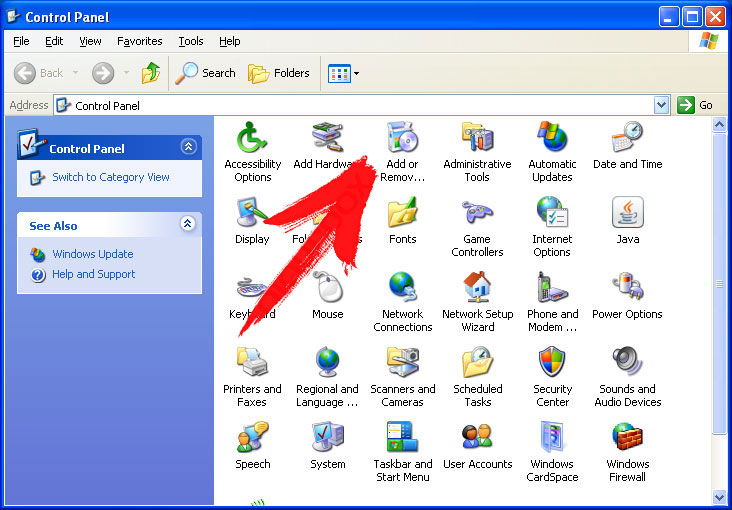
- Нажмите на начать , чтобы открыть меню.
- Выберите Панель управления и перейти на Установка и удаление программ.
- Выбрать и Удалить нежелательные программы.
Удалить GamingHub от вашего Windows 7 и Vista:
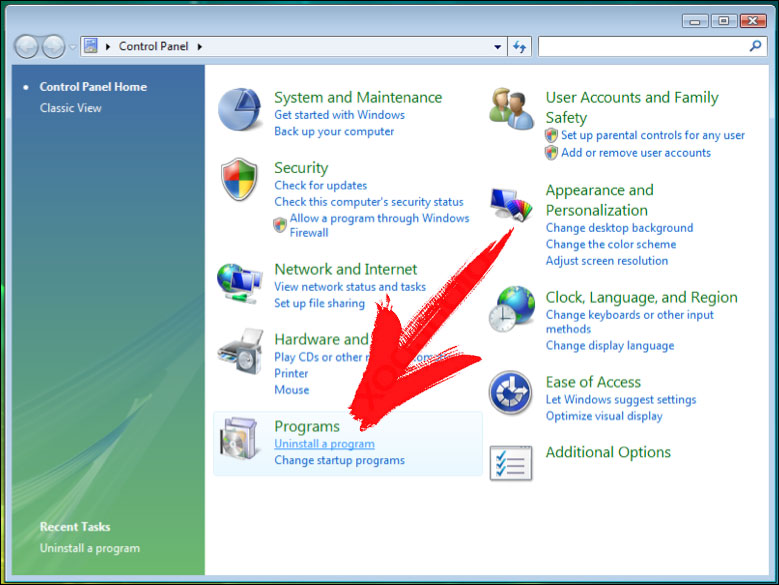
- Откройте меню Пуск и выберите Панель управления.
- Перейти к Удаление программы
- Щелкните правой кнопкой мыши нежелательное приложение и выбрать Удалить.
Стереть GamingHub от Windows 8 и 8.1:
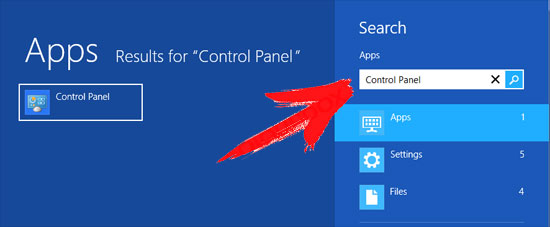
- Щелкните правой кнопкой мыши в нижнем левом углу и выберите Панель управления.
- Выберите удалить программу и щелкните правой кнопкой мыши на нежелательные приложения.
- Нажмите кнопку Удалить .