How to Reset OBS Settings
If your stream is messed up and you need to start over, try resetting your OBS settings.
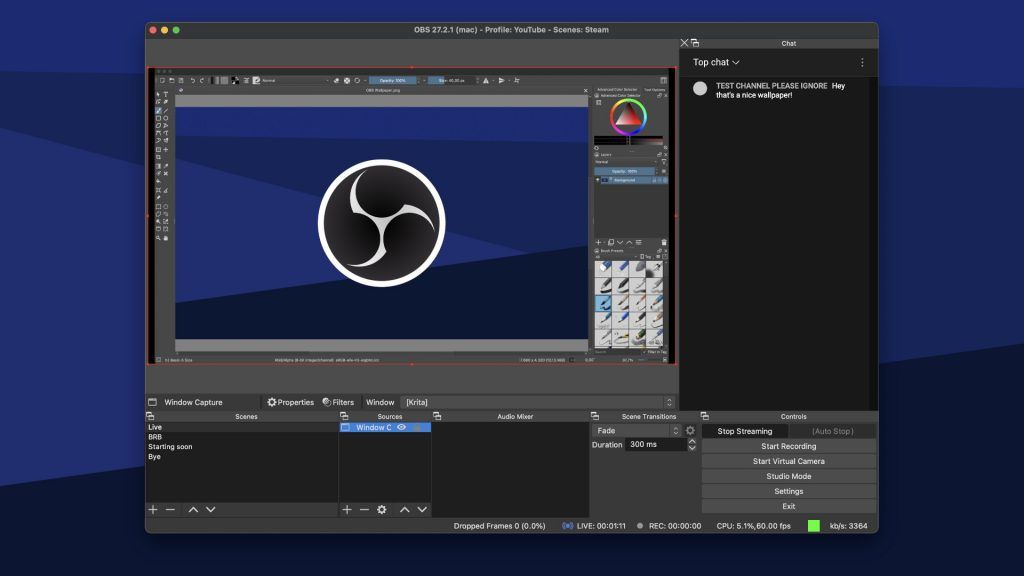
OBS, or Open Broadcaster Software, is an open-source program that lets people record and stream gameplay. If you use it, however–you’ll also know that there are a ton of settings you can tweak and change to optimize performance. Unfortunately, you sometimes go overboard and change so many things that you need to reset your OBS settings to the default settings. However, doing so might not be so obvious, so we’ve created this guide to help.
How to Reset OBS Settings
OBS has no “reset to default” button like in other programs. Instead, to reset your OBS settings, set up a new streaming or recording profile, which will use the default settings when you create it. Another method is deleting your OBS settings files manually by accessing C:\Users\”username”\AppData\Roaming\obs-studio and manually moving the files to your Trash.
See below for step-by-step instructions.
Creating a New Profile to Reset OBS Settings to Default
Instead of manually deleting files from your hard drive, you can re-create a new profile and start from scratch. This will save your scenes but will reset the settings once you finish going through the auto-configuration wizard.
To create a new profile in OBS:
- Open OBS.
- Click Profile.
- Select New.
- Enter your new profile name. Keep Show auto-configuration wizard checked.
- Run through the wizard and choose settings depending on your streaming or recording goals.
Once you finish running through the auto-configuration wizard, your new profile should have reset to the default settings.
Deleting OBS Settings Manually
If creating a new OBS profile doesn’t work, you can easily manually delete your OBS settings files. To do this, you’ll need to locate your OBS files, then delete them. The next time you load OBS, your settings will reset. Here’s how you can find and delete these settings:
- Open OBS.
- Click File.
- Select Show Settings Folder.
- Select all the files in the folder and hit the Delete key or right-click the files and select Delete.
- Restart OBS and run through the installer. The next time you start OBS your settings will revert to the default settings.
If you want to save your scenes, go to the basic folders and create a copy of the scenes folder. This is a way to save your Scenes so you don’t have to rebuild them if you manually delete your OBS files.
Hopefully, our guide helped you reset your settings and get your stream back up and running!
Remember to check out our OBS Section for more OBS tips and tricks.
How to Reset OBS
Open Broadcaster Software (OBS) is a popular app best known as an option to support multiple scenes and sources in one stream. Tons of settings are available in the OBS app to allow easy customization, and default resets are offered too.
You can reset OBS settings directly by deleting all files in the File > Show Settings Folder path. Also, OBS users can also reset settings to defaults across individual setup menus available in most versions.
Resetting OBS settings to defaults is possible with few simple steps. However, OBS users must get vital information to reset their streaming and recording apps with ease.
That’s why this guide looks at the easiest ways to reset OBS for different use cases. OBS users can take advantage of these settings to maximize streams and other output with ease.
Can I Reset OBS Settings?
OBS settings can be reset directly, by deleting specific cached folders in your computer, or through individual preset rollbacks. Blanket resets will remove most or all OBS custom settings while individual resets will delete few preferences.
How to Reset OBS UI
Step 1: Open OBS
Launch the OBS app on your PC (Windows 7 or higher, Linux, and macOS devices). After launching the OBS app, its main window with a preview screen, scenes, sources, and settings will be on display.
Step 2: Click View
From the list of menu items, click View to open a dropdown menu. After clicking View, select Docks from all options available.
Step 3: Click Reset UI
Next, click on Reset UI to complete rolling back your OBS user interface to its default settings.
How to Reset OBS Studio with Default Settings
It’s worth noting that deleting OBS cached files will reset your preferences and every setting you have ever made. It’s best to save your custom setup options in a note somewhere before using this method.
Step 1: Go to This PC
Click My Computer (Windows 7) or This PC (Windows 8 and later). You need to click the Start orb (bottom left corner) to access these settings.
Step 2: Click on your main storage drive
Locate the storage drive where your OS is installed. Make sure you can view hidden files before proceeding to other steps.
Step 3: Click Users
Click on the Users folder, then AppData, and then Roaming. Highlight the obs-studio folder and delete everything in it.
You can also bypass steps 1 – 5 by using the Windows + R shortcut to open Windows Run. Next, type %appdata% and click OK to access the Roaming folder containing obs-studio directly.
How to Reset OBS Settings to Pick Up Devices
Step 1: Update relevant device driver software
Open Device Manager settings on your computer and update all relevant driver software. After all software updates, restart your system before going onto the next step.
Step 2: Close OBS
Next, close OBS and other programs on your computer before proceeding to the next step.
Step 3: Go to This PC
Go to My Computer (Windows 7) or This PC (Windows 8 or later).
Step 4: Select main storage drive
Choose the storage drive with your OS installed in it. Make sure your settings allows you to see hidden files and folders.
Step 5: Click Users
Next, select Users from the list of options.
Step 6: Click AppData
In the next section, click AppData and then Roaming.
Step 7: Delete obs-studio
Next, delete everything in the ‘obs-studio’ folder.
Step 8: Restart OBS
After deleting the ‘obs-studio’ cached folder, restart the app on your system.
Step 10: Go to Sources and click ‘+’
Next, go to Sources and click ‘+’ to add preferred image, video, and audio sources.
Step 11: Add a device and click OK
Rename your devices and click OK. OBS should pick up your settings and devices with ease after these steps.
How to Reset OBS for Best Bitrate
First way to reset OBS for best bitrate: By manually increasing audio/video bitrate settings
Step 1: Open OBS
Launch OBS from your computer and ensure it is the latest version (get updates in-app or through obsproject.com)
Step 2: Go to File > Settings
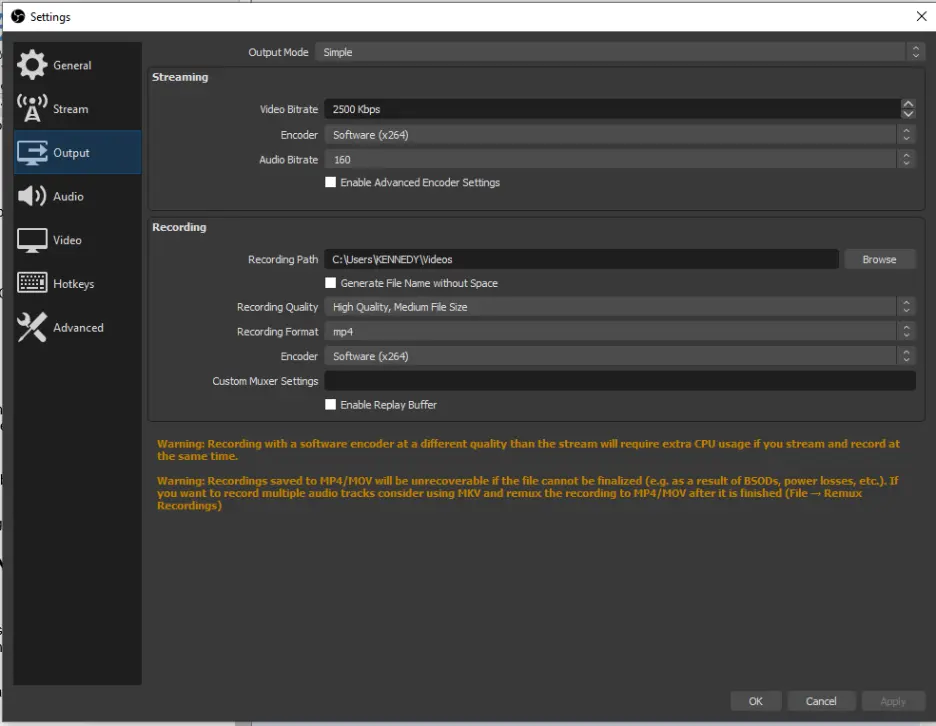
Next, click File and then Settings before going to the Output tab.

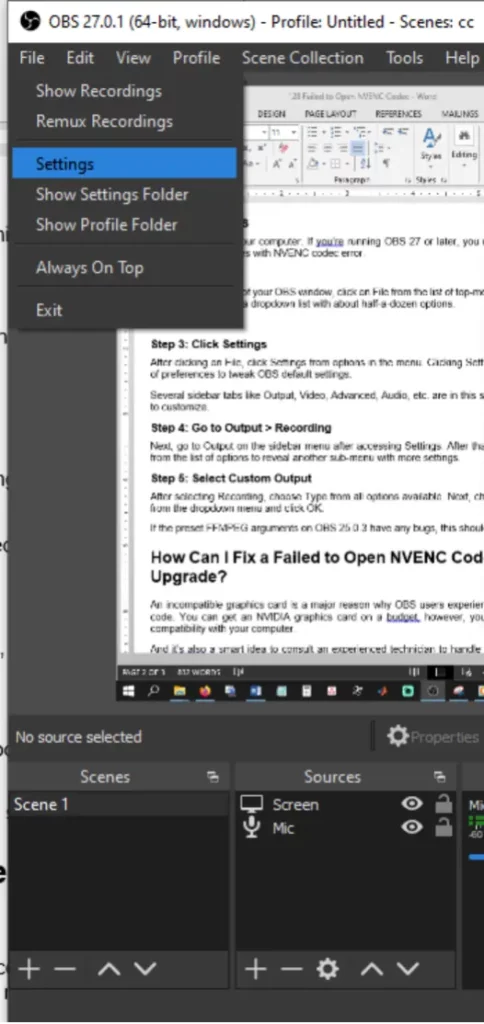
Increase your stream/recording bitrate by 30 units for audio and 500 units for video.
Second way to reset OBS for best bitrate: Through Network settings
Step 1: Click Advanced > Network
After getting into the Settings menu, click Advanced and Network to access network settings. In the Network tab. Check the box behind ‘Dynamically change bitrate to manage congestion’ and click OK.
How Can I Reset OBS for Use with Low-End PCs?
OBS for low-end PCs can work smoothly with simple audio, encoder, output, rate control, and bitrate settings. You can set your preferred audio track to default, choose NVIDIA NVENC as your favored encoder and bitrate to 2500-3000Kbps.
Как сбросить настройки OBS
Как сбросить настройки ОБС и вернуть систему к «заводским» значениям? Есть простой способ, благодаря которому вы сможете вернуть первоначальные настройки. Об этом расскажем чуть ниже.
Зачем нужно сбрасывать настройки ОБС до заводских?
Перед тем как сбрасывать настройки вашей ОБС, давайте поговорим, зачем вообще нужно сбрасывать настройки? Допустим, у вас нормально работала OBS, но в один прекрасный момент что-то сломалось. Возможно вы внесли какие-то новые настройки и что-то пошло не так, но убрав эти настройки, до нормально работающего состояния, программа работает не так как нужно. Вот в этом случае и потребуется сделать сброс настроек до заводских, чтобы настроить потом все с нуля.
Как сбросить настройки OBS Studio?
Сбросить настройки ОБС до начальных очень просто, переживать не стоит, т.к. вам не придется вспоминать, какие настройки были изначально. Для этого определенный функционал, с помочью которого произведет откат к заводским настройкам.
- Запускаем программу;
- Находим меню «Файл» слева вверху;
- Выбираем пункт меню «Открыть папку настроек»;

- Автоматически будет открыта директория, где находятся файл global.ini, а также папки basic, crashes, logsplugin_config, profiler_data и updates;
- Теперь нужно закрыть приложение (не свернуть, а закрыть);
- Выделяем полностью все содержимое и жмем «Удалить».
Теперь снова открываем нашу программу, где вы увидите что все с «чистого листа»! Мастер помощник запустится автоматически, где вы сможете при помощи подсказок быстро произвести настройку. Если же уже опытный пользователь, но можете выставить нужные вам настройки в ручную.
Что делать если не получается сбросить настройки?
Если вы не можете по каким-то причинам воспользоваться выше инструкцией, настройки можно сбросить вручную. Для этого вам нужно найти эту папку самостоятельно, действия аналогичные, вам просто нужно удалить файл и папки, про которые мы говорили выше. После чего настройки перезапишутся и вернуться к заводским.
Где лежат настройки ОБС студии
- В Windows папка находится по адресу C:Users/USERAppData/Roamingobs-studio (при условии, что вы не меняли путь установки по умолчанию);
- На macOS папка расположена тут –
Все что находится внутри этих папок удаляем и запускаем заново программу. Все, вы сбросили настройки до заводских!
Как сбросить настройки ОБС по умолчанию?
Как сбросить настройки ОБС и откатить систему к «заводскому» значению? Есть нехитрый способ, который позволит вернуть первоначальные параметры – впоследствии вы можете самостоятельно отрегулировать те или иные показатели или воспользоваться специальным мастером для автоматического настраивания. Готовы?
Есть ли такая функция
Сбросить настройки OBS по умолчанию не сложно – не переживайте, вам не придется вспоминать, какие параметры стояли после первого запуска программы. Мы не будем менять ничего вручную – есть специальная опция отката к заводским показателям.
Можно ли поставить и убрать ограничение ФПС в КС:ГО? Узнай ответ в этой статье
Сейчас расскажем, как сбросить настройки ОБС по умолчанию, но сначала отметим – простого удаления приложения будет недостаточно. Даже если вы полностью сотрете программу, внутренние логи останутся – после повторной установки сервис автоматически считает сохраненные ранее параметры.
Поэтому забудем об удалении – лучше воспользуемся реальным действенным способом. Итак, как сбросить настройки OBS быстро и безопасно?
- Откройте программу;
- Найдите кнопку «Файл» на верхней панели слева;
- Нажмите на значок «Открыть папку настроек» ;

- Автоматически откроется новая директория, где лежит файл global.ini , а также папки l ogs, basic, plugin_config и profiler_data;
- Возвращаемся к запущенному приложению и закрываем его (важно не свернуть, а закрыть);
- Полностью выделяем содержимое и кликаем по значку «Удалить».

Теперь вновь открываем программу и видим «чистый лист»! По умолчанию запустится мастер-помощник и вы сможете воспользоваться системными подсказками. Или закройте мастер и выставьте нужные параметры самостоятельно.
Делаем хромакей в ОБС вместе — здесь
Если по каким-то причинам вы не можете воспользоваться нашей инструкцией, сбросить настройки в OBS можно вручную – просто найдите папку с параметрами самостоятельно. По аналогии, нужно удалить содержимое полностью – тогда настройки перезапишутся, вы сможете открыть приложение как в первый раз!
- На Windows нужная директория лежит здесь – C:Users/USERAppData/Roamingobs-studio (если вы не меняли путь установки по умолчанию);
- На macOS ищите папочку по этому пути –
Рассказали, как сбросить ОБС – это проще, чем кажется! Если вам хочется полностью обнулить программу и перенастроить сервис иначе, дерзайте! За несколько секунд можно убрать все выставленные параметры, чтобы заменить их новыми.