Как использовать геймпад вместо мышки
Проводные мышки, будучи ранее приоритетными в использовании, уступают беспроводным решениям всё чаще, и преимущества работы с ними равноценны недостаткам. Одни без батарейки не работают, но иногда заряжаются через Micro-USB, у других перетирается провод. По чувствительности и скорости отклика дорогие беспроводные грызуны мало уступают проводным, и работаю почти с любой поверхности без привязки к длине шнура. Но представь ситуацию — мышка сломалась, села батарейка или кабель завязался в форму кукиша да приказал долго жить. А перед тобой лежит геймпад. «Вот было бы классно использовать его вместо мышки» — думаешь ты… Но не бойся! Я покажу тебе, как заменить грызуна игровым контроллером прямо сейчас!
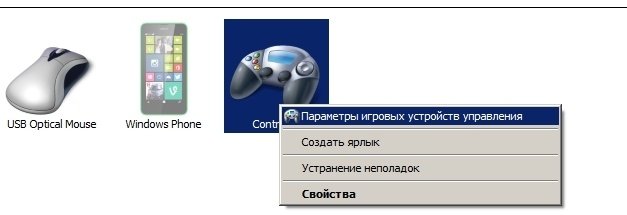
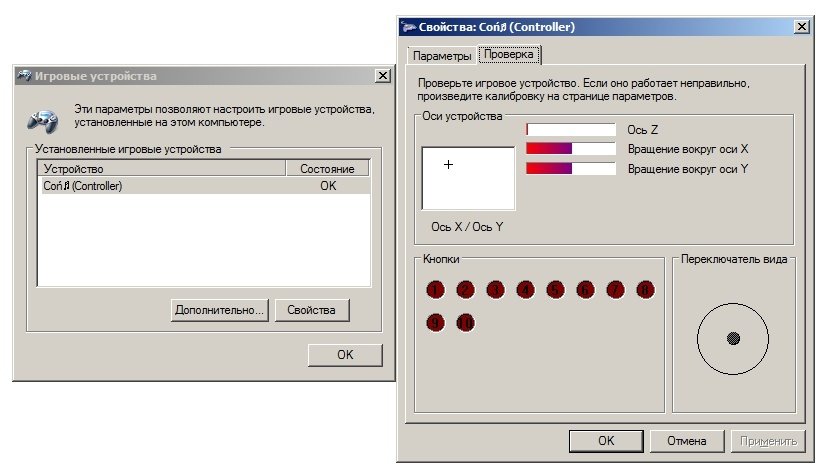
1. Проверка связи. Прежде чем начать работу с устройством, необходимо проверить, насколько оно вообще хорошо работает в паре с ПК. Для этого подключаем геймпад к компьютеру (для примера возьму свой GameSir G3s), заходим в «Устройства и принтеры» и смотрим на доступные варианты. Если среди них есть геймпад, причём с правильной иконкой — всё в шоколаде. На всякий случай можно и нужно проверить раскладку кнопок через правый клик и «Параметры игровых устройств управления».

2. Как только этап проверок будет завершён, можно будет приниматься непосредственно за приложения. Да, ПК родными методами не умеет в геймпад так, как нужно. И в связи с этим есть две новости, хорошая и плохая. Хорошая — приложений достаточно, они бесплатны и просты в использовании. Плохая — у большинства есть возможность гибкой настройки. Каким боком эта новость плохая? Никаким, просто две хорошие новости подряд это, как по мне, перебор!
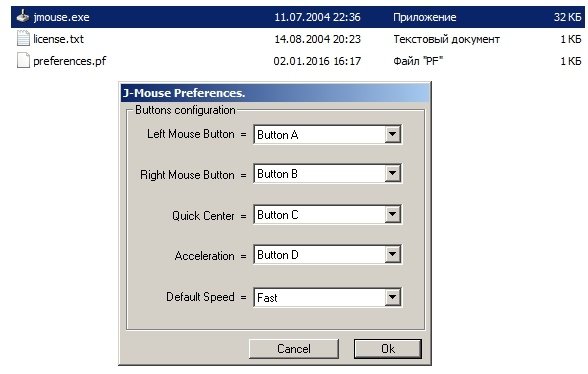
3. Выбор самого приложения. Мною лично были проверены три штуки. Первое, J-Mouse, является самым крошечным. Фактически, это утилита, а не полноценная программа. Настроек у неё почти нет, параметра чувствительности всего три, плюс возможность ускорения, а кнопки необходимо выяснять экспериментальным путем. Зато её даже устанавливать не нужно, и при большом желании этот крошечный комочек кода можно было прямо в свистульку G3s запихнуть. Идеальный вариант для аварийный ситуаций.
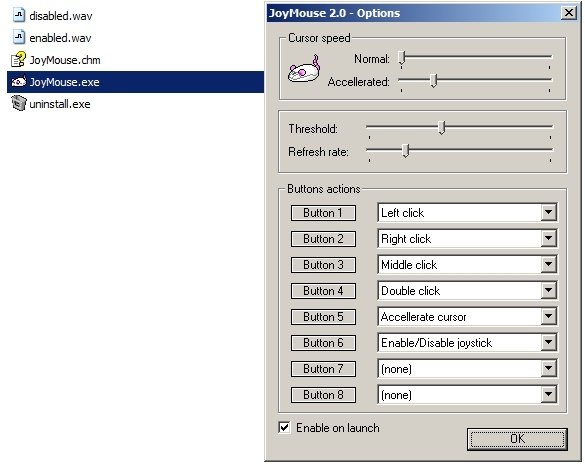
Следующим идёт JoyMouse. Как по мне, оптимальный вариант программы, сбалансированная в плане настроек и функций. После установки она появляется в трее, имеет целых четыре ползунка чувствительности, один из которых отвечает за ускоренный режим. Отдельно меня порадовало то, что ползунки нормального и ускоренного режимов не зависят друг от друга, и можно выставить по стандарту, скажем, быструю скорость, и лишь после нажатия на, скажем, триггер, замедлить курсор для более точных действий. Кнопок для настройки, кстати, восемь штук, и после нажатия на геймпаде они подсвечиваются. Одно окошко, быстрое включение/выключение и простота в использовании — преимущества JoyMouse.
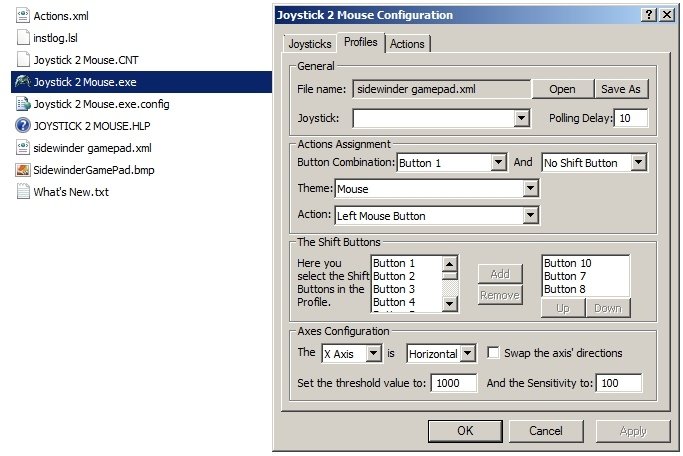
Последним является приложение Joy2Mouse 3. Да, третья версия. Где первые две — не спрашивай, лучше у дяди Гугла поинтересуйся. J2M 3 является самой сложной программой из всех, представленных выше. У неё целых три вкладки, битком набитых настройками, и, признаться, выглядит это как месиво, что мне не очень по душе. Тем не менее, уже с самого начала приложение настроено достаточно хорошо, присутствует базовая акселерация после секунды движения в одном направлении, а после где-то получасовой настройки игровой контроллер буквально и фигурально сможет выполнять почти все функции геймерского грызуна и частично даже клавиатуры, включая масштабирование, пропуск строки, двойное нажатие одной кнопкой, а также — я не шучу — работу в Интернете… и даже работу с WinAmp! Можно использовать геймпад как пульт управления плеером! Но, опять же, нужно морочиться.
Мой персональный выбор — JoyMouse, безупречно балансирующая между простотой и возможностями. J-Mouse является самым аварийным вариантом, а Joy2Mouse 3 — самым сложным и массивным. Есть ещё варианты? Оставляй их в комментариях. Не стесняйся, я не кусаюсь.
Эмуляция мышки геймпадом
Недавно у меня появился геймпад(реплика которая определяется как геймпад от 360 бокса)И соответственно я пристрастился к диванному геймингу.
И всё меня устраивает , кроме необходимости вставать и идти к ПК что бы переключить игру.
И соответственно хотелось бы иметь программу которая позволяет эмулировать мышь с помощью геймпада.
А BigPicture в Стимчанском для кого?(
В Стим геймпасс пока не завезли
просто стим включенным на фоне держи
Благодарен всем ,кто ответил , Gopher360 именно то , что мне было нужно
Как закрепить этот коммент?
Если определяется в Steam, то лучше всего через него.
Если Dualshock \ Dualsense то можно ещё Ds4 windows использовать.
Насколько понял он играет через мс лаунчер, а там все ювп прилы, которые стим не поддерживает
Ну эмуляция мыше-клавиатуры Steam вне игр всё равно должна работать.
Вот, лучше для себя не нашел.
ReWASD. За 9 бачинских её брал (лицензию).
А мог бы пиратнуть
JoyToKey. Курсор управляется стиком. Вполне удобно.
С такими потребностями только к Steam Controller, скорее всего. Ну или какой-то софт нужен, который будет при какой-то комбинации менять конфиг. Не знаю, возможно ли это на DS4Windows и дружат ли с этой прогой отличные от DS4 контроллеры.
Юзаю дш4 и инпут маппер, все игры видят как х360 ГЕЙмпад + тачпад дш дает возможность управлять курсором мыши
Controller Companion полностью закрыл для меня эту проблему. В играх автоматически отключается, чтобы не мешать управлению с геймпада, при выходе на рабочий стол снова автоматически включается. Удобно. Наверняка аналоги тоже такое умеют, но эт показалась более легкой. Для каждого процесса или игры можно создать отдельные профили.
Как превратить геймпад в компьютерную мышь
Все функции компьютерной мыши может выполнять геймпад. Зачем это нужно? Мышь может просто сломаться, у нее сядет батарейка в самый неподходящий момент или просто пользователю удобнее обходиться одним устройством. Рассказываем, как сделать мышь из геймпада.
Сначала самое простое – в онлайн-магазине Steam есть режим Big Picture, который позволяет пользоваться контроллером словно мышью. С помощью правого джойстика вы можете двигать курсором по экрану, а нажатие на триггер воспринимается как клик кнопкой мыши. Работает? Да. Однако эта функция действует, только если вы находитесь на экране магазина Steam.
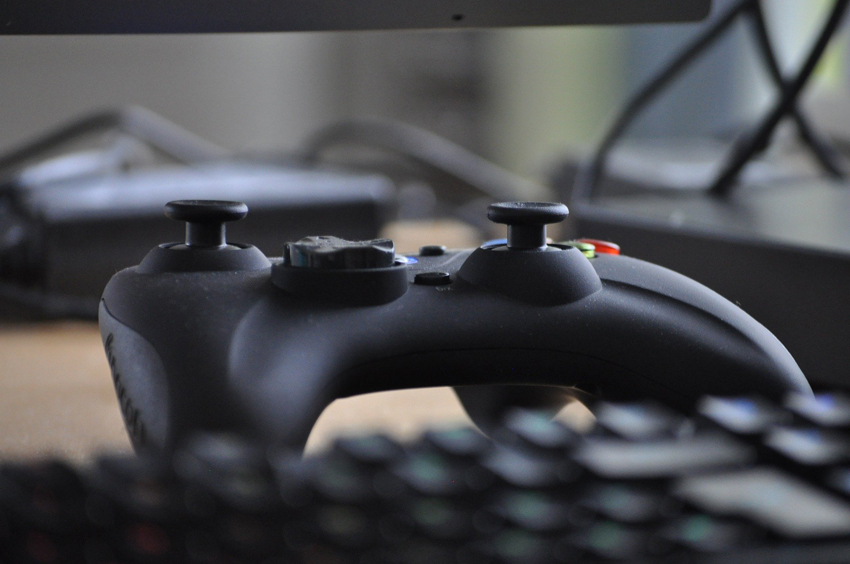
Если геймпад исполняет функции мыши, то удобно с помощью одного устройства, например, свернуть окно или переключить настройки
А как управлять курсором на рабочем столе, например, когда понадобилось запустить фильм? И вновь обращаемся к сервисам – тот же Steam уже поддерживает различные геймпады, и комбинации клавиш на контроллере соответствуют различным функциям на ПК. Для включения этой функции необходимо:
- открыть главное окно Steam,
- перейти в « Настройки» — «Контроллер» — «Общие настройки контроллера»,
- выбрать свой контроллер (PlayStation, Xbox, Switch Pro или Generic), установив соответствующий флажок — теперь вы сможете перемещать мышь с помощью правого джойстика на геймпаде,
- на странице «Настройки» — «Контроллер» можно нажать пункт «Конфигурация рабочего стола», чтобы указать, какие кнопки будут имитировать конкретные клавиши клавиатуры.
Правда, есть небольшой нюанс. Если после этого вы запустили игру прямо из Steam, то все будет хорошо – компьютер автоматически перестанет определять геймпад как мышь. Все кнопки и джойстики станут выполнять свои функции в соответствии с настройками игры. Но если вы запускаете игру не из Steam, то геймпад и дальше продолжает работать как обычная мышь. Справиться с этой проблемой можно, просто добавив игру в библиотеку Steam. Также можно попробовать другие варианты.
2. Бесплатное ПО
Как известно, контроллеры DualShock от Sony, как и геймпады XBox, автоматически не распознаются ОС Windows. Так что для их использования можно установить бесплатные утилиты – Gopher 360, InputMapper, которые позволяют подключить геймпад к ПК.
3. Платное ПО
Если готовы заплатить 79 рублей, то лучше скачать утилиту Controller Companion — с помощью этой программы можно полностью настроить свой геймпад Xbox, заменив им клавиатуру и мышь — назначить необходимые клавиши и сочетания клавиш под любую игру, использовать его для быстрого набора текста и пр.
How to Use a Game Controller as a Mouse in Windows

Game controllers (also known as gamepads) are the most popular way to play video games, but that’s not all they’re good for. You can use a controller to act as a mouse, opening up a range of interesting possibilities, as we shall see in this article.
Content
Why Use a Controller as a Mouse
The most obvious reason to turn your controller into a mouse is if you want to use your computer like a console. While it’s perfectly acceptable to control your Windows PC using a wireless mouse and keyboard from the couch, it’s not the most elegant solution. If your gamepad can also act as a mouse, it means you can navigate the operating system between games without putting the controller down.
Even if you aren’t a gamer, you may have an HTPC and would prefer the more compact nature of a controller to a wireless mouse and keyboard. There’s also an accessibility use case to consider. Since the Xbox Adaptive Controller simply appears as a standard Xbox controller for your PC, it’s one more way someone with special needs can control their computer.
Gamepads are also a great alternative to the numerous devices used to remotely control presentations. You don’t have to go buy a special remote for your work, conference, or school presentation. If you already have a game controller handy, you can use it to control a presentation, teleprompter, or any other utility for free.
1. Using Steam’s Solution
Steam is the most popular digital gaming storefront on PC and if you’re a gamer, you probably already have their client installed on your computer. If you aren’t one, however, you can still simply open an account and install the client without having to actually buy anything.
- Once Steam is installed on your computer, go to «Steam-> Settings».

- From the side menu, select «Controller».

- Now, click on «General Controller Settings»
- Tick the box that matches the type of controller you are using. In this case, we’re using an Xbox controller, so we’ll select «Xbox Configuration Support». Close the Window.

- Go back to Settings, and under «Controller» click on «Desktop Configuration» this time around.

- Here you can customize what key press or mouse action the buttons and sticks of the controller will emulate. Click on each control you want to customize and give it a function.

- In this particular case, we’ve made the right trigger right-click, the left trigger left-click and the right stick has been set to «Joystick mouse» under «Style of Input». This means that the right stick now makes the mouse pointer move around.
Of course, you should choose a configuration that’s most comfortable and intuitive for you.
If you have a Sony DualShock 4 controller or PlayStation 5 DualSense controller, you can configure the controller touchpads to act as a mouse.
- Go back to «General Controller Settings» like we showed you above.
- This time, check the «PlayStation Configuration Support» option.
- Go back to «Desktop Configuration» to start mapping out the new controls.
- Now select the touchpad from the diagram in Steam.

- Simply change the input style to «Mouse».

2. Alternatives to Steam
If you don’t want to install an entire digital storefront to have access to this feature, there are a number of alternative utilities that do the same job.
Gopher 360
Gopher360 is a popular free utility that instantly turns any Xinput controller into a mouse. Xinput is the native standard that all Xbox controllers use and Gopher360 works with the Xbox 360, Xbox One, and Xbox Series family of controllers. It is possible to use it with PlayStation controllers, but you need to use another application that translates those inputs to Xinput format (as shown below).

Using Gopher360 is as easy as downloading the .exe file and running it. Once you do, the DOS-like Terminal window will open. Simply minimize it and grab your controller. These are the default controls:
- A: Left Mouse-Click
- X: Right Mouse-click
- Y: Hide terminal
- B: Enter
- D-pad: Arrow keys
- Right Analog: Scroll up/down
- Right Analog Click: F2
- Left Analog: Mouse
- Left Analog Click: Middle mouse click
- Back: Browser refresh
- Start: Left Windows Key
- Start + Back: Toggle Gopher360 off for when you want to play games
- Start + DPad Up: Toggle Gopher360 vibration setting
- LBumper: Browser previous
- RBumper: Browser next
- Bumber + RBummper: Cycle speed
- LTrigger: Space
- RTrigger: Backspace
Gopher360 generates a «Config» file in the same folder where you’ve saved the executable before running it for the first time. You can edit this file to customize the default controls. If you break the «Config» file, just delete it. A new default one will be created when you run the applications next.
Keysticks
You may also be interested to try Keysticks, which is a more polished application than Gopher360, with an intuitive graphical interface. You can use Keysticks to control your PC overall or to play PC games that don’t natively support controllers.
Once you’ve installed Keysticks, you’ll see a helpful picture of an Xbox controller (for a DualShock one you’ll need to install a translator application first) appear at the bottom-right of the desktop. This shows which buttons on the controller will emulate which mouse or keyboard input. You can customize these key assignments in the software settings.

However, by default, you can move the mouse pointer using the right analog stick. Left-clicking is assigned to the left trigger and the right-click is assigned to the start button. That’s the small button to the right of the large Xbox button in the middle of the controller, known as the «Guide» button.
To activate Keysticks, double-click its icon in the notification tray. If you see the control Window and you have an Xinput (Xbox-compatible) controller connected to your PC, then you can do all the things you normally do with your mouse, except now you’re using a gamepad!
How to Emulate Xinput With DS4Windows
The DS4Windows application lets you emulate Xinput from a DualShock 4 or Dualsense controller, making Windows (and games) see an Xinput controller where there is none.
This allows you to use a PlayStation 4 or 5 controller as if it were an Xbox controller. Specifically, both of the programs outlined above will work if you also run DS4Windows at the same time. Here’s how to get it set up.
- First, download the application and install it. If you don’t already have it on your Windows computer, you’ll need the .NET Desktop Runtime.
- Don’t use the link that the DS4Windows app suggests, instead download it from this page under the «.NET Desktop Runtime 5.0.17» section. Choose the version that matches your Windows installation, which should be x64 for most people.

- Once you have DS4 Windows running, you’ll see the first-time setup. Only «Step 1» is mandatory.

- Once you’ve completed the ViGEmBus installation, click «Finished».

- Then, on the main DS4Windows screen click on «Start» in the bottom right corner.

- You should see your PlayStation controller pop up in the «Controllers» tab.

You can now use your controller with Gopher360 and Keysticks!
Frequently Asked Questions
Will games still work normally when using my controller as a mouse?
Using the Steam method, your controller should automatically switch between normal mode and mouse mode, but only for Steam games. If you want this to happen for other games, go to «Games-> Add a Non-Steam Game to My Library» in the Steam client. Then look for the game’s executable file and add it. If you launch it from within Steam, the auto hand-over should happen.
How do I turn the controllers off?
It’s not really obvious how to turn these controllers off without a console. To do so, just hold the Xbox Guide button or the PS button until the controller lights go out. You may have to hold them in for more than 10 seconds, but don’t let go until the lights go out.
What if my computer doesn't have Bluetooth?
If you have a computer without Bluetooth and you don’t want to use a wired connection with your controller, you can purchase a USB add-on dongle (usually USB-based) or in the case of official Xbox Controllers, you can use the Xbox Wireless Adapter for Windows. You’ll get a virtually lag-free controller experience and access to audio through the headphone jack of the controller.
All screenshots by Sydney Butler
Sydney Butler is a technology writer with a background in Psychology who has written for a wide variety of technology outlets including How-To-Geek, Online Tech Tips, Helpdesk Geek, 9to5Mac, 9to5Google, and many more. He has 25 years of technology troubleshooting experience as a technician and user-education practitioner.