How to Uninstall Unreal Engine (Easy Guide 2023)

It seems that there are many users who have difficulty uninstalling Unreal Engine 4 or Unreal Engine 5 from their Mac, Linux, or Windows operating system. Some have trouble uninstalling, while others encounter difficulties after uninstalling. In this article, we will provide you with a compilation of methods to uninstall Unreal Engine no matter what the issue is.
Unreal Engine is a game development engine developed by Epic Games in 1988. Unreal Engine ranks second among video game engines and offers a rich feature set and impressive graphics.
It offers a comprehensive set of tools for game development, linear film, and television content creation, architectural and automotive visualization, broadcast and live event production, and many more.
Unreal Engine is available for free, and is fully featured and ready for production, with every option available and full access to the source code.
The program can create a wide range of 3D, 2D, and VR game styles. It features powerful graphical and lighting tools. Users can select from an extensive selection of materials, objects, and characters.
Besides supporting coding languages, Unreal Engine has a visual editor, Blueprints, that allows you to define the rules of a game without having any coding experience.
Unreal Engine supports Windows, macOS, Linux, SteamOS, iOS, Android, and HTML5 for use in browsers, PlayStation 4, Xbox One video game consoles, Virtual reality, and augmented reality platforms.
If you choose to switch to another video game engine and wish to uninstall and remove all Unreal Engine, you may encounter some problems. In this article, we will share a guide on how to uninstall Unreal Engine from Mac, Windows, and Linux.
The process of uninstalling Unreal Engine should be simple, as per the Unreal Engine Forum. In reality, the process of removing Unreal Engine from Epic Games was much more difficult than expected. To remove Unreal Engine, follow the below guide. Before that learn why Unreal Engine is not uninstalling.
Why is Unreal Engine Not Uninstalling?
Most of the users complained that whenever they clicked the “X” to uninstall it, the program didn’t work and the “download” section switched to “repair”, but the program won’t uninstall.
Unreal Engine can’t be uninstalled because of its incorrect uninstall process. It may be due to the uninstaller of Unreal Engine failing to start or doesn’t work properly. Or there was a problem running a file necessary to complete the uninstallation. The majority of people claiming Unreal Engine won’t uninstall might be experiencing this issue.
Complete Guide to Uninstall Unreal Engine
Are you having trouble uninstalling Unreal Engine for some reason? Want to completely uninstall Unreal Engine and remove all of its files from your computer? Don’t worry! We provide step-by-step instructions on how to uninstall Unreal Engine completely.
- Open epic games launcher.
- Then click Unreal Engine.
- Go to the Library at the top of the screen.
- Select the drop-down menu next to U4 and click the “ X ” option in the engine version.
- Click the Uninstall button.
- By doing this, the uninstallation process will begin, and it will be completed within a few minutes.
How to Uninstall Unreal Engine on Windows?
Launch the epic launcher and click on the library tab. Below the engine versions section right-click on the caret and click “ Remove “. The engine installation will be removed. The launcher can then be uninstalled through the programs window.
When you look at the Control Panel, you only see the epic launcher and not Unreal Engine. You then have the option of removing it by following the below steps.
After deleting the install directory and the “ …/Users/<User Name>/My Documents/Unreal Projects ” folder. Additionally, if you have Github source access set up, you can delete the “ …/Users/<User Name>/My Documents/Github/UnrealEngine ” folder.
How to Uninstall Unreal Engine on Mac?
- Make sure you are logged into your Mac as the administrator, or you will need to enter a password when deleting something.
- To begin, click on the “ Go ” button at the top of your Mac OS
- Then click on Applications
- Navigate through the list and find Unreal Engine software to uninstall
- Drag the program or folder of the programs to the Trash
- That’s it! You’ve successfully uninstalled Unreal Engine on Mac.
Upon completing the Unreal Engine 4.1.0 uninstallation, there are still a number of files related to the software left on your Mac machine. Therefore, if you want to completely remove Unreal Engine on Mac OS then follow the below steps.
Click on the Go > Library
If you find a file or folder with the name Unreal Engine or Epic games, then move it to the Trash
Support files related to Unreal Engine on Mac can be found on
/ Library / Application Support /
Macintosh HD / Library / Application Support /
Other hidden files related to Unreal Engine on Mac can be found on
Macintosh HD / Library / Caches
How to Uninstall Unreal Engine on Linux?
- rm -rf ./UnrealEngine
- Or you can also remove the engine files and then search your ‘ /home/<user>/ ’ for “ epic ” and “ unreal ” and delete the files and folders.
- Or you can use sudo apt remove ue4manager
Uninstall Unreal Engine with Third-party Uninstallers
In order to manually uninstall Unreal Engine, you need patience and a good understanding of Windows, Mac, or Linux OS. It is not possible to guarantee the manual uninstallation will remove Unreal Engine and all of its files completely.
Uninstalling incompletely may leave many unnecessary files within the registry and adversely affect the performance of your computer.
Therefore, you should uninstall Unreal Engine using trusted third-party uninstallers. These software programs scan your computer and find and remove all files associated with Unreal Engine.
Third-Party App Uninstallers for Mac – CleanMyMac X, CCleaner, AppCleaner, etc
Third-Party App Uninstallers for Windows – Revo Uninstaller, Iobit Uninstaller, Geek Uninstaller, etc
Frequently Asked Questions (FAQs)
Is Unreal Engine free?
Yes. Unreal Engine can be downloaded for free.
Which Unreal Engine license should I use?
There is no charge for either the Publishing License or the Creators License. Both are free to use.
Which Unreal Engine is better?
Most of the users have Unreal Engine 4 vs Unreal Engine 5 question in mind. There is almost 90% similarity between them. The only significant differences between them are Nanite and Lumen technology.
Unreal Engine 5 is the better option for you if N/L technology is important to you in the future. As long as you don’t plan to develop a game with high & detailed graphics, you can stick with Unreal Engine 4.
Even if you have been using Unreal Engine for years, at some point you will need to remove it. Unfortunately, Unreal Engine isn’t very easy to uninstall, and many users keep complaining about Unreal Engine not being able to be removed. There are many ways to get around this issue. We hope you have found this article useful.
Unreal Engine
Unreal Engine is a software application. This page is comprised of details on how to remove it from your PC. It is produced by Epic Games, Inc. . Further information on Epic Games, Inc. can be found here. The application is often placed in the C:\Program Files\unreal\Epic Games directory. Keep in mind that this path can differ being determined by the user’s preference. MsiExec.exe /X
Unreal Engine is composed of the following executables which occupy 750.18 MB ( 786620472 bytes) on disk:
- AutomationTool.exe (15.44 KB)
- HTML5LaunchHelper.exe (23.44 KB)
- NetworkProfiler.exe (67.44 KB)
- RPCUtility.exe (25.44 KB)
- SwarmAgent.exe (347.44 KB)
- SwarmCoordinator.exe (26.94 KB)
- UnrealBuildTool.exe (1.05 MB)
- DeploymentServer.exe (23.44 KB)
- IPhonePackager.exe (235.44 KB)
- openssl.exe (1.72 MB)
- astcenc.exe (640.50 KB)
- wow_helper.exe (65.50 KB)
- PVRTexToolCLI.exe (1.15 MB)
- diff.exe (12.50 KB)
- diff3.exe (13.50 KB)
- diff4.exe (11.50 KB)
- svn-populate-node-origins-index.exe (26.00 KB)
- svn-rep-sharing-stats.exe (205.00 KB)
- svn.exe (287.50 KB)
- svnadmin.exe (91.50 KB)
- svnauthz-validate.exe (38.50 KB)
- svnauthz.exe (38.50 KB)
- svndumpfilter.exe (44.00 KB)
- svnlook.exe (76.00 KB)
- svnmucc.exe (36.00 KB)
- svnraisetreeconflict.exe (30.50 KB)
- svnrdump.exe (61.00 KB)
- svnserve.exe (138.00 KB)
- svnsync.exe (63.50 KB)
- svnversion.exe (28.00 KB)
- uninst.exe (61.04 KB)
- BootstrapPackagedGame-Win32-Shipping.exe (81.94 KB)
- CrashReportClient.exe (11.96 MB)
- UE4Game-Win32-Shipping.exe (33.27 MB)
- UE4Game.exe (78.84 MB)
- UnrealCEFSubProcess.exe (7.19 MB)
- BootstrapPackagedGame-Win64-Shipping.exe (94.44 KB)
- BuildPatchTool.exe (8.62 MB)
- CrashReportClient.exe (15.31 MB)
- ShaderCompileWorker.exe (258.44 KB)
- UE4Editor-Cmd.exe (432.44 KB)
- UE4Editor.exe (432.44 KB)
- UE4Game-Win64-Shipping.exe (42.23 MB)
- UE4Game.exe (101.21 MB)
- UnrealCEFSubProcess.exe (9.21 MB)
- UnrealFrontend.exe (237.94 KB)
- UnrealHeaderTool.exe (2.64 MB)
- UnrealLightmass.exe (1.35 MB)
- UnrealPak.exe (5.98 MB)
- DocSearch.exe (574.50 KB)
- CodeWorksforAndroid-1R5-windows.exe (25.22 MB)
- UE4PrereqSetup_x64.exe (38.17 MB)
- UE4PrereqSetup_x86.exe (22.46 MB)
- chmod.exe (41.00 KB)
- DCServce.exe (667.00 KB)
- DeltaC.exe (1.10 MB)
- DeltaS.exe (922.50 KB)
- rsync.exe (324.50 KB)
- ssh.exe (250.50 KB)
- elevate.exe (6.00 KB)
- arcmt-test.exe (12.48 MB)
- bugpoint.exe (7.21 MB)
- c-arcmt-test.exe (13.00 KB)
- c-index-test.exe (11.96 MB)
- clang.exe (32.96 MB)
- clang-check.exe (24.54 MB)
- clang-format.exe (1.84 MB)
- clang-tblgen.exe (875.50 KB)
- count.exe (13.00 KB)
- diagtool.exe (3.92 MB)
- FileCheck.exe (272.50 KB)
- llc.exe (12.55 MB)
- lli-child-target.exe (465.50 KB)
- lli.exe (12.02 MB)
- llvm-ranlib.exe (4.07 MB)
- llvm-as.exe (1.65 MB)
- llvm-bcanalyzer.exe (230.50 KB)
- llvm-c-test.exe (12.32 MB)
- llvm-config.exe (120.50 KB)
- llvm-cov.exe (1.72 MB)
- llvm-cxxdump.exe (1.52 MB)
- llvm-diff.exe (1.48 MB)
- llvm-dis.exe (1.20 MB)
- llvm-dsymutil.exe (11.65 MB)
- llvm-dwarfdump.exe (1.64 MB)
- llvm-dwp.exe (11.38 MB)
- llvm-extract.exe (2.27 MB)
- llvm-link.exe (2.48 MB)
- llvm-lto.exe (15.11 MB)
- llvm-mc.exe (4.51 MB)
- llvm-mcmarkup.exe (197.00 KB)
- llvm-nm.exe (4.08 MB)
- llvm-objdump.exe (5.32 MB)
- llvm-pdbdump.exe (724.00 KB)
- llvm-PerfectShuffle.exe (22.50 KB)
- llvm-profdata.exe (885.00 KB)
- llvm-readobj.exe (2.28 MB)
- llvm-rtdyld.exe (4.29 MB)
- llvm-size.exe (1.51 MB)
- llvm-split.exe (2.30 MB)
- llvm-stress.exe (1.20 MB)
- llvm-symbolizer.exe (1.69 MB)
- llvm-tblgen.exe (1.81 MB)
- not.exe (61.00 KB)
- obj2yaml.exe (1.69 MB)
- opt.exe (15.85 MB)
- optimizer.exe (449.50 KB)
- sancov.exe (5.08 MB)
- sanstats.exe (1.64 MB)
- verify-uselistorder.exe (1.83 MB)
- yaml-bench.exe (237.00 KB)
- yaml2obj.exe (520.50 KB)
- node.exe (12.40 MB)
- python2.exe (26.50 KB)
- pythonw.exe (27.00 KB)
- wininst-6.0.exe (60.00 KB)
The information on this page is only about version 1.1.16.0 of Unreal Engine. You can find here a few links to other Unreal Engine versions:
- C:\Program Files\Epic Games
- C:\ProgramData\Microsoft\Windows\Start Menu\Programs\SpeedTree\SpeedTree for Unreal Engine 4 Subscription v7.0.7
- C:\Users\%user%\AppData\Roaming\Unreal Engine
- C:\ProgramData\Microsoft\Windows\Start Menu\Programs\SpeedTree\SpeedTree for Unreal Engine 4 Subscription v7.0.7\SpeedTree Compiler for UE4.lnk
- C:\ProgramData\Microsoft\Windows\Start Menu\Programs\SpeedTree\SpeedTree for Unreal Engine 4 Subscription v7.0.7\SpeedTree Modeler Help.url
- C:\ProgramData\Microsoft\Windows\Start Menu\Programs\SpeedTree\SpeedTree for Unreal Engine 4 Subscription v7.0.7\SpeedTree Website.url
- C:\ProgramData\Microsoft\Windows\Start Menu\Programs\SpeedTree\SpeedTree for Unreal Engine 4 Subscription v7.0.7\SpeedTree.lnk
- HKEY_CURRENT_USER\Software\Epic Games\Unreal Engine
- HKEY_CLASSES_ROOT\Local Settings\Software\Microsoft\Windows\Shell\MuiCache\C:\Program Files\Epic Games\Launcher\Engine\Binaries\Win64\EpicGamesLauncher.exe.ApplicationCompany
- HKEY_CLASSES_ROOT\Local Settings\Software\Microsoft\Windows\Shell\MuiCache\C:\Program Files\Epic Games\Launcher\Engine\Binaries\Win64\EpicGamesLauncher.exe.FriendlyAppName
- HKEY_LOCAL_MACHINE\Software\Microsoft\Windows\CurrentVersion\Installer\Folders\C:\Program Files\Epic Games\
A way to remove Unreal Engine using Advanced Uninstaller PRO
Unreal Engine is an application marketed by Epic Games, Inc.. Some people want to uninstall it. This is efortful because doing this by hand takes some skill regarding Windows program uninstallation. The best EASY practice to uninstall Unreal Engine is to use Advanced Uninstaller PRO. Take the following steps on how to do this:
1. If you don’t have Advanced Uninstaller PRO on your Windows PC, install it. This is a good step because Advanced Uninstaller PRO is an efficient uninstaller and general tool to optimize your Windows system.
- go to Download Link
- download the setup by pressing the green DOWNLOAD NOW button
- install Advanced Uninstaller PRO
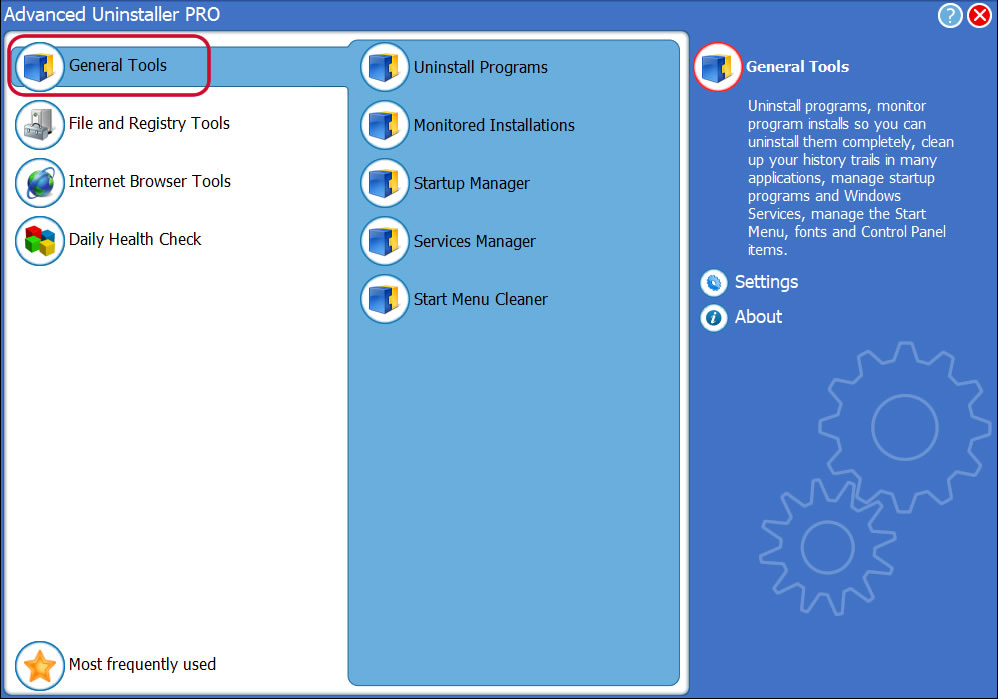
3. Click on the General Tools category
4. Click on the Uninstall Programs tool
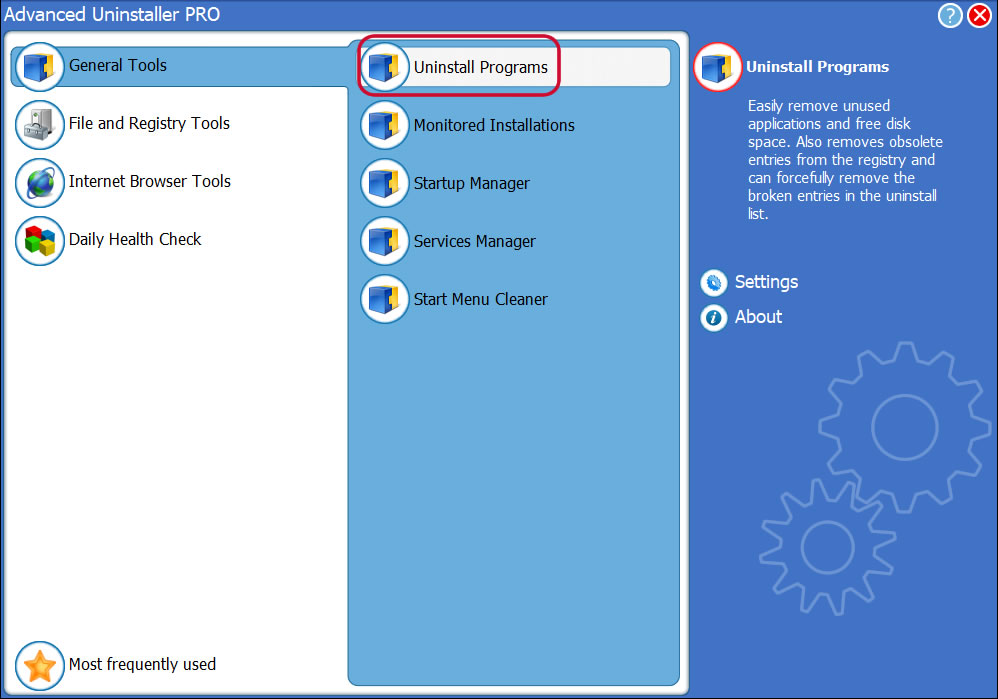
5. All the programs existing on your PC will be shown to you
6. Scroll the list of programs until you find Unreal Engine or simply click the Search feature and type in «Unreal Engine». The Unreal Engine program will be found automatically. Notice that when you select Unreal Engine in the list of applications, the following data regarding the program is shown to you:
- Star rating (in the lower left corner). The star rating explains the opinion other people have regarding Unreal Engine, ranging from «Highly recommended» to «Very dangerous».
- Opinions by other people — Click on the Read reviews button.
- Technical information regarding the app you are about to uninstall, by pressing the Properties button.
8. After removing Unreal Engine, Advanced Uninstaller PRO will ask you to run an additional cleanup. Press Next to start the cleanup. All the items that belong Unreal Engine which have been left behind will be found and you will be able to delete them. By removing Unreal Engine using Advanced Uninstaller PRO, you can be sure that no registry entries, files or folders are left behind on your disk.
Your PC will remain clean, speedy and able to run without errors or problems.
Geographical user distribution
| United States | 25% | |
| United Kingdom | 16.67% | |
| Islamic Republic of Iran | 16.67% | |
| Switzerland | 8.33% | |
| Belgium | 8.33% | |
| Netherlands | 8.33% | |
| Russian Federation | 8.33% | |
| Latvia | 8.33% |
- 10.0
- Windows 7 (6.1)
- Windows 8.1 (6.3)
- Windows 8 (6.2)
Disclaimer
The text above is not a piece of advice to remove Unreal Engine by Epic Games, Inc. from your PC, we are not saying that Unreal Engine by Epic Games, Inc. is not a good application for your computer. This text simply contains detailed info on how to remove Unreal Engine supposing you decide this is what you want to do. Here you can find registry and disk entries that other software left behind and Advanced Uninstaller PRO discovered and classified as «leftovers» on other users’ computers.
How To Uninstall Unreal Engine 5 From Epic Games
If you’re reading this article, chances are you need guidance on **how to uninstall Unreal Engine 5 from Epic Games**. You might be wondering if there’s a secret to this process that doesn’t require multiple complicated steps. Well, worry not! Today, we’re going to unveil the mystery hidden behind this seemingly complex task and help you achieve a clean uninstallation of Unreal Engine 5. So, let’s embark on this journey together, and by the end of this article, you’ll have everything you need to know about removing this powerful game engine.
*Note: This article assumes that you are already familiar with Unreal Engine 5 and Epic Games. If you’re not, we recommend that you spend some time familiarizing yourself with these platforms before proceeding with the uninstallation process.*
### Step 1: Pre-Uninstallation Considerations
Before diving into the actual process of uninstalling Unreal Engine 5, it’s important to take note of certain critical elements that you should be aware of:
1. **Backup your data**: Ensure that you’ve backed up all essential files related to your projects and resources within Unreal Engine 5, as removing the software will also delete project folders and assets.
2. **Check for dependencies**: Some projects and plugins might require specific versions of Unreal Engine 5, so double-check if any such dependencies exist before proceeding with the uninstallation.
### Step 2: Close the Epic Games Launcher
The first step in uninstalling Unreal Engine 5 is to close the Epic Games Launcher. To do this, locate the system tray on your desktop (usually in the bottom-right corner), right-click the Epic Games Launcher icon, and select “Exit”. Ensure that the launcher is closed entirely; otherwise, it might cause issues during the uninstallation process.
### Step 3: Navigate to the Installed Location of Unreal Engine 5
Now that the Epic Games Launcher is closed, it’s time to locate the installation folder for Unreal Engine 5. By default, the software is installed in the following directory:
– Windows: C:Program FilesEpic GamesUE_5.0
– macOS: /Users/Shared/Epic Games/UE_5.0
However, if you’ve changed the installation location during the setup process, navigate to the custom directory instead.
### Step 4: Uninstall Unreal Engine 5 Manually
To uninstall Unreal Engine 5 manually, follow these instructions depending on your operating system:
1. Press `Win + X` to open the Power User menu and select “Apps and Features” or “Programs and Features.”
2. In the list of installed programs, locate **Unreal Engine 5** (with the appropriate version number).
3. Select it, and click “Uninstall.” Follow the on-screen instructions to complete the process.
1. Open “Finder” and navigate to the Unreal Engine 5 installation folder as mentioned in Step 3.
2. Select the “UE_5.0” folder and drag it to the “Trash” located in your Dock.
3. To complete the uninstallation process, right-click the “Trash” icon and select “Empty Trash.”
*Note: If you encounter issues while uninstalling Unreal Engine 5, consider using a third-party uninstaller software (such as Revo Uninstaller for Windows or AppCleaner for macOS) to ensure a thorough removal.*
### Step 5: Post-Uninstallation Cleanup
After uninstalling Unreal Engine 5, there might be some leftover files and folders on your computer. To ensure a complete removal, follow these steps:
1. Delete the **Epic Games** folder located in your Documents folder (My Documents for Windows).
2. Delete any shortcuts associated with Unreal Engine 5 from your desktop or Start menu.
3. Restart your computer to ensure all changes take effect.
Congratulations! You have successfully uninstalled Unreal Engine 5 from your computer. Following these simple steps, you’ve ensured a clean and efficient removal of the software without any lingering files or data. This article has provided you with detailed instructions on **how to uninstall Unreal Engine 5 from Epic Games** using manual methods and post-uninstallation cleanup tips to guarantee a seamless experience.
As an expert engineer in software, we hope this guide has helped answer all your questions and concerns related to removing Unreal Engine 5. If you found this article helpful or want to share your own experiences and suggestions, feel free to leave a comment below. Happy gaming!
How to Uninstall Unreal Engine: Use These Simple Steps
If how to uninstall Unreal Engine is at the top of your priority list, then the guide we’ve created below is sure to be of help.
While the Unreal Engine is one of the best tools for 3D packages, excellent immersive experiences, and ultra-realistic illustrations, there are many different reasons why you may want to uninstall it, such as upgrading to a new version or trying to create space on your computer.
Whatever your reason might be, our expert guide below will help you remove this tool from your computer, whether you’re using a Windows OS, Linux, or macOS. Without further ado, let’s jump right in.
How to Completely Delete Unreal Engine From Your System?
To completely remove Unreal Engine from your computer, you will have to access the epic launcher on windows or uninstall the epic launcher allover. These methods work for both Unreal Engine 4 and 5 so you can safely remove them without causing damage to your files or computer.
Deleting Unreal Engine via Epic Launcher on Windows
The Unreal Engine is a tool that works with a variety of operating systems, including Windows, macOS, and Linux. Each operating system has its own guide and here we’ll be talking about the Windows uninstallation process. Below are the necessary steps to follow on how to uninstall Unreal Engine 5 Windows:
- Click on the search bar beside your start menu and search for Epic game launcher.
- Open the launcher and look for “Unreal Engine.”
- Once you have selected Unreal Engine, navigate your way to the Library tab, which should be at the top of your screen. beside “Launch” or “Update” located in the engine version.
- Choose “Uninstall” or “Remove” from the list of options and the uninstallation process will start.
- Note that the uninstallation process may take a while.
- Once the Unreal Engine has been uninstalled, restart your device.
- After restarting your device, you can choose whether or not to uninstall the launcher.
– By Uninstalling the Epic Launcher
Sometimes, the steps listed above may not work, which means that the Unreal Engine will remain on your device even after trying to uninstall it.
If you experience something like this, you can try uninstalling the entire launcher itself and deleting the installation folder of the engine. You can do so by following the steps on how to uninstall Unreal Engine Epic games launcher:
- To remove the epic launcher, all you have to do is search for the control panel via your computer’s search bar.
- Select “Programs and Features.”
- Scroll through the list of apps until you find “Epic Launcher.”
- Click on the launcher and choose the “Uninstall” option.
- Once the launcher has been uninstalled go to your Windows File Explorer and search for the installation directory.
- For most people, the installation directory would be something like “Users/Yourcomputername/My Documents/Unreal Projects.”
- Once you’ve deleted the folders related to Unreal Engine in this folder, the next step is to remove the Github source if you have one.
- All you have to do is find the following directory: “Users/Yourcomuptername/My Documents/ Github/UnreaEngine.”
- Delete the associated folder and contents and restart your computer.
- Once your computer boots back up, you should have no traces of the engine left in your device.
Deleting Unreal Engine on MacOS
The steps for removing Unreal Engine on a MacBook are different from how you’d do it on a Windows machine since both operating systems are different as well. Here is how to uninstall Unreal Engine on macOS.

- First, you need to make sure to log into your MacBook with administrator privileges to avoid entering passwords when deleting stuff on your computer.
- Next, choose the “Go” button located at the top of your computer and select “Applications.”
- Scroll through the list of apps on your device and choose “Unreal Engine” from the options.
- Now, click and hold the app to drag it to your “Trash” folder.
- Once that’s done, you would have removed Unreal Engine from your computer.
– Uninstallation Through the Default Installation Folder
If you are looking for how to uninstall Unreal Engine without Epic games Launcher or you’re unable to find Unreal Engine in the Library tab, then you want to search for the default installation folder to completely remove the tool from your device. All you have to do is:
- Open your File Manager and go to “\User\shared\epic games.”
- You should find every version of the engine you’ve installed in this location.
- Move them all to the trash and you’d have successfully deleted them too from your Mac machine.
– Removing Residual and Temporary Files
However, you may have some files left on your system after deleting Unreal Engine 4.0 or Unreal Engine 5.0. To make sure there are no conflicts during future installations, you can completely remove these files by utilizing the steps explained below:
- Select the “Go” option and navigate your way to “Library.”
- Next, check to see if there’s any file or folder named “Epic Games” or “Unreal Engine” on your Mac machine.
- If you find any, move them to your “Trash” folder.
- Now, go to this directory: “Macintosh HD/Library/Application Support/” or “Library/Application Support” to delete other support files associated with Unreal Engine on your computer.
- Once that’s done, go to “Macintosh/Library/Caches” to delete any other hidden files related to Unreal Engine on your computer.
How to Erase Unreal Engine in Linux?
You can erase or perform complete uninstallation of the Unreal Engine in Linux by removing the folder. For this, you will have to type the relevant deletion command. To remove any data associated with Unreal Engine, you will have to go to home and remove all files manually.
If you’re looking for how to uninstall Unreal Engine Ubuntu, then the steps below will be of help.
- Type “rm -rf ./UnrealEngine” into your terminal and the files related to Unreal Engine should be removed.
- You can also delete the engine’s files, then search for “Unreal” and “Epic” in your “/home//” and remove all folders and files that show up.
- Another option you can use is “sudo apt remove ue4manager” to delete the engine from your system.
How to Uninstall Unreal Engine Using Third-Party Apps?
You can uninstall Unreal Engine using third-party apps by downloading programs that comply with your operating system. For example for windows you will have to download geek uninstaller, Iobit installer or Revo Uninstaller. Similarly, for IOS you can use programs like AppCleaner.
Manually removing Unreal Engine from your computer requires you to have an excellent understanding of your operating system, whether it’s Linux, macOS, or Windows. Also, there’s no guarantee that you’d be able to remove all of the files related to Unreal Engine if you successfully uninstall it manually.
You can have many temporary and miscellaneous files on your computer, which may in turn compromise the registry and affect your PC’s performance.

Using a third-party app can help you overcome the aforementioned problems. These software programs will scan your computer and make sure to remove the Unreal Engine as well as every folder and file related to the tool.
However, there are many different apps to choose from and below are some recommendations for both Windows and Mac machines.
– Third-Party Uninstaller for Windows
Here are some third-party uninstallation apps you can use on your Windows machine:
- Geek Uninstaller
- Iobit Uninstaller
- Revo Uninstaller
– Third-Party Uninstallation Apps for Mac
Here are some third-party uninstallation apps that are ideal for MacBooks.
- AppCleaner
- CleanMyMac X
- Ccleaner
Conclusion
That’s all on how to uninstall Unreal Engine on Windows, Linux, and Mac machines. Here are some key points to keep in mind while uninstalling UE from your device:
- Unreal Engine takes up a lot of space because it doesn’t replace an old version with the newer one.
- You can easily uninstall Unreal Engine via the Epic Launcher.
- Dragging the Unreal Engine to the Trash folder on your Mac will initiate the uninstallation process.
- You may need to delete the temporary files related to Unreal Engine separately after uninstalling the app itself.
Unreal Engine might be a free and useful tool for many users, but its uninstallation process can be a bit complicated if you’re unable to remove it via the Epic launcher.
The steps we’ve discussed above are sure to be of help, and make sure to right-click on your projects and choose the delete option to remove your Unreal projects before uninstalling the engine.