Как удалять приложения на Apple TV: 2 способа
Зачастую после экспериментов с установкой различных приложений на Apple TV, многие из них со временем окажутся ненужными и просто будут занимать место на приставке. Если вы все еще не знаете, как удалять приложения на телеприставке Apple, эта пошаговая инструкция поможет в этом.

Как удалить приложение на Apple TV – способ 1
1. При помощи пульта дистанционного управления Siri Remote выделите на домашнем экране приложение, которое нужно удалить.
2. Выбрав программу, коснитесь тачпада на пульте управления и удерживайте палец, как на iOS-устройствах.

3. Как только иконки на домашнем экране начнут покачиваться, нажмите на пульте кнопку «Воспроизведение/Пауза» (кнопка, находящаяся внизу слева) – на экране отобразится меню с опциями.

4. При помощи пульта дистанционного управления выберите и нажмите на красную кнопку «Удалить». После чего приложение будет полностью удалено с Apple TV.

Как удалять приложения на Apple TV – способ 2
1. Откройте приложение Настройки.

2. Перейдите в раздел Основные.

3. А затем в Управление хранилищем.

4. Выберите приложение для удаления и нажмите на сенсорную область пульта Apple TV.
Как удалить приложение с apple tv
Сторонние приложения для Apple TV: как установить, настроить или удалить
Apple TV нужна не только для того, чтобы превратить обычный телевизор в умный. Она еще и переносит экосистему Apple на большой экран: открывает доступ к «Фото iCloud», позволяет использовать Apple Music, Apple TV+ и Apple Arcade. А еще на Apple TV можно устанавливать сторонние приложения.
В тему:
Какие Apple TV поддерживают сторонние приложения
Apple выпустила свою первую телевизионную приставку еще в 2007 году — это случилось на конференции Macworld. Первоначально СМИ предполагали, что устройство будет называться iTV, но оно в итоге получило имя, к которому все мы хорошо привыкли, — Apple TV. Данный гаджет открыл доступ к библиотеке iTunes на телевизионном экране, и тогда эта возможность казалась настоящим прорывом. Конечно, об установке сторонних приложений не шло даже речи — доступ к ним не появился ни во втором, ни в третьем поколении Apple TV, которые многие используются до сих пор.
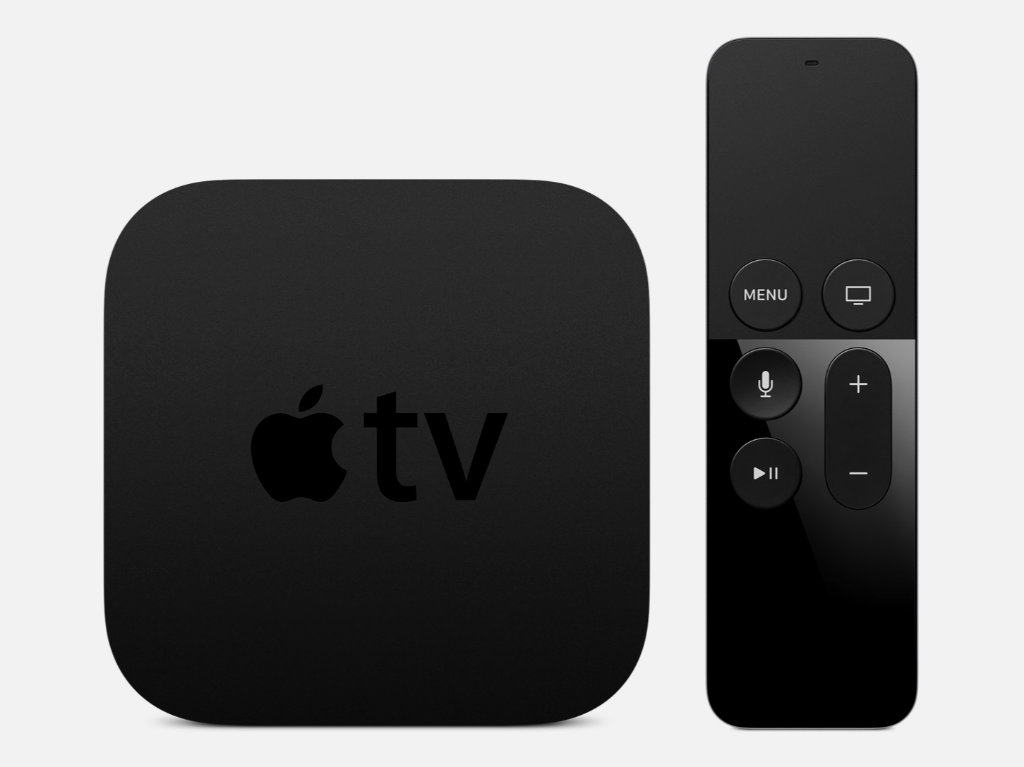
Следующим большим шагом в развитии телевизионных устройств стал релиз Apple TV 4-го поколения в 2015 году. Главным нововведением новой телевизионной приставки оказалась полноценная операционная система, которая получила имя tvOS. Именно она дала разработчикам возможность делать специальные версии своих iOS- и macOS-приложений для большого экрана, а также создавать принципиально новые программы и игры для Apple TV. В центре операционной системы оказался App Store, который открыл пользователям десятки и сотни приложений. Теперь каждое из них сражается за внимание пользователя, а не наоборот.
В конце 2017 года состоялся релиз Apple TV 4K — актуальной версии телевизионной приставки Apple, которая получила новое железо, необходимое для работы с увеличенным разрешением. Программно от Apple TV 4-го поколения она практически не отличается.
How To Move Or Delete Apps On Apple Tv
TVOS is a mobile operating system developed by Apple Inc. that is somewhat similar to iOS, so you can manage Apple TV apps according to your own preferences. You can delete or move any app. ..
Apple TV is a great device for watching TV, but it can be difficult to find the apps you need. To make it easier to understand, I’m going to show you how to move or delete apps on Apple TV.
Without further ado, let’s get started! ..
YouTube TV is a great option for cord cutters in the US. It offers a variety of channels, including many that are not available on traditional cable or satellite TV. You can also watch YouTube Red content, which is free to watch.
How To Delete Apps On Apple TV#
To delete an app from the home screen:
- Press the Menu button on your Apple TV remote and select Home Screen.
- Scroll to the bottom of the list and select an app to delete.
- Press the X button on your remote to remove the app from the home screen. To uninstall an app from your Apple TV:
- Open the Settings menu on your Apple TV by pressing the Menu button and selecting Settings from the list that appears.
- Select Manage Storage from the Settings menu, and then select an app to uninstall.
- Press the Uninstall button next to the app name to remove it from your Apple TV. ..
To delete apps from the home screen on an Apple TV, follow these steps:
Open the Settings app and select General.
Scroll down to the bottom and select Home Screen.
Tap on the three lines in the top left corner of the screen and select Delete apps from this home screen.
Tap on OK to confirm your deletion request.
Open the Settings app and tap on the General tab.
Scroll down and select “Delete apps.”
Tap on the “delete” button and confirm your deletion by tapping on the “x” in the top right corner.
The Apple TV apps will be deleted from your Home Screen and you will need to re-install them if you want them to be active again.
To delete an app on your iPhone, highlight it with the remote and press the “delete” button. ..
To access options on your TV, press the Play/Pause button on the remote.
If you’re using an Apple device, hold down on the touchpad until the app icon starts to jiggle.
The remote can be used to highlight the Delete option on the Apple TV screen. When pressed, the touchpad on the remote will also delete the video.
The deletion has been confirmed.
To delete apps from the settings app on Apple TV, follow these steps:
Open the Settings app on your Apple TV.
Scroll down to the bottom of the screen and select “Apps.”
Tap on the “delete” button to remove all of the apps from your settings app.
Open the Settings app on your Apple TV.
Select Applications from the list on the left side of the screen.
Scroll down and select the app you want to delete.
Press the red X next to the app name to delete it. ..
Scroll down to the bottom and select “Privacy.” Select “Location Services.” Select “Wake up to my current location.”
In the Storage section, you can manage your storage space and see how much space is currently available. You can also create new storage spaces and add devices to your account.
To delete an app on your iPhone or iPad:
- Locate the app you wish to remove and tap the trash can icon next to it.
- If prompted, confirm that you want to delete the app.
- The app will be deleted from your device. ..
How To Move Apps On Apple TV#
- Open the Settings app on your Apple TV.
- Under “General,” find “System Preferences.”
- Under “System Preferences,” find “App Store.”
- On the left side of the App Store window, under “TV Shows & Movies,” find and select the app you want to move. Select “Move to” and choose a new location for the app on your TV. If you want to keep the same location for all your apps, select “Keep in place.” Click on the blue arrow next to the app’s name to move it. ..
To move an app on your iPhone or iPad using Siri, first open the app you want to move and then use the Siri Remote to hover over it. Once the app is highlighted, press and hold down on the Siri Remote button until the app moves. ..
If you want to control your Apple TV from a distance, hold the Siri Remote and press and hold the touch surface of the remote until the app starts shaking.
Swipe left or right on the Siri Remote to move the app.
Touch the pad on the Siri remote to start your apps.
You can move other apps to the SD card. ..
To create a folder, you must place the icons of the apps just above each other. To do so, drag and drop the icons of the apps you want to create a folder from the left-hand side of your screen.
How To Hide Apps On Apple TV#
If you’re unhappy with the apps on your Apple TV and don’t want to delete them, you can hide them from the home screen to get a better user experience. Older Apple TVs don’t have the option to delete apps, so hiding your apps is your best option. ..
To hide an app on your home screen, press the Play/Pause button on the remote before selecting one of the applications. Then create a new folder by clicking on New Folder and then save it. In this way, you can hide any app from view.
Apple has released a new model of its Apple TV set-top box that hides certain apps from view, but does not allow users to delete them. This is in contrast to the older models, which let users hide apps and delete them. This change may make it more difficult for users to find and use specific apps. ..
To find hidden apps on your Android device, go to Settings and click “Main Menu.” There you will see all the apps you have hidden. ..
Conclusion#
If you have an Apple TV, you can move or delete apps using the following steps:
- First, open the App Store on your device.
- Scroll down to the bottom of the App Store and find the app you want to delete.
- Tap on the Delete button next to that app’s name.
- The app will be deleted from your device and will not be able to be used again until it is reinstalled from the App Store.
Please feel free to leave a comment in the below box if you have any doubts or suggestions related to this article.
Have a great day! ..
Android or iOS devices are popular among many people, and they can be used to run different applications. However, some people find that the screens on these devices are not as clear as they would like them to be. To make the screens on your Android or iOS device look better, you can use a mirroring service. This service will mirror the screen of your device onto a television or other monitor.
Instructions to Delete Apps on Apple TV

In the event that you have an application on your Apple TV that you don’t care for or never again need, you’re in karma: it’s anything but difficult to erase applications on Apple TV. All you need are a few ticks on the remote control and the application will be no more. Yet, there’s something else entirely to erasing applications on Apple TV than that. Peruse to get familiar with some valuable tips and traps.Also visit: norton.com/setup for more information about antivirus.
Instructions to Delete Apps on Apple TV From the Home Screen
Erasing Apple TV applications from the Home Screen is basic. Simply pursue these means:
1. Utilize the remote control to feature the application you need to erase.
2. Snap and hold the remote control catch until the applications on the home screen begin shaking.
3. Snap the Play/Pause catch on the remote.
4. In the menu that springs up, utilize the remote to feature the Delete alternative and after that click the remote.
5. The application is erased from your Apple TV.
Step by step instructions to Delete Apps on Apple TV From the Settings App
The pre-stacked Settings application on the Apple TV likewise gives you a chance to erase applications (you’ll most likely need this alternative in case you’re hoping to free up space by erasing applications that utilization a great deal of capacity). To utilize erase applications along these lines, pursue these means:
1. Utilize the remote control to choose the Settings application, at that point click the remote control to open the application.
2. Snap General.
3. Look down to the Usage segment and snap Manage Storage.
4. Look through the rundown of applications until you locate the one you need to erase. Ensure it’s featured.
5. Snap the remote control to choose the application you need to erase.
6. On the screen that springs up, click Delete.
7. The application is erased from your Apple TV.
Step by step instructions to Hide Apps on Apple TV
On the off chance that you need to keep an application, however just not see it on your home screen, consider concealing the application in an envelope. For guidelines on the most proficient method to make an organizer and tips on managing applications on the Apple TV, read How to Manage Apps on Apple TV.
Step by step instructions to Delete Apps on Multiple Apple TVs on the double
On the off chance that you have more than one Apple TV (fourth Gen. or then again 4K models no one but), you can set them to erase applications from all gadgets in the meantime. You simply need to utilize the One Home Screen include, which ensures the majority of your Apple TVs have the equivalent applications, organized in the sam way, on their home screen. To empower One Home Screen:
1. Open the Settings application.
2. Select Accounts.
3. Select iCloud.
4. Flip the One Home Screen choice to On.
5. Presently, whenever you roll out an improvement to the applications or design on one of your Apple TVs, the others will utilize iCloud to consequently refresh to coordinate.