Как создавать адаптивные кнопки и блоки в CSS
Основатель компании Useful Web и преподаватель «Нетологии» Владимир Языков рассказал, как создавать кнопки и блоки страниц, содержимое которых может измениться.
Обучение в онлайн-университете: курс «Старт в программировании»
Если содержимое в блоке может измениться, вместо жестких размеров блока задавайте внутренние отступы. Расскажу, как сделать так, чтобы:
- правка дополнительного содержимого не затрагивала ранее написанные стили;
- при добавлении нового содержимого макет отображался корректно.
Кнопки
Создадим кнопку общего назначения:
/* отступы между кнопками */
/* центрируем текст кнопки по вертикали */
/* центрируем текст кнопки по горизонтали */
/* чтобы работала геометрия и отступы у тега <a> */
/* убираем обводку у тега <a> */
.png)
В процессе развития проекта в элементах сайта может измениться содержимое. Это значит, что текст в кнопке «Отправить резюме» может смениться на «Отправьте нам ваше резюме», и получится вот так:
.png)
Слово «резюме» не поместилось, хотя именно из-за него и появился дополнительный отступ.
Жесткие размеры дают корректное отображение макета только здесь и сейчас.
Можно добавить более гибкую систему геометрии блочной модели, поставив значение min-width:
/* при жесткой высоте будет увеличиваться ширина */
/* … остальной код без изменения */
.png)
Мы поправили отображение, но теперь текст слишком близко к границам кнопки, поэтому нужно поставить внутренние отступы. Не забудьте вычесть их из ширины блока при box-sizing:content-box, то есть стандартном поведении элементов.
поскольку другое значение border-box не задавалось,
нужно подкорректировать размеры
/* при жесткой высоте будет увеличиваться ширина */
/* … остальной код без изменения */
.png)
Блоки страницы
При верстке посадочных страниц можно встретить блоки с большим количеством свободного пространства внутри. Пример:
.png)
Лучше всего оформить это в CSS так:
Поздравляю, вы стали обладателем квартиры в Сызрани!
/* центрируем содержимое по вертикали и горизонтали */
/* учитываем последующее добавление элементов */
Вот что у нас получилось:
.png)
Возможно, позже в этот блок понадобится добавить описание. При большом количестве текста с нашими жесткими размерами все пойдет наперекосяк:
.png)
Такое происходит при переполнении контейнера .greeting. Некоторые начинающие специалисты могут просто поставить overflow:hidden, но это не решит проблему.
Ставим min-height и отступы на случай, если содержимого станет слишком много:
/* код без изменения */
А что, если задать размеры отступов, значительно превышающие в сумме минимальную ширину или высоту?
/* тут речь идет только о box-sizing:content-box */
/* код без изменения */
Начальное поведение у элементов в обоих случаях будет одинаковым, а вот поведение при превышении минимального значения контейнера — разным.
.png)
А что там с margin’ами? Можно ли их подвязать на замену padding? Нет. Внешние отступы имеет смысл использовать, чтобы задать расстояния между несколькими логически законченными блоками. Не делайте так:
Поздравляю, вы стали обладателем квартиры в Сызрани!
И так тоже не делайте:
/* не задаём никакие отступы в родительском элементе */
/* код без изменения */
Резюме
- Для всего, что может измениться, задавайте минимальные и максимальные размеры.
- Добавляйте отступы для корректного отображения.
Уточните у дизайнера или клиента, какую часть свободного места можно отвести на отступы, оставив разницу на min-width/height.
Мнение автора и редакции может не совпадать. Хотите написать колонку для «Нетологии»? Читайте наши условия публикации. Чтобы быть в курсе всех новостей и читать новые статьи, присоединяйтесь к Телеграм-каналу Нетологии.
Расстояние между кнопками
У меня есть 2 кнопки, но у них нету расстояния между ними. Как решить эту проблему?
Расстояние между кнопками
можно ли стандартными средствами css и html, сделать так чтоб расстояние "а" между кнопками.
Расстояние между кнопками
Здравствуйте, есть проблема с кнопками, а именно расстояние между ними line-height не помогает.
 Задать расстояние между кнопками?
Подскажите как задать расстояние между кнопками не сдвигая их в лево ? Пробовала margin: 2px; но.
Расстояние и разделение между кнопками
всем привет помогите решить мою проблемку Собственно сама проблема заключается в том, что нужно.
Сообщение было отмечено vitya790 как решение
How can I make space between two buttons in same div?
What is the best way to horizontally space Bootstrap buttons?
At the moment the buttons are touching:


14 Answers 14
Put them inside btn-toolbar or some other container, not btn-group . btn-group joins them together. More info on Bootstrap documentation.
Edit: The original question was for Bootstrap 2.x, but the same is still valid for Bootstrap 3 and Bootstrap 4.
In Bootstrap 4 you will need to add appropriate margin to your groups using utility classes, such as mx-2.

Just put the buttons in a class ( ) as told by bro Miroslav Popovic.It works awesome.

You can use spacing for Bootstrap and no need for any additional CSS. Just add the classes to your buttons. This is for version 4.
What Dragan B suggested is right way to go for Bootstrap 4. I have put one example below. e.g. mr-3 is margin-right:1rem!important
p.s: in my case I wanted my buttons to be displayed to the right of the screen and hence pull-right.
you should use bootstrap v.4


The easiest way in most situations is margin.
Where you can do :
Dragan B. solution is correct. In my case I needed the buttons to be spaced vertically when stacking so I added the mb-2 property to them.
Here’s another approach based on the documentation.
I used the Bootstrap 4 buttons plugin (https://getbootstrap.com/docs/4.0/components/buttons/#button-plugin) and added the class rounded to the labels and the class mx-1 to the middle button to achieve the desired look and feel of separate radio buttons. Using the class btn-toolbar made the radio button circles appear for me which is not what I wanted. Hope this helps someone.
Another way to achieve this is to add a class .btn-space in your buttons
and define this class as follows
I actual ran into the same requirement. I simply used CSS override like this

if use Bootstrap, you can change with style like: If you want only in one page, then betwen head tags add .btn-group btn
If is for all the web site add to css file
You could also just put the two buttons in a flexbox and set the gap with css

I ended up doing something similar to what mark dibe did, but I needed to figure out the spacing for a slightly different manner.
The col-x classes in bootstrap can be an absolute lifesaver. I ended up doing something similar to this:
This allowed me to align titles and input switches in a nicely spaced manner. The same idea can be applied to the buttons and allow you to stop the buttons from touching.
(Side note: I wanted this to be a comment on the above link, but my reputation is not high enough)
How to Give Space Between Two Buttons in CSS
In this article, you will learn how to give space between two buttons with the help of CSS. But, first, learn about the margin-left and margin-right properties one by one. So, let’s start!
What is “margin-left” CSS Property?
In CSS, “margin-left” property is utilized to create space from the left side of the elements. The element will be further away from its neighbors if the value is positive, whereas it becomes closer to its neighbors if the specified value is negative.
Syntax
The syntax of the margin-left property is as follows:
In the place of “value”, set the margin you want to give to the element from the left side.
What is “margin-right” CSS Property?
The “margin-right” property of CSS is utilized to create space from the right side of the element. It positions the margin area on the element’s right side. The default value of the margin-right property is set as zero; however, you can specify both positive and negative values for it.
Syntax
The syntax of the margin-right property is given below:
Place the “value” which you want to set as the margin from the right side of the element.
How to Give Space Between Two Buttons?
You can create space between two buttons using the “margin-left” and “margin-right” properties. To do so, in the HTML section, we will add a heading using <h1> and create two buttons with the class name “btn1” and “btn2”, respectively.
HTML
< h1 > Create Space Between Two Buttons< / h1 >
The default outcome of the given code is:
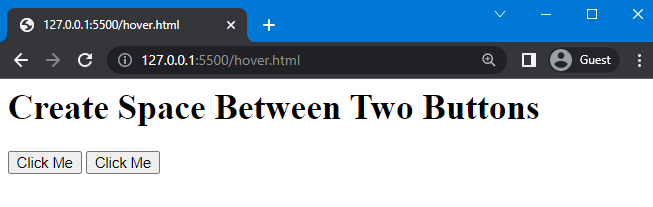
Now, move to the CSS to create space between these two buttons.
Example 1: Giving Space Between Two Buttons Using margin-right Property
Here, use “.btn1” to access the first button added in the HTML and set the value of the margin-right property as “100px”.
CSS
As you can see, space is created on the right side of the first button:
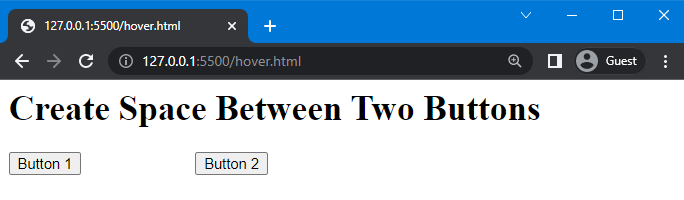
In the next example, we will use the “margin-left” property to create space between two buttons.
Example 2: Giving Space Between Two Buttons Using margin-left Property
We will use “.btn2” to access the second button created in the HTML file and assign the value of the margin-left property as “50px”:
Upon doing so, space is created left side of the second button which can be seen below:
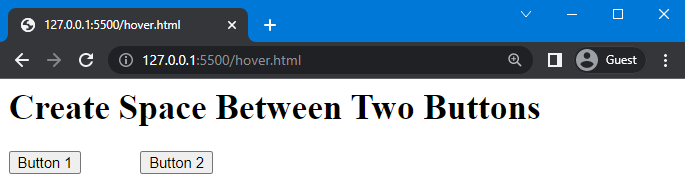
Want to use both properties at once? Check out the next example!
Example 3: Giving Space Between Two Buttons Using margin-left and margin-right Properties
You can also set the margin of both buttons to give space between them. To do so, we will create space from right side of the first button and from the left side of the second button using margin-right and margin-left properties, respectively:
Output

We have provided the simplest method related to giving space between two buttons in CSS.
Conclusion
“margin-left” and “margin-right” properties of CSS are used to give space between two buttons. Using this, you can adjust the space from the right and left sides of the buttons. In this article, we have explained how to give space between two buttons using two different methods and provided examples for each of them.
About the author

Sharqa Hameed
I am a Linux enthusiast, I love to read Every Linux blog on the internet. I hold masters degree in computer science and am passionate about learning and teaching.