Как убрать черные полосы в Apex Legends
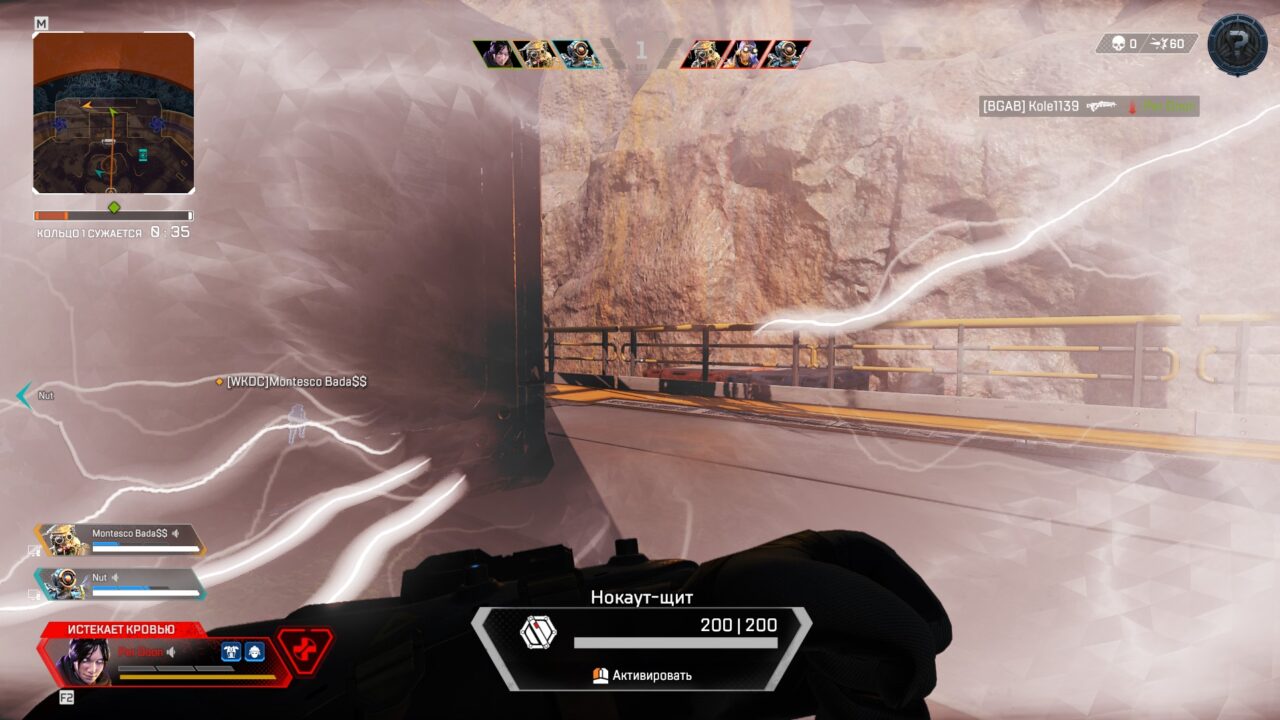
Некоторые игроки сталкиваются с проблемой черных полос в Apex Legends. Рассказываем, откуда они берутся. Объясняем, как проще всего убрать черные полосы в Apex Legends.
Природа черных полос
Apex – стабильная игра с лояльными системными требованиями. Однако некоторые запускают ее на откровенно слабом железе, которое не тянет даже скромную графику этого баттлрояля на минимальных настройках. Раз уж графика выставлена на минимум, а FPS все равно на нуле, остается только одно – понизить разрешение в игре.
Вот тут-то и начинаются проблемы. Например, если мы выставим разрешение для квадратного монитора (1280х800), увидим вот такое:
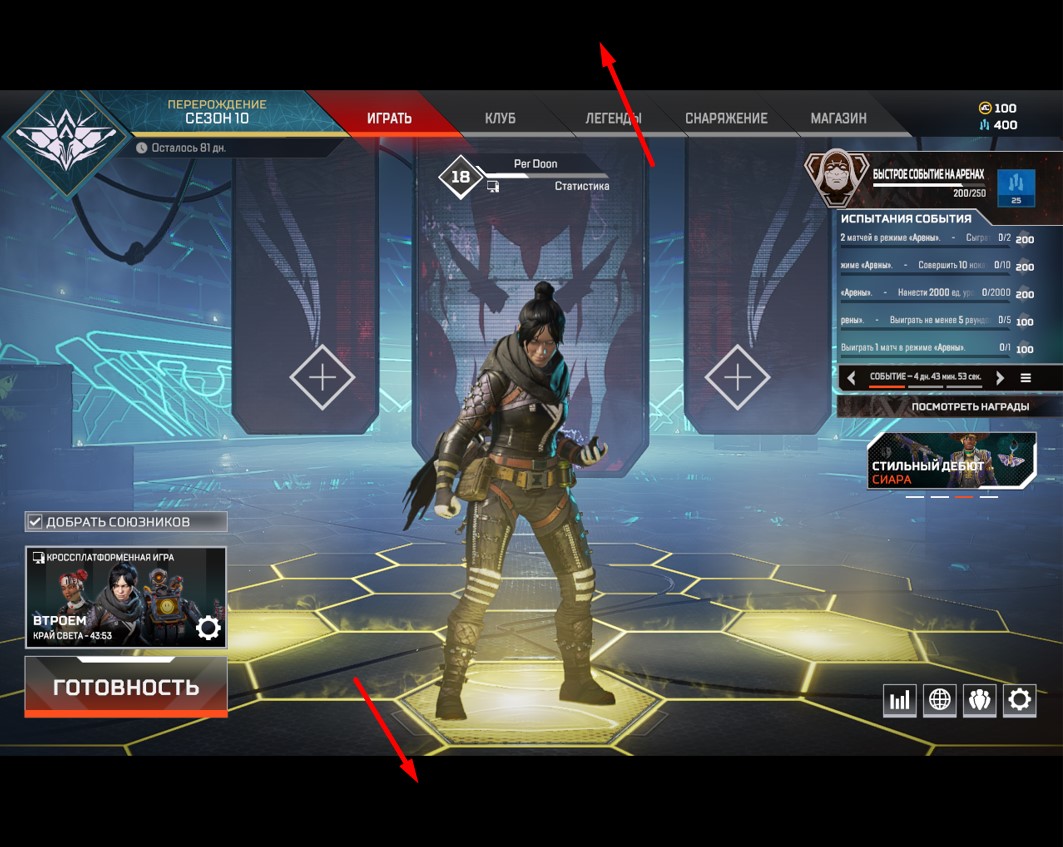
Несложно заметить, что вверху и внизу экрана по широкой черной полосе. Конечно, в этом есть и свой плюс. Картинка приобретает соотношение сторон 4:3, головы противников становятся крупнее и по ним легче попасть. Но для большинства игроков играть с такими полосами будет неприятно. Поэтому они хотят их убрать. Но не знают как.
Плохой сценарий – артефакты
Полосы могут появиться не только из-за неправильно выбранного разрешения. Возможна и другая причина – проблемы с видеокартой. Чтобы проверить, есть ли они, делаем следующее:
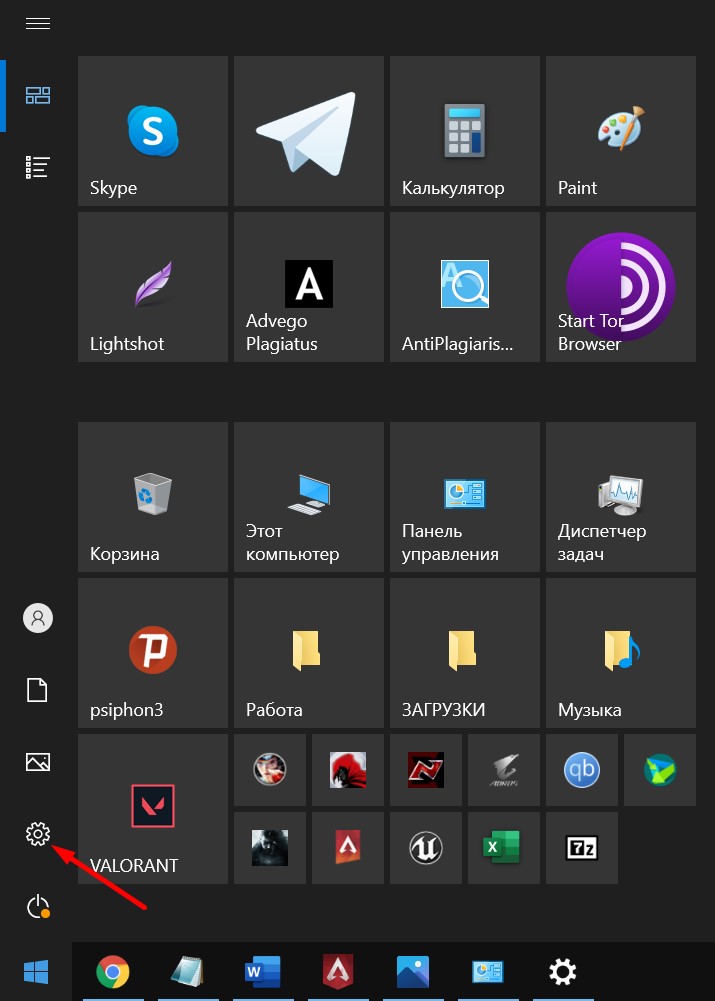
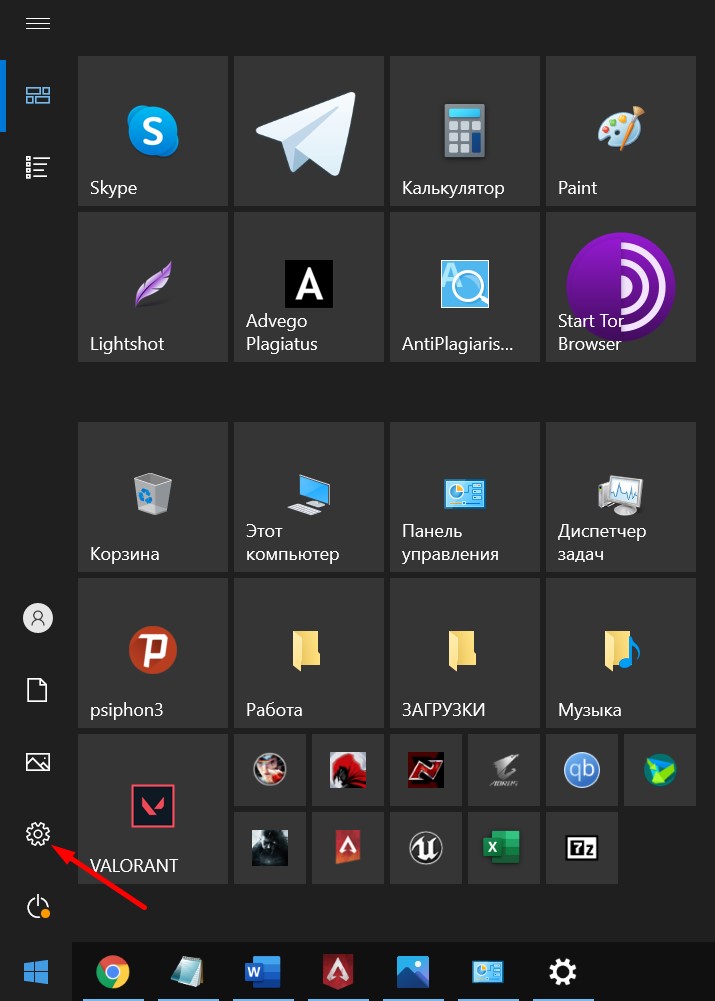
- Открываем настройки через меню « Пуск »;
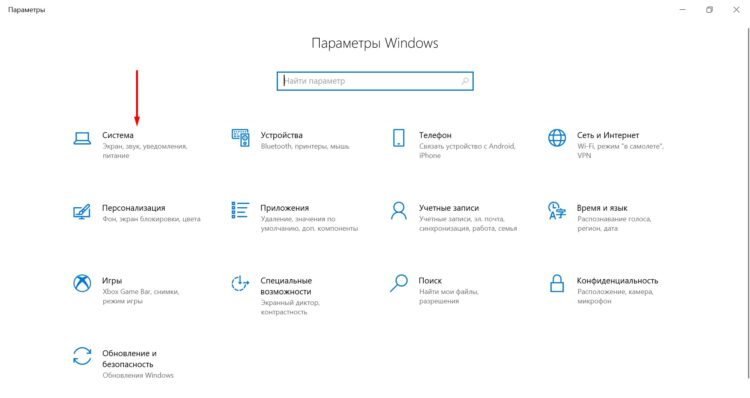
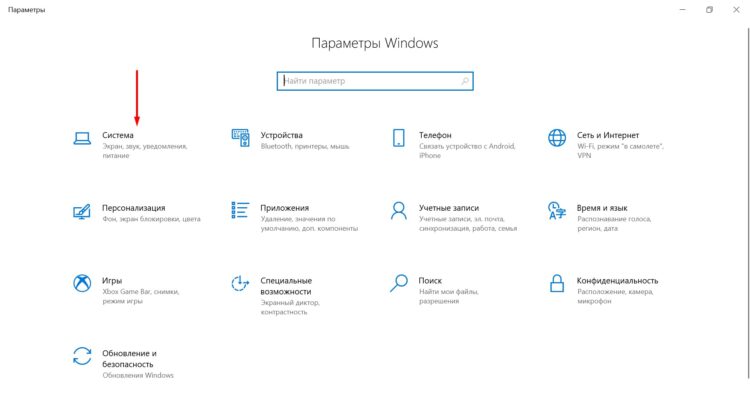
- Выбираем « Система »;
- Переходим на вкладку « О программе » и открываем Диспетчер устройств ;
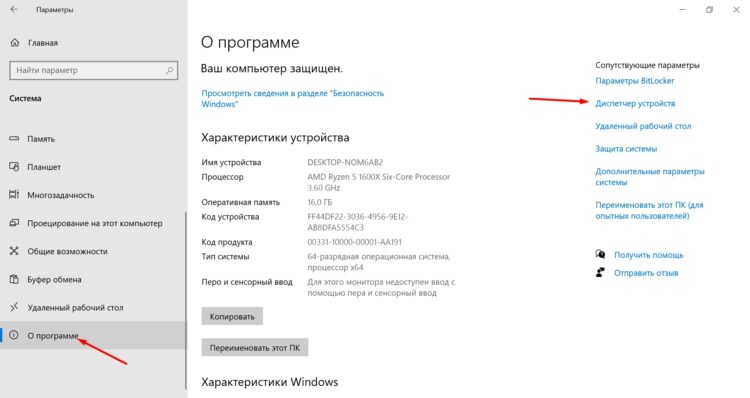
- там находим видеокарту и дважды кликаем на нее.
Если все в порядке, в появившемся окне должна быть надпись « Устройство работает нормально ».
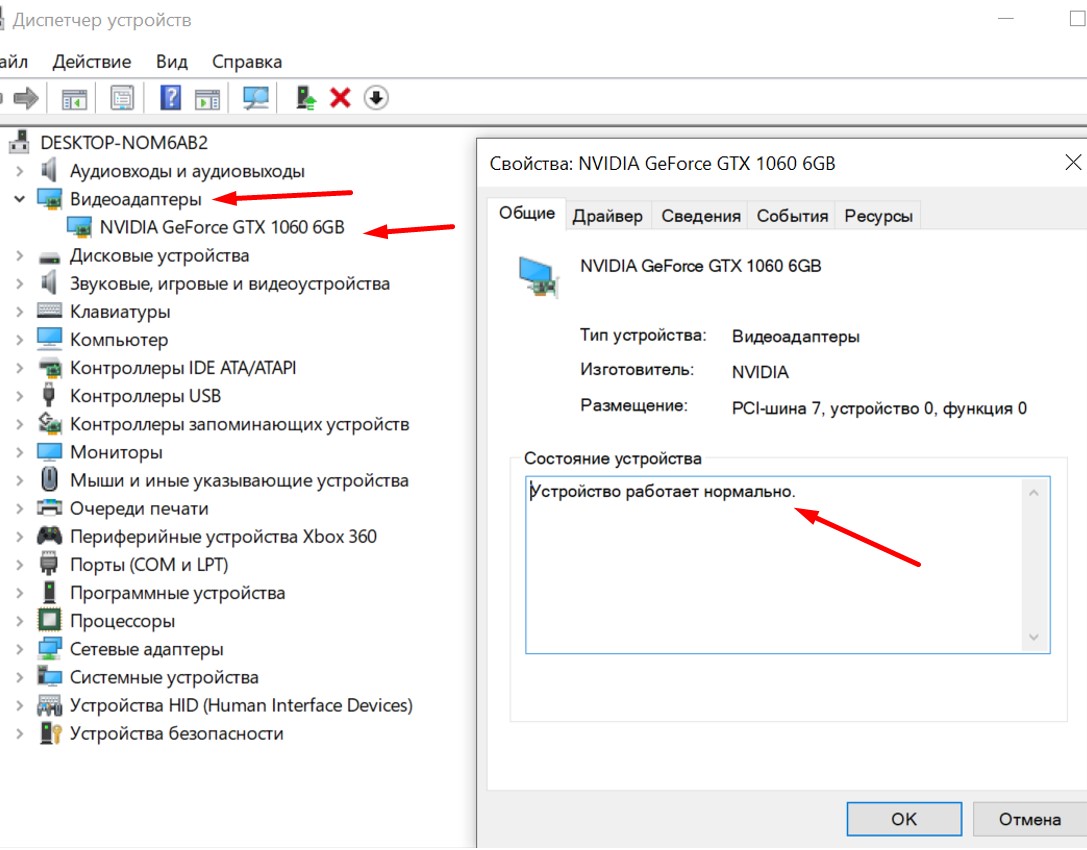
Если адаптер сломался, вы увидите надпись « Ошибка 43 ». Увы, в этом случае придется отдавать карту в ремонт или менять на новую. Ведь самая распространенная причина артефактов – отвал графического чипа, и собственными силами его устранить невозможно (а в некоторых случаях вообще невозможно).
Убираем полосы
Есть два способа убрать полосы: через настройки и через софт видеокарты. Предупреждаем: второй метод подойдет только для владельцев nVidia. На AMD его тоже можно использовать, но не в полной мере – у радеоновского ПО нет некоторых функций.
Через настройки Windows
- Открываем настройки через меню « Пуск »;
- Переходим в раздел « Система »;
- Открываем вкладку « Дисплей »;
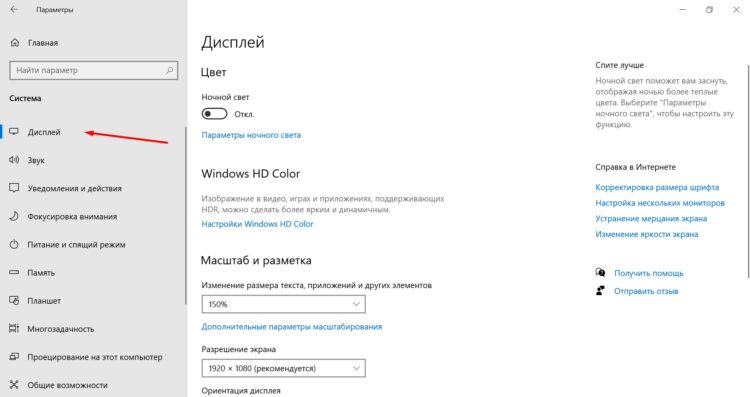
- Жмем на разрешение и выбираем нужное.
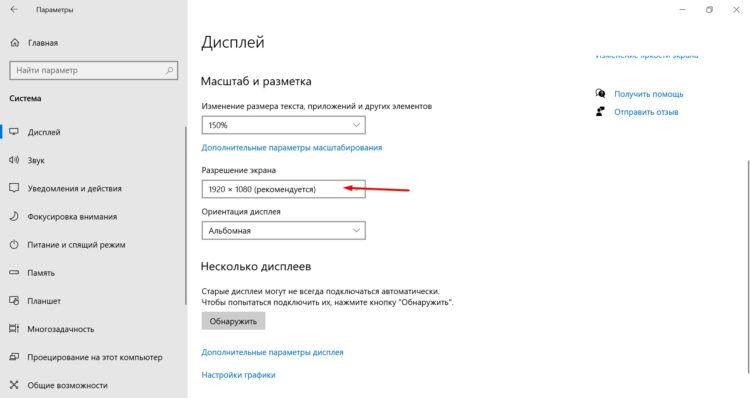
Разрешение должно быть таким же, как в игре! Например, если там поставили 1720х800, здесь выставляем столько же. Иначе полосы никуда не исчезнут.
Через софт видеокарты
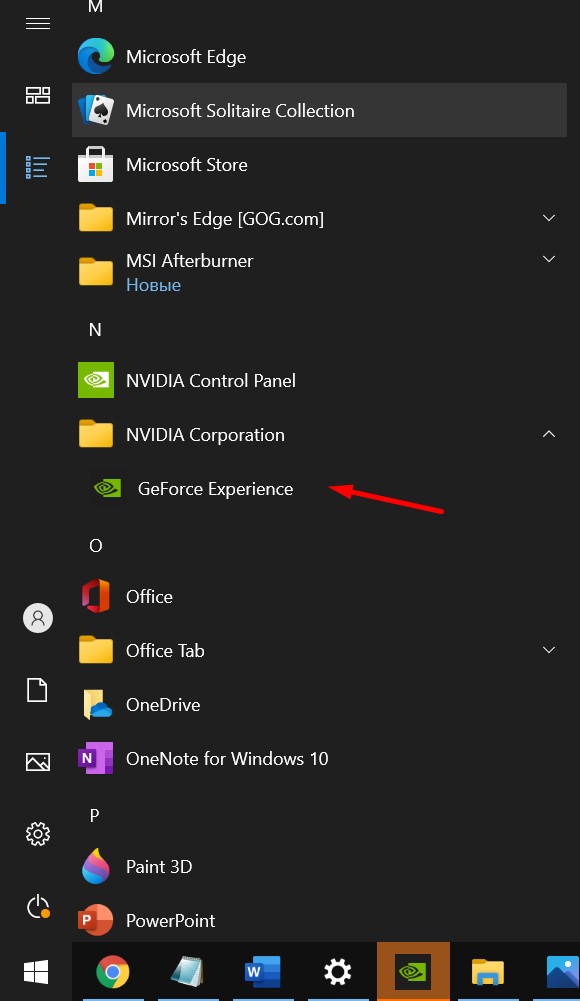
- В меню « Пуск » находим nVidia GeForce Experience
- На главной странице в блоке « Игры » находим Apex, наводим на него мышь и жмем « Подробнее »;
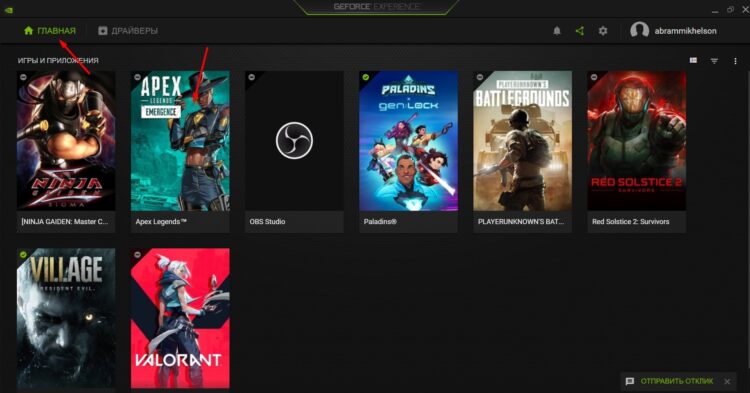
- Кликаем по значку гаечного ключа;
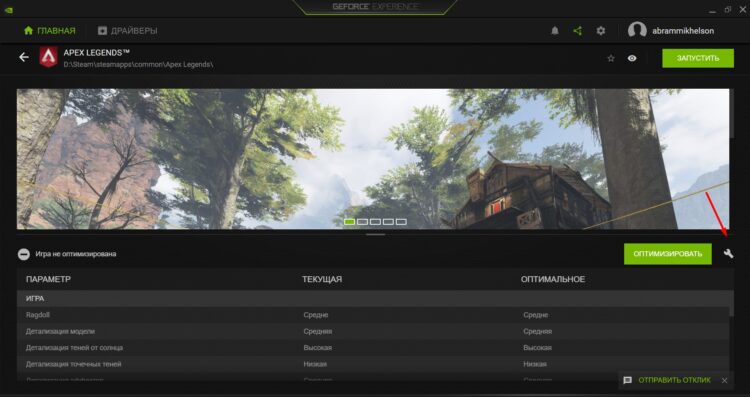
- Выбираем нужное разрешение и сохраняем изменения.
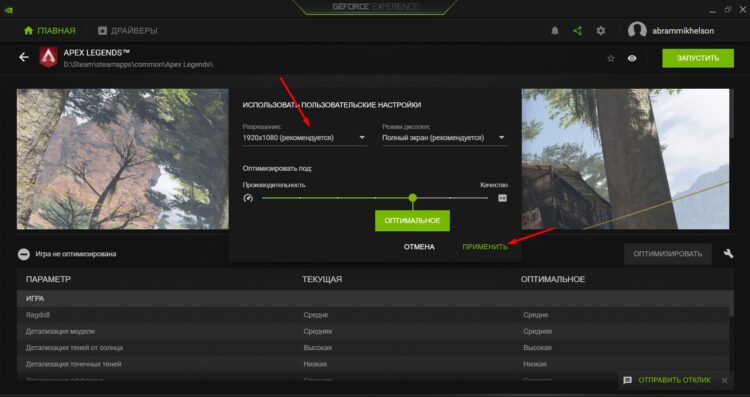
Способ имеет обратную сторону медали. При выборе некоторых разрешений игра не запустится . Каких именно, зависит от модели видеокарты и версии драйверов.
Кстати, настройки nVidia позволяют менять и общее разрешение системного монитора. Это делается через программу nVidia Control Panel.
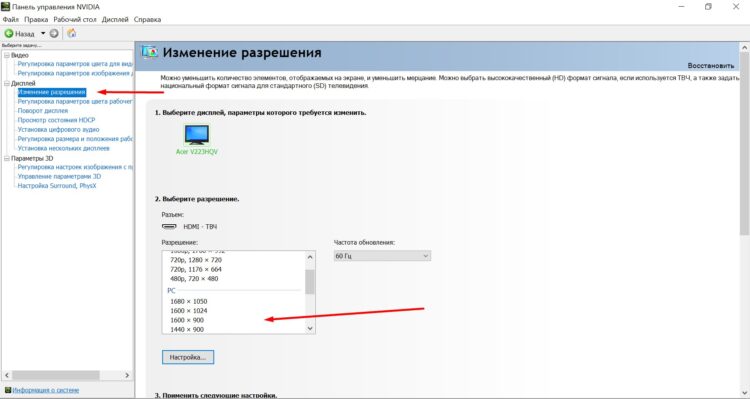
Аналогичная функция есть и у софта AMD Radeon PRO Software. Но разрешение внутри игры он менять не может, только общее в системе.
Подведем итоги
Черные полосы в Apex Legends чаще всего появляются в результате несовпадения разрешения системы и игры. В этом случае достаточно изменить системное разрешение через настройки Windows или софт видеокарты. Владельцы nVidia могут попробовать изменить разрешение внутри игры через GeForce Experience, но это не всегда помогает. Еще полосы могут быть вызваны артефактами. Это уже плохой вариант развития событий – скорее всего, вышло из строя железо. В такой ситуации надо нести видеокарту в ремонт или менять ее на другую.
Как сделать 4 на 3 в Апекс без черных полос
Многие игроки интересуются, как сделать разрешение в соотношении 4 на 3 так, чтобы не было черных полос. Мы расскажем об одном способе, однако его придется делать строго по методичке.
Через настройки игры
На самом деле это не совсем просто. Сперва нам нужно зайти по такому алгоритму в папку игры:
- Диск C.
- Пользователи.
- Выбираем своего пользователя.
- Далее кликаем на «Сохраненные игры».
- Теперь переходим в Respawn.
- Теперь в Apex Legends.
- Кликаем на Local.
- Переходим в файл videoconfig.
- Находим там 4 строчки:
- «setting.fullscreen» «0»
- «setting.defaultres» «1280»
- «setting.defaultresheight» «1024»
- «setting.nowindowborder» «1«»
Ставим в нем такие настройки.
 Настройки для 4 на 3 Apex Legends
 Теперь закрываем документ и кликаем по файлу правой кнопкой мыши, переходя в свойства. Там в самом низу видим «Атрибуты», где будет «Только чтение». Ставим галочку (до этого её быть не должно).
Теперь заходим в параметры запуска Steam или Origin и вводим следующие команды (можно просто скопировать, чтобы не нарушать синтаксис).
+mat_letterbox_aspect_goal 0 +mat_letterbox_aspect_threshold 0 +building_cubemaps «1»
Кликаем по пустому месту в параметрах запуска, закрываем окно и открываем панель управления NVIDIA. Меняем в нем разрешение экрана на 1080 на 1024. Запускаем игру.
 Если вы всё сделали правильно, то выглядеть оно будет так
 Но прежде, чем снова запускать игру и искать новый гайд, зайдите на стрельбище и убедитесь, что 4 на 3 работает, а выставленное разрешение именно такое, которое вам нужно. Дело в том, что нижняя и верхняя полоса как бы растянулись и фактически они не присутствуют в игре, но отображают происходящее на экране. Сложная система, но она работает. Правда, с инвентарем будет не очень удобно. Можете проверить…
Как растянуть экран в апекс
Reddit and its partners use cookies and similar technologies to provide you with a better experience.
By accepting all cookies, you agree to our use of cookies to deliver and maintain our services and site, improve the quality of Reddit, personalize Reddit content and advertising, and measure the effectiveness of advertising.
By rejecting non-essential cookies, Reddit may still use certain cookies to ensure the proper functionality of our platform.
For more information, please see our Cookie Notice and our Privacy Policy .
Get the Reddit app
Community run, developer supported subreddit dedicated to Apex Legends by Respawn Entertainment.
Before I start I just wanted to say that im not sure if a post for this already exists on r/apexlegends but i could not find any and so i'd like to share what i know with you.
Skip to part 2 if you already have a autoexec. If you do not now what that is follow the tutorial normally.
First of all head into your Apex Legends Directory (you can do that by pressing the windows menu button on your keyboard, entering Apex Legends, right clicking it, then in the small menu selecting the second option that should bring you into the folder where the shortcut for Apex Legends is, then again you right click Apex Legends in the folder that opened and you do the same (right-click and choose the option to open the folder in which the exe originates).
In the Apex Legends folder open the folder cfg. Then copy the file thats called "config_default_pc.cfg" (it doesnt matter if theres no ".cfg" at the end of it. Then rename the file to autoexec.cfg. Now right click and open with editor or any other program such as notepad++
Open your autoexec.cfg and copy paste the following:
THIS SHOULD ONLY WORK WITH 1440×1080 AND 1280×960 IN FULLSCREEN
USE THIS IF YOU'RE GOING TO PLAY 1280×1024
u/iBuchery found the numbers for this res thank u.
FOR ANY OTHER RESOLUTIONS:
Divide the first number of your resolution by your second number (width / height) for example
1280 / 1024 = 1.25
Then replace the number in the autoexec u/xzst2b noticed this
Go into your Origin library (the game has to be closed) right click on Apex Legends and select Properties. Now in the second tab under your language you are able to set launch-options. Paste "+exec autoexec" (without the " "). Startup your game and set it to 4:3
Apex Legends – How To Play Stretched 4:3 without Black Bars
As you guys may already know, Apex Legends patches are the only method to play stretched way back in 2020. Now the question arises if you can even play the game at 4:3 without black bars? Well, the answer is “Yes”. I will show you how to do that in this guide.

How To Play Apex Legends in 4:3 Streched without Black Bars
Before starting the actual settings to make the game run in Stretched, you need to make some changes in the NVIDIA Control Panel. Let’s take a look at that first:
NVIDIA Control Panel Setup
From the main home screen, Right-Click and open NVIDIA Control Panel. Now Go over to the “Change Resolution” option and do the following:
- Click on Customize option from the right side tab.
- Now create a custom resolution for yourself.
- If you want to play on 1440 x 1080, change the current resolution to these values.
- In the refresh rate slot, make sure to put your monitors’ native refresh rate.
- Now simply click on the test if you want to test that.
- Once you are happy with the settings click save and you are done with NVIDIA Control panel settings.

Tweaking Video Files (Saved Games)
Go to your windows search bar and type “Saved Games”. Open the folder that pops up with this name.
- Go to “Respawn”
- Select Apex
- Go over to “Local”
- Finally, select “Videoconfig”

Look for a parameter called “setting.defaultres” and “setting.defaultresheight”. Change these values to 1440 x 1080 from the current one, respectively. NOTE: Make sure to take a backup of this file before editing anything here. In case of any issues, simply replace this file with the original one.
Before making any changes to this, go to properties for this file, and make sure to uncheck “Read Only”. Save the file, go back to this option and check “Read Only” again. If done correctly, that would be all you need to do here.
Adding Apex Legends Launch Options To Steam/Origin
Now you would want to open up origin/Steam (Mine is on steam). Right-Click on Apex Legends and select properties. In the empty field of launch commands: copy-paste the following:
- +mat_letterbox_aspect_goal 0 +mat_letterbox_aspect_threshold 0 +building_cubemaps «1»

After you do this, go to NVIDIA Control Panel again and do the following:
- Select Adjust Desktop Size and Position.
- Go to Scaling and Put it on “Fullscreen”.
- Put the “Performance Scaling” to “GPU”.
- Check the box “Override the scaling mode set by games and programs”.
The Final Step
This is the most important step to this method so follow this one carefully.
- First, launch Apex Legends and let it startup.
- Press ALT+Tab to bring your desktop in front. if you see that the toolbar color is more vibrant, then you are certain that the game is “Tabbed Out”.
- Now simply open the NVIDIA Control Panel > Select your Custom Resolution that you made > Hit Apply.
- Finally, press ALT+Enter while inside the game and let the game adjust the resolution.
If you have done it the way I explained, Apex Legends should now appear to be fully stretched out with any vertical or horizontal black bars.
Take Note: You have to do this every time you open the game (Only the final step!)
If you face any issues during the entire process of this, revert back to the original and start again if you feel like doing so. Since this is an advanced method, I highly recommend that you do this at your own risk, and after taking all the backups of your settings.
You can follow us on Twitter and drop a like on Facebook to get the latest update on guides for Mobile Games, PC Games, Fixes, and Settings.
I also have a YouTube channel where I upload the latest gaming content for PC and Android. Feel free to check that out at your own leisure. Got specific suggestions? You can submit them here. Thanks for reading!

A computer science graduate by qualification, Zoid loves to keep himself updated with the latest gaming content related to PC, Android, and other platforms as well. Likes to keep his diet and health in check from time to time!