How to Add a GIF to OBS
If you’re a content creator using OBS (Open Broadcaster Software), you may want to add captivating animated GIFs to your scenes. GIFs can add an extra level of engagement and visual appeal to your content. In this comprehensive guide, we’ll walk you through the step-by-step process of adding a GIF to OBS. Let’s dive in and elevate your content creation game!
Step 1: Prepare Your GIF
Before adding a GIF to OBS, you’ll need to have the GIF file ready. Here’s what you can do:
- Find or Create a GIF: You can search for GIFs on platforms like Giphy or create your own using online tools or software.
- Download the GIF: Once you have selected or created the desired GIF, download it to your computer. Remember the location where you save it.
Step 2: Set Up OBS
Ensure OBS is set up and ready to go. If you haven’t installed OBS yet, visit the official OBS website and download the appropriate version for your operating system. Once installed, open OBS and follow these steps:
- Create a Scene: In the Scenes panel, click on the «+» button to create a new scene. Give it a name that reflects the content or purpose of the scene.
- Add a Source: In the Sources panel, click on the «+» button. Select «Image» from the menu. Give it a name and click «OK.»
- Select the GIF: In the properties window of the Image source, click on the «Browse» button next to the Image File field. Locate and select the downloaded GIF file.
- Adjust Settings: Customize the properties of the GIF source, such as positioning, size, and visibility. You can also set the GIF to loop or play once.
- Preview and Adjust: Use the Preview function to see how the GIF looks within your scene. Make any necessary adjustments to its placement or properties.
- Apply and Repeat: Once you’re satisfied with the placement and appearance of the GIF, click «OK» to apply the changes.
Step 3: Fine-tune the Scene
To ensure a seamless integration of the GIF into your scene, consider these additional steps:
- Layering: Adjust the order of your sources within the scene by dragging and dropping them in the Sources panel. This helps determine how the GIF interacts with other elements in the scene.
- Scene Transitions: Set up scene transitions to smoothly switch between scenes where the GIF is present. This adds a professional touch to your content.
- Save and Reuse: Once you have successfully added the GIF to OBS, save the scene as a separate profile or scene collection for future use. This way, you can quickly access and reuse the GIF in different streams or recordings.
Conclusion
In conclusion, adding a GIF to OBS can elevate your content creation by adding an engaging visual element to your scenes. By following the step-by-step guide, you can seamlessly integrate captivating animated images into your content and captivate your audience. Experiment with different GIFs, customize their properties, and let your creativity shine in your OBS-powered streams and recordings.
Frequently Asked Questions (FAQs)
Can I use any GIF with OBS?
Yes, you can use any GIF that is compatible with OBS. Ensure you have the rights to use the GIF, or consider using royalty-free or creative commons GIFs.
How do I adjust the size and position of the GIF in OBS?
In the properties of the Image source, you can adjust the width, height, and position of the GIF by dragging the edges or using numerical values.
Can I use a GIF overlay on a live stream in OBS?
Yes, you can use a GIF overlay on a live stream in OBS. Set up the GIF as a source and position it accordingly within your scene.
Can I use transparent GIFs in OBS?
Yes, OBS supports transparent GIFs. If your GIF has transparency, it will appear without a background when added to OBS.
Can I add multiple GIFs to the same scene in OBS?
Yes, you can add multiple GIFs to the same scene in OBS. Add each GIF as a separate source, and adjust their properties and positions accordingly.
Как добавить анимацию в OBS
Продолжаем тему самых нужных приколов OBS. В прошлой статье мы рассмотрели создание сцен ожидания. Сегодня расскажем, как добавить изображения или медиафайлы в картинку прямой трансляции. В том числе при помощи горячих клавиш. Спойлер: взламывать Пентагон не потребуется.
 За 5000 токенов в тебя полетит 5000 гифок с хуями
ЗАЧЕМ?
Очередной способ разнообразить шоу, пиарить свои социальные сети и усилить эффект фразы "спасибо, что типнул", ведь мембер хочет быть особенным. При помощи описанного ниже маневра можно наложить на картинку стрима свои никнеймы в социальных сетях, уровни ловенса, падающие лепестки роз или милого котика в уголочке. Ваша фантазия здесь безгранична. Более того, можно контролировать появление изображений и медиафайлов на стриме при помощи горячих клавиш. Например, вам типнули 10000 токенов и вы жмете на горячую клавишу, при использовании которой на экране появляется милая гифка с взрывом из сердечек и крутящейся надписью "WOOOW XOXOX LOVE U BBY YOU'RE THE BEST I HAVE A CRUSH ON YOU KEEP GOIN' DADDY YEAAAAAH OMG))))))0000)))))". Понятно, что надписи должны быть короткими и лаконичными (а не как в примере выше). Достаточно выбрать стандартный набор фраз с благодарностями, поцелуями и прочими милостями.
Ш@ЙТАN_М@ШИНА tipped 1 token
Схема проста. Заходим в сцену непосредственно картинки стрима OBS. Далее плюсиком добавляем в источники "источник медиа" (если это медиафайл, например, видео или гифка), или "изображение" (если это обычное статичное изображение), или вообще что угодно (например, тупо текст). Даем выбранному источнику угодное нам название, нажимаем "ОК", после чего появится следующее окошко, где надо выбрать "Обзор". Там выбираем картинку, скажем, гифку "thank you!". Для медиафайлов не забываем нажимать кнопку "Повтор" под строкой с локальными файлами, чтобы видео или гифка зациклились и не исчезали после первого раза. Сохраняем. В картинке стрима появится этот медиафайл. Можно изменить его размер и местоположение на экране. Настраиваем их положение и переходим к горячим клавишам.
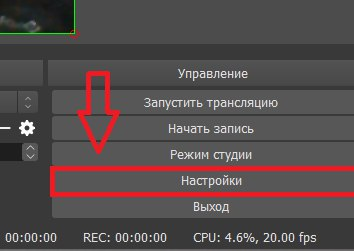 Сначала сюда
 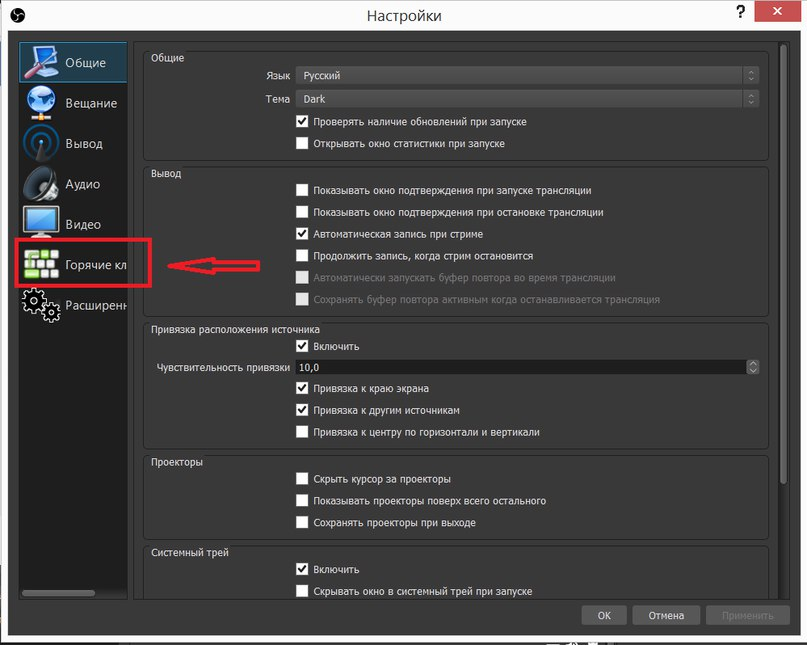 А потом сюда
 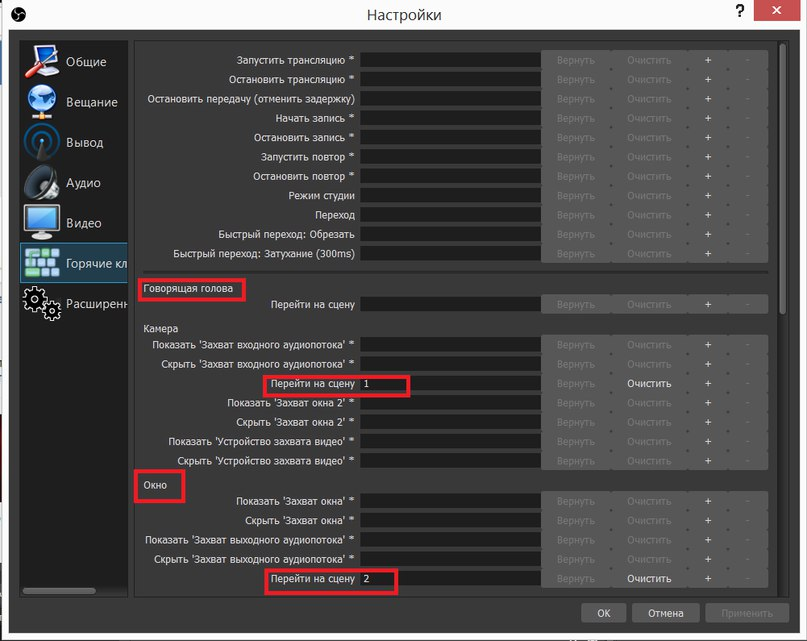 А теперь туда
ГОРЯЧИЕ КЛАВИШИ?
Да-да, мать, ты почти хакер. Горячие клавиши нужны, чтобы нажатием одной кнопки выводить картиночку на исходное положение, а нажатием второй скрывать ее. Это можно сделать и при помощи "глазика" рядом с названием нужного источника. Однако клавиши ускоряют и упрощают процесс. После того, как мы добавили все нужные нам источники, переходим в нижний правый угол, а именно в колонку "Управление". Заходим там в "Настройки", затем слева ищем крупную вкладку "Горячие клавиши". Нажимаем и ищем название нужной сцены и нужного источника. Для каждого источника надо вбить две клавиши: одна для показа источника на стриме, другая для скрытия. Например, для первой команды можно вбить единицу, а для второй — двойку. Так для каждого источника, который должен появляться или скрываться по вашей команде, должен быть свой набор из двух горячих клавиш. Настраиваем, сохраняем. Готовченко! Теперь ваш стрим стал еще краше, а мембер с ником ПеРеПykeR — довольнее.
How do I add a GIF to OBS?
as well, How do I add animated starting soon screen to OBS?
How do you make a GIF transparent in OBS?
So, How do you put a GIF on a stream?
Where can I get free overlays for OBS?
How do I get those free OBS Overlays for my Stream?
- Visit our website www.own3d.pro.
- Register on OWN3D Pro and choose the free plan.
- Install OBS and our OWN3D Pro Plugin.
- Open OBS and install the available free OBS Overlays with a simple Click.
- Set up your Overlay and start your Stream as per usual!
Is OBS or Streamlabs better for streaming?
If you are a professional who doesn’t need any bells & whistles and mainly focuses on the performance, OBS is the one for you. However, for those who are into gaming and other fun streams, the Streamlabs version is the one to go for.
Can I use Streamlabs overlays on OBS?
Only Streamlabs OBS can make use of the . overlay file. If you’re using streaming software other than Streamlabs OBS, please follow the steps in the section that represents your streaming software. Extract the files you’ve downloaded onto your computer.
How do I make an animated screen?
How do you make animated streaming start soon?
How do you upload a start soon screen on Twitch?
To add your starting soon video to a Scene (with it selected) right-click on Sources and choose Media Source from the options. You’ll be asked to create or select your Source. Since we’re adding a new one, you’ll click Create New and give it a title—I’ve called it ‘starting soon’.
How do I make a transparent overlay in OBS?
How to Create a Transparent Overlay in Photoshop
- Double-click the layer containing the duplicated layer in Photoshop’s “Layers” palette.
- Go to the “Color Overlay” section on the right.
- Move the “Opacity” slider (at the top of the “Layers” palette”) from “100%” to the transparency level you wish to set.
How do you add an overlay to a GIF?
Add a GIF over a still image.
To make GIFs overlay images, the process is nearly the same. Just make sure the GIF has a transparent background so it can appear with the image behind it. Then add the still image to your Layers panel below the grouped GIF image, and it will appear behind the GIF.
Does OBS support APNG?
apng, which does support full alpha channel gradient transparency, but is not an accepted standard. I believe OBS Studio does support APNG playback, but is limited in file-size (uncompressed full frames filesize, that is).
How do you add GIFs to Streamlabs OBS?
- Login to your dashboard here: https://streamlabs.com/dashboard.
- On the left side, under the Essentials tab, click Alert Box.
- Select the alert type that you want to add your GIF to.
- Scroll down to find the Image option, then click the Select Image found on the far right of the image box.
Is OWN3D Pro free?
The entire functionality of OWN3D Pro is available to you for a small monthly fee. You have three options to choose from a 1-month, 3-month or annual subscription. If you choose a 1-month subscription, the cost is 10,99€ per month.
Is OWN3D free?
We have made OWN3D the number one source for free and premium designs, overlays, alerts, panels and much more for streamers on Twitch, YouTube, Facebook and other platforms.
Is Streamlabs prime worth it?
Yes, Streamlabs Prime is absolutely worth it because for a small fee you get access to hundreds of custom overlays, unique alerts, access to all apps in the Streamlabs app store, the ability to multi-stream and more.
How much RAM do you need for OBS?
OBS has the following system requirements: Compatible with Windows, Mac, and Linux. AMD FX series or Intel i5 2000-series processor (dual or 4-core preferable) or higher DirectX 10 capable graphics card. At least 4 GB of RAM (recommended, but not necessary)
Is XSplit better than OBS?
Xsplit offers an easy and very straight forward kind of setup. You will find its default program extremely easy but users need to work on other settings like tweek resolution etc to get better results. When compared with OBS, the powerful in-game overlays are an advantage for xSplit platform as it initiates easy chats.
Is Twitch studio better than OBS?
Is Twitch Studio Better than OBS Studio? OBS Studio has a significant learning curve for those who just entered the world of broadcasting videos. While on the other hand, Twitch Studio is primarily developed for less technical users. Thus, it offers a simple and intuitive interface.
What company owns Streamlabs?
Logitech has agreed to acquire Streamlabs, which makes the popular live streaming app Streamlabs OBS, for approximately $89 million in cash.
Is StreamElements better than Streamlabs?
Streamelements is a little different from Streamlabs as it is essentially a plugin for OBS studio known as OBS. live. Like Streamlabs, with Streamelements you can connect the chatbot to your stream for moderation, timers, or even call to action commands like ! StreamScheme.
Are Streamlabs free?
We should mention upfront that both Streamlabs OBS and OBS Studio are free to use. You don’t have to pay a single cent to install these applications and start live streaming immediately.
Три популярные фишки в ОБС
Точно также можно добавить текст, картинку в картинке (например, демонстрировать свой браузер) или просто вторую камеру. Можно добавить сразу несколько гифок и нажать на «глазок», чтобы скрыть некоторые из них. А когда будет нужно осуществить заставку — открываем тот же самый «глазок», — и вуаля! Именно с помощью этого инструмента некоторые модели добавляют в трансляцию заставку BRB (скоро вернусь), когда уходят на перерыв.
Сами гифки можно брать здесь: https://gifer.com/ru
2. Как транслировать музыку в хорошем качестве
Многие задаются вопросом, а почему у той модели звук такой четкий, словно прям с компа, а у меня шумы? Неужели нужен новый микрофон? На самом деле, не нужен, и все это — программные настройки. Переходим в Захват выходного аудиопотока:
Выбираем источник воспроизведения, куда идёт звук. Это могут быть наушники или колонки. Причём физически колонки могут быть выключены, а мембер всё равно будет слышать музыку и звуки, которые воспроизводит ваш компуктер:
Если сделали всё правильно, у вас появится звуковая шкала в микшере, с названием аудиопотока. Если зеленая линия дёргается в такт музыке, значит всё отлично! Все, что вам остается сделать — настроить ползунки на синей линии нашей музыки и нашего микрофона, чтобы и музыка была хороша, и вас при этом не заглушала:
3. Как установить Lovense OBS Toolset
Шо это за зверь? Это вывод вашего устройства от Lovense на экран ОБС. Когда пользователи типают, она делает достаточно прикольную анимацию. Плюс, это отличный способ убрать из чата бот для Лаша (или другой игрушки), чтобы освободить место под что-то новенькое, так как все необходимое пользователь будет видеть прям на вашем изображении!
Как это выглядит:
Туда же можно добавить бегущую строку и best tippers (список тех, кто вам больше всего донатил). Как всю эту красоту настраивать, читайте на официальном сайте .