How to Change Color Mode in Adobe Illustrator
When I was working for an event & expo company, I had to do a lot of both digital and print design, therefore, I had to switch between color modes quite often, especially RGB and CMYK.
Luckily, Adobe Illustrator has made it pretty easy and you can change color mode in different settings. Whether you want to change the color mode to CMYK print your artwork, or want to input the hex code you already have for the color, you’ll find the way.
In this article, I’d like to share with you three common methods to change color mode in Adobe Illustrator, including the document color mode, object color mode, and color panel color mode.
Sounds good? Follow along.
Table of Contents
3 Ways to Change Color Mode in Adobe Illustrator
You can change the document color mode to CMYK/RGB and you have several options if you want to change the color panel color mode or the object color mode.
Note: all screenshots are taken from Adobe Illustrator CC Mac version. Windows or other versions can look different.
Method 1: Change Document Color Mode
There are only two options for the document color mode, CMYK and RGB. You can quickly change it from the overhead menu File > Document Color Mode, and select the option you need.

Tip: If you need to print your artwork, it’s highly recommended to change the document color mode to CMYK.
Method 2: Change Color panel Color Mode
When you open the Color panel, if your document is in CMYK color mode, you’ll see something like this.
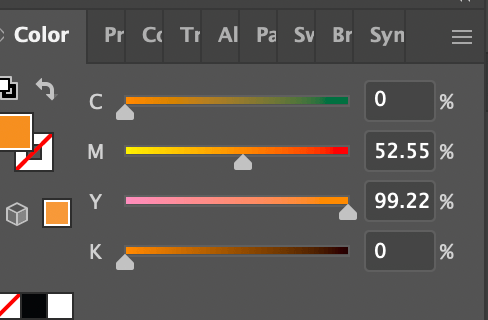
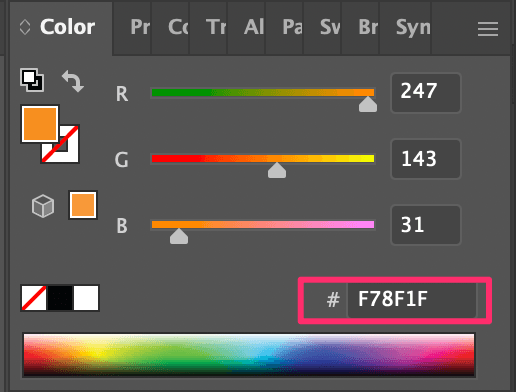
It’s true that sometimes it’s hard to keep track of the percentage of CMYK value. Most likely when we work digitally, we often get a color code, something like F78F1F, which you can find in the RGB color mode.
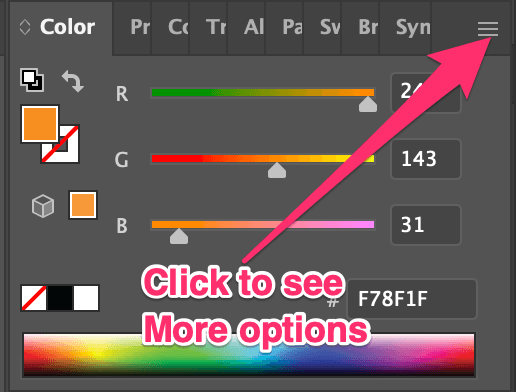
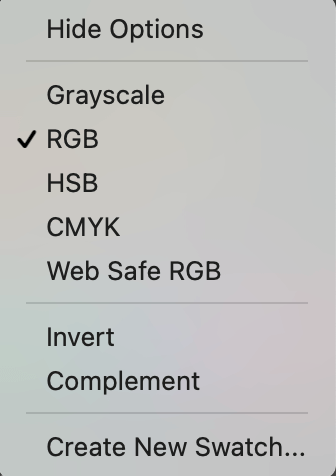
Besides these two color modes, you can find other options like HSB, Grayscale, etc. Click on the hidden menu in the right top-right corner of the Color panel and choose a color mode.
These are the options you can choose from after you click on the hidden menu.
For example, the Grayscale Color panel looks like this.
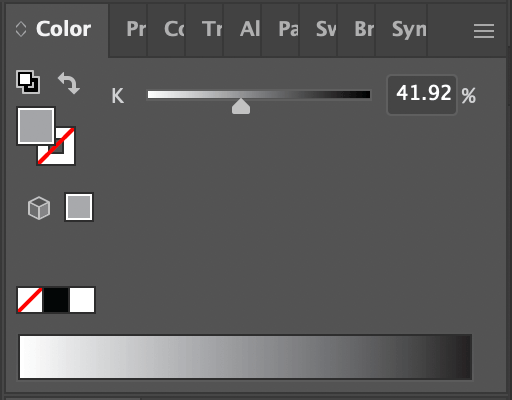
This is one of the methods to change an object’s color to grayscale or black and white.
Method 3: Change Object Color Mode
As I briefly mentioned above, you can change the color mode from the Color panel. Simply select the object, go to the Color panel, and change the color mode.
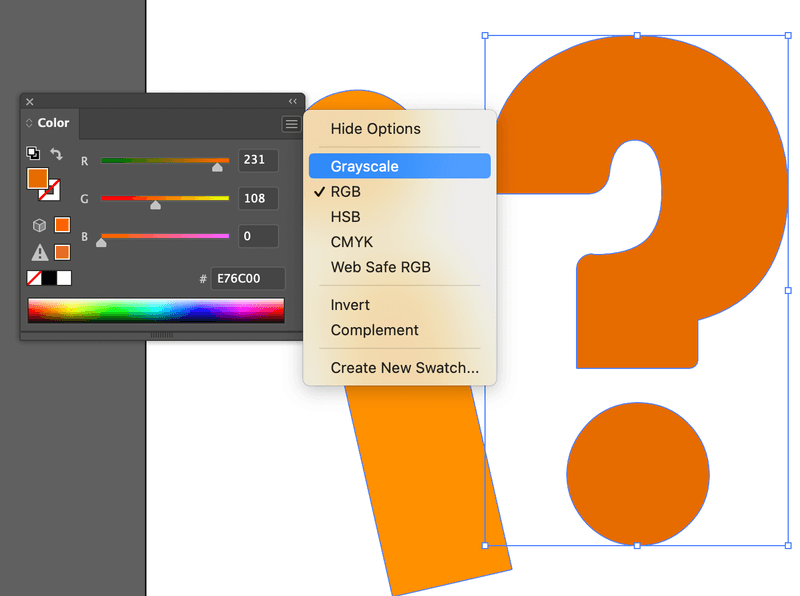
For example, I want to change the question mark to grayscale. Now they are in RGB. One way to do it is from the Color panel following the method above.
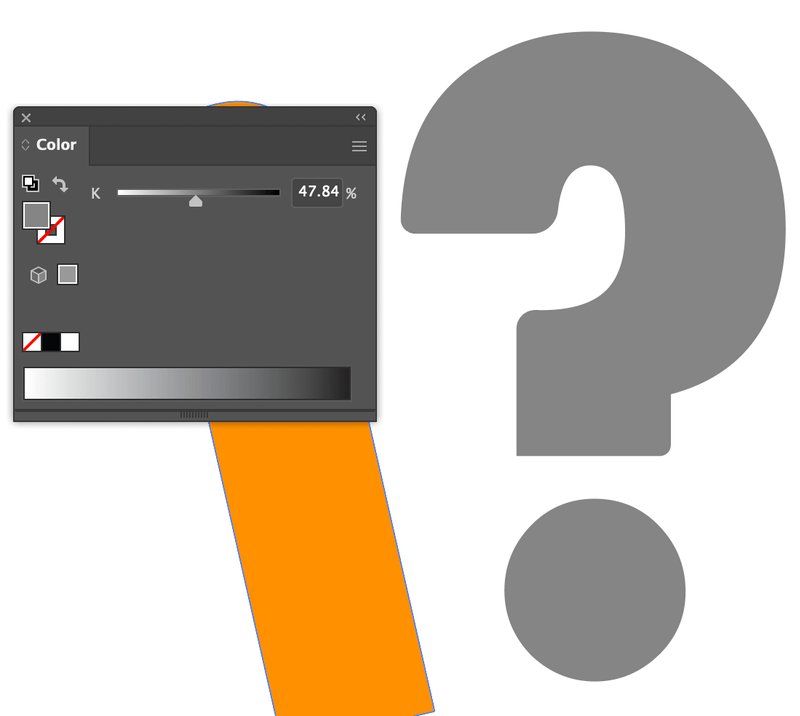
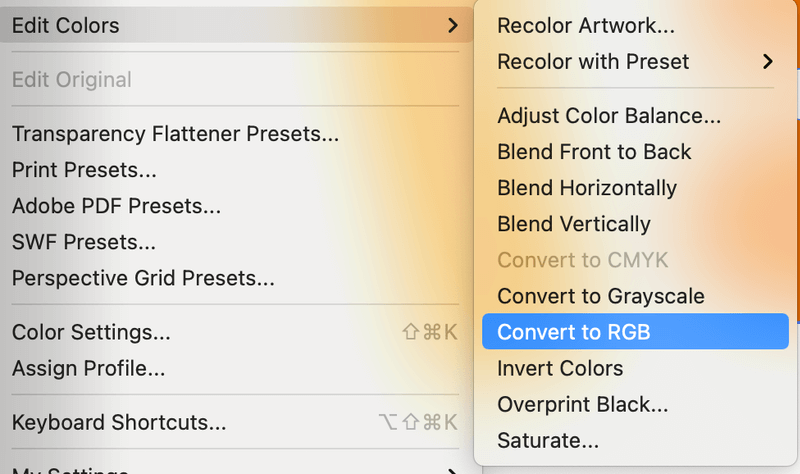
Another way to do it is from the overhead menu Edit > Edit Colors and you can choose a color mode.
You might also be interested in some of the questions below that other designers have.
How to set up document color mode in Illustrator?
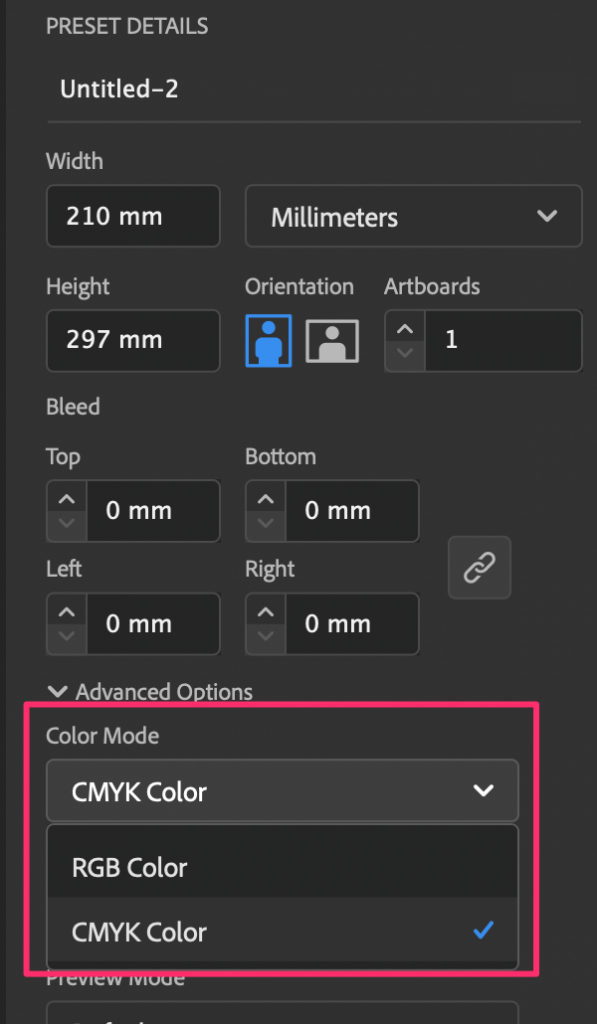
When you create a new document in Adobe Illustrator, you’ll see the color mode options. You can choose either RGB Color or CMYK Color.
How to get the RGB value of an image in CMYK color mode?
First of all, change the color mode from CMYK to RGB. If you have an image that isn’t vector and you want to know the RGB value of one specific color of that image, you can use the Eyedropper Tool to sample the color and it should show in the Color panel where you see the #.
Do I have to change the color mode to CMYK for print?
Generally, you should change the color mode to CMYK for print, but it’s not a strict rule. CMYK is introduced as the dominant color mode for printing because CMYK is generated by ink and printers use ink.
Some people use RGB color mode for print as well because the CMYK version can’t express their colors as preciously. The problem is some of the RGB colors might not be recognized on the printer or it’ll come out too bright.
Wrapping Up
RGB, CMYK, or Grayscale? Actually, you might need to change the color mode to all different options working on different projects in Illustrator. Whether you’re changing the document color mode or simply want to find out the color hex code, you’ll find your way following the quick guide above.
Keep in mind that 99% of the time, CMYK Color is the best option for printing and RGB Color is designed for the web.
How To Change Cmyk To Rgb Illustrator
Choose Edit > Edit Colors > Convert To CMYK or Convert To RGB (depending on the color mode of the document).
How do I change CMYK to RGB?
With the file open, go to Image>Mode and select RGB Color. You will see an on-screen prompt telling you to flatten the image if you haven’t flattened it already. You can flatten it or attempt to convert it without flattening the image and compare results.
How do you convert CMYK to RGB in Illustrator without changing colors?
This process also works in reverse (CMYK to RGB): Go to File » Document Color Mode and check RGB. Select everything in your document and go Filter » Color » Convert to RGB.
How do you change the color mode in Illustrator?
Changing your color mode in Adobe Illustrator (Created with Illustrator CC) Go to File > Document Color Mode. Select the Color Mode desired. Go to your Color palette. Select the menu and the desired working color space. Check your objects ensuring that their color is accurate.
How do I change from RGB to CMYK in Illustrator CC?
To convert your RGB document to CMYK using Adobe Illustrator, simply navigate to File -> Document Color Mode and select CMYK Color. This will change the color format of your document and restrict it to shades that are exclusively within the CMYK gamut.
How do I know if my image is CMYK or RGB in Illustrator?
You can check your color mode by going to File → Document Color Mode. Make sure there’s a check next to “CMYK Color.” If “RGB Color” is checked instead, then change it to CMYK.
How do I convert an image to RGB?
How to convert JPG to RGB Upload jpg-file(s) Select files from Computer, Google Drive, Dropbox, URL or by dragging it on the page. Choose “to rgb” Choose rgb or any other format you need as a result (more than 200 formats supported) Download your rgb.
Why I cant convert to CMYK in Illustrator?
You often need to switch between two color modes: RGB and CMYK. You can simply go to Files > Document Color Mode, or have it set up already when you create a new document. My Illustrator default color mode setting is RGB, but sometimes I have to print out some work. That means I should change it to CMYK mode.
How do you recolor artwork in Illustrator?
Recolor artwork using the Recolor Artwork dialog box. Select artwork to recolor. Click the Recolor button in the Properties panel to the right, to open the Recolor Artwork dialog box. Drag one color handle in the color wheel to edit them all.
How do I make CMYK swatches in Illustrator?
To add a CMYK or RGB solid colour Swatch in Adobe Illustrator I’m going to click on the menu items in the corner of the Swatches panel and click on ‘New Swatch’ this will then bring a new menu up with a drop down option to choose the colour mode (CMYK, RGB etc) you then insert your particular values then click ‘Ok’ and.
How do I convert RGB to CMYK in procreate?
Choose your CMYK or RGB color mode in Procreate before you start a design. You cannot change it later. Navigate to the new canvas button and the color profile button. Choose CMYK if you plan to print your work and RGB if your design will be displayed digitally.
Why do printers use CMYK instead of RGB?
The reason printing uses CMYK comes down to an explanation of the colors themselves. CMY will cover most lighter color ranges quite easily, compared to using RGB. Mixing some of these colors produces the secondary colors — cyan, magenta, and yellow. Mixing them all produces white.
Should I convert RGB to CMYK for printing?
RGB colours may look good on screen but they will need converting to CMYK for printing. If you are supplying artwork in its original format, such as InDesign or QuarkXPress, then it is better to convert colours to CMYK before supplying artwork and files.
What happens if you print RGB?
Saving a file as RGB for print can sometimes impact on the way certain colours are printed meaning you won’t get the finish you are after. Most printers will convert your RGB file to CMYK but it can result in some colours appearing washed out so it is best to have your file saved as CMYK beforehand.
How do you make blue RGB?
A “perfect” Blue = [0,0,255] A “prefect” Red = [255, 0, 0] A “middle” Gray = [ 122, 122, 122].
How do I convert to CMYK without Photoshop?
First off, open your image into the illustrator with File > Open. Now go into the File > Document Color Mode. On the additional drop-down menu, click on the CMYK color. It would convert your artboard containing the image into CMYK color mode.
How can you tell if a JPEG is RGB or CMYK?
Navigate to Window > Color > Color to bring up the Color panel if it is not already open. You will see colors measured in individual percentages of CMYK or RGB, depending on your document’s color mode.
How do I change dpi in Illustrator?
To make sure that your design is in 300 DPI in Adobe Illustrator, go to Effects -> Document Raster Effects Settings -> check “High Quality 300 DPI” -> click “OK” -> save your document. DPI and PPI are the same concepts. When you’ve got your file prepared at 300 DPI, simply export as a . pdf or .
Is CMYK better for printing?
Fundamentally, RGB is best for websites and digital communications, while CMYK is better for print materials. Most design fields recognize RGB as the primary colors, while CMYK is a subtractive model of color. Understanding the RGB and CMYK difference is an essential part of successful graphic design.
How do I change the color of a vector in Illustrator?
To Change Artwork Colors Open up your vector artwork in Illustrator. Select all desired artwork with Selection tool (V) Select the Recolor Artwork icon at the top middle of your screen (or select Edit→EditColors→Recolor Artwork).
Why is recolor artwork greyed out?
The option is probably grey because your current primary (fill) is empty . Pressing D is choosing the default colors (white fill/black stroke), and it also resets your stroke, so that action makes no sense in your case.
How To Change Cmyk To Rgb Illustrator?
How do you change CMYK to RGB in Illustrator? CMYK to RGB can be done in Illustrator by converting the colors to their RGB equivalents. This can be done manually or by using an automated tool.
How do you change color mode from CMYK to RGB in Illustrator? In Illustrator, you can change the color mode from CMYK to RGB under the “File” menu. Select “Document Color Mode” and then choose “RGB.”
How do I find the RGB color in Illustrator? To find the RGB color in Illustrator, open the Color panel and click on the triangle next to the word “Color.” This will open a menu with different color modes. Click on “RGB” and the RGB values for the current color will appear in the panel.
Related Posts:
Frequently Asked Questions
How Do I Change Rgb To Cmyk Without Losing Color?
RGB to CMYK conversion is the process of transforming the colors used in digital images from the RGB color space to the CMYK color space. This can be done in a number of ways, but often involves a loss of color. There are ways to minimize this loss, but it is typically unavoidable.
How Do I Set Illustrator To Rgb?
To set Illustrator to RGB mode, open the application and select “File” > “Document Setup.” Under “Color Mode,” change the setting to “RGB.”
How Do I Change An Image To Cmyk In Photoshop?
To change an image to CMYK in Photoshop, you will need to open the image and then go to Image > Mode > CMYK Color.
How Do I Convert An Image To Cmyk In Illustrator?
There are a few ways to convert an image to CMYK in Illustrator. One way is to go to File > Mode > CMYK Color. Another way is to select the image and go to Image > Mode > CMYK Color.
How Do I Make Illustrator Default To Rgb?
In Adobe Illustrator, you can make the program default to RGB by going to Preferences > Color and setting the RGB Mode to Default.
How Do You Change The Color Mode In Illustrator?
To change the color mode in Illustrator, go to Edit > Preferences > Colors and uncheck the “Use Global Color Appearance” box.
Where Do I Find Cmyk?
CMYK is a color model that uses four colors to create all other colors. The colors are Cyan, Magenta, Yellow, and Black. CMYK can be found in most graphics software programs.
How Do You Convert Cmyk To Rgb In Illustrator Without Changing Colors?
With the colors selected, go to “Window” > “Color” and select the “CMYK” tab. Click on the black swatch in the CMYK panel, and then click on the “RGB” tab in the Color panel. The colors will now be displayed in RGB values.
How Do You Change Mode To Cmyk?
In Photoshop, you can change the mode to CMYK by going to Image > Mode > CMYK Color.
How Do I Change Rgb To Cmyk In Design?
In order to change RGB to CMYK in design, you need to create a separate layer for the CMYK conversion. Once you have created the layer, use the eyedropper tool to select the cyan, magenta, yellow and black colors from your RGB image. After selecting the colors, use the Paint Bucket tool to fill in the corresponding areas of the CMYK layer.
How Do I Use Cmyk?
CMYK is a four-color printing process that combines cyan (blue), magenta (pink), yellow, and black inks to create a range of colors.
How Do I Change Cmyk To Rgb?
CMYK is a color mode used in printing. RGB is the color mode used on screens. To convert from CMYK to RGB, you need to know the CMYK values for the colors you want to convert. You can find these values by looking up the colors in a chart or using a color conversion tool. Once you have the CMYK values, you can enter them into a color converter to get the RGB values.
How Do I Change From Cmyk To Rgb In Illustrator?
To change from CMYK to RGB in Illustrator, go to Preferences > Color and select the RGB color mode.
How Do I Change Rgb Swatch To Cmyk In Indesign?
In InDesign, open the Swatches panel and click the triangle in the upper right corner of the RGB swatch. Select “Convert to CMYK.”
How Do I Convert An Image To Cmyk?
CMYK is a color space that is used in printing. In order to convert an image to CMYK, you need to know what colors are in the image and what colors are available in the CMYK color space.
How Do I Change Cmyk To Rgb In Illustrator?
To change CMYK to RGB in Illustrator, use the “Color” panel and select “RGB.”
How Do You Color Match Rgb To Cmyk?
To color match RGB to CMYK, you need to find the equivalent CMYK colors for the RGB colors you are using. This can be done using a color matching tool, such as Adobe Photoshop or Illustrator. Once you have the equivalent CMYK colors, you can then adjust your artwork to use those colors so that it prints correctly.
How Do I Convert An Image To Rgb?
To convert an image to RGB, you can use an online converter or a software program. With an online converter, you can upload the image and then select RGB as the output format. With a software program, you can open the image file and then select RGB as the color mode.
How Do I Change An Image From Rgb To Cmyk Without Losing Color?
There is no exact answer to this question since it depends on the specific image and how it is converted. However, in general, converting from RGB to CMYK can result in some color loss since CMYK produces a narrower range of colors than RGB. Various factors such as image resolution, file format, and software used can also affect the final result.
There is no one definitive way to change CMYK to RGB in Illustrator. However, there are a few methods that can be used to convert the colors. One way is to use the Color Panel and select the four colors you want to convert. Then, go to Edit > Convert to RGB and the colors will be converted. Another way is to use the Swatches panel and create a new swatch set. Select the four colors you want to convert and then go to Edit > Convert to RGB.
Как поменять смик на ргб в иллюстраторе
Уроки по всем программам компании Adobe
Доброго времени суток, дорогие читатели. Если вы работаете с Adobe Illustrator, то наверняка знаете, что картинки, находящиеся в свободном доступе интернета, обычно сохранены в цветовом пространстве CMYK или RGB. В сегодняшней статье мы расскажем вам, как перевести картинку из одного цветового пространства в другое, а также расскажем, в каких случаях это делается.
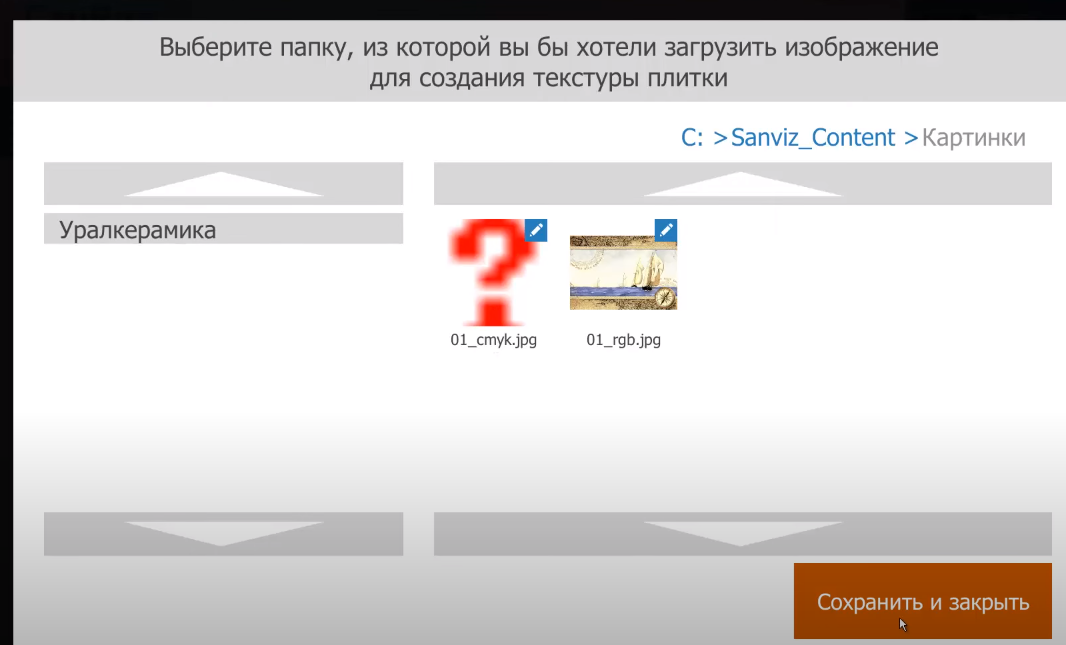
Собственно говоря, картинки, сохраненные в RGB нормально воспринимаются санвизом, тогда как с картинками, сохраненными в CMYK, возникают определенные сложности. Все дело в том, что санвиз ее не читает, а CMYK используется, в основном, для полиграфии. Именно поэтому вам придется периодически менять цветовое пространство картинок, чтобы работать с ними в нужных направлениях.
На скрине ниже вы можете увидеть подобный пример. У нас есть 2 одинаковые картинки, только одна сохранена в CMYK, а другая в RGB. Как видите, санвиз попросту не читает объект, в формате CMYK.
На самом деле все достаточно просто. Откройте ваш файл, который у вас в формате CMYK при помощи Adobe Illustrator. Вверху, где название файла, вы увидите, в какой цветовой модели он сохранен. В нашем случае это CMYK.
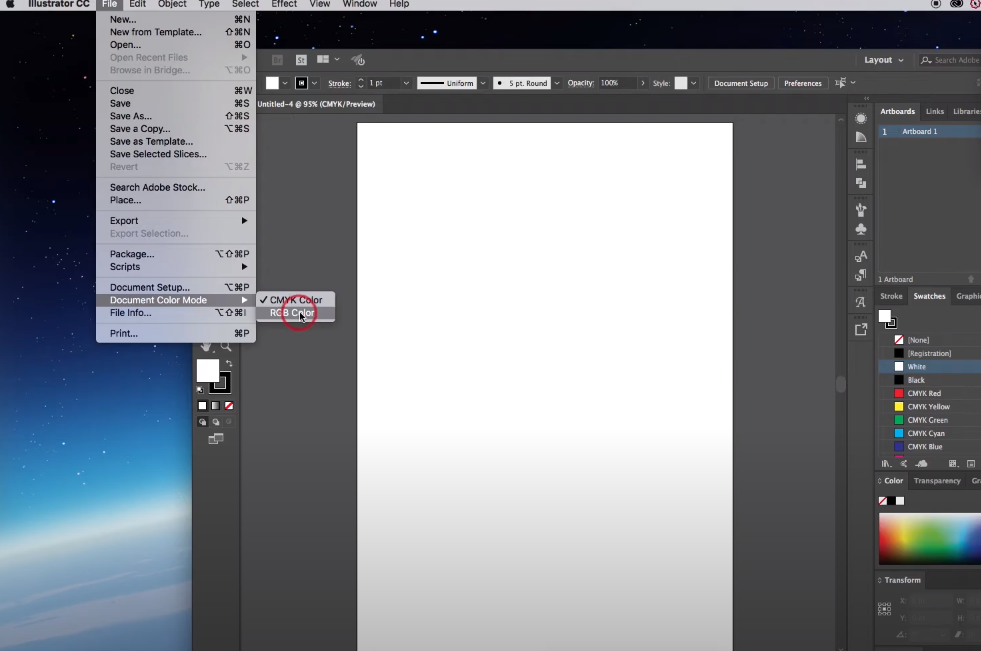
Чтобы перевести его в RGB, достаточно кликнуть по «FILE», на верхней панели, выбрать пункт «Document Color Mode» и сменить CMYK на RGB. Вот и все. Далее просто экспортируете файл в нужное вам место на ПК и все, картинка изменила свою цветовую модель.