Guide – How to Update Visual Studio to a New Version in Windows
How to update Visual Studio 2022/2019/2017/2015/2013 to a new version to gain a better experience? It is a simple way and you can follow some ways given by MiniTool to easily do the update operation.
Visual Studio is an integrated development environment (IDE) designed by Microsoft and it is used to help develop PC programs including mobile apps, web services, web apps, and websites. For .NET and C++ developers, it is a comprehensive IDE. It is also a standalone source code editor that can work on Windows, macOS, and Linux. If you want to edit, debug, and build code, and then publish an app, Visual Studio is a good option.
Currently, Visual Studio 2022 is the latest product and old products like Visual Studio 2013, 2015, 2017, and 2019 are also available to download via Microsoft’s official website.
If you are using one of them with an old version, you can choose to upgrade Visual Studio to the latest version to enjoy more features, security fixes, and improvements for a better experience. For Visual Studio 2022 Community/Professional/Enterprise, the latest version is 17.4 when we write this post.
Visual Studio update is a simple thing and you can follow several ways below to do this task if you need. Let’s move to the next part to find what you need.

Is IntelliSense not working in Visual Studio or Visual Studio Code? Take it easy and try multiple ways here to fix this issue on a Windows 11/10 PC.
How to Update Visual Studio
Make sure you have administrative permissions on the machine and the place where the product updates are located before you do.
Use Visual Studio Installer to Update VS
Step 1: Go to the Windows Start Menu, type Visual Studio Installer into the search bar, and click the result to open this app.
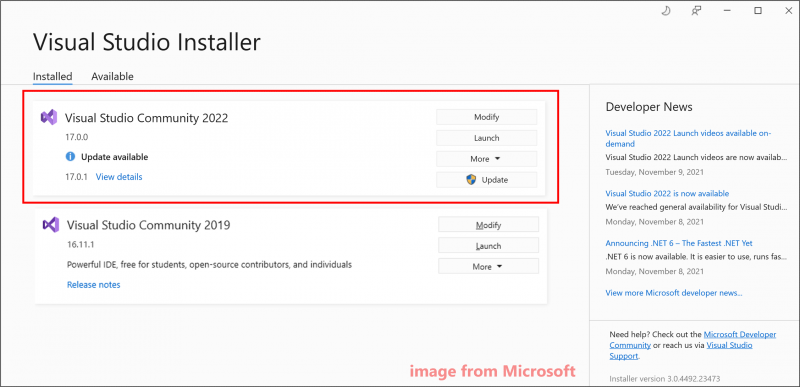
Step 2: Under the Installed tab, you can see the installation of Visual Studio you previously installed. Go to the version where an Update available message appears and click the Update button to install the update.

After finishing the update, the installer may ask you to restart your computer and do this, then launch VS as you typically do. If not, you can click the Launch button to open Visual Studio from Visual Studio Installer.
Manually Check for Updates
In addition to Visual Studio Installer, you can update Visual Studio by manually checking for updates in the app itself. See how to do it:
Step 1: Open Visual Studio in Windows.
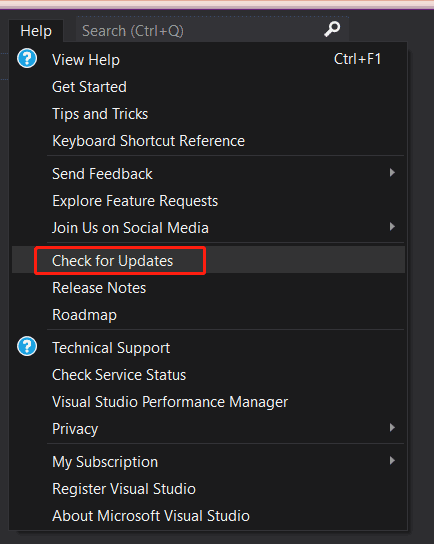
Step 2: Go to Help > Check for Updates. Then, the tool will start checking for an available update.
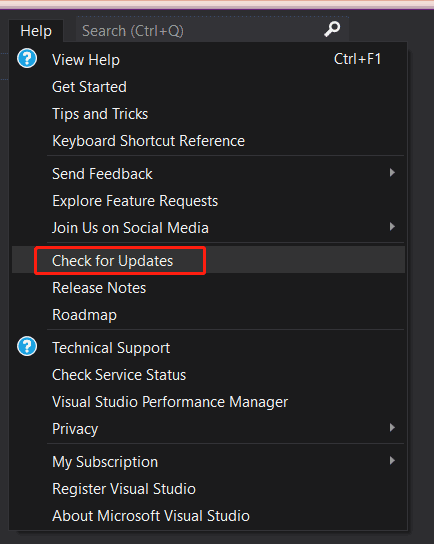
Step 3: In the Update available window, click the Update button.
Update Visual Studio via the Notification Hub
Step 1: Open Visual Studio.
Step 2: Go to the lower-right corner to click the notification icon.
Step 3: Click View details next to the update message and click Update. Or you can choose Update on close to defer the update until you close this app.
Update Visual Studio via a Message Box in the IDE
When you open Visual Studio, the IDE can check if there is an available update. For Visual Studio 2022, an update message can appear briefly. You can click View details to update now or defer the update by choosing Update on close.
Related FAQs
Visual Studio 2019 and Visual Studio 2022 can run either individually or both on your Windows PC. You won’t upgrade VS 2019 but just install VS 2022. You can only upgrade Visual Studio 2019/2022 to its latest version.
You can update your Visual Studio 2019/2017/2015 to its latest version in four ways – use Visual Studio Installer, manually check for updates, and use the notification hub & a message box in the IDE.
You can open the Visual Studio for Mac app and go to check for updates. If there is an available new update, it will start downloading. Click Restart and Install Updates to install the update.

What is Visual Studio Code? How to download Visual Studio Code for Windows 10/11, Linux, and Mac, then install it? A guide is for you.
Bottom Line
These are four simple ways to update Visual Studio to its latest version. If you have any idea on how to update Visual Studio, you can leave a comment below to tell us. Thanks.
About The Author
Vera is an editor of the MiniTool Team since 2016 who has more than 7 years’ writing experiences in the field of technical articles. Her articles mainly focus on disk & partition management, PC data recovery, video conversion, as well as PC backup & restore, helping users to solve some errors and issues when using their computers. In her spare times, she likes shopping, playing games and reading some articles.
Как обновить visual studio 2019 до 2022
Новая версия Visual Studio 2022 Preview 1 стала доступна для установки
Мы рады сообщить, что первая предварительная версия Visual Studio 2022 стала доступна! Это первый выпуск 64-разрядной Visual Studio, и мы будем рады, если вы скачаете его, попробуете и поделитесь вашими отзывами. Присоединяйтесь!
Наша ключевая цель в этой предварительной версии — протестировать и настроить масштабируемость новой 64-битной платформы! Благодаря новой 64-битной платформе Visual Studio теперь может масштабироваться, чтобы использовать все системные ресурсы, необходимые для повышения надежности Visual Studio, особенно при работе со сложными решениями или использовании Visual Studio в течение длительных периодов времени. Усилия по 64-битному преобразованию затрагивают все части Visual Studio, поэтому объем намного больше, чем наши обычные предварительные версии.
Мы знаем, что вы ожидаете от Visual Studio качества, стабильности и масштабируемости. И чтобы все стало полностью транспарентным, самый быстрый способ достичь этого — когда настоящие разработчики, такие как вы, сообщают нам, что мы можем улучшить. Мы действительно обращаем внимание на каждый отчет об ошибке, предложение и примечание, которые вы можете отправить из Visual Studio, сообщив о проблеме.
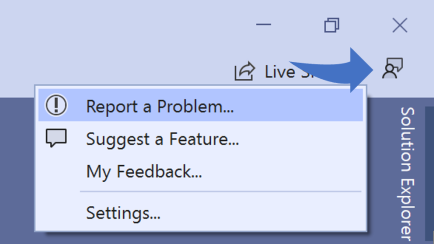
Предварительные версии Visual Studio 2022 могут быть установлены параллельно с более ранними версиями Visual Studio, доступны во всех трех выпусках (Community, Pro и Enterprise) и бесплатны для использования.
Что будет
Поскольку большинство обновлений Preview 1 связаны с поддержкой 64-разрядных систем, мы выпустим целый ряд новых функций и улучшений производительности, начиная с Preview 2. Вы можете прочитать все об этих предстоящих функциях в дорожной карте Visual Studio. Одной из новых функций, которые вы можете попробовать прямо сейчас, является обновление IntelliCode — вы можете автоматически заполнять код, вплоть до целой строки за раз.
Еще предстоит проделать некоторую работу по переходу Visual Studio на 64-разрядную версию, ведь небольшое количество функций Visual Studio 2019 не включено в предварительную версию Visual Studio 2022 Preview 1. Вы можете найти список этих ожидающихся функций в примечаниях к выпуску.
Во время предварительной версии Visual Studio 2022 наши партнеры, которые создают расширения, которые вы используете и любите, будут работать над обновлением своих расширений. Пока они работают над этим, их расширения не будут доступны в Visual Studio 2022 сразу.
Скоро выйдет первая предварительная версия Visual Studio 2022 для Mac, которая позволит вам впервые взглянуть на новый современный пользовательский интерфейс macOS для Visual Studio. Нам еще предстоит кое-что сделать, прежде чем мы почувствуем, что он готов к обратной связи от разработчиков, и мы будем держать вас в курсе его прогресса в блоге Visual Studio.
Обращение ко всем авторам расширений
Если вы создаете расширения, мы хотим помочь вам перенести ваши расширения в Visual Studio 2022. Для начала ознакомьтесь с нашим руководством по миграции ваших расширений в Preview 1.
Мы продолжим делиться деталями с нашими авторами расширений и сопровождающими по мере приближения к официальному выпуску продукта для Visual Studio 2022. Если у вас есть какие-либо мысли о том, как мы можем улучшить этот процесс, вы можете поделиться своими мыслями в этом небольшом опросе.
Поддержка некоторых версий Visual Studio скоро прекратится

Visual Studio — это флагманская интегрированная среда разработки (IDE) Microsoft, которая используется многими разработчиками для создания многоплатформенных продуктов. Microsoft постоянно выпускает новые версии IDE с новыми функциями и улучшениями производительности, причем последней общедоступной версией является Visual Studio 2022. Теперь компания опубликовала публичное объявление о более старых версиях IDE, у которых заканчивается поддержка.
Скоро закончится поддержка четырех версий Visual Studio, а именно:
• Visual Studio 2012: Расширенная поддержка заканчивается 9 января 2023 года. Пользователям рекомендуется перейти на более новую версию;
• Visual Studio 2017: Основная поддержка заканчивается 12 апреля 2022 года. До 13 апреля 2027 года. в рамках расширенной поддержки будут выпускаться только обновления безопасности для базовой версии 15.9;
• Visual Studio 2019 версии 16.7: Поддержка заканчивается 12 апреля 2022 года. Рекомендуемый способ обновления — версия 16.9 или новее или Visual Studio 2022;
• Visual Studio 2019 Preview Channel: Поддержка заканчивается в апреле 2022 года. Разработчикам следует перейти на Release Channel или Visual Studio 2022 Preview;
Хотя Microsoft описала некоторые возможные пути обновления для разработчиков более старых версий Visual Studio выше, ее общая рекомендация, очевидно, заключается в обновлении до Visual Studio 2022. Она описала эту итерацию программного обеспечения как «самую продуктивную IDE из когда-либо существовавших» и отметила, что разработчики могут рассмотреть три канала в зависимости от своих требований: Preview, Current и Long-Term Servicing Channel (LTSC). Вы можете скачать Visual Studio 2022 отсюда.
Как обновить visual studio 2019 до 2022
17 июня Microsoft выкатил первую Preview-версию Visual Studio 2022 . Ключевой особенностью новой Visual Studio является то, что она будет 64-битной, тогда как все предыдущие выпуски Visual Studio, в том числе последний — Visual Studio 2019 были 32-битыми. И теперь разработчики могут загрузить, установить и опробовать Visual Studio 2022 в деле.
64-битная версия Visual Studio позволит более эффективно использовать ресурсы системы и улучшить производительность, особенно когда разработчики работают со сложными комплексными решениями со множеством проектов.Однако отмечается, что еще не все возможности VS 2019 перенесены в 64-битную VS 2022.
Preview-версию Visual Studio 2022 можно установить вместе с более ранними версиями Visual Studio (например, VS 2019). Кроме того, Visual Studio 2022 уже сейчас доступна во всех трех выпусках — Community, Pro и Enterprise.
При этом первая preview-версия Visual Studio 2022 for Mac только ожидает своего выхода в ближайшем времени/ Ожидается, что она будет применять новый современный интерфейс.
Как обновить visual studio 2019 до 2022
В принципе, можно было не торопиться. Компания «Microsoft» обещает продолжать поддержку «Visual Studio 2017» до апреля 2027 года, а поддержку «Visual Studio 2019» до апреля 2029 года. Но, очевидно, основное внимание всегда уделяется самой свежей версии программы, а над остальными работа ведется по остаточному принципу.
Среда разработки «Visual Studio»
Кто не в курсе, «Visual Studio» — это интегрированная среда разработки от компании «Microsoft». Позволяет вести разработку программ, сайтов и тому подобного с использованием разных языков программирования, разметки и так далее. На мой взгляд, ее единственный недостаток — это большая программа, занимает много места и довольно неповоротливая. Это, кстати, одна из причин, почему появился редактор кода «Visual Studio Code»: компания «Microsoft» хотела войти и в нишу разработчиков небольших программ.
Среда «Visual Studio» поставляется в трех вариантах: «Community», «Professional» и «Enterprise». Из них полностью бесплатной является только «Visual Studio Community». Другие две платные, но они имеют 90-дневный бесплатный период (по-английски «free trial»), в течение которого можно бесплатно пользоваться возможностями этих платных версий, чтобы решить, нужно ли вам это или нет.
Бесплатная версия: «Visual Studio Community»
Я пользуюсь именно этой версией. Для пользования «Visual Studio Community» будет необходима регистрация на сайте компании «Microsoft». Программа не требует этой регистрации сразу после установки программы. Можно установить и работать. Но через некоторое время программа потребует регистрации и входа в аккаунт (учетную запись).
Компания «Microsoft» разрешает использовать среду «Visual Studio Community» как для разработки бесплатных приложений, так и для разработки платных приложений. При этом этой версией среды разрешается пользоваться разработчикам-одиночкам или маленьким организациям до 5 человек. Крупные организации могут пользоваться этой версией среды в школах и университетах для обучения студентов, а также для работы над проектами с открытым исходным кодом. Для коммерческой разработки крупным организациям придется воспользоваться одной из платных версий: «Professional» или «Enterprise».
Обновление «Visual Studio»
Нужно иметь в виду, что установленная версия среды «Visual Studio» может обновляться только в ограниченных рамках. Например, «Visual Studio 2019» является версией 16 этой среды. То есть, например, у меня стояла версия 16.11.15 (от 17.05.2022). Я могу ее обновить только в рамках цифры 16, то есть, к примеру, до версии 16.11.16 (от 14.06.2022). Но я не могу обновить ее до 17 версии («Visual Studio 2022»).
Чтобы пользоваться версией 17 («Visual Studio 2022»), я должен установить ее как отдельную программу. Таким образом, на компьютере одновременно могут быть установлены «Visual Studio 2019» и «Visual Studio 2022». По-английски такая установка называется «side by side installation»: можно одновременно пользоваться разными версиями одной и той же программы.
Так сделано потому, что разработчики привыкают к одной версии программы, затачивая под нее свои процессы. При крупном обновлении программы разработчики не могут перейти с одной версии среды на другую быстро. Поэтому им требуется возможность одновременной работы с несколькими версиями среды разработки. После окончательного перехода на новую версию старую — можно удалить.
Для установки, обновления, удаления и управления разными версиями среды «Visual Studio» на компьютере есть отдельная самостоятельная программа, которая тоже установлена на компьютер и называется «Visual Studio Installer». В ней можно посмотреть, какие версии уже установлены на компьютер, какие можно установить, требуют ли установленные версии обновления и так далее. При первоначальной установке среды сначала устанавливается программа «Visual Studio Installer», самому о ней беспокоиться не нужно.
Программа «Visual Studio Installer» у меня уже была установлена еще в предыдущие разы обновления среды «Visual Studio». Сначала я установил новую «Visual Studio 2022», убедился, что настройки и вход в учетную запись автоматически перешли в новую программу, а потом удалил «Visual Studio 2019».
Модульность установки среды «Visual Studio»
При первоначальной установке каждой новой версии среды «с большой цифрой» (то есть 2017 (версия 15), 2019 (версия 16), 2022 (версия 17)) требуется выбрать модуль (один или несколько) разработки. Просмотреть и выбрать модуль (один или несколько) разработки можно в программе «Visual Studio Installer». Еще эти модули называют «рабочими нагрузками».
По умолчанию устанавливается только модуль «Основной редактор Visual Studio». Я обычно еще добавляю «Разработку классических приложений на C++».
Но вообще там много чего есть: «ASP.NET и разработка веб-приложений», «Разработка для Azure», «Разработка на Python», «Разработка Node.js», разработка игр, разработка мобильных приложений, обработка и анализ данных и так далее.
В принципе, любой модуль можно доустановить или удалить позже, после установки конкретной версии среды. Это делается через ту же программу «Visual Studio Installer».
Как обновить visual studio 2019 до 2022
17 июня Microsoft выкатил первую Preview-версию Visual Studio 2022 . Ключевой особенностью новой Visual Studio является то, что она будет 64-битной, тогда как все предыдущие выпуски Visual Studio, в том числе последний — Visual Studio 2019 были 32-битыми. И теперь разработчики могут загрузить, установить и опробовать Visual Studio 2022 в деле.
64-битная версия Visual Studio позволит более эффективно использовать ресурсы системы и улучшить производительность, особенно когда разработчики работают со сложными комплексными решениями со множеством проектов.Однако отмечается, что еще не все возможности VS 2019 перенесены в 64-битную VS 2022.
Preview-версию Visual Studio 2022 можно установить вместе с более ранними версиями Visual Studio (например, VS 2019). Кроме того, Visual Studio 2022 уже сейчас доступна во всех трех выпусках — Community, Pro и Enterprise.
При этом первая preview-версия Visual Studio 2022 for Mac только ожидает своего выхода в ближайшем времени/ Ожидается, что она будет применять новый современный интерфейс.
Официальный релиз Microsoft Visual Studio 2022 и .NET 6
Разработчики уже сейчас могут скачать общедоступные версии Visual Studio 2022 и .NET 6.
Microsoft Visual Studio 2022
Visual Studio 2022 – это первый выпуск 64-битной версии Visual Studio. Сделав Visual Studio 64-битной, официальные представители компании заявили, что они ожидают, что выпуск будет лучше использовать все системные ресурсы, особенно при длительной работе с более сложными решениями. По данным Microsoft, во время раннего тестирования VS 2022 клиенты могли работать с VS IDE в течение нескольких дней без проблем, даже с решениями, содержащими 700 или более проектов.
Visual Studio 2022 также включает ряд улучшений в области редактирования и отладки. Новая версия также предоставляет функцию Hot Reload, которая позволяет разработчикам редактировать исходный код во время работы приложений в Visual Studio 2022 и из .NET CLI. Среди других новых и улучшенных возможностей – возможность Live Preview и кросс-платформенное тестирование на Linux. Visual Studio 2022 уже доступна для загрузки. Информация о выпуске Visual Studio 2022 v.17 находится здесь.
Microsoft .NET 6
.NET 6 доступен для Windows, Linux и macOS. Он обеспечивает единую платформу для облачных, настольных, IoT и мобильных приложений благодаря использованию одних и тех же библиотек .NET и возможности легкого обмена кодом между платформами, сообщили официальные представители. В этом выпуске улучшена производительность, особенно в части файлового ввода-вывода.
Это первый выпуск .NET, который поддерживает Apple Arm64 Silicon и Windows Arm64. Этот выпуск включает перестроенные инструменты компилятора опережающего времени и множество новых API. Выпуск .NET 6 включает C# 10 и F# 6. Выпуск .NET 6 является версией .NET с длительной поддержкой (LTS), что означает, что он будет поддерживаться в течение трех лет.
В 2019 году Microsoft объявила, что .NET 5 станет ее первым крупным продуктом на пути к унификации .NET, но именно в .NET 6 произойдет значительное продвижение. Microsoft завершит унификацию среды исполнения Mono в Core, получит единый набор базовых библиотек для всех рабочих нагрузок и предоставит единую систему проектов SDK для ряда операционных систем и устройств с .NET 6. Однако .NET MAUI не будет готов к этому моменту; теперь Microsoft планирует выпустить общедоступную версию .NET MAUI в начале второго квартала 2022 года.
Виртуальное мероприятие Microsoft по запуску Visual Studio 2022 состоялось 8 ноября. На этой неделе виртуальное мероприятие .NET Conf пройдет с 9 по 11 ноября.
January 2022 (version 1.64)
Update 1.64.1: The update addresses these security issues.
Update 1.64.2: The update addresses these issues.
Welcome to the January 2022 release of Visual Studio Code. There are many updates in this version that we hope you will like, some of the key highlights include:
- New Side Panel — Display more views at once with the new Side Panel.
- Settings editor search — Search now prioritizes whole word matches.
- Audio cues — Hear when the cursor moves to folded regions, errors, and breakpoints.
- Unicode highlighting — Avoid highlighting characters in supported languages.
- Automatic terminal replies — Create automatic responses to common terminal prompts.
- Notebook UI improvements — Search text in Markdown and output cells.
- Debug binary data view — View and edit binary data while debugging.
- Markdown path suggestions — Quickly insert relative file paths and header links.
- JS/TS surround with snippets — Insert selected code inside snippets.
- VS Code for the Web — Support for signed GitHub commits in vscode.dev and github.dev.
If you’d like to read these release notes online, go to Updates on code.visualstudio.com.
Watch a highlight of the new features in this version at the VS Code team’s release party. You can find the recording of the event on our YouTube channel.
Insiders: Want to try new features as soon as possible? You can download the nightly Insiders build and try the latest updates as soon as they are available.
Workbench
New Side Panel
This milestone, we introduce the Side Panel, a new surface in the workbench opposite the Side Bar, where you can house views from the Side Bar or the bottom Panel. Unlike moving the bottom Panel to the left or the right of the editor, the new Side Panel works in addition to the bottom Panel so you can see more sets of views at once.
To use the Side Panel, you need to move some views over to it. Based on one of our most upvoted feature requests, you might want to move Outline view from the Side Bar to the Side Panel. You can do this by dragging and dropping the view into the Side Panel. If the Side Panel is not open, just like the bottom Panel, dragging a view to the edge of the editor area, will pop it open.
In the short video below, the Outline view is dragged to the right and dropped to create the Side Panel. The user can then switch views in the Side Bar (here opening the global Search view), while keeping the Outline view visible.
Alternatively, you can use the Move View command from the Command Palette, which will display a dropdown of available views. When you select a view, you can then choose the location by either creating a new Panel/Side Bar/Side Panel entry or placing the view in an existing location such as Explorer or Source Control.
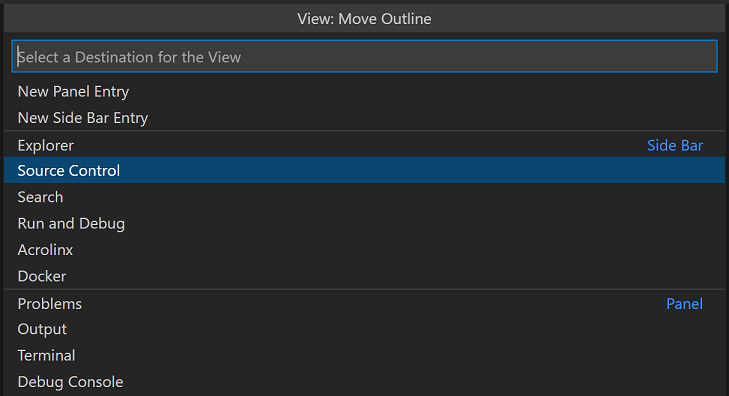
Views can be drag and dropped between the Panel, Side Bar, and Side Panel by grabbing the view icon. You can reset a view’s location back to its default by right-clicking on the view icon and selecting Reset Location.
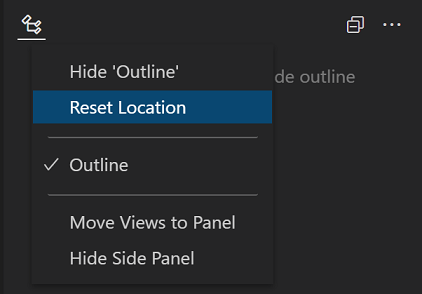
If you’d like to reset all views back to the default layout, you can run Views: Reset View Locations from the Command Palette.
Replacing Panel location
As mentioned above, the new Side Panel provides similar functionality as moving the Panel to the left or right, yet improves on this by not moving the entire contents of the original panel. Along with view drag and drop between panels, the new Side Panel is replacing the option to move the bottom Panel.
In light of that, we have deprecated the workbench.panel.defaultLocation setting as well as the Move Panel commands in favor of similar commands:
- Move Views From Panel To Side Panel ( workbench.action.movePanelToSidePanel )
- Move Views From Side Panel To Panel ( workbench.action.moveSidePanelToPanel )
The old Move Panel commands have been remapped to the new command that provides the similar behavior. Even with this mapping, we recommend updating your keybindings to the new commands.
Below, the entire bottom Panel is moved to the Side Panel and then back to the original Panel location.
Panel alignment
Addressing another popular feature request, we have added a new layout option called Panel Alignment. This option allows you to configure how far the bottom Panel spans across your window. There are four options:
- Center — This is the classic behavior. The panel spans the width of the editor area only.
- Left — The panel will span from the left edge of the window to the right edge of the editor area.
- Right — The panel will span from the right edge of the window to the left edge of the editor area.
- Justify — The panel will span the full width of the window.
Note that with all options, the Activity Bar is considered the edge of the window.
You can configure these options in the menu under View > Appearance > Align Panel or using the new Set Panel Alignment to. commands.
Customize Layout control
With all these new layout options, we have been exploring ways to better expose layout configuration for discoverability and ease of use. That’s why you might notice a new experimental Configure Layout button in your title bar. This only appears if your window.titleBarStyle setting is custom (default on Windows and macOS) and workbench.experimental.layoutControl.enabled is set to true . The button visibility is controlled by an experiment, but if you want to enable it manually, you can do so by applying these setting values in the Settings editor ( ⌘, (Windows, Linux Ctrl+, ) ).
The contents of the menu are still being worked on, but currently you should see the ability to toggle the Side Bar, Panel, and Side Panel. Additionally, you will see an entry for a new command Customize Layout. This new command triggers a new interactive Quick Pick experience allowing you to control all aspects of layout configuration in one place.
Try it out, and let us know if you have any feedback in issue #137633.
Settings editor
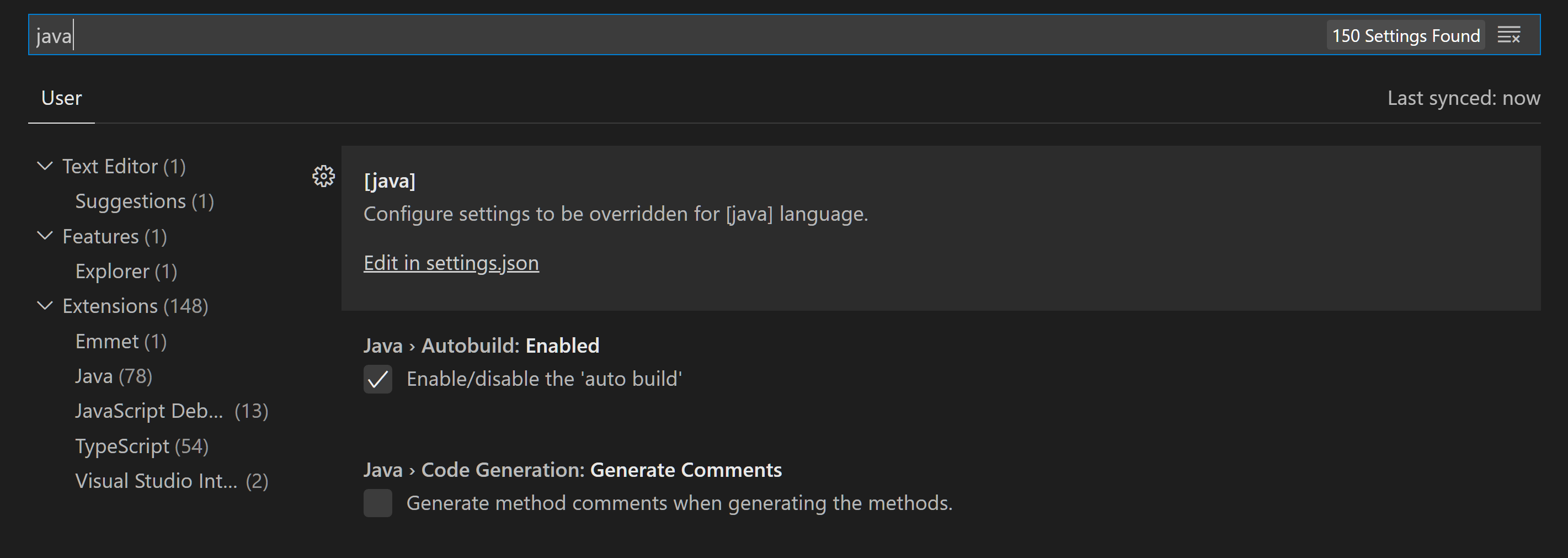
The Settings editor search now looks for string value matches in string and enum settings when searching.
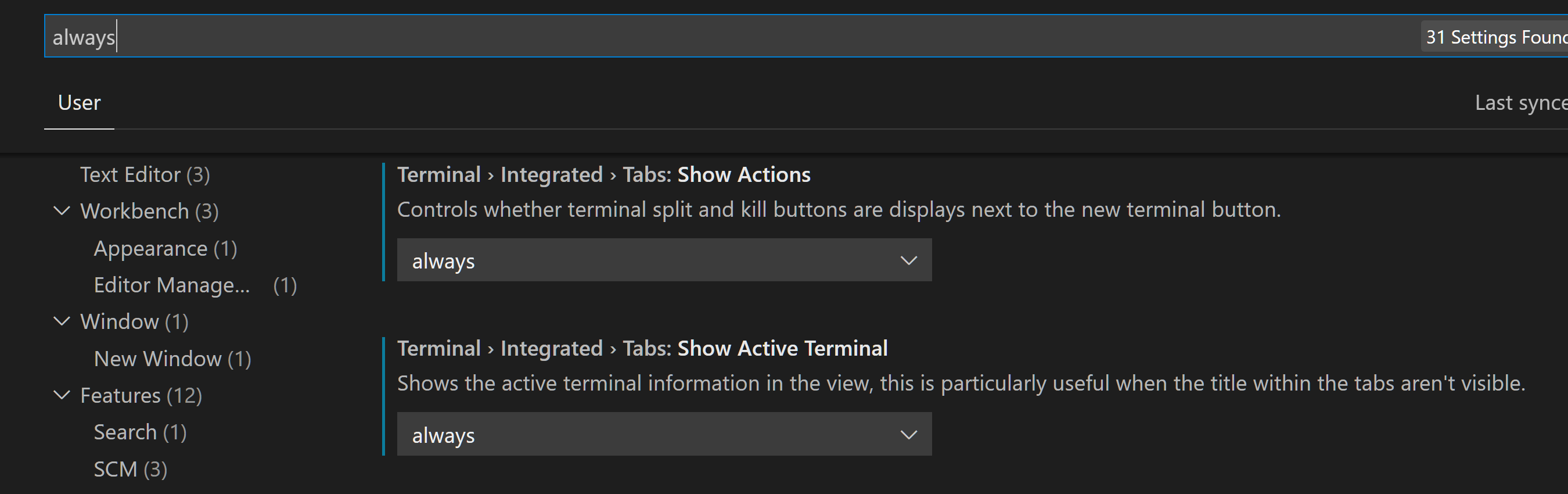
The new search algorithm also prioritizes whole word matches, which means that if one has both the Java and JavaScript extensions, the Java settings will show up first when searching "java".
Lastly, dropdowns (such as for files.autoSave ) and list widgets (such as for files.associations ) in the Settings editor now work with touchscreen devices.
Settings Sync
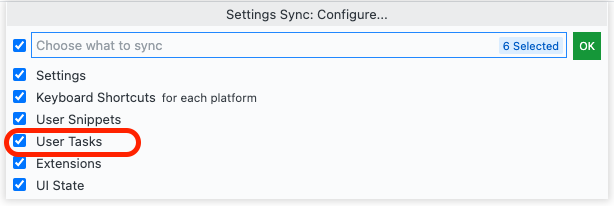
Settings Sync now supports synchronizing User Tasks.
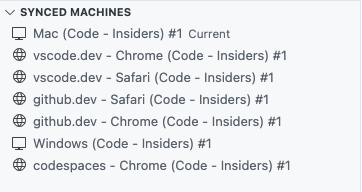
The default Settings Sync machine names now include the browser and product names in VS Code for the Web.
Explorer: Confirm and disable Undo
The File Explorer has long supported an Undo stack to revert file and folder edits (rename, cut/copy/paste, move, import, etc.). Some users find this functionality unexpected, so there is now a setting to disable Undo in the Explorer ( explorer.enableUndo ).
Additionally, a new setting ( explorer.confirmUndo ) was added to configure how frequently the Explorer will prompt for confirmation when performing an Undo. By default, the Explorer will prompt more frequently than before to ensure destructive undoing doesn’t accidentally happen, but this can be changed to the old behavior with the value "light" , or set to "verbose" to prompt before all Undo actions.
Editor
Audio cues
Audio cues indicate if the current line has certain markers, such as errors, breakpoints, or folded text regions.
They are played when the primary cursor changes its line or the first time a marker is added to the current line. Audio cues are enabled automatically when a screen reader is attached, but can also be turned on manually by setting audioCues.enabled to on .
More audio cues are to come and we will iterate on the sound design.
Unicode highlighting improvements
To improve the Unicode highlighting feature introduced in the November release, there are new settings to better deal with false positives.
The new setting editor.unicodeHighlight.allowedLocales can be used to allow characters that are common in one or many configured locales. By default, this includes the current VS Code display language and the current OS language. At the moment, only locales translated in vscode-loc Language Packs are supported.
The setting, editor.unicodeHighlight.includeStrings , controls whether characters in strings should be highlighted. The value is true by default but can be set to false to ignore strings.
Editor folding limit
A new setting editor.foldingMaximumRegions allow users to change the maximum number of folding ranges that are shown in an editor. By default, the limit is 5000. Note that larger numbers can result in a reduced performance.
Editor adapts to language feature timings
Extensions power almost all language features, including built-in features like folding regions, CodeLens, inlay hints, and semantic tokens. These features aren’t triggered by user gestures but by typing, usually after a timeout. For instance, CodeLens updates as you type, and so does semantic tokens. The chosen timeout values had been fixed and more or less arbitrary. With this release, the editor adapts to the observed timings so that slower machines or network connections aren’t overwhelmed with requests and faster machines are utilized better.
Terminal
Automatic replies
The terminal now features an opt-in feature to automatically reply when a specific sequence of characters is received. A good example of where this is useful is the Windows batch script message Terminate batch job (Y/N)? after hitting Ctrl+C when running a batch script. To get the terminal to automatically reply with Y and enter ( \r ) on Ctrl+C in Windows add the following setting:
You can set up custom replies for other things, but be careful when doing this, as you are sending text to the process automatically. For example, you could use it to automatically update Oh My Zsh when prompted:
If you use Clink and enable their similar feature, you can disable it in Clink or in VS Code by setting the reply to null to avoid the two features conflicting with each other:
Enhanced VT support
Support for Operating System Command (OSC) 4/10/11/12 escape sequences were added that enables applications to control the terminal’s theme colors.
Keyboard navigable links
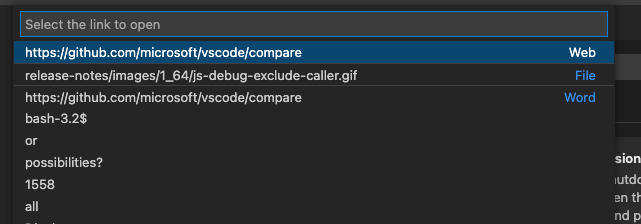
Previously, link navigation in the terminal required the use of a mouse. Now, links can be opened using only the keyboard via the following commands:
- Terminal: Open Last Web Link. for example, https://github.com/microsoft/vscode
- Terminal: Open Last File Link. for example, /Users/user/repo/file.txt
- Terminal: Open Detected Link. to view all links (web, file, word)
Source Control
More control on repository discovery
Based on community feedback, there are two new settings to better control the process of discovering Git repositories and accommodate more diverse folder structures.
- git.repositoryScanMaxDepth — Control the depth used when scanning.
- git.repositoryScanIgnoredFolders — Control the list of folders that should be ignored during scanning.
Changes list sort improvements
A new setting ( scm.defaultViewSortKey ) controls the default sort key used for the changes list in the Source Control view. The choice for the sort key is also remembered for each folder/workspace.
The options are:
- name — Sort changes by filename.
- path — Sort changes by file path (default).
- status — Sort changes by source control status.
You will need to reload the VS Code window to apply the setting change.
New Git stash command
A new command, Git: Drop All Stashes. , was added to the Command Palette that allows users to clear all stash entries. As with any Git operation with permanent consequences, use this command with care.
Git Output — git commands execution time, and duration
To help track down performance issues, the Git Output channel now shows the time when a git command was executed as well as the duration of the command, excluding the time it took to spawn the child process.
Notebooks
Find text in rendered Markdown and code cell outputs
VS Code now supports find text in the rendered view of Markdown cells and output of code cells. The feature is disabled by default as it would require rendering of all Markdown cells and outputs, which might be costly when opening a notebook. You can turn on this feature by choosing options (Markdown Preview, Code Cell Outputs) from the filter dropdown on the Find control input box.
Currently, there are some limitations when searching text in outputs. For example, you cannot search streaming/text output rendered by VS Code itself. We plan to improve this in the next iteration.
Cell collapsing UI
Notebook cells have a blue bar on the left side to indicate that they are focused. This bar is now interactive — you can click the top part to collapse the cell input, and the bottom part to collapse the output.
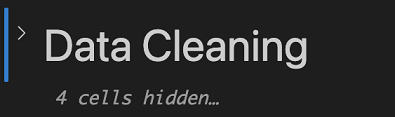
Markdown cell fold hint
When a region of Markdown cells has been folded, a message will appear with the number of folded cells to make it more apparent that some cells are hidden.
Cell execution hints
We made some changes to make it more obvious when a cell is executing, and which cell is executing.
First, when a cell is executing but is not scrolled into view, a progress bar will be shown at the top of the editor pane.
Second, a new button, Go To Running Cell, is added to the notebook toolbar when a cell is executing.
Third, if code cells are visible in the outline or breadcrumbs via the notebook.outline.showCodeCells and notebook.breadcrumbs.showCodeCells settings, they will display an animated running icon when they are executing.
Debugging
Viewing and editing binary data
VS Code’s generic debugger now supports viewing and editing binary data (aka "memory"). Variables for which memory viewing and editing is available show an inline binary icon in the Variables view, and selecting it opens the Hex Editor:
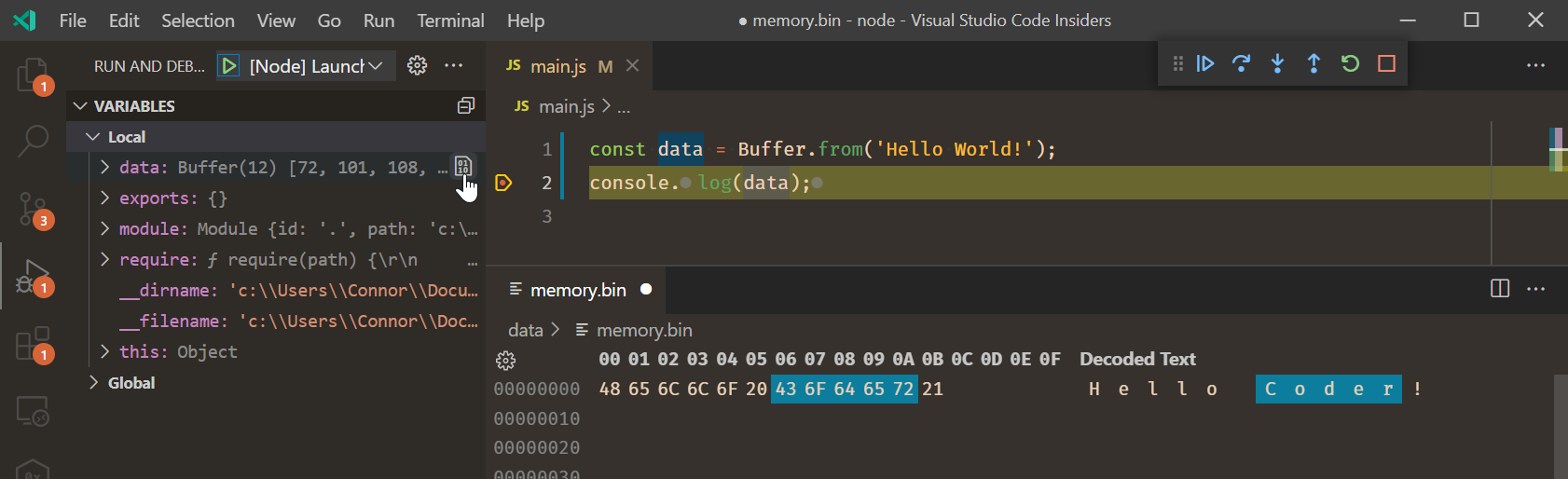
Memory viewing and editing relies on the memory-related features of the Debug Adapter Protocol and debug extensions have to implement these features in order to enable the corresponding UI in VS Code. For details, see section Debugger extension authoring below. In this release, only the built-in JavaScript debugger supports viewing and editing of binary data, but we expect other debug extensions to follow soon.
JavaScript debugging
Exclude callers from pausing at breakpoints
Sometimes you might set a breakpoint or add a debugger statement, but only want to pause when called from a certain code path. DOM event handlers like mousemove are a good example for this. In this release, the JavaScript debugger added the ability to "exclude a caller" from pausing at a breakpoint or debugger statement.
When paused at a location, you can right-click on a frame in the CALL STACK view and choose the Exclude Caller command. A new EXCLUDED CALLERS view will be shown to allow you to view and manage excluded callers, and afterwards your program won’t pause at a breakpoint location if the excluded caller appears anywhere in its call stack.
Edge support on Linux
Microsoft Edge debugging is now available on Linux, via the edge debug type.
Languages
Markdown path IntelliSense
The built-in Markdown extension now includes path IntelliSense for links and images.
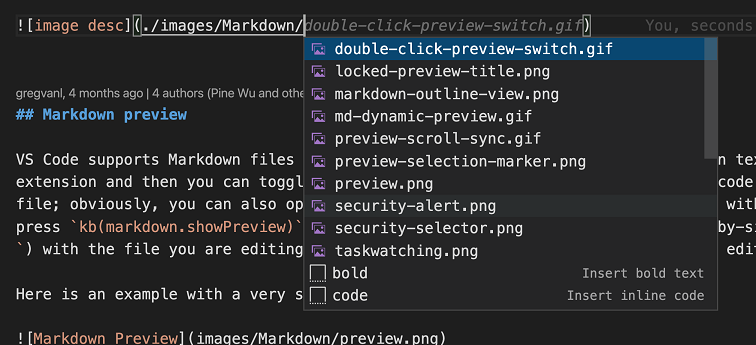
The paths suggestions work similarly to path IntelliSense in CSS and HTML files. Paths starting with / are resolved relative to the current workspace, while paths staring with ./ or without any prefix are resolved relative to the current file. Path suggestions are automatically shown when you type / or can be manually invoked by using ⌃Space (Windows, Linux Ctrl+Space ) .
Path IntelliSense can also help you link to headers within the current file or within another Markdown file. Start the path with # to see completions for all the headers in the file (depending on your settings, you may need to use ⌃Space (Windows, Linux Ctrl+Space ) to see these):
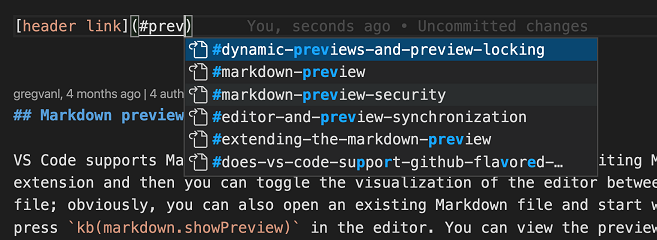
You can disable path IntelliSense with "markdown.suggest.paths.enabled": false .
Markdown strikethrough support
VS Code now supports rendering
text in both the Markdown editor and in the built-in Markdown preview:
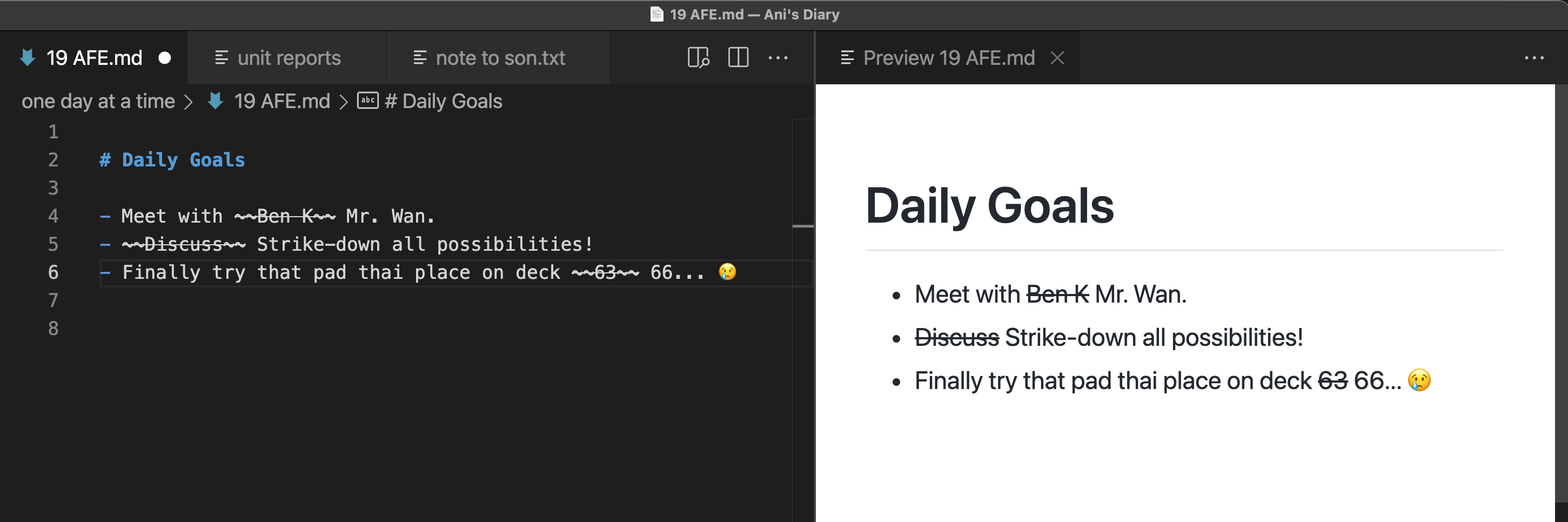
Strikethroughs are written by wrapping text in two tilde characters.
While all of VS Code’s built-in themes support strikethroughs, some themes from the Marketplace may require an update to properly render strikethrough text in the editor.
TS 4.5.5
VS Code now bundles TypeScript 4.5.5.
Surround with snippets for JS/TS
Many of the JavaScript and TypeScript snippets have been updated to support surrounding selected text.
To use surround with, first select some text and then run Insert Snippet. Instead of replacing the selected text, snippets such as if or forof will now use the selected text as the body of the new statement.
HTML auto insert quotes after equals
When typing = after a property in HTML, the language service now automatically inserts quotes and places the cursor between the quotes. The setting html.completion.attributeDefaultValue lets you specify what type of quotes (single or double) and by default uses double quotes.
The feature can be disabled by setting "html.autoCreateQuotes": false .
JSON Clear schema cache command
A new command Clear schema cache clears the cache of previously downloaded schemas.
LaTeX support
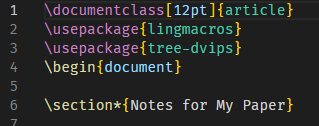
LaTeX basic language support has been added. This includes syntax highlighting and auto-closing pairs.
VS Code for the Web
Remote Repositories
GitHub Repositories
Commits created in VS Code for the Web are now signed and marked as Verified in the GitHub UI. Additionally, maintainers can now commit to pull requests submitted from forks when using VS Code for the Web. This is thanks to the new GitHub GraphQL createCommitOnBranch API.
Additionally, the Source Control view now supports multiple selection.
Previously, creating empty commits was only supported after cloning your GitHub repository to a local or remote machine. You can now also create empty commits in VS Code for the Web using the GitHub Repositories: Commit Empty command.
A new configuration was also added to enable automatically downloading the full contents of repositories below a given size to enable advanced features like whole-repository text search and Go to Reference. The setting remoteHub.experimental.fs.maxAutoDownloadSize controls the repository size limit before a prompt will be shown on attempting to download full contents. By default, maxAutoDownloadSize is not set, in order to never download without prompting.
Azure Repos
Azure Repos support has moved out of the GitHub Repositories extension into its own dedicated extension that can also be installed on desktop.
Adopted pre-release extensions
VS Code for the Web now bundles pre-release versions of both the GitHub Pull Request and Issues and GitHub Repositories extensions.
PWA and offline support
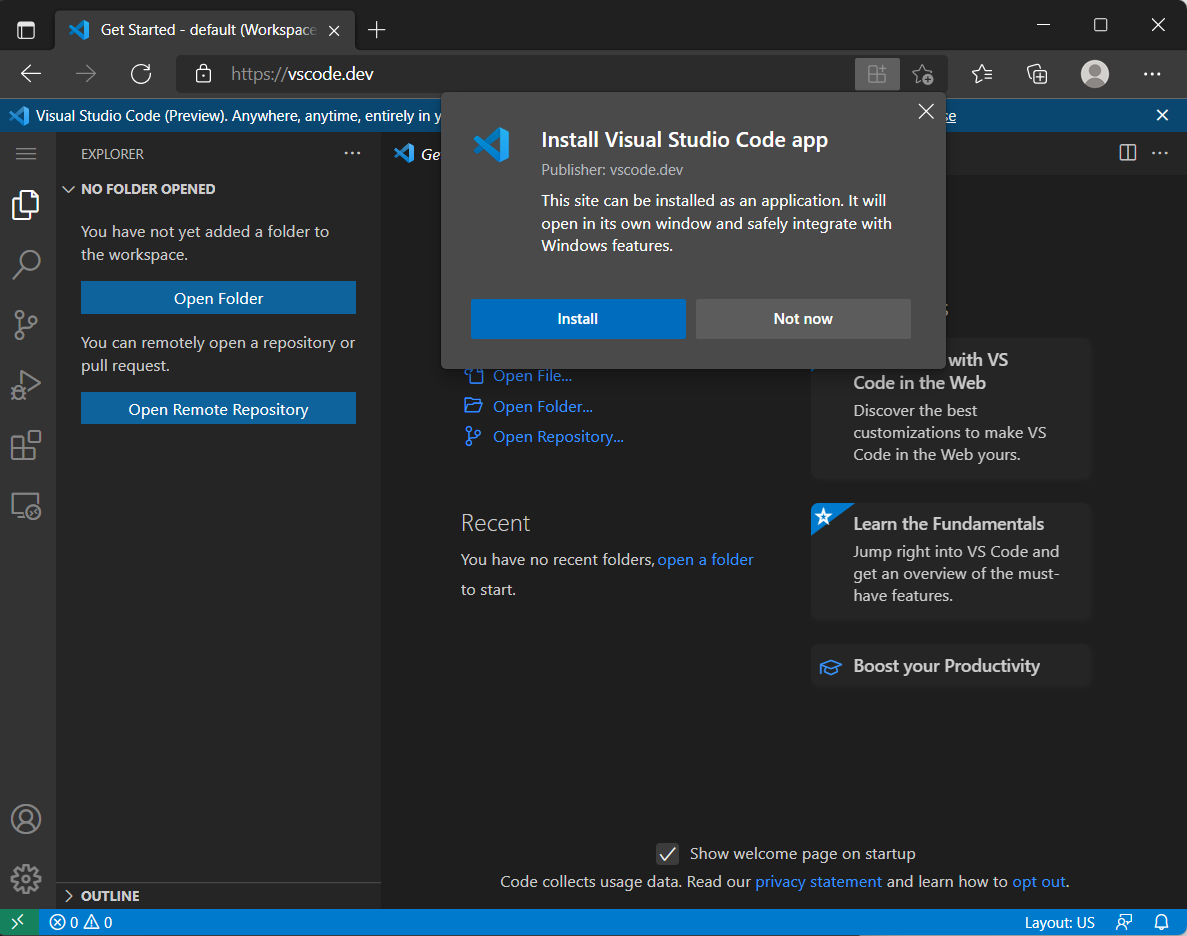
VS Code for the Web has adopted the PWA model and can now be installed as a PWA on the host OS. Thanks to that adoption, it is also now possible to enable some offline functionality. Having once visited vscode.dev or insiders.vscode.dev, users can now use it to edit local files even while offline.
Contributions to extensions
Python
Improved interpreter Quick Pick
In order to make it easier to select the desired interpreter, the Python extension now groups interpreters by type in the Select Interpreter Quick Pick.
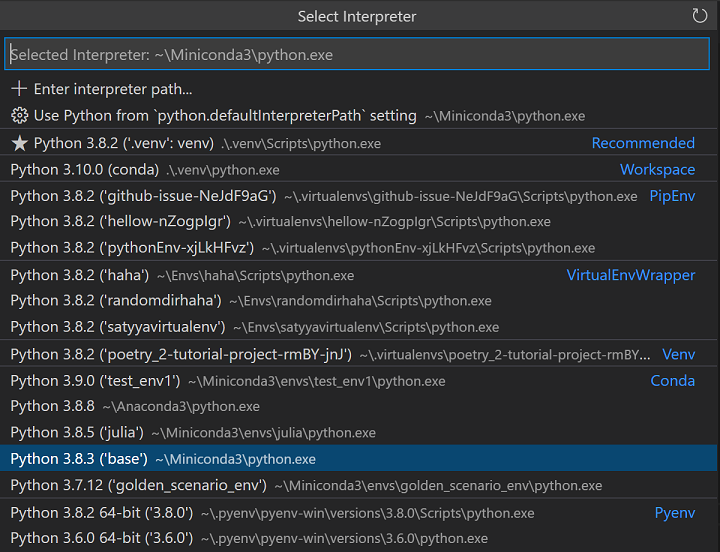
We’re also experimenting with moving the active/selected interpreter in the Status bar towards the right possibly inside the language status, so check the Python status in the right side in case it isn’t visible.
Add support for ‘conda run’
To improve our support for Anaconda users, we have implemented support for conda run , using the —no-capture-output parameter, which does not capture output that had caused errors in the past. This feature is implemented for executing the linter, testing, and formatting functions.
There is a known bug issue #10972 that causes an error on Windows when running linting and testing with a special character in the parameters. This is due to how conda run reads parameters with special characters, so it can affect any command line arguments you have specified in your settings.json .
The Anaconda team is working on the issue and hopes to have a fix out soon. You can update your version of Anaconda on the Conda website once the new version is released.
Smart selection and better folding support
Improvements were also made for Python code selection and folding via the Pylance language server.
Selecting Python code using the keyboard takes fewer keystrokes as the semantic information of your code is taken into account when defining the selection range:
As for folding, previously the regions were defined just by indentation, which was not ideal for some cases, such as multi-line strings. Now folding regions take into account semantic information appropriately, and also supports #region comments:
Jupyter
Remote Jupyter servers
The Jupyter extension now no longer requires you to reload VS Code when switching between local and remote Jupyter servers. In addition, the extension now displays both local and remote kernels together in the kernel picker.
Hex Editor
The Hex Editor has undergone some significant architectural refactoring. Notably, in most cases it’s now able to open files of any size without performance issues. Additionally, its layout width is now configurable, and it has a more capable Find/Replace implementation. Continued improvements will be forthcoming in future iterations.
Remote Development
Work continues on the Remote Development extensions, which allow you to use a container, remote machine, or the Windows Subsystem for Linux (WSL) as a full-featured development environment.
You can learn about new extension features and bug fixes in the Remote Development release notes.
GitHub Pull Requests and Issues
Work continues on the GitHub Pull Requests and Issues extension, which allows you to work on, create, and manage pull requests and issues. Check out the changelog for the 0.36.0 release of the extension to see the highlights.
Preview features
Terminal shell integration
The terminal now features experimental shell integration that allows VS Code to gain insights on what is going on within the terminal, which was previously unknown. When enabled using the setting "terminal.integrated.enableShellIntegration": true , arguments to run a shell integration script will be injected into your terminal profile if possible. The script itself mostly injects invisible sequences into your prompt, providing VS Code with information such as the location of the prompt, command, and command output, what the current working directory (cwd) is for each command, and the exit code of each command.
Using this information, we can enhance existing features in various ways:
- Detect the cwd quickly — Previously this was only possible on macOS and Linux and would launch processes or query the file system to get that information. This now also works on Windows. The cwd is used in features like link detection and inheriting the cwd when splitting a terminal tab.
- Improve the command tracking feature — This feature existed beforehand but only had default keybindings on macOS ( Cmd+Up/Down ) and used a naive approach to guess where lines were based on when Enter was pressed.
Shell integration enables the following new features:
- Run recent command — Since we know what commands are run, we can expose a command that allows you to view and run them again in a Quick Pick.
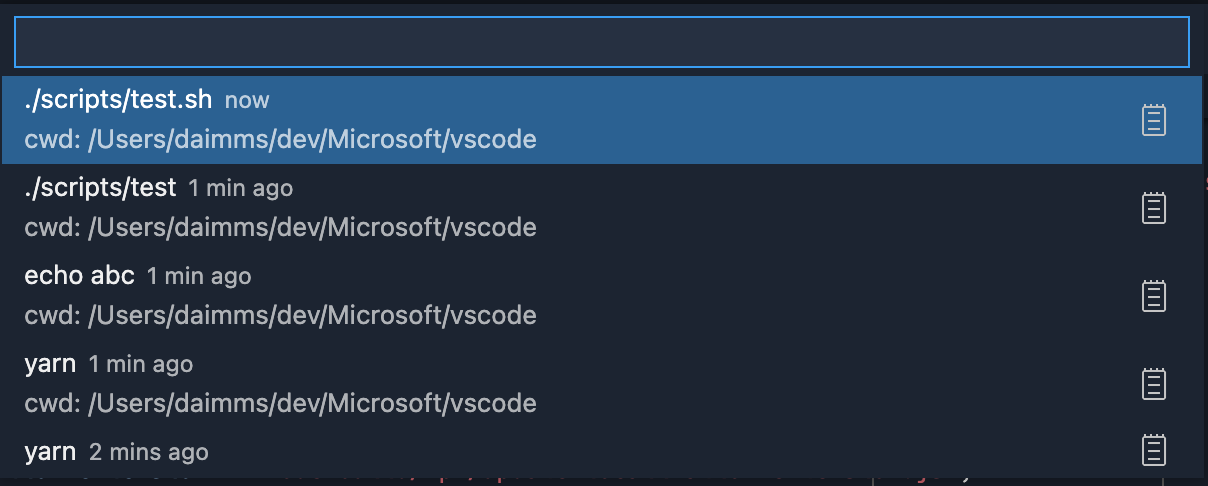
- Go to recent directory — Similar to above, we also allow navigating to past directories.

- Link support relative to the cwd — We now know the cwd for each line in the terminal buffer, so we can support opening links in the terminal relative to the cwd at the location where it was activated. Before, when a link was clicked, a Quick Pick would open with results from any folders containing a match for that name. Now, the exact file match will be opened.

The goal is to turn on shell integration by default when reliability of the feature is good enough. The approach we’re taking with regard to argument injection is to be as unintrusive as possible. For example, we do not modify your shell initialization scripts automatically like some terminals but instead intercept the creation of the process, inspect the arguments, and inject shell integration arguments if we are confident the terminal can run with them. The hope is to make it work well without any configuration required by the user, and to not interfere with your existing shell settings.
The current shells supported are pwsh for Windows and pwsh, bash, and zsh for Linux and macOS.
As mentioned previously, this is an experimental feature that is a little rough around the edges and there are some known issues:
- $PS2 line continuations aren’t supported yet. However, line continuations in pwsh do work.
- Right prompts aren’t supported yet.
- The zsh script is known to not activate sometimes.
- Remote VS Code window support is limited.
Explorer file nesting
The Explorer now has experimental support for displaying files in the same directory in a logically nested layout. This can be helpful for visually grouping related files together and collapsing files into a "root" file to reduce clutter. Several new settings have been added to control this behavior:
- explorer.experimental.fileNesting.enabled : Controls whether file nesting is enabled.
- explorer.experimental.fileNesting.expand : Controls whether file nests show as expanded by default.
- explorer.experimental.fileNesting.patterns : Controls how files get nested.
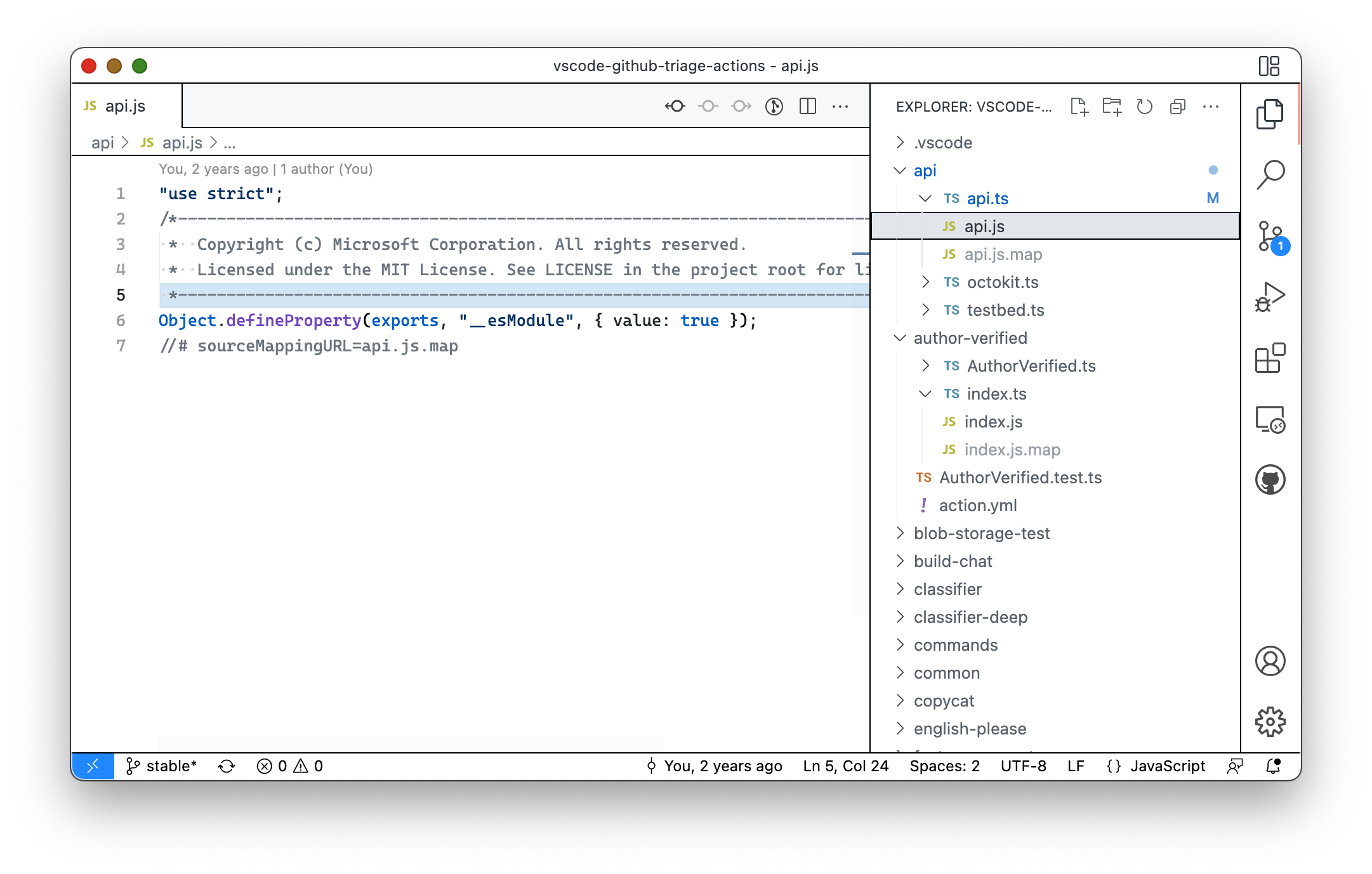
For example, in many repositories .ts files sit next to their derived .js , .d.ts , and/or .js.map files. While hiding derived files entirely has long been possible via files.exclude , it can be nice to have a quick way of accessing derived files, which is now possible with nests:
Below, the Explorer is using the default explorer.experimental.fileNesting.patterns configuration to nest .js and .js.map files, which are displayed when the corresponding .ts file is expanded.
Extension authoring
Language default icons
Language contributors can define an icon for the language.
The icon is shown if the current file icon theme only has a generic file icon for the language.
Also file icon themes like Minimal or None that do not show file icons, will not use the language icon. If a file icon theme has an icon for an extension or file name, these will be preferred.
File icon themes can customize the new behavior by defining showLanguageModeIcons: true|false in the theme file.
- showLanguageModeIcons: true shows the default language icons even if the theme does not specify a file icon.
- showLanguageModeIcons: false prevents that default language icons are used.
QuickPickItem separators
Extension authors now have the ability to add separators to a Quick Pick. This is useful for grouping items or adding a bit of space between items:
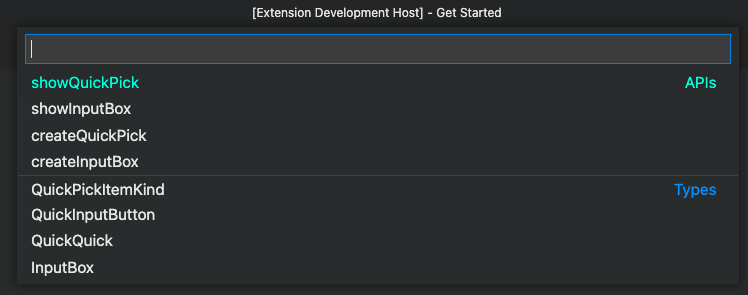
To add a separator to your existing Quick Pick, add a new QuickPickItem to your existing list of items but specify the kind property on the QuickPickItem and set it to QuickPickItemKind.Separator .
In the example above, you would add the following object to your list of items:
If you don’t specify a kind property, or you set it to QuickPickItemKind.Default , the item will be treated as a normal QuickPickItem .
vscode.workspace.createFileSystemWatcher now supports any path
The existing vscode.workspace.createFileSystemWatcher API was improved to allow you to pass in any file or folder path for file watching, even if it is outside of the workspace. Previously, the file watcher was limited to the opened folders in the workspace.
Depending on the glob pattern you pass into the method, the watcher will either be recursive (for example, **/*.js ) or non-recursive ( *.js ). Recursive watchers require more resources, so we recommend using simple glob patterns if possible.
Note: As part of this change, we made a behavioral change for existing file watchers. A file watcher that is instructed with just a glob pattern (for example, vscode.workspace.createFileSystemWatcher(‘**’) ) will no longer receive events for files that changed outside of the workspace. It will only receive file events from paths that are inside the workspace. If the user does not have an open workspace, no event will be delivered via this method anymore. This was done to ensure that extensions do not receive unexpected events from outside the workspace.
vscode.TerminalLocation
You can specify where an extension terminal will be created with the new TerminalLocation API.
This enables creating a split terminal by providing a parentTerminal, choosing between the editor area and the panel, and more.
Cancellation token for onWill events
The VS Code API exposes events to participate in file operations, like onWillRenameFiles. This participation can be long-running and therefore users can cancel it. With this release, user-side cancellation can be observed by extensions via a cancellation token on the corresponding event, for example FileWillRenameEvent#token. This allows extensions to cancel expensive downlevel operations as well.
Git extension APIs
- A new Repository.add method has been added, to enable the ability to stage files.
- The Repository.tag and Repository.deleteTag methods were added to enable the ability to create and delete tags.
onTaskType activation event
Extension that provide tasks can limit their unneeded activations by using the new onTaskType:foo activation event. This is an improvement over activating on onCommand:workbench.action.tasks.runTask as workbench.action.tasks.runTask is usually too eager for task providing extensions.
Debugger extension authoring
VS Code now implements the memory-related features of the Debug Adapter Protocol
In this release, VS Code has started to support viewing and editing binary data by supporting the following memory-related features of the Debug Adapter Protocol:
- VS Code honor’s the memoryReference attribute on DAP variables and announces this by passing the client capability supportsMemoryReferences to the debug adapter.
- If VS Code receives the capability supportsReadMemoryRequest from a debug adapter, it will enable the UI for viewing binary data and will issue readMemory requests to retrieve the data.
- If VS Code receives the capability supportsWriteMemoryRequest from a debug adapter, it will enable the UI for editing binary data and will issue writeMemory requests to store the data.
- VS Code handles the memory event and announces this by passing the client capability supportsMemoryEvent to the debug adapter.
Language Server Protocol
A new next version of the Language Server Protocol, together with the corresponding npm modules, has been published. The version contains a proposed implementation for notebook documents. The specification part can be read here.
Proposed extension APIs
Every milestone comes with new proposed APIs and extension authors can try them out. As always, we want your feedback. Here are the steps to try out a proposed API:
-
and add its name to package.json#enabledApiProposals .
- Use the latest vscode-dts and run vscode-dts dev . It will download the corresponding d.ts files into your workspace.
- You can now program against the proposal.
You cannot publish an extension that uses a proposed API. There may be breaking changes in the next release and we never want to break existing extensions.
Disable terminal persistence
When creating a terminal, you can opt out of terminal persistence on restart and reload by setting disablePersistence in TerminalOptions or ExtensionTerminalOptions .
Inlay hint API
This is a shout out to everyone who’s interested in the inlay hints API. It is nearing completion and has added support for interactive label parts. Those allow you to bind a source code location to hints that in return enables features like code navigation. Also, commands are now supported. The latest state and development of this proposal is here: vscode.proposed.inlayHints.d.ts
Language status API
The language status item API is planned for finalization. Please try it out and provide feedback for vscode.proposed.languageStatus.d.ts
Testing Proposals
We’re proposing an official way to implement a "refresh" handler for tests, check out vscode.proposed.testRefresh.d.ts. This will allow extensions to unify behind a standard "refresh" button in VS Code and avoid implementing their own.
Additionally, we propose that TestItem have a sortText attribute in vscode.proposed.testSortText.d.ts.
Inline completions: Automatic bracket completion
When an extension provides an inline completion item, it can set its property completeBracketPairs to true . If set, VS Code tries to repair invalid brackets in the completion text by closing or removing them, before the inline completion is shown to the user.
Tree drag and drop proposal supports dragging into the editor
The tree drag and drop proposal is almost ready for finalization and now supports dragging from a tree view into an editor when the "resourceurls" mime type is supported by the TreeDragAndDropController . Details are available in issue #141418. Try it out and provide feedback for vscode.proposed.treeViewDragAndDrop.d.ts.
Comment timestamp
The commenting API has a new timestamp property on Comment . Along with the API is a new setting to control how comment timestamps are displayed: comments.useRelativeTime . Please try it out and provide feedback for vscode.proposed.commentTimestamp.d.ts.
Engineering
vscode-bisect tool
A new tool for bisecting released VS Code Insiders versions (web and desktop) is available to help diagnose issues:
Similar to git bisect , vscode-bisect will launch a range of released Insiders builds from the past, asking whether the build reproduces the issue or not. The end result is a range of commits that introduced the issue. The instance will use a dedicated fresh folder for user data to not impact your main development environment.
Run Code Web & Server from sources
The scripts to run VS Code for the Web and VS Code Server from sources has moved to the scripts folder:
- ./scripts/code-web.sh|bat starts Code for the Web (aka "serverless)" from sources and opens a browser on it. Use —help for more options.
- ./scripts/code-server.sh|bat starts VS Code Server from sources. Add —launch to additionally open the web UI in a browser. Use —help for more options.
- ./scripts/test-web-integration.sh|bat for the remote web tests.
- ./scripts/test-remote-integration.sh|bat for the remote tests.
Extensions
In this milestone, we improved Marketplace interactions by minimizing the number of queries VS Code makes to the service.
Notable fixes
-
Throttling settings sync activity on the client The result when "gtc" is expanded with emmet with the extension sass is strange. Non-existent debugger configuration Hovering over setting UI links shows # at the start Store recently opened workspaces in global storage Opening large binary files reads full contents Opened editor can end up empty after a file change on disk Debug: being asked to save a file on F5 Task cannot be referenced from a launch configuration that is in a different workspace folder Double clicking on settings.json file results in new tabs each time Problem with the VS Code Stop Debugging API Comment.body rendered as Markdown, even for plain strings
Thank you
Last but certainly not least, a big Thank You to the contributors of VS Code.
Web extensions
Extension authors for enabling extensions that run code as web extensions (the list below is between December 7 2021 and January 31 2022):
Руководство — Как обновить Visual Studio до новой версии в Windows
Как обновить Visual Studio 2022/2019/2017/2015/2013 до новой версии, чтобы получить лучший опыт? Это простой способ, и вы можете следовать некоторым способам, указанным Миниинструмент чтобы легко выполнить операцию обновления.
Visual Studio — это интегрированная среда разработки (IDE), разработанная Microsoft и используемая для разработки программ для ПК, включая мобильные приложения, веб-службы, веб-приложения и веб-сайты. Для разработчиков .NET и C++ это комплексная IDE. Это также автономный редактор исходного кода, который может работать в Windows, macOS и Linux. Если вы хотите отредактировать, отладить и создать код, а затем опубликовать приложение, Visual Studio — хороший вариант.
В настоящее время Visual Studio 2022 является новейшим продуктом, а старые продукты, такие как Visual Studio 2013, 2015, 2017 и 2019, также доступны для загрузки через официальный сайт Майкрософт .
Если вы используете одну из них со старой версией, вы можете обновить Visual Studio до последней версии, чтобы пользоваться дополнительными функциями, исправлениями безопасности и улучшениями для большего удобства. Для Visual Studio 2022 Community/Professional/Enterprise последней версией является 17.4, когда мы пишем этот пост.
Обновление Visual Studio — это простая вещь, и вы можете выполнить эту задачу несколькими способами, описанными ниже, если вам нужно. Давайте перейдем к следующей части, чтобы найти то, что вам нужно.
Как обновить Visual Studio
Прежде чем делать это, убедитесь, что у вас есть права администратора на компьютере и в том месте, где находятся обновления продукта.
Используйте установщик Visual Studio для обновления VS
Шаг 1: Перейдите в меню «Пуск» Windows, введите Установщик Visual Studio в строку поиска и щелкните результат, чтобы открыть это приложение.
Шаг 2: Под Установлен на вкладке вы можете увидеть установку Visual Studio, которую вы ранее установили. Перейдите к версии, в которой отображается сообщение Доступно обновление, и щелкните значок Обновлять кнопку для установки обновления.
После завершения обновления установщик может попросить вас перезагрузить компьютер и сделать это, а затем запустить VS, как обычно. Если нет, вы можете нажать кнопку Запуск кнопку, чтобы открыть Visual Studio из установщика Visual Studio.
Вручную проверить наличие обновлений
В дополнение к установщику Visual Studio вы можете обновить Visual Studio, вручную проверив наличие обновлений в самом приложении. Посмотрите, как это сделать:
Шаг 1. Откройте Visual Studio в Windows.
Шаг 2: Перейти к Справка > Проверить наличие обновлений . Затем инструмент начнет проверку наличия доступных обновлений.
Шаг 3: В Доступно обновление окно, нажмите на Обновлять кнопка.
Обновите Visual Studio через Центр уведомлений
Шаг 1: Откройте Visual Studio.
Шаг 2: Перейдите в правый нижний угол, чтобы щелкнуть значок уведомления.
Шаг 3: Нажмите Посмотреть детали рядом с сообщением об обновлении и нажмите Обновлять . Или вы можете выбрать Обновить при закрытии чтобы отложить обновление, пока вы не закроете это приложение.
Обновите Visual Studio через окно сообщений в среде IDE.
Когда вы открываете Visual Studio, среда IDE может проверить наличие доступных обновлений. Для Visual Studio 2022 может ненадолго появиться сообщение об обновлении. Вы можете нажать Посмотреть детали обновить сейчас или отложить обновление, выбрав Обновить при закрытии .
Связанные часто задаваемые вопросы
Visual Studio 2019 и Visual Studio 2022 могут работать либо по отдельности, либо вместе на вашем ПК с Windows. Вы не будете обновлять VS 2019, а просто установите VS 2022. Вы можете обновить только Visual Studio 2019/2022 до последней версии.
Как обновить Visual Studio 2019/2017/2015?
Вы можете обновить Visual Studio 2019/2017/2015 до последней версии четырьмя способами: с помощью установщика Visual Studio, вручную проверить наличие обновлений и использовать центр уведомлений и окно сообщений в среде IDE.
Как обновить Visual Studio для Mac?
Вы можете открыть приложение Visual Studio для Mac и проверить наличие обновлений. Если доступно новое обновление, оно начнет загружаться. Нажмите Перезапустите и установите обновления для установки обновления.
Нижняя граница
Это четыре простых способа обновить Visual Studio до последней версии. Если у вас есть какие-либо идеи о том, как обновить Visual Studio, вы можете оставить комментарий ниже, чтобы сообщить нам. Спасибо.