Upgrade Python to latest version (3.10) on Ubuntu Linux
Linux systems come with Python install by default, but, they are usually not the latest. Python also cannot be updated by a typical apt upgrade command as well.
To check the version of Python installed on your system run
python keyword is used for Python 2.x versions which has been deprecated
- Update Python to the latest version
- Fix pip & other Python related issues
- While doing the above two, ensure your Ubuntu which is heavily dependent on Python does not break
Updating Python to the latest version
Ubuntu’s default repositories do not contain the latest version of Python, but an open source repository named deadsnakes does.
Python3.10 is not officially available on Ubuntu 20.04, ensure you backup your system before upgrading.
Step 1: Check if Python3.10 is available for install
Check if Python 3.10 is available by running
This will produce the below result, if you see python3.10 it means you can install it
Step 2: Install Python 3.10
Now you can install Python 3.10 by running
Now though Python 3.10 is installed, if you check the version of your python by running python3 —version you will still see an older version. This is because you have two versions of Python installed and you need to choose Python 3.10 as the default.
Step 3: Set Python 3.10 as default
Steps beyond here are tested on Ubuntu 20.04 in VM & WSL2, but are experimental , proceed at your own risk.
Changing the default alternatives for Python will break your Gnome terminal. To avoid this, you need to edit the gnome-terminal configuration file.
Open the terminal and run:
In first line, change #!/usr/bin/python3 to #!/usr/bin/python3.8 . Press Ctrl +X followed by enter to save and exit.
Then save and close the file.
Next, update the default Python by adding both versions to an alternatives by running the below
Choose the selection corresponding to Python3.10 (if not selected by default).
Now run python3 —version again and you should see the latest Python as the output.
Fix pip and disutils errors
Installing the new version of Python will break pip as the distutils for Python3.10 is not installed yet.
Fix Python3-apt
Running pip in terminal will not work, as the current pip is not compatible with Python3.10 and python3-apt will be broken, that will generate an error like
To fix this first remove the current version of python3-apt by running
Then do some cleanup
DO NOT RUN sudo apt autoremove as it will remove several packages that are required. This may break your system if you’re using GUI, if you’re on WSL2 you can proceed.
Finally, reinstall python3-apt by running
Install pip & distutils
Running pip will still throw an error pip: command not found . We need to install the latest version of pip compatible with Python 3.10.
Also, if try to manually install the latest version of pip, it will throw an error like
Or you might also see an error stating No module named ‘distutils.util’ . This is because the distutils module is not installed yet, to install run the below command
Now you can install pip by running
If you get an error like bash: curl: command not found then you need to install curl first by running sudo apt install curl
Now you can run pip and you should see the output of pip —version
Fix pip-env errors when using venv
When you try to create a new virtual environment using python -m venv env , you may into the following error.
You can fix this by reinstalling venv by running
All should be done now. It is complicated, but this is how you update Python to latest version.
Extra
If you have oh-my-zsh installed, you can avoid typing out python3 by running
Install and upgrade Python
If the APT repositories don’t support the old or new version you’re after.
macOS
Note that upgrading Python with Homebrew causes all my virtual envs to break. Using Pyenv is safer.
Install
Using the python@3.9 formula.
Upgrading
I had 3 versions of PY3 installed.
The system default is Python3.7.
And Python 3.8 was known by Brew.
Python 3.9 got installed because sphinx-doc has it as a dependency, but it did not replace the existing one. See notes from the output.
Try this to sort out the linking:
Then you can add this to PATH — /usr/local/opt/python@3 .
Also I can’t just delete the old one as it is used by other Brew packages.
Doing an install of Python 3.9 made it the default without having to update my PATH .
And /usr/local/bin/python3 links to ../Cellar/python@3.9/3.9.0/bin/python3 now.
Dev Cheatsheets
- Michael Currin
A collection of code snippets and CLI guides for quick and easy reference while coding
How to Update Python Version? — [Upgrade Python Version]
Are you looking to update Python version to the latest python version? Then this blog post will guide you with how to upgrade Python version.
List of content you will read in this article:
Python is an open-source high-level programming language that allows users to execute commands, plugins on their machine, and even software from several major suppliers. It means you can operate it on many different operating systems, including the Windows VPS Server. Python is a cross-platform programing language.
Pip is one of the best applications for Python package installation and administration. Pip’s popularity stems from the many apps that use this tool. Pip enables 3rd Party package installed to manage binary packages with the quickly configured package manager. Since Python’s latest releases have piping as normal, this guide will explain how to install PIP and how to update Python version with a complete step-by-step guide.
What is PIP?
PIP is a software management framework for installing and managing Python-written program packages. It is called the ‘preferred software installer’ or ‘Pip Installs Packages.’ PIP, used for Python, is a command-line interface for handling PyPI program installation. You might need to upgrade PIP if you’re using an earlier version of Python on Windows. Download the application file, open the command- line and start the installer to run PIP on Windows quickly. It will teach you how PIP is installed on Windows and how it can be modified, upgraded, and set up.
How to update Python on Windows Operating System?
There are two simple ways to update your current Python version with the latest one. They are as follows:
- Using the Python Installer
- Using the Windows Chocolatey Package Manager
So let’s see how we can update the Python version with these two methods, one by one.
Method 1: Python update on Windows using the Python Installer
This method of updating the Python version will work if Python is installed or not on your System.
If Python is already installed on your system, you can check it using the python -V command.

Step 1: Download the Python installer from the Official Website of Python
The easiest way to update the Python version is to download the latest version from the official website ( https://www.python.org/downloads/ )
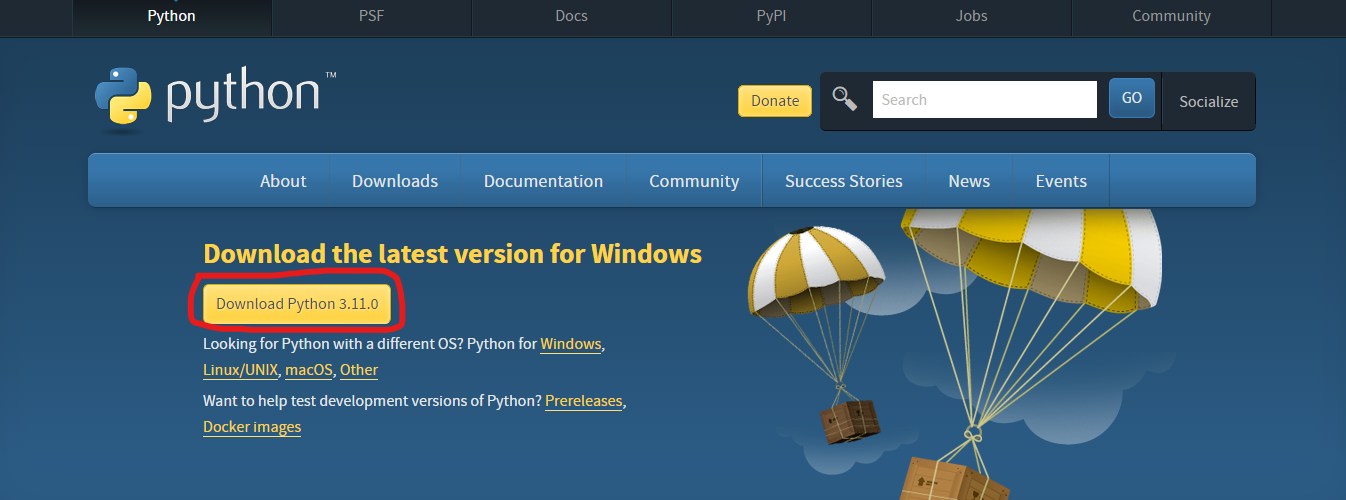
You can click on the Download Python 3.11.0 button, and it will download the latest compatible Python version for your system.
Step 2: Install the Downloaded Python Installer
After downloading the exe file, double-click on it to install Python.
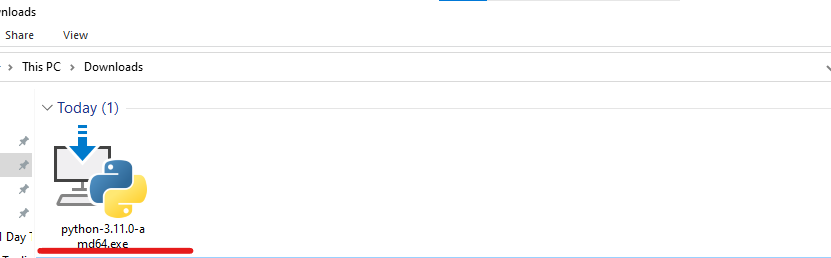
Step 3: Install Python
Now, you can install the latest version of Python.
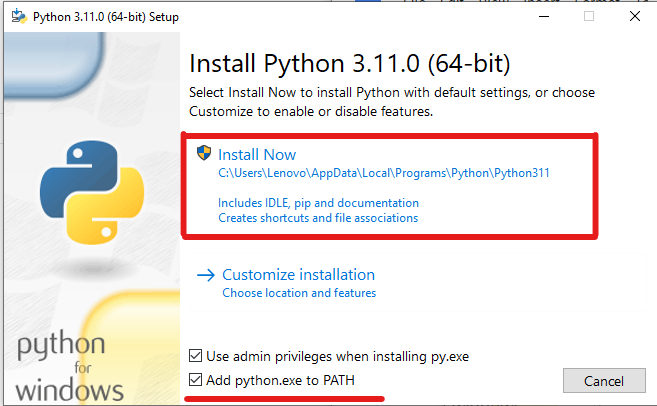
Check the “Add python.ext to PATH”, then click on the “ Install Now ” button.
This will start the installation process.
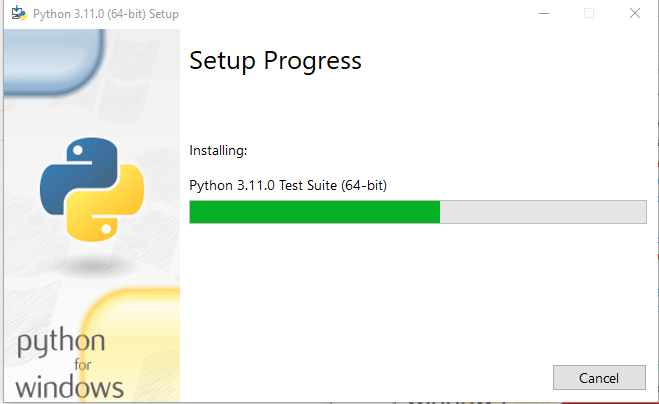
After processing, the latest version of Python will be installed on your system.
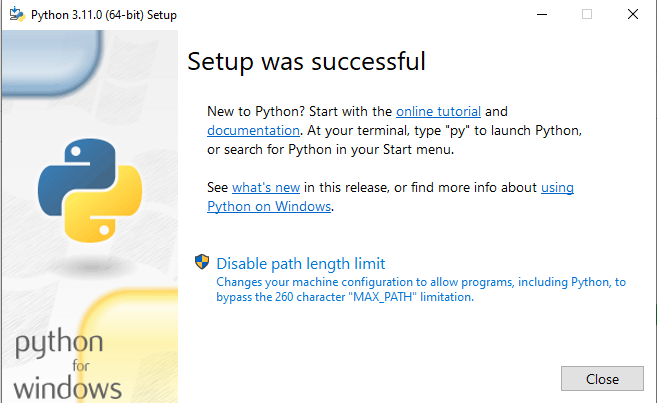
Click on the “Close” Button.
Step 4: Verify the Update
After successful installation, you can verify whether or not the latest version is installed on your system. To check the version, you can again run the same command, python -V , on the prompt command.
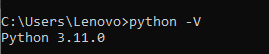
Now, you can see that it is showing the latest installed version, i.e., Python 3.11.0.
Note: If it still shows the old version, you may restart your system . Or uninstall the old version from the control panel .
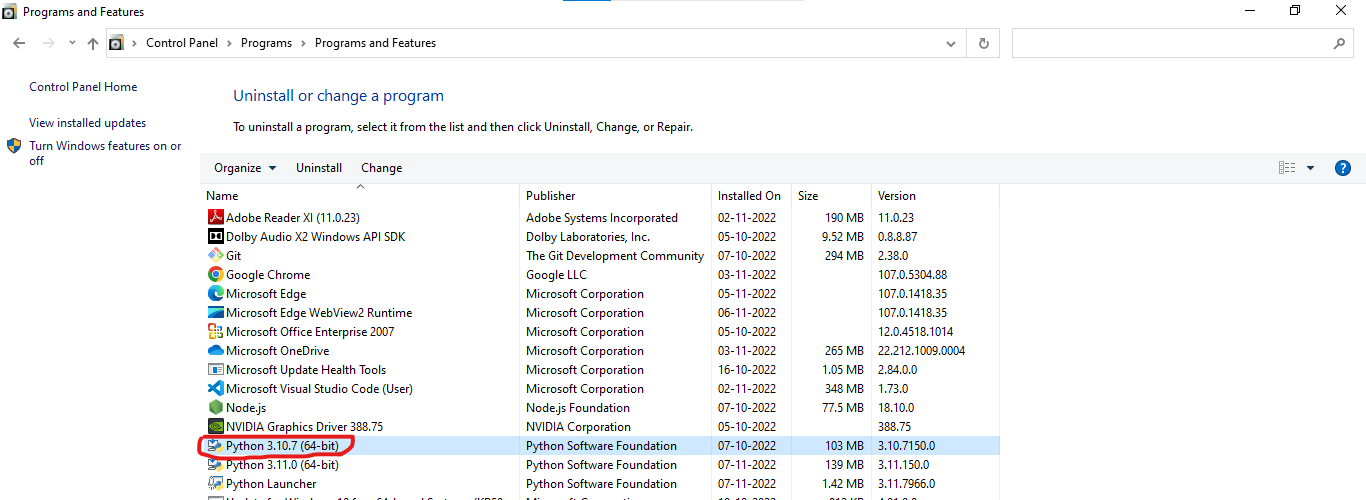
Method 2: Install Python using Command Line Only using the Chocolatey Package Manager
Chocolatey is a Package Manager command line tool for windows, and we can use it to install software for our window system. In our case, we can use it to install Python or update the current version of Python.
Step 1 Open The Powershell as Administrator
To install Chocolatey, you need to open PowerShell as Administrator.
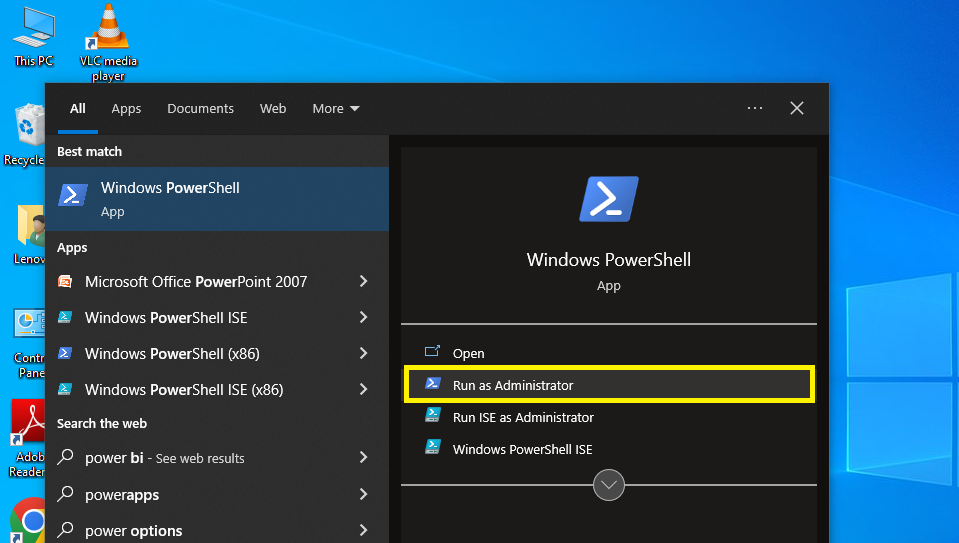
Step 2: Install the Chocolatey Package Manager Command
Now, you can install the Chocolatey package manager using the following command.
Set-ExecutionPolicy Bypass -Scope Process -Force; [System.Net.ServicePointManager]::SecurityProtocol = [System.Net.ServicePointManager]::SecurityProtocol -bor 3072; iex ((New-Object System.Net.WebClient).DownloadString(‘https://community.chocolatey.org/install.ps1’))
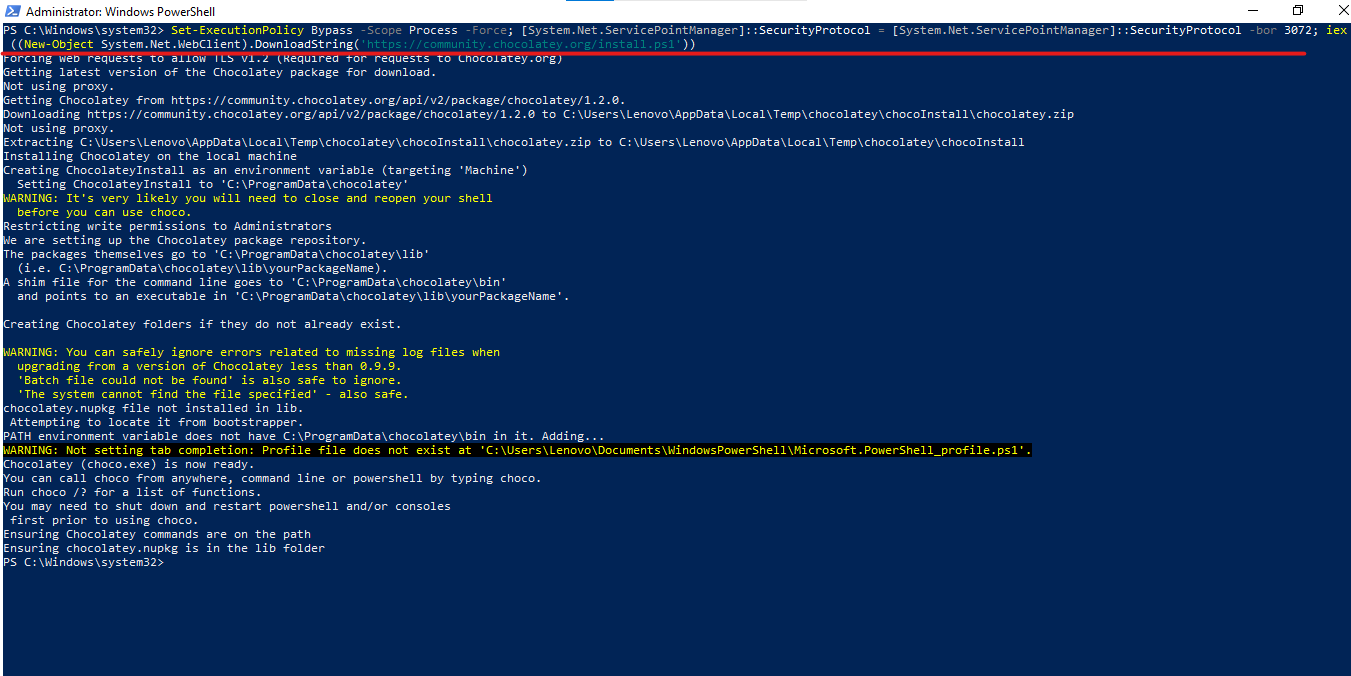
Step 3: Verify the Chocolatey Installation
Now, you need to check whether Chocolatey has been installed successfully. To check it, run the “ choco ” command.

It is installed successfully because it is showing version Chocolatey v1.2.0.
Step 4: Update Python with Chocolatey
With the help of the choco upgrade command, we can update our current Python version.
choco upgrade python -y
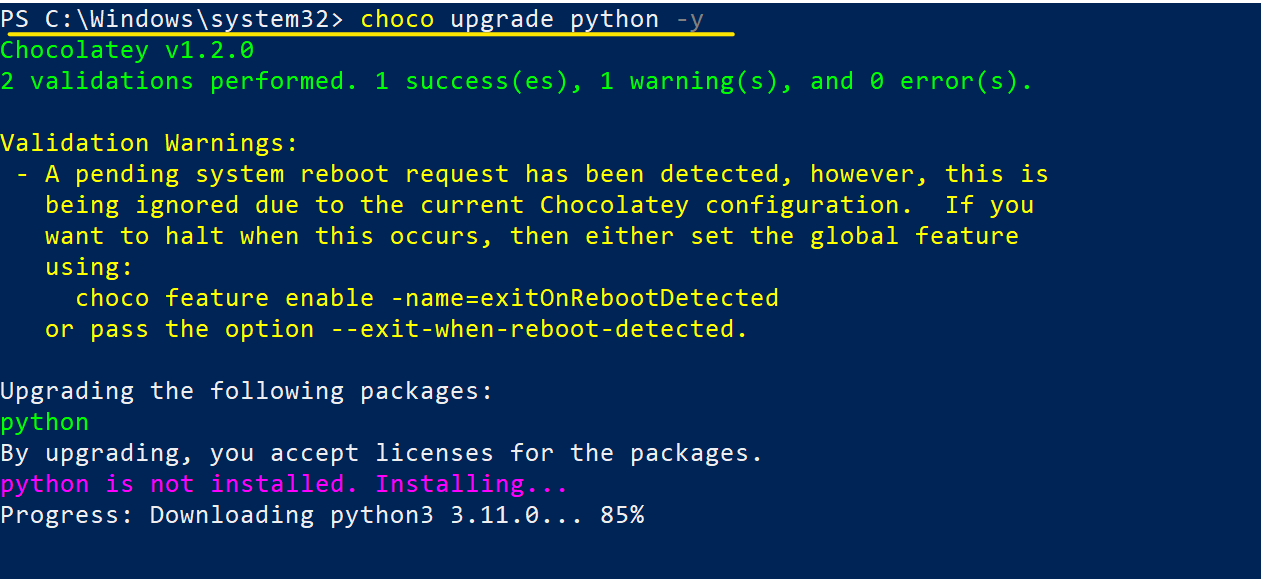
Step 5: Verify the Version
You can again check the latest installed Python version using the following command.
python -V

Note: The old version of Python will remain on your system. You can uninstall the old version from the control panel.
How To Upgrade Python on macOS?
You can download the latest version of Python for macOS from the official Python website, similar to what you did on windows OS to update Python version on your system. To check whether it is updated to the lasted version or not, follow the below-listed commands to check the Python version.
If you want to execute this new Python release with the python command instead of python3, install an alias in your $HOME directory’s bash profile file.
Open the terminal window and type the following commands:
$ cd $HOME
$ nano .bash_profile
Then, at the bottom, add this segment.
Python 3.9 version can be checked using the following command.
How to Update Python version on LINUX?
Users can use the below listed Linux commands to upgrade Python version on the Linux server:
ppa:deadsnakes/ppa can be added to the system’s Software Sources to upgrade the machine with unsupported packages from this untrusted PPA.
$ sudo add-apt-repository ppa:deadsnakes/ppa
This command is used to update the Python package.
$ sudo apt update
$ sudo apt install python3.9
Then, using the commands below, you can search the versions of your new and current Python installations:
This command will show you the following version of python installed in your system
$ sudo python —version
$ sudo python3 —version
$ sudo python3.9 —version
Conclusion
We have seen how to update Python version on operating systems like Windows, Mac OS, and Linux. Follow the guide carefully to update your python software. We believe this guide fulfills your requirement though you can install the latest version successfully. Leave your comments below for your feedback and queries.
People Are Also Reading:
Tutorials
What is the latest python version?
Python is a programming language with many features and libraries that can be used for various purposes. The latest version of Python is 3.11.0, which was released on Oct. 24, 2022. This version includes bug fixes and improvements to the standard library.
Get or update Python 3 on your computer

This is the fastest way to get python on your computer that I know of. And while there are many ways I suggest you use Anaconda. One of the best parts is that Anaconda offers installers for all OSs available. And since Python 2 is going to be killed off around 2020 by Python 3. It is best to get the 3.7 version installed.
1 — Download the installers for Windows, Mac, Linux. Although like anything else dealing with Linux I assume you already know all of this.
2 — Click through all of the default settings by clicking the “Continue” or “Install” buttons. While you can change the install settings on this page you should still select “install for me only” setting.
(I assume you are using YOUR computer, NOT a school or work one)
3 — Restart your computer.
And there you are. You should have python on your computer now. But first, read the next sections to make sure you did it right.
Where is the terminal?
If you are unaware of what the terminal is please follow the instructions from learn python the hard way to find out how to get to your terminal on your computer. No matter what OS it is.
To make sure you have the correct Python version
Go to the terminal (don’t type the ‘$’ sign EVER).
1 — In your terminal type $ python —version
You should get back something like Python 2.7.5
2 — If you get back version 2.whatever check for version 3
In your terminal type $ python3 —version
You should get back Python 3.7.0
If you got 3.7. whatever, YAY you did it.
UPDATE python 3
Use the Terminal for the following steps.
If you are in an environment with Python version 3. whatever, the following command updates Python to the latest version in the 3.whatever branch:
(bear in mind that it will take some time)
❌ But if that returns something like:
OR … (if the above fails the next command will do it)
✅ Now that you have done that you should finally see the following.
�� CONGRATS you finished the UPGRADE! ��
And you did not upgrade to the newest available anaconda 3 then try the next step.
The NEWEST Python 3 is 3.8 HOWEVER …
The installer is only up to 3.7 at the time of this writing. But that is OK for now don’t worry about it.
Congrats reader!
I hope that this short article helped you.
Welcome to a new world of possibilities.