Как изменить расширение файла в Windows 11 или Windows 10
Во время работы иногда возникает необходимость изменить расширение файла. Это может потребоваться для файлов, с которыми можно работать в разных программах. Например, расширение текстового файла можно изменить с TXT на CFG, INI, BAT, REG, HTML, PHP, XML, VBS, CSV или CMD. Это позволит продолжить работу в другой программе.
Если вы столкнулись с подобной задачей, то этот материал должен вам помочь. Здесь вы узнаете, как изменить расширение файла в операционных системах Windows 11 или Windows 10.
Что такое расширение файла в Windows 10
 Расширение файла (или суфикс) – это один или несколько символов в имени файла, которые отделены с помощью точки. Например, если файла называется « filename. INI », то расширением будет являться « INI », так как данная часть названия расположена после точки.
В операционных системах Windows 11 и Windows 10 расширение файла используется для определения программы, которую нужно использовать для открытия этого файла. Например, если документ называется « filename.TXT », то он будет открываться с помощью текстового редактора, а если « filename.BAT », то с помощью интерпретатора командной строки. Связь между суфиксом и программой задается в реестре Windows и при необходимости ее можно изменить.
Изменение расширения файла позволяет изменить программу, с помощью которой он будет открываться. Например, вы можете создать текстовый документ « filename. TXT » в программе « Блокнот » и потом переименовать его в « filename. REG ». После такого переименования созданный документ начнет открываться уже не в « Блокноте » в редакторе реестра Windows 11 или Windows 10.
Нужно отметить, что изменение расширения никак не изменяет тип файла или его содержимое, изменяется только имя. Изменение с « AVI » в « MP3 » не превратит видео в аудио. Для решения таких задач нужно использовать конвертацию с помощью специального софта.
Как поменять расширение файла в Windows 10
Для того чтобы изменить расширение файла нужно сначала включить его отображение в Проводнике.
В Windows 10 для этого нужно открыть любую папку и перейти на вкладку « Вид ».
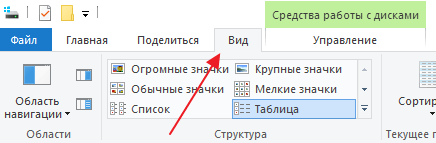
После чего нужно нажать на кнопку « Параметры », которая находится на вкладке « Вид » в правой части окна.

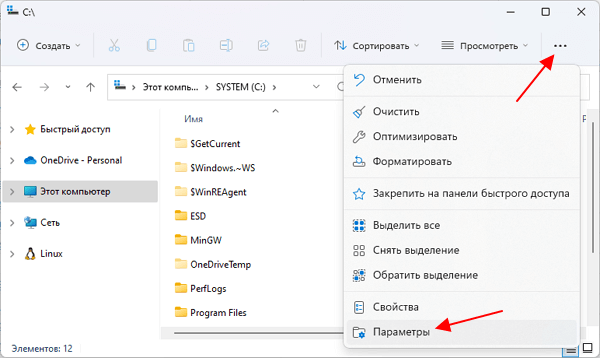
В случае Windows 11 нужно октрыть любую папку и нажать на кнопку с тремя точками. После этого в появившемся меню нужно выбрать пункт « Параметры ».
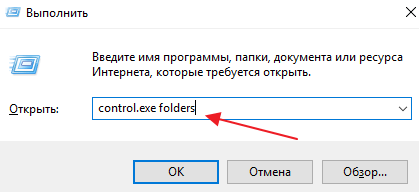
Если с этим возникают какие-то проблемы, то « Параметры » можно открыть с помощью команды. Для этого нажмите комбинацию клавиш Win-R и введите команду « control.exe folders ».
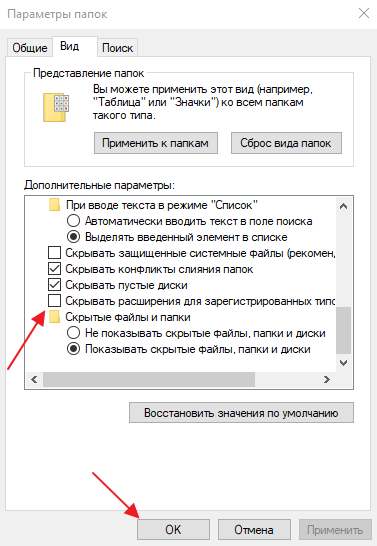
В результате перед вами появится окно « Параметры папок ». В данном окне можно изменить многие настройки, которые касаются отображения файлов и папок в проводнике Windows 10. Для того чтобы включить отображение расширений файлов перейдите на вкладку « Вид ».
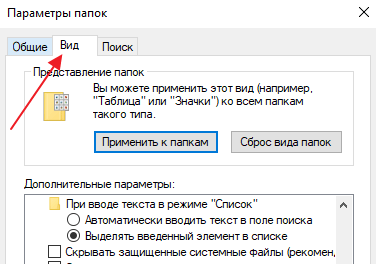
На этой вкладке будет доступен список параметров. Пролистайте данный список в самый конец, найдите там параметр « Скрывать расширения » и отключите его. Для этого достаточно снять отметку и сохранить изменения с помощью кнопки « ОК ».
После этого рядом с названием файла всегда будет отображаться и его расширение. Например, на картинке внизу показаны файлы DOCX и TXT .

Теперь можно изменить расширение файла. Для этого кликните по нему правой кнопкой мышки и выберите вариант « Переименовать ».
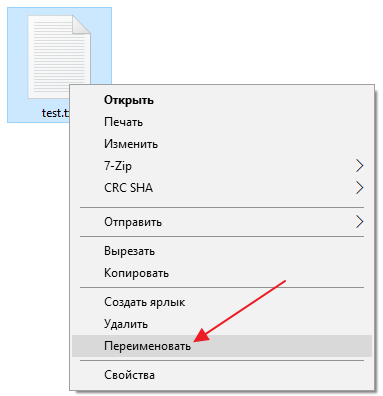
Теперь, когда скрытие окончаний отключено, вы сможете не только переименовать файл, но и изменить его расширение.
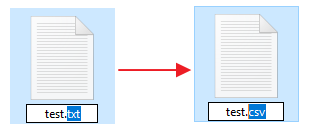
Например, вместо TXT можно указать CSV или наоборот.
Как изменить расширение для большого количества файлов
Если у вас много файлов, расширение которых нужно изменить, то вы можете воспользоваться командной строкой и тем самым значительно ускорить процесс. Для этого запустите командную строку и перейдите в папку, где находятся нужные вам файлы (для перехода между папками используйте команду cd ).

Находясь в нужной папке выполните команду « ren *.txt *.csv ». Данная команда изменит расширение с TXT на CSV для всех файлов, которые находятся в этой папке.
Еще раз отметим, что изменение расширения не влияет на содержимое, оно всего лишь указывает операционной системе Windows 11 или Windows 10 какой программой открывать данный документ.
- Чем открыть DJVU формат в Windows 7 и Windows 10
- Чем открыть PDF файл в Windows 7 или Windows 10
- Чем открыть MDF файл в Windows 7 или Windows 10
- Чем открыть mkv
- Чем открыть fb2
Создатель сайта comp-security.net, автор более 2000 статей о ремонте компьютеров, работе с программами, настройке операционных систем.
Задайте вопрос в комментариях под статьей или на странице «Задать вопрос» и вы обязательно получите ответ.
How to Convert a .txt File to a .cfg file

Hello there! Let’s learn something about converting a .txt file to a .cfg one, shall we?
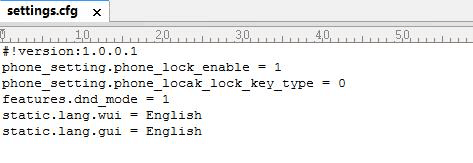
This is what a .cfg file looks like inside.
Firstly, let us get it straight – a .cfg file is many things at once, yet we are going to focus on just one of them today.
A .cfg file is basically a generic preference file. It is able to store different settings and configuration information. Many programs are using it for its incredible ability to store data in various formats. If you are wondering how to open .cfg files , then we have to tell you that they, unfortunately, should not be opened manually. Yet they can be saved in a text format.
If you want to check whether your program of choice has the capability to generate a default .cfg file then you have to pick and then move the configuration file from the default directory. Make sure that app of yours is not open in the background. After you do that, run the program and check the directory. There, a new .cfg file should have been created.
If you want to open your .cfg in a text editor, then you can use anything that your computer has! And if it has nothing installed on it, then download one! You can also edit the file to whatever state you would like it to be in, and then save it in the same format.
Please note that each file has different personalized settings for a Windows program. You, however, can also open and edit your .cfg without needing to install any third-party software if you don’t want to!
Here’s how to open and edit .cfg file on your PC:
Step 1. Locate the ‘Start’ button on your PC’s desktop and then press it. If you remember the name of your .cfg, then type it into the search field on the ‘Start’ menu. Click ‘Enter’.
Step 2. When your desired file pops up in the results, select it and right-click it. There also should a certain menu appear which you will also have to pay attention to. Click ‘Open With’. Once you see the popup list of programs, click ‘Notepad’.
Step 3. View the opened .cfg and then get down to business. Edit it! But, seriously, pay close attention to the type of changes you decide to apply. That, in its stead, makes your edited file dependent on the program that you want to use it with in the future.
Step 4. When you think you are done with all that editing, hit the ‘Ctrl + S’ key combination. That will save your file. The format will be the same, so that your .cfg extension is being kept preserved.
And that is it! We really hope you enjoyed this little step-by-step and will be using the steps in the future! Please make sure to leave comments down below so that we know if you want us to do stuff like that in the future. Have a lovely day and we will see you soon!
Posted by: Cris Antonio
Cris Antonio is a content wizard, responsible for coming up with fresh and unique article ideas. Aside from writing, Cris also enjoys painting, collecting toys, and reading German novels.
Как сделать файл с форматом CFG

Файлы с таким расширением используются преимущественно в различных играх или приложениях. Они включают в себя данные о настройках программного обеспечения. Выполнить процедуру создания подобного файла можно и своими силами, если использовать способы, описанные в этой статье.
Способы создания файлов CFG
Расписаны будут только методики, помогающие сделать файлы с подобным расширением. Информация, на них записанная, отличается в зависимости от использованного ПО.
Способ 1: Использование редактора Notepad++
Эта программа предназначена для работы с данными, которые записаны в формате CFG.
- Активируйте утилиту и в верхнем списке нажмите на вкладку «Файл».
- В появившемся меню выберите «Новый». Осуществить туже процедуру можно воспользовавшись сочетанием клавиш Ctrl+N или найдя иконку «Новый», расположенную под вкладкой «Файл».

- Напишите в свободном поле такой текст:

- После этого зайдите во вкладку «Файл» и сохраните полученный результат. Можно использовать специальный значок под пунктом «Вкладка».

- Определите каталог, в который будет помещен новый объект и дайте ему любое название. Не забудьте указать расширение «.cfg».

Способ 2: Воспользоваться программой Easy Config Builder
Эта утилита предназначена в первую очередь для создания игр, но она с лёгкостью справится с поставленным заданием.
- Активируйте программу и перейдите во вкладку «Файл».
- В появившемся меню найдите пункт «Создать». Выполнить эти действия быстрее можно, нажав Ctrl+N или найдя специальную иконку под вкладкой «Правка».

- Пропишите необходимые команды, которые отмечены на скриншоте:

- Перейдите в пункт «Файл» и сохраните полученный результат. Можно использовать значок под вкладкой «Поиск».

- Выберите, куда будет сохранен получившийся объект и укажите его разрешение в формате «cfg».

Способ 3: Используя стандартное приложение Блокнот
Выполнить необходимую процедуру можно и не скачивая с интернета дополнительных утилит.
- Запустите текстовый редактор и пропишите следующий текст:

- После заполнения перейдите во вкладку «Файл» и сохраните получившийся документ.

- Перенесите его в необходимую папку, предварительно изменив расширение на «.cfg».

Способ 4: Стандартное средство Microsoft WordPad
Обычно этот графический редактор есть на всех версиях Виндовс. Для его использования не требуется инсталляция дополнительного ПО.
- Запустите программу и напишите следующие настройки:

- Зайдите в основное меню и сохраните файл или просто кликните на кнопку «Сохранить».

- В Проводнике укажите необходимую папку и измените расширение документа на CFG.

В статье было рассмотрено ПО, используя которое можно создать файл необходимого формата. Для выполнения подобной процедуры вовсе не нужно устанавливать какие-либо программы. Достаточно будет и стандартных средств Виндовс.
How to Change .txt to .cfg: A Comprehensive Guide
In the world of computing, file formats play an essential role in ensuring that data is stored and retrieved accurately. While some file formats are more popular than others, each has its unique purpose and function. One such format is the .txt file format, which is commonly used for storing plain text documents. However, in certain situations, you may need to convert a .txt file into a .cfg file. In this article, we will explore how to change .txt to .cfg with ease.
Understanding What a .cfg File Is
Before we delve into how to change a .txt file into a .cfg file, it’s essential to understand what a .cfg file is. A configuration (Cfg) file is a type of text file that stores settings and parameters for specific software applications or operating systems. They are often used by developers or system administrators to configure various software applications’ settings.
A Cfg file can be created using any text editor such as Notepad or WordPad on Windows or TextEdit on MacOS. The configuration settings can be saved in the form of key-value pairs or structured sections in the Cfg files. These files are usually saved with the extension “.cfg” and are read by software applications during runtime.
Understanding what a Cfg file is will help you appreciate why you might need to convert your plain-text document into this particular format.
Why Convert a Text File Into a Configuration File?
There are several reasons why you might need to convert your plain-text document into a configuration (Cfg) file:
- Software Configuration: Some software applications require their configurations stored in specific formats like Cfg files.
- Security: Storing sensitive information like usernames and passwords in plain text files poses security risks.
- Organisation: Converting your plain text document into structured data helps organise data better.
Now that we have understood what a .cfg file is and why you might need to convert your plain-text document into this format, let’s move on to the next section to learn how to change .txt to .cfg.
Converting a .txt File to a .cfg File
Converting a .txt file to a .cfg file is a straightforward process that requires only basic computer skills. Here are the steps to follow:
Open the .txt file: Begin by opening the plain-text document you want to convert using any text editor like Notepad or WordPad on Windows or TextEdit on MacOS.
Add configuration settings: Next, add the required configuration settings and parameters in key-value pairs or structured sections as required by your software application.
Save the file as a .cfg format: Once you have added all the necessary configuration settings, save the file with a “.cfg” extension.
Check for accuracy: Finally, double-check that all your configuration settings are accurate and correctly formatted before closing and saving your newly created Cfg file.
By following these simple steps, you can easily convert your plain-text document into a Cfg file that will be compatible with your software application’s requirements.
Tips for Creating Well-Formatted Cfg Files
When creating Cfg files, it’s essential to ensure that they are well-formatted and easy to read. Here are some tips for creating well-formatted Cfg files:
Use comments: Add comments to explain what each setting does and why it’s necessary.
Organise settings into sections: Organise your settings into relevant sections for ease of reference and readability.
Use descriptive names: Use descriptive names when naming your settings, making it easier to understand their purpose at first glance.
Be consistent in formatting: Ensure consistency in formatting across all sections of your Cfg file, including whitespace and indentation.
By following these tips, you can create well-formatted Cfg files that are easy to read and understand, making troubleshooting issues simpler should they arise.
Conclusion
In conclusion, converting a plain-text document to a Cfg file is a simple process that only requires basic computer skills. By following the steps outlined in this article, you can convert your .txt file into a .cfg file with ease. Remember to take care when formatting your Cfg files and use descriptive names and comments for easier readability. With these tips in mind, you can create well-structured and organised Cfg files that will be compatible with your software applications’ requirements.
Converting a .txt File to .cfg: Step-by-Step Guide
Now that we have understood what a .cfg file is and why you might need to convert your plain-text document into this format let’s move on to the actual process of converting a .txt file to .cfg.
Step 1: Open Your Text Editor
First, open your preferred text editor. This can be any text editor such as Notepad or WordPad on Windows or TextEdit on MacOS.
Step 2: Create Your Plain Text Document
Create a new plain text document in your text editor by clicking on “File” and then selecting “New.” Alternatively, you can use an existing .txt file that you want to convert.
Step 3: Add the Configuration Settings
Add the configuration settings or parameters that you want to store in your Cfg file. These settings can be saved in the form of key-value pairs or structured sections in the Cfg files.
Step 4: Save Your File as .cfg
Once you’ve added all the necessary configuration settings, it’s time to save the file as a Cfg file. Click on “File,” then select “Save As,” and choose “.cfg” from the drop-down list of available file formats. Finally, give your new Cfg file a name and click on “Save.”
Congratulations! You have successfully converted your plain-text document into a configuration (Cfg) file.
Tips for Converting Text Files to .cfg Files
Converting plain-text documents into configuration (Cfg) files may seem daunting at first, but with these tips, it becomes much more manageable:
Tip 1: Understand Your Configuration Settings
Before converting your plain-text document into a Cfg file, ensure that you fully understand all the configuration settings that need to be stored. This will help ensure that you don’t miss any critical parameters during conversion.
Tip 2: Use a Text Editor With Cfg Support
Using a text editor with built-in support for Cfg files can make the conversion process much easier. Such text editors often have syntax highlighting and auto-formatting features that can help you create well-structured Cfg files.
Tip 3: Keep Your Cfg Files Organised
As your collection of Cfg files grows, it’s essential to keep them organised. Consider creating a dedicated folder or directory for storing all your Cfg files.
By following these tips, you can make the process of converting your plain-text documents into structured configuration (Cfg) files much more manageable.
Conclusion
In conclusion, converting a .txt file into a .cfg file is a simple process that can be achieved using any text editor. By following the steps outlined in this article, you can quickly and easily convert your plain text documents into structured configuration files.
Remember, converting your document into a .cfg file has several benefits, including better organisation of data and enhanced security. So, if you find yourself needing to store sensitive information or configure software applications, converting your plain text document into a configuration file is the way to go.
We hope that this article has been helpful in guiding you on how to change .txt to .cfg. If you have any questions or comments, feel free to leave them in the section below.