Что означает ErP Ready, почему это важно и стоит ли вам его использовать
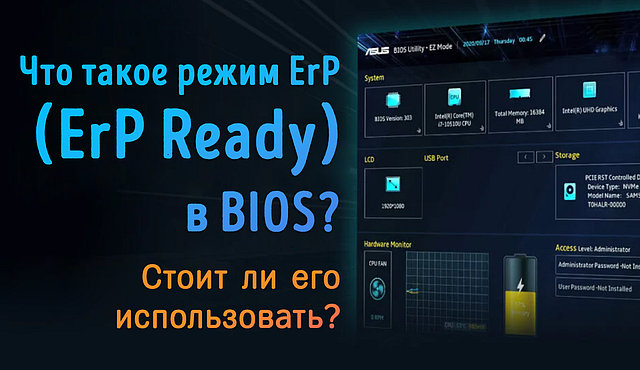
В большинстве систем есть режим ErP Ready, однако многие пользователи не знают об этом и не знают, что это такое на самом деле. В этой статье мы обсудим, что означает ErP Ready и следует ли его включать. Так что давайте сразу приступим к ответам на эти важные вопросы.
Что такое ErP Ready в BIOS
Во-первых, давайте разберёмся, что означает это загадочное ErP.
ErP означает Energy-related Products (энергосберегающие продукты) и относится к экологическим нормам ЕС, распространяющимся на различную электронику, включая ПК.
Тем не менее, вам не нужно знать законодательство ЕС, чтобы понять ErP – в контексте ПК это имеет очень специфическое значение.
На ПК включение режима ErP или использование настройки ErP Ready позволит вашему ПК отключать подачу питания ко всем компонентам, когда ПК выключен, уменьшая общее энергопотребление до 1 Вт или менее, когда ваш ПК выключен.
Это связано с некоторыми оговорками – подробнее о них чуть позже!
Почему вы должны включить режим ErP
Основной причиной включения режима ErP является улучшение режима энергосбережения, когда ваш компьютер не используется.
Это небольшой и простой способ уменьшить воздействие вашего ПК на окружающую среду. На самом деле, это не служит никакой другой цели.
Конечно, если вы заметили проблемы с периферийными устройствами, когда ваш компьютер выключен, режим ErP может их исправить.
Например, если вы устали от того, что некоторые световые/RGB-эффекты всё ещё активны при выключенном ПК, ограничения мощности в режиме ErP отключит даже самую своенравную подсветку.
Когда стоит отключить режим ErP
Теперь, в каких случаях лучше отключить режим ErP? Поскольку он вступает в силу только тогда, когда ваш компьютер выключен, вы можете подумать, что он никак не повлияет на работу конечного пользователя.
И вы были бы правы, если бы вы не полагались на Wake over LAN или аналогичные функции при использовании вашего ПК.
Когда активен режим ErP, такие функции, как пробуждение по локальной сети и другие расширенные функции сна/пробуждения, просто не будут работать.
Если это неотъемлемая часть вашей рабочей нагрузки, вы можете отключить режим ErP. В противном случае, нет причин не включать его, если рассматриваемый ПК фактически не используется.
Как включить или отключить режим ErP
Чтобы включить или отключить режим ErP, вам сначала нужно найти его в BIOS.
Не знаете, как войти в BIOS? Я написал для вас полное руководство о том, как войти в BIOS.
Если вы не хотите привязываться к материнской плате, я рекомендую просто сделать это из Windows с помощью «Изменить дополнительные параметры запуска».
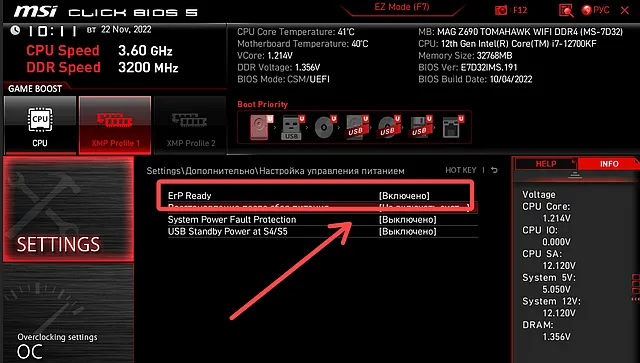
Оказавшись в BIOS, вы найдёте параметр с надписью ErP Support/ErP Mode или что-то подобное. Вы можете включить или отключить его оттуда.
Я встроил скриншот этой опции в MSI BIOS ниже:
Часто задаваемые вопросы о режиме ErP
Помимо включения режима ErP, как снизить энергопотребление ПК?
Конечно, ErP – довольно экстремальный метод энергосбережения, но для его фактического использования также требуется, чтобы ПК был выключен.
Как насчёт методов энергосбережения, которые работают, когда ваш компьютер действительно используется?
Первый шаг, который я бы порекомендовал, если вы находитесь в таком положении, – рассмотреть возможность перехода к окну Windows «Выбора план питания» через меню «Пуск» и переключиться на профиль «Сбалансированный» или «Экономия заряда батареи».
Любой из этих профилей питания поможет снизить общее энергопотребление вашего ПК даже под нагрузкой, хотя и за счёт снижения производительности. (Более заметно в режиме экономии заряда батареи.)
Помимо использования встроенных опций питания для экономии энергии, также имеет значение используемое оборудование.
Приобретение высококачественного блока питания с высоким рейтингом сертификации 80+ (например, Gold или выше) позволит вашему ПК потреблять меньше энергии при более лёгких нагрузках, при условии, что мощность вашего блока питания правильно сбалансирована для вашей системы.
Какие ещё настройки следует смотреть в BIOS?
Скорее всего, вы найдёте много мелочей, которые стоит настроить в BIOS, но я хотел бы воспользоваться моментом, чтобы указать на несколько вариантов, в частности.
Если у вас есть XMP, EOCP, DOCP, EXPO или аналогичный параметр для управления скоростью оперативной памяти, включите его.
XMP и его аналоги позволяют оперативной памяти достигать заявленных скоростей всякий раз, когда они включены, и должны работать без проблем на большинстве ПК.
Если вы заинтересованы в запуске виртуальных машин, также настоятельно рекомендуется включить SVM или аналогичный параметр. Основная цель SVM – повысить производительность именно для этого варианта использования, но если вы не знаете, что он скрывается в вашем BIOS, вы можете что-то упустить.
Другие функции BIOS слишком специфичны для этой статьи, поэтому я завершу на этом.
Но, если погружение пальцев ног в воду режима ErP пробудило ваш интерес к настройкам BIOS, не бойтесь искать варианты, которые могут улучшить ваш опыт!
И помните: режим ErP отлично подходит для отключения надоедливой периферийной подсветки, особенно клавиатуры с подсветкой, не управляемой программным обеспечением.
ErP ready? Learn about the ErP BIOS power options here

If you have an ErP ready BIOS, your computer is capable of limiting itself to a very low power consuming state when it is shut down or sleeping. ERP mode is another name for a special mode of low power instructions that the motherboard uses to ensure it complies with a set of green initiatives that originated from the European Union.
The “Energy-related Products” directive has specific provisions that state an ERP ready BIOS should consume less than 0.5W of energy in the Sleep (S3) or Shutdown (S5) state. This and other BIOS power settings can be adjusted in your UEFI or BIOS setup to best suit your power preferences or green initiatives.
Why have ErP mode enabled?
Some people may wonder why you would want to have a workstation that consumes less than 0.5W of power in the shutdown or sleep states. Over time, a significant amount of power is saved by having the machine consume significantly reduced amounts of power while hibernating or shut down, both for mobile devices and permanent ones.
Mobile Technology
Laptop –
You can save battery with sleep and shutdown states. If you frequently use your laptop on the go and you have many other devices that charge over a USB cable, it may be useful for you to charge your smartphone, headphones, or other rechargeable electronics from the battery on your laptop while you are connected to power.
When not connected to power, many of the default power consumption settings of laptops put the machine into sleep or hibernate state after a set period of time.
If the power supply is disconnected and your computer enters a low-power state, you don’t want these devices to continue to drain your battery when the machine is not in a “wake” state.
Tablet – Modern Standby
Modern standby refers to the S0 (low power idle) state, while legacy standby refers to an S3 (sleep) power state.
Many tablets and PC’s now using modern standby to significantly reduce the power consumed, and it encompasses both connected standby up to Windows 8.1 and disconnected standby which is new on Windows 10.
Modern Standby allows for faster wake because background activity is allowed to continue. This is not a true sleep or hibernate state, but it does offer the following benefits:
- Dramatically reduces power consumption without delaying startup process
- The system is still in a fully running state, ready and able to resume work.
- The network remains active on a connected Modern Standby system, allowing users to receive events in the low power state such as VoIP calls.
- Incoming VoIP calls on Wi-Fi won’t be available on a disconnected Modern Standby system, but real-time events including calendar reminders and syncing of Bluetooth devices is still compatible.
- Waking electronic devices from a sleep state, even from the S3 state, requires BIOS functionality which must be accessed during the wake cycle.
- Wake times from S3 are slower and more cumbersome to develop. With Modern Standby keeping the system in the S0 state, waking only requires a hardware interrupt.
- With the possibility of eliminating any necessary interaction with firmware, it reduces the time between attempting a wake and the system coming back online.
Permanent Technology
The power implications of a low-power shutdown state for desktop computers, servers, and other machines expected to remain in the same place (i.e. not mobile technology) are significant given the number of devices extant in the modern infrastructure.
Power Consciousness
- ErP ensures that devices consume as little power as possible when they are “off” Using the remote to turn on the television is an example of the fact that there is still power flowing to devices when they are not in an operational state.
- Without unplugging electronic devices, the shutdown state is the lowest rate of power consumption possible, and ErP mode, particularly when used as part of an ErP ready BIOS is part of a standard created to standardize the amount of power used in an “off” state.
- If ErP was not implemented and the rate of power consumed by “off” devices was variable, a significant amount of power would be wasted every year simply due to the low levels of current still flowing through plugged in machines.
Expensive Commercial or Residential power
- When selecting a high capacity power supply for a gaming PC, the user acknowledges the high-performance machine will consume a set amount of power while in use. The ErP standard ensures the computer also consumes a set amount of power while it is shut down and not actively being used.
- The shutdown power state enforced by ErP mode is as close to being removed from power as possible without physically disconnecting the device from a power outlet.
- Think of the problem at scale – costs add up over time:
- If you are an individual with multiple devices, or if each member of your family has multiple devices in the same home, making sure each electronic device consumes the least amount of power possible saves the household money over the course of a year.
- Power cost considerations are even greater for businesses. If you are a business owner with hundreds of devices – ErP Mode could mean big savings not only on a yearly budgeting basis, but also over the lifetime of the company.
What does ErP Mean?
ErP mode is another name for a state of BIOS power management features that instructs the motherboard to turn off power to all system components, including USB and Ethernet ports meaning your connected devices will not charge while in a low power state.
The Ecodesign Directive has specific lots with different rules to be followed for different products that use energy directly (laundry machines, computers, etc.), or are related to the consumption of energy (water-saving taps, showerheads, etc.)ErP is the name of a special directive feature that dictates whether or not your computer can consume less than 1 Watt of power in the S5 (shutdown) state.
S5 power state: Computer has no memory state. In the S5 state, also known as the “shutdown” state, the machine performs no computational tasks and does not retain any form of memory state in software or hardware.
In power states S4 and S5, the small amount of current consumed by the system is the same. The only difference being that the computer can restart from a saved hibernate file stored on the disk in state S4. When restarting from shutdown state S5, it is necessary to reboot the whole system.
Power State “S5” has the following characteristics
Power consumption
Off, except for trace amounts of current to the power button and similar devices which will initiate a boot of the system.
Software resumption
A full boot cycle is required upon awakening, no software state is maintained during a shutdown state.
Hardware latency
Long and undefined. The system will not spontaneously begin working again when in an S5 power state. Only physical interaction with the hardware will revert the system to its wakeful, working state.
Examples of this physical interaction might include an operator pressing the “ON” button. The BIOS settings can be configured so the machine will also awaken from a resume timer if the user so desires.
System hardware context
No hardware context is retained in the S5 power state.
S4 power state: The S4 power state is the lowest power-use setting that retains memory while computer is “sleeping.” System power state S4 is also called the “hibernate state” has the longest wake-up latency of any sleeping state.
To reduce power consumption to its lowest possible levels, the hardware inside the computer shuts down all associated power consuming devices. The operating system, however, is maintained throughout the hibernate state.
Operating system context is saved in a hibernate file, which is essentially just a picture of the memory, which the system writes to the disk before entering into the S4 hibernate state. When the system is restarted, the loader reads the file and has the ability to skip a full boot and move on to the system’s earlier, prehibernation location.
Power State “S4” has the following characteristics
Power consumption:
Off, except for trace amounts of current to the power button and similar devices which will initiate a boot of the system.
Software resumption:
System restarts from hibernate file which saved the memory before entering the S4 state. If the hibernate file encounters errors and the system cannot load from it, a full reboot is required to bring the system online. Reconfiguring or modifying hardware components while the system is in the S4 state may introduce changes which will keep the hibernate file, and therefore the system start up, from loading properly.
Hardware latency:
Long and undefined. The system will not spontaneously begin working again when in an S4 power state. Only physical interaction with the hardware will revert the system to its wakeful, working state.
Examples of this physical interaction might include an operator pressing the “ON” button or, if the requisite hardware is present and appropriate wake-up settings are enabled, an inbound signal to the modem or activity on a LAN.
The system also has the ability to wake utilizing a resume timer, but only if the hardware supports it.
System hardware context:
No context is retained in the hardware of the system. Before powering down into the S4 state, the system writes an image of the memory and saves the file. When the operating system is loaded next, it reads this hibernate file and resumes operations at its previous location.
Unavailable features when ErP is enabled
When you have ErP mode enabled and the computer is shut down, there is no saved state for the computer to return to, and a full boot of the system is required in order to restore working functionality.
ErP mode disables the following four settings when it is enabled:- PME Event Wake Up – PME is short for “power management event” and is responsible for devices—which do not have ErP enabled—turning on again spontaneously after being shut down by the user.
- Power On By Mouse – You will not be able to return the computer to a wake state by using the mouse.
- Power On By Keyboard – You will not be able to return the computer to a wake state by using the keyboard.
- Wake On LAN – Incoming signals from the LAN will not cause the machine to return to a wakeful, working state.
The trace power consumed by the system does not power USB ports or other peripherals, and these devices will not be able to charge while the computer is in a shutdown state.
Conclusion
ErP mode offers the security that when a device is shut down, it remains shut down until the user intervenes (by directly pressing the power button, using a remote control to power on a device, etc.) and initiates a full boot of the system to return it to an active state where it is ready and capable of performing tasks.
With the majority of people using devices with ErP enabled, a significant amount of wasted energy is saved by preventing the system from using anything more than the most minimal amount of power when it is in its “off” or “shutdown” state.
The reduced cost for households and businesses over the course of a year or a lifetime add up to significant savings over time, but the primary purpose behind the ErP standard is a green initiative to reduce the environmental impact of power losses when devices continue to consume electricity in a shutdown state.
What is ErP in BIOS? (and When to Turn It On or Off)

ErP stands for Energy-related Products and it has to do with a bunch of regulations set by the European Union for electronics. In line with this ErP mode in your BIOS is related to power consumption. When you enable ErP mode, it highly limits power flow to your hardware components when the PC is off or on standby, dropping power consumption to less than 1 watt.
I used to be very annoyed by some of the RGB lights in my computer that would refuse to go off even after shutdown. I'd have to turn the computer off at the socket to fix this, which was annoying. Luckily for me though, I remembered that a system setting in the BIOS called ErP Mode could fix this.
But what is ErP in BIOS and what use can it be for you and your setup? This guide will answer your questions, so let's get right into it.
What Does ErP Mean in My Computer's BIOS?
ErP Mode in BIOS, which is listed in some BIOS settings as "ErP Ready", is a power management function that drops how much energy your system components use when the computer is switched off or on standby.
It's a common assumption that your computer doesn't use any power when you turn it off, but it does.
Having this enabled will prevent all the components of your PC from using power when the system is off. Think of this as an extremely low-power state.
ErP mode will make your system consume less than 1 watt of power when it is switched off or in standby mode.

Should I Disable or Enable ErP Mode in the BIOS?
Now that you know what this ErP setting is used for on your computer, there's likely another question on your mind: should you disable ErP or have it turned on?
Well, what you do with ErP mode depends on your needs.
Should I Enable ErP?
Having ErP switched on is a great move if you want to drop your environmental footprint. Your PC will use less power, even when off, which is a net positive for the environment.
It can also help out if you want to cut down on your electricity bill a bit since your PC won't have much demand for power in its shutdown state.
Having it on can also help out if you notice some weird issues with some of your computer's components when it is switched off.
For instance, some motherboard lighting still stays on as long as your power supply unit is on and connected to power, even if the PC is in a shutdown state.
Having ErP enabled is one cool way to turn any connected devices off without having to turn the computer off at the wall socket or the power supply unit.
Should I Disable ErP?
When is it a better idea for you to disable ErP Mode?
The major reasons why you should keep ErP off in the BIOS are related to some of the functionality that you take advantage of the most.
If you use any PME Event Wake functions enabled on your computer, like Power On By Mouse, you'll need to keep ErP Ready disabled.
This is because having it enabled won't let your computer automatically power on when required. You also won't be able to charge via USB ports when the system is off.
If you use any of the following four functions, you should keep ErP Ready disabled in the BIOS:
- Wake on LAN
- Wake By USB Device
- Wake By Mouse/Keyboard
- Wake By PCI-e Device
How Do I Turn ErP Mode On or Off in the BIOS?
If you want to turn on ErP Mode, you'll need to gain access to your BIOS settings.
Pressing (or repeatedly tapping, like I prefer to do) the right button as soon as your computer switches on will take you to the BIOS instead of the operating system.
However, the button choice depends on the manufacturer of your motherboard. For instance, how you enter a Gigabyte BIOS might be different from an HP system.
The most common buttons are either Delete (DEL) or F2 though. In fact, if you have an ASRock, Asus, Gigabyte, MSI, or Zotac board, it is likely to be either of these two (and in some cases, both will work!)
There may be a text prompt right as your computer turns on that will tell you what to access the BIOS.
Different manufacturers have different BIOS settings, so there's no one-size-fits-all way to find ErP Mode.
However, you generally want to get into your Advanced settings first and then look for something like a BIOS Power Management section.
You will usually find this power-save setting somewhere here, where you can have it enabled or disabled.
Are There Other Ways to Reduce Power Consumption of My PC?
If you absolutely need features like Wake on LAN for your system, then you can't afford to have ErP switched on in the BIOS.
But what if you still want to reduce the amount of power that you consume? What can you do?
The Power Mode that your PC is set to can have a big impact on your power usage. You can change these from the user setting menu.
- Press the Windows key + "I" to open Settings.
- Choose "System" from the left panel.
- Click "Power & battery".
- Now, tap "Power mode".
- You can now choose the appropriate setting for your computer. Keep in mind this will likely have some impact on performance during computational tasks.
You can also keep an eye out for the kind of hardware you buy for your PC. The 80 Plus Certification can be used to get an idea of your PSU's efficiency.
The higher the 80 Plus rating, the less energy your PSU wastes, even at lower loads.
Final Words
ErP Mode in your BIOS is used if you want to save energy. Having it on will severely limit power to all system components when the PC is switched off.
However, note that having this BIOS setting disabled will stop certain functions on your PC from working. For instance, Power On by Keyboard, Mouse, LAN, and so on. You also won't be able to use USB ports to charge.
Was this article able to show you what ErP Ready is for in your PC, and how it can be used? If so, take a look at our related articles to learn more.
ErP Support что это в биосе?
 ErP Support — опция, которая включает режим минимального энергопотребления компа в выключенном состоянии. Но вы можете спросить — как это? Разве комп в выключенном состоянии может что-то потреблять?
Оказывается может. В выключенном состоянии подается дежурное питание на устройства — этот режим называется S4 или S5. Опция ErP Support позволяет отключить этот режим.
Зачем нужно подавать дежурное питание? Современные материнские платы, это уже не то что было раньше. Теперь если комп выключен, то можно заряжать телефон от USB — а значит питание там есть, можно ускорить включение компа — питание на оперативку не прекращается и в итоге данные оттуда не очищаются.
Если вы не заряжаете телефон от компа — то можно ErP Support отключить.
Кстати, вы можете не поверить, но есть уникальная опция в некоторых блоках питания. Это что-то уникальное — в общем после выключения компа вентилятор в блоке питания еще крутится минуту или две чтобы.. убрать теплый воздух из корпуса. Вы себе представляете? Вот продумано то как!
Для включения ErP Support нужно выставить Enabled. Чтобы отключить — Disabled.
При включенной опции ErP Support потребление ПК в выключенном состоянии не будет превышать 1 Ватт. Также может не работать выход из спящего режима, или пробуждение по мышке, клаве, по сети. Учтите этот момент.
ErP Support в биосе


Internal Graphics Memory Size
Данная опция позволяет вручную задать обьем памяти для iGPU (встроенное графическое ядро в процессоре). Значение можно выставить от 32/64 мегов до 1024 или больше. Слишком мало ставить не стоит — могут быть лаги с отображением. Оптимально — 128 мегов. Если хотите поиграть еще в какие-то игры, то увеличивайте обьем. Память для iGPU берется из оперативки (RAM), учтите это.
Опция в биосе и меню значений


После всех изменений в биосе не забывайте сохранять настройки, используйте для этого пункт Save & Exit Setup — сохранить настройки и выйти из биоса: