AirPlay Not Working on Hisense TV (Do This FIRST!) in 2023
This troubleshooting guide will cover getting Airplay or screen mirroring on iPhone, iPods, iPads and Macs to work with Hisense TVs.
If that sounds like what you are looking for, let’s begin right away!
Airplay Not Working on Hisense TV
If Airplay is not working on your Hisense smart TV while trying to screen mirror, you can fix it by checking your Hisense TV compatibility, your apple device and smart TV connection, restarting the TV and apple device, troubleshooting network issues and updating firmware/software.
1. Check if Your Hisense TV Supports Airplay
Before now, Airplay only allows sharing from Apple to Apple device i.e from iPhones, iPads or Macs to Apple TV.
Later, Apple extended the compatibility of Airplay with Airplay 2 which allows you to connect your Apple devices (iPhones, iPads or Macs) to devices from other brands.
In other words, you can use Airplay (or screen mirroring) on Hisense TV (without Apple TV).
However, not all Hisense TVs supports Airplay 2.
Below is a list of Hisense smart TVs that are compatible with Airplay 2 (from Apple website).
- Hisense Android smart TVs (Vidaa OS)
- Hisense Roku TV R6 series
- Hisense Roku TV R7 series
- Hisense Roku TV R8 series
So, if Airplay is not working on your Hisense TV, then it probably doesn’t support Airplay 2.
If your Hisense TV model is not in the list above, then it most likely doesn’t support Airplay 2.
NOTE: If your Hisense TV is a more recent model and it’s not among the list above, you can still proceed to check if it supports Airplay by following the procedures highlighted in the next step.
2. Turn On Airplay on Hisense TV
So, let’s say you’ve checked your Hisense TV model and it supports Airplay 2 but Airplay is still not working, the next thing you want to check is your input source and that AirPlay has been turned on.
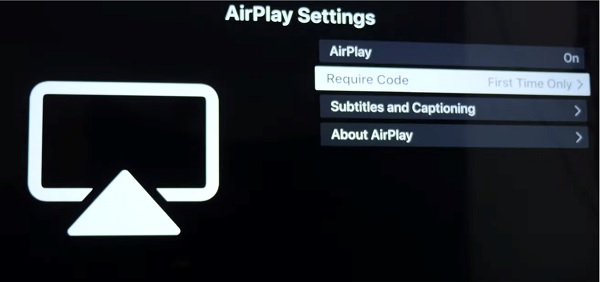
To use screen mirroring (or AirPlay), you need to turn on Airplay so it can receive stream signal from your Apple device.
To turn on AirPlay on Hisense smart TV, follow the steps below:
- On your TV remote, click on the Home button
- From the menu, click on Settings
- Scroll down until your find Apple AirPlay and HomeKit, click on it.
- From there, turn on Airplay.
If you can’t find the Airplay option, then your Hisense TV model probably doesn’t support Airplay 2 (check the list in the previous section to see the compatible models). For now, you cannot use AirPlay on older Hisense TV.
You can also contact Hisense TV support to confirm if your model is not in the list above especially recent models.
3. Connect Your Apple Device and Hisense TV
Once you are sure your Hisense Vidaa OS smart TV model supports Airplay and you have turned it on appropriately as highlighted in the previous section, the next thing you want to do is to connect your Apple device and Hisense TV the right way for Airplay to work.
In this step, the most important thing to note is that both your Apple device and your Hisense TV must be connected to the same Wi-Fi network .
To connect your Apple device to your Hisense TV via AirPlay, follow the procedures below:
For iPhone:
- Connect your iOS device and Hisense TV to the same Wi-Fi network.
- On your iOS device, swipe up from the bottom of your screen to access the Control Centre, tap AirPlay or Screen Mirroring.
- Tap the name of the device you want to stream the content to (if your Hisense TV supports Airplay, has Airplay turned on and also connected to the same network as your iOS device, you will find the name of your TV among the available devices here).
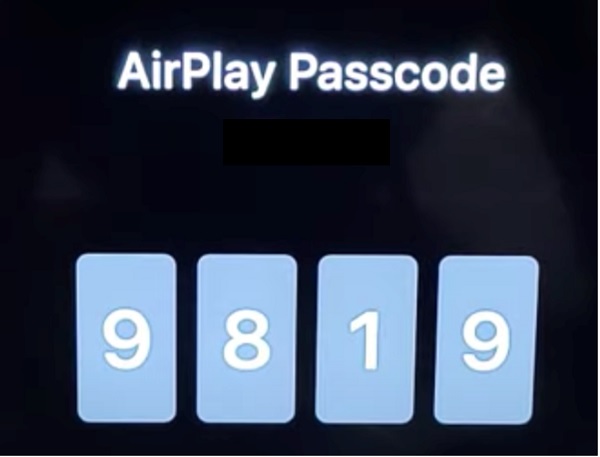
- You might also be required to enter a code that is displayed on your Hisense TV
For Mac:
- Click on Airplay icon (you will find it on the right side of your Mac computer menu bar)
- Click on your TV name you wish to stream the content from the list of options
- Click on Mirror Built-in Display to mirror your Mac’s native resolution on your TV.
- Click on Use as Separate Display to have your Mac extend your Desktop and treat your TV as an addition display.
NOTE: Not all iOS or Mac devices support Airplay 2.
If you followed all the steps above correctly, your Airplay should be working on your Hisense Vidaa OS or Hisense Roku TV by now.
If after doing all these, Airplay is still not working on Hisense TV, move to the next troubleshoot step.
4. Turn Off and Restart the TV
If Airplay is still not working on your Hisense TV, restarting the TV can help fix the issue.
Your Hisense Vidaa OS smart TV might be having difficulty connecting with your Wi-Fi network making it impossible to connect to Airplay.
In that case, you want to reset the TV.
- First, turn off the TV.
- Proceed to unplug it and leave it unplugged for a minutes or two.
- Then, turn it back on and try steps 1-3 discussed earlier.
This should help to reset your TV network and should be able to connect to Airplay.
5. Restart Apple Device
Other than your TV, the network connectivity issue could also be from your phone or Mac.
So, try restarting your Apple device first (you can do this at the same time you also restart your TV).
This should fix any connectivity issue coming from the phone also.
6. Troubleshoot Network Issues on Your iPhone/Mac
If you are trying to connect your TV to your Airplay and your iPhone won’t connect to your Wi-Fi, then reset the network setting on your iPhone.
NOTE: Resetting your network setting will delete all the networks you’ve connected to in the past, and you will have to re-enter the password when you try to connect to networks you’d previous saved prior to resetting your network setting.
That said, you can reset your network settings on your iPhone by following the procedure below:
- Open the Settings, click on General
- Click on Reset, then click on Reset Network Settings
This should fix the issue with your iPhone not connecting to your Wi-Fi and you should be able to connect your iPhone and then stream via Airplay on your Hisense TV.
For your Mac, you can troubleshoot your Mac network issues by following this guide.
7. Remove All Paired Airplay Devices from TV
If you had previously paired one Airplay device to your TV and you are trying to connect another Apple device, then connection issue might arise especially if your previously connected device is also connected to the same Wi-Fi you are trying to use for the Airplay stream.
For example, if you had previously paired your iPhone to your Hisense TV via Airplay, and now you are trying to connect your Mac instead, you might have network issues.
Normally, the issue shouldn’t arise if your iPhone (as in the example used above) isn’t connected to the same Wi-Fi you are trying to use for your Mac and Hisense Vidaa OS TV.
Irrespective, you can try to remove your previously paired devices from the list of devices in your TV.
If it still doesn’t connect to your second device, try connecting back to Airplay from your previously paired device. If the connection is successful, then the issue is with your second device.
Otherwise, if the connection fails again on the device you had just removed, then you know the issue is either from your Hisense TV or your Wi-Fi router.
8. Restart Network Router
Another reason why Airplay might not be working on your Hisense TV is if there’s an issue with your network router.
In that case, start by restarting your router and connecting your Apple device and Hisense TV to it again as explained earlier.
Couple this with Network settings reset on your iPhone, Mac network settings troubleshoot and TV device list reset, you shouldn’t have any problem again with connecting your Hisense TV to Airplay.
9. Try a Different Network
Another thing you can do is use an entirely different network.
This could be looking for another Wi-Fi source (could be your router or any other network source) and see if it fixes the issue.
10. Update Software on TV and Apple Devices
Finally, you should check your iPhone, Mac or TV and see if there is any pending software/firmware update.
If there is any, try to download and install the update.
Once installed successfully, try the whole process again.
Bottom Line
If Airplay is not working on your Hisense TV, it can be caused by a number of issues ranging from compatibility issue to human error to to network issues from your Apple device, your Hisense VidaaOS TV or your network router/Wi-Fi.
In summary, do the following if AirPlay is not working on your Hisense TV:
- Check if your Hisense smart TV supports AirPlay 2
- Turn on AirPlay on your TV and check your input source
- Connect your Apple device and Hisense TV the right way
- Restart your TV
- Restart the Apple device you are trying to connect from
- Troubleshoot network issues
- Remove all paired devices on your TV
- Restart your router
- Try a different network
- Make sure your TV and apple device have the latest software
By following the troubleshooting steps above, you should be able to fix the issue and get your Airplay working on your Hisense TV.
If you found this guide helpful, don’t forget to drop a feedback. Let me know what issue you experienced and which of the troubleshooting procedure highlighted above fixed it for you.
Also, don’t forget to share the content using the share buttons below.
Как подключить айфон к hisense vidaa tv
Как подключить айфон к hisense vidaa tv — советы и пошаговая инструкция
Чтобы подключить свой iPhone к Hisense VIDAA TV, вы можете использовать два метода: HDMI-кабель и технологию AirPlay.
Метод 1: Подключение HDMI-кабелем
Шаг 1. Подключите HDMI-кабель к телевизору Hisense VIDAA TV и к адаптеру Lighting to HDMI для iPhone.
Шаг 2. Подключите адаптер Lighting to HDMI к вашему iPhone.
Шаг 3. Переключите вход HDMI на Hisense VIDAA TV на порт, к которому вы подключили кабель.
Шаг 4. Ваш телефон будет транслировать свой экран на телевизоре Hisense VIDAA TV.
Метод 2: Подключение через технологию AirPlay
Шаг 1. Убедитесь, что ваш iPhone и телевизор Hisense VIDAA TV находятся в одной Wi-Fi-сети.
Шаг 2. На телефоне, свайпните вверх от нижней части экрана, чтобы открыть Центр управления.
Шаг 3. Нажмите на иконку AirPlay.
Шаг 4. Выберите телевизор Hisense VIDAA TV в списке устройств.
Шаг 5. After a few seconds, your iPhone’s screen will appear on the Hisense VIDAA TV.
— Убедитесь, что ваш телефон и телевизор подключены к одной Wi-Fi-сети, чтобы использовать технологию AirPlay.
— Проверьте, поддерживается ли ваш телевизор Hisense VIDAA TV технологию AirPlay. Если нет, используйте HDMI-кабель для подключения.
— Если вы используете технологию AirPlay, убедитесь, что ваш iPhone работает на iOS 11 или более новой версии.
— Если вы используете HDMI-кабель, убедитесь, что он поддерживает передачу аудио и видео.
— Если у вас есть проблемы с подключением, проверьте настройки Wi-Fi на телефоне и телевизоре, а также настройки AirPlay на телефоне.
— Если вы используете технологию AirPlay, вы можете использовать ее не только для трансляции экрана телефона, но и для потоковой передачи музыки и фотографий на телевизор Hisense VIDAA TV.
— Если вы хотите зеркально отображать экран своего iPhone на телевизоре Hisense VIDAA TV, включите функцию «Зеркальный экран» на телефоне в разделе AirPlay.
— Если у вас есть несколько телевизоров Hisense VIDAA TV в доме, выберите нужный телевизор в списке устройств в разделе AirPlay на вашем телефоне.
— Если вы хотите настроить качество видео, используйте настройки телевизора Hisense VIDAA TV, чтобы выбрать соответствующее разрешение.
— Если вы хотите использовать технологию AirPlay для трансляции звука, убедитесь, что телевизор Hisense VIDAA TV поддерживает эту функцию.
— Некоторые приложения на iPhone могут поддерживать функцию трансляции на телевизор Hisense VIDAA TV без использования AirPlay. Просто найдите кнопку «Транслировать» в приложении и выберите телевизор Hisense VIDAA TV в списке устройств.
— Если у вас возникнут трудности с настройкой подключения, обратитесь к инструкции по эксплуатации телевизора Hisense VIDAA TV или обратитесь за помощью к технической поддержке производителя.
How to AirPlay/Screen Mirror to Hisense Smart TV
If you have an AirPlay-compatible Hisense Smart TV, you can easily screen mirror media files from an iPhone, iPad, or Mac. Hisense Android TV models running Android version 8 and above or Roku-powered TVs (R6, R7 & R8 Series) have built-in AirPlay feature.
Whereas for the rest of the Hisense Smart TV models, you can mirror the device using RemoteNOW, an official app by Hisense, or other third-party apps. Apart from that, there are other ways to screen mirror your iPhone/iPad using Lightning to Digital AV Adapter and HDMI cable.
Table of Contents
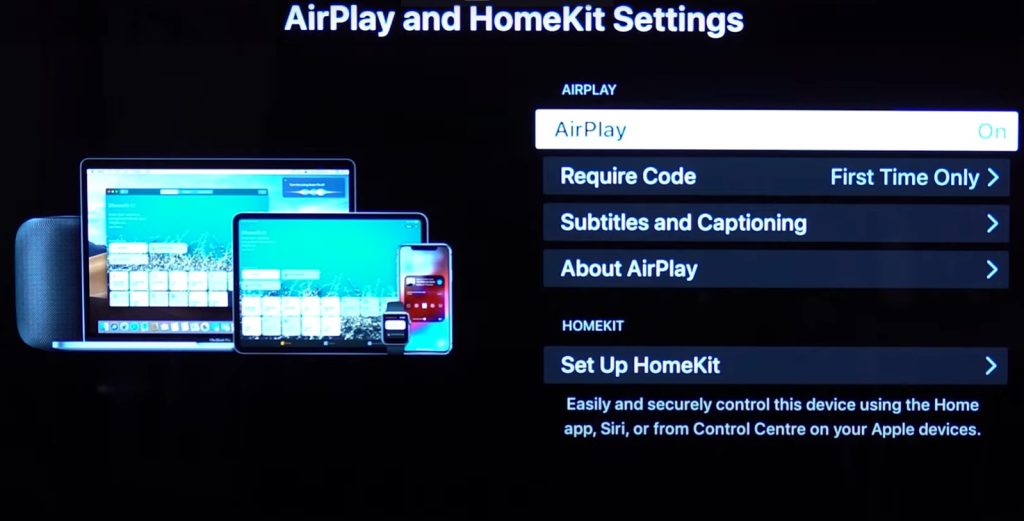
How to Turn on AirPlay on Hisense Android TV
1. Turn on your Hisense Android TV and head to Settings.
2. Select AirPlay & HomeKit Settings from the given options.
3. Choose AirPlay and enable it.
How to Turn on AirPlay on Hisense Roku TV
1. Press the Home button on the Roku remote to go to the Home screen.
2. Choose Settings and click AirPlay & HomeKit Settings.
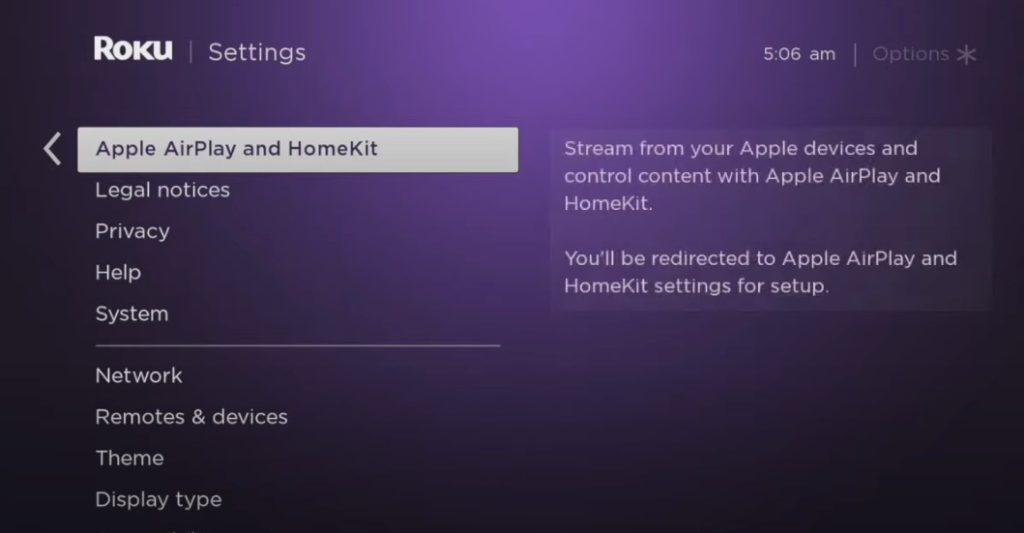
3. Hit AirPlay and select it to turn on the feature.
How to Screen Mirror to Hisense TV using Anyview Cast
Anyview Cast is an application that lets you screen mirror photos, videos, and more. For this app to work, you should connect your Hisense TV and phone to the same WIFI network.
1. Launch the Anyview Cast app on your TV.
�� You can also click the Input button and select Anyview Cast from the Hisense TV remote.
2. Go to the App Store and search for Anyview Cast.
3. Click Get to install the Anyview Cast app from the App Store.
4. After the installation, ensure that the iPhone and Hisense TV are connected to the same WIFI network.
5. Open the Anyview Cast app on your iOS device.
6. Select your Hisense TV name to start screen mirroring.
How to Screen Mirror to Hisense TV using RemoteNOW
RemoteNOW is an official remote application to control selected Hisense Smart TVs. The app is available on the Google Play Store and App Store for free download. You can also screen mirror photos and videos from your smartphone to the TV with a single click.
1. Connect your iPhone and Hisense TV to the same WIFI network.
2. Download and install the RemoteNOW app on your iPhone or iPad from the App Store.
3. Open the RemoteNOW app, which will automatically detect your Hisense TV.

4. From the library, select and play a video.
5. When it starts playing, click on Cast to TV on the video player.
6. If prompted, select your Hisense TV to play the video on it.
How to Screen Mirror to Hisense TV using The Roku App
If you have a Hisense Roku TV, you can perform screen mirroring using this method. The Roku App (official) is a dedicated mobile application for Roku-based Smart TVs. The app lets you control your Hisense Roku TV from a smartphone.
1. Initially, connect your Hisense TV to the same WIFI network as your iOS device.
2. Visit the App Store to install the Roku app on your iPhone or iPad.
3. Open the Roku app once the installation is complete.
4. Sign in to your Roku account to continue.
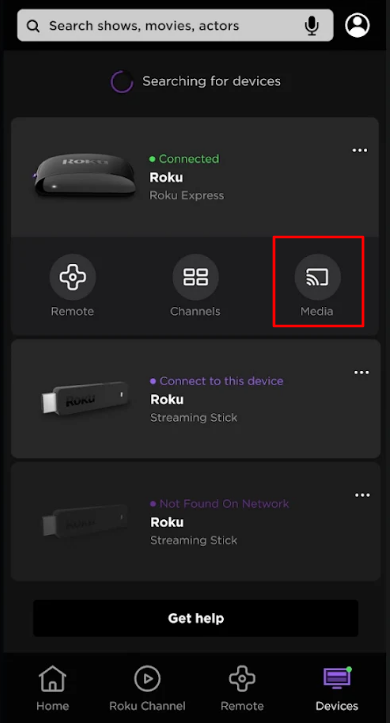
5. Click the Devices menu at the bottom and select your Hisense TV.
6. Once connected, click the Media icon to start screen mirroring.
Note: Don’t forget to turn off AirPlay on your iPhone when you have finished streaming.
How to Screen Mirror iPhone to Hisense TV Without WiFi
A Lightning Digital AV Adapter allows iPhone users to mirror the smartphone screen to the TV. In addition, you can use an HDMI cable to connect your iPhone with this adapter to your TV.
1. Once you turn on Hisense TV, connect the Lightning port of the adapter to your iPhone.
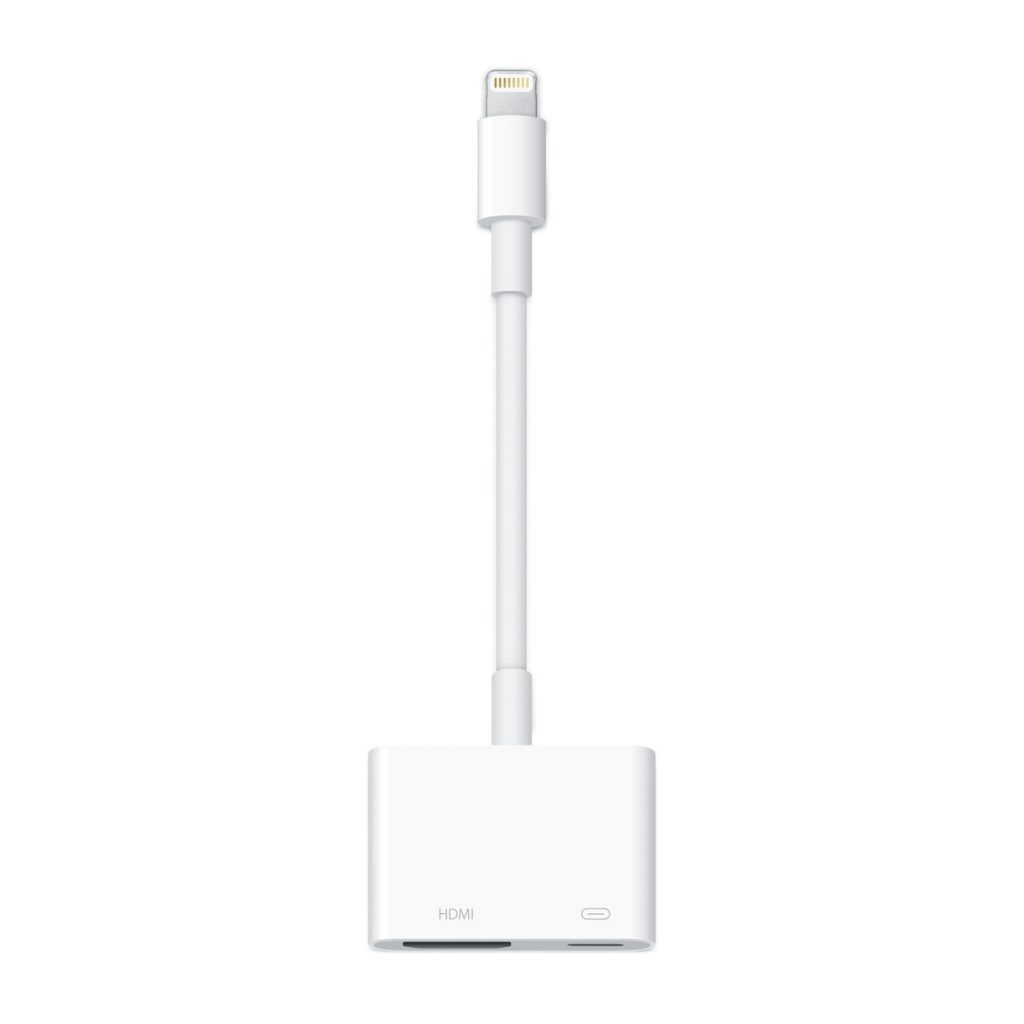
2. Plug one end of the HDMI cable into the lightning adapter and the other end to Hisense TV.
�� After this process, you need to change the Input on Hisense TV to this HDMI.
3. Within a few seconds, your iPhone screen starts displaying on the TV.
4. Open a streaming app and watch the content on a big screen.
How to Screen Mirror to Hisense TV using Third-Party Apps
There are several third-party apps available on the App Store for free. Alternatively, you can download any of the apps on your smartphone for screen mirroring to Hisense TV. The popular apps include AirBeamTV, ApowerMirror, MirrorMeister, iMediaShare, and LetsView. To use these apps, connect your smartphone to the same WIFI network as your Hisense TV.
How to Screen Cast to Hisense TV using Google Chromecast
Google Chromecast is a digital streaming device to cast photos, videos, or audio. However, it is mandatory to install the Google Home app on your Android or iOS to perform wireless casting.
1. Plug the Google Chromecast device into Hisense TV and change it to the input using the remote.
2. Further, launch the Google Home app.
�� If you haven’t downloaded the app, go to the App Store or Google Play Store to install it.
3. Click the Add (+) icon and choose Set up device.
4. Now, it will search for Chromecast devices.
5. Select your Google Chromecast from the list.
6. Further, a code will be displayed on Hisense TV and your smartphone.
7. Select That’s my code if you get the same code on TV and mobile.
That’s it! You can start screen mirroring using Google Chromecast.
Note: You shall find out the details on how to AirPlay to Chromecast TV from iOS & Mac.
Screen Mirroring iPhone to Hisense VIDAA TV
Yes, you can screen share on Hisense Vidaa TV using the VIDAA app on your smartphone.
1. Install the VIDAA app on your iPhone from the App Store.
2. Make sure that Hisense VIDAA TV and your iPhone are connected to the same WiFi network.
3. Open the VIDAA app and scan for devices.
4. Select your Hisense Vidaa TV to connect.
Enjoy screen sharing the content from your iPhone to Hisense VIDAA TV.
Frequently Asked Questions
Download and install the Google TV app on your Android device. Connect your Android to the same WIFI network as your Hisense TV (Chromecast built-in). Open the Google TV app and click on Devices. Select your Hisense TV. Once connected, click the Cast icon to cast your Android screen.
You can fix the issue by checking the device compatibility, updating the Hisense TV and iPhone, connecting both devices to the same WIFI network, or restarting your Hisense TV.
Can You Screen Mirror iPhone to Hisense TV?


When you buy through our links, we may earn an affiliate commission.
Hisense is an affordable TV brand that offers a quality viewing experience. One feature they offer to remain competitive with other TV manufacturers is screen mirroring.
How Do I Screen Mirror My iPhone to My Hisense TV?
If your Hisense TV uses Google or Roku TV technology, you can screen mirror your iPhone via AirPlay.
However, if your Hisense TV uses the Fire TV or Vidaa TV operating system, you’ll need to take additional steps to mirror your iPhone to your TV.
How to Check if Your Hisense TV Supports AirPlay
If your Hisense TV runs on the Roku or Google TV operating system, it likely comes with built-in AirPlay compatibility.
Hisense TV models that use other operating systems are not compatible with AirPlay out of the box. This includes:
- Android TV
- Fire TV
- Vidaa TV
Here’s how to check whether your Hisense Roku TV supports AirPlay:
- Open your TV’s Settings.
- Look for “Apple AirPlay & HomeKit” in the submenus. If you see it, select it to open your AirPlay settings.
- Toggle AirPlay on.
And here’s how to check if your Hisense Google TV is compatible with AirPlay:
- Press the Source button on your TV remote.
- Select “Edit” and see if you can find “AirPlay.”
- If you do see AirPlay, select it.
- Press “AirPlay and HomeKit Settings.”
- Make sure AirPlay is toggled on.
After enabling AirPlay, you can begin screen mirroring your iPhone from the Control Center.
How to AirPlay an iPhone to a Hisense TV
If your Hisense TV is compatible with AirPlay, you can begin screen mirroring right from your iPhone. Here’s how to get started:
- Connect your iPhone and Hisense TV to the same Wi-Fi network.
- Open the Settings app on your iPhone.
- Select “General,” then “AirPlay & Handoff.”
- Tap “Automatically AirPlay to TVs” and select “Ask” or “Automatic.”
- Swipe to open the Control Center on your iPhone.
- Tap the Screen Mirror icon. This looks like two rectangles overlapping each other.
- Select your Hisense TV from the list of available devices.
- If prompted, enter the code displayed on your TV.
After entering this code, your iPhone’s screen should immediately appear on your TV screen.
Other Ways to Mirror an iPhone to a Hisense TV
There are other ways to screen mirror an iPhone to a Hisense TV if it doesn’t support AirPlay. The easiest is to connect a streaming device that does support AirPlay. If you don’t want to buy a new device, use a Lightning-to-HDMI adapter.
Screen Mirroring with an External Device
Newer Roku players support AirPlay. This includes the following:
Another option is Apple TV. Apple TV is one of the more expensive external streaming devices, but in my opinion, it’s one of the best and can add a lot of functionality to an already smart TV.
To use an external streaming device with your Hisense TV, all you need to do is connect it to a power source and your TV’s HDMI port. Then, turn AirPlay on and start screen mirroring your iPhone.
Screen Mirroring with an Adapter
If you don’t want to use an external device to screen mirror your iPhone to your Hisense TV, you can use a Lightning-to-HDMI adapter.
Here’s how to make the connection:
- Plug the Lightning cable into your iPhone’s Lightning port.
- Connect an HDMI cable to the HDMI port on the adapter.
- Plug the other end of the HDMI cable into your Hisense TV.
- Switch your TV’s source to the corresponding HDMI input.
Apple’s Lighting-to-HDMI adapters are compatible with every iPhone since the iPhone 5.
FAQ: Screen Mirroring iPhones to Hisense TVs
Can I Use Chromecast to Screen Mirror My iPhone?
You can use Chromecast with a Hisense TV. However, Chromecast is a casting device, not a screen mirroring device.
While you can use Chromecast to select a photo, video, or other type of content from your phone and show it on a bigger screen, you can’t mirror your actual phone screen.
Why Won’t My iPhone Mirror to My Hisense TV?
If your iPhone won’t screen mirror to your Hisense TV, make sure:
- Both devices areconnected to the same Wi-Fi network.
- AirPlay is enabled for both devices.
- Your Hisense TV or streaming device and iPhone are both updated to the latest version.
If you still cannot screen mirror to your TV, try rebooting your Hisense TV and your iPhone.
What is the Difference Between Screen Mirror and AirPlay?
Screen mirroring and AirPlay have minor differences but are essentially the same. However, while screen mirroring can be done on any device, AirPlay will only work with Apple devices.
AirPlay works on:
- iPhone
- iPad
- iMac
- Macbook
Do I Need Internet to Use AirPlay or Screen Mirror?
While it is easier to screen mirror your iPhone to your Hisense TV over Wi-Fi, it is possible to do so without an internet connection.
If Bluetooth is enabled on both devices, you can AirPlay your iPhone to your TV. If your TV doesn’t have Bluetooth, you can also use a Lightning-to-HDMI adapter to mirror your phone.
However, without Wi-Fi, you’ll be limited to content already loaded on your phone.
Which Operating System Do Hisense TVs Use?
Different Hisense TV models run on different operating systems. Your Hisense TV may run on any of the following:
- Android TV
- Fire TV
- Google TV
- Roku TV
- Vidaa TV
However, Google TV and Roku TV are the only operating systems with integrated AirPlay compatibility.
Can I Use a Third-Party App to Screen Mirror to a Hisense TV?
Some Hisense TVs, particularly older model smart TVs and those that do not natively support AirPlay, may offer third-party applications to access screen mirroring.
However, third-party apps are known to be unreliable and can potentially pose security risks. If you decide to utilize third-party software, do so at your own risk.