Как преобразовать файл ISO в файл EXE (за 11 шагов)
Замена ISO-файла на EXE-файл на самом деле представляет собой процесс разархивирования и «монтирования» вашего ISO-образа диска в формате, совместимом с ПК. Например, у вас может быть файл изображения, содержащий программу, которую нужно запустить на вашем компьютере. Если в вашей системе нет программного обеспечения, которое монтирует образ ISO, вам придется загрузить его из Интернета. У вас есть несколько вариантов, таких как Gizmo (которая является бесплатной), Daemon Tools (у которой есть бесплатная пробная версия) и MagicDisc ISO (которая также предлагает бесплатную пробную версию). Все эти программы позволяют вам легко открывать файлы ISO, а также редактировать содержимое файлов ISO, не разархивируя их.
Гизмо преобразование ISO
Шаг 1
Откройте свой веб-браузер и перейдите на сайт Gizmo. Загрузите и установите программное обеспечение бесплатно. Примите условия использования и запустите программу, откуда вы войдете в меню «Менеджер деревни».
Шаг 2
Выберите параметр «Подключить изображения к виртуальному устройству Gizmo» в окне «Менеджер деревни».
Шаг 3
Проверьте экран «Виртуальные драйверы», чтобы убедиться, что вы установили драйвер программы, проверив его статус в правом нижнем углу страницы. Если написано «Не установлено», нажмите кнопку «Установить».
Шаг 4
Щелкните правой кнопкой мыши значок ISO и выберите «Смонтировать». Дождитесь завершения процесса. Размонтируйте ISO, щелкнув правой кнопкой мыши по образу и выбрав «Размонтировать» (убедитесь, что у вас нет программ, запускающих содержимое файлов ISO, иначе ваш компьютер не позволит вам размонтировать его).
DAEMON Tools
Шаг 1
Загрузите и установите бесплатную пробную версию Daemon Tools или приобретите программное обеспечение. Откройте программу, убедившись, что она запущена, на панели задач Windows в нижнем углу экрана.
Шаг 2
Щелкните правой кнопкой мыши значок Daemon Tools на панели задач Windows и удерживайте указатель мыши над стрелкой «Виртуальный CD / DVD-ROM». Выберите подменю «Устройство» и нажмите «Смонтировать образ».
Шаг 3
Найдите ISO-файл во всплывающем окне проводника Windows и нажмите «Открыть». Выберите «Запустить start.exe», чтобы запустить программу с вашего ISO, или нажмите «Открыть папку для просмотра файлов», чтобы просмотреть содержимое вашего ISO.
Шаг 4
Подождите, пока компьютер завершит открытие вашего ISO. Размонтируйте ISO, щелкнув правой кнопкой мыши значок «Daemon Tools» на панели задач Windows и выбрав «Размонтировать образ».
MagicDisc
Шаг 1
Щелкните правой кнопкой мыши значок MagicDisc после завершения процесса загрузки и установки. Выберите вариант «Нет носителя» в подменю «Виртуальный CD / DVD-ROM».
Шаг 2
Нажмите «Смонтировать». Перемещайтесь по экрану проводника Windows, чтобы найти и выделить файл ISO.
Шаг 3
Нажмите «ОК», чтобы начать монтировать ISO. Размонтируйте файл, когда ваш компьютер завершит работу, щелкнув правой кнопкой мыши ISO-файл и выбрав «Размонтировать».
ISO to EXE Converter – How to Convert ISO to EXE or ZIP with 3 Practical Programs
I have an ISO image file and I am trying to convert it to an executable EXE file onto a DVD for installation to target computers. How do I do this? For solving this issue, firstly, you need a right ISO to EXE Converter, and then follow this tutorial to get specific steps.
By the way, here is a wonderful DVD ISO Image Converter for you to get movie easily:
- Why Do We Need an ISO to EXE Converter?
- Method 1 — How to Convert ISO to EXE via Burn ISO File to A Blank DVD
- Method 2 — Convert ISO to EXE by means of a Virtual CD/DVD drive
- Method 3 — Extract EXE File from ISO Image
Why Do We Need an ISO to EXE Converter?
Sometimes, applications, game installations, or other programs that you might download from the Internet are ISO format files, not the executable files that we know suffixed with .exe. So, how do you run the ISO file in this case, is there a way to convert ISO file to exe? Definitely, converting ISO to exe is not a simple change of the suffix name from .iso to .exe. Hence, there are 3 free methods for ISO exe conversion for you.

Convert DVD to ISO, ISO to Other Formats
WonderFox DVD Ripper Pro is a wonderful ISO Converter that can quickly convert DVD to ISO and DVD folder with 1:1 flawless content. Apart from that, it can rip ISO image file to more formats for compatibility with more devices like iPhone, iPad, Android phone and more. If you want your ISO movie to play easily, don’t miss this software.


Method 1 — How to Convert ISO to EXE via Burn ISO File to A Blank DVD
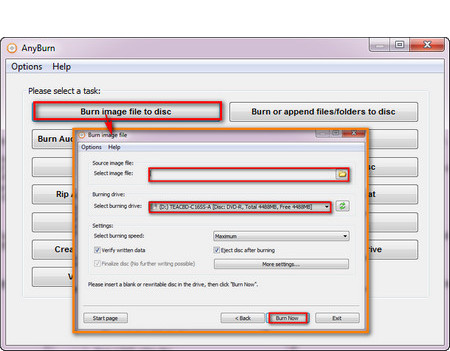
How to Burn ISO to DVD
How to convert ISO file to exe or zip? A traditional approach is to burn the ISO file to a blank DVD and then read the DVD for running and installing. Therefore, a free DVD burning software is essential. Free tools such as AnyBurn, ImgBurn, and Burn4Free are recommended. The following is an example of AnyBurn to burn a DVD. The steps are as follows:
Step 1. Anyburn is not a precise ISO to EXE Converter, but firstly, you need to download and install AnyBurn from Http://www.anyburn.com/download.php for preparing to burn a DVD.
Step 2. Insert a blank disk into the DVD burner drive.
Step 3. Run AnyBurn and click Burn image file to disk.
Step 4. Import the ISO file and select burning drive.
Step 5. Finally, click on the Burn now button.
Method 2 — Convert ISO to EXE by means of a Virtual CD/DVD drive
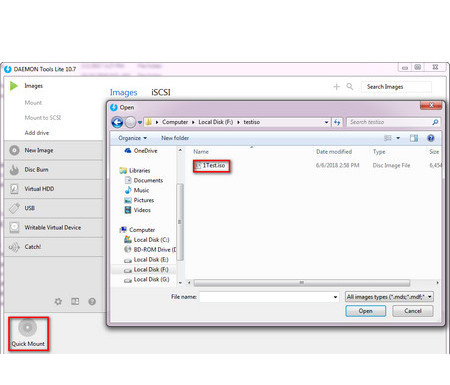
How to Convert Disc Image File to EXE
Obviously, the above method is more troublesome. In fact, you can use a virtual CD/DVD drive to convert ISO to EXE without burning a DVD. Apps such as DAEMON Tools Lite, MagicDisc, and Virtual CloneDrive are perfect for this job. Previously, we used these tools to mount ISO, and next, we’d like to use DAEMON Tools Lite as an example to explain how to convert ISO to EXE.
Step 1. Download and install DAEMON Tools Lite — free license from https://www.daemon-tools.cc/products/dtLite .
Step 2. Run DAEMON Tools Lite, click on the Quick Mount in the lower left corner to import the ISO file.
Step 3. Then the AutoPlay window will pop up automatically, you can run .exe directly here.
Step 4. If AutoPlay does not pop up, open «Computer» or «My Computer», you will find that the ISO file has been mounted as a new drive, double-click to run directly or right click, select Open, and find the .exe file inside.
Method 3 — Extract EXE File from ISO Image
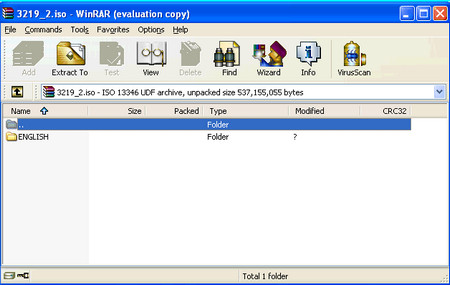
How to Convert ISO to EXE
How to convert ISO to EXE? There is a simple way to solve this problem. If WinRAR, WinZip, 7-Zip and other archiver software are installed on the computer, you can use them to open and export all ISO files containing .exe.
Step 1. Run WinRAR.
Step 2. Click File, Open Archive to open the ISO file.
Step 3. Click the Extract to button on the menu bar, select the output path, and start exporting.
Note: Be sure to export all the files inside. Only exporting .exe files cannot be run separately.
The above are the details about the 3 valid ISO to EXE Converters and corresponding guide on how to convert iso to exe. Sincerely hope this post would be helpful. In addition, if you have better suggestions, please contact us and we will keep updating to present the best content.
Recommended DVD ISO Image File Converter for Windows
WonderFox DVD Ripper Pro
Creating an ISO file from any disc is pretty easy with the right tool and is a fantastic way to back up important DVDs to your hard drive. WonderFox DVD Ripper Pro allows you to quickly convert any DVD to ISO file and you can also convert ISO image file to other video formats to match your devices like iPhone, iPad, Android phone and more. Download it to have a try!
ISO to EXE Convert Online Free ISO to EXE converter
You can convert ISO files to EXE format in several ways. The most proven option is to download dedicated software that allows you to convert between the ISO and EXE formats. At the bottom you will find a list of software programs that support ISO and EXE files and can also save them in new file formats.
ISO File Type
ISO is a file extension used by Microsoft Windows to store disc images. ISO stands for International Organization for Standardization. The ISO image files were created in order to help users have a single image of an optical disc. This was done by using ISO 9660, a standard that specifies the format of a media file system on a CD-ROM or DVD.
| Full Name | Disc Image Format |
|---|---|
| Developer | N/A |
| Category | Disk Image Files |
EXE File Type
EXE files are Windows Executable Files that can be opened with a number of file extensions. The EXE file extension stores data such as the name of the program and the date it was created.
| Full Name | Windows Executable Format |
|---|---|
| Developer | Microsoft |
| Category | Executable Files |
Software, that convert ISO files
The list contains a list of dedicated software for converting ISO and EXE files. The list may also include programs that support ISO files and allow you to save them with different file extensions.
5 Best Free ISO to EXE Converter Software For Windows
Here is a list of best free ISO to EXE converter software for Windows. ISO is a disk image archive format that carries all types of data such as videos, photos, documents, etc. Similar to ISO, EXE can also carry all types of data. Although, EXE is a self-extracting archive format that doesn’t need an archive extractor to extract its data. At times, it is necessary to change one archive to another archive due to support issues. If you also want to convert ISO to self-extracting archives, then you can use these ISO to EXE converters.
Through some of these converters, you can also batch convert multiple ISO archives to EXE. Plus, options to convert ISO to other archive formats are also present in most converters. In some converters, you can also choose to adjust archive compression parameters before initiating the conversion. The process to convert ISO to EXE is not that difficult in any of these software. Still, to help you out, I have mentioned the steps of conversion in the description of each software.
Most of these converters are mainly archiving software through which you can create and extract archives of various formats. Plus, they also offer many additional tools such as Encryption, Repair Archive, Password Manager, etc. Go through the list to know more about these converters.
My Favorite ISO to EXE Converter Software For Windows:
PeaZip is my favorite software because it can convert multiple ISO archives to self-extracting archive (EXE) at a time. Plus, it can also be used to convert archives of many different formats.
You can also check out lists of best free ISO to ZIP Converter, ZIP to 7Z Converter, and RAR to 7Z Converter software for Windows.
PeaZip

PeaZip is a free open source ISO to EXE converter for Windows, Linux, and BSD. Using it, you can also create and extract archives of various formats such as RC, ARJ, BR, BZ2, CAB, DMG, GZ, ISO, LHA, PAQ, and more. It offers a dedicated Convert section through which you can convert ISO to EXE (self-extracting archive), 7Z, ARC, PEA, ZIP, etc., formats. Before initiating the conversion, you can specify archive compression parameters and add password protection to the archive. The main advantage of this software is its ability to convert multiple ISO archives at a time.
How to convert ISO to EXE using PeaZip:
- Start this software and go to the Convert section.
- After that, drag and drop one or more ISO archives to its interface.
- Next, select the Self-Extracting ARC format from the Format menu and specify the destination location path in the Output section.
- Now, move to its Advanced section to specify the compression parameters.
- In the end, press the OK button to initiate the conversion process.
Additional Features:
- Encryption: Using it, you can encrypt all your important archives. To encrypt archives, it uses the AES-256 encryption algorithm.
- Secure Delete: Through this feature, you can permanently delete files and archives to make them unrecoverable.
- Create Random Password: It is another handy feature through which you can generate random passwords of up to 64 character length.
Final Thoughts:
It is one of the best free ISO to EXE converters through which you can easily convert one or more ISO archives to EXE and other supported archive formats.