Get and Install MATLAB Add-Ons and Simulink Add-Ons Using the Add-On Explorer
This video demonstrates how to find, manage, and install MATLAB ® add-ons using the Add-On Explorer in MATLAB. Learn how to easily install MathWorks products for which you are already licensed. Browse and search thousands of free MATLAB add-ons. Content includes toolboxes, support packages, apps, functions, and models authored by both MathWorks staff and the community.
Categories of content include:
- Data Import and Analysis
- Mathematics
- Graphics
- App Building
- Image Processing and Computer Vision
- AI, Data Science, and Statistics
- Machine Learning
- Signal Processing
- Wireless Communications
- RF and Mixed Signals
- Autonomous Systems
- Real-Time Simulation and Testing
- Physical and Event-Based Modeling
- Code Generation
Read more about the Add-On Explorer in MATLAB here.
To share the add-ons you create, submit them to File Exchange at MATLAB Central. The add-ons you share are discoverable in both File Exchange and the Add-On Explorer.
Add-ons extend the capability of MATLAB with thousands of entries available — from toolboxes, to apps, to hardware support packages, or even submissions from the MATLAB community. You’re likely to find something for your project no matter what you’re working on.
You can search for, download, and install add-ons without ever leaving the MATLAB environment. Find the Add-On Explorer under the Home tab, where you can search for new add-ons, or see what you have already installed.
Let’s do a search for image processing. It turns out there are several official toolboxes related to image processing. You can filter your results by type, application, and other categories.
If you’re in more of a browsing mood, you can search from the Add-Ons homepage for all add-ons related to a particular category. For example, ”autonomous systems” brings up related toolboxes, as well as support packages from both MathWorks staff as well as the community.
You can further filter by subcategory and also filter by type.
This filter lets us see what hardware support packages are available, including this popular support package which enables video and image capture from both built-in and USB webcams.
You can even find “just for fun” entries, as well. Click on games and find hundreds of community submissions from snake, to chess, to Risk.
To see what you have installed before, you can manage your add-ons by clicking here in the upper right. Or access the same from the MATLAB toolstrip.
Check out the Add-On Explorer now, and see what toolboxes, apps, or hardware support packages and community submissions might be able to help you out.
For more information, check out the documentation, and don’t hesitate to leave us feedback.
Документация
В этом примере показано, как создать библиотеку блоков и добавить его в Simulink ® Library Browser. Этот пример также показывает, как добавить подбиблиотеку.
Чтобы указать информацию о вашей библиотеке, вы создаете функцию с именем slblocks .
Добавьте библиотеку в браузер библиотеки
От начальной страницы Simulink выберите Blank Library и нажмите Create Library.
Примечание
Браузер Библиотеки только поддерживает библиотеки. Вы не можете отобразить содержимое модели в Браузере Библиотеки.
Добавьте блок Gain в библиотеку.
В MATLAB ® Командное окно, введите эту команду, чтобы установить EnableLBRepository свойство библиотеки к ‘on’ . Ваша библиотека появится в Браузере Библиотеки, только если это свойство включено, когда вы сохраняете свою библиотеку.
Сохраните библиотеку в папке по пути MATLAB. В данном примере назовите библиотеку mylib .
В Браузере текущей папки MATLAB откройте папку, которая содержит mylib , затем нажмите New Script в Панели инструментов MATLAB.
В редакторе MATLAB, который открывается, добавьте эту функцию, которая указывает что библиотека mylib должен появиться в Браузере Библиотеки с именем My Library.
Сохраните функцию как slblocks.m .
Примечание
Можно сохранить функцию как .m или .mlx файл. Вы не можете сохранить его как Pcode-файл.
Откройте Браузер Библиотеки путем нажатия на Library Browser в Панели инструментов Simulink.
Чтобы видеть новую библиотеку в Браузере Библиотеки, щелкните правой кнопкой по списку библиотек и выберите Refresh Library Browser.
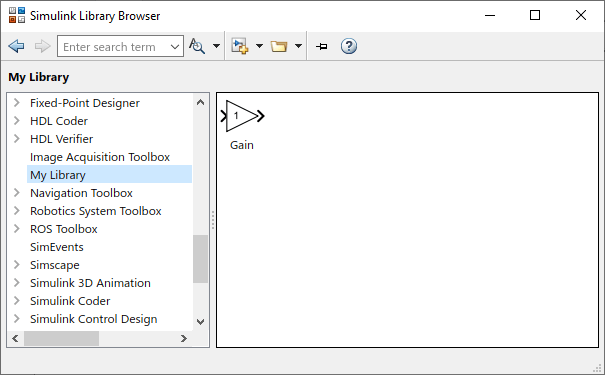
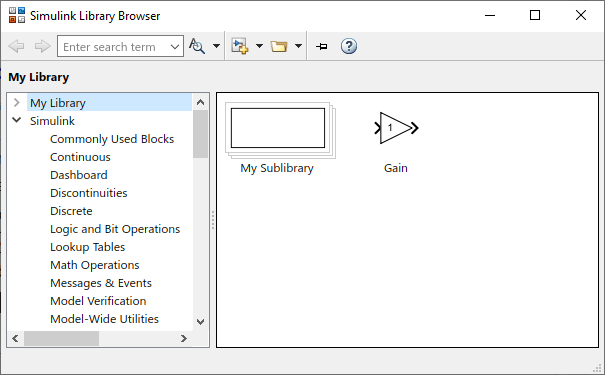
Рисунок показывает библиотеку mylib в качестве примера с Библиотекой Браузер называют My Library.
Примечание
Если вы сохраненный ваша библиотека без установки ‘EnableLBRepository’ к ‘on’ , сообщение появляется наверху Браузера Библиотеки.
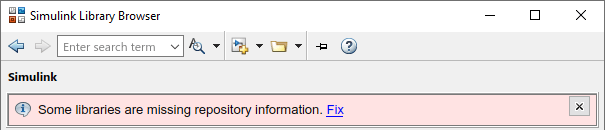
Нажмите Fix и ответьте на подсказку как соответствующую.
Добавьте подбиблиотеку в браузер библиотеки
Выполните эти шаги, чтобы добавить подбиблиотеку под названием mylib2 к вашему mylib библиотека.
Создайте библиотеку под названием mylib2 . Добавьте некоторые блоки в него.
В командном окне MATLAB, набор EnableLBRepository свойство библиотеки к ‘on’ для новой библиотеки.
Сохраните mylib2 к папке, которая содержит mylib .
Добавьте блок Subsystem в mylib библиотека.
Удалите порты ввода и вывода из подсистемы путем удаления Inport и блоков Outport в подсистеме.
Назовите блок Subsystem My Sublibrary .
Чтобы соединить блок Subsystem с подбиблиотекой, установите OpenFcn коллбэк к mylib2 при помощи Property Inspector.
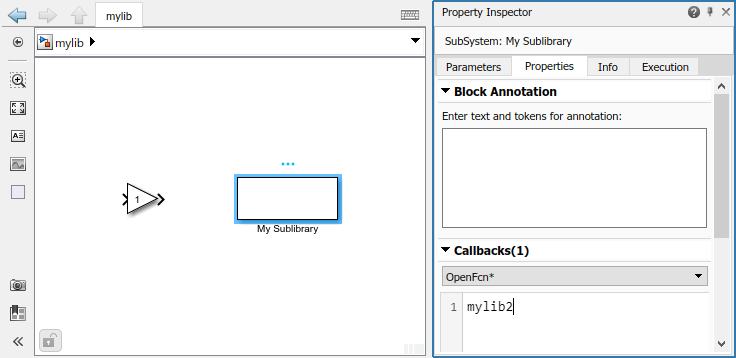
Чтобы видеть новую подбиблиотеку в Браузере Библиотеки, щелкните правой кнопкой по списку библиотек и выберите Refresh Library Browser.
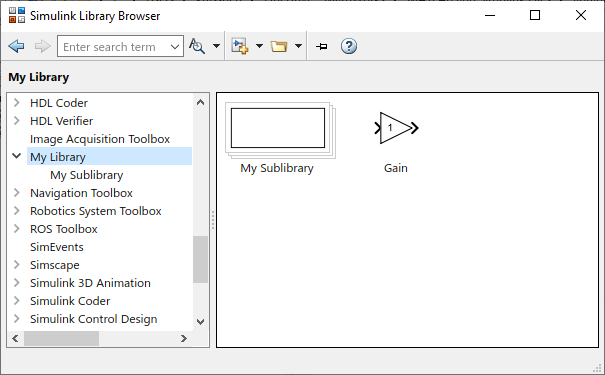
Рисунок показывает подбиблиотеку mylib2 в качестве примера с Библиотекой Браузер называют My Sublibrary.
Из-за коллбэка вы создали, нажатие по My Sublibrary отображает содержимое mylib2 библиотека.
Задайте порядок библиотеки в списке библиотек
Можно задать порядок библиотеки относительно других библиотек в списке путем добавления sl_customization.m файл к пути MATLAB и установке приоритета вида вашей библиотеки. Например, чтобы видеть вашу библиотеку наверху списка, можно установить приоритет вида на -2 . По умолчанию приоритетом вида Библиотеки Simulink является -1 . Другие библиотеки имеют приоритет вида 0 по умолчанию, и эти библиотеки появляются ниже Библиотеки Simulink. Библиотеки с тем же приоритетом вида появляются в алфавитном порядке.
Это демонстрационное содержимое sl_customization.m файл размещает новую библиотеку наверху списка библиотек.
Заставить индивидуальную настройку сразу вступить в силу, в командном окне MATLAB, введите:
Похожие темы
Документация Simulink
Поддержка
© 1994-2021 The MathWorks, Inc.
1. Если смысл перевода понятен, то лучше оставьте как есть и не придирайтесь к словам, синонимам и тому подобному. О вкусах не спорим.
2. Не дополняйте перевод комментариями “от себя”. В исправлении не должно появляться дополнительных смыслов и комментариев, отсутствующих в оригинале. Такие правки не получится интегрировать в алгоритме автоматического перевода.
3. Сохраняйте структуру оригинального текста — например, не разбивайте одно предложение на два.
4. Не имеет смысла однотипное исправление перевода какого-то термина во всех предложениях. Исправляйте только в одном месте. Когда Вашу правку одобрят, это исправление будет алгоритмически распространено и на другие части документации.
5. По иным вопросам, например если надо исправить заблокированное для перевода слово, обратитесь к редакторам через форму технической поддержки.
Get and Install MATLAB Add-Ons and Simulink Add-Ons Using the Add-On Explorer
This video demonstrates how to find, manage, and install MATLAB® add-ons using the Add-On Explorer in MATLAB. Learn how to easily install MathWorks products for which you are already licensed. Browse and search thousands of free MATLAB add-ons. Content includes toolboxes, support packages, apps, functions, and models authored by both MathWorks staff and the community.
Categories of content include:
— Data Import and Analysis
— Mathematics
— Graphics
— App Building
— Image Processing and Computer Vision
— AI, Data Science, and Statistics
— Machine Learning
— Signal Processing
— Wireless Communications
— RF and Mixed Signals
— Autonomous Systems
— Real-Time Simulation and Testing
— Physical and Event-Based Modeling
— Code Generation
Read more about the Add-On Explorer in MATLAB here — https://bit.ly/2y6d2qk . You also can create your own add-ons, including apps and toolboxes. For more information about creating apps, see Package Apps From the MATLAB Toolstrip — https://bit.ly/2XnsUPR . For more information about creating toolboxes, see Create and Share Toolboxes — https://bit.ly/2JXEPfe . To share the add-ons you create, submit them to File Exchange at MATLAB Central. The add-ons you share are discoverable in both File Exchange and the Add-On Explorer — https://bit.ly/2y2K6je .
Get and Install MATLAB Add-Ons and Simulink Add-Ons Using the Add-On Explorer  Reviewed by Author on 07:34 Rating: 5
How to install toolbox for MATLAB
I am just wondering, if I need a toolbox which not available in my MATLAB, how do I do that? For example: if I need image processing toolbox, how do I get it?
4 Answers 4
first, you need to find the toolbox that you need. There are many people developing 3rd party toolboxes for Matlab, so there isn’t just one single place where you can find «the image processing toolbox». That said, a good place to start looking is the Matlab Central which is a Mathworks-run site for exchanging all kinds of Matlab-related material.
Once you find a toolbox you want, it will be in some compressed format, and its developers might have a «readme» file that details on how to install it. If it isn’t the case, a generic way to attempt installation is to place the toolbox in any directory on your drive, and then add it to Matlab path, e.g., going to File -> Set Path. -> Add Folder or Add with Subfolders (I’m writing for memory but this is definitely close).
Otherwise, you can extract all .m files in your working directory, if you don’t want to use downloaded toolbox in more than one project.
There are many toolboxes. Since you mentioned one that is commercially available from MathWorks, I assume you mean how do you get a trial/license
There is a link for trials, purchase, demos. This will get you in touch with your sales representative. If you know your sales representative, you could just call to get attention faster.
If you mean just a general toolbox that is from a source other than MathWorks, I would check with the producer, as it will vary widely from «Put it on your path.» to whatever their purchase and licensing procedure is.