Developing For .NET
I recently had a project that required a custom subset of data from a database be stored in an XML file. Each “row” of data also had a related image on a separate server. The project required that both the data and the image be transferred to a client for subsequent consumption by another program. In designing the project, it seemed unnecessarily complex to transport the data and the images as separate entities. Mostly the problem was that this process would simply add more moving parts, which would add to the complexity and increase the probability of “user inspired difficulties.”
Since both the data and the images were to be consumed by the same process, it appeared logical to embed the Image objects directly in the XML file as part of the data description. I found several examples on the web and eventually hobbled together my own version.
Saving the Image to XML
Since XML is ultimately just a formatted text file, the first step is to find a way to represent the Image object as text.
There are several things going on here. We want to convert the element to a byte[] so that we can extract a string representation of the object. To do this we create a TypeConverter object over the Bitmap type. Now we can use the TypeConverter to convert the Bitmap to a byte[]. Now, to properly encode the byte[] for writing to the XML file as a string, we convert it to a Base64 String.
Reading the Image from the XML file
Now that we have the Bitmap as part of our XML file, we need a way to read the Base64 String back into a Bitmap object:
In this example, we retrieve the XML text, convert it to a byte[] using Convert.FromBase64String(), use that to create a MemoryStream, and finally use the MemoryStream to create the Bitmap. Naturally, you can make this more concise:
Wrapping it up
I’m a novice when it comes to encryption and such things, so I’m not claiming that this is the best solution. It did work and the application is functioning as designed, but I’d like to get some feedback about this method, comments, alternatives, etc. If there is a problem with this solution or a better way to do it, please comment below.
Вставить картинку в XML, а потом PDF файл
Не могу открыть в PDF читалке в форме PDF файл имя которого хранится в БД Access
в приложении есть поиск он ищет в БД(1 таблица, 2 поля) и если в поисковую строку вводится название.
Wpf RichTextBox. Как вставить картинку так, чтобы потом можно было найти source
т.е. имеется RichTextBox, и имеется файл с картинкой. когда я вставляю картинку через clipboard.
 Как поместить данные в xml файл, а потом считать?
Всем привет, искал данные про xml, но чет не разобрался. Поэтому спрошу у вас: как поместите эти.
Отобразить картинку из pdf
День добрый. Есть картинка, сохраненная в виде пдф файла (на мой взгляд, дикое извращение, но.
Embedding Images in XML

One of the really cool features added to XMLSpy a few years ago based on customer requests is the ability to embed external files – such as images – directly in an XML document as encoded text. This gives you the option to package all required data from various external files together in one large XML document. The functionality is also available for embedding images in JSON documents.
Let’s take a look at how easy it is to accomplish this in the XML and JSON editor in just a few steps.

Embed Images in XML or JSON
First, click the Insert / Encoded External File command, which is is available in Text View and Grid View for XML documents, and Text View for JSON files.
Browse to select the file to embed, and then choose either Base 16 or Base 64 encoding. If you wish to enclose the encoded text in an element, check the Create Element check box and specify the name to use.
In this example, we’re creating a new XML element called <photo>. If the Create Element check box is not checked, the encoded text will be inserted directly at the cursor location.
When we click OK, the encoded text of the image file we specified is inserted in the <photo> element and is now a part of our XML document.
Here is a shot of a JSON document in the powerful JSON Grid Editor. You can see an image we embedded in the file.
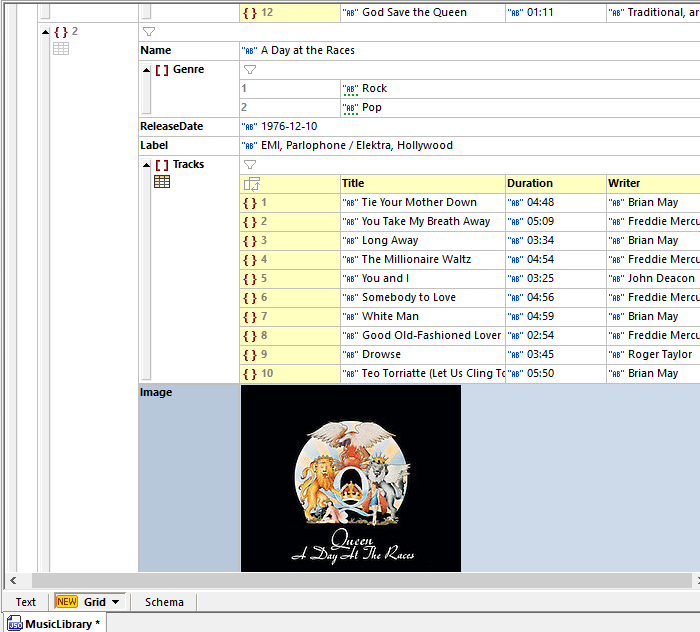
And that’s all there is to it! You can download a free trial of XMLSpy to try it out.
Embedding Images in XML Documents
The technique described in the previous section can be used with any sort of binary data that can be expressed with an array of bytes, including images. Let’s look at how to embed a JPEG image in an XML document.
The structure of the sample XML document is extremely simple. It will consist of a single <jpeg> node holding the BinHex data plus an attribute containing the original name, as shown here:
writer.WriteComment("Contains a BinHex JPEG image"); writer.WriteStartElement("jpeg");
// Get the size of the file
FileInfo fi = new FileInfo(jpegFileName);
FileStream fs = new FileStream(jpegFileName, FileMode.Open); BinaryReader f = new BinaryReader(fs); img = f.ReadBytes(size); f.Close();
// Write the JPEG data writer.WriteBinHex(img, 0, size);
// Close the document writer.WriteEndElement();
This code uses the FileInfo class to determine the size of the JPEG file. FileInfo is a helper class in the System.IO namespace used to retrieve information about individual files. The contents of the JPEG file is extracted using the ReadBytes method of the .NET binary reader. The contents are then encoded as BinHex and written to the XML document. Figure 4-7 shows the source code of the XML just created.
Fie E-ji rinrafc Help
<?30nl version=,Tl. 0 T?>
<!—contains a BinHex jfeg image—> <jpeg arigin4lFileJiamje="univac. jpg"
Or ig i na 1F i 1 e S i ze = ‘T253SZ1>FFDSFFF00Q104A46494S000101C1012C0:i2C 0000FrDB00-430008060607060SOSO7O70709090e0A0Cl40DOC0B0B0Cl9121 30Fl4lDlAlFlElDlAlClC2 02 4 2E272Q222C23lClC28372&2C3C31343434lF 27393D3eS23C^3343ZITOBOO«0iD909O96caiflCl$5DCOD1832211CZ 1323 2323232323232323232323232323232323232323232323232323232323232 323232323232323232323232323232323232FFCCQQllQB0QF5Qlt>A03Q122Q 002lIOi03UOlFFC400iFOOOOOI050lOi0101010100000000000000000I02 ^
Figure 4-7: An XML file containing a BinHex-encoded JPEG file.
The BinHex stream is now part of the XML document and, as such, can be reread using an XML reader and decoded into an array of bytes. The sample application shown in the following code does just that and, in addition, translates the bytes into a Bitmap object to display within a Windows Forms PictureBox control:
XmlTextReader reader = new XmlTextReader(filename);
Filelnfo fi = new Filelnfo(filename); int size = (int) fi.Length; byte[] img = new byte[size]; reader.ReadBinHex(img, 0, size);
// Bytes to Image object MemoryStream ms = new MemoryStream(); ms.Write(img, 0, img.Length); Bitmap bmp = new Bitmap(ms); ms.Close();
// Fill the PictureBox control Jpeglmage.Image = bmp;
The reader opens the XML file and jumps to the root node using MoveToContent. Next it gets the size of the XML file to oversize the buffer destined to contain the decoded JPEG file. Bear in mind that a BinHex stream is always significantly larger then a binary JPEG file, but this is the price you must pay to string encoding algorithms. The ReadBinHex method decodes the JPEG stream and stores it in a MemoryStream object. This step is necessary if you want to transform the array of bytes into a .NET Framework graphics object—say, the Bitmap object—that can be then bound to a PictureBox control, as shown in Figure 4-8.
 Figure 4-8: A PictureBox control displays a JPEG file just extracted from an XML file and properly decoded.
If you want to extract the image bits and create a brand-new JPEG file, use the following code. The name of the JPEG file is read out of the OriginalFileName attribute in the XML encoded document.
string originalFileName = reader["OriginalFileName"]; FileStream fs = new FileStream(originalFileName,