Sorry, you have been blocked
This website is using a security service to protect itself from online attacks. The action you just performed triggered the security solution. There are several actions that could trigger this block including submitting a certain word or phrase, a SQL command or malformed data.
What can I do to resolve this?
You can email the site owner to let them know you were blocked. Please include what you were doing when this page came up and the Cloudflare Ray ID found at the bottom of this page.
Cloudflare Ray ID: 802408a1e9e1d6de • Your IP: Click to reveal 86.107.21.84 • Performance & security by Cloudflare
How to show FPS in Overwatch 2
A higher framerate might help you click heads better.
Players are finally starting to really get into playing a lot of Overwatch 2 games after a tumultuous release on Oct. 4. Now that the server is more stable and people are getting online to play, they’re starting to find that some of their settings from Overwatch 1 didn’t carry over.
One of those settings is having some information in the top left-hand corner of the screen that gives players data about certain aspects of their game. One of those points of data is the frames-per-second.
Players can show their FPS in Overwatch 2 just like they could in Overwatch 1, and the setting isn’t too hard to find, although the menu options have changed since the transition took place. Players can still find the setting under the Video tab, but there are now sub-sections, which can be navigated to find specific settings.
How to find the setting to show FPS in Overwatch 2
Under the Video tab on the left-hand side, there are three categories: Video, Graphics Quality, and Details. To find the setting to show framerate, head to the Details category. Under the very first option which is “Display Performance Stats” is the “Show Framerate” option. Turn that on and then in the top right corner, you’ll be able to see your FPS.
 Screengrab via Blizzard
There are also a few other options players can turn on in that screen, such as displaying the system clock, GPU temperature, VRAM usage, and more. Network latency is also something players might want to have handy on their screens to see when they might be lagging.
In order to increase FPS, players can head to the Video tab in that same menu, and there will be an option to either cap the framerate automatically or customize it to whatever FPS you want.
Jessica has been an esports and gaming journalist for just over five years. She also teaches esports journalism at Rowan University. Follow her for all things gaming, @JessScharnagle on Twitter.
Overwatch 2: как показать счетчик FPS

Показать FPS в Overwatch 2: FPS, или количество кадров в секунду, — важнейший элемент в видеоиграх. Он может сделать или сломать игровой процесс, влияя на то, насколько плавно выглядит игра и насколько отзывчива она. Высокий FPS необходим в шутерах от первого лица (FPS), поскольку игроки полагаются на быстрые рефлексы, чтобы победить врагов. Низкий FPS может стать серьезной проблемой в таких играх и быстро привести к разочарованию и поражению.
Конечно, есть способы улучшить FPS в OW2, но эта статья не об этом. В этой статье мы рассмотрим несколько способов отображения FPS в Overwatch 2.
- Существующие настройки FPS в игре
- Внешние программы, такие как Nvidia Geforce Experience или Windows Gamebar
Как показать счетчик FPS в Overwatch 2
В большинстве соревновательных игр эта настройка присутствует по понятным причинам. Хочется, чтобы такая важная информация, как FPS, Ping, Loss, отображалась всегда.
К счастью, разработчики позаботились об этом, и включить эту функцию можно с помощью простой настройки. Чтобы включить внутриигровой счетчик:
- Перейдите в «Опции»
- Перейдите к Видео > Прокрутите немного вниз и включите «Отображать статистику производительности».
- Теперь нажмите на значок «+» под той же настройкой.
- Отсюда включите счетчик FPS, как показано на рисунке ниже.

Если вы ищете альтернативные способы отображения FPS, то продолжайте читать.
Отображение FPS с помощью Geforce Experience
Если у вас есть видеокарта Nvidia, вы также можете использовать Geforce Experience для отображения FPS в игре.
- Запустите Geforce Experience
- Нажмите на значок своего профиля, расположенный в правом верхнем углу, и выберите «Account»
- В меню, расположенном справа, нажмите «Общие»
- Найдите накладку In-Game и нажмите «Настройки», как показано ниже:

- Откроется новое окно, в нем выберите HUD Layout
- В этом окне вы можете настроить макет HUD. Нажмите на Performance > FPS и выберите положение счетчика, как показано на скриншоте ниже.

Вы успешно включили счетчик с помощью Geforce Experience.
Использование игровой панели Windows
Windows 10 поставляется с удобной функцией под названием «Игровая панель Windows». Игровая панель Windows — это панель инструментов, которая обеспечивает быстрый доступ к игровым функциям на вашем компьютере, таким как создание скриншотов, запись игрового процесса и т.д. Одной из менее известных функций Windows Game Bar является возможность отображения частоты кадров (FPS) в игре.
- Чтобы включить функцию отслеживания FPS на игровой панели Windows, откройте ее, нажав на клавиатуре клавиши Win+G
- Вы увидите плавающее окно производительности, в котором отображаются такие показатели, как CPU, GPU, VRAM, RAM и FPS. Вот как это выглядит:

- Вам нужно будет нажать на кнопку Pin, как показано на изображении выше. Вы можете дополнительно настроить это плавающее окно, нажав на окно настроек, как показано ниже:

Измеритель FPS в игровой панели Windows может быть полезен для устранения проблем с производительностью в играх. Если вы видите низкие показатели FPS, возможно, вам нужно оптимизировать настройки игры или обновить аппаратное обеспечение.
Это все способы, с помощью которых вы можете отобразить счетчик FPS в Overwatch 2.
Гайды 05 февраля 2023 0 
 (1 521 голосов)
How To Show FPS In Overwatch 2 On PC 2023
Overwatch 2 is a free-to-play game that’s available on all devices, and the game itself is very fun. I have had a blast within the game despite the odd Overwatch 2 crashing issue. Luckily there is an easy way to enable the Overwatch 2 show FPS option.
This is great news as the one thing I like to do with games on my PC is to keep an eye on my frame rate. So if you wanted to know how to show FPS in Overwatch 2 then I have listed the steps below.
And the option is simply just enabled in the game, so there is no need to mess around with other methods to show the FPS in Overwatch 2.
Why show the Overwatch 2 FPS counter?
It is important to keep an eye on your FPS in-game as it lets you know how many frames per second you are getting.
If you are receiving a low number of frames then you are going to start encountering issues with your graphics such as textures not loading correctly, lagging, stuttering, or it could even give you a black screen in Overwatch 2.
So that’s why you will want to turn on the show fps option in Overwatch 2 so that you will have a counter displayed on your screen.
Overwatch 2 show FPS
Below are the steps on how to see FPS in Overwatch 2. And you can also toggle other stats to show in-game, within the same area.
1. Launch Overwatch 2
2. Select Menu or press ESC

3. Now choose Options

4. Select the Video tab then Details
5. You can now toggle Display Performance Stats to ON
6. Now toggle Show Framerate also to ON > Press Apply to save your settings
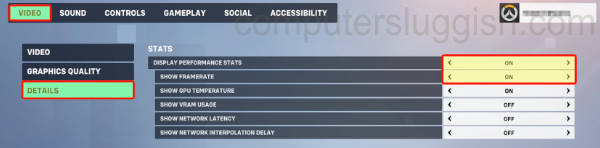
7. In the same settings you can also show Overwatch 2 in-game stats such as GPU temperature, VRAM usage, network latency, and network delay
I hope the little guide above helped you show what FPS you are getting in Overwatch 2 using the FPS counter and hopefully, are getting a decent frame rate!
If you did enjoy this guide and found it helpful then I am sure you would like our other gaming guides.