Full Tutorial: How to Remove AnyDesk Completely
Are you facing difficulties in how to remove AnyDesk completely? Don’t worry! You have come to the right place. This post provides a full tutorial to uninstall AnyDesk from Windows, Mac, Linux, and a phone.

By Carolyn  / Last Updated August 4, 2023
How do I completely remove AnyDesk from Windows?
AnyDesk is one of the fastest free remote applications which allows unattended remote access for Windows computers. However, it seems that many users have problems with how to remove AnyDesk completely from laptop. Some of them have problems with the uninstallation process, while others have problems after the program is removed. So how to remove AnyDesk completely from PC? This article will describe how to remove AnyDesk completely from Windows, Mac, Linux, and a phone.
How to remove AnyDesk completely from Windows [4 methods]
AnyDesk removal has been a tough problem on your computer? Do you require a simple, quick method to successfully uninstall AnyDesk? Don’t worry, you will be able to solve how to remove AnyDesk completely via the following methods.
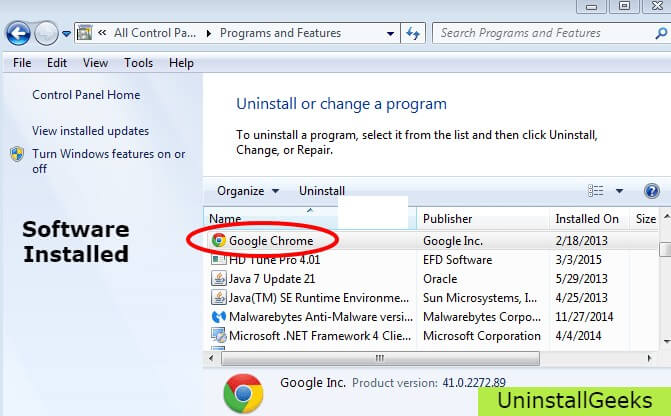
Method 1. Uninstall AnyDesk via Applications and Features/Programs and Features
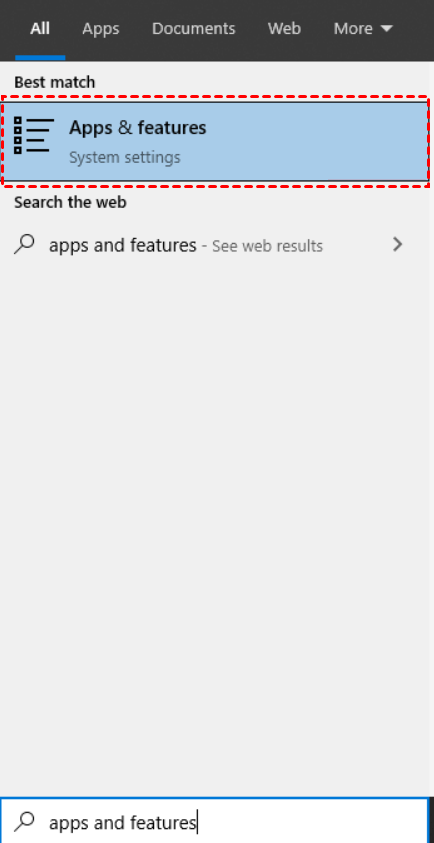
Step 1. Search for «Apps and features» under the Start Menu.
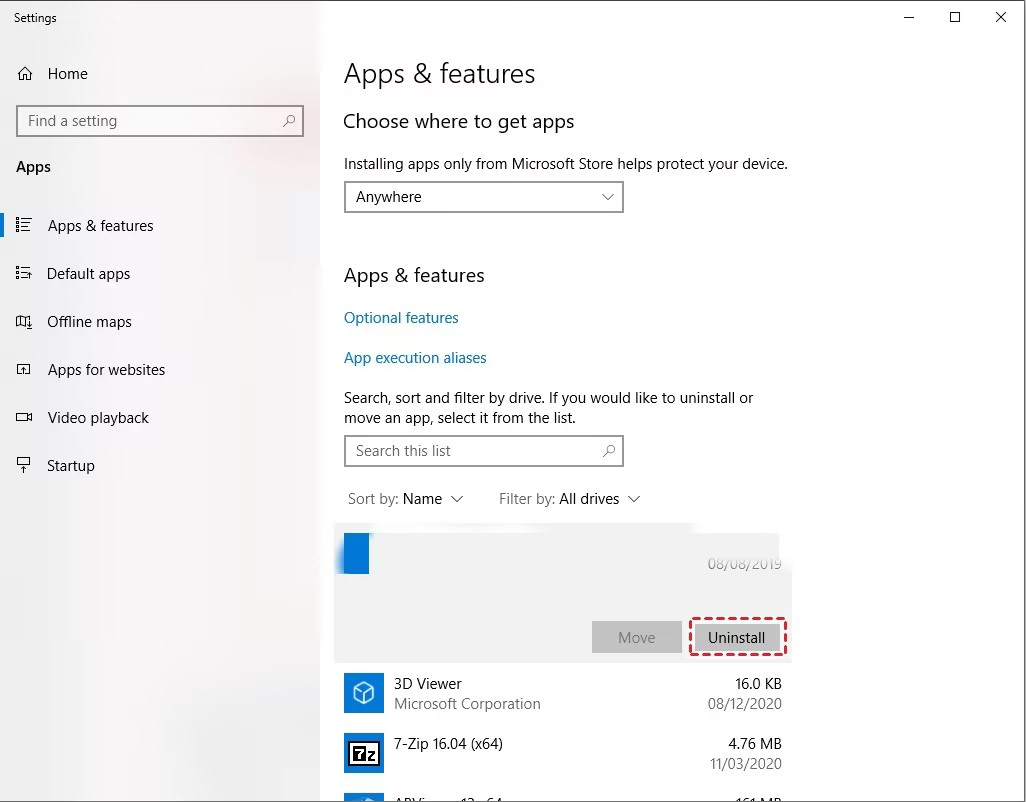
Step 2. Located AnyDesk in the list and click on it. The next step is to click on the “Uninstall” option, initiating the removal process.
Method 2. Use uninstaller.exe to uninstall AnyDesk
Most computer programs have uninstall.exe or uninst000.exe in their installation folder. you will need to execute these files to begin the uninstallation process. The steps are as follows:
Step 1. Go to the AnyeDesk installation folder. Most of the time it is located in C:\Programs files or C:\Program files(x86)
Step 2. Located uninstall.exe or uninst000.exe
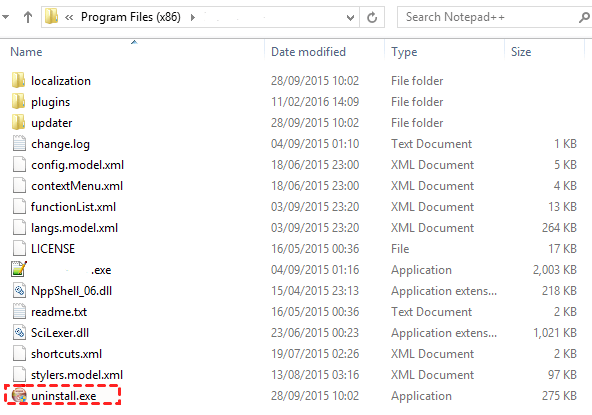
Step 3. To begin the uninstallation process, double-click the file.
Method 3. Uninstall String with Run
Step 1. Simultaneously press the “Win+R” keys to open the Run dialog box.
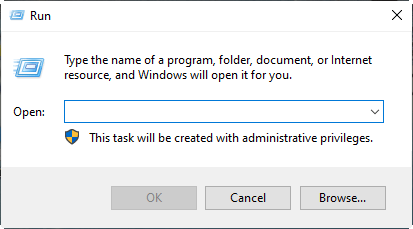
Step 2. Copy this uninstallation string and paste it into the Run command window and click «OK”
«C:\Program Files (x86)\AnyDesk\AnyDesk.exe» —uninstall
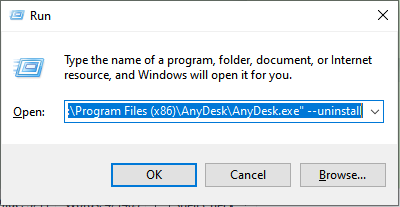
Step 3. To finish the uninstallation, adhere to the directions.
.png)
Method 4. Uninstall AnyDesk using a third-party uninstaller
If you want to completely avoid the risks of manual removal, and handle the AnyDesk uninstallation with greater ease and speed, then using a professional uninstaller will help you greatly. It will allow you to solve the problem of how to remove AnyDesk completely from PC in a much faster way.
Bloatware Uninstaller is an advanced uninstallation utility that can provide a good method of how to remove AnyDesk completely from laptop/PC:
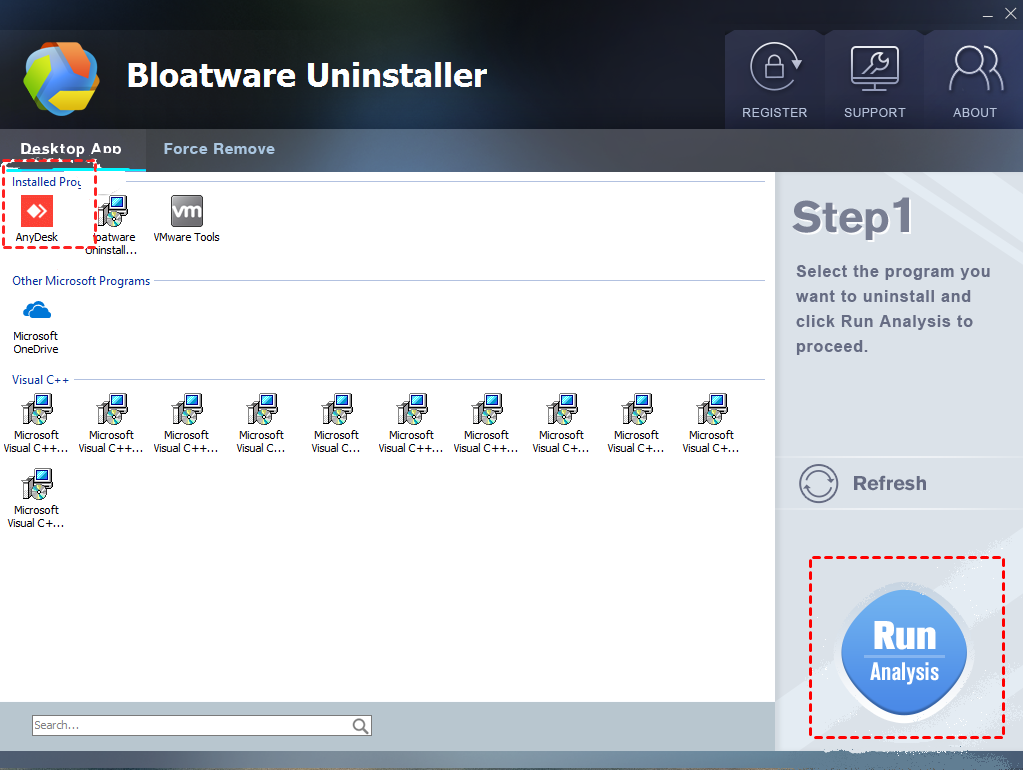
Step 1. After installation, launch Bloatware Uninstaller to examine what applications are already installed on your computer.
Step 2. Click «Run Analysis» after selecting AnyDesk from the list. It will scan all relevant files and prepare them for your next request.
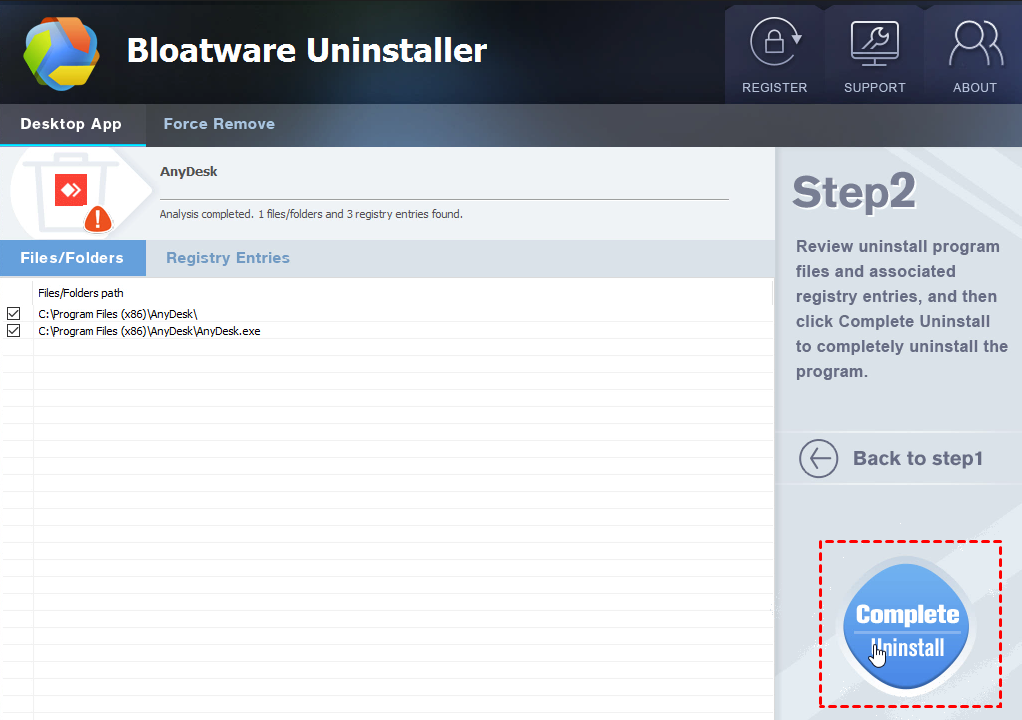
Step 3. After completing the scan, please click the «Complete Uninstall» button on the right to continue.
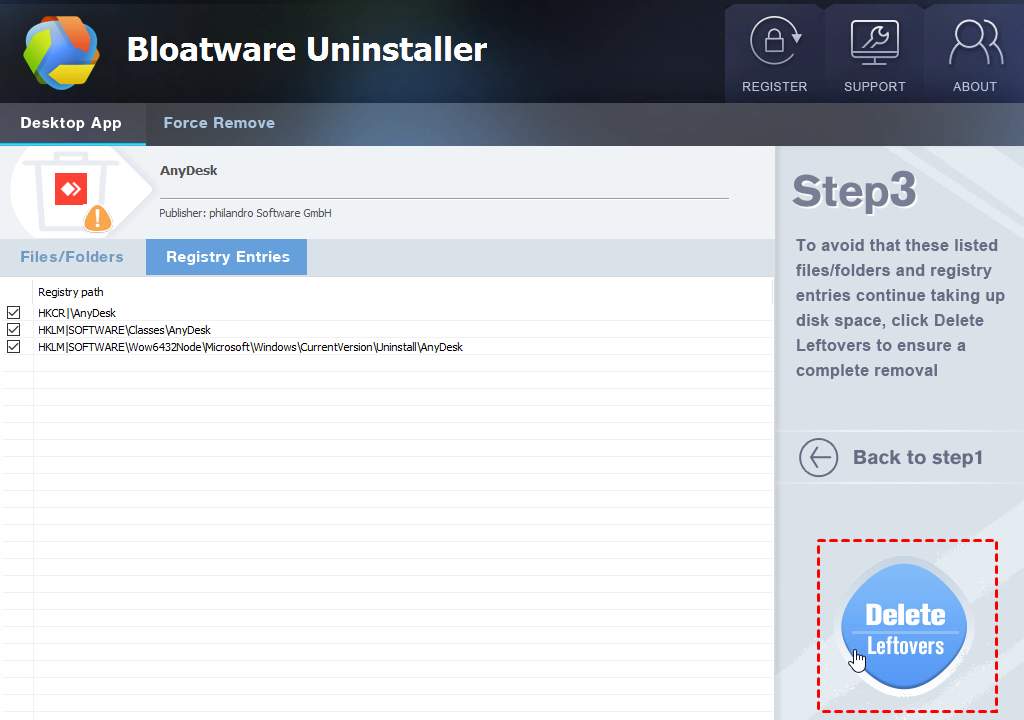
Step 4. When the “Scan Leftovers” button turns blue, click “Scan Leftovers” to see all the relevant traces that may be left by a regular removal.
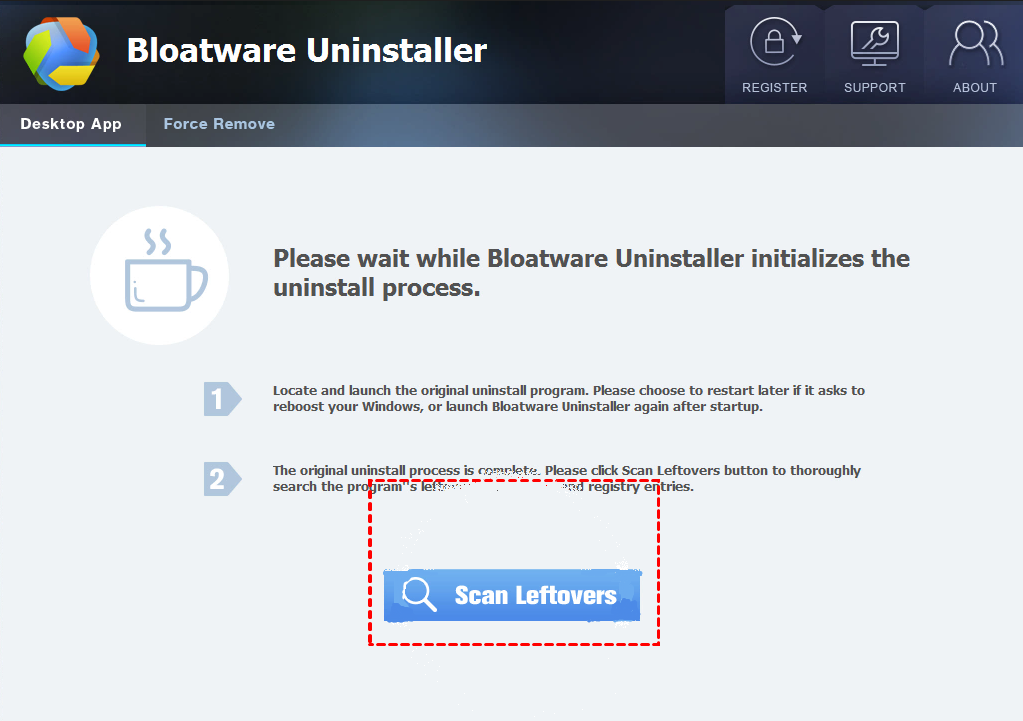
Step 5. To completely delete AnyDesk, select «Delete Leftovers» next.
How to remove AnyDesk completely from Mac/ Linux/phone
Apart from the above methods to uninstall AnyDeskfrom Windows devices, this article will talk about the following ways to help you solve how to remove AnyDesk completely from other devices and systems, including Mac, Linux, and a phone. You can choose according to your device system.
How to remove AnyDesk completely from Mac
Removing applications on Mac is very simple for experienced users, but it may be unfamiliar to newbies. This page describes how to remove AnyDesk completely from Mac. If you don’t know how to do it correctly, or if you have trouble getting rid of AnyDesk, the removal solution provided in the post may be helpful.
Method 1. Delete AnyDesk by long pressing it
If you got this AnyDesk application via the Mac App Store, there is a specific way to allow you to remove it on the computer.
Step 1. If the application is currently running on your computer, right-click on its Dock icon and choose Quit.
Step 2. Click on the Launchpad icon in the Dock, and find the AnyDesk icon
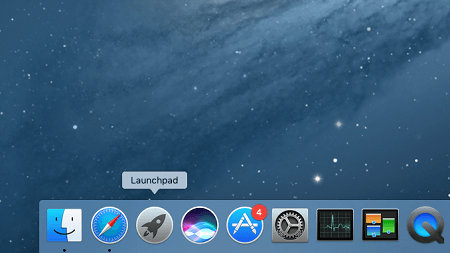
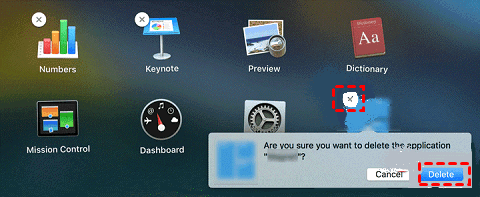
Step 3. Hold down the app icon until all the icons start to jiggle, then click the delete button at the top left corner. And to complete the removal, click «Delete» once again in the pop-up box.
Method 2. Remove the AnyDesk from the Finder
Typically, installed applications should be placed in the Applications folder in the Finder, so you have the option of looking for the AnyDesk program in there and moving it to the Trash to remove it.
Step 1. Select «Applications» from the left-hand menu after clicking «Finder» in the Dock.
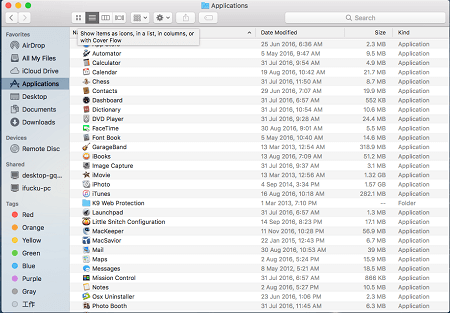
Step 2. Drag the AnyDesk icon to «Trash» after locating it in the folder. If you are asked to confirm that you want to delete, enter your account password. And click “OK» to remove it from the Trash.
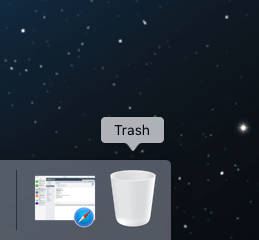
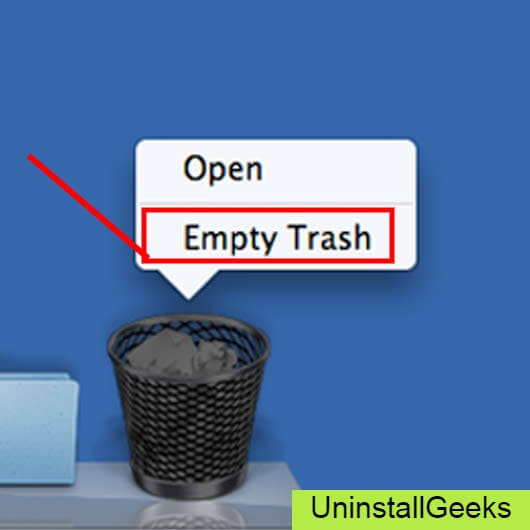
Step 3. Finally, right-click on the Trash icon, and select “Empty Trash”.
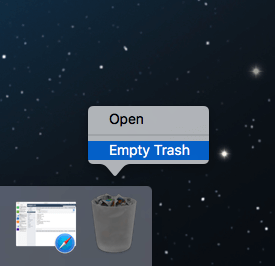
How to remove AnyDesk completely from Linux
If you are using a Linux system, you can follow the steps below to remove AnyDesk completely.
Step 1. Open command terminal
Go to Activities and search for “Terminal” or simply use the keyboard shortcut «Ctrl+Alt+T”
Step 2. Then enter the following command to uninstall it and delete its repository.
- sudo apt-get remove anydesk
- sudo rm /etc/apt/sources.list.d/anydesk-stable.list
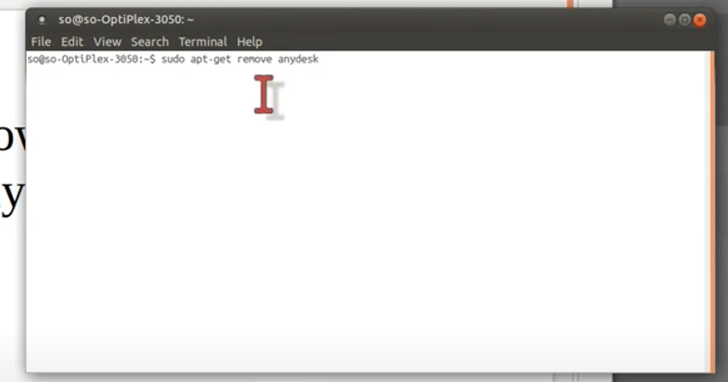
How to remove AnyDesk completely from Phone
If you want to remove AnyDesk completely from your iPhone, follow these steps:
Method 1. Long-press to uninstall AnyDesk
On your home screen, tap and hold AnyDesk until it starts shaking. Once it begins to shake, you will see an «—” mark at the top of the app icon. To remove the AnyDesk app from your phone, click the «—» button.
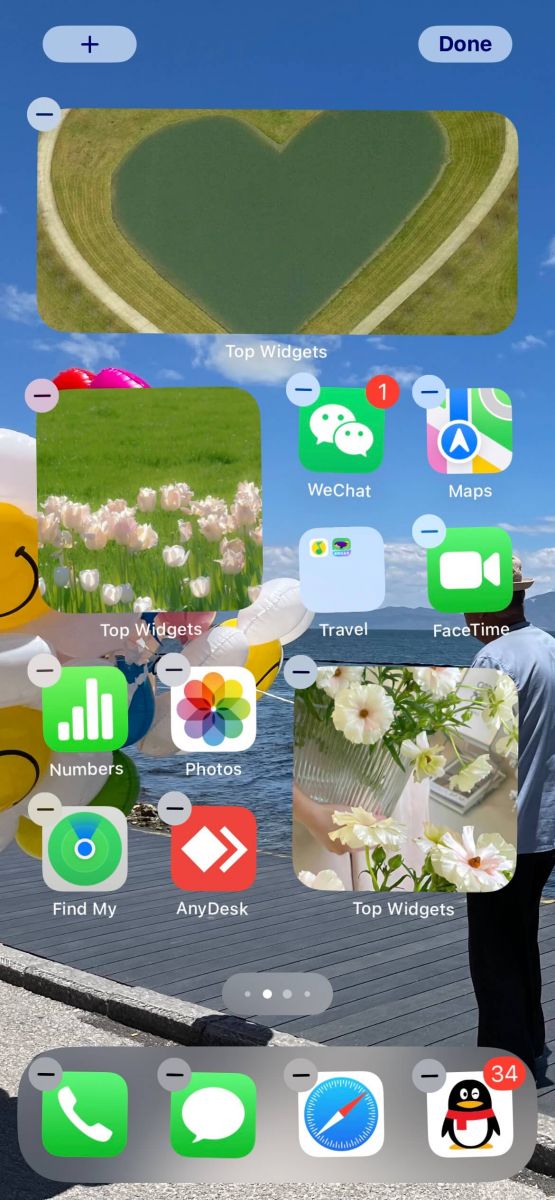
Method 2. Uninstall in phone storage
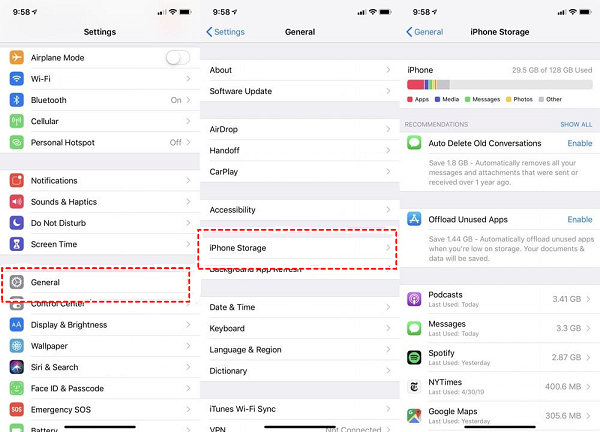
Go to “Settings” and click on “General” then click on “iPhone Storage”. The list of all the installed apps on your iPhone will then appear as you scroll down. Tap an app and choose Uninstall to remove it.
Bonus tips: Best free AnyDesk alternative
Another free remote desktop software you should know is AnyViewer. AnyViewer is a commendable alternative to the freeware AnyDesk, offering a full-screen mode for an immersive remote desktop experience. You can establish a one-click remote connection if both devices are logged into the same AnyViewer account. Since AnyViewer offers a wide range of remote access, remote control, and remote support options, it is strongly advised. For Windows, iOS, and Android, it is a dependable and secure remote desktop application.
★Let’s take a quick look at the features of AnyViewer Free Edition: AnyViewer provides high-speed remote connectivity, support, and control. Two computers can initiate control of one computer at the same time. Two computers can be controlled by one computer simultaneously. AnyViewer supports file transfer. During remote sessions, AnyViewer also enables real-time text chat conversations facilitating real-time collaboration and support between users. AnyViewer supports one-click access to unattended computers.
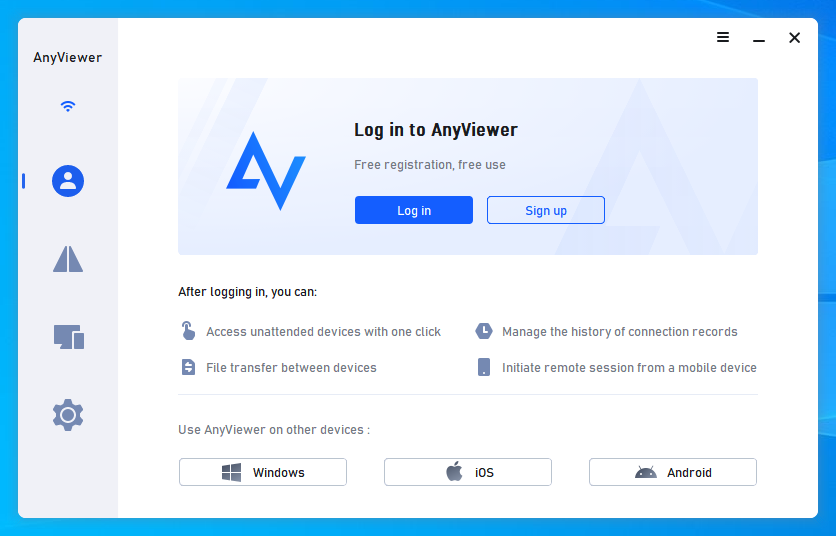
Step 1. On both computers, Install and start AnyViewer. Go to «Login» on both computers and click on «Sign up» (if you have already joined its official website, you can log in immediately).
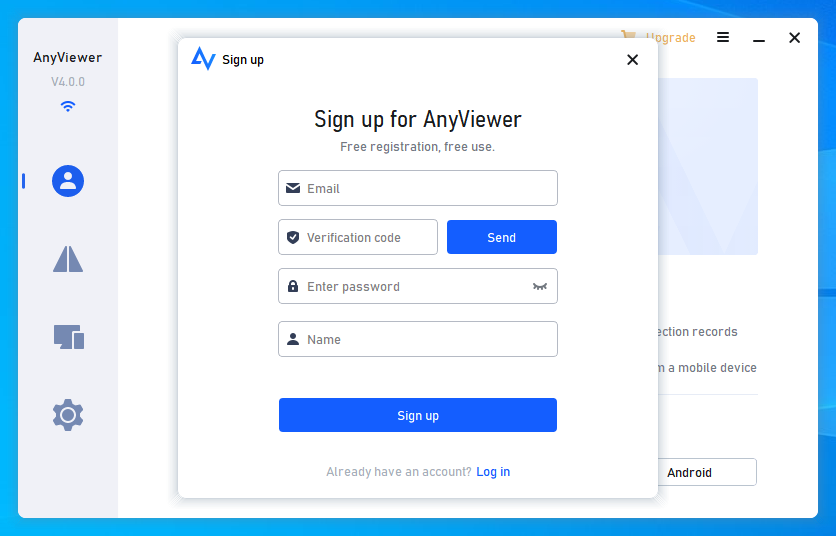
Step 2. Fill out the signup form and click «Sign up» to create an AnyViewer account.
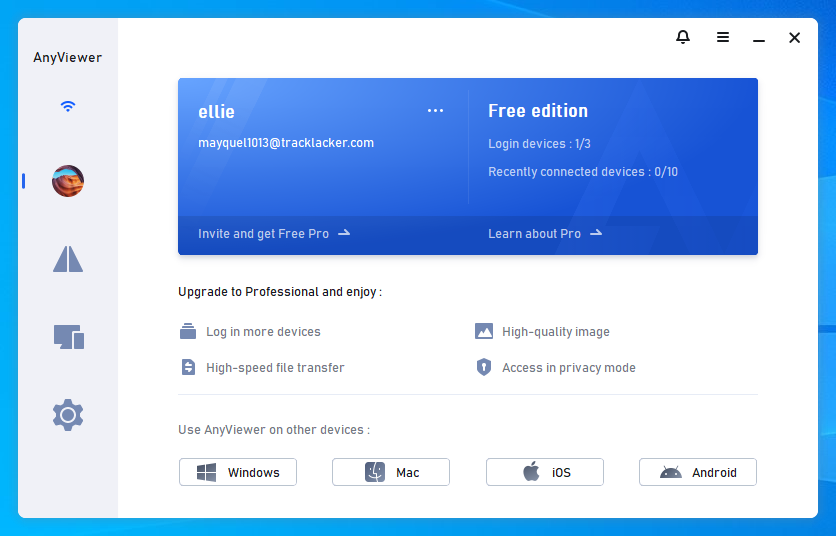
Step 3. You should now see that you have successfully logged in to AnyViewer. The account that you used to log in will be automatically assigned to your device.
Step 4. Then find «Devices» and select the computer you want to connect to. For unattended remote access, click on it and select «One-Click Control«.
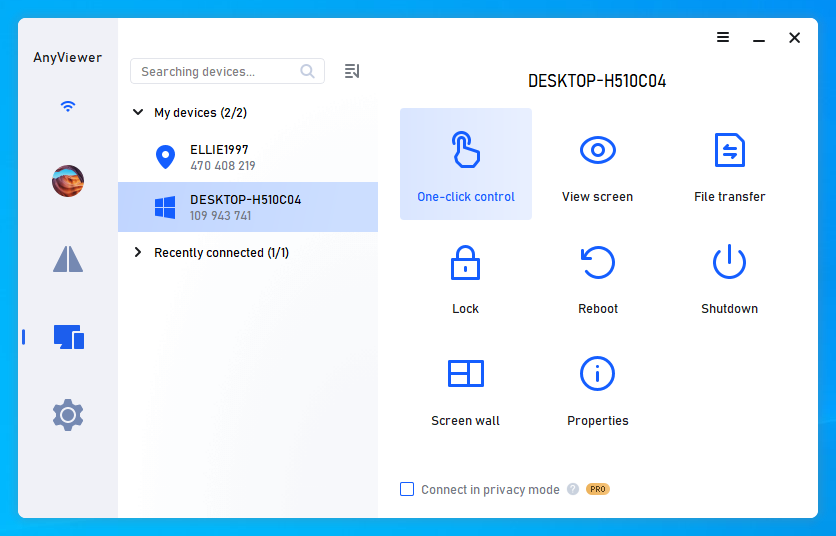
Tips: It is advised that you update your account to a professional or enterprise plan:
- For unattended access, more devices may be added to the same account.
- Multiple devices can connect to one device at once.
- Enjoy many useful features such as Privacy Mode, which allows you to disable the keyboard and mouse on the remote PC and black out the remote screen.
- Transfer 1TB files at 10 MB/s.
Conclusion
Now you may figure out how to remove AnyDesk completely using several of the above methods. To avoid trouble, it is recommended that you use another reliable AnyDesk alternative instead, AnyViewer could be your first choice in this case. With it, you will enjoy a smooth and stable secure remote connection.
How to Uninstall AnyDesk on Your PC (Windows 7, 8, 10 and Mac)
If you are looking for an easy way to uninstall AnyDesk on your PC, look no further! In this article, we will walk you through the steps necessary to remove AnyDesk from your computer. Whether you are using Windows 7, 8, 10, or Mac OS X, we have you covered.
So without further ado, let’s get started!
How to uninstall AnyDesk or remove in pc ( windows 7, 8, 10, and mac )
There are 10 methods that users can adapt if they want to uninstall AnyDesk :
Method #1
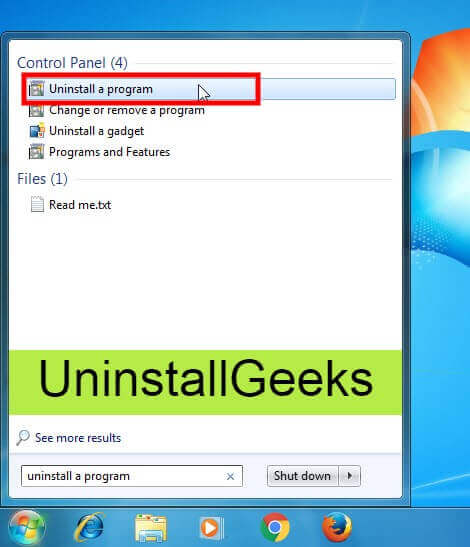
- Go to Start Menu, then click on the Control Panel.
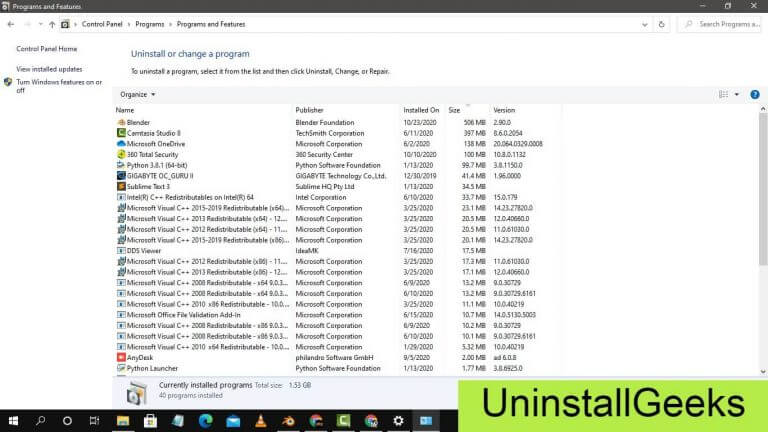
- In Control Panel, under programs, go through the list of the ones that are installed on your computer
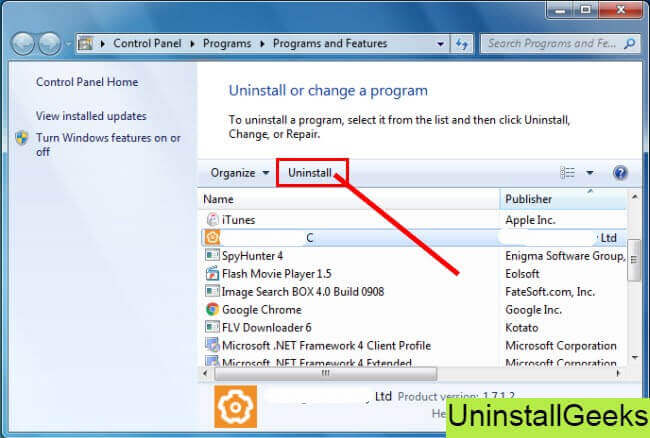
- Right-click on AnyDesk, and then click on uninstall a program
- Follow the prompt on the screen, and you will get to see a progress bar that will take you to remove the AnyDesk from the computer.
Method #2
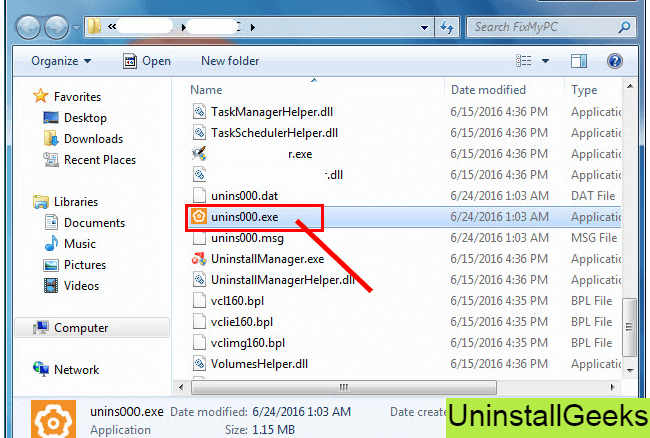
The second method involves uninstaller.exe, through which AnyDesk can be uninstalled. Just follow the instructions below to execute this step:
- Go to the installation folder of AnyDesk.
- Find a file that is named uninstall.exe or unins000.exe
- Double click on the file, and then follow the instructions that appear on the screen.
Method #3
The third method involves System Restore. For those who don’t know, System Restore is a utility, which helps the user restore their system to its previous state. System Restore removes all those programs, which interfere with the operation and performance of the computer.
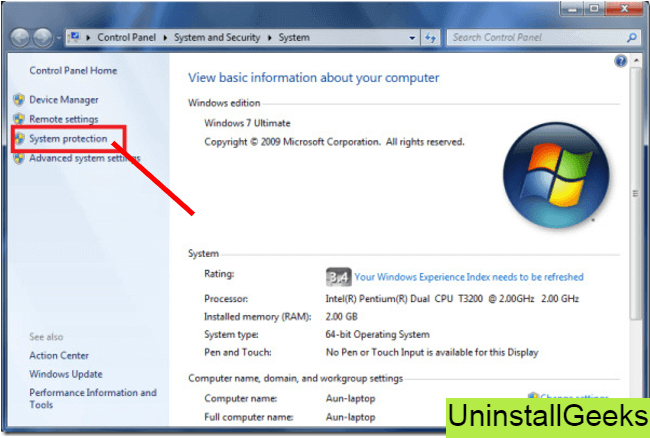
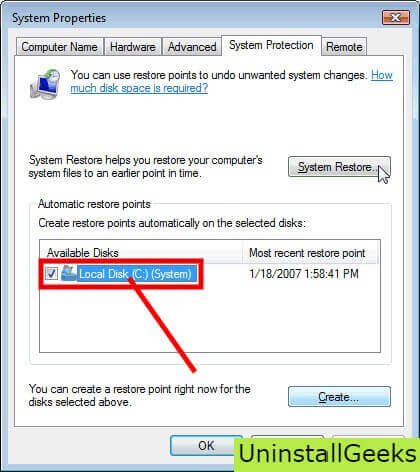
If you have created a system restore point before you installed AnyDesk, then you can use this software to restore the system, and remove such unwanted programs. However, before you do so, make sure that you save all the important data.Follow the steps below to know more from this method:
- Close all the files and programs, which are currently running on your PC
- Open Computer from the desktop, and then select Properties
- System Window will open
- On the left side and click on System Protection
- System Properties will open.
- Then do click on the option of System Restore, and a new window will again open.
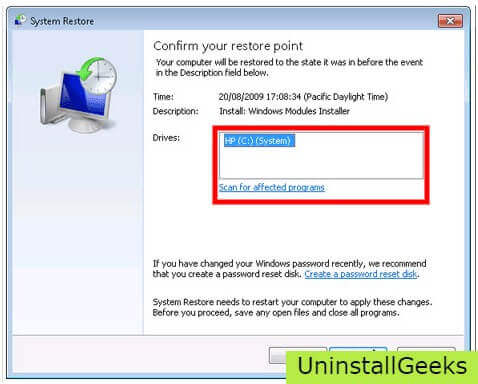
- Now, choose the ‘different restore point’ option, and click on Next.
- You have to select a date and time from the given options; when you select a date, the drivers that you installed after the chosen date won’t work.
- Click on Finish and then Confirm the ‘Restore Point’ on the screen.
- When you click Yes to confirm, the AnyDesk would be uninstalled.
Method #4
If you have an antivirus, then you can use it to uninstall AnyDesk.There is much malware or AnyDesk software in the computer applications that we download nowadays. They have become very difficult to remove from the system, like Trojan and spyware.
- If you cannot remove AnyDesk with the above methods.
- It means that there is malware or AnyDesk in it, and only a good antivirus can be used for removing it.
You can either download Norton Antivirus or AVG antivirus, as these are reputable software and will surely remove the malware, AnyDesk on the system. 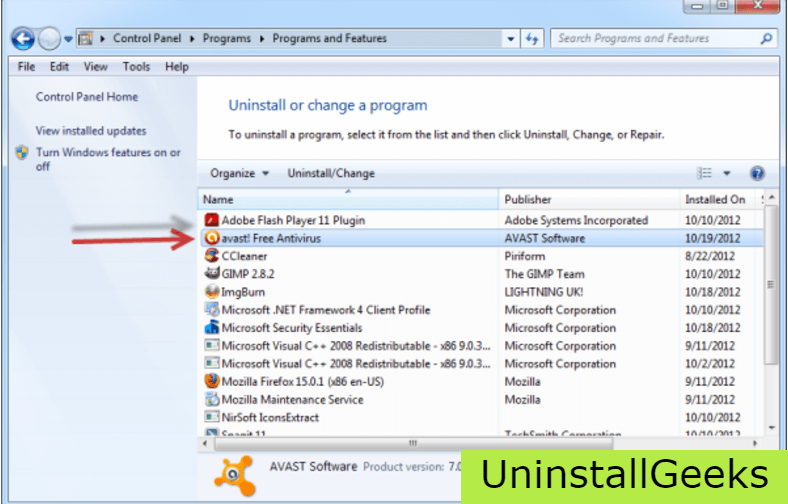
Method #5
If you want to uninstall AnyDesk, then you can do so using Command Displayed in the Registry. A registry is a place where all the settings of Windows, along with information, are stored. This also includes the command to uninstall a software or program.
You can try this method with AnyDesk as well, but it is a very risky method. If you make any mistake and delete the wrong information, then the system is most likely to crash. It would become difficult for you to bring it back from deletion.
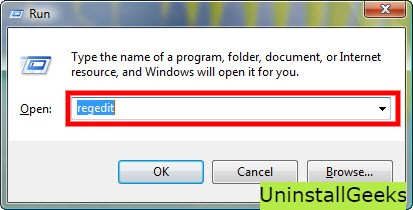
To execute this method, To follow the steps given below:
- Hold Windows + R together, and then Run command
- When the command box opens, type Regedit in the box and then click on OK
- You have to navigate and find the registry key for the AnyDesk
- You will see an uninstall string on the next window; double click on it, and also copy ‘Value Data’
- Again hold Windows + R keys, and run the Command; paste the value data that you just copy and click on OK
Follow what comes on the screen and then uninstall AnyDesk.
Method #6
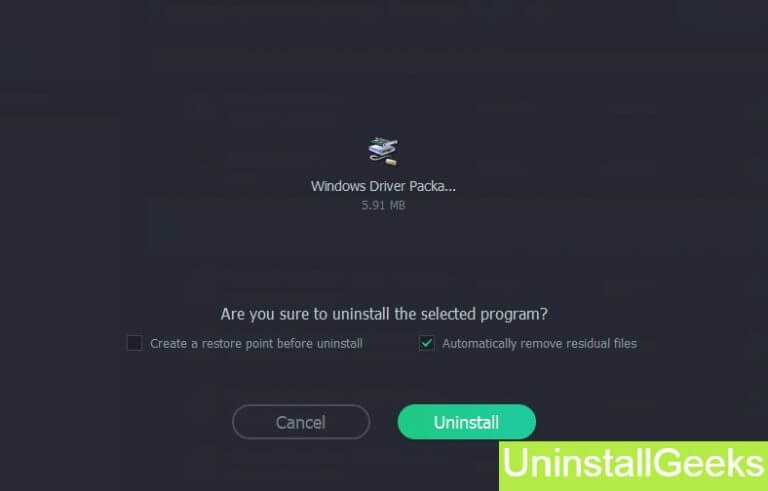
The seventh method is to uninstall the AnyDesk using a third-party uninstaller.
At times, those who don’t have any knowledge of computer language, won’t be able to manually uninstall the software fully.
Many files occupy the hard disk of the computer, so it is best to use third-party software to uninstall them.
Method #7
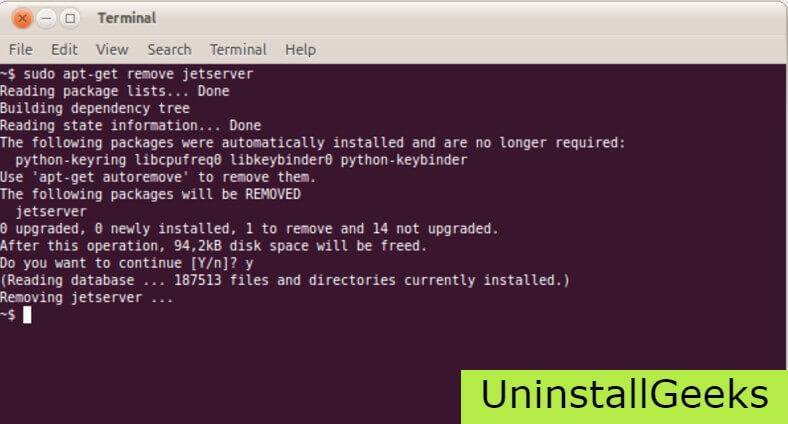
There are some codes that users can type into the command prompt, and they would be able to uninstall the AnyDesk. For example, if they want to remove the package, then just type.
sudo apt-get remove AnyDesk
If you want to uninstall AnyDesk and its dependencies as well, then type:
sudo apt-get remove –auto-remove AnyDesk
For those who don’t know, some of the dependencies of AnyDesk are GCC-5, libc6, libgcc1, AnyDesk dev, and gc++-5.
Method #8
If the user wants to remove the configuration and data files of AnyDesk, then they need to run the following code on the Command Prompt:
sudo apt-get purge AnyDesk
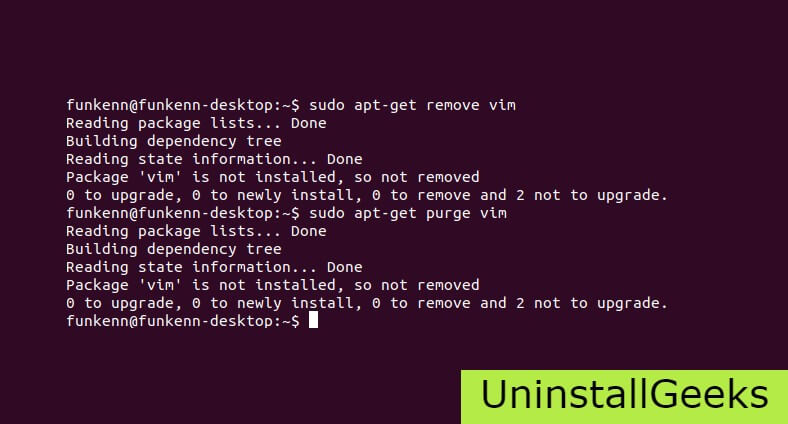
Method # 9
It depends on you that are you willing to kick-out the data or you want to remove the configuration data or data files, along with the dependencies, then the following code is most likely to work for you:
sudo apt-get auto-remove -purge AnyDesk
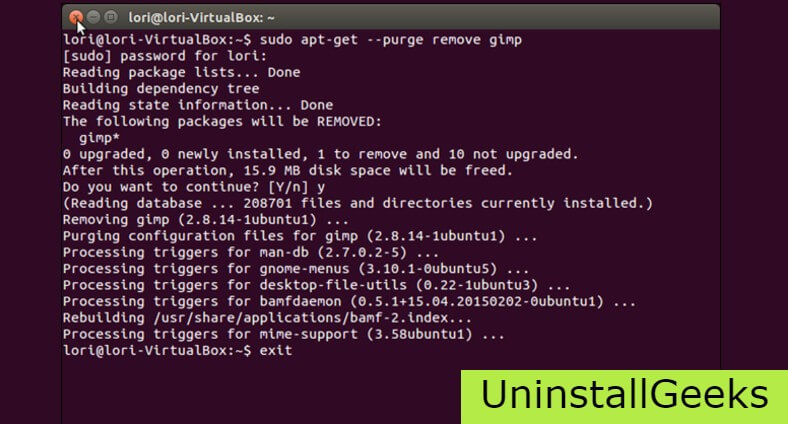
To uninstall AnyDesk on mac because anytime we need space or only want to remove from pc due to some viruses and also many problems which are needed to remove or uninstall from pc.
So I will show you some steps of uninstalling AnyDesk on the mac so follow my this step or method if you have still confusion so you may contact with us for uninstall of AnyDesk on pc or mac.
How to Uninstall AnyDesk on Mac?
For uninstalling AnyDesk on the mac so as I told you that there is a simple method to uninstall apps on mac. As there are installed some apps on your Mac and now you want to remove or uninstall from your pc successfully and want to install some other apps on my mac so follow my these steps to uninstall AnyDesk on mac.
Method #1
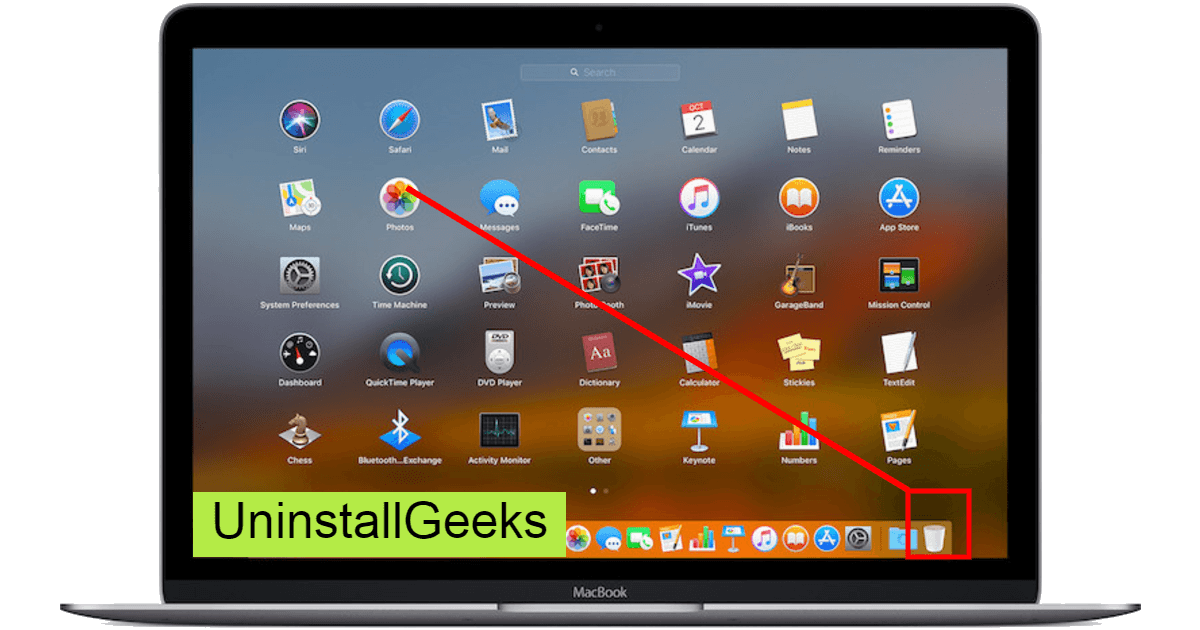
In method 1, you have to open mac on your pc as I’m showing in the image follow the images to uninstall AnyDesk on your mac.
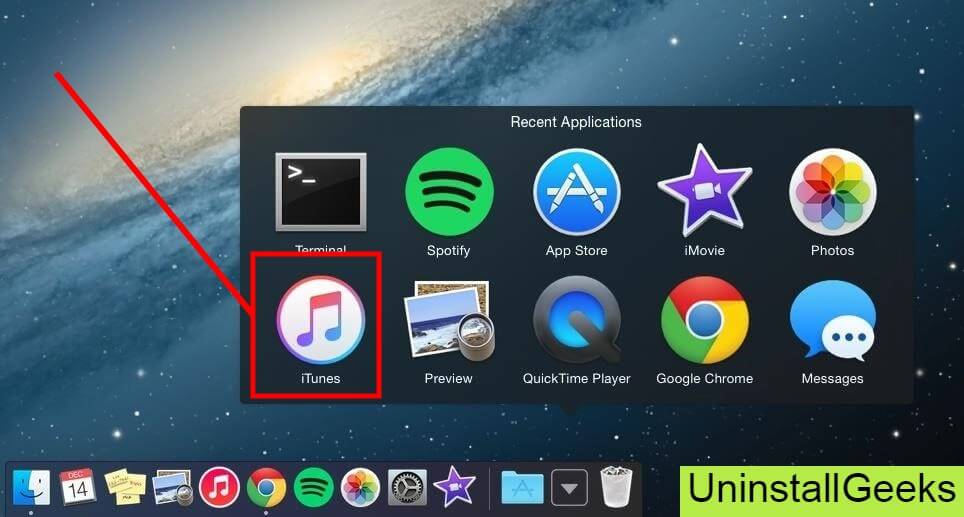
In the image, there is a AnyDesk app on your mac dashboard and now we have to uninstall it from our mac we will uninstall this app and will remove it in of mac now double-click-on-app showing in the image.
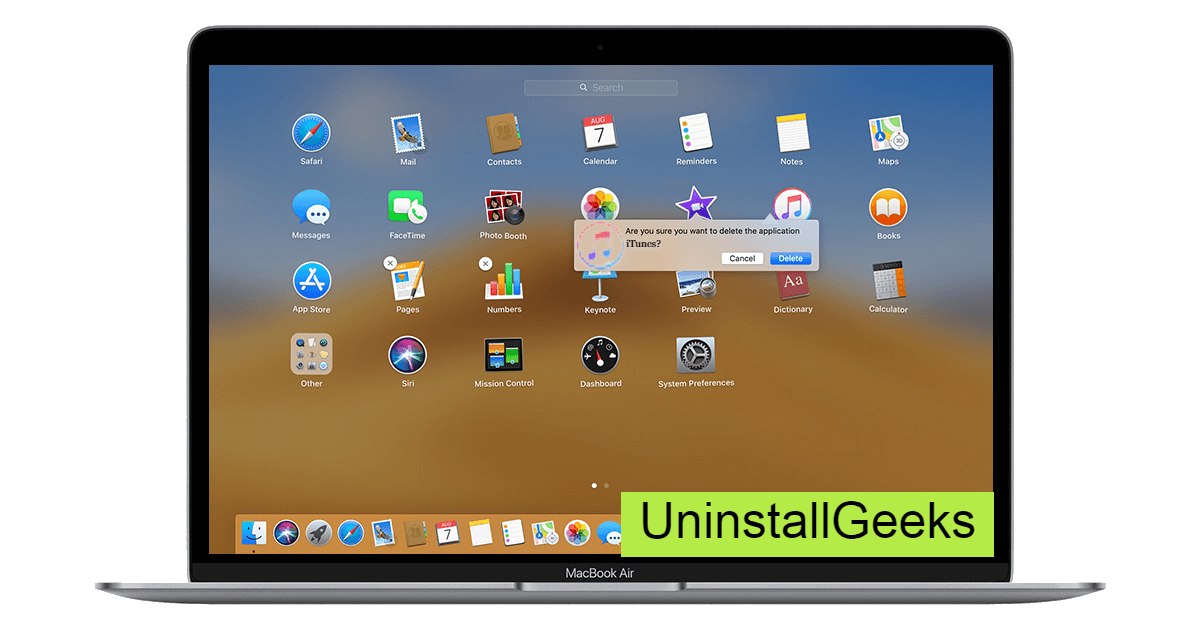
Now you double-clicked on the app mac will ask that are you sure to uninstall AnyDesk click on the Delete button so go to Trash of mac to uninstall completely from mac. Showing in image trash bin click on trash bin and go inside there will be AnyDesk which we had to delete before so have to uninstall completely from mac.
Not right-click on trash to remove all data or app which we had uninstalled before seeing in the image. Click on Empty Trash the whole data which is in the trash will auto remove successfully.
Now we uninstalled AnyDesk on the mac so as you see that how to uninstall or remove any app on the mac so if you liked this so share once. This method doesn’t require any antivirus or uninstaller software from them we are to uninstall.
I described only a simple method of uninstalling AnyDesk on mac. This method more people are using but some people take it is too hard uninstalling in mac but in this step, anyone can understand this simple method.
How To Install?
For those who don’t know much about AnyDesk, they might lean more towards uninstalling it. These AnyDesk create an environment, where users can create a high GPU-accelerated application. If you want to install this AnyDesk, then make sure that your system is compatible with it.
Firstly, verify that the system you are using has a AnyDesk capable GPU, and then download the AnyDesk. Install it, and then test that the software runs smoothly on the system. If it doesn’t run smoothly, then it could be because its communication with the hardware is corrupted.
Conclusion
There are other methods of uninstalling the AnyDesk as well as in pc or windows, but these could be difficult for those, who don’t have much technical expertise. Execute these methods, and they will surely work. These methods don’t require the user to have much knowledge of the technical side of an operating system. They can follow simple steps and uninstall AnyDesk.
Как удалить anydesk с компьютера

Windows
Некоторые пользователи, установившие программу anydesk для разовой помощи, или настройки программы, не знают как потом удалить ее с компьютера. Кто-то боится, что за ним будут следить. Кто-то боится, что могут быть мошеннические действия со стороны третьих лиц.
На самом деле anydesk это великолепная программа с отличной безопасностью и в ваш компьютер, без вашего же желания попасть никто не сможет. При подключении к компьютеру, потребуется или ввести пароль, который вы всегда можете изменить, или разрешить доступ при подключении вручную. Т.е. нажать кнопку принять соединение.
Если же вы точно решили удалить программу, так как она вам более не требуется, я расскажу как это сделать на примере windows 10. На других версиях операционной системы windows, действия будут аналогичными.
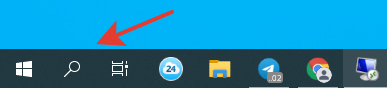
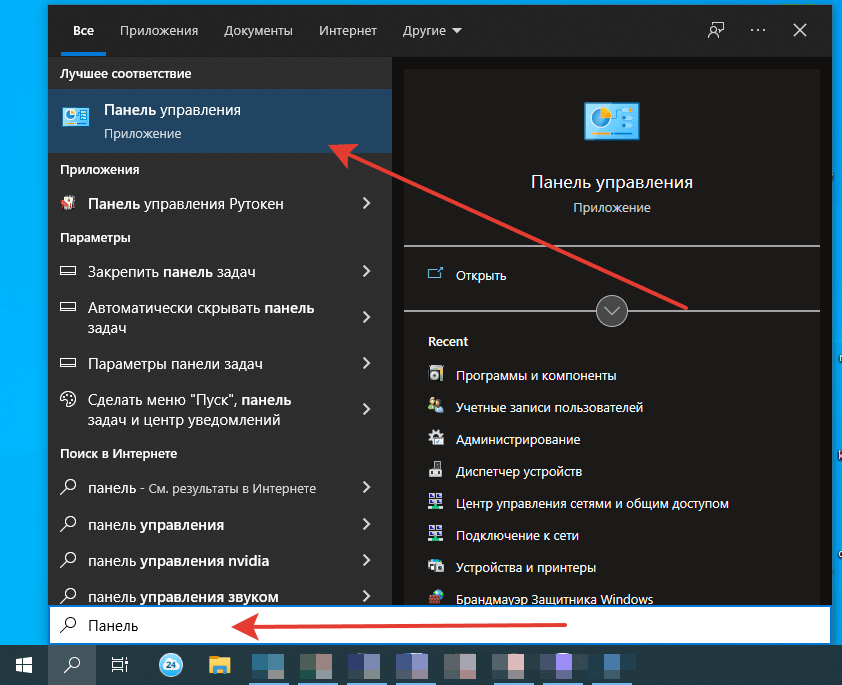
Для удаления программы anydesk, да впрочем и не только ее, а любой ненужной программы на вашем ПК, нужно зайти в «Панель управления компьютером». Что бы найти панель управления в windows 10, в поиске рядом с меню «Пуск» введите слово «Панель» и выберите нужный пункт как на картинке ниже.
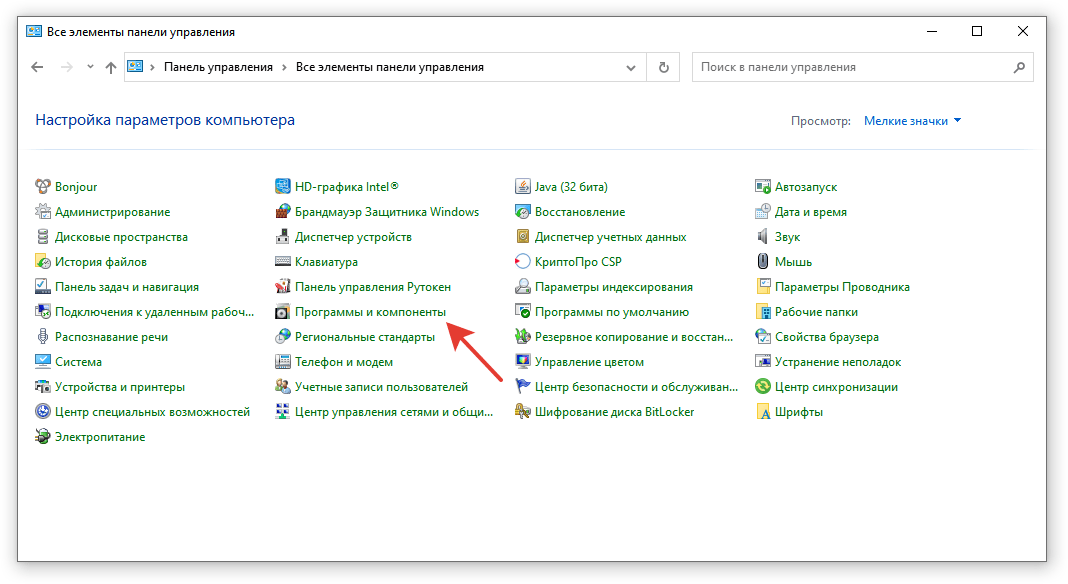
После того как откроется окно «Панели управления», для удобства ориентирования в пунктах меню, в правом верхнем углу в разделе «Просмотр», выберите «Мелкие значки».

Когда измените вид на «Мелкие значки» панель примет такой вид:

Найдите в списке параметров «Программы и компоненты» и запустите данный пункт.
В открывшемся окне программ, найдите anydesk, выделите его мышью и в верхней части окна, нажмите кнопку «Изменить/удалить».
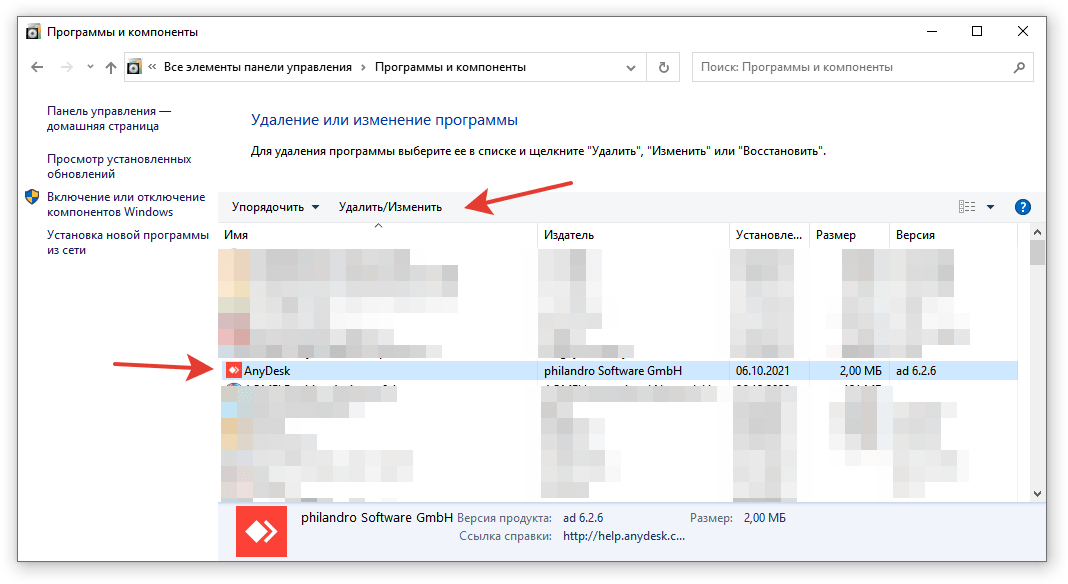
Далее нажмите кнопку «Удалить».
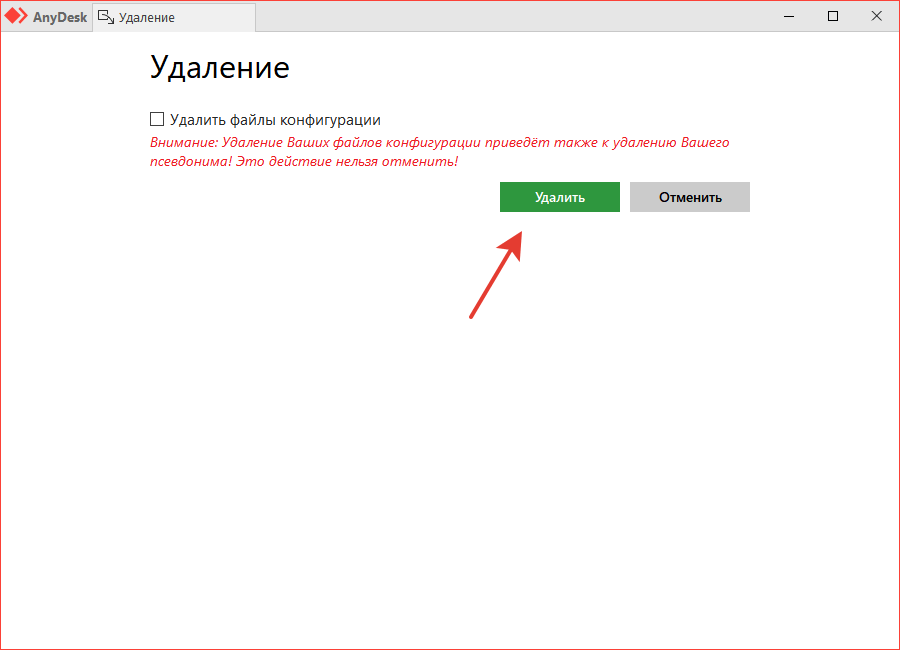
На этом удаление программы завершено. Надеюсь статья была полезна для вас.
Как удалить AnyDesk с компьютера полностью?
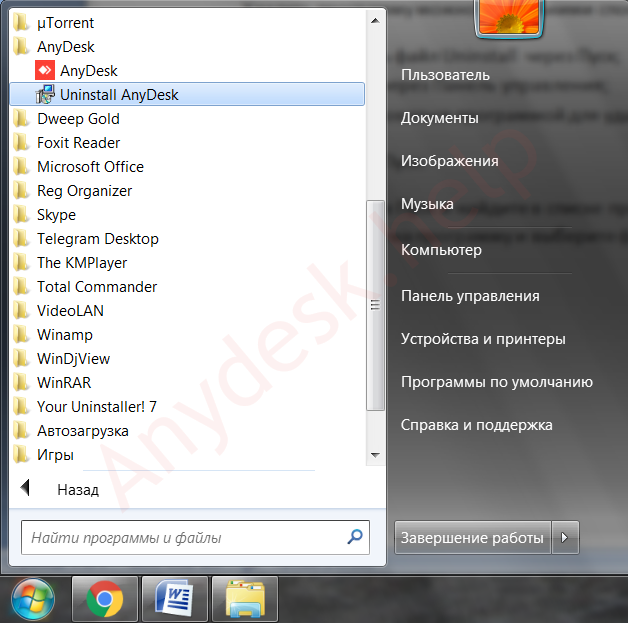
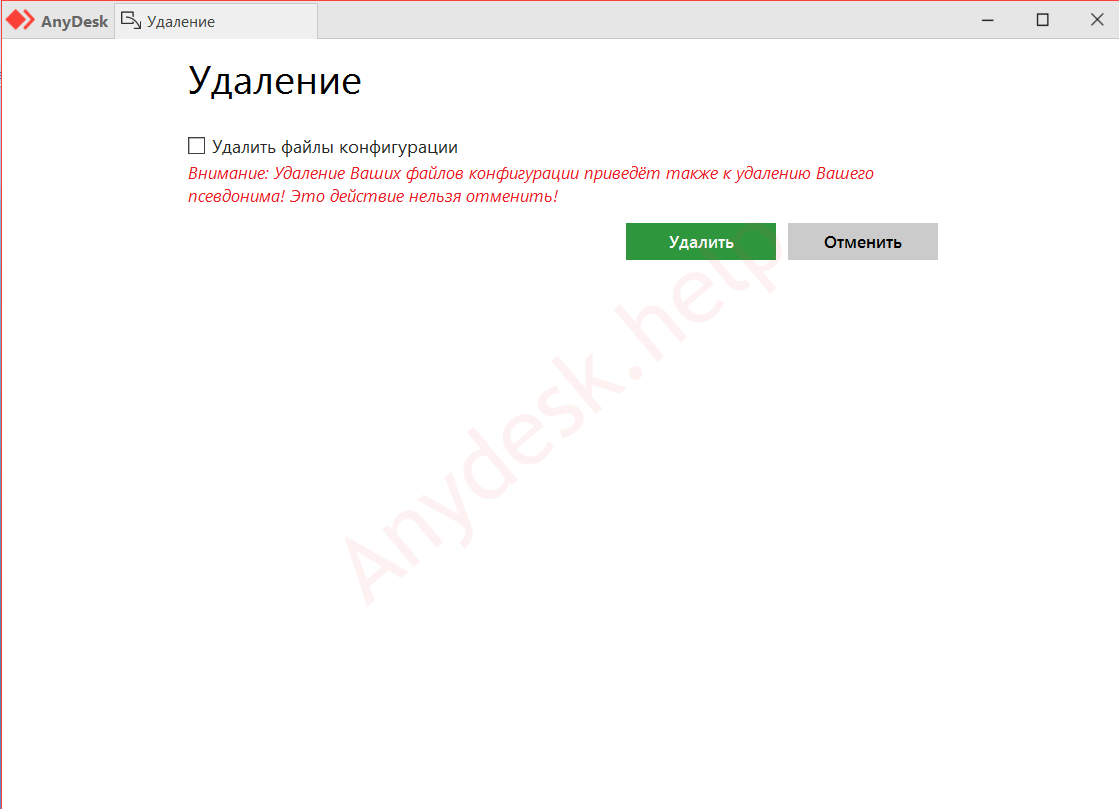
Удалить программу AnyDesk можно несколькими способами. Запустить файл Uninstall через Пуск, удалить через Панель управления или воспользоваться приложением для удаления программ.
Удаление через меню «Пуск»
- Зайдите в Пуск и найдите в списке программ папку AnyDesk.
- Нажмите на нее и выберите файл Uninstall.
Удаление через «Панель управления»
-
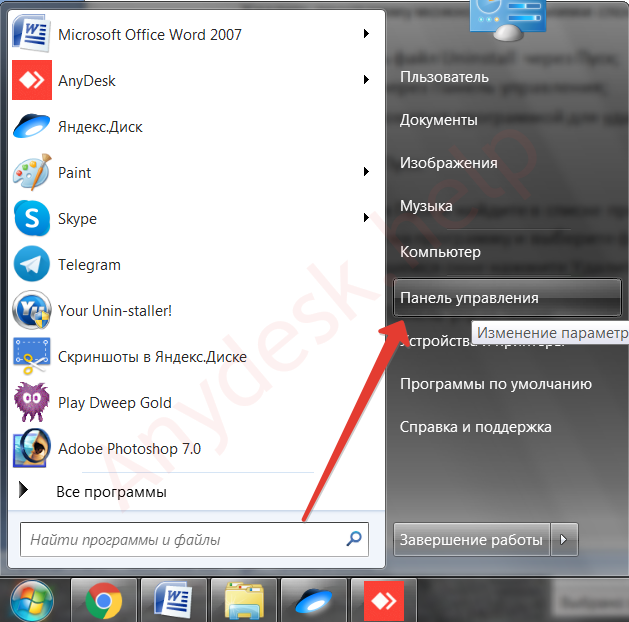
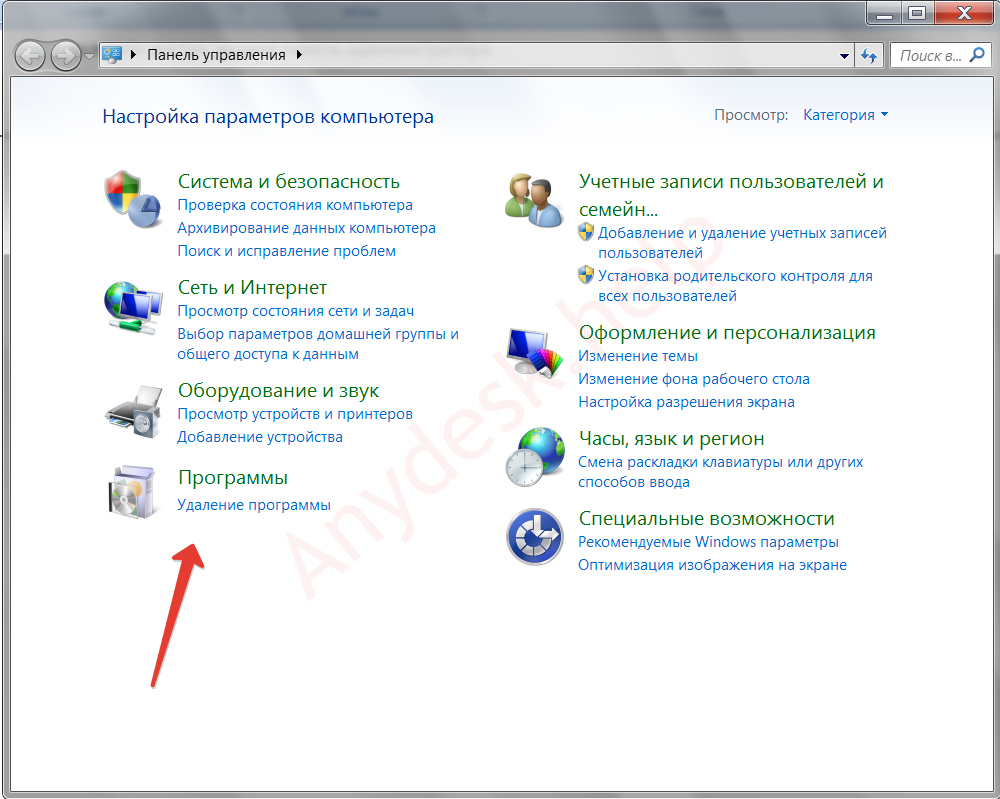
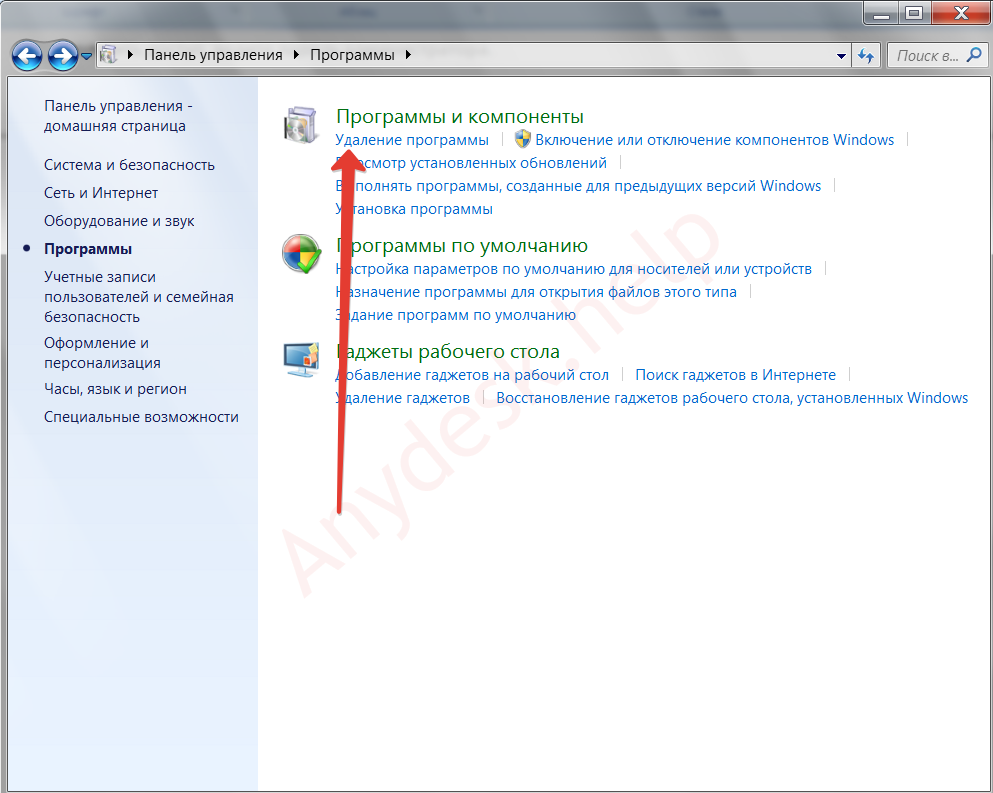
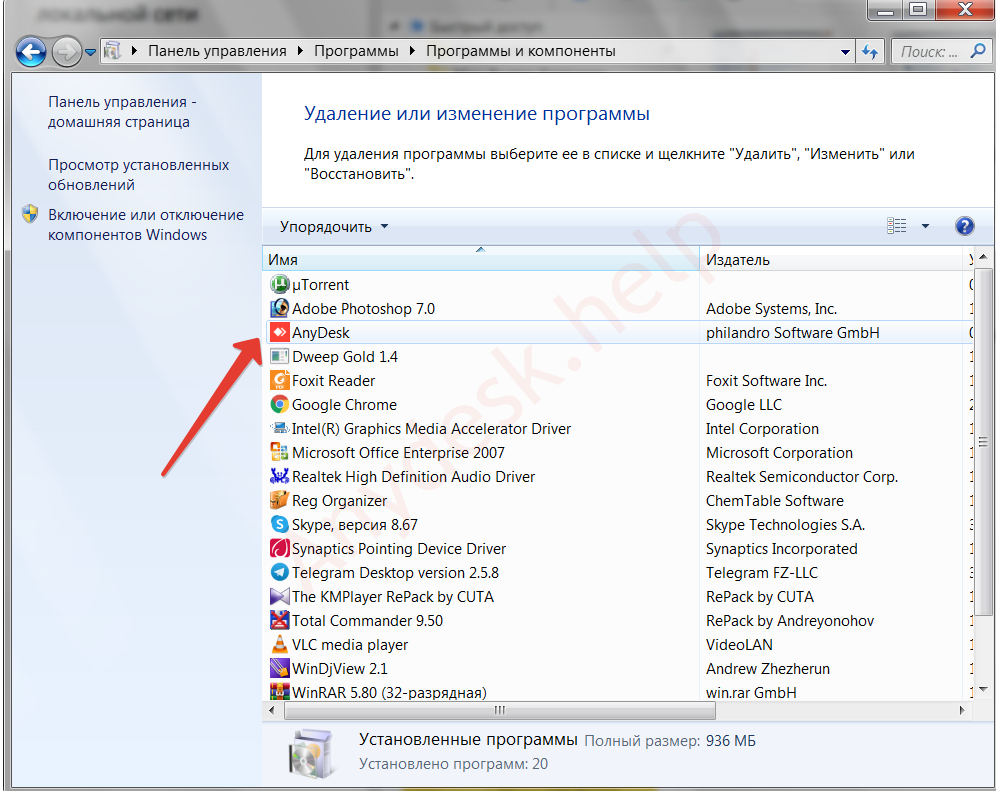
Зайдите в Пуск и откройте Панель Управления.
Полное удаление AnyDesk с помощью специальных программ
Некоторые программы помогут удалить приложение полностью с компьютера, включая временные файлы и любую информацию из реестра:
- Your Uninstaller;
- Soft Organizer;
- Wise Program Uninstaller; ;
- Total Uninstaller.
Если возникли вопросы по настройке софта, скачиванию и удалению, пишите в комментариях, принимайте участие в общем обсуждении.