[Solved] A Configuration Change was Requested to Clear TPM
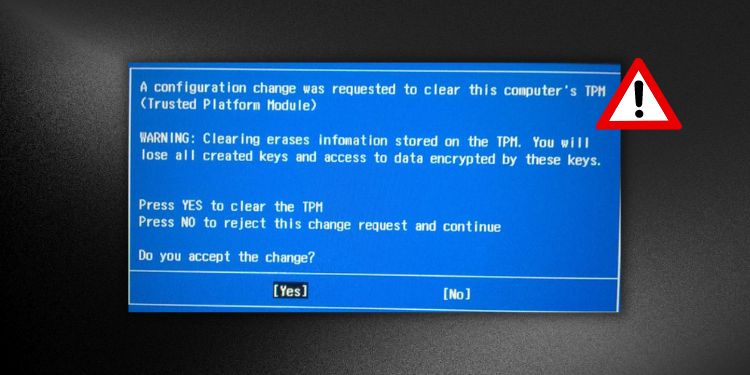
If you’re on a laptop, your keypad and trackpad might even freeze, stopping you from moving ahead with the reset process. And, if your using a device that supports touchscreen, the touchscreen feature stop working.
Majorly, this is caused when your PC cannot load the necessary drivers for controlling your input devices. This restricts all the input signals. So, you can’t use your hardware to choose either Yes or No.
Well, you do not need to scratch your head anymore. In this article, we have brought simple fixes you can carry to solve the problem.
Table of Contents
Importance of TPM on Windows 11
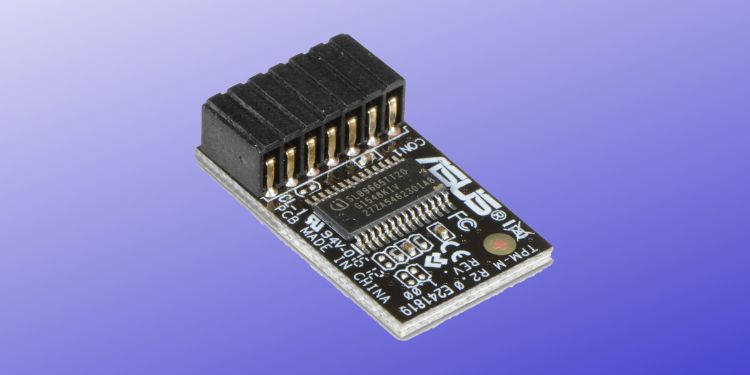
Trusted Platform Module
A Trusted Platform Module (TPM) is a chip embedded into a motherboard for securing computer hardware components. Basically, it uses cryptographic keys to protect your PC from malware and firmware.
Well, the earlier versions of TPM didn’t support all the algorithms, providing weaker crypto agility. However, with the introduction of TPM 2.0, an additional security layer has been added to protect your system using a specialized digital signature feature.
Interestingly, you require TPM 2.0 when updating to Windows 11 so that you can run Windows Hello and BitLocker. Basically, these are the features necessary for identity and data protection in your system.
However, the TPM device may not be detected due to an outdated BIOS or damaged TPM chip. In such a case, you can try these fixes.
What To Do After Getting ‘A Configuration Change Was Requested to Clear TPM’?
When you choose to reset your Windows, you get an option to either keep your files or remove everything. If you decide to remove all your files, you need to choose the second option.
Once you follow the on-screen process, you’ll likely get the message after waiting a couple of hours. Basically, this pop-up is asking you whether to clear TPM or not.
If your keyboard and touchpad work fine, you can directly choose Yes or No, using either of the hardware. Selecting Yes will delete all the keys you had created earlier. So, we recommend backing up your encrypted data before proceeding ahead.
However, choosing No means, you’re not giving access to clear TPM. When doing so, you might get this same message repeatedly, and the infinite loop continues.
So, it’s better to backup your encrypted keys or files before choosing Yes. But, if you’re not worried about these data, you can directly select Yes as the OS will re-initialize the TPM once the Windows reset is completed.
However, if you try clearing TPM, you might lose some important data. Thus, we suggest doing this at your own risk.
How to Fix ‘A Configuration Change Was Requested to Clear TPM’ Error?
Indeed, selecting Yes or No is possible when your arrow keys are working fine. However, most users experience their input devices not working when this message pops up. So, if you’re one of them, here are seven different fixes you can try to resolve the problem.
Press the Esc Key
Well, the Escape or the Esc key is generally used for canceling any running process. So, the first method is to try hitting this key to see if the message disappears.
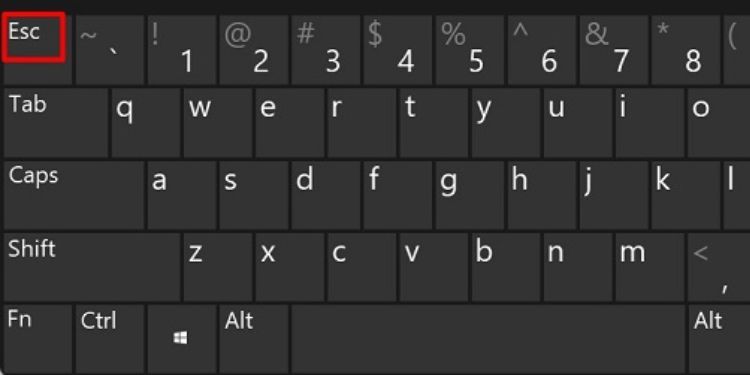
Apart from that, the Esc key also acts as pressing No, meaning you can skip the request to clear TPM. This should solve your problem and continue the Windows reset.
However, many users have reported that the Esc key doesn’t function when the message pops up. Moreover, some have also faced an issue where pressing the Esc key brings back the same error message. So, it’s better to refer to other methods if this one doesn’t work for you.
Press the F12 Key
If you want to clear TPM and solve this issue, we suggest pressing the F12 key. This simply acts as selecting Yes to clear TPM.
Moreover, most laptop manufacturers recommend pressing the F12 key if you see this error while resetting Windows. This is because it brings your frozen system back to life and continues the Windows reset.
Use Volume Up or Down Keys
Generally, using Esc and F12 keys should solve your TPM problem. However, in some laptop models, you should use Volume Up and Down keys to decide to clear TPM.
Also, if you have Windows running on touch-screen devices, like a tablet, you will need the volume buttons to fix the problem. You can press the volume up button to choose Yes and the volume down button to choose No.
Connect an External Keyboard or Mouse
Mostly, in touch-screen devices, plugging in an external keyboard or mouse can solve your issue.
Once you connect the input device, try to see if you can move your mouse cursor or use the keyboard arrow keys. Then, use either of them to choose Yes or No. Or, you can also press the F12 key from your keyboard.
Well, you can even try connecting an external input device to your laptop to check if this works for you. However, the possible chances are your keyboard or mouse won’t be supported while performing Windows reset. So, follow these general steps to fix the configuration error:
-
Long press the power button on your PC and wait for your PC to shut down.
Clear TPM From TPM Management
If you cannot resolve the configuration problem while performing the Windows reset, you must cancel it now. To do so, you need to long press the power button to shut it down and wait an hour to turn it back on.
Then, follow the simple guideline below to clear TPM from the TPM Management:
- Once your PC loads, press Windows + R keys to launch the Run dialogue box.
- Here, type tpm.msc and hit enter.
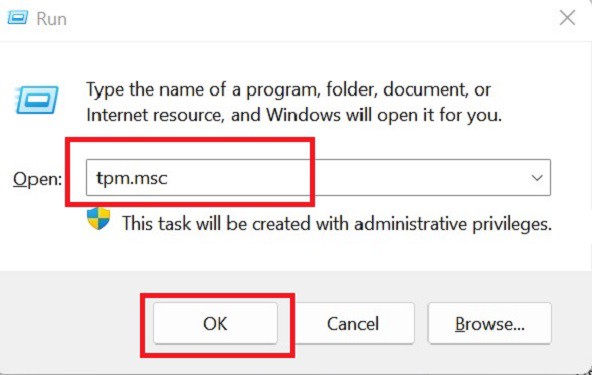
- This opens up the TPM Management on Local Computer window. Here, click on Action from the menu bar.
- Then, choose Clear TPM…
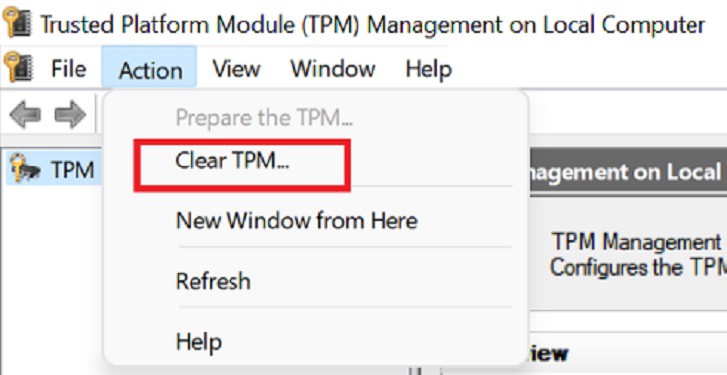
- Next, press the Restart button and wait for your PC to restart.
- Finally, log on to Windows, and the Clear TPM wizard runs automatically.
- Now, perform Windows reset again. This time, you shouldn’t encounter the configuration message.
Update TPM Driver From Device Manager
If your TPM driver is outdated, there’s a high probability you won’t be able to clear it. So, here’s how you can update the driver:
- Firstly, end your Windows reset and restart your PC.
- Once you’re booted, right-click on the Start Menu and choose Device Manager.
- Now, expand the Security devices option.
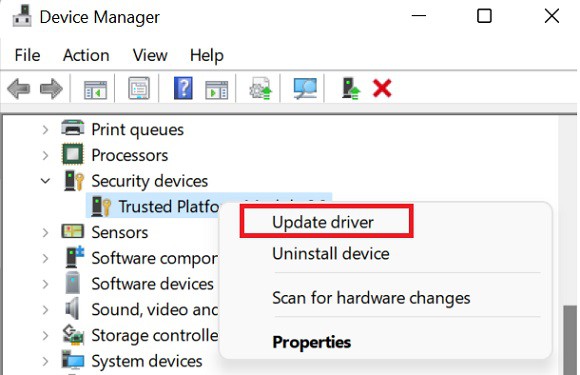
- Right-click on Trusted Platform Module 1.2 or 2.0, whatever is available.
- Then, choose Update driver.
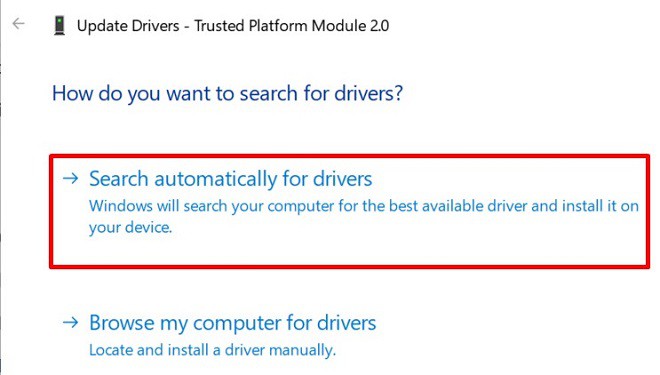
- Next, press the Search automatically for drivers option.
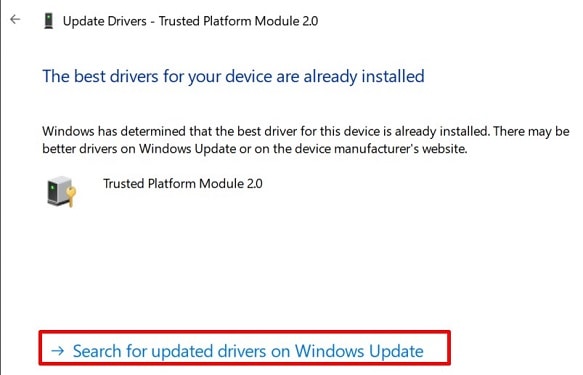
- Wait for a few seconds as the best driver gets updated.
- If you haven’t updated your Windows, you get an option to search for updated drivers. Simply click on it as this navigates you to the Windows update page.
Scan For Hardware Changes
As we mentioned earlier, TPM is responsible for providing hardware securities. So, your final fix is to check for any hardware changes that have taken place. Here’s how you can do just that:
- Disable Windows reset and turn on your PC.
- Navigate to Device Manager > Security devices > Trusted Platform Module [number].
- Right-click on it and choose Scan for hardware changes.
Fix: A Configuration change was requested to clear this computer’s TPM
Users experience the error message “A configuration change was requested to clear this computer’s TPM” when they reset their computer. This error usually occurs on used computers as compared to new ones. TPM (Trusted Platform Module) is a specialized chip on your computer that stores the RSA encryption chips specific to your computer for hardware authentication.
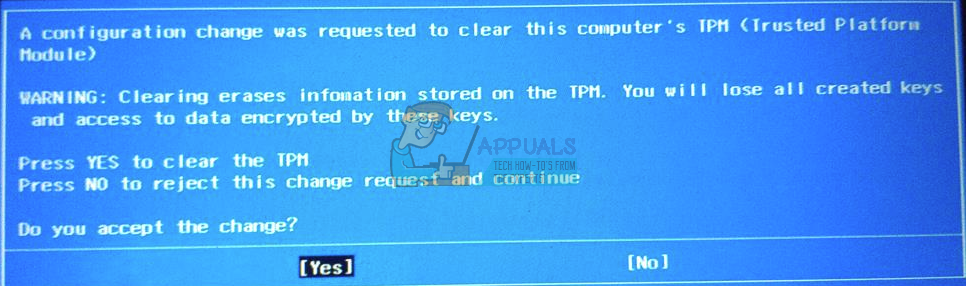
TPM is installed in the motherboard of a computer and communicates with the rest of the system using a hardware bus.
What are the mechanics of hardware authentication?
Each TPM chip has a special RSA key pair known as Endorsement Key. This pair is maintained inside the chip and cannot be accessed by software. An SRK (Storage Rook Key) is formed when an administrator takes ownership of the computer. This key pair is generated by the TPM based on the endorsement key and the owner specific password.
There is also a second key present named as Attestation Key (AK) which protects the device against unauthorized firmware installs and software modifications by hashing critical sections of software and firmware before they are executed.
I am stuck with the Error message. What should I do?
Generally, users get stuck with the error message “A configuration change was requested to clear this computer’s TPM”. They cannot use their keyboard or default trackpad to click either Yes or No. This is because the error message is not letting your system load the necessary drivers for the input devices hence you cannot use them to select the options.
It is safe to click Yes to the error message IF you are indeed resetting the computer and don’t want access to the data which is present on the drive.
Solution 1: Pressing F12
There were many reports which indicated that pressing the ESC key was not working as well as all the arrow and touchpad keys. The screen was displaying the same screen again and again in a loop. If this is the case, try pressing the key “F12” present at the near top of the keyboard. This will reportedly bring your system out of the state and will act as if you clicked on the “Yes” button. The laptop will resume the reset and will be back to normal.
Solution 2: Connecting USB Keyboard/Mouse
Another solution which worked for many users was using a USB keyboard/mouse to select the options involved. But there is a catch; if you connect the keyboard WHILE the blue screen is showing, the computer will not detect the keyboard and you will be unable to choose any of the options.
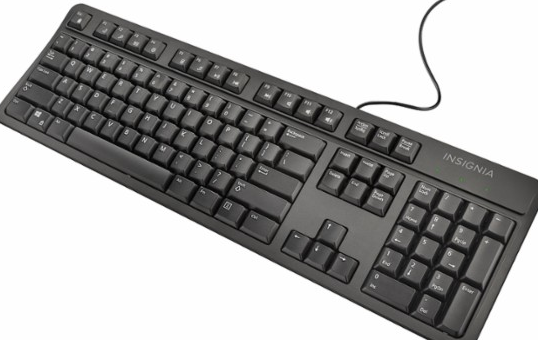
Close your computer, connect the keyboard while the computer is off and turn the computer back on. Your system will most probably boot to the blue screen. Now use the keyboard to select the options and you will be ready to go.
You can also try this method in case of owning a PC. Disconnect and connect the keyboard like explained earlier.
Solution 3: Using Volume up button
What if you have a touch laptop (Surface Pro) and don’t have access to the touchscreen when the error message pops up? Reportedly, the machine will ignore all the inputs you make when it is prompting you to make a choice.
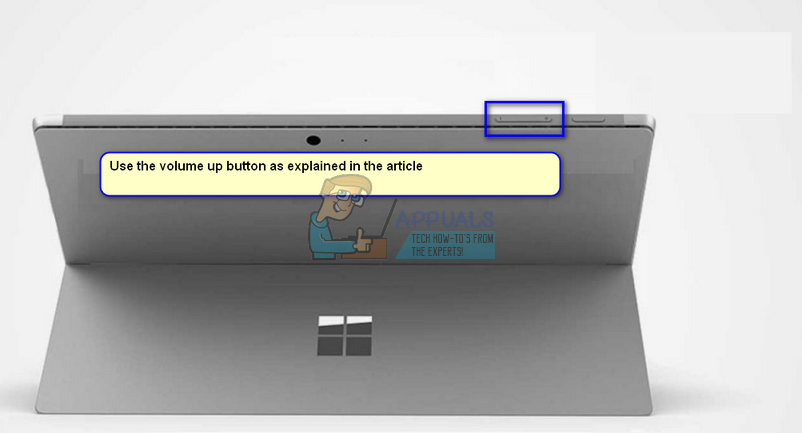
The workaround to this error message if you have a touch device is using the physical volume up/down keys to select a choice. The volume buttons are embedded on your device permanently and are part of the hardware itself. This is why they will work instead of the attached keyboard or touch (since they require drivers from the operating system to load them up).
A Configuration Change Was Requested to Clear This Computer’s TPM
It is very annoying to meet the “A configuration change was requested to clear this computer’s TPM” error during the process of resetting your computer. Luckily, you can find several useful methods to fix the error in this post. Get these methods from the MiniTool website.
A Configuration Change Was Requested to Clear This Computer’s TPM
When you are resetting your computer, but there is an error message saying that “A configuration change was requested to clear this computer’s TPM”, which is very frustrating. This error often appears on used computers comparing to new computers.
TPM is the abbreviation of Trusted Platform Module. As a particular chip on your PC, it is used to store the RSA encryption chips specific to your computer for hardware authentication.
In addition, TPM is installed in the motherboard of your PC and it uses a hardware bus to communicate with the rest of the system.
3 Methods to Fix the “A Configuration Change Was Requested to Clear This Computer’s TPM” Error
The appearance of the “A configuration change was requested to clear this computer’s TPM” error prevents you from using your keyboard or default trackpad to click either Yes or No. So why does this happen?
This is because the error message means that your system cannot load the necessary drivers for the input devices, thus, you can’t use them to choose the options.
So how to fix the “A configuration change was requested to clear this computer’s TPM” error? There are three workable methods listed below.
Method 1: Press the F12 Key
The first method you can try to fix the “A configuration change was requested to clear this computer’s TPM” error is to press the F12 key.
According to the reports, pressing the ESC key was not working as well as all the arrow keys and touchpad keys. The screen cycled through the same screen again and again.
In this case, trying to press the F12 key near the top of the keyboard can help you. According to the reports, this will make your system out of the state and just like you click the Yes button. The laptop will resume the reset and return to normal.
Method 2: Connect USB Mouse/Keyboard
You can also try to connect a USB mouse/keyboard to fix the “A configuration change was requested to clear this computer’s TPM” error. You can use the USB mouse/keyboard to choose the options involved.
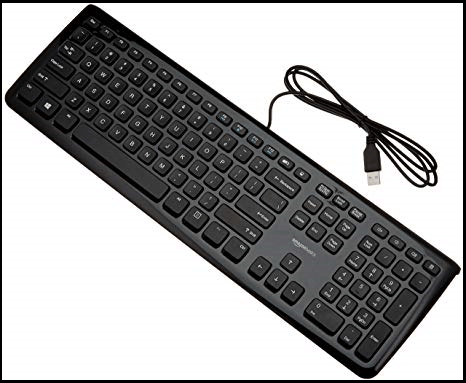
However, if your computer is showing the blue screen when you connect the USB mouse/keyboard, then your computer won’t detect the USB mouse/keyboard so you cannot choose any of the options.
Therefore, you need to close your computer at first, then connect the USB mouse/keyboard when your computer shuts down and then restart your computer. Your system will most possibly start on the blue screen. Then you can use the USB mouse/keyboard to choose the options.
Method 3: Use the Volume up Button
The last method you can try to fix the “A configuration change was requested to clear this computer’s TPM” error is to use the volume up button when you are using s touch laptop. The volume buttons are embedded on your laptop permanently and are part of the hardware itself.
Therefore, you can use the volume up button instead of the attached keyboard or touch.
The Windows 10 Volume icon may fail to work. This post shows how to fix the taskbar volume icon not working Windows 10 with several solutions.
Final Words
From this post, you can know three feasible methods to fix the “A configuration change was requested to clear this computer’s TPM” error when you are trying to reset your computer. So when you meet the error, try the methods mentioned above.
About The Author
Author Sonya has been engaged in editing for a long time and likes to share useful methods to get rid of the common problems of Windows computers, such as Windows Update error. And she aims to help more people to protect their data. What’s more, she offers some useful ways to convert audio and video file formats. By the way, she likes to travel, watch movies and listen to music.
Is It Safe to Clear TPM When Resetting Windows 10/11? [Answered]

Many users report that they are asked to clear TPM when resetting or reinstalling Windows 10/11. Should I clear TPM during reset? Is it safe to clear TPM? Now, let’s explore the answers together with MiniTool.
A lot of users receive the message “ a configuration change was requested to clear this computer’s TPM “ when resetting their PC. Should I clear TPM when reinstalling Windows 10? Is it safe to clear TPM? These questions are heatedly discussed in various forums. Here is a true example from the answer.microsoft.com forum.
When resetting my PC, should I clear TPM? Will my PC be able to reinstall Win10? Win 10 came with my Toshiba Satellite P55W-C laptop. I have reset my PC twice. The second time I erased my personal files & info. Each time, before reinstalling Win10, I was asked if I wanted to clear the TPM.
https://answers.microsoft.com/en-us/windows/forum/all/clearing-tpm/ee0e984c-db00-4d78-be09-f4410f7149c2
What Is TPM
TPM, the abbreviation of Trusted Platform Module, is a microchip attached to the motherboard of certain computers. It is also known as ISO/IEC which provides users with great hardware-based cybersecurity and works as tamper-resistant storage for cryptographic keys.
It can be used to store artifacts used to authenticate your PC like user passwords, encryption keys, and certificates. Besides, it can also store protocols for ensuring the safety of your computer and can be used to enable BitLocker drive encryption on Windows. Here’s how to check the TPM status on Windows 10/11.
Step 1. Press Win + R keys to open the Run dialog box, and then type tpm.msc in it and press Enter.
Step 2. In the pop-up window, scroll down the middle panel to the Status section. If it displays the message “ The TPM is ready for use”, it means that you can enable TPM. Besides, you can check the Specification Version. If it shows 2.0, it indicates the TPM version is 2.0 and your PC can run Windows 11.
Should I Clear TPM During Reset
Sometimes people may have to reset or reinstall Windows 10/11 due to some reasons. However, many users find that Windows always stuck on resetting and asks to clear the computer’s TPM. So, here comes a question — should you clear TPM during reset?
To answer this question, it is necessary to figure out why you need to clear TPM. After analyzing relevant information, we find that the message can appear when you reset/reinstall a computer that has the TPM and BitLocker encryption utilities enabled on.
Why? When you reset a PC to its factory settings or perform a clean reinstallation of the system on a used PC, clearing TPM can make sure the new system can re-deploy any TPM-based functionality completely.
So, should you clear TPM during reset/reinstall? According to the above analysis, we can conclude that it would be better to clear TPM if you want to sell a used computer. If you had encrypted your hard disk using BitLocker, the BitLocker recovery key could be restored from TPM. In this case, clearing TPM can prevent privacy leaks.
Is It Safe to Clear TPM
Is it safe to clear TPM on Windows 10/11? To answer this question, it is necessary to understand what would happen if you clear a computer’s TPM. As the warning message hints, we can conclude that clearing TPM will erase all created keys related to the TPM such as the BitLocker recovery key.
In addition, it will delete all data protected by these TPM-relevant keys, such as a sign-in PIN, virtual smart card, etc. If you want to clear TPM safely, it’s important to pay heed to the following things:
- Make sure you have made a backup of all important data that’s protected by the TPM.
- If you have any keys stored on your computer such as BitLocker recovery keys, make sure you write them down or store them on a USB stick. Also, you can decrypt your hard drive and back up the data before clearing TPM.
- Don’t clear the TPM on a work or school computer without your IT administrator’s instructions.
- Don’t clear a computer’s TPM directly from UEFI settings. You can use the TPM management console to clear TPM.
- Since the TPM security is a physical part of your PC, you may need to refer to the manuals depending on the manufacturers.
Should I clear TPM during reset? Is it safe to clear TPM? Now, I believe that you already have known the answers. Let’s see how to clear TPM on Windows 10/11 safely.
How to Clear TPM Windows 10/11 Safely
Here we divide the process of clearing into the following 2 parts. The first step is to back up all important data on your computer, and the second part is to clear the TPM on Windows 10/11.
Part 1. Preparations Before You Clear TPM
As discussed above, clearing TPM will lead to all TPM-protected keys and data loss such as BitLocker encrypted drive. So, it’s crucial to back up the data beforehand. How to make a backup quickly? MiniTool Partition Wizard is a trustworthy tool.
It is a professional partition manager that can back up the BitLocker-protected partition to an external drive quickly. Besides, it can format/extend/resize/wipe partitions, recover lost data, migrate OS, convert MBR to GPT without data loss, etc. Here’s how to back up partitions using the MiniTool software.
Step 1. Connect an external drive to your computer and launch MiniTool Partition Wizard to get its main interface.
Step 2. Select the partition that you want to back up from the disk map and click on the Copy Partition from the left action panel.
Step 3. In the pop-up window, select the external drive and click on Next to create the backup of the selected partition.
In addition, you need to back up other TPM-related keys and data such as sign-in PIN. Once down, you can move down the following part.
Part 2. How to Clear TPM on Windows 10/11
There are 2 simple ways to clear TPM on Windows 10/11 safely. You can choose one according to your preference.
Way 1. Use Windows Security
Step 3. Click on Security processor troubleshooting.
After your computer reboots, the Windows operating system will automatically re-initialize the TPM and take its ownership again.
Way 2. Use TPM Management Console
Step 2. Go to the Actions panel, and then click on Clear TPM and select Restart. Then follow the on-screen prompts to complete the clearing.
How to Troubleshoot TPM Issues on Windows 10/11
Many users encounter TPM issues when resetting or reinstalling Windows 10/11. How to troubleshoot TPM issues? After analyzing extensive user reports on different forums, we summarize several effective troubleshooting methods. Let’s start trying.
# 1. Press the F12 Key
If you receive the “A configuration change was requested to clear this computer’s TPM” error when resetting PC, press the F12 keys to make your system out of this state just like clicking on Yes. Then your PC will resume the reset process and return to normal.
# 2. Press the Volume Key
# 3. Check the TPM Driver
Sometimes the TPM drive can get outdated or corrupted, triggering the TPM issues. So, we recommend you updated or reinstall the TPM driver on Windows 10/11 and see if it works.
Step 2. Expand the Security devices category, and then right-click Trusted Platform Module 2.0 driver and select Update driver.
Step 3. Select Search automatically for drivers and follow the on-screen instructions to install the latest version of TPM drivers automatically. Alternatively, you can download the TPM 2.0 driver from the official Microsoft website.
Step 3. If the TPM issues persist, you can try reinstalling the TPM 2.0 driver by selecting Uninstall device in Step 2.
# 4. Enable TPM in BIOS
If the TPM is disabled or hidden in the UEFI settings, you may encounter TPM issues. In this case, you can follow the steps below to enable TPM in BIOS.
Step 1. Start your computer, and then hold the F2 and Delete hotkey before the computer is booted. By doing so, you will enter BIOS.
Step 2. Navigate to the Boot tab using the left or right arrow key.
Step 3. Find and enable the TPM option. Then save the changes and restart your computer.
Bottom Line
Should you clear TPM during reset? How to clear the TPM safely on Windows 10/11? All the relevant question has been analyzed in detail. If you have any other opinions, please share them with us in the following comment area.
Of course, you can send us an email via [email protected] if you have difficulty using MiniTool Partition Wizard.