MATLAB's 'Save' Function Uncovered
Dive into the world of MATLAB's 'Save' function with us. From basic usage to advanced techniques, we uncover it all. Whether you're a student, programmer, or just a curious learner, this guide is your key to mastering one of MATLAB's most essential functions.
Welcome to the world of MATLAB, where numbers dance and matrices are the life of the party. Today, we’re going to uncover the magic of MATLAB’s ‘Save’ function. Think of it as the secret sauce that keeps your hard work from disappearing into the ether.
Important disclosure: we’re proud affiliates of some tools mentioned in this guide. If you click an affiliate link and subsequently make a purchase, we will earn a small commission at no additional cost to you (you pay nothing extra). For more information, read our affiliate disclosure.
Understanding The Basics Of MATLAB’s ‘Save’ Function
Imagine you’re a painter. You’ve spent hours creating a masterpiece, but you forget to let it dry and it smears. That’s what it’s like to work in MATLAB without using the ‘Save’ function. It’s the drying process for your numerical masterpiece.
The ‘Save’ function in MATLAB is like a digital vault. It securely stores your variables, the precious gems of your MATLAB workspace, into a file. The basic syntax is as simple as saying «Hello, World!» in the programming universe. It’s just save(filename,variables) . But don’t be fooled by its simplicity, this function packs a punch!
Diving Deeper: Advanced Usage Of The ‘Save’ Function
Now that we’ve dipped our toes into the honey pot, let’s dive in deeper. Just as a beekeeper might choose to store different types of honey separately, you can choose to save specific variables or partial variables. The syntax save filename v1 v2 lets you save only variables v1 and v2. It’s like choosing to save only the clover and acacia honey, leaving the rest for another day.
And speaking of variety, MATLAB’s ‘Save’ function supports several formats, including .mat (the default), .txt, .ascii, and .csv. It’s like choosing the right jar for your honey — each one has its own merits.
Practical Examples Of Using The ‘Save’ Function
Let’s put theory into practice, shall we? Imagine you’re a physicist working on a complex simulation. You’ve got variables like ‘velocity’, ‘time’, ‘mass’, and ‘force’. You want to save these variables for later analysis. Here’s how you’d do it:
Voila! Your data is now safely stored in ‘physics_simulation.mat’. It’s like having a time capsule of your workspace.
Comparing MATLAB’s ‘Save’ Function With Other Languages
In Python, for instance, you’d use the pickle module to save data. But unlike MATLAB’s ‘Save’, pickle requires you to open a file in write mode, dump the data, and then close the file. It’s a bit like having to build your hive before you can store any honey. MATLAB’s ‘Save’, on the other hand, takes care of all that for you.
Common Issues And Solutions When Using The ‘Save’ Function
Even in the best-maintained apiaries, problems can arise. One common issue with the ‘Save’ function is that it can overwrite existing data without warning. It’s like a clumsy bee spilling honey. To avoid this, you can use the ‘-append’ option to add new data to an existing file without deleting anything.
Improving Performance With The ‘Save’ Function
The ‘Save’ function is not just about storing data, it’s also about doing it efficiently. Here are a few tips to improve its performance:
Документация
save( filename ) сохраняет все переменные из текущей рабочей области в MATLAB ® отформатированный двоичный файл (MAT-файл) под названием filename . Если filename существует, save перезаписывает файл.
save( filename , variables ) сохраняет только переменные или поля массива структур, заданного variables .
save( filename , variables , fmt ) сохраняет в формате файла, заданном fmt . variables аргумент является дополнительным. Если вы не задаете variables , save функция сохраняет все переменные в рабочей области.
save( filename , variables , version ) сохраняет в версию MAT-файла, заданную version . variables аргумент является дополнительным.
save( filename , variables , version ,’-nocompression’) сохраняет переменные в MAT-файл без сжатия. ‘-nocompression’ отметьте только поддерживает Версию MAT-файла 7 (значение по умолчанию) и Версия 7.3. Поэтому необходимо задать version как ‘-v7’ или ‘-v7.3’ . variables аргумент является дополнительным.
save( filename , variables ,’-append’) добавляют новые переменные к существующему файлу. Если переменная уже существует в MAT-файле, то save перезаписи это со значением в рабочей области.
Для ASCII-файлов, ‘-append’ добавляют данные в конец файла.
Чтобы добавить к MAT-файлу Версии 6, необходимо также включать ‘-v6’ как входной параметр.
save( filename , variables ,’-append’,’-nocompression’) добавляют новые переменные к существующему файлу без сжатия. Существующим файлом должна быть Версия MAT-файла 7 (значение по умолчанию) или 7.3.
save filename форма команды синтаксиса. Форма команды требует меньшего количества специальных символов. Вы не должны вводить круглые скобки или заключать вход в одинарные или двойные кавычки. Разделите входные параметры пробелами вместо запятых.
Например, чтобы сохранить файл с именем test.mat , эти операторы эквивалентны:
Можно включать любые из входных параметров, описанных в предыдущих синтаксисах. Например, чтобы сохранить переменную под названием X :
Не используйте форму команды когда любые из входных параметров, таких как filename , переменные или строки.
Примеры
Сохранение всех переменных рабочей области в MAT-файл
Сохраните все переменные из рабочей области в бинарном MAT-файле, test.mat . Если filename переменная, используйте синтаксис функций.
В противном случае также можно использовать синтаксис команд.
Удалите переменные из рабочей области, и затем получите данные с load функция.
Сохранение определенных переменных в MAT-файл
Создайте и сохраните две переменные, p и q , к файлу под названием pqfile.mat .
MATLAB® сохраняет переменные в файл, pqfile.mat , в текущей папке.
Также можно использовать синтаксис команд, чтобы сохранить переменные, p и q .
Сохранение данных в ASCII файле
Создайте две переменные, сохраните их в ASCII-файл, и затем просмотрите содержимое файла.
type функционируйте отображает содержимое файла.
В качестве альтернативы используйте синтаксис команд для save операция.
Сохранение полей структуры как отдельных переменных
Создайте структуру, s1 , это содержит три поля, a B , и c .
Сохраните поля структуры s1 как отдельные переменные в файле под названием newstruct.mat .
Проверяйте содержимое файла с помощью whos функция.
Сохранение переменных в MAT-файл версии 7.3
Создайте две переменные и сохраните их в MAT-файл Версии 7.3 под названием example.mat .
Также можно использовать синтаксис команд для save операция.
Сохраните переменные в MAT-файл без сжатия
Создайте две переменные и сохраните их, без сжатия, к Версии 7 или 7.3 MAT-файл под названием myFile.mat .
В качестве альтернативы используйте синтаксис команд для save операция.
‘-nocompression’ флаг упрощает более быстрое сохранение для тех переменных, которые больше, чем 2 Гбайт или те, которые не извлекают выгоду из сжатия.
Добавление переменной к MAT-файлу
Сохраните две переменные в MAT-файл. Затем добавьте третью переменную к тому же файлу.
Просмотрите содержимое MAT-файла.
Создайте новую переменную, a , и добавьте его к MAT-файлу.
Просмотрите содержимое MAT-файла.
Переменная, a , добавлен к test.mat , не перезаписывая предыдущие переменные, p и q .
Примечание
Чтобы добавить к MAT-файлу Версии 6, задайте оба ‘-v6’ и ‘-append’ . Например, чтобы сохранить переменную a к файлу, test.mat , вызов:
Добавление переменной к MAT-файлу без сжатия
Сохраните две переменные в MAT-файл. Затем добавьте третью переменную, без сжатия, к тому же файлу.
Создайте две переменные A и B и сохраните их в 7 Версии MAT-файла или 7.3 . По умолчанию, save функционируйте переменные A сжатий и B прежде, чем сохранить их в myFile.mat .
Просмотрите содержимое MAT-файла.
Создайте новую переменную C и добавьте его, без сжатия, к myFile.mat .
Просмотрите содержимое MAT-файла.
Входные параметры
filename — Имя файла
‘matlab.mat’ (значение по умолчанию) | вектор символов | строковый скаляр
Имя файла в виде вектора символов или строкового скаляра. Если вы не задаете filename , save функция сохраняет в файл с именем matlab.mat .
Если filename не имеет никакого расширения (то есть, никакой период, сопровождаемый текстом), и значение format не задан, затем MATLAB добавляет .mat . Если filename не включает полный путь, MATLAB сохраняет в текущую папку. У вас должно быть разрешение записать в файл.
При использовании формы команды save , вы не должны заключать вход в одинарные кавычки. Однако, если filename содержит пробел, необходимо заключить аргумент в одинарные кавычки. Например, save ‘filename withspace.mat’ .
Примечание
Не используйте форму команды когда filename строка.
Чтобы сохранить переменные рабочей области в MAT-файл в удаленном месте, задайте filename как универсальный локатор ресурса (URL) этой формы:
scheme_name :// path_to_file / my_file.mat
На основе вашего удаленного местоположения, scheme_name может быть одно из значений в этой таблице.
| Удаленное местоположение | scheme_name |
|---|---|
| Amazon S3™ | s3 |
| Windows Azure ® Устройство хранения данных блоба | wasb , wasbs |
save функционируйте только поддерживает MAT-файлы версии 7.3 сохранения к удаленным местоположениям.
Для получения дополнительной информации о подготовке MATLAB, чтобы получить доступ к вашему сервису оперативного хранения, смотрите работу с Удаленными данными.
Пример: ‘myFile.mat’
Пример: ‘s3://bucketname/path_to_file/my_file.mat’
variables — Имена переменных, чтобы сохранить
вектор символов | строковый скаляр
Имена переменных, чтобы сохранить в виде векторов символов или строковых скаляров. При использовании формы команды save , вы не должны заключать вход в одинарные кавычки.
Примечание
Не используйте форму команды когда variables строка.
variables может быть в одной из следующих форм.
| Форма variables Входной параметр | Переменные, чтобы сохранить |
|---|---|
| var1. varN | Сохраните перечисленные переменные в виде векторов отдельного символа или строк. Используйте ‘*’ подстановочный знак, чтобы совпадать с шаблонами. Например, save(‘filename.mat’,’A*’) сохраняет все переменные в файле, которые запускаются с A . |
| ‘-regexp’, expr1. exprN | Сохраните только переменные, имена которых совпадают с регулярными выражениями в виде векторов символов или строк. Например, save(‘filename.mat’,’-regexp’,’^Mon’,’^Tues’) сохраняет только переменные в файле, имена которого начинаются с Mon или Tues . |
| ‘-struct’, structName | Сохраните поля скалярной структуры, заданной structName как отдельные переменные в файле. Например, save(‘filename.mat’,’-struct’,’S’) сохраняет скалярную структуру, S . |
| ‘-struct’, structName, field1. fieldN | Сохраните заданные поля заданной скалярной структуры как отдельные переменные в файле. Например, save(‘filename.mat’,’-struct’,’S’,’a’,’b’) сохраняет поля S.a и S.b . |
| ‘-struct’, structName , ‘-regexp’, expr1. exprN | Сохраните только поля, имена которых совпадают с регулярными выражениями в виде векторов символов или строк. |
fmt FileFormat
‘-mat’ (значение по умолчанию) | ‘-ascii’ | ‘-ascii’,’-tabs’ | ‘-ascii’,’-double’ | ‘-ascii’,’-double’,’-tabs’
Формат файла в виде одного из следующих. При использовании формы команды save , вы не должны заключать вход в одинарные или двойные кавычки, например, save myFile.txt -ascii -tabs .
Бинарный формат MAT-файла.
Текстовый формат с 8 цифрами точности.
Формат разделенного текста вкладки с 8 цифрами точности.
Текстовый формат с 16 цифрами точности.
Формат разделенного текста вкладки с 16 цифрами точности.
Для MAT-файлов данные экономили на одной машине и загрузили на другой машине, сохраняет столько же точности и области значений сколько различная машина, которую позволяют форматы с плавающей точкой.
Используйте один из текстовых форматов, чтобы сохранить числовые значения MATLAB в текстовые файлы. В этом случае:
Каждой переменной должен быть двумерный double массив.
Выход включает только действительный компонент комплексных чисел.
MATLAB записывает данные от каждой переменной последовательно к файлу. Если вы планируете использовать load функционируйте, чтобы считать файл, все переменные должны иметь одинаковое число столбцов. load функция создает одну переменную из файла.
Если вы задаете текстовый формат, и любая переменная является двумерным символьным массивом, то MATLAB переводит символы в их соответствующие внутренние коды ASCII. Например, ‘abc’ появляется в текстовом файле как:
При сохранении в удаленное местоположение, save только поддержки, задающие fmt как ‘-mat’ .
Типы данных: char | string
version ‘MATFileVersion’
‘-v7’ (значение по умолчанию) | ‘-v7.3’ | ‘-v6’ | ‘-v4’
Версия MAT-файла в виде одного из следующих. При использовании формы команды save , вы не должны заключать вход в одинарные или двойные кавычки.
Сохранение и загрузка частей переменных и всех функций Версии 7. Версия 7.3 также поддерживает переменные сохранения без сжатия с помощью ‘-nocompression’ опция.
Unicode ® кодировка символов, которая включает совместный доступ к файлам между системами, которые используют различные схемы кодировки символов по умолчанию и все функции Версии 6. Версия 7 также поддерживает переменные сохранения без сжатия с помощью ‘-nocompression’ опция.
N-мерные массивы, массивы ячеек, массивы структур, имена переменных дольше, чем 19 символов и все функции Версии 4.
Двумерный double , символ и разреженные массивы.
Если какие-либо элементы данных требуют функций, которые не поддерживает заданная версия, MATLAB не сохраняет те элементы и выдает предупреждение. Вы не можете задать версию позже, чем ваша текущая версия программного обеспечения MATLAB.
Примечание
Версия 7.3 MAT-файлы используют базирующийся формат HDF5, который требует, чтобы некоторое служебное устройство хранения данных описало содержимое файла. Для массивов ячеек, массивов структур или других контейнеров, которые могут сохранить типы гетерогенных данных, MAT-файлы Версии 7.3 иногда больше, чем MAT-файлы Версии 7.
Чтобы просмотреть или установить версию по умолчанию для MAT-файлов, перейдите к вкладке Home и в разделе Environment, нажмите  Preferences. Выберите MATLAB> General> MAT-Files и затем выберите опцию MAT-file save format.
Типы данных: char | string
Ограничения
При работе с удаленными данными, save функция:
не поддерживает сохранение в HDFS™
не поддерживает сохраняющие переменные рабочей области ни в каком формате кроме как MAT-файл.
Советы
Для большей гибкости в создании ASCII-файлов использовать fprintf .
Сохранение графических объектов с save функция может привести к большому файлу, поскольку файл содержит всю информацию, запрошенную, чтобы регенерировать объект.
Постарайтесь не сохранять фигуры с save функция. Используйте savefig функцию вместо этого. Используя save сохранить фигуру в R2014b или позже делает MAT-файл недоступным в более ранних версиях MATLAB. Если вы используете save чтобы сохранить фигуру, затем функция отображает предупреждающее сообщение. Удалите любые фигуры перед использованием save . Следует иметь в виду, что фигуры не могут быть непосредственно в вашей рабочей области. Например, они могут храниться в структуре или в рабочей области функции обратного вызова.
Как сохранить файл в матлабе
Save workspace variables on disk
Graphical Interface
As an alternative to the save function, select Save Workspace As from the File menu in the MATLAB desktop, or use the Workspace browser.
Description
save by itself stores all workspace variables in a binary format in the current directory in a file named matlab.mat . Retrieve the data with load . MAT-files are double-precision, binary, MATLAB format files. They can be created on one machine and later read by MATLAB on another machine with a different floating-point format, retaining as much accuracy and range as the different formats allow. They can also be manipulated by other programs external to MATLAB.
save(‘filename’) stores all workspace variables in the current directory in filename.mat . To save to another directory, use the full pathname for the filename . If filename is the special string stdio , the save command sends the data as standard output.
save(‘filename’, ‘var1’, ‘var2’, . ) saves only the specified workspace variables in filename.mat . Use the * wildcard to save only those variables that match the specified pattern. For example, save(‘A*’) saves all variables that start with A .
save(‘filename’, ‘-struct’ , ‘s’) saves all fields of the scalar structure s as individual variables within the file filename .
save(‘filename’, ‘-struct’ , ‘s’, ‘f1’, ‘f2’, . ) saves as individual variables only those structure fields specified ( s.f1 , s.f2 , . ).
save( ‘-regexp’ , expr1, expr2, . ) saves those variables that match any of the regular expressions expr1 , expr2 , etc.
save(. ‘ format ‘) enables you to make use of other data formats available with the save function. See the following table.
save filename var1 var2 . is the command form of the syntax.
By default, MATLAB compresses the data it saves to MAT-files. MATLAB also uses Unicode character encoding when saving character data. Specify the -v6 option if you want to disable both of these features for a particular save operation. If you save data to a MAT-file that you intend to load using MATLAB Version 6 or earlier, then you must specify the -v6 option when saving.
To override the compression and Unicode setting for all of your MATLAB sessions, use the Preferences dialog box. Open the Preferences dialog and select General and then MAT-Files. To disable data compression and Unicode encoding, click Ensure backward compatibility (-v6). To turn these features back on, click Use default features (Unicode and compression). See General Preferences for MATLAB in the Desktop Tools and Development Environment documentation for more information.
For information on any of the following topics related to saving to MAT-files, see Exporting Data to MAT-Files in the «MATLAB Programming» documentation:
-
Appending variables to an existing MAT-file Compressing data in the MAT-file Saving in ASCII format Saving in MATLAB Version 4 format Saving with Unicode character encoding Data storage requirements Saving from external programs
Save all variables from the workspace in binary MAT-file test.mat :
Save variables p and q in binary MAT-file test.mat :
Save the variables vol and temp in ASCII format to a file named june10 :
Save the fields of structure s1 as individual variables rather than as an entire structure.
Check what was saved to newstruct.mat :
Read only the b field into the MATLAB workspace.
Using regular expressions, save in MAT-file mydata.mat those variables with names that begin with Mon , Tue , or Wed :
Here is another way of doing the same thing. In this case, there are three separate expression arguments:
Save a 3000-by-3000 matrix uncompressed to file c1.mat , and compressed to file c2.mat . The compressed file uses about one quarter the disk space required to store the uncompressed data:
This example is similar to the last one, except that it saves one variable uncompressed, and then a second variable compressed to the same MAT-file. It then loads this data back into the MATLAB workspace:
Matlab Saveas

In some applications, there is a need to save the output figure file to do further operations like data reading and data analysis from an output file to reference the output figure file. To save a figure to a specific file, we use a saveas statement. SAVEAS is an inbuilt function available on matlab for save the figure to specific file format. We can save the figures in different formats like png, jpg, epsc, etc.
Hadoop, Data Science, Statistics & others
Syntax:
The syntax for Matlab saveas functions as shown below:-
How to Do Matlab Saveas?
The saveas function saves an image with a specific file format, formats like .png, .jpg, and many more. So for this function, we have syntax, as we saw above. For using a saveas function, first, we want to create an image; for creating an image, we use a bar function, the bar is an inbuilt function available on matlab, and the bar graph makes using the bar(x1) function with one bar for each element in x1. If x1 is a y-by-z matrix, then the bar creates y groups of z bars. Or we can create an image using a plot function; the plot is also an inbuilt function available on matlab. The plot is used to draw a continuous line and figure like an analog signal. Then this figure is saved using a saveas function. For saving this created image, we take saveas in parenthesis gcf; then we take a file name with a figure extension. Let us assume we take ‘Barchart11’ as a name with the extension .png, and we also specify the format type in the ‘formattype’ argument.
Examples of Matlab Saveas
Following are the examples are given below:
Example #1
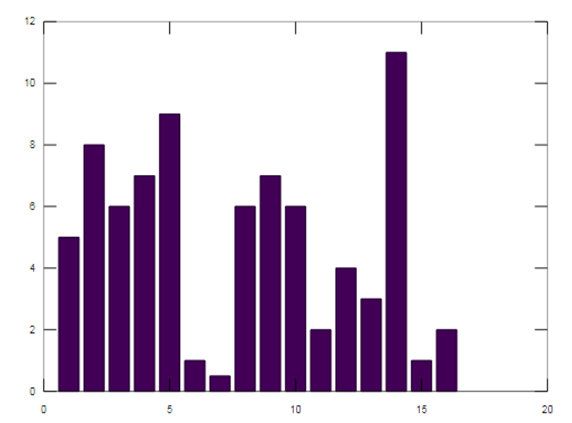
Let us see an example for a saveas statement; the saveas function is an inbuilt function available on a matlab; it is used to save figures to a specific format. In this example, we create a bar chart; for creating a bar chart, we take data in variable x1. We take a bar chart data in a square bracket, a space separates each data number, and these data are assigned to a variable x1. Then we use a bar function available on matlab, an inbuilt matlab function. The bar graph creates using the bar(x1) function with one bar for each element in x1. If x1 is a y-by-z matrix, then the bar creates y groups of z bars. Then this generated bar graph is saving in .png format using a saveas function. We take saveas function in the parenthesis, gcf, then a file name with a figure extension. In this example, we take ‘Barchart11’ as a name with the extension .png. We save a figure in .png format.
Code:
Output:
Example #2
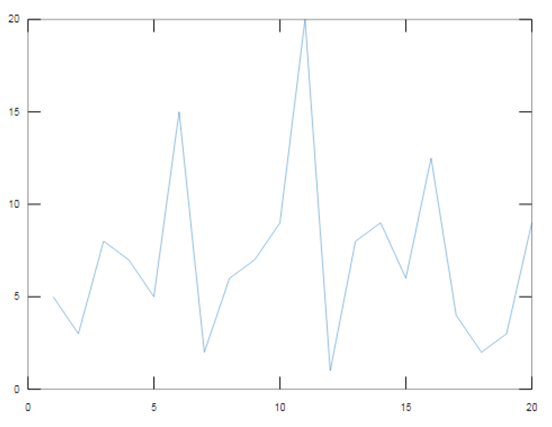
Let us consider an example for the saveas function; we create a figure in this example. For creating a figure, we use a plot; the plot is an inbuilt function available on matlab for creating a continuous signal of provided data. We take two variables, x, and y, for plotting data. In the x variable, we specify a range of 1 to 20 with a difference of 1. In the y variable, we take data that we plot on the x-axis. Then we use a plot(x, y) to generate a figure we want to save using a saveas function. We save this figure as an EPS file and use the epsc command to save it in color format. In the parenthesis, we take gcf. To save a current figure, we must specify fig as gcf, then take a file name, ‘Barchart1’, and specify the format type ‘formattype’ to epsc. In the EPS file, we save a figure.
Output:
Example #3
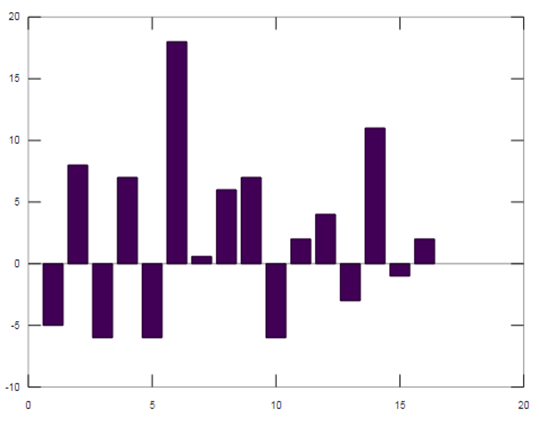
Let us see another example of a saveas statement; in this, we create a bar chart, and we take data in variable y1 for a bar chart. Now we can take the data’s positive and negative integer values and plot the bar graph. We use the bar function to plot the bar graph, which is available on Matlab. Then the generated bar is save in jpg format using saveas statement. We save a figure in the jpg file.
Output:
Conclusion
In this article, we saw the concept of saveas matlab function; saveas is used to save figures to specific file formats. Then saw syntax related to saveas statements and how it is used in matlab code. Also, we saw some examples related to saveas statement and its output on matlab.
Recommended Articles
We hope that this EDUCBA information on “Matlab Saveas” was beneficial to you. You can view EDUCBA’s recommended articles for more information.