Create a Project from GitHub
Let PyCharm do the work to clone and setup a project hosted on GitHub.
From repo to project in no time.
You need to evaluate a project. You need to get a fork. You’re always
getting code. Let PyCharm do the clone and make the project.
We all consume a lot of code. Alas, it’s a number of steps to get all that code from GH, into a directory, and opened in the IDE.
Let the IDE help out. If you have your GitHub credentials in your preferences, a few easy steps in the IDE will get you going.
First, in the PyCharm menu, choose VCS | Checkout from Version Control | Git . You can also skip the keyboard by invoking Find Action and speed searching for ch ve .
This brings up the Clone Repository dialog. In the URL field, speed search some letters in the repo name. The IDE looks across all the organizations that you are in, your personal account, and repos that you’re a collaborator for.
If the repo you want isn’t on GitHub, paste a URL in here.
In the directory field, supply the path and name of the directory this should clone into.
After answering the dialogs to get the repo and open in a window, your project is ready.
Get started with an existing repository from GitHub in PyCharm

When working on programming projects, version control is very important. Git is one popular software that can be used for version control and collaborative work. When working on projects in PyCharm, Git can be integrated into the project so that you can do your work on PyCharm and once tested , then you can publish your work over the internet for the outer world to interact. It also protects your work in case anything happens to your local environment. Jump in !
Perquisites:
- You should have PyCharm installed on your machine.
- You have authorized PyCharm to communicate with your git repo through your login credentials or with token.
You can go to Settings -> Version Control -> GitHub
Or Go to Settings in GitHub . Then Developer Settings -> Personal Access Tokens
Now Let’s go to GitHub and create a repository
Let’s add a python program in this repo .
Now we will clone this repository into PyCharm and start our work there . Click code . Copy the HTTPS link .
Go to PyCharm and navigate to VCS to clone the repository
Paste the URL of the git repository , you want to clone
Now you can see the project on PyCharm .
Let’s edit something in this file and also add a new file
I added a file hello_in_japanese.py . It’s prompting me , do you want to add it to your local git repo. Let’s add it and then commit our change by pressing Ctrl+K
Before committing , we can review the change by using diff (two blue arrows)
- we added an additional line to the existing file
- we added a new file
Write some messages before committing
We are here now and yet to push our changes to remote repository
Status of logs
Observe the state of remote . It has only got record logs of the commit when we created the file when we created the repository in GitHub
State of local repo is at this stage as we added a new file and changed to existing file. It’s one commit ahead of the remote.
Push
Let’s now push the changes to remote by Ctrl+Shift+K and go to our remote github repository.
Now you can see the changed file and new files both are visible.
I will dive into , how can we do collaborative work between multiple branches using Git. Stay tuned.
Как скачать проект с github в pycharm
Reddit and its partners use cookies and similar technologies to provide you with a better experience.
By accepting all cookies, you agree to our use of cookies to deliver and maintain our services and site, improve the quality of Reddit, personalize Reddit content and advertising, and measure the effectiveness of advertising.
By rejecting non-essential cookies, Reddit may still use certain cookies to ensure the proper functionality of our platform.
For more information, please see our Cookie Notice and our Privacy Policy .
Get the Reddit app
Subreddit for JetBrains PyCharm, the Python IDE for professional developers by JetBrains. Find out more about PyCharm at https://www.jetbrains.com/pycharm/
Hi, I got a new laptop and can't figure out how to get my project from Github to Pycharm. I have had this problem for a long time now and it is demoralizing me to no end.
I copied the url to my project from the "clone" part of github.
I went to PyCharm and created a new project.
I created a git repository
I went to remotes from the Git dropdown menu, pasted my url, clicked OK, then OK in the next window.
I went back to Git dropdown and clicked pull and got a different window from the youtube video. Here is a screenshot .
The dropdown menu "Specify branch" had no options. It said to press ctrl F5 to update branches so I did that and master appears in the dropdown menu.
In the Modify options dropdown I clicked Rebase incoming changes on top of current branch. — https://imgur.com/2PssTM8
Finally I clicked Pull and this is the result — https://imgur.com/ejMWBIQ
I don't know what to do. I'm only new to coding and this is setting me back loads. I have googled how to pull and looked at reddit and stackoverflow posts but nothing seems to work for me.
Как открыть проект в pycharm из github
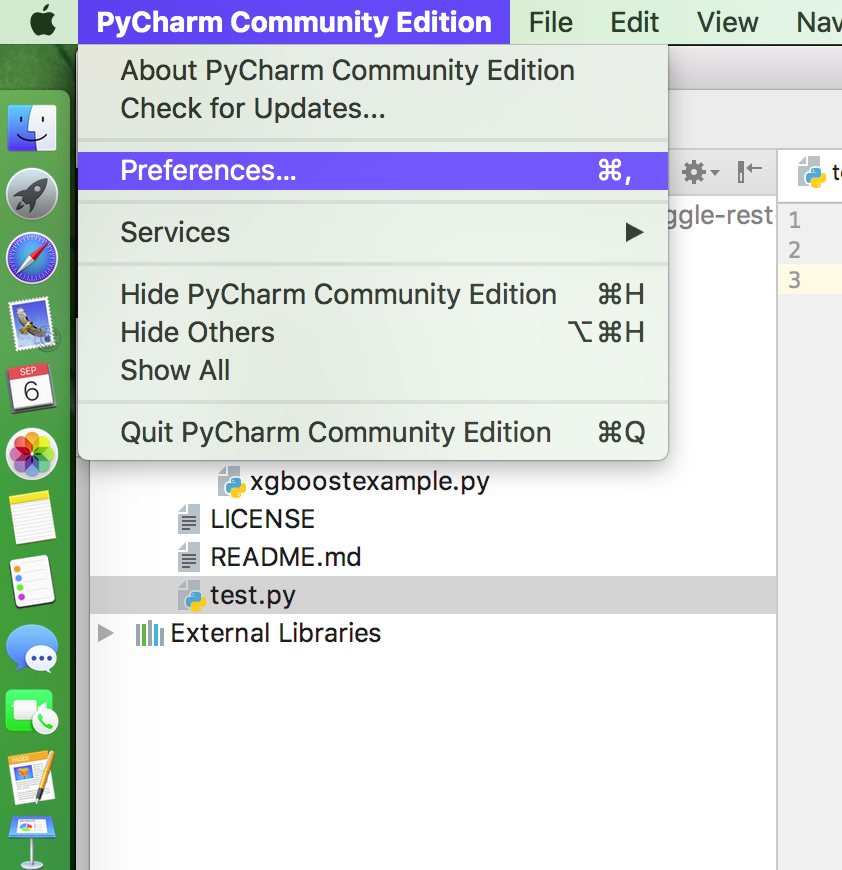
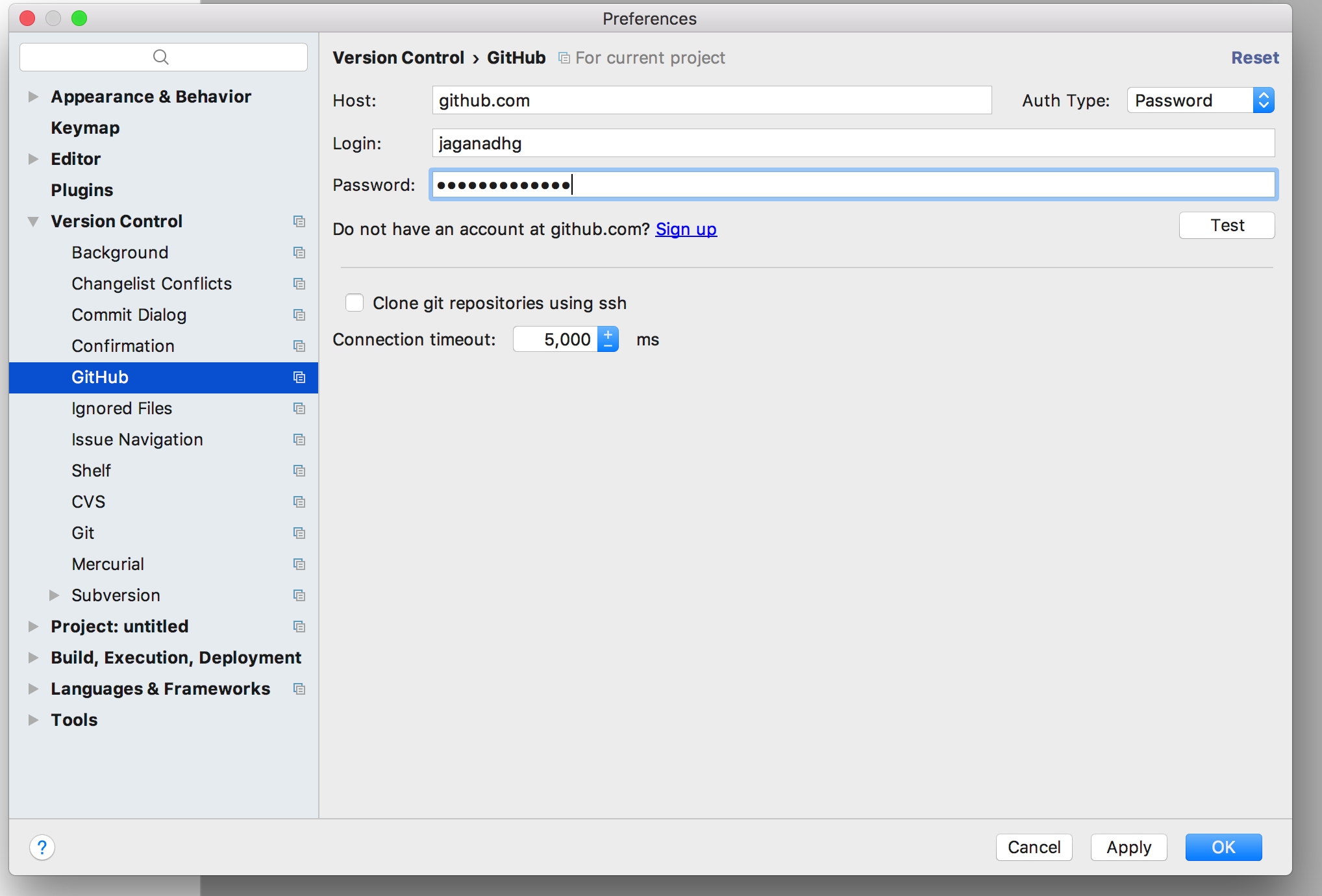
2) Go to “Version Control” –> “GitHub” . Enter your github details.
If you are using enterprice private github provide the URL for the same; like mycrop.devel.github.com .
You can select the auth type as “Password” or “Token”.If you select the password you can etenetr your GitHub username and password.
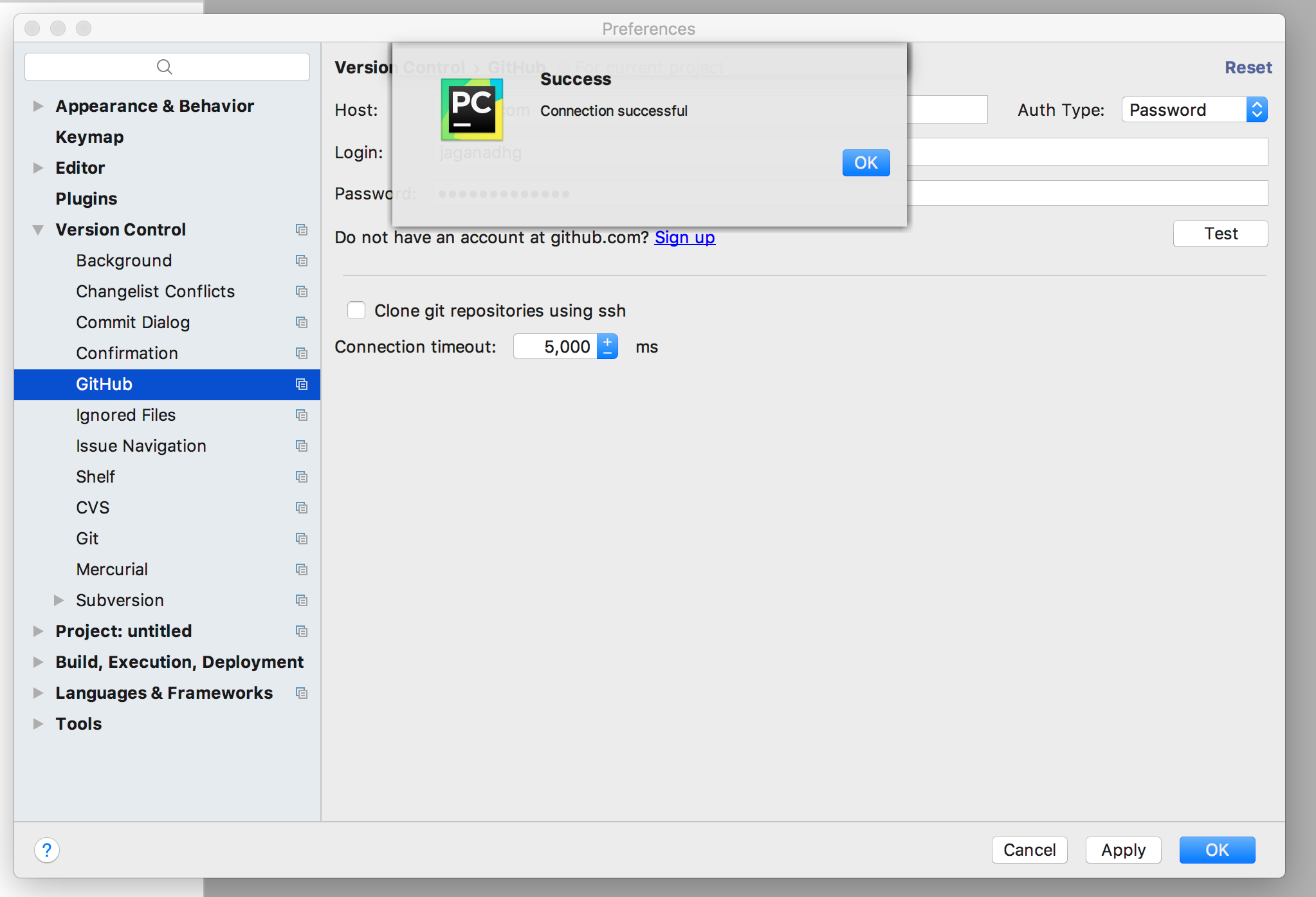
Click on the “Test” button. If the URL, username and password is correct you will see the following screen. If it is not please check your URL/usernamw/password.
3) Click “Ok” the pop-up and bottom.
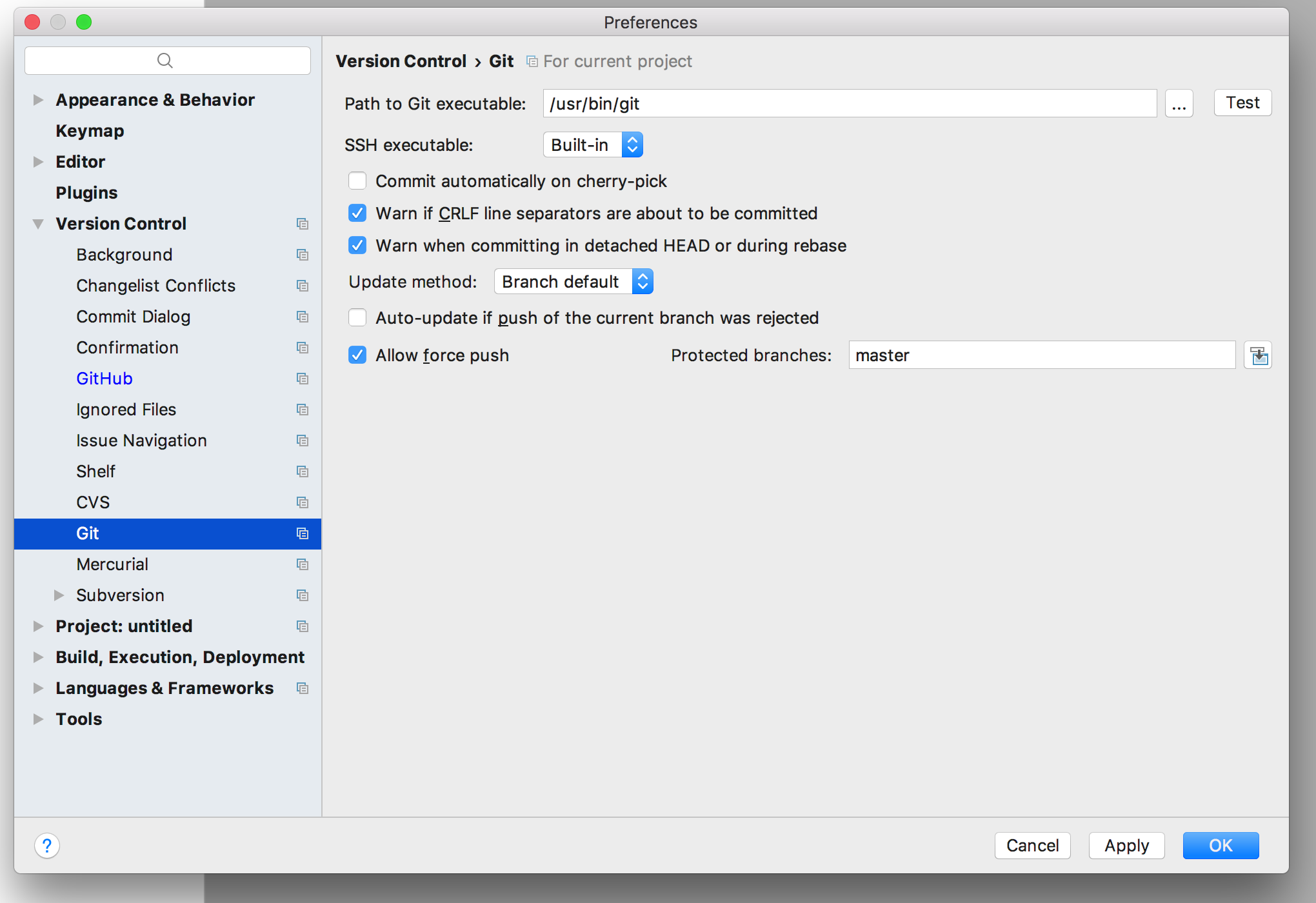
Click on the “…” near the “Test” button. It will open a new pop-up window. If you are in Windows browse to “Program Files (x86)” in the case of 64 bit systems else “Program Files”. Go to “GitHub”–> “bin” and select “git.exe” and click “Open”
In systems like Ubuntu/CentOS/Fedora or MacOsX this step is not required.
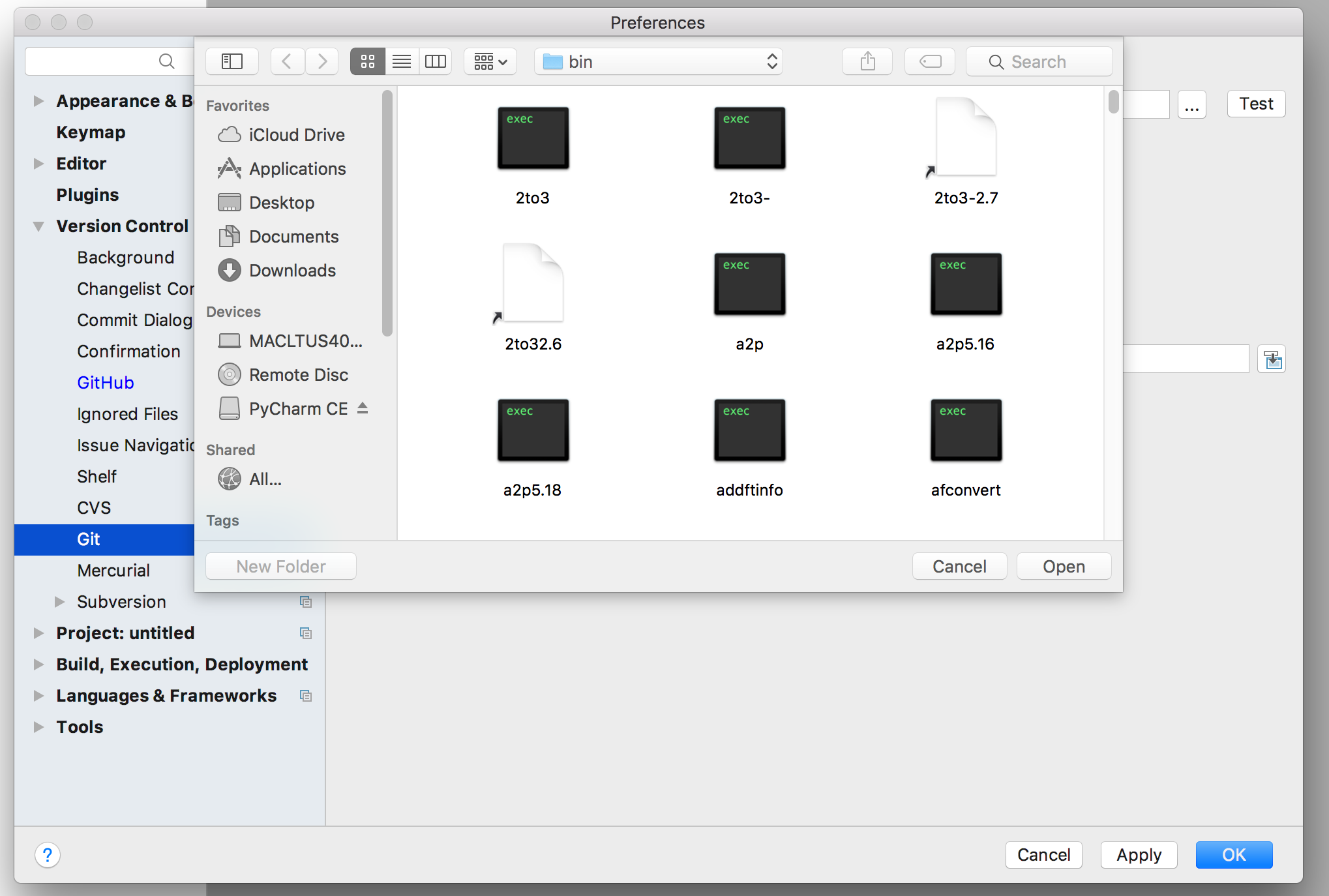
5) Click on “Test” button. If the correct version of the “git.exe” file is selected it will show test successful message. Else you might not have selected the right git.exe file.
6) Click on the “Apply” and then “Ok” button. This will configure the “GitHub” with PyCharm.
Checkingout Code and Commiting Code
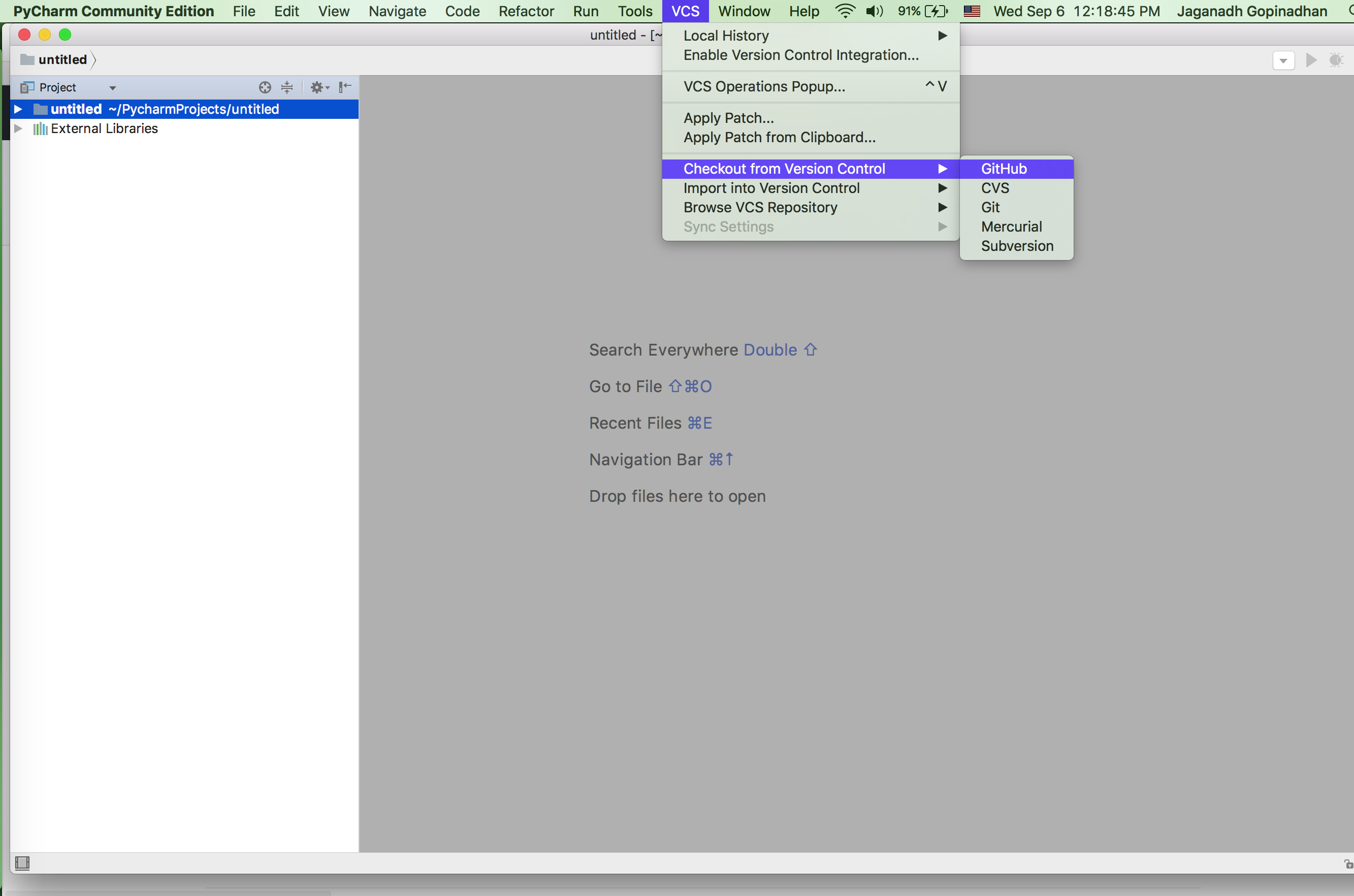
1) From the “VCS” menu go to “Checkout from Version Control” –> “GitHub”
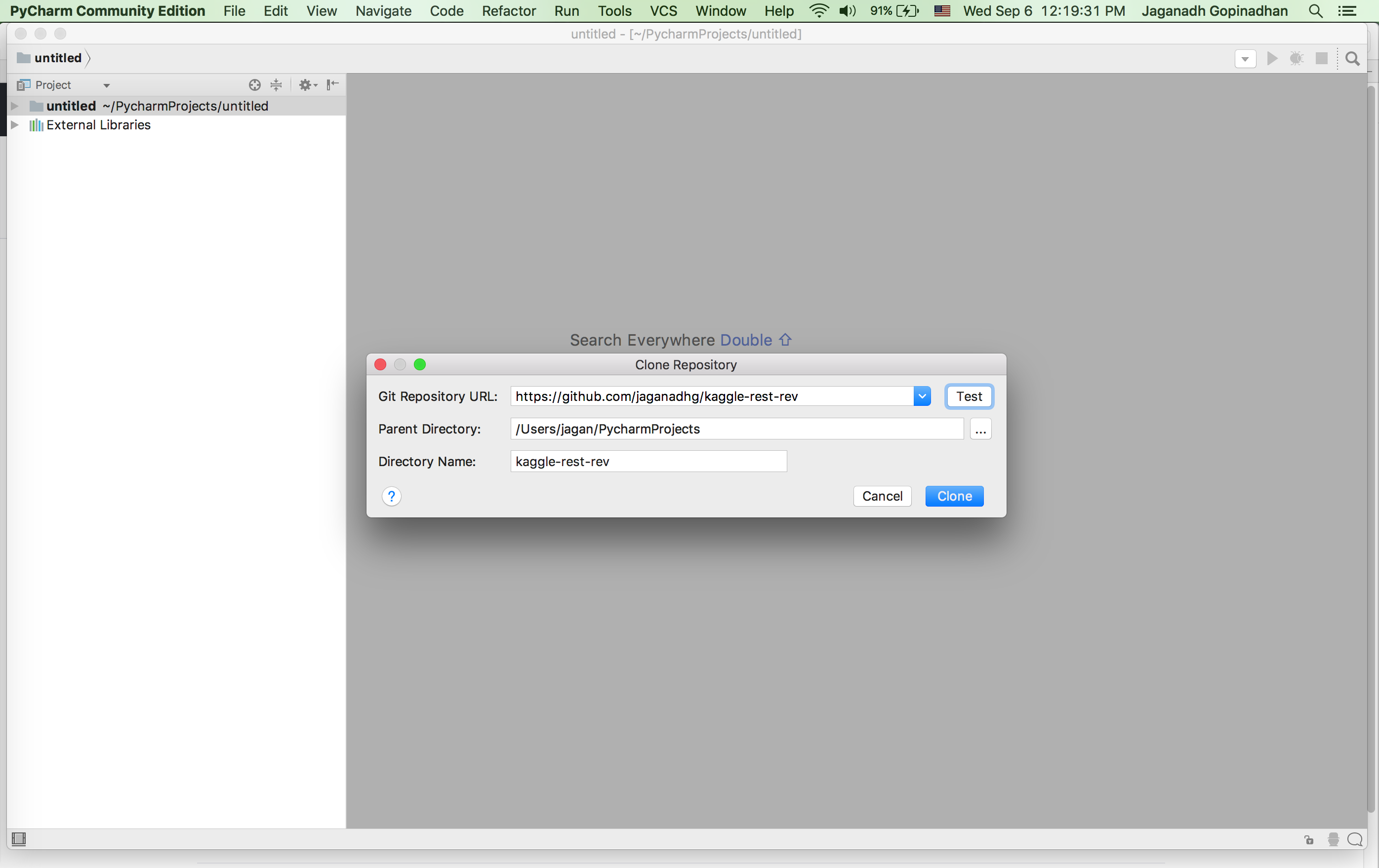
2) It will open a new pop-up window. Enter the complete remote repository URL in the “Git Repository URL:”
Enter or Browse to a dierctory where you would like to store the cloned repo in the “Parent Directory”
You can pride a dierctory name in the “Directory Name:” . Mostly this will be the rempte Git Repo. If you wish chnage the same. Else let it be the same.
3) Click on the “Test” Button to check GitHUb connectivity. If the connection is successful it will show the following window.
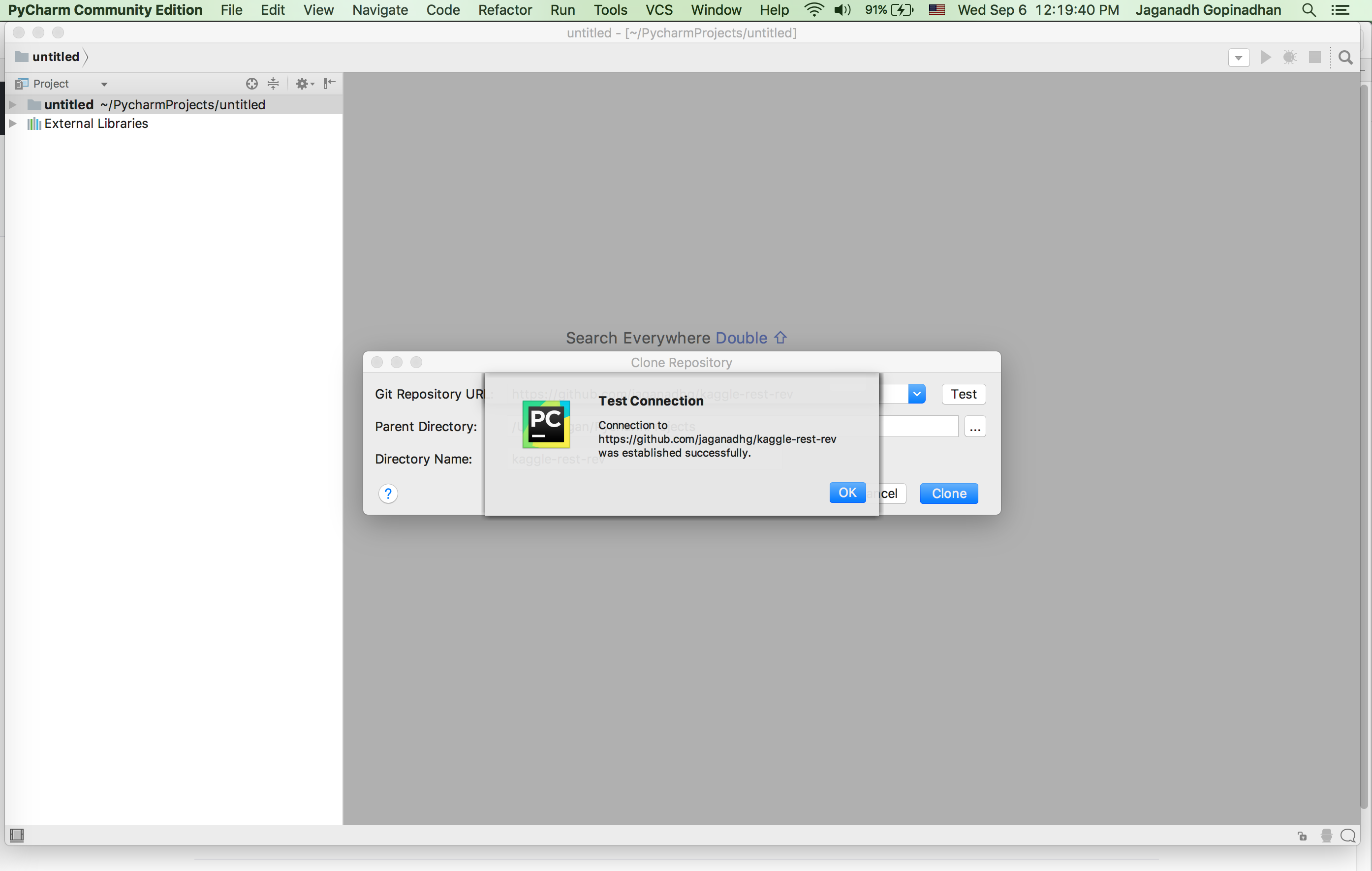
If there is error check the configurations for GitHub.
4) Click “Ok” and it will promt for confirmation. Click “Yes” on the new pop-up window.
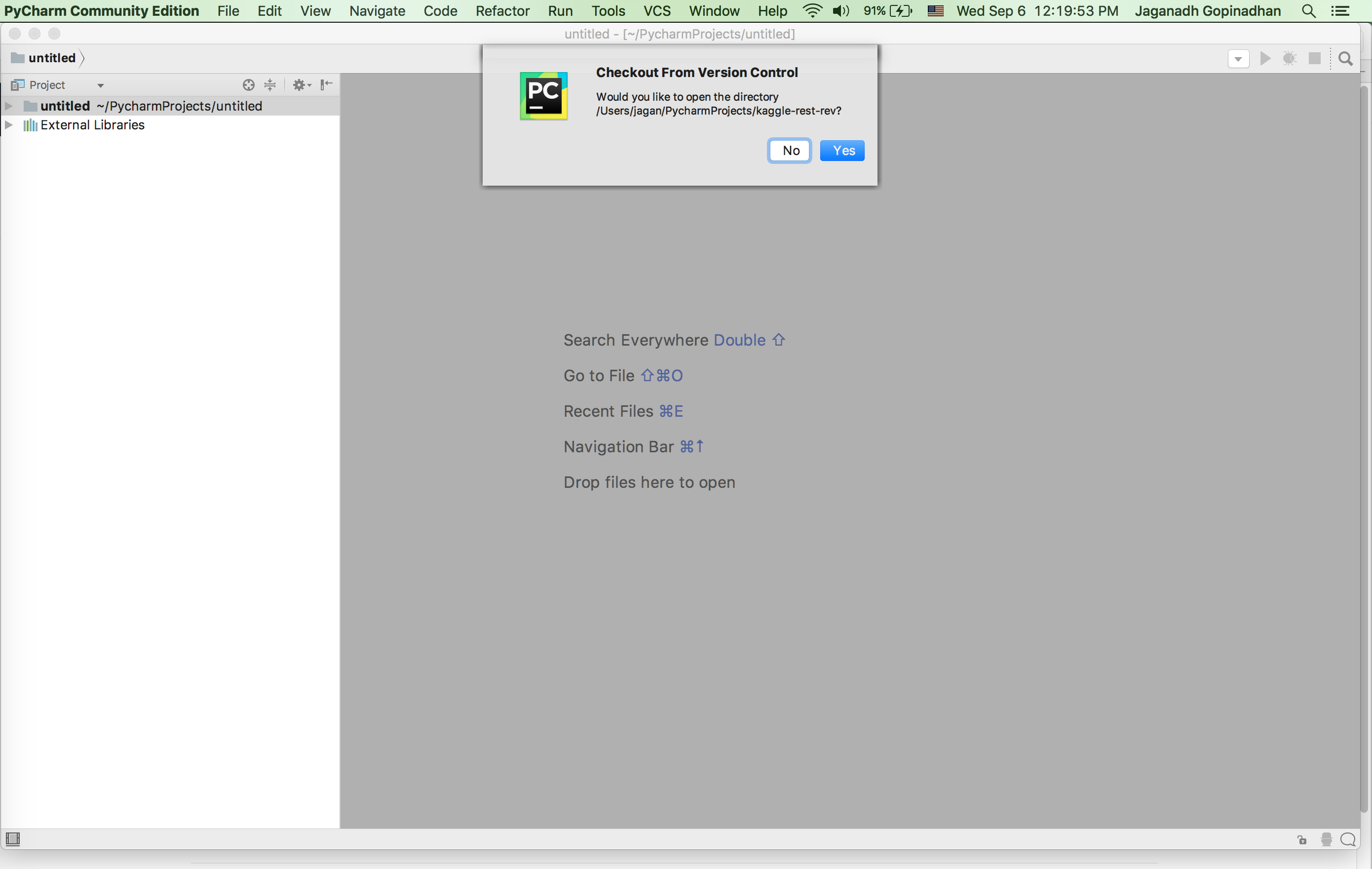
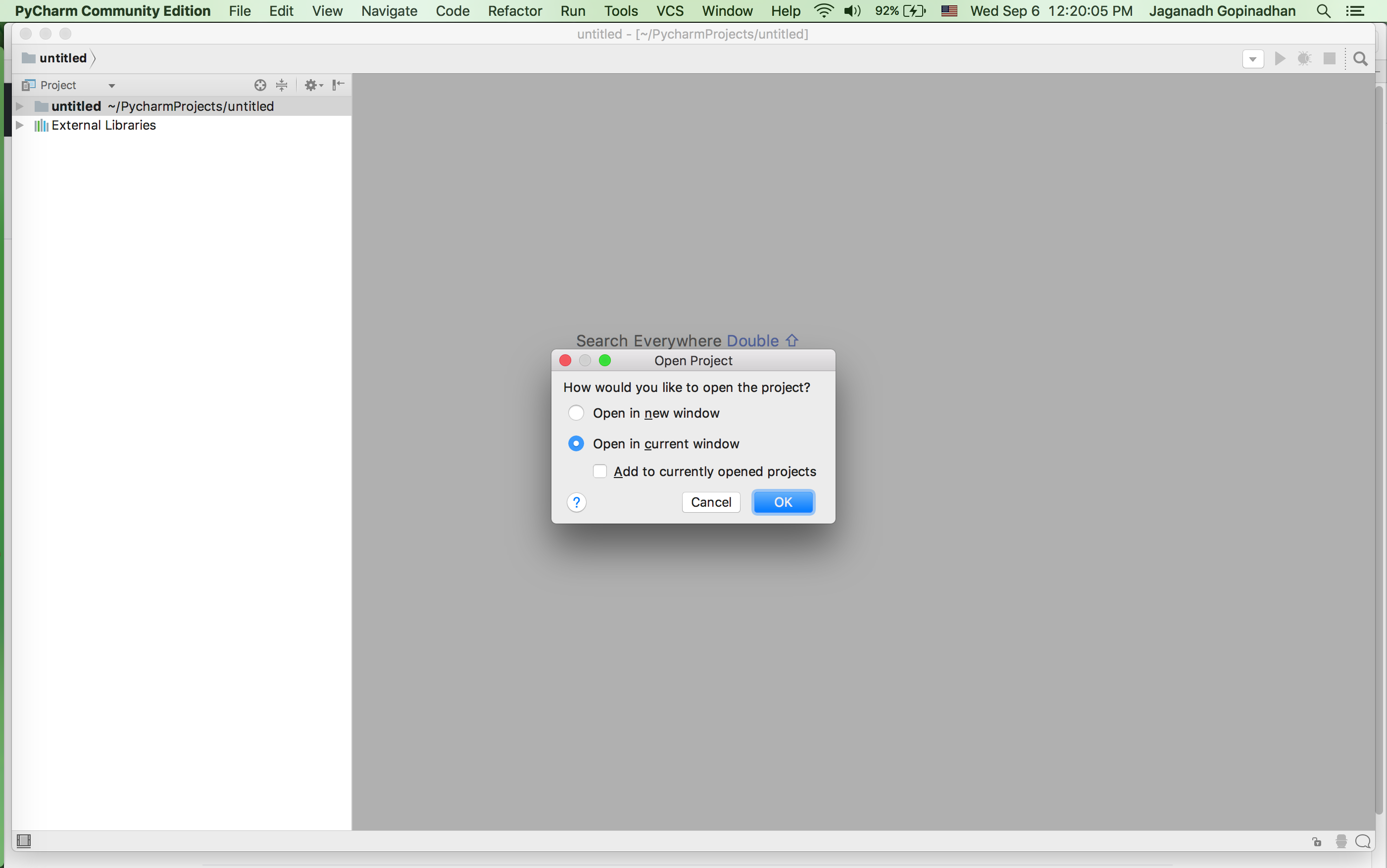
5) Once the ckeck-out is compleated it will ask for confirmation wheather to open in the same window or open a new window. Click on the same window opetion and “Ok” button.
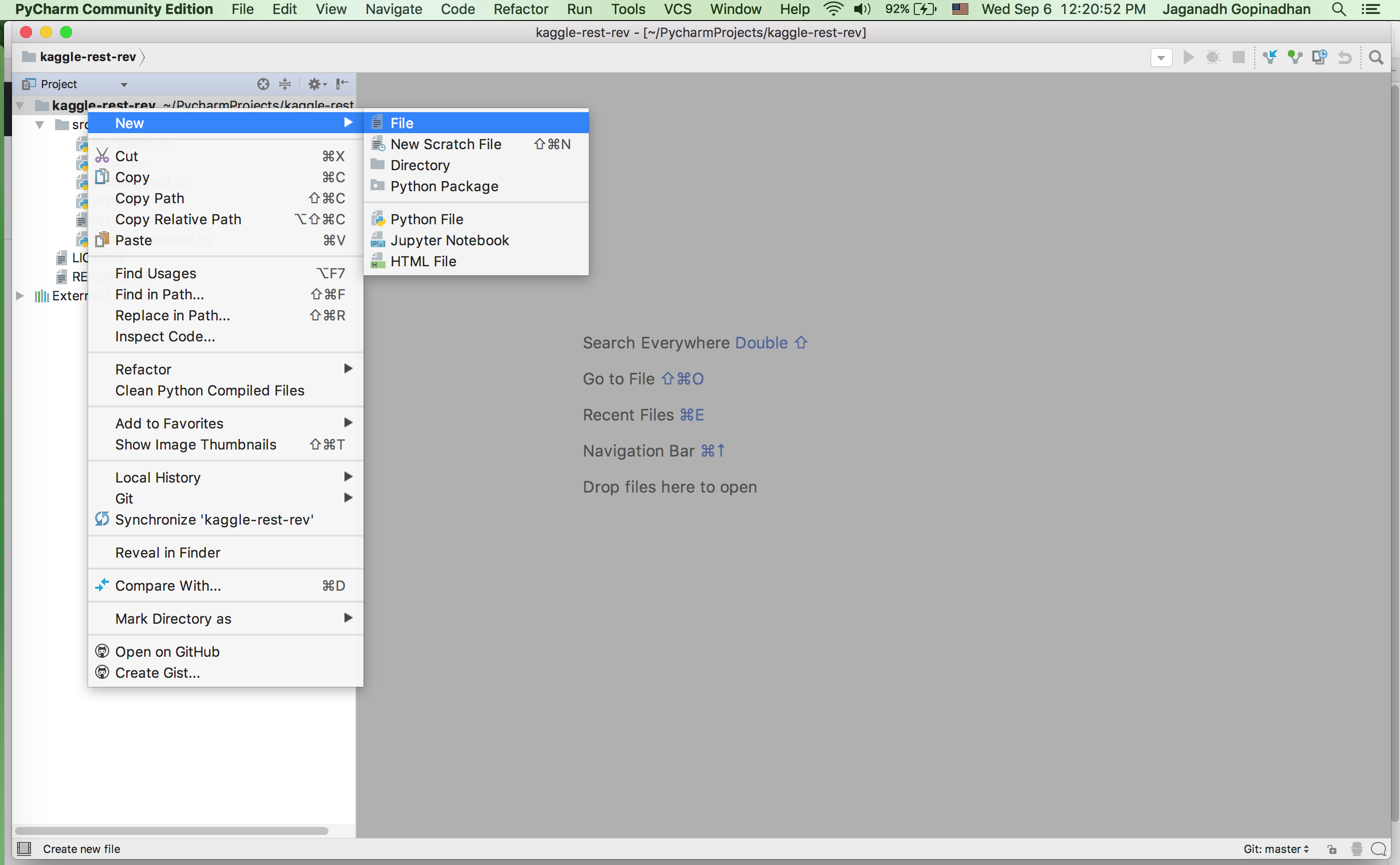
6) Now add a new file
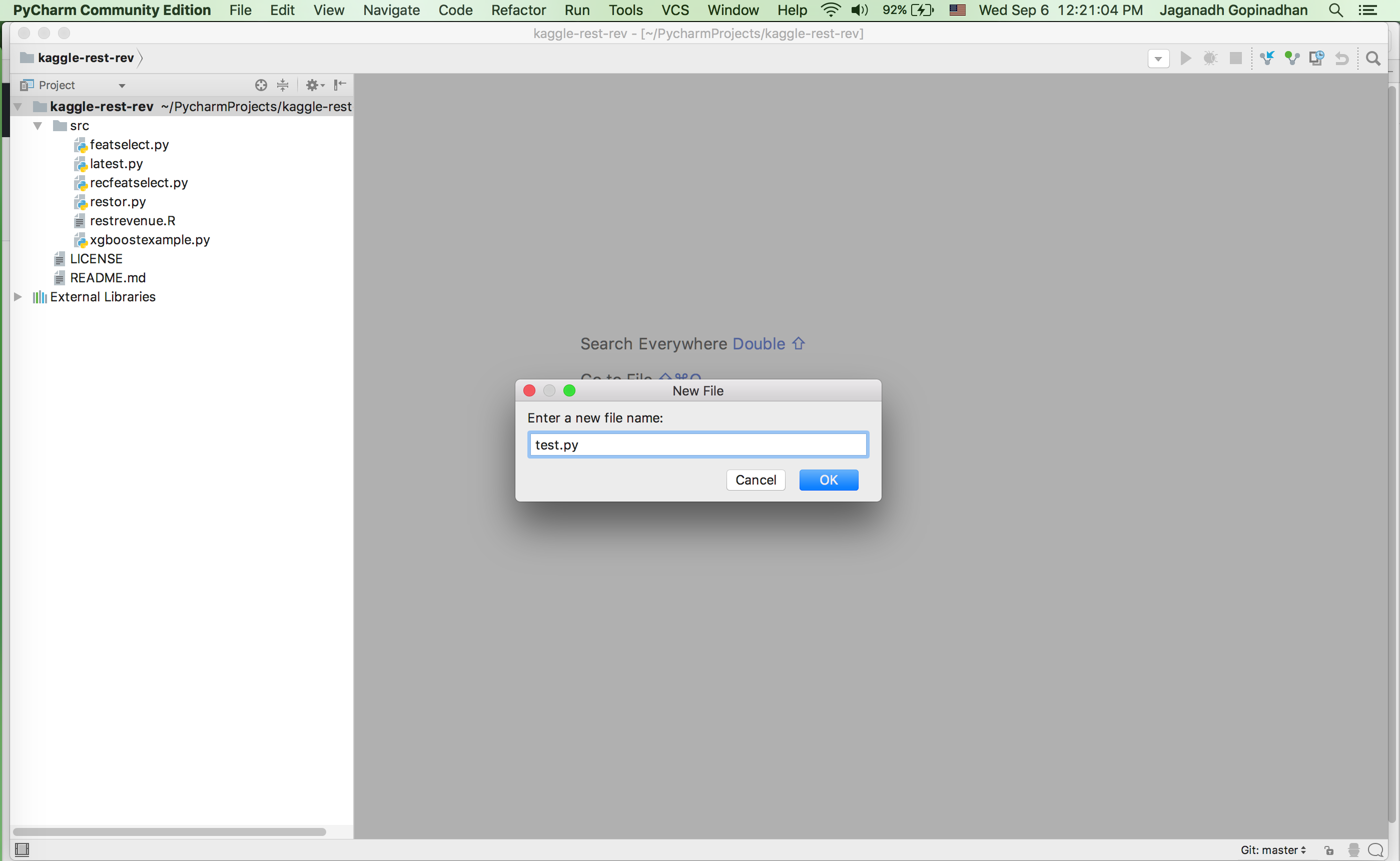
Once you create the file it will ask wheather the file has to be added to version controll. Click “Ok”.
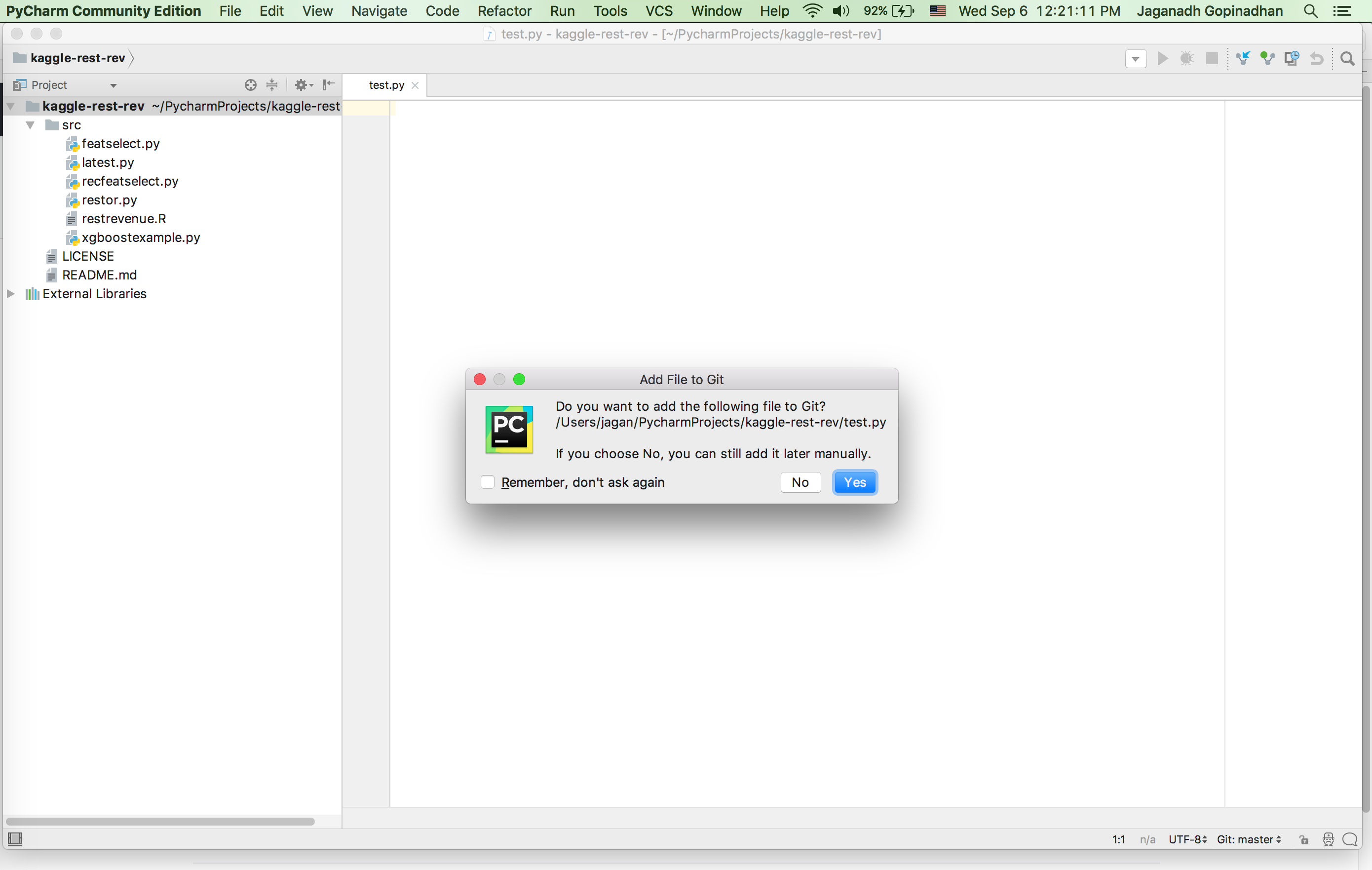
7) Now add some content to the new file. Go to “VCS” –> “Commit”
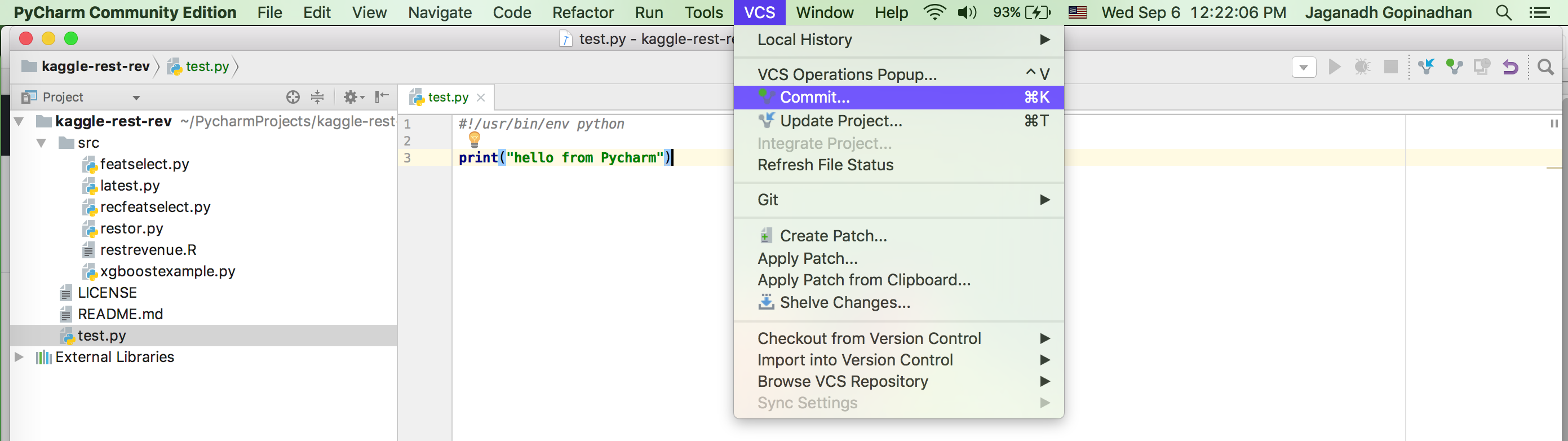
8) It will open a new pop-up . Add a commit message in Commit message box. Click on the Commit button
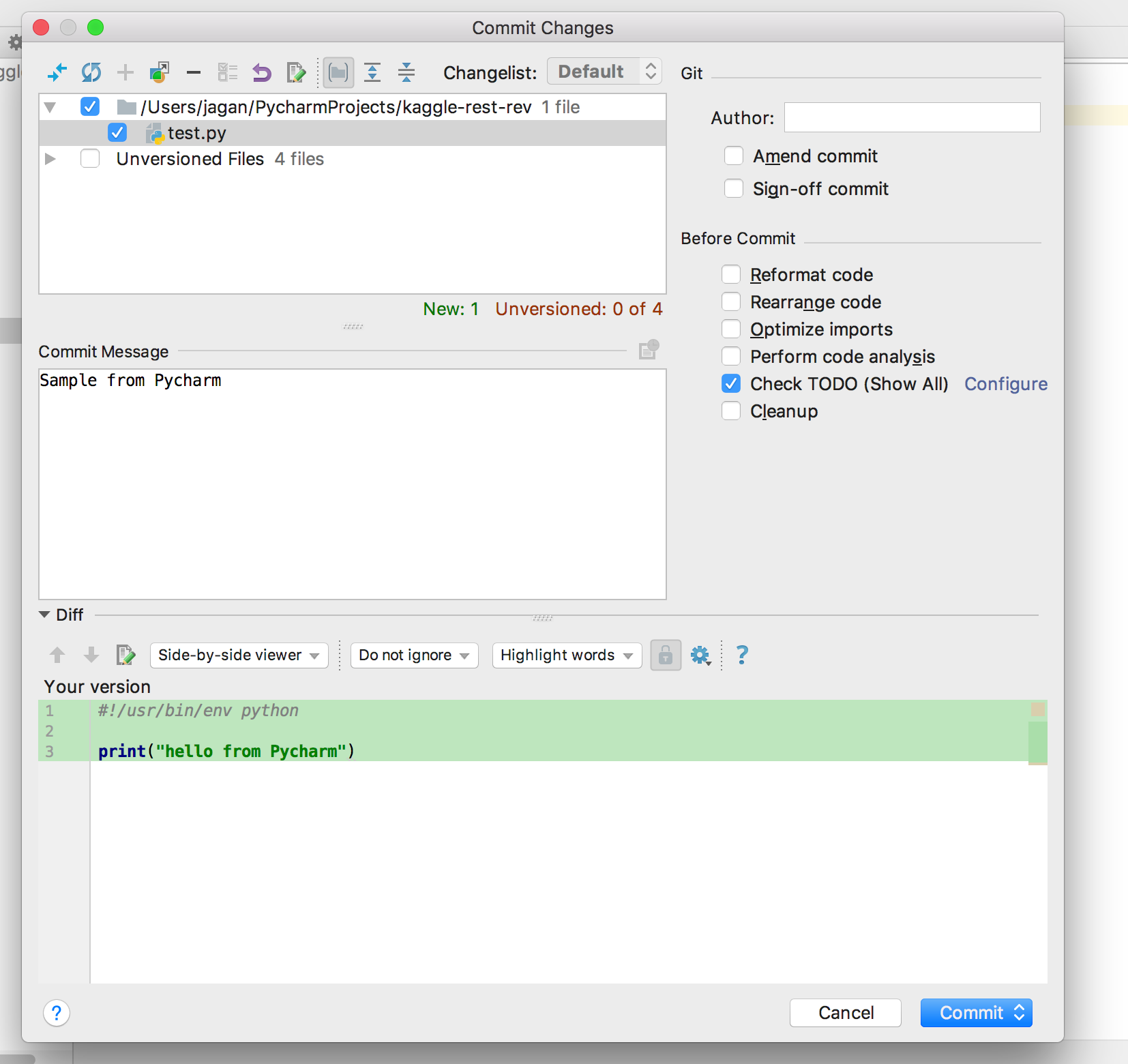
Once the commit is done a small green pop-up will apper in the bottom of PyCharm.
9) Now we have to push it to master. Rightclick on the modified file . Go to “Git” –> Repository –> click “Push”
PyCharm Version Control and git complete tutorial for beginners
replace "My name" and " [email protected] " with your values which will be associated as git account values.
install git for linux
Adding git to Ubuntu and Linux Mint is really easy just by a single command:
Default installation on Ubuntu 18.04 and Linux Mint 18 is:
PyCharm git operation
All version control operations like:
- commit
- pull
- push
- remote
are located in main menu — VCS
For example checking for remotes — linked projects with git can be found:
- VCS
- Git
- Remotes
You can change, delete or add you remotes from the open dialog.
If you work with Version Control you will want to show tool bar Version control by:
- ALT + 9
- or from menu:
- View
- Tool Windows
- Version Control
PyCharm git commit
In order to commit your changes you need to have remove set up.
- go on view Version Control — ALT + 9
- Local Changes
- Select the Changelist — i.e. Default
- Right click
- commit — CTRL + K
- Select what to be commit
- you can commit everything or select only one / several files
PyCharm git push
You can push using the previous section or to push later by using:
- Menu
- VCS
- Git
- Push — CTRL + SHIFT + K
Pycharm git clone
If you want to clone a repository from github.com you can do it by these steps:
- File
- New
- Project from Version Control
- Git
- URL — enter the remote URL address
- for example (Book Think Python) — https://github.com/AllenDowney/ThinkPython.git
- only if you used it for first time
By default you will clone the full repository and will set up the master branch. If you want to change the branch you can clone the address of the other branch.
Pycharm git checkout
If you want to change the current branch or preview older versions (previous commits) you can do it from
- go on view Version Control — ALT + 9
- Log
- Select Revision
- you will see all revision with user and dates on left
- on the right you will see all changes
Pycharm git pull
If you need to pull changes from other users using git can be done by:
- Menu
- VCS
- Git
- Fetch
This will check the remote repository for any changes. In case you need changes you will see them in the Version Control window — ALT + 9 . You can view the new modifications in tab Log. If you want to pull the changes then you can do it from:
- Menu
- VCS
- Git
- Pull
After successful pull request you will see new tab Update Info. There are all changes divided in three different categories:
- Pull(12 items)
- Updated from server(12 items)
- Updated(3)
- Created(7)
- Deleted(2)
PyCharm Version Control
Version Control window can be shown by ALT + 9 or:
- Menu
- View
- Tools Windows
- Version Control
Local Changes
The first tab is named Local Changes inside you can find all your changes separated in changelists. You can do several operations from this tab:
- commit change — CTRL + K — Saving your changes in a repository. Git add adds a change in the working directory to the staging area.
- revert — CTRL + ALT + Z — This will revert (remove, give up) your local changes and will return the older files versions.
- delete — completely delete the file from this project
- Move to another changelist — you may want to maintain several different changelist. This is useful in case of project specific files like IDE, DB settings etc
- ignore — in case that the file is not added to VCS and the remote repository you can ignore files or folders. Several technical folders need to be ignored in order to avoid problems. You can ignore also test directories or big files.
In this tab you can see all revisions and code changes. You can checkout to another version / branch. Compare with previous versions by selecting a file and pressing CTRL + D . New window will be open with two version of your code.
Console
If you want to know what commands are executed or simply check your daily activities related to git. You can visit tab Console. Inside you will find the actual git commands with all parameters. For example:
Update info
The last tab Update info will be shown after successful pull. Inside you can find information about all pulled changes:
- Updated(3)
- Created(7)
- Deleted(2)
Show git information
How to check the current user name or email:
To list everything in the git file:
[email protected]
[email protected]
core.autocrlf=input
core.repositoryformatversion=0
core.filemode=true
core.bare=false
core.logallrefupdates=true
remote.origin.url=https://github.com/xxx/xxx.gitSetup proxy and Git
Setup by command
The easiest way too add proxy to your git configuration is by:
- proxyuser — proxy user ( you can check the proxy configuration Windows 10 — Settings/Network & Internet/Proxy or ubuntu — System/Preferences/Network Proxy)
- proxypwd — proxy password
- proxy.server.com — proxy server
- 8080 — proxy port
Disable git proxy by
Setup by file
If the command line is not your favorite way of working, you can just edit .gitconfig
- For Windows — check %userprofile% variable — the root of your profile — open it by: notepad %userprofile%.gitconfig in command prompt.
- For Linux /home/user — you can access it by:
- bash sudo nano
and add this line:
Cannot run program "git.exe": CreateProcess error=2, The system cannot find the file specified
If you get error:
It means that PyCharm Cannot find the git program on your machine or the path which is setup is wrong. In this case you can:
Импортировать Github-репозиторий в PyCharm
В настоящее время у меня есть репозиторий GitHub, клонированный на моем рабочем столе. Я хочу импортировать его как новый проект в PyCharm.
Это так же просто, как перенести репо в папку «PyCharmProjects» или мне нужно импортировать его через какую-то функцию PyCharm?
Также есть ли способ импортировать Github-репозиторий в PyCharm непосредственно из Github (например, он не клонирован на мою локальную машину)?
У меня есть PyCharm Community Edition 2016.3
6 ответов
Вам даже не нужно перемещать это. Просто выберите «Открыть каталог» и укажите на клонированный репозиторий.
Вы можете выполнить проверку GitHub непосредственно из PyCharm (VCS | Checkout from Version Control | GitHub), но он будет иметь тот же эффект: он спросит вас, где клонировать репозиторий, локально клонировать его, а затем откройте как проект.
Воспользуйтесь меню, если не знаете, как попасть на экран приветствия:
VCS -> Получить из контроля версий.
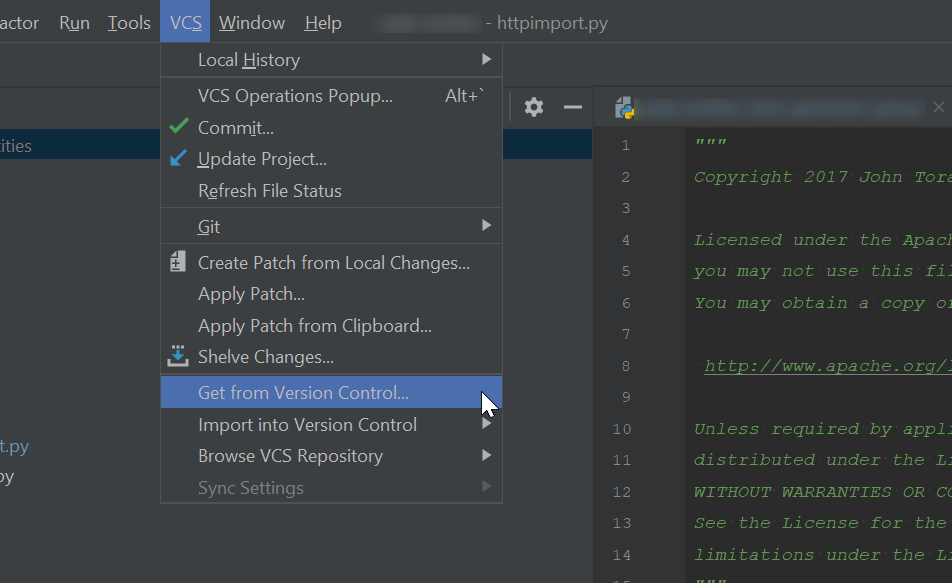
Я хочу показать двухэтапное решение для PyCharm 2020
1- На экране приветствия выберите Получить из управления версиями.
2- Введите URL-адрес в поле
Другой популярный способ для Mac — просто перетащить клонированный репозиторий на иконку PyCharm в доке.
- Updated from server(12 items)